
At a Glance
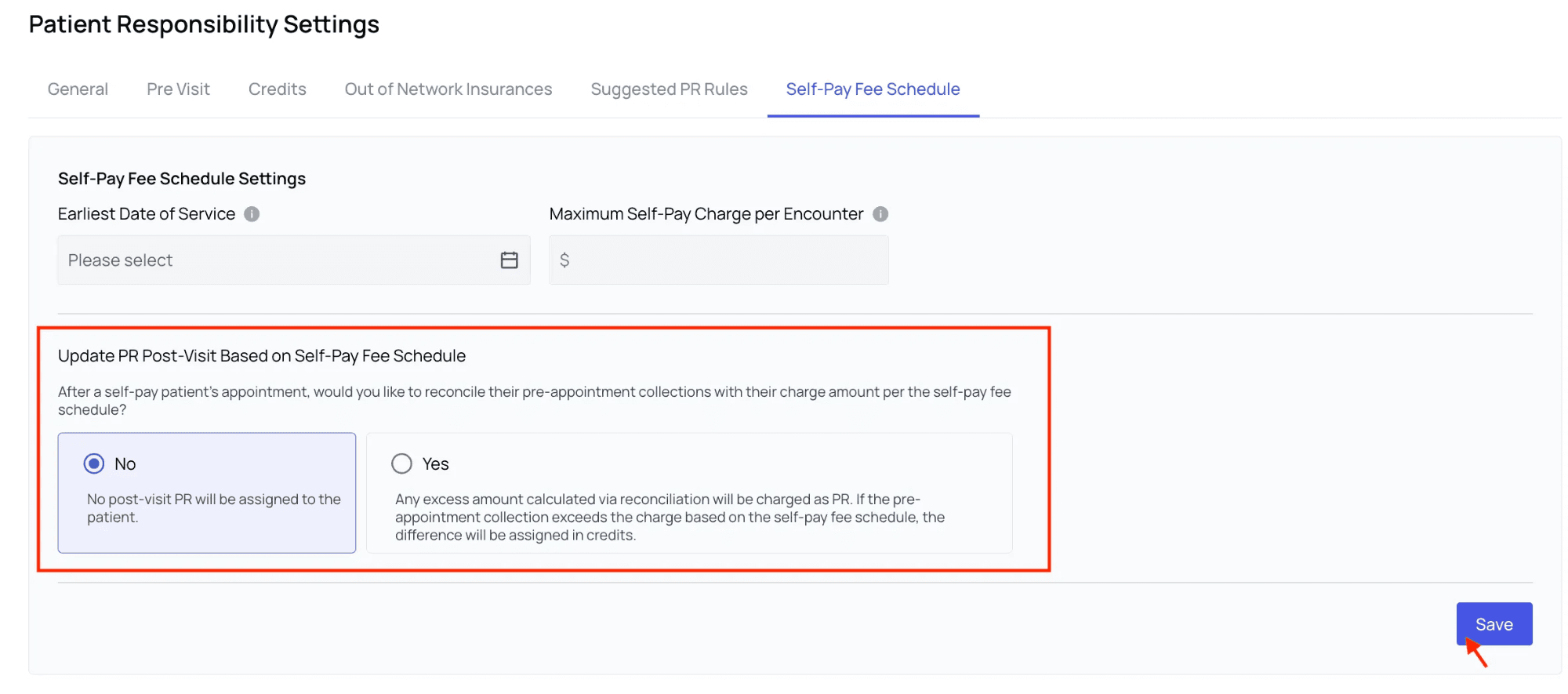
Adding or updating your Self-Pay Fee items will allow Insights to automatically generate Patient Responsibility (PR) charges for self-pay patients, based on your organization’s established rates for specific CPT codes. A self-pay fee schedule will free up considerable time for your administrative staff, as they will no longer need to manually look up CPT codes and rates. What you can do on your own — Add or edit items in your schedule line by line, or upload a schedule with multiple items at once using Bulk Submit CSV. What you can do with help from an account manager — If you would rather have a large or unfamiliar schedule reviewed before it goes live, your account manager can check the file and upload it for you. You can select whether you want post-visit PR generated for self-pay patients, based on your fee schedule. Update PR Post-Visit Based on Self-Pay Fee Schedule controls this: select No and no post-visit PR is assigned to the patient, or select Yes and any excess calculated during reconciliation is charged as PR — if the pre-appointment collection exceeds the charge from the fee schedule, the difference is assigned as credits instead. You can also choose the earliest date of service to which the fee schedule would apply, as well as a maximum self-pay charge per encounter. Only reconcile self-pay collections after limits reconciliation to collections on or after the date you pick, so historical encounters are left untouched. Generated self-pay PR then appears on the patient’s Patient Responsibility account alongside other PR.If a CPT code’s self-pay fee is $0, the Encounter and Claims pages suggest the corresponding professional fee schedule amount. Review the suggested charge before you save it.
How to Do It
From the Patient Responsibility page, click the ‘Actions’ menu and choose PR Settings.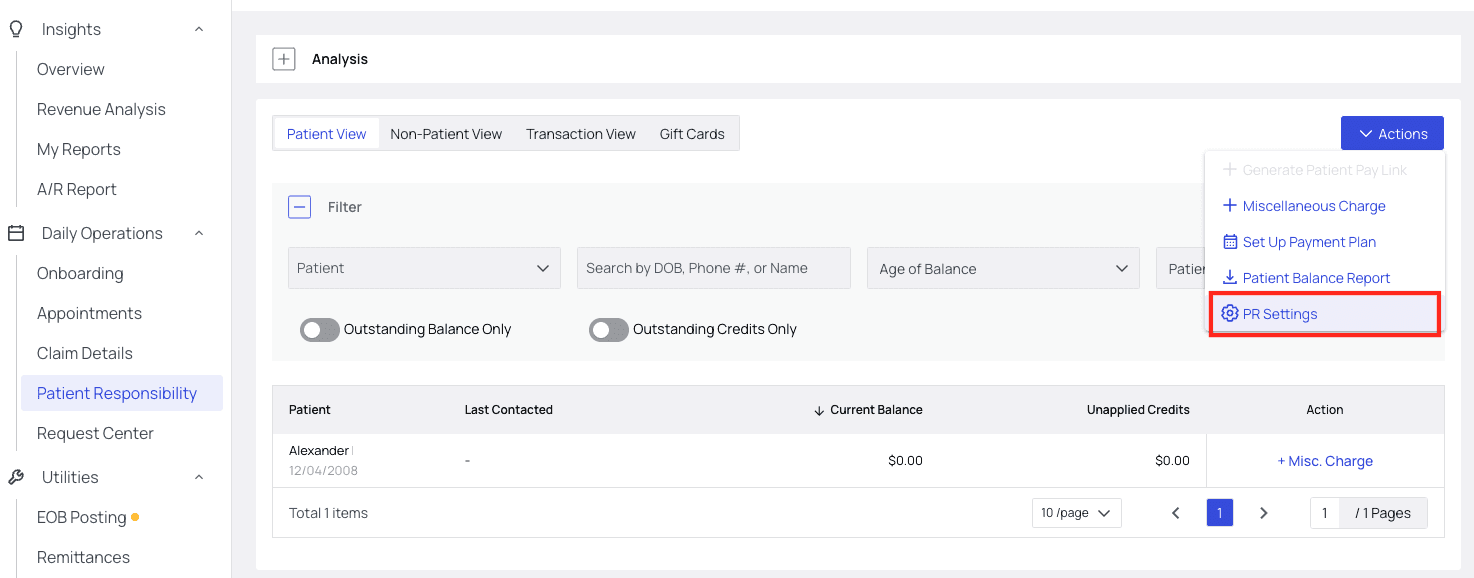
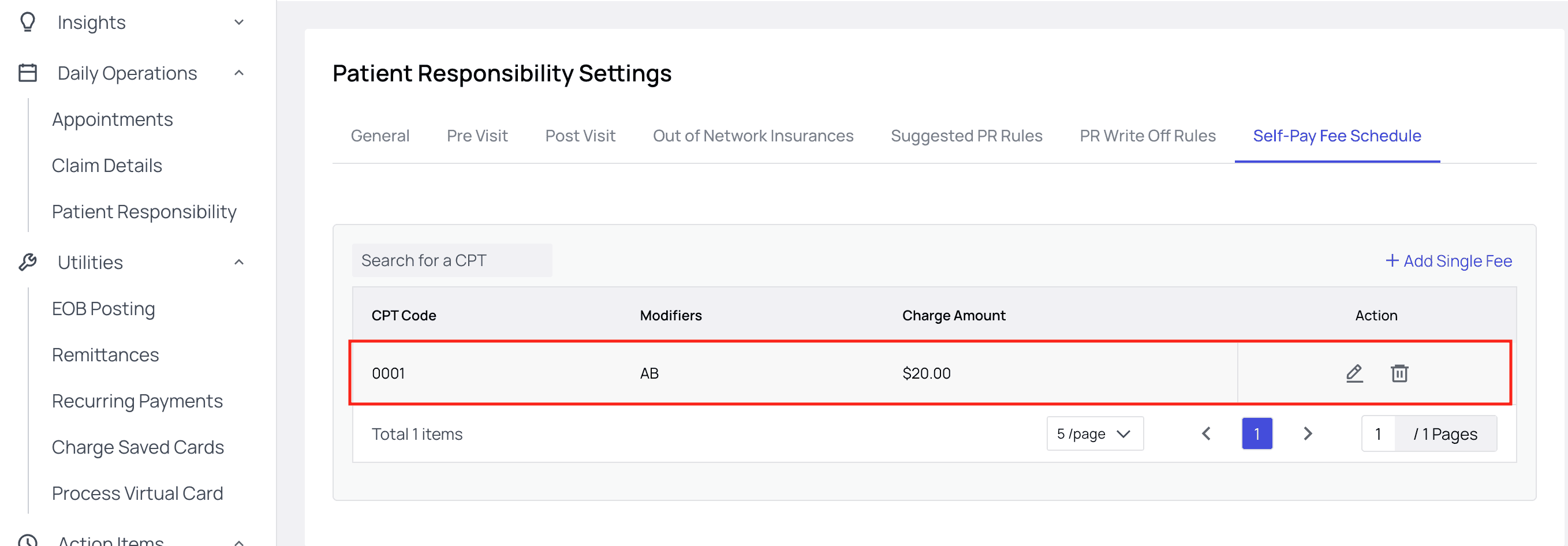
Add Single Fee.
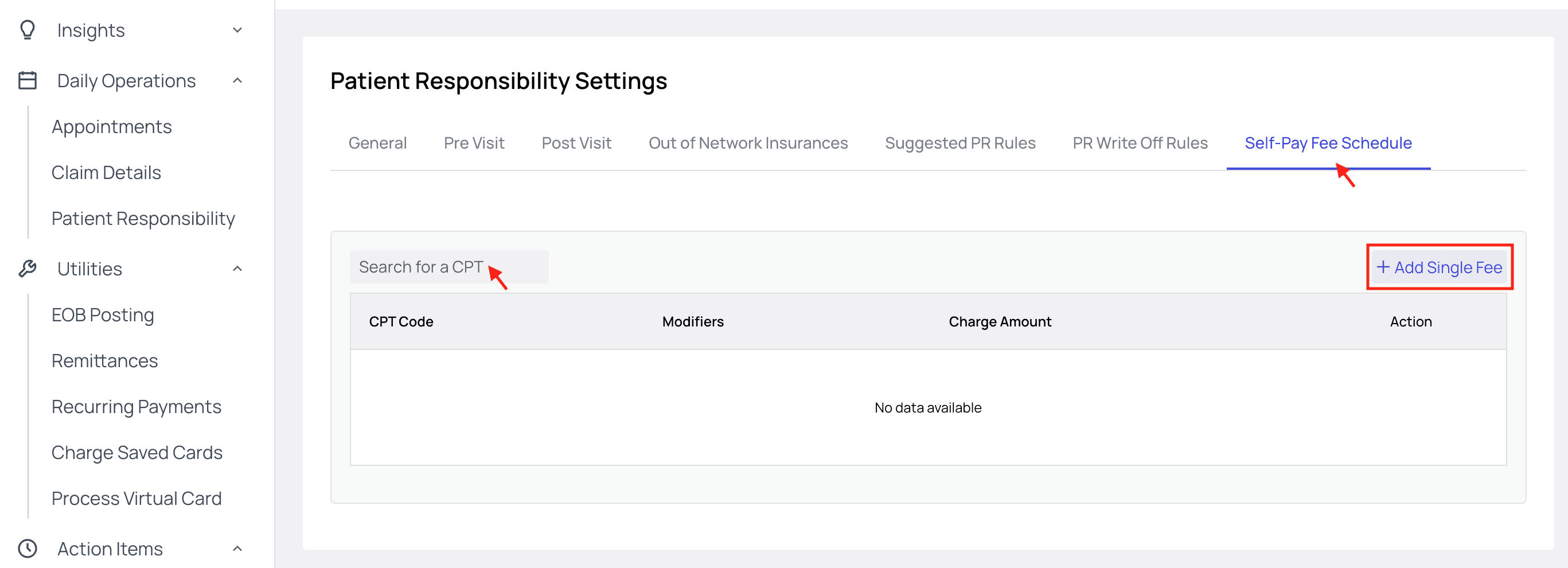
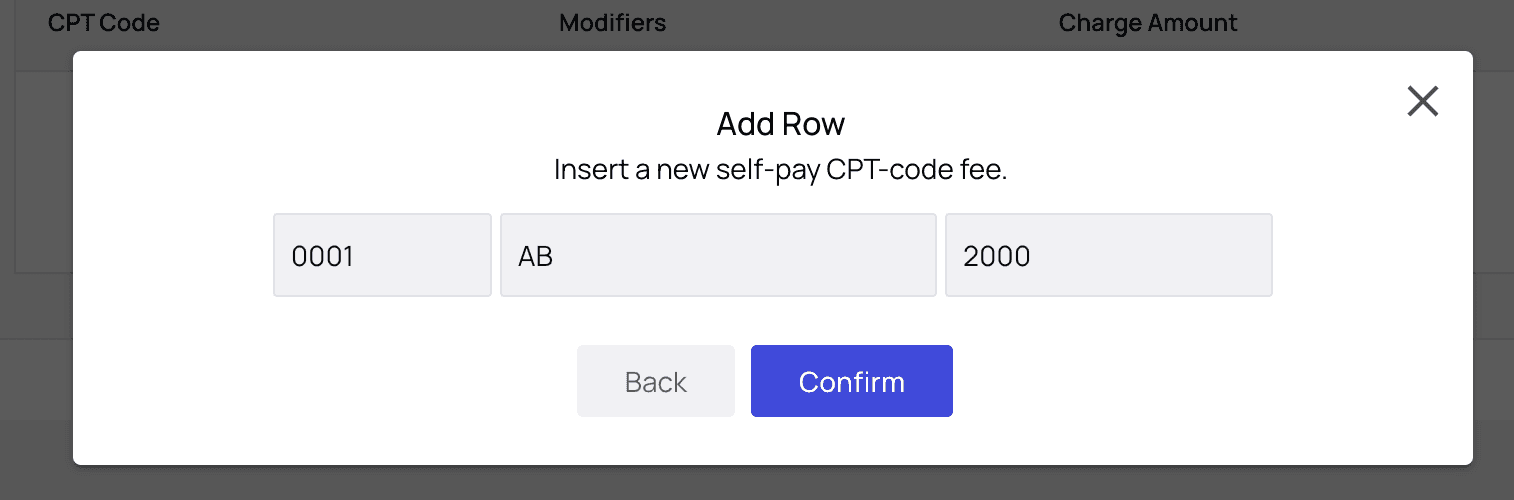
- CPT code and any Modifiers.
- Facilities (optional) — leave this empty to apply the fee across all facilities, or select specific facilities when the price differs by location.
- Fee in cents — the amount to charge in USD cents.
- Start date of service and, if the fee is time-limited, End date of service.
Bulk Upload with a CSV
If your site prices a large number of CPT codes, upload the whole schedule at once instead of adding rows individually.- In the fee schedule table, click
Bulk Submit CSV. - In the Upload Self-pay Fee Schedule dialog, click the here link to download a correctly formatted example CSV, then build your file to match it — the same columns shown in the fee schedule table.
- Drag and drop your CSV into the upload area, or click Choose to browse for it.
- Click Upload.
Duplicate CPT Codes and Modifiers
If you input an exact duplicate CPT code and modifier combination but with a different charge amount, the original will simply be updated. If, however, you have a single CPT code, but different modifiers requiring different prices, the system will create a new line item.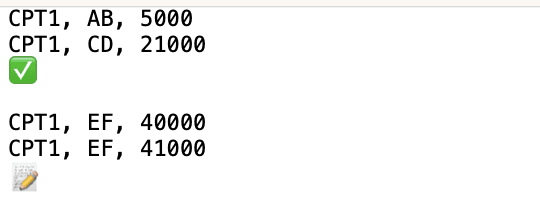
Download Your Practice’s Self-Pay Fee Schedule
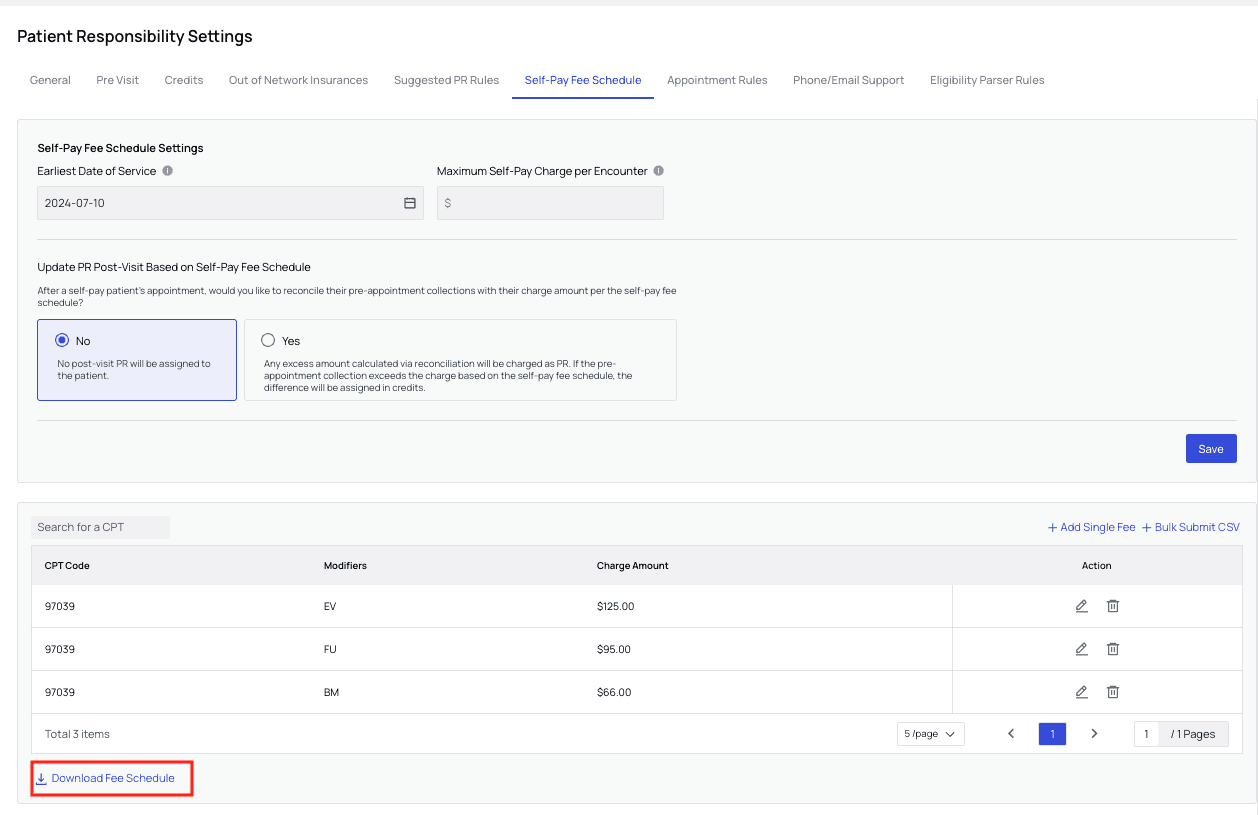
In PR Settings, under the Self-Pay Fee Schedule tab, you can clickDownload Fee Schedule below the listed items in the fee schedule to get a CSV file. The data in this file can be viewed and manipulated in Excel or similar program.
Further Assistance
We’re here to help! Please get in touch with support@getathelas.com if you’d like some hands-on assistance.FAQ
What happens if a CPT code has a $0 self-pay fee?
What happens if a CPT code has a $0 self-pay fee?
Insights suggests the corresponding professional fee schedule amount on the Encounter and Claims pages. Review the amount before you save the service line.
Can I change a CPT code or modifier on an existing fee item?
Can I change a CPT code or modifier on an existing fee item?
No. Delete the existing item and add a new one with the correct CPT code or modifiers. You can edit only the charge amount on an existing item.
Can I upload my whole fee schedule at once instead of adding codes one by one?
Can I upload my whole fee schedule at once instead of adding codes one by one?
Yes. In the fee schedule table, click
Bulk Submit CSV, download the example CSV from the here link in the upload dialog, build your file to match those columns, then drag it in or browse for it and click Upload.