
At a Glance
Dashboards you build are private to you until you share them. Sharing gives specific people at your practice access to a dashboard, at the level you choose: one dashboard for your whole billing team, another only for yourself, a third for the two people who need it. Out-of-the-box templates work differently. Anyone with access to Dashboards sees the templates their role allows, so there is nothing to share. To share a template with specific people, duplicate it and share your copy. See Sharing a template.Access levels
Every person on a dashboard has one of three access levels.
Setting goals on a tile takes Editor or Owner access and the Edit all dashboards permission on your role. A goal belongs to the metric across your practice, not to one dashboard. See Manage Staff & Permissions.
When you create a dashboard, or duplicate one, you become its only owner. Duplicating a dashboard does not copy its sharing, so your copy starts private.
Note: At every access level, filters only change your own view. Nobody else sees your filter selections, and sharing a dashboard doesn’t share filters with it.
Sharing with your team
-
Open the dashboard and select Share in the top right. Everyone with access sees the button, but only owners can add people or change access.
You can also choose Share from the ⋮ menu on the dashboard’s card in the gallery.
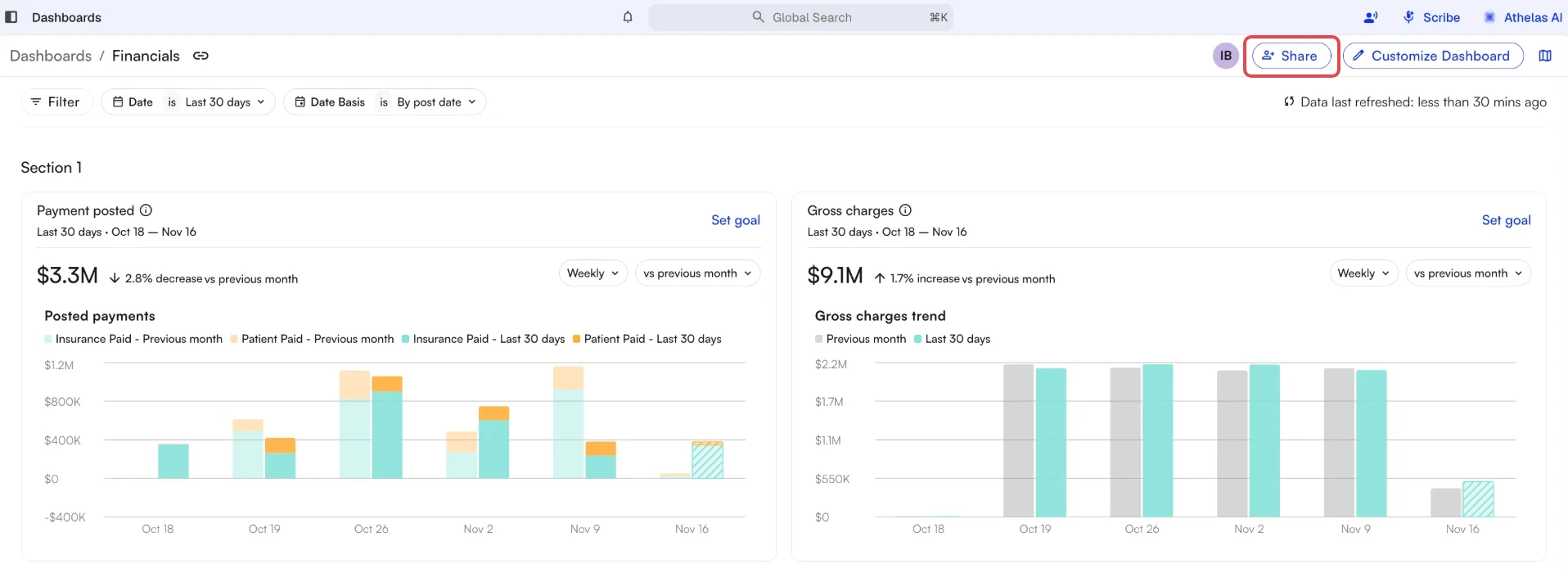
Share in the dashboard header
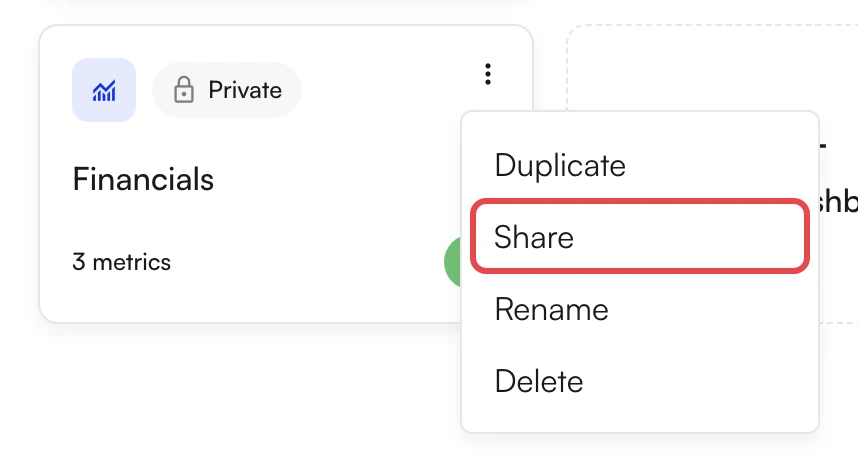
Share in a dashboard card's menu
-
In Add people by name or email, search for a colleague. You can add anyone at your practice.
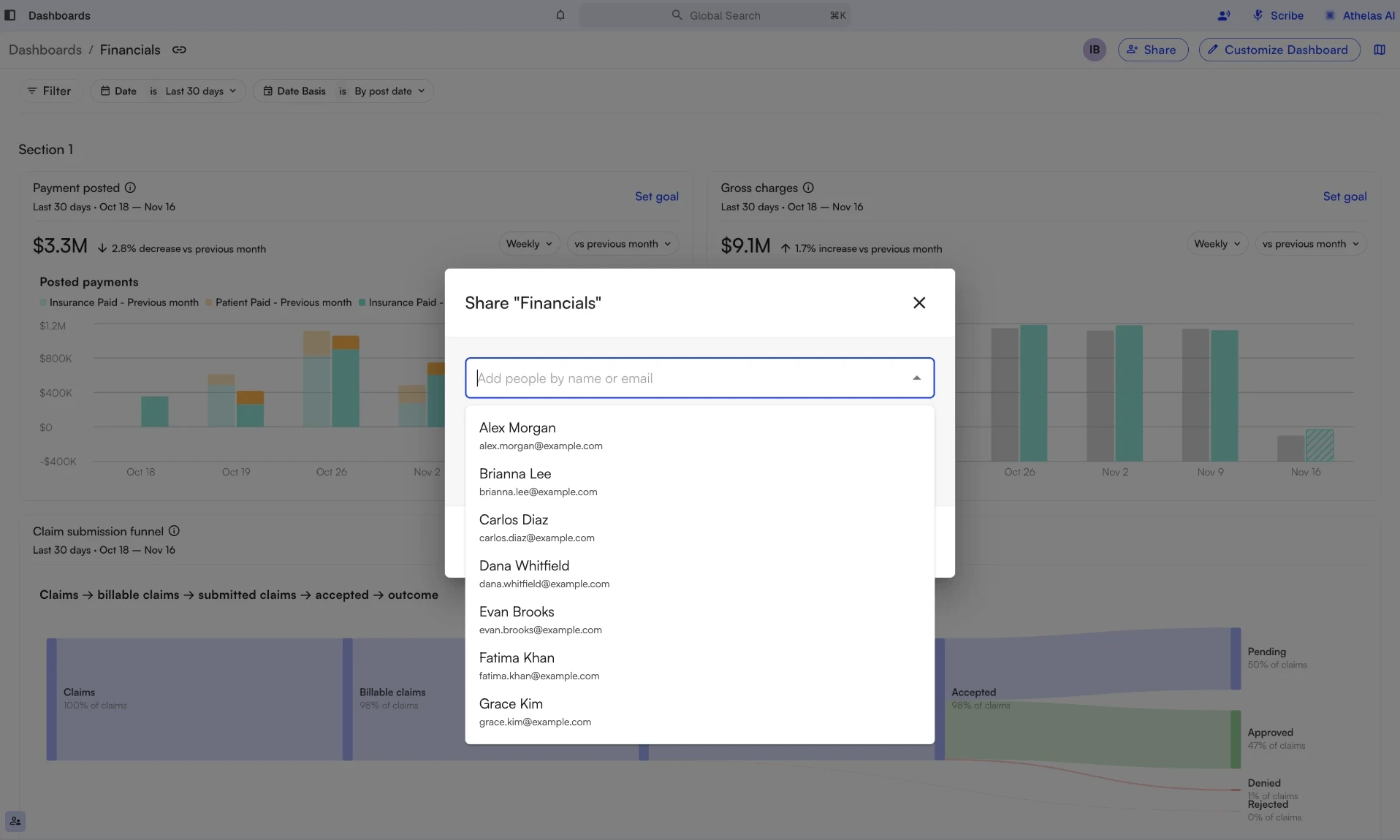
Search for people to add
-
Each person you add starts as a Viewer. To give someone more access, select the level next to their name and choose Editor or Owner.
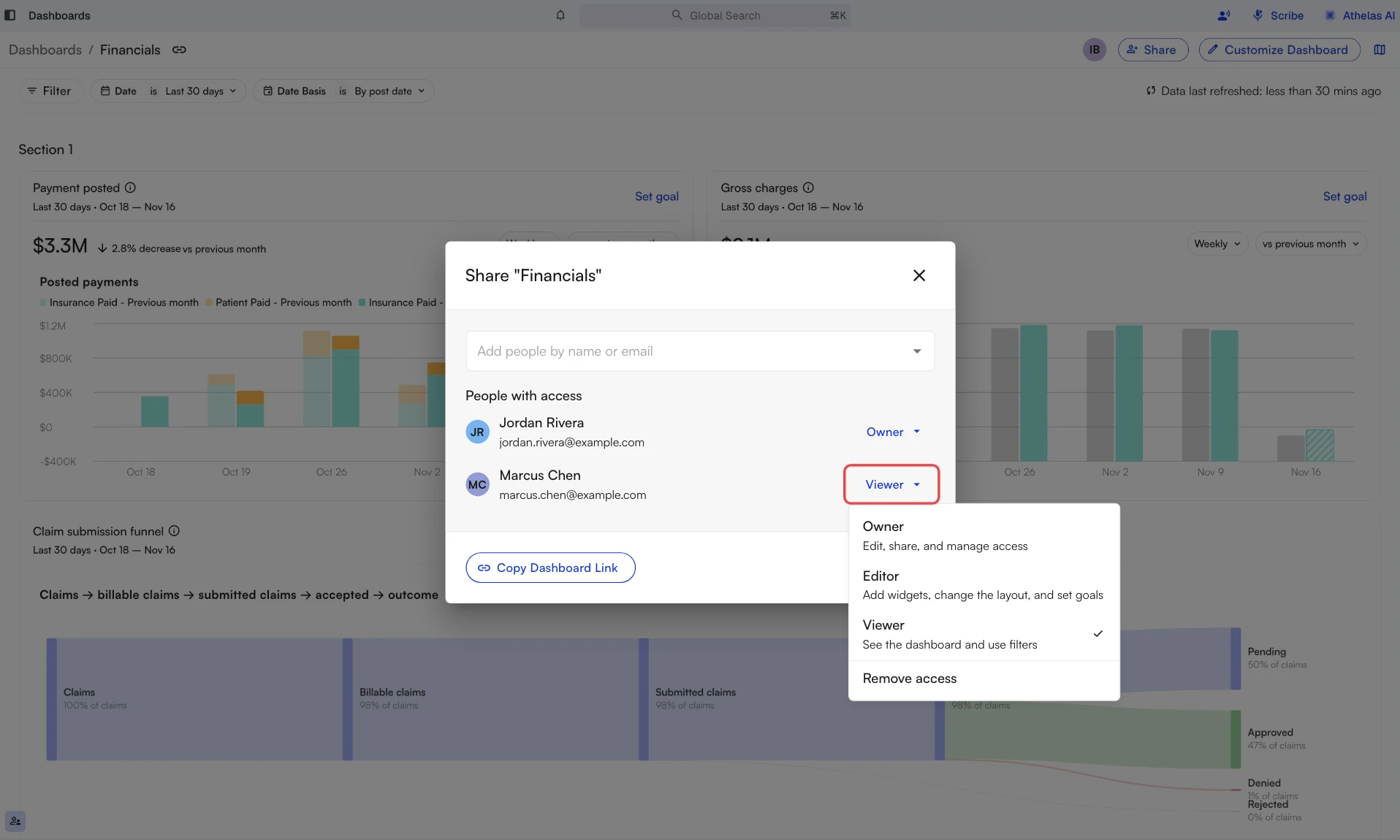
Pick a new level next to their name
- Select Done. Changes save as you make them, and the dashboard shows up in each person’s gallery right away.
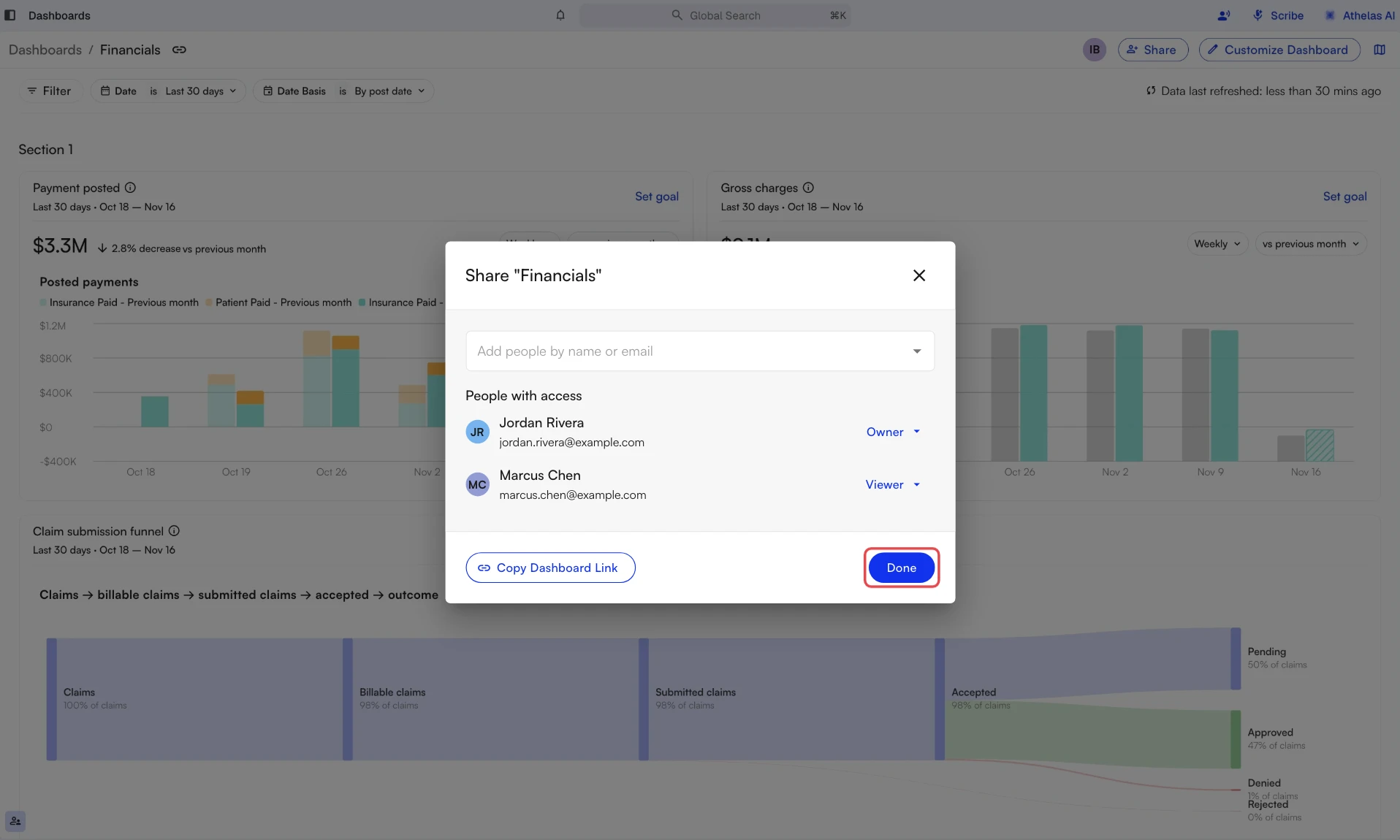
Select Done when you're finished
A dashboard always needs at least one owner, so if you’re its only owner, you can’t lower your own level until you make someone else an owner. Nobody can remove themselves: lower your own level instead, or ask another owner to remove you. Once you lower your own level, you can no longer share the dashboard, and only another owner can undo the change.
Sharing a template
Templates can’t be shared directly, because anyone whose role includes a template already sees it. Selecting Share on a template offers to make you a copy you can share instead.- Open the template and select Share.
-
Select Duplicate And Share. Insights creates your copy, opens it, and opens its Share dialog.
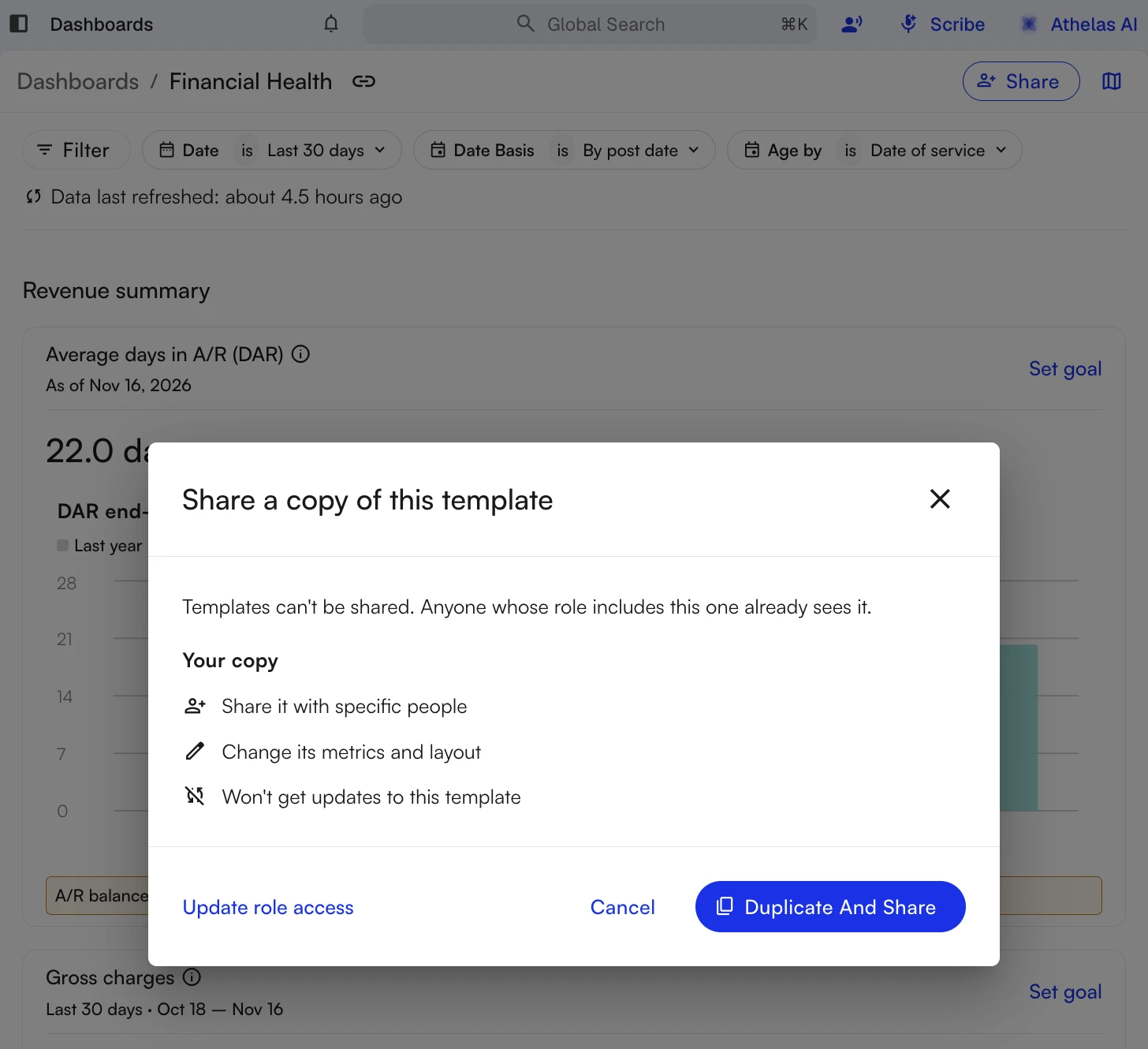
Share on a template opens this dialog
- Add people as described in Sharing with your team.
Finding dashboards shared with you
Dashboards shared with you appear in your gallery next to your own dashboards and the templates. A badge on each card shows where you stand:
When you open a dashboard someone shared with you, the same badge shows in the top right.
If a dashboard link doesn’t open for you, the dashboard hasn’t been shared with you. Ask one of its owners to share it.
Seeing who has viewed a dashboard
Once people have opened a dashboard, avatars of its recent viewers appear in the top right, next to Share. Hover over them to see everyone who has viewed it and when each person last opened it, newest first. Everyone with access to the dashboard can see the list.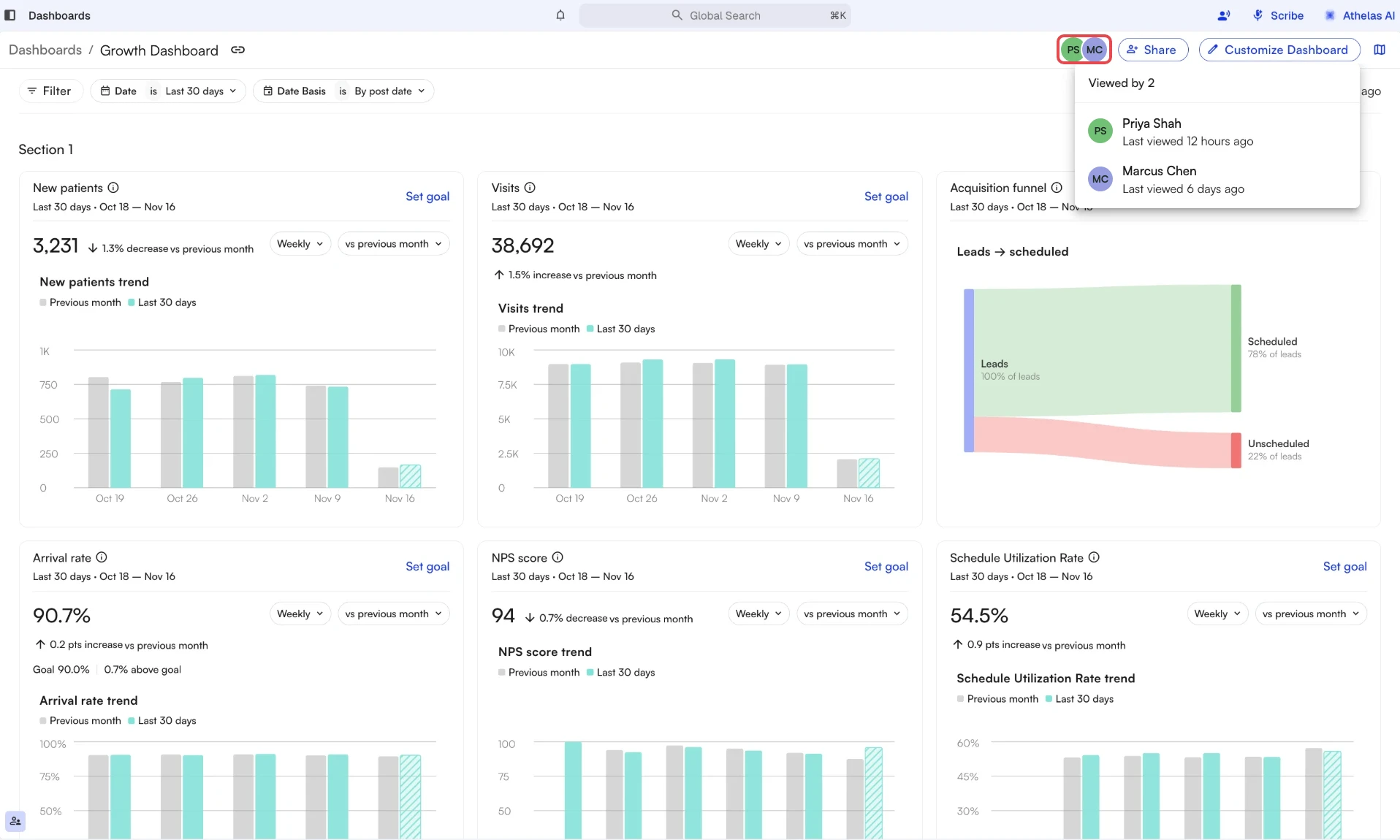
Hover the viewer avatars to see who has opened the dashboard
- Only people who still have access are listed. If you remove someone’s access, they drop off the list.
- Opening the dashboard again within 15 minutes doesn’t count as a new view.
- Visits from Athelas staff, including support, aren’t shown.
Who can see what
FAQ
Where did a dashboard I used to see go?
Where did a dashboard I used to see go?
It hasn’t been deleted. Dashboards built before sharing turned on became private to the person who built them. Ask that person to open it, select Share, and add you.
Why can't I edit a dashboard I can see?
Why can't I edit a dashboard I can see?
You’re a Viewer. You can still change the filters for your own view. To edit, ask an owner to make you an Editor: open Share and use the email button to send them the request.
Why can't I remove myself from a dashboard I own?
Why can't I remove myself from a dashboard I own?
Nobody can remove themselves from a dashboard. If there’s another owner, lower your own level or ask them to remove you. If you’re the only owner, make someone else an owner first.
Why are new dashboards private?
Why are new dashboards private?
So you decide who sees each one. Keep a dashboard to yourself while you build it, give your billing team view access when it’s ready, and let one colleague help edit it. Every dashboard reaches the people it’s meant for, and nobody else.