
At a Glance
Core Feature Walkthrough
We will refer to all manual remittance types — EOBs, Payer Portal Checks, and Payer Calls — as ‘EOBs’ in this guide. Here’s how to upload a new EOB:1. View EOBs by Status
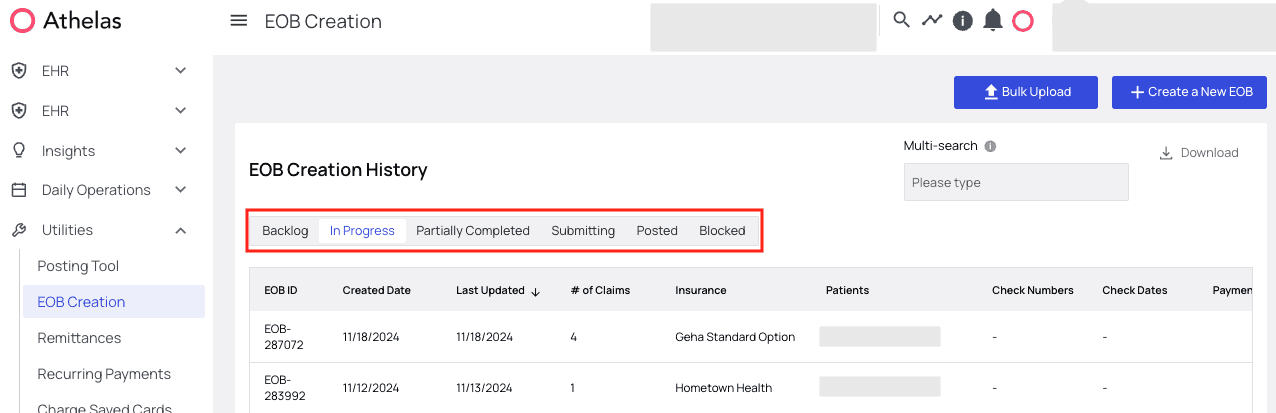
- Backlog — EOBs that have not yet been touched by your practice’s staff will populate the backlog.
- In Progress — EOBs located here are either being indexed (identifying what claims are on an EOB that require posted remits) or transcribed (writing the details of each claim on the EOB in Insights). Given that some EOBs can have 400+ claims, it is possible that they may be in this state for a few days.
- Partially Completed — EOBs in this tab were submitted, but at least one EOB failed. Note: A common error for EOBs here is a missing check number or check date. Any remit greater than $0.00 requires these two things to successfully post.
- Submitting — These EOBs are currently being submitted and will be done soon, depending on the number of associated claims.
- Posted — These EOBs have all been successfully posted.
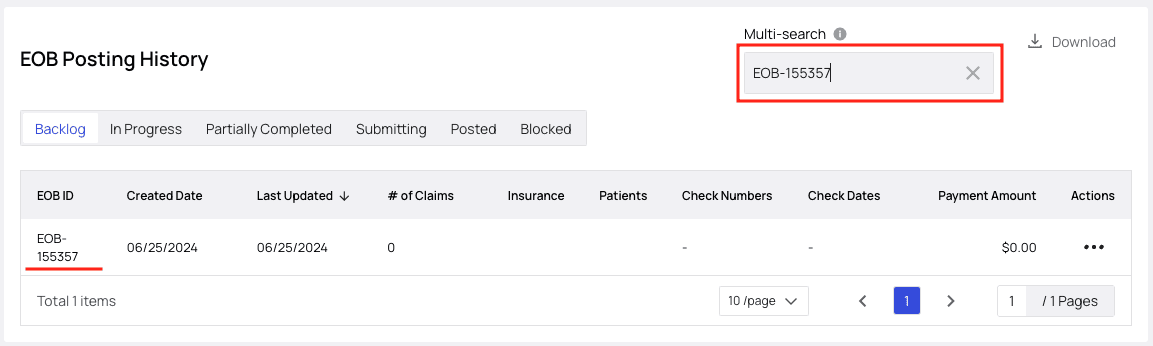
- Blocked — Something is wrong and these won’t be posted. This usually happens for EOBs that are duplicates, or have some similar issue. Within any of these tabs, use the Multi-Search function to filter the EOBs listed by EOB ID, insurance, check number, patient name, or file name.
2. Upload an EOB File or Screenshot
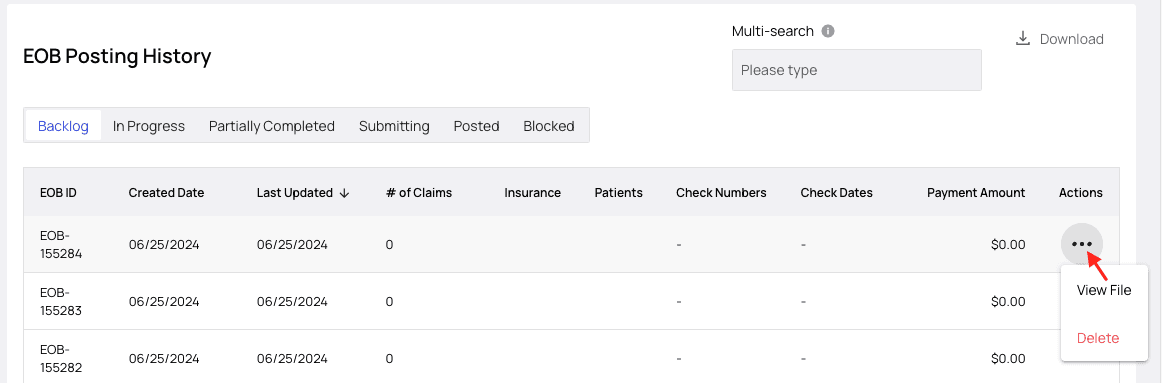
Assuming you’re starting from scratch, click the ‘Post a New EOB’ button to get started.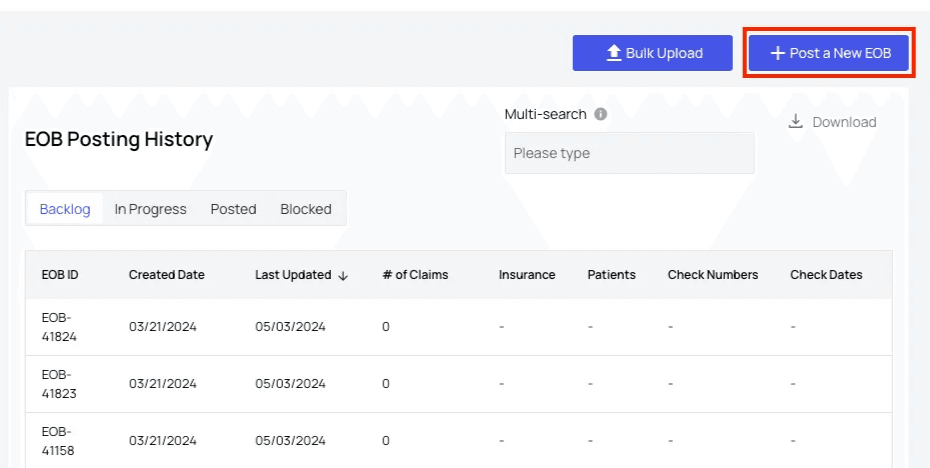
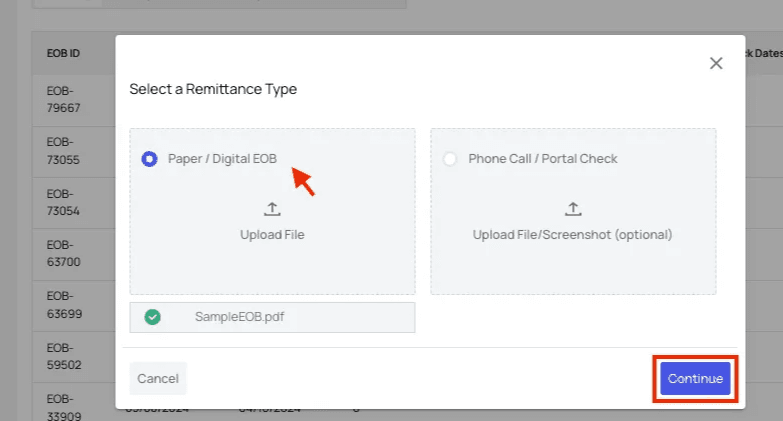
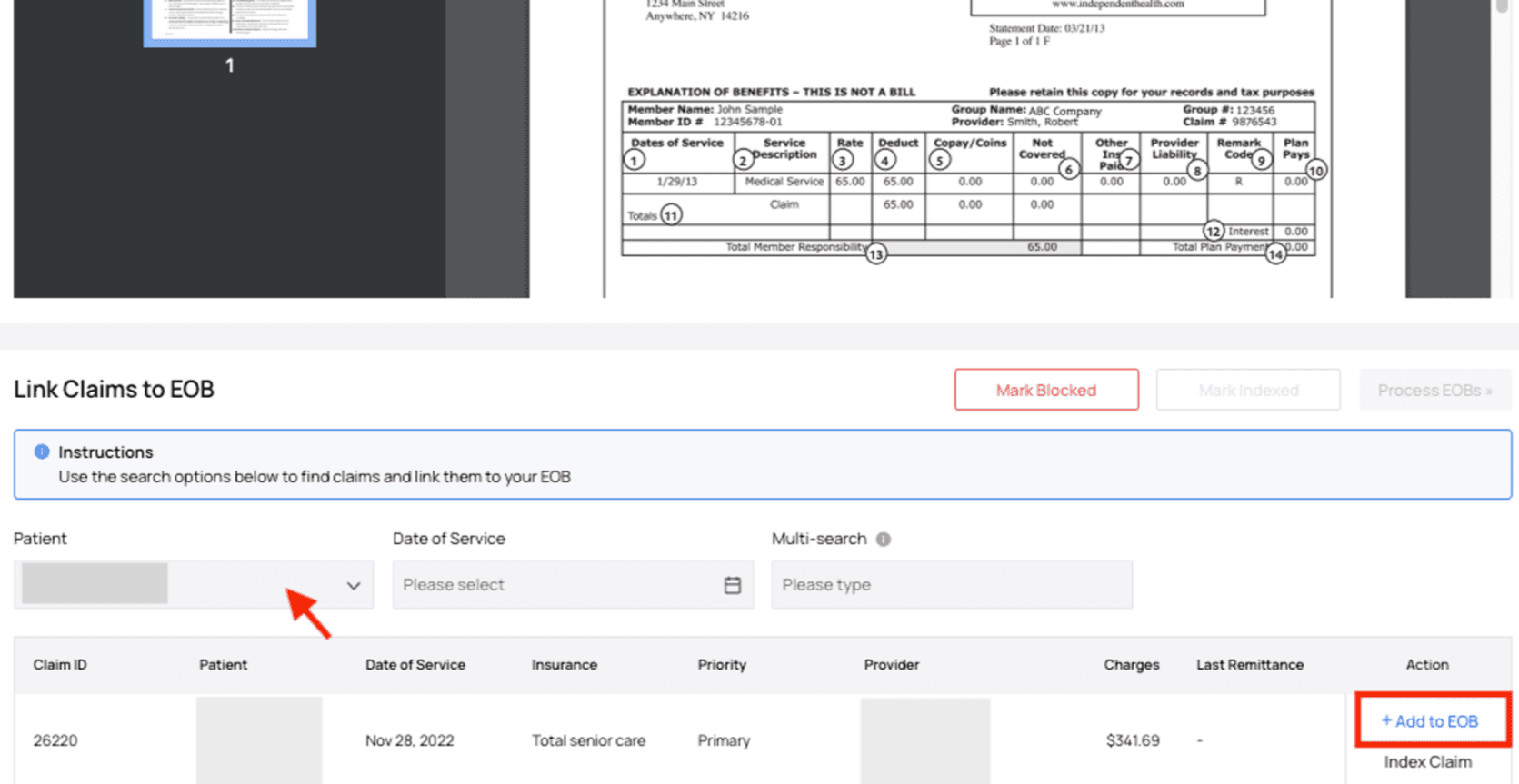
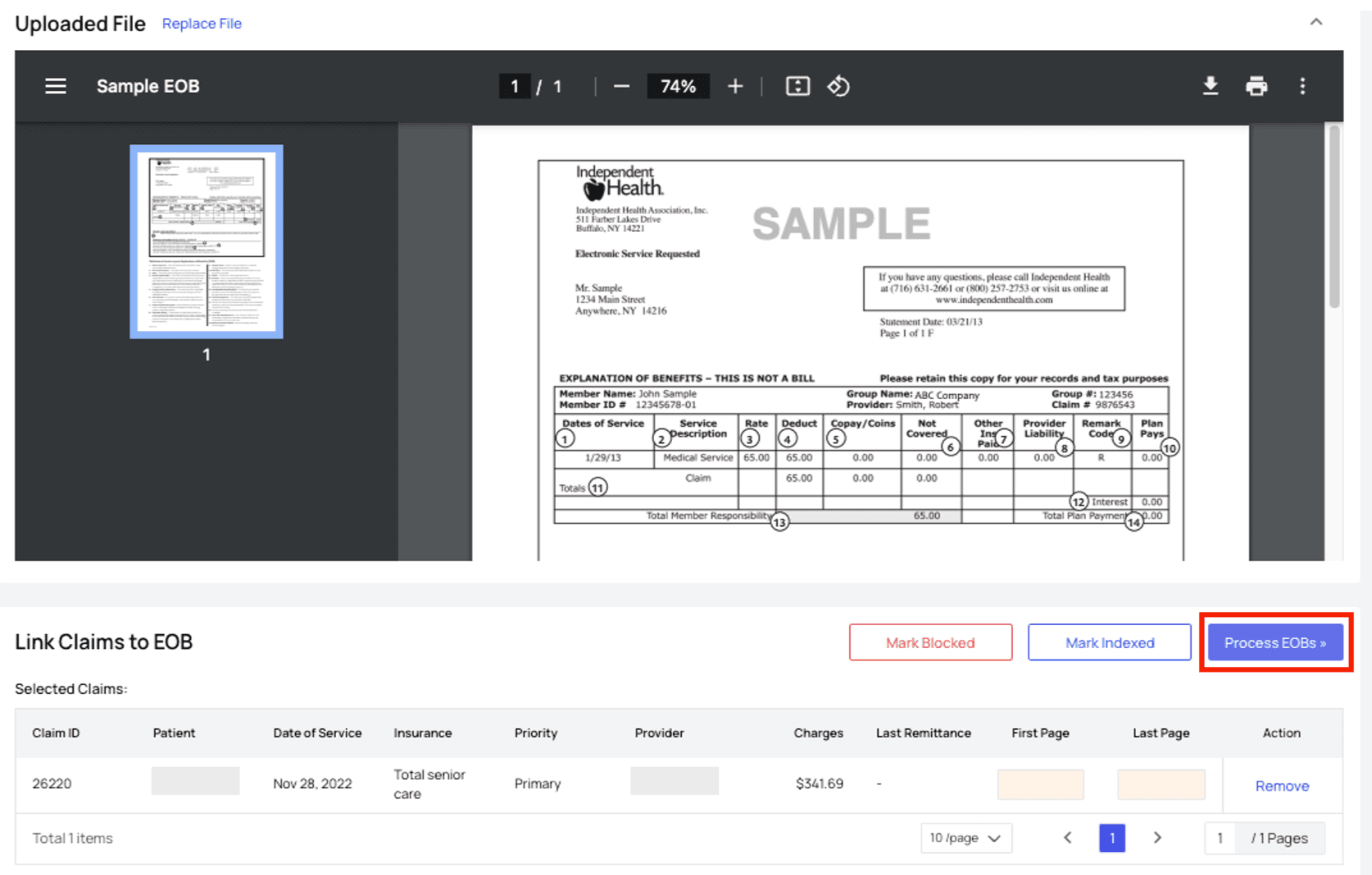
3. Enter the Remittance Data
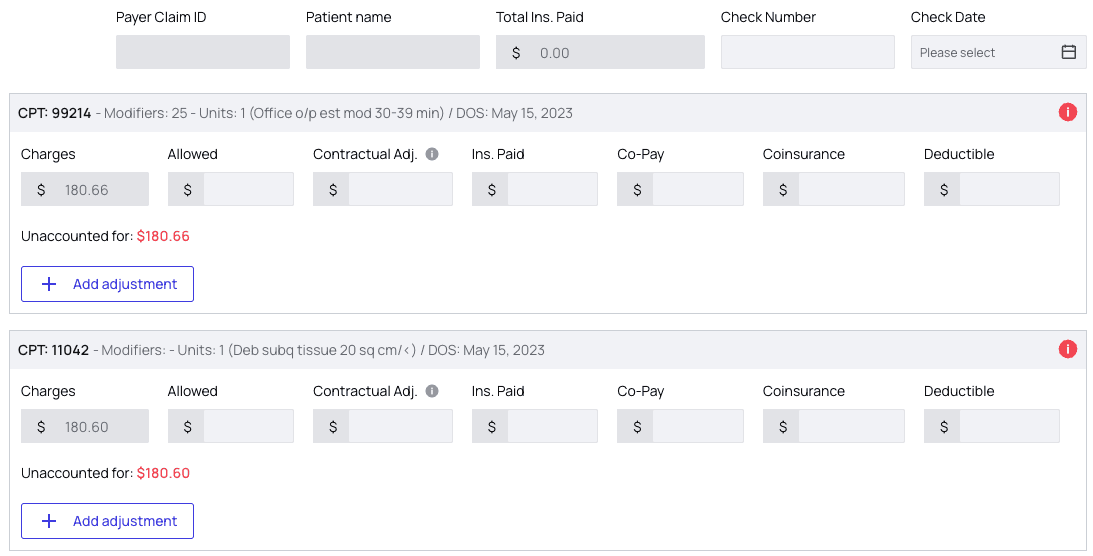
Autosave This portion of the tool will automatically save your progress. Now it’s time to fill in the key data from the EOB. Keep an eye on your count of validation errors next to the submit button. This keeps a live tally of issues that need to be resolved in the EOB. Moving your cursor over this note will provide a list of the specific patients’ claims where the issues are located.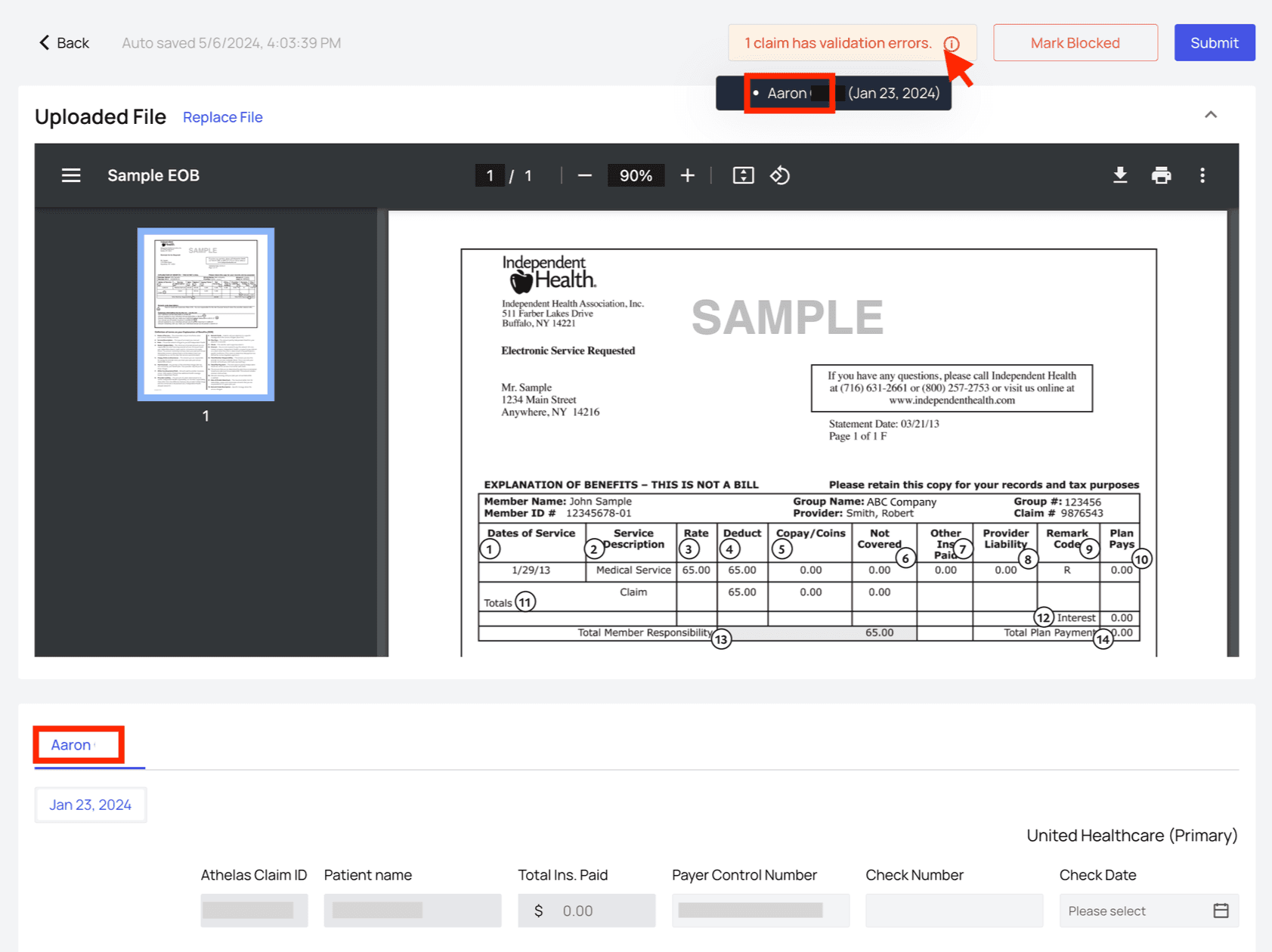
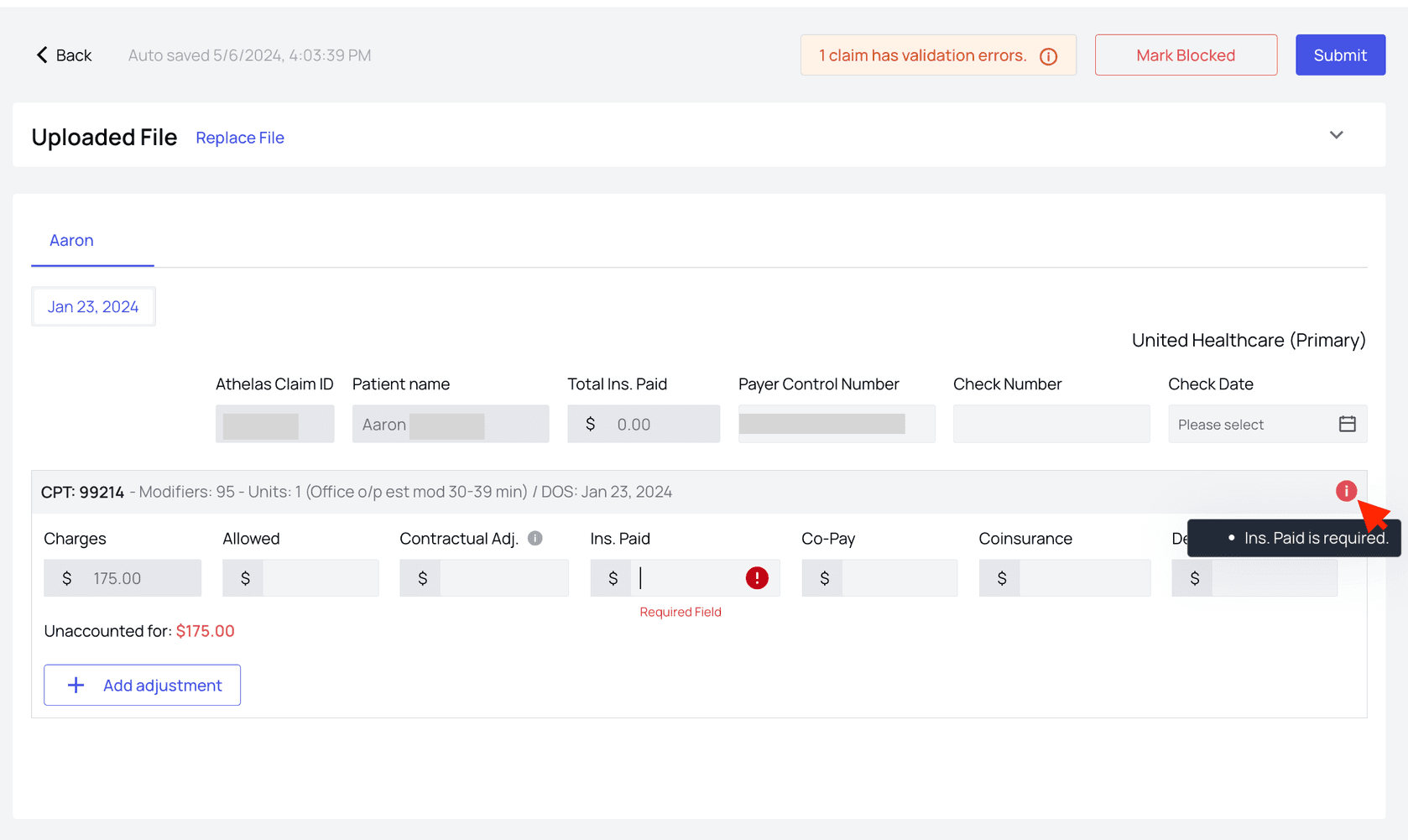

- Group Code — For example, the “CO” in CO-45, or “PR” in PR-1.
- CARC — Claim Adjustment Reason Code, e.g. the “45” in CO-45.
- Amount — The dollar value of the adjustment.
- RARC — Remittance Advice Reason Code, these are optional codes that provide extra detail into the outcome of the claim. Continue to fill in remittance data for each procedure in the claim. As you go, our tool will be watching for inaccuracies and give you feedback in two ways:
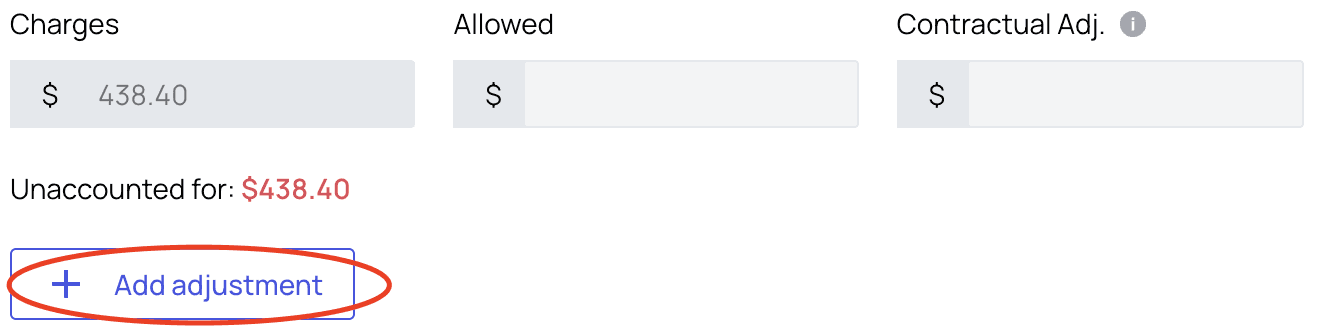
- Unaccounted For
- In most EOBs, the total adjustments, patient responsibility, and insurance payments should be equal to the charge amount.
- For this reason we provide a live tally of the difference between the charge amount and the data you’ve entered so far.
- If you feel you’ve entered all the data from an EOB and there’s still a value showing in ‘Unaccounted for,’ then it’s worth double checking your entries.
- Validation Errors
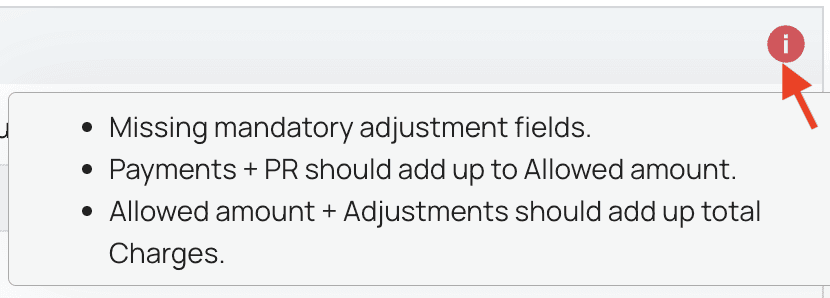
- In the upper right of each procedure you’ll also find an icon indicating if any fields are missing, or if the value entered are not adding up.
- Move your mouse over the icon to see a tooltip of all detected issues.

4. Submit the EOB!
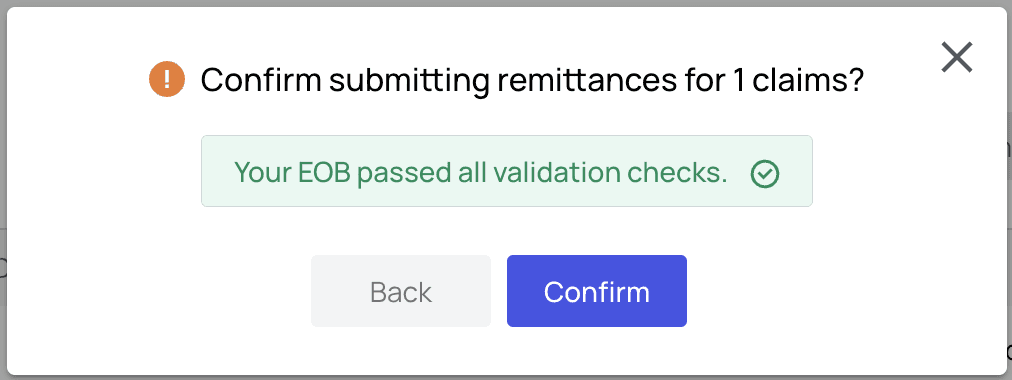
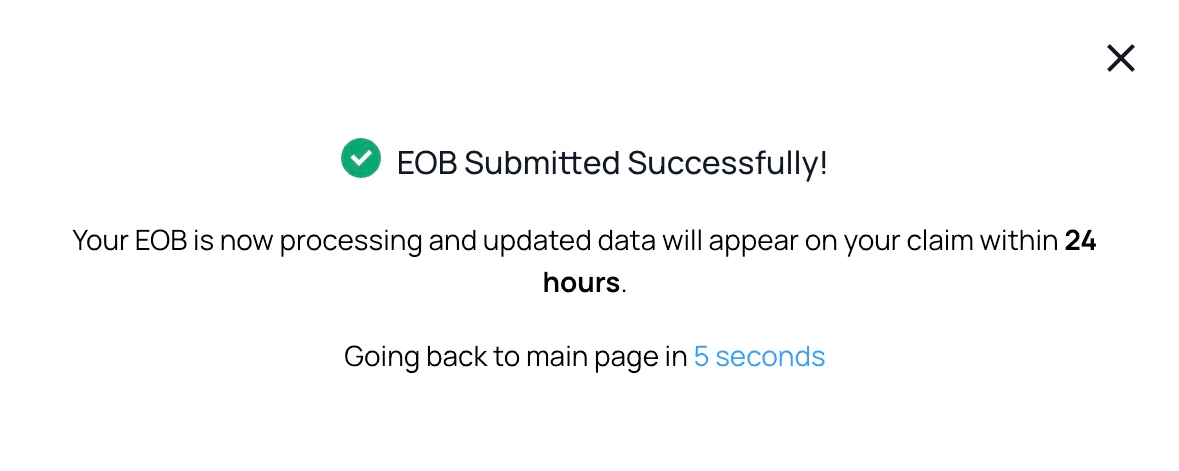
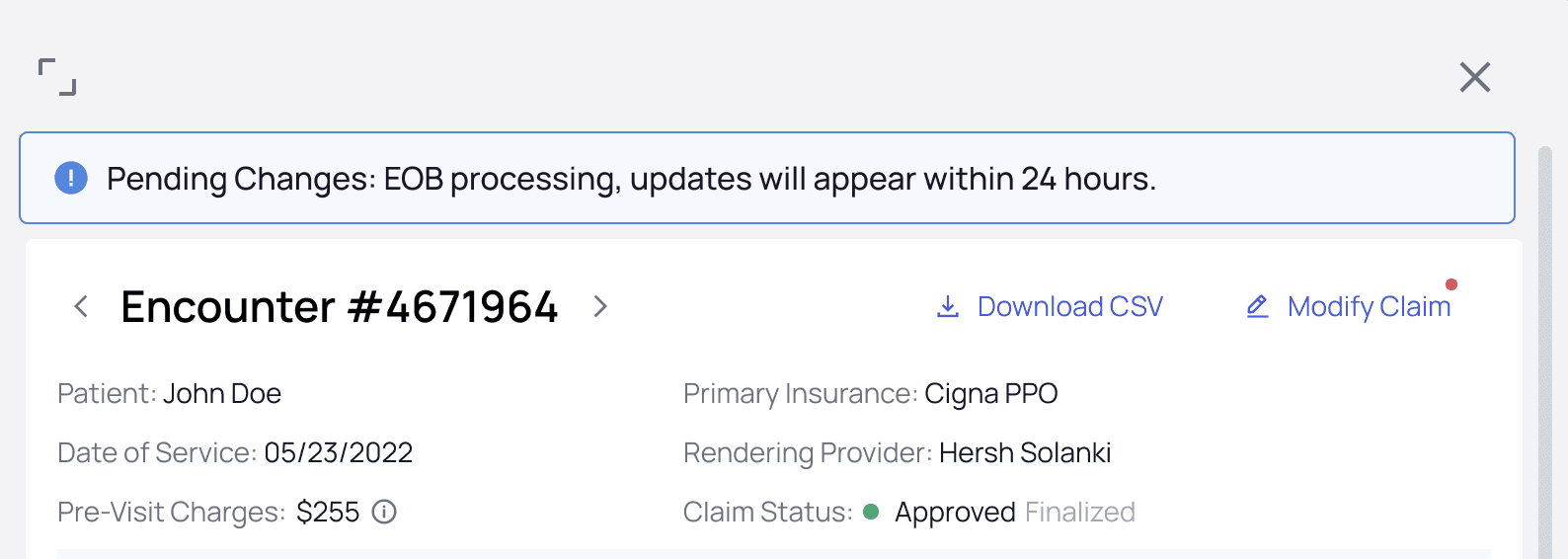
If everything has gone as planned you should now see a visual indicator that all validation checks are passing. If they’re not, this is a good moment to quickly check your work.
General Summary of Features Supported:
Features Supported:- Upload an EOB
- Transcribe EOB and create remittances in the system
- Athelas Assistant - AI transcription of EOBs
FAQ
Am I required to upload a file for my EOB?
Am I required to upload a file for my EOB?
No, uploading a file or screenshot is optional (but it’s strongly encouraged for record keeping).
What types of remittances can I upload?
What types of remittances can I upload?
You can upload an
EOB, data from a Payer Portal check, or info from Calling a Payer.Should I use this tool to upload EOBs I want the Athelas team to process?
Should I use this tool to upload EOBs I want the Athelas team to process?
Yes! EOBs intended for processing by the Athelas team should be bulk uploaded via this tool, which is monitored by the Athelas remittance team.