
At a Glance
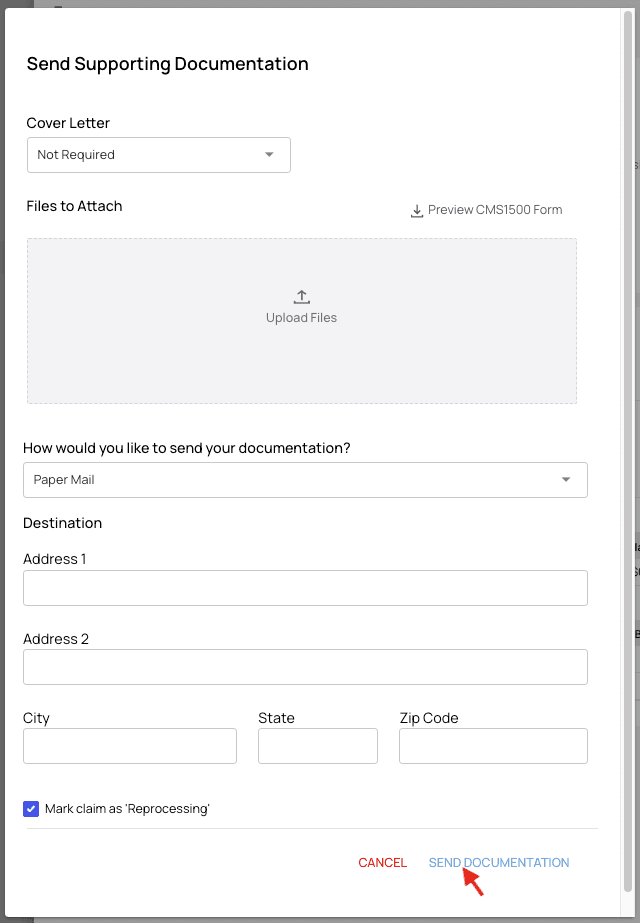
This walkthrough shows how to upload documentation that isn’t sent automatically by one of your organization’s rules. (Your organization can set up rules to attach supporting documentation to claims automatically.) You can send documents on their own, without resubmitting the claim.Send Supporting Documentation
On the Claims Page, open the claim that needs documentation. Click the Actions menu and choose Send Documentation.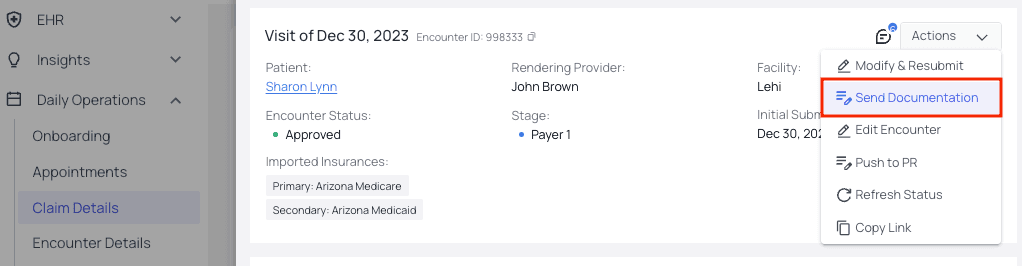
FAQ
Do I have to resubmit the claim to send a document?
Do I have to resubmit the claim to send a document?
No. Use Actions → Send Documentation to send documents on their own, without resubmitting the claim. If you also need to change the claim itself, resubmit it from the Claims Page.
Can documentation be attached automatically?
Can documentation be attached automatically?
Yes. Your organization can create rules that automatically attach and send supporting documentation with claims. This manual process is for documents that fall outside those rules, or one-off attachments.
Where does the cover letter come from?
Where does the cover letter come from?
When documentation is required on a claim, Insights auto-generates a cover letter based on the type you select. You can preview it before it goes out.