
The separate Submission Errors, Rejections, and Denials Worklist pages under Action Items have been retired. The Claims Page replaces all three: filter by Claim Status to see the same claims in one list.
Claims Page
The Claims Page is the primary workspace for billers. It brings together encounter data, claim details, rule outcomes, submission history, and payer responses for every claim. When to use:- Working submission errors, rejections, and denials
- Reviewing claim-level details end to end
- Validating rule outcomes and submission history
Find What You Need to Work On
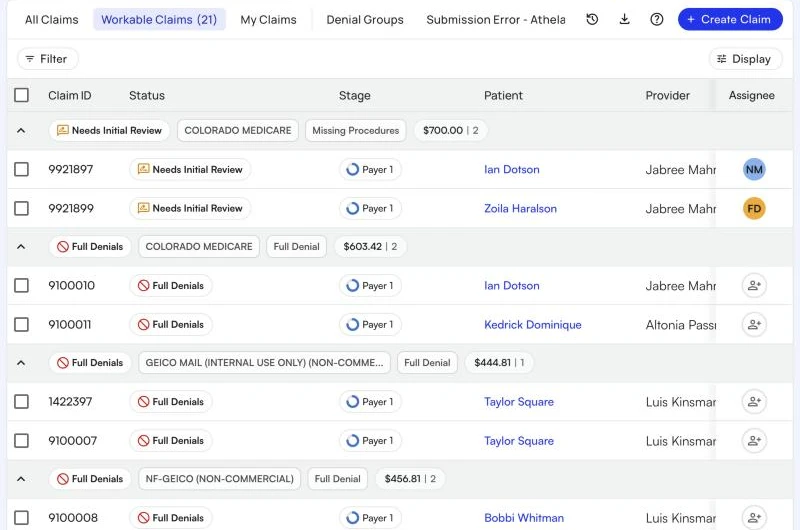
The Claims Page shows every claim at your practice. With thousands of claims, the key is narrowing down to exactly what you need. Start from a built-in view. Views appear as tabs across the top of the page. Workable Claims holds every claim that is your site’s responsibility, needs work now, and isn’t deferred. It is grouped by Status Reason, so each bucket holds claims with the same problem. Use filters to focus your work. Click Filter (or pressF) to narrow down your list. Common filters include:
- Claim Status — what needs to happen next on the claim, such as Submission Errors, Rejections, or Full Denials
- Status Reason — why the claim is in its status, such as a specific denial or rejection reason
- Responsible Party — your site or Athelas
- Assignee — claims assigned to you or to a teammate
- Insurances — the primary, secondary, or tertiary payer
- Dates — service, submission, created, or posted dates
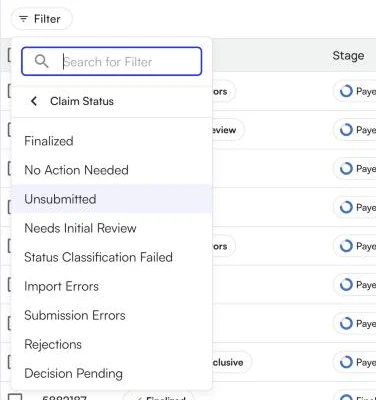 For views, grouping, and columns, see Organizing Your Claims Worklist.
Understanding Claim Statuses
Three fields describe where a claim is and what it needs:- Status — what needs to happen next on the claim, and whether it needs action.
- Stage — which party holds the balance right now: a payer or the patient.
- Payer status — where the claim stands with one specific payer.
Open Encounters
An open encounter is a claim that has been stopped for site review before going through the submission funnel. It remains in an “open” status until you review it; after review, it can be submitted or corrected. How to view Open Encounters:- Log in to Insights.
- Navigate to the Claims page.
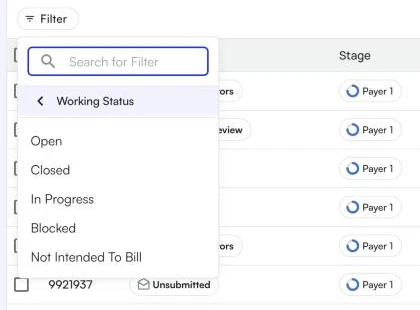
- Open Filter and set:
- Working Status: Open
- Service Date Range: Your go-live or backfill date (as needed)
- Scroll to the Tags column to see which rule stopped this encounter from closing.
- Click into the encounter, review based on the tag, and make any changes.
- Click Submit at the top right when ready.
Claims That Need Attention: The Four Types
Claims that need attention fall into four types, depending on where in the lifecycle the issue occurred.
The last three types are claim Statuses, not Stages — a claim’s stage names the payer or the patient who holds the balance. See Claim Status, Stage & Payer Status for both value lists.
Who Owns the Claim: Site or Athelas
Every claim is either your site’s responsibility or Athelas’ responsibility. Most submission errors, rejections, and denials start with Athelas, and the Athelas team works to resolve and resubmit them. When your team must provide information or take action, the claim moves to your site’s responsibility. Claims your site owns that need work now appear in the Workable Claims view. Check it daily: timely work on these claims is critical for claim turnaround.- To see one side only, filter Responsible Party to your site or to Athelas.
- A claim that is Athelas’ responsibility shows the Athelas logo as its assignee. There’s nothing for you to do on it.
- To hand a claim to Athelas, open the Assignee picker (or press
Aon an open claim) and choose Athelas. You’ll be asked to give a reason, which is logged to the claim’s Activity Feed.
Coming from the old worklists? Here is where each bucket went
Coming from the old worklists? Here is where each bucket went
Import Errors
Definition: An Import Error occurs when encounter or claim-related data fails to fully move from the EHR into Insights. These errors happen before a claim is created or sent to the clearinghouse. How to view Import Errors:- Log in to Insights.
- Navigate to Action Items > Import Errors.
Import Errors: Common Causes
Import errors typically happen when:- Missing key details — A patient or encounter is missing essential information.
- New entities not yet added — A new provider was added in your EHR but not yet in Insights.
- Missing insurance information — A patient is missing their insurance member ID.
- Unrecognized codes — An encounter uses a custom CPT code that Insights does not recognize.
- Potential duplicates — A patient appears to be a duplicate, and Insights pauses import for investigation.
How Import Errors Work
- Detection — When data cannot be properly imported, it is flagged as an import error.
- Categorization — Errors are grouped by type (e.g., “Invalid place of service code”).
- Prioritization — The dashboard shows errors by total value and number of affected claims.
- Resolution — Some errors are resolved by the Athelas Ops team; others require action from your team.
Resolving Import Errors
You can address import errors by:- Updating your EHR — Fix missing or incorrect data in your EHR so it can flow into Insights.
- Using the Import feature — Click the blue Import button to open the encounter creation flow and correct data directly in Insights.
- Working with Athelas — Contact your Athelas representative for new providers/facilities or to create import rules.
Submission Errors
Definition: A Submission Error occurs when a claim is blocked before it reaches the payer. It failed a pre-submission check or billing rule, clearinghouse verification, or transmission. Common causes include:- Missing modifiers on procedure codes
- Incorrect diagnosis codes (ICD-10)
- Invalid addresses
- Clearinghouse rule violations
- Incorrect CPT codes
- Typos in patient, billing, or provider information
- Missing required fields (e.g., DOB, insurance ID, provider NPI)
- Invalid characters in the claim data
- Incorrect insurance information
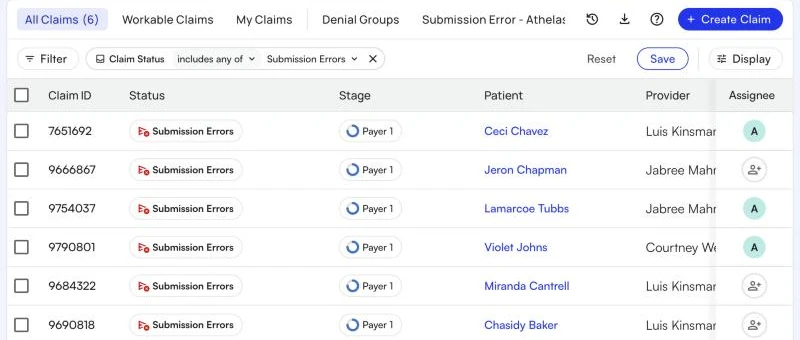
- Log in to Insights and open the Claims page.
- Open Workable Claims, or click Filter and set Claim Status to Submission Errors.
- Group by Status Reason so each bucket holds claims blocked by the same error.
How to Resolve Submission Errors
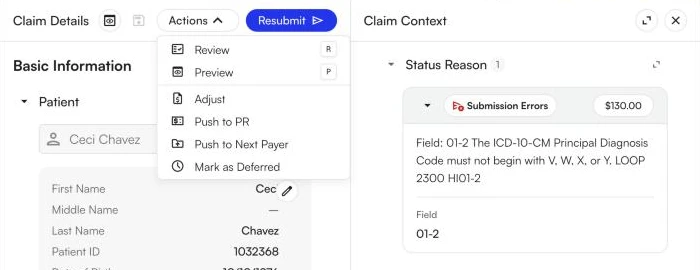
- Click a claim to open it. The Status Reason section of Claim Context lists the errors blocking the claim.
- Fix the claim in one of these ways:
- Fix it in Insights. Edit the claim, then click Submit (Resubmit on a claim that was submitted before). To check the fix first, choose Review from the Actions menu to dry-run the claim through billing rules.
- Fix it in your EHR. Correct the data in your EHR, then open Actions > Mark as Deferred and choose the Updated in EHR reason. The claim waits for the next EHR import.
- Hand it to Athelas. If you can’t fix it, assign the claim to Athelas and say what you need in the reason.
 When many claims share the same error, fix and submit them together. See How to Resubmit Claims in Bulk.
Note: Claims may move back and forth between your site and Athelas if more information is needed after a claim was handed off.
When many claims share the same error, fix and submit them together. See How to Resubmit Claims in Bulk.
Note: Claims may move back and forth between your site and Athelas if more information is needed after a claim was handed off.
Rejections
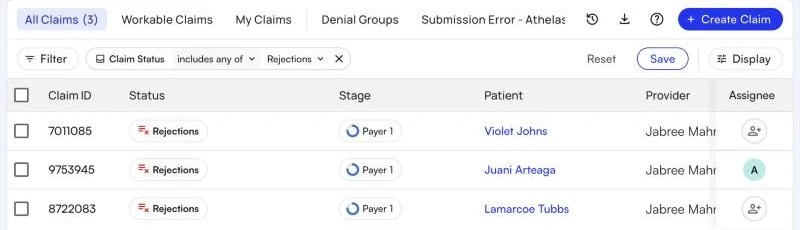
Definition: A Rejection occurs when a claim is returned by the clearinghouse or payer gateway due to formatting, compliance, or eligibility issues. The claim is never accepted for adjudication. These are not payer decisions—they are technical or validation failures after the claim was submitted. How to view Rejections:- Log in to Insights and open the Claims page.
- Open Workable Claims, or click Filter and set Claim Status to Rejections.
- Group by Status Reason so claims with the same rejection reason land together.
How to Resolve Rejections
-
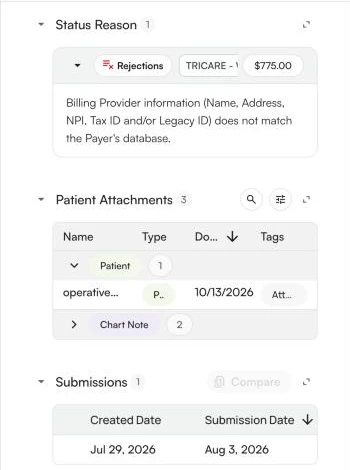
Click a claim to open it. The Status Reason section of Claim Context shows the clearinghouse’s rejection reason, and Submissions shows each submission sent.
-
Fix the claim in one of these ways:
- Fix it in Insights. Edit the claim, then click Resubmit.
- Fix it in your EHR. Correct the data in your EHR, then defer the claim with the Updated in EHR reason so Athelas can re-extract and resubmit it after the next import.
- Hand it to Athelas. If you can’t fix the rejection, assign the claim to Athelas with a reason.
Denials
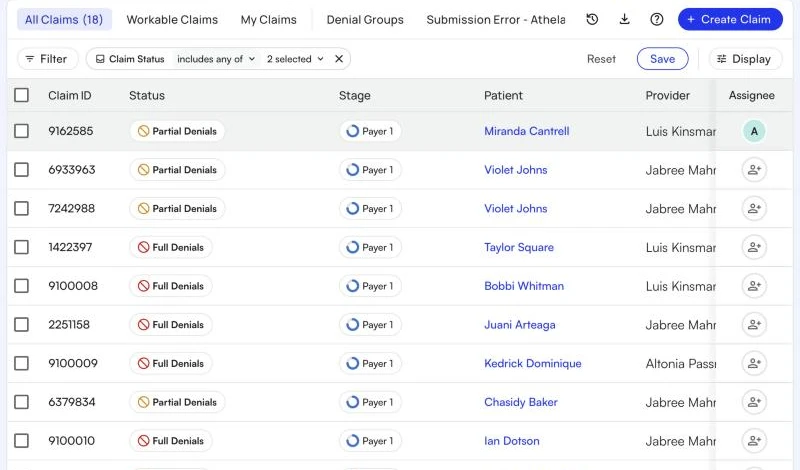
Definition: A Denial is a formal decision from the payer after the claim has been received and adjudicated. The payer has reviewed the claim and decided that payment will not be made in full or in part. Denials have two statuses:- Full Denials — the payer allowed nothing on the claim.
- Partial Denials — the payer paid some lines and denied others.
- Log in to Insights and open the Claims page.
- Open Workable Claims, or click Filter and set Claim Status to Full Denials and Partial Denials.
- Group by Status Reason to work denials by cause. To focus on specific denial codes, filter by CARC or RARC.
How to Resolve Denials
-
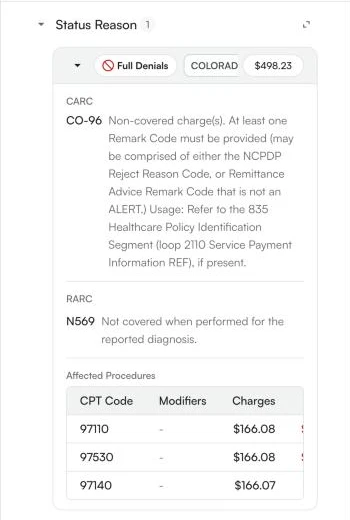
Click a claim to open it. For a denial, the Status Reason section of Claim Context shows the CARC and RARC codes with plain-language descriptions, the denied amount, and the denied procedures.
-
Decide what the denial needs:
- Correct and resubmit. Fix the claim in Insights and click Resubmit, or fix it in your EHR and defer it with the Updated in EHR reason.
- Appeal or send records. Open Actions > Request and choose Request Appeal Submission or Request Medical Records Submission. The claim moves to Packet Pending while the packet is prepared. See How to Send Documentation.
- Move the balance on. Use Push to Next Payer or Push to PR from the Actions menu when the balance belongs to another payer or the patient.
- Write it off. When no action will lead to payment, use Adjust from the Actions menu to write off the balance.
- Hand it to Athelas. If you’re stuck, assign the claim to Athelas with a reason.
FAQ
What's the difference between an error, a rejection, and a denial?
What's the difference between an error, a rejection, and a denial?
Import and Submission Errors happen before a claim is successfully sent to the payer: import errors between your EHR and Insights, submission errors inside Insights (validation or blocking rules). Rejections happen after you submit—the clearinghouse or gateway returns the claim for technical/format/eligibility reasons, so the payer never adjudicates it. Denials happen after the payer has received and adjudicated the claim and decided not to pay (in full or in part).
Where did the Submission Errors, Rejections, and Denials Worklist pages go?
Where did the Submission Errors, Rejections, and Denials Worklist pages go?
They have been retired. The Claims Page shows the same claims: filter Claim Status to Submission Errors, Rejections, Full Denials, or Partial Denials, or open Workable Claims to see all of them that your site owns in one list.
How do I see only the claims my team needs to work?
How do I see only the claims my team needs to work?
Open Workable Claims. It shows claims that are your site’s responsibility, are in a status that needs work, and aren’t deferred. Claims that are Athelas’ responsibility are left out, because the Athelas team is working them.
I fixed a claim in my EHR. What do I do in Insights?
I fixed a claim in my EHR. What do I do in Insights?
Open the claim’s Actions menu, choose Mark as Deferred, and pick the Updated in EHR reason. The claim leaves your worklist until the next EHR import brings in your fix. This reason is available on sites that bill through Insights with an external EHR. See Deferring a Claim.
Where do I go to resubmit a denied or rejected claim?
Where do I go to resubmit a denied or rejected claim?
Open the claim on the Claims Page, make your corrections, and click Resubmit. For one claim, see Getting Started with the Claims Page. For many at once, use How to Resubmit Claims in Bulk.