
- Revenue Activity Report — revenue recognition, posted payments, adjustments, and A/R roll forward.
- Bank Deposit Reconciliation Report — cash received, deposit matching status, and unposted/unmatched activity.
Reports Used at Month End
Step 1: Reconcile to Your Bank Account
This step verifies that every dollar that hit your bank is accounted for in Insights — for both insurance payments and patient payments.1A — Insurance Payments: Bank Tie-Out
Report: Bank Deposit Reconciliation Report Filters:- Date Type =
Bank Deposit Date - Date Range = close period (e.g.,
06/01/2026 – 06/30/2026) - As-Of Date = end of the close period (e.g.,
06/30/2026)
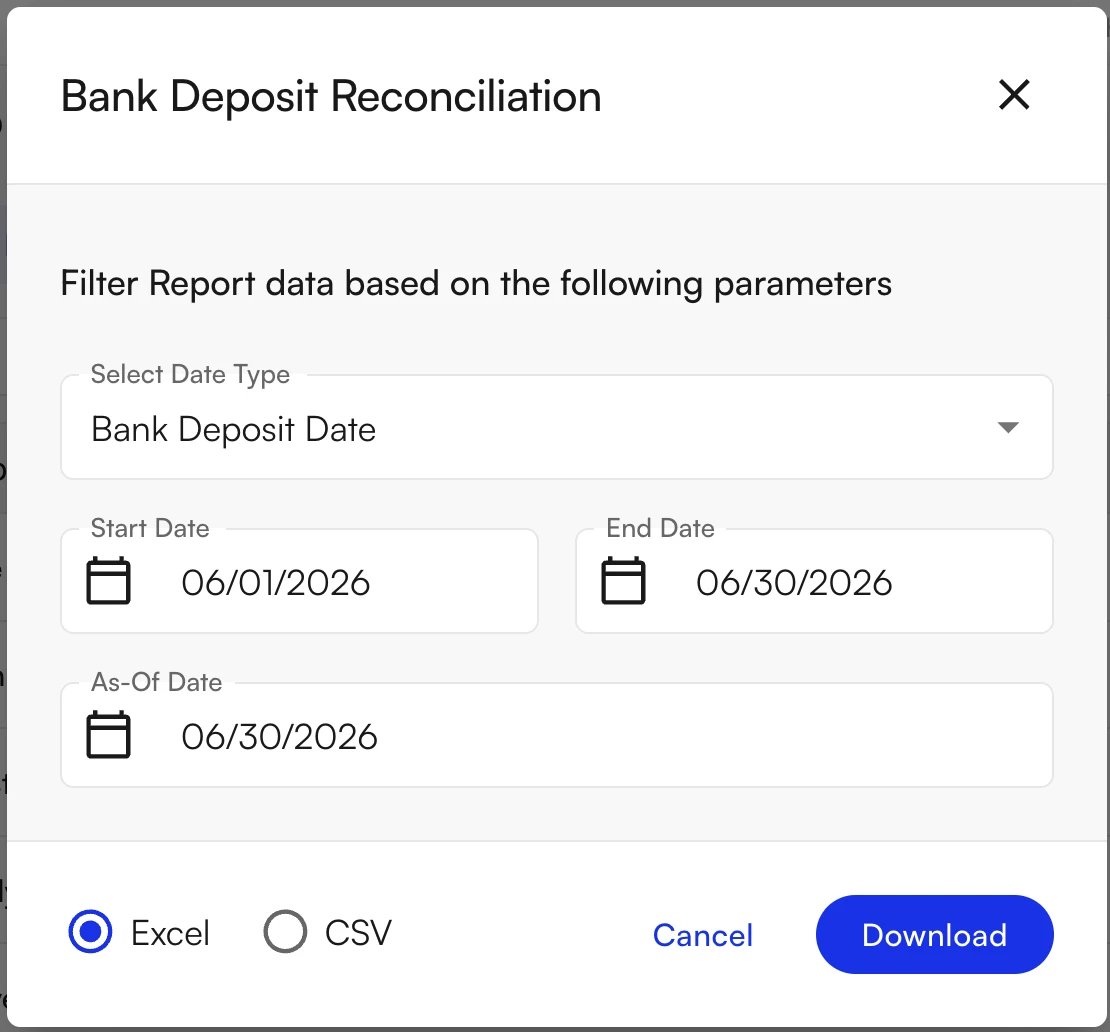
total_cash_usd column. This total should match the sum of all deposits on your bank statement for the same period.
The report classifies every dollar of each deposit into four core buckets, plus two conditional columns:
Reconciliation check:
total_cash_usd = matched_posted + matched_unposted + unmatched + others + matched_provider_level_adjustments
This total should equal your bank statement deposits for the period. You can cross-verify against the Remittances page (Daily Operations → Remittances → Deposits tab):
matched_posted + matched_unposted + others + matched_provider_level_adjustments_usdshould equal the Matched tile.unmatched_usdshould equal the Unmatched tile.matched_posted_usd + matched_provider_level_adjustment_usdshould equal the Posted tile.
1B — Patient Payments: Bank Tie-Out
Report: Site Transaction Report Filters:- Date Type =
Expected Deposit DateorDate Posted - Date Range = close period
- Use
Expected Deposit Dateto tie out Stripe payouts deposited in your bank during the period. This may include payments posted in a previous month but deposited in the current one — payouts occur ~2 days after the Stripe payment is processed. - Use
Date Postedto tie out payments collected during the period. This is the recommended choice for non-Stripe payments — cash and check.
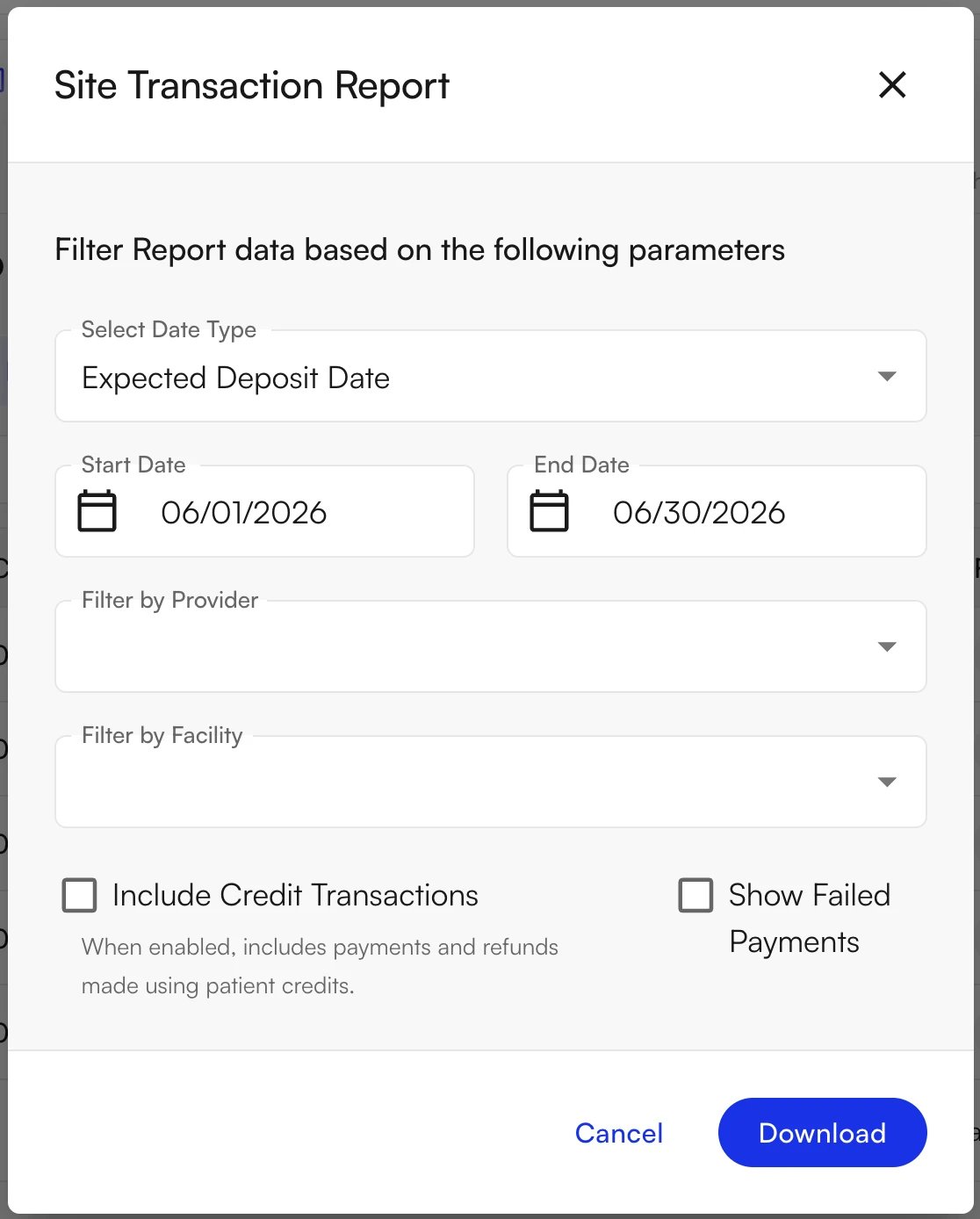
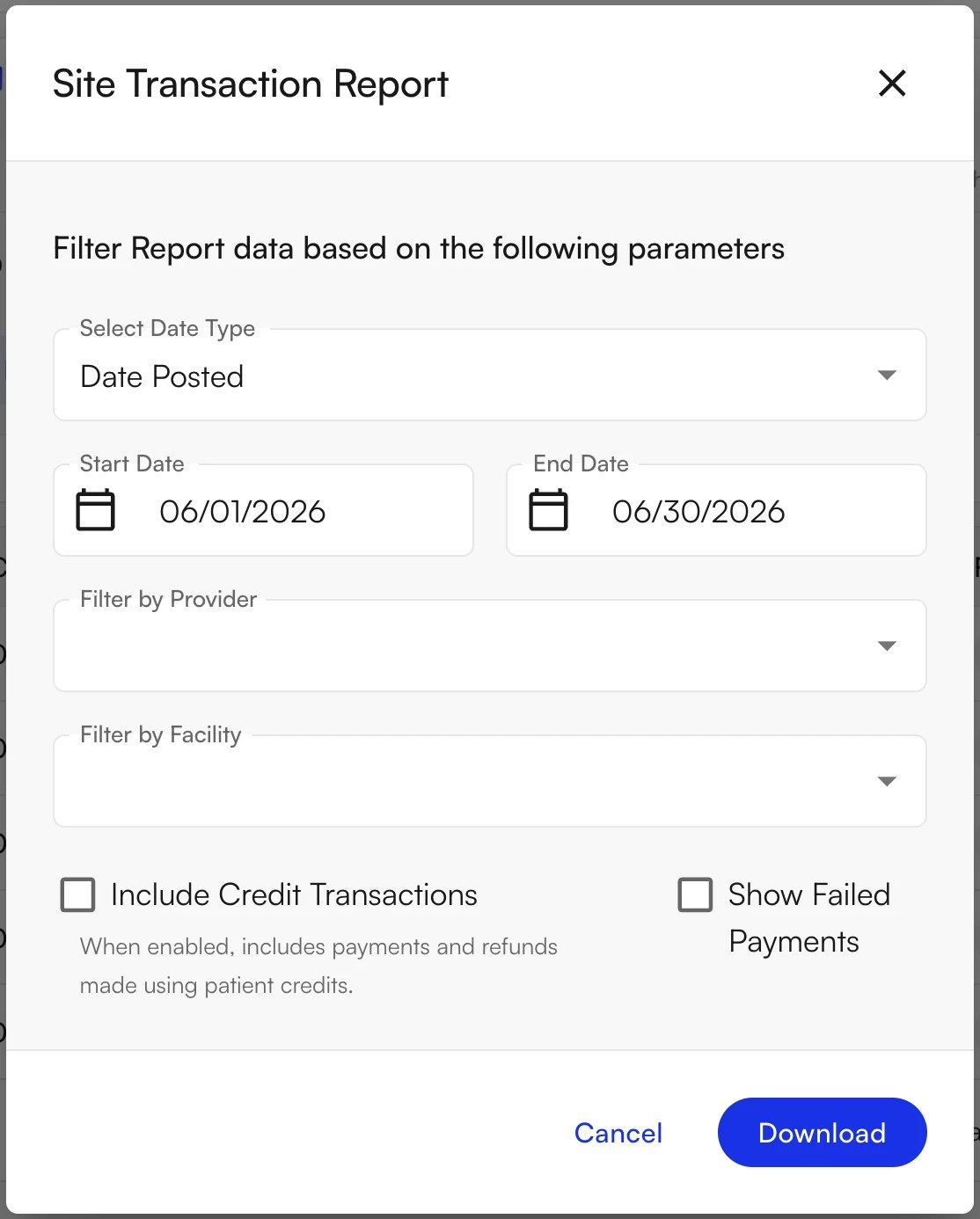
- Download the Site Transaction Report by
Date Postedfor the close period. (Date Posted is when the payment was marked as collected in the system.) - Open the Processed Transactions sheet.
- Filter
Payment Methodto excludeSMART_PAYandSTRIPE_CARD_READER. This leaves cash, check, and other non-Stripe methods. - Pivot the report by
Facility of Collection. - Sum
Amount Paidper facility of collection — this is your total patient collections for the period. (Net Receivedis net of Stripe fees and is not relevant for cash/check transactions.)
- Download the Site Transaction Report by
Expected Deposit Datefor the close period. (Expected Deposit Date is Stripe’s estimate of when the next batch of payments will be deposited in your bank.) - Open the Processed Transactions sheet.
- Filter
Payment Methodto only includeSMART_PAYandSTRIPE_CARD_READER. - Filter out
Payment Type=INSURANCE_VIRTUAL_CARD— not relevant for patient collections. - Sum
Net Received— the total paid by patients, net of Stripe fees (which are not included in bank deposits).
For step-by-step help producing this report, see Generate a Transaction Report.
Step 2: General Ledger Entries
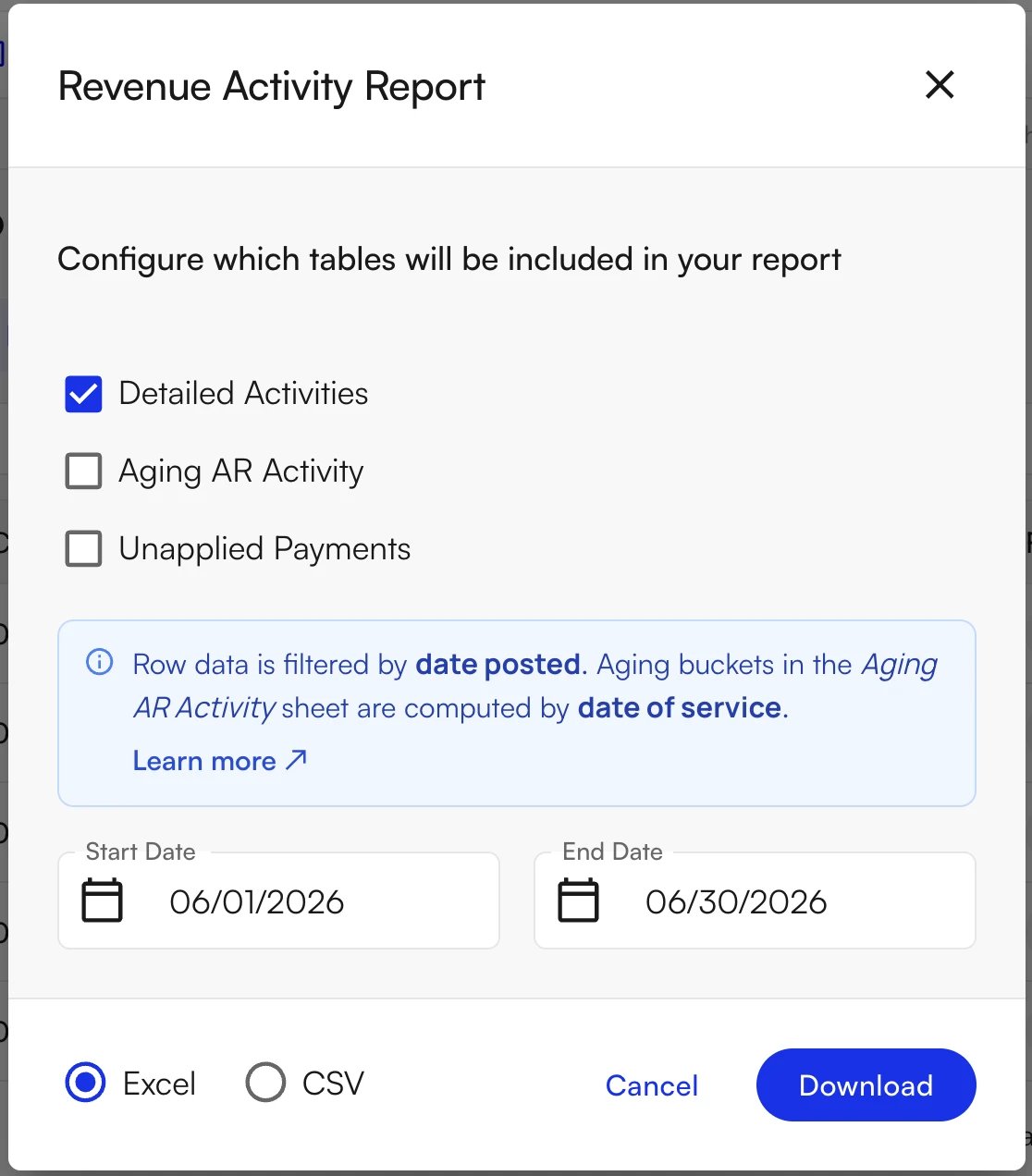
Once the bank reconciliation ties out, use the Revenue Activity Report to drive your GL entries. Report: Revenue Activity Report — Detailed Activities tab Filters:- Date Type =
Date Posted - Date Range = close period
Cash-Basis GL Entries
For patient upfront collections not yet applied to a claim (still in holding): these appear in the Unapplied Payments tab of the Revenue Activity Report. Record them to a clearing/liability account until the claim is adjudicated, at which point they move into Revenue Activity as
payer_index 4.
Step 3: Handle Exceptions
After running the bank reconciliation, review any amounts sitting inmatched_unposted_usd or unmatched_usd to determine whether anything requires action before closing the month.
3A — Matched Unposted: How to Get Something Posted
What this means: Insights linked the remittance (check/ERA) to a bank deposit, but has not posted it to the ledger. This happens because the remittance was automatically placed into Manual Review — a guardrail that prevents the ledger from going out of balance. To resolve:- In Insights, go to the Claims page → filter for Unposted Remittances → select status Manual Review.
- Click into the claim. The Encounter Stage shows “Unposted Remittances.”
- In the Posting Tool, expand the procedure columns to find the specific remittance in Manual Review.
- Option A — Post it:
- Click the ⋯ (three dots) to the right of the payment item → Negate → enter a reason.
- Review the payment preview showing balance rollups.
- Click Post in the upper right. The remittance is now posted to the ledger.
- Option B — Archive it (if the remittance should not hit the ledger):
- Click Archive. The line grays out and shows “Archived.” Posting status updates to “Finalized” and the Unposted Remittances substage disappears from the encounter.
- Conflicting PR decisions (e.g., a resubmission where two remits show different patient-responsibility amounts).
- Data-integrity issues (the remittance doesn’t balance to the charges on the ERA).
- Future check date (Insights holds posting until the check date has passed and the deposit is confirmed).
- The primary payer remit contains an
OA23denial code (indicating a prior payer’s adjudication impact).
For detailed posting guidance, see How to Use the Posting Tool Page and How to Handle Duplicate Remittances.
3B — Unmatched: How to Get Something Matched
What this means: Insights has a remittance (check/ERA) in the system, but it has not been linked to a corresponding deposit in your bank account. To resolve:- Go to Daily Operations → Remittances in the left navigation.
- Click the Checks tab → apply filter Matching Status = Unmatched to see all unmatched checks.
- Click the unmatched check row.
- Click Deposit → Search Deposits. Locate the matching deposit by Deposit ID, Date, Amount, Bank Account, Deposit Method, or Matching Status.
- Once found, check the deposit and click Link. The check and deposit are now matched, and the amount moves from
unmatched_usdtomatched_posted_usd(ormatched_unposted_usdif posting is still pending).
- The ERA was received before the check hit the bank (timing lag).
- A paper check was deposited after the remittance was received.
- Multiple checks were bundled into one deposit.
- Lockbox processing delay, or weekend/bank-holiday lag.
- The payer batch was delayed.
For the full bank-linking workflow, see Bank Deposit Verification.
3C — Unmatched: If You Cannot Find the Deposit in Your Bank
If you search in Insights and the deposit does not appear anywhere, the bank deposit has not yet been ingested into Insights. This most commonly happens with paper checks processed through a lockbox, or ACH deposits not yet captured in the BAI2 file feed. Steps to take:- Confirm the deposit appears in your bank account. If it’s not there yet, wait 1–2 business days — it may be a timing difference.
- If the deposit is confirmed in the bank but absent in Insights, contact your Athelas team to ingest the deposit manually. Provide the bank account name, deposit date, deposit amount, and the bank reference / trace number.
- Do not hold the month open waiting for the match. Best practice is to record the cash to a clearing account at period close, then resolve the match in the next cycle once the deposit is ingested.
- After the deposit is ingested into Insights, return to the Remittances page and manually link the check using the steps in 3B above.
Step 4: Month-to-Month Roll Forward
The roll forward confirms that your closing balances from the prior period are the correct opening balances for the next one. Use the Revenue Activity Report — Detailed Activities tab, Date Type =Date Posted.
A/R Roll Forward Formula
Closing A/R = Opening A/R + Billed Amount − Payments − Adjustments − Transfer Out
Because the Revenue Activity Report is static when filtered by Date Posted, your month-end snapshots are stable — you can re-run any prior month at any time and get the same result.
Month-End Close Checklist
- Bank Deposit Reconciliation Report (Bank Deposit Date) run —
total_cash_usdties to the bank statement. - Remittances page verified — Matched and Unmatched tiles agree with Bank Deposit Reconciliation output.
- Bank Deposit Reconciliation Report (Date Posted) run —
matched_posted_usdties to Revenue Activitypaid(payer_index1/2/3). - All
matched_unposted_usditems reviewed — posted or archived via the Posting Tool. - All
unmatched_usditems reviewed — manually matched, escalated to your Athelas team, or recorded to a clearing account. - Site Transaction Report run — Stripe payouts verified by expected deposit date; cash/check totals verified by Facility of Collection.
- Patient collections by facility delivered to the controller (Site Transaction Report, pivoted by Facility of Collection).
- GL entries posted (cash or accrual, per your practice’s accounting method).
- A/R roll forward completed — closing
net_receivablefrom Revenue Activity agrees to next month’s opening balance.
Reference: Posting & Reconciliation Runbooks
FAQ
Why do my numbers change when I re-run a report by service date but stay the same by date posted?
Why do my numbers change when I re-run a report by service date but stay the same by date posted?
Reports filtered by Date Posted are static: the activity that posted within a closed period never changes, so re-running the report months later returns identical numbers. Service-date reporting, by contrast, re-buckets activity as new payments and adjustments post against old dates of service — so historical balances can shift. For a reproducible, auditable close, run your reconciliation and roll-forward reports by Date Posted.
Which Date Type should I use for patient payments — Expected Deposit Date or Date Posted?
Which Date Type should I use for patient payments — Expected Deposit Date or Date Posted?
Use
Expected Deposit Date to tie out Stripe payouts that landed in your bank during the period (payouts occur ~2 days after the payment is processed, so this may include payments collected in a prior month). Use Date Posted to tie out payments collected during the period — the recommended choice for cash and check, which don’t flow through Stripe.A remittance is matched to a deposit but shows as unposted. Why isn't it on the ledger?
A remittance is matched to a deposit but shows as unposted. Why isn't it on the ledger?
It was automatically routed to Manual Review — a guardrail that prevents the ledger from going out of balance. Common causes include conflicting patient-responsibility decisions, a remittance that doesn’t balance to the ERA charges, a future check date, or an
OA23 denial from the primary payer. Resolve it in the Posting Tool (post or archive) as described in Step 3A.What do I do if a deposit is in my bank but I can't find it in Insights?
What do I do if a deposit is in my bank but I can't find it in Insights?
The deposit likely hasn’t been ingested yet (common with lockbox paper checks or ACH not yet in the BAI2 feed). Contact your Athelas team to ingest it manually, providing the bank account name, deposit date, amount, and bank reference/trace number. Don’t hold the month open — record the cash to a clearing account and clear the match next cycle.
Do patient payments appear in the Bank Deposit Reconciliation Report?
Do patient payments appear in the Bank Deposit Reconciliation Report?
Patient payments show up only in the
others_usd bucket of the Bank Deposit Reconciliation Report — they do not flow through the insurance posting pipeline. Reconcile them separately using the Site Transaction Report, as described in Step 1B.