
What you’ll accomplish
By the end of this guide, you’ll know how to:- Open chart notes from appointments or patient profiles
- Record patient conversations using Air Scribe
- Document clinical measurements, goals, and treatment plans
- Create and manage chart note templates
- Complete and submit chart notes for billing
Understanding Chart Notes
Chart Notes are the core workflow for documenting patient encounters in Insights. Each chart note captures everything needed for clinical documentation and billing, including:- Plan of Care - Treatment frequency, duration, and visit count
- Measurements - Clinical measurements and assessments
- Goals - Patient treatment objectives and outcomes
- Treatments - CPT codes and interventions
Prerequisites
Before you begin documenting encounters, ensure you have:- Access to Insights
- An appointment scheduled or checked in for the patient
- A patient case assigned to the appointment (required for check-in)
- Patient insurance information available
Open a Chart Note
You can access chart notes from two locations: appointments or patient profiles. Choose the method that fits your workflow.Open from an Appointment
Use this method when you’re working directly with appointments in your calendar or schedule.Check in the appointment
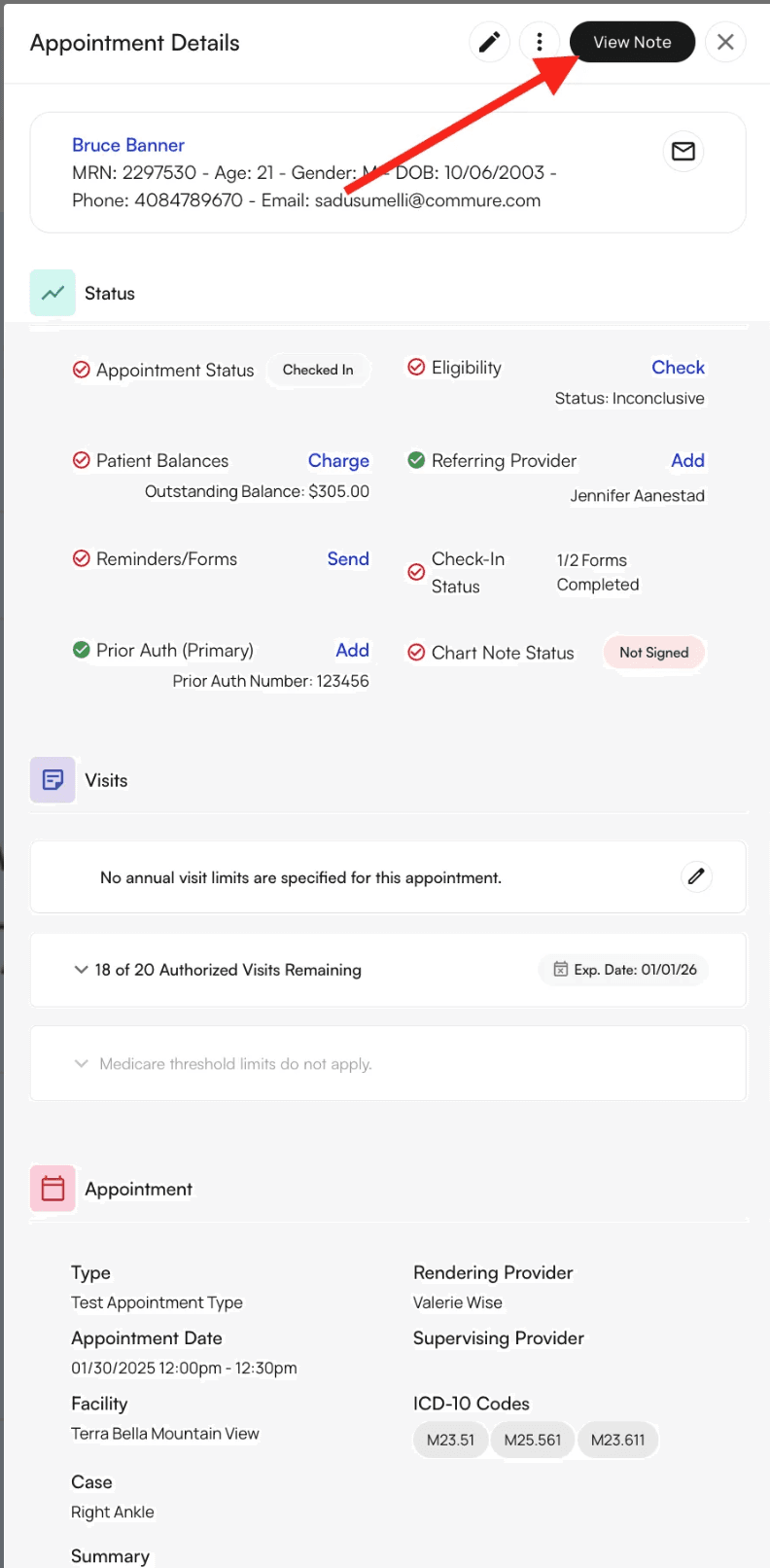
Complete required fields
- Case - Patient case associated with the appointment
- Appointment Type - Type of visit
- Facility - Location where the appointment takes place
- Insurance - Patient’s insurance information
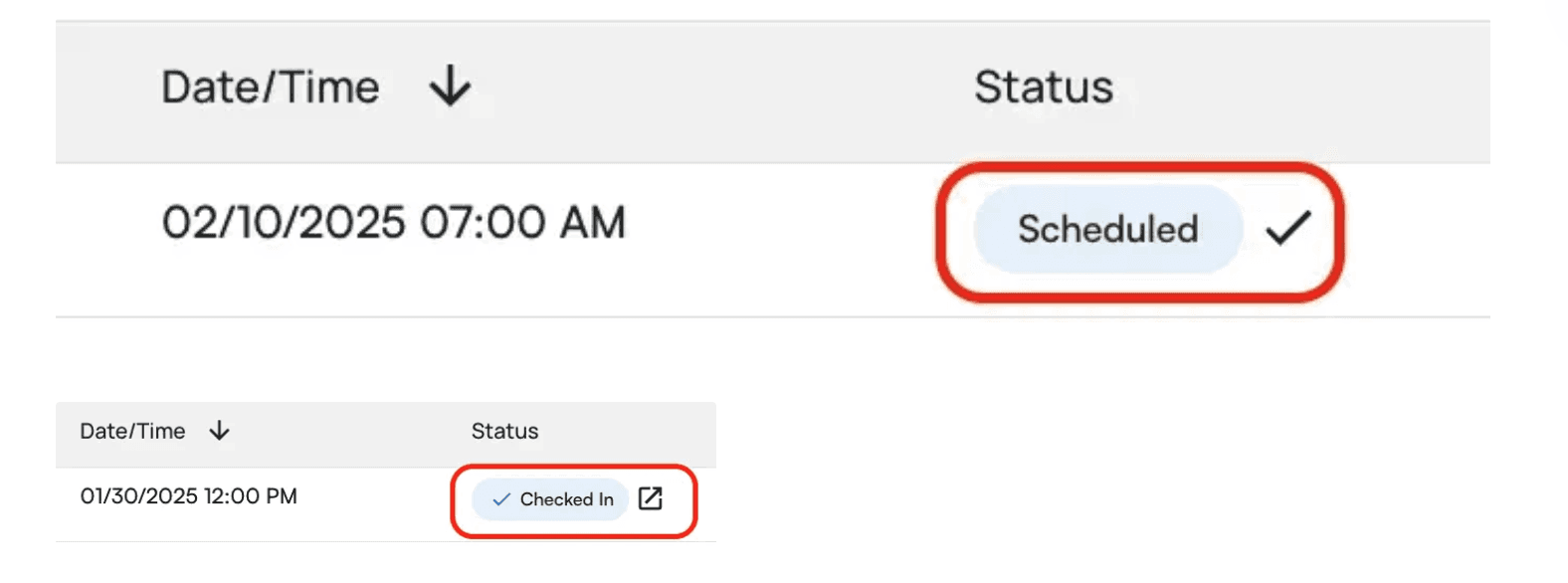
Open the chart note
Open from Patient Profile
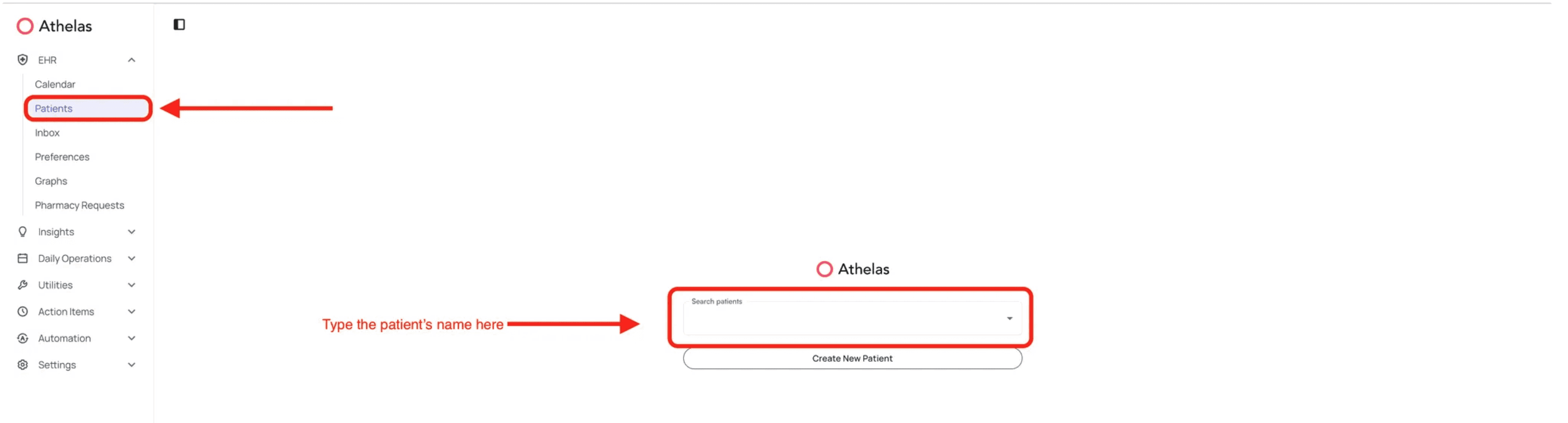
Use this method when you need to access a patient’s chart note from their profile, useful for reviewing previous encounters or accessing notes for walk-in patients.Navigate to the patient
Access the Appointments tab
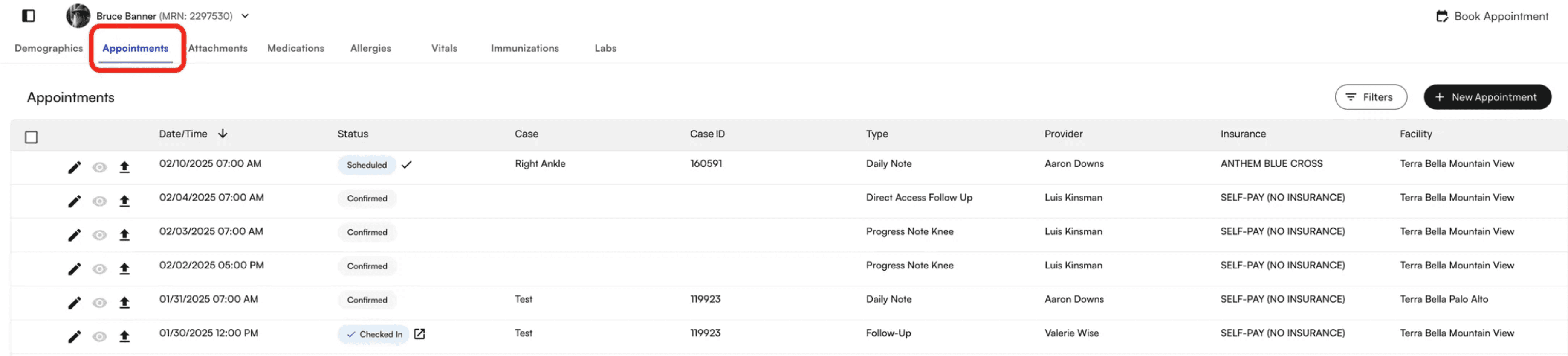
Check in or open the chart note
- If the appointment is scheduled, click the checkmark to check in the patient
- If the appointment is already checked in, click the box icon with an arrow to open the chart note
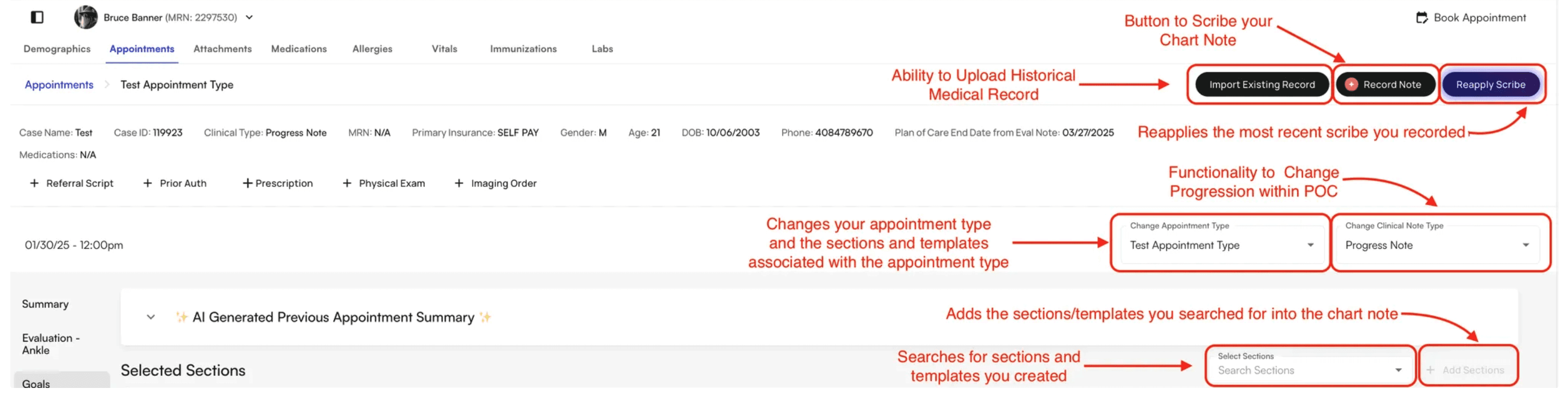
Record patient conversations with Air Scribe
Air Scribe automatically transcribes your patient conversations and populates the encounter note, saving you time on documentation while ensuring accuracy. Think of Air Scribe as a digital transcription assistant that listens to your conversations and converts them into structured clinical notes.Start recording
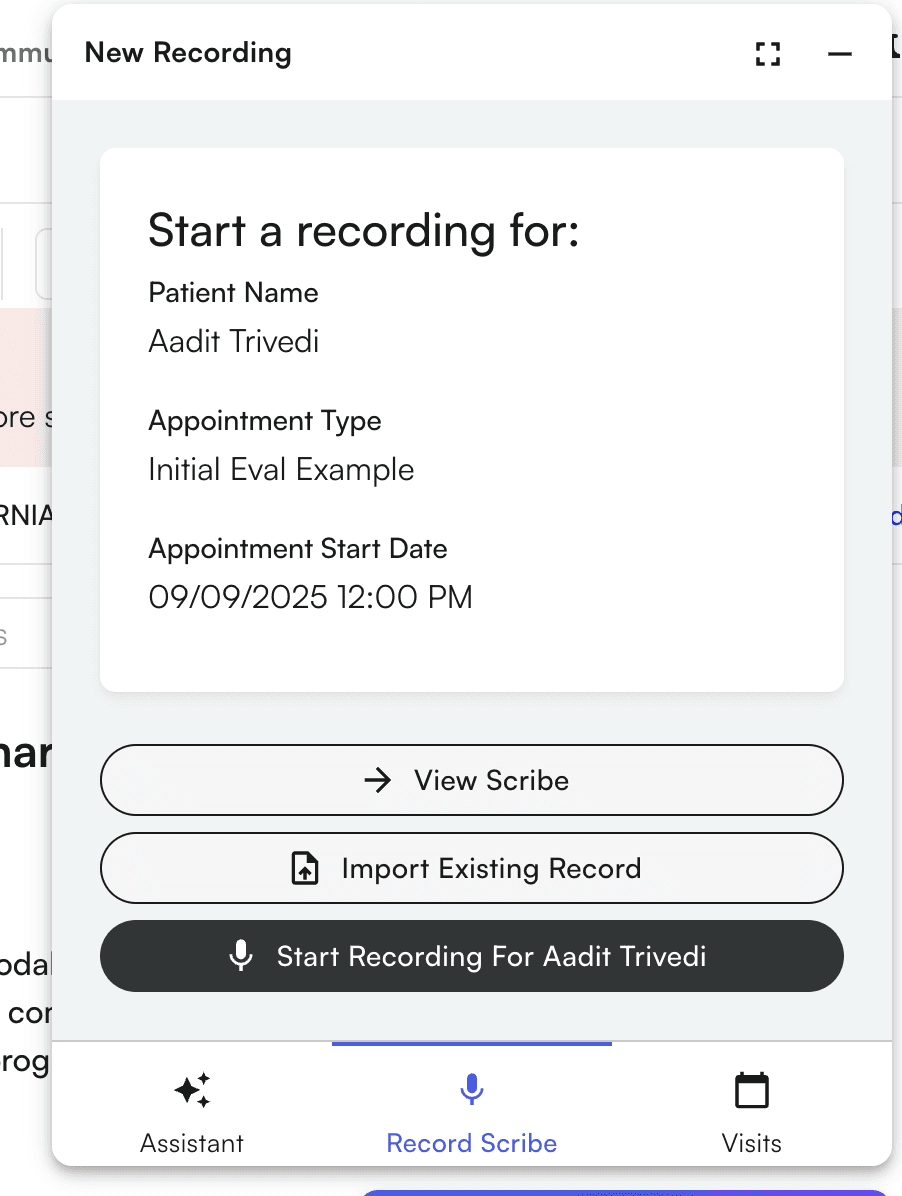
Record your conversation
- Navigate to other EHR pages in Insights and continue recording in the background
- Click Minimize to minimize the widget while it continues recording
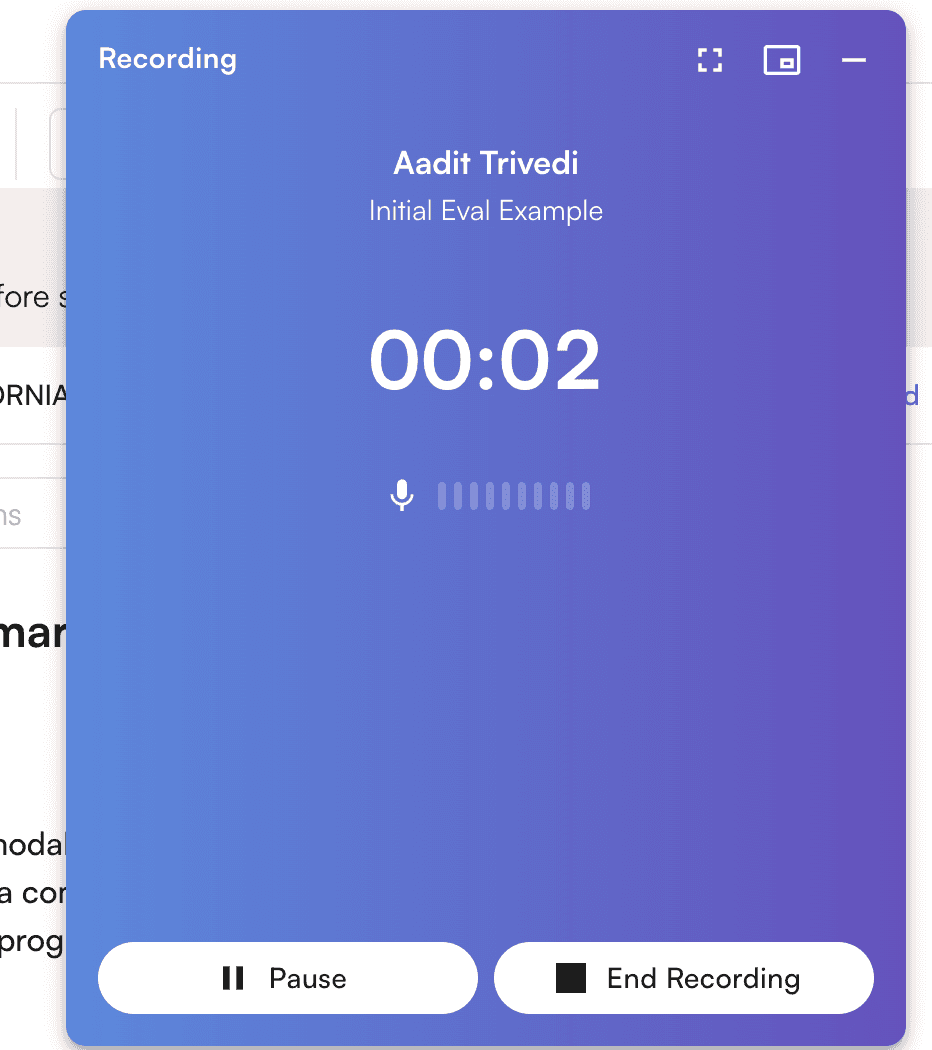
End recording
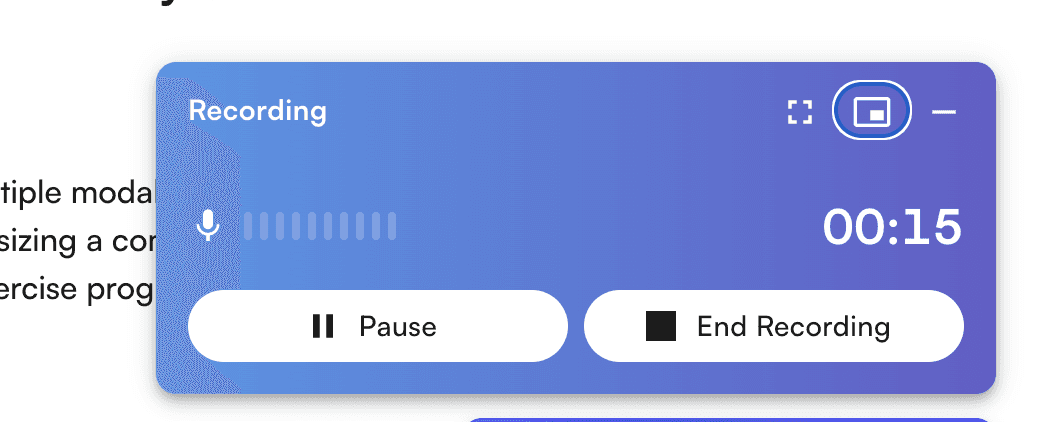
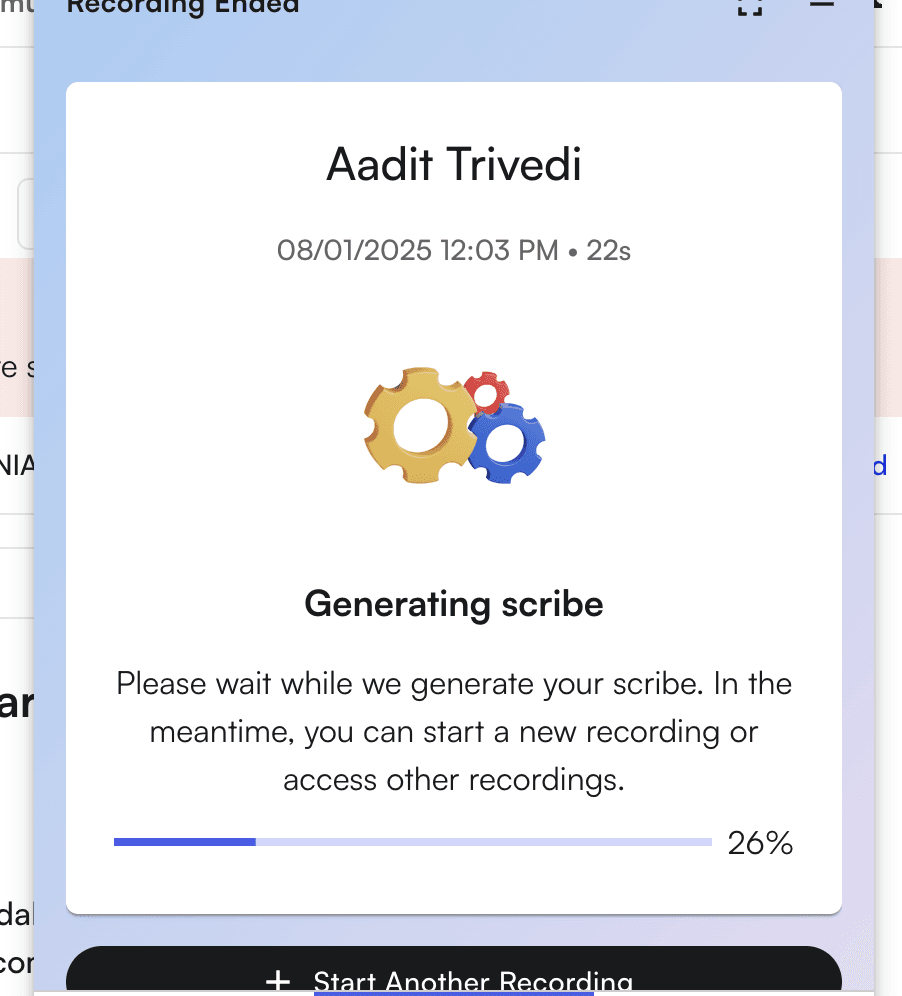
Wait for processing
- Wait for processing to complete
- Close the window and continue with other tasks
Review and add the scribe
Add measurements to chart notes
Measurements capture clinical assessments and are organized by category for easy access. Adding measurements ensures your documentation includes all required clinical data and helps track patient progress over time.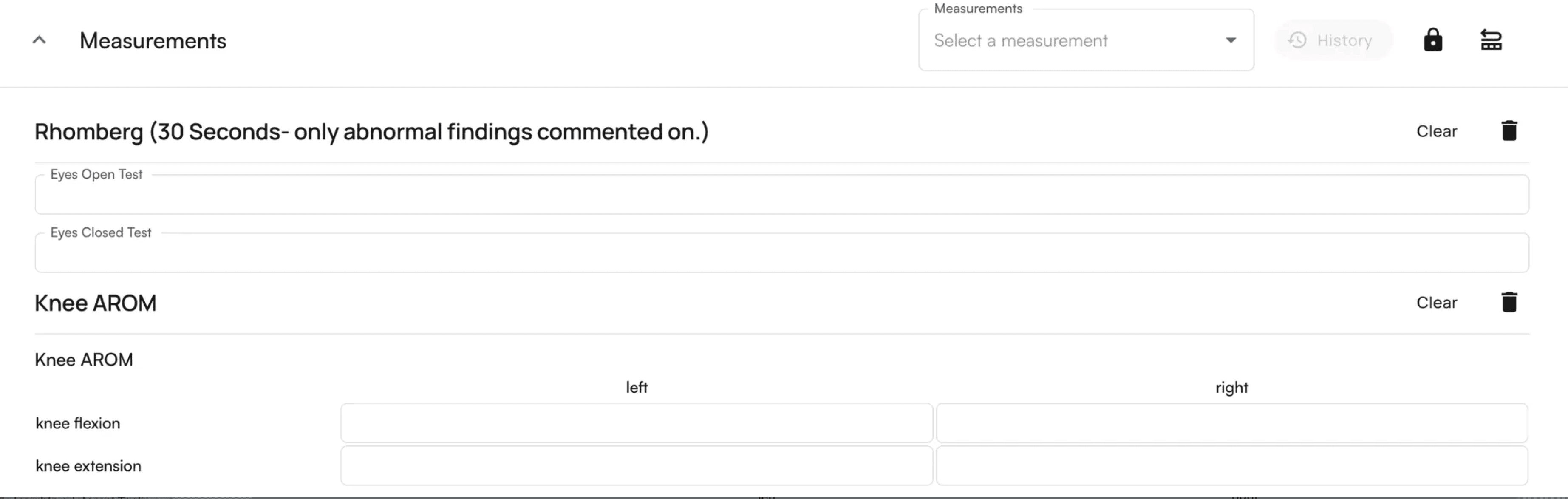
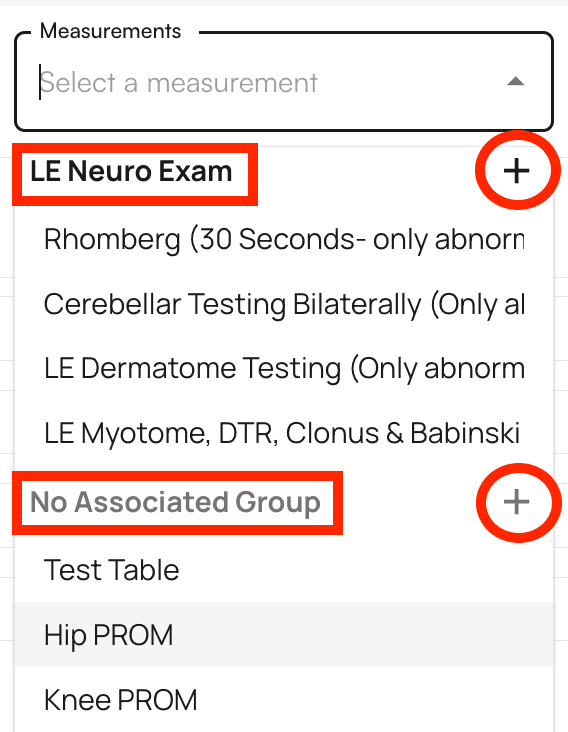
How measurements are organized
Clicking on measurements displays them in categorized order:- Grouped measurements (e.g., LE Neuro Exam) appear together
- Ungrouped measurements (marked as “No Associated Group”) appear at the bottom
- Click an individual measurement to add it to the chart note
- Click the + icon next to a group name to add all measurements within that group

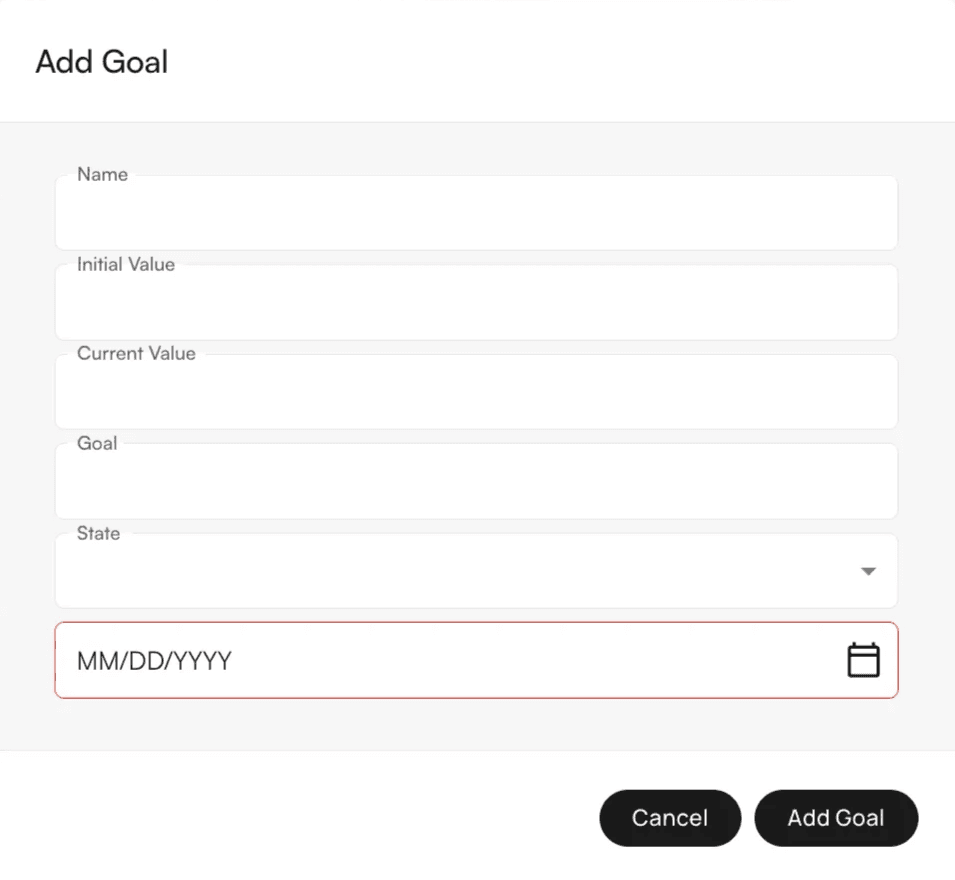
Set patient treatment goals
Goals track patient treatment objectives and outcomes, helping you monitor progress and document treatment plans effectively. Unlike measurements which capture current clinical status, goals define what you and the patient aim to achieve.Add a goal
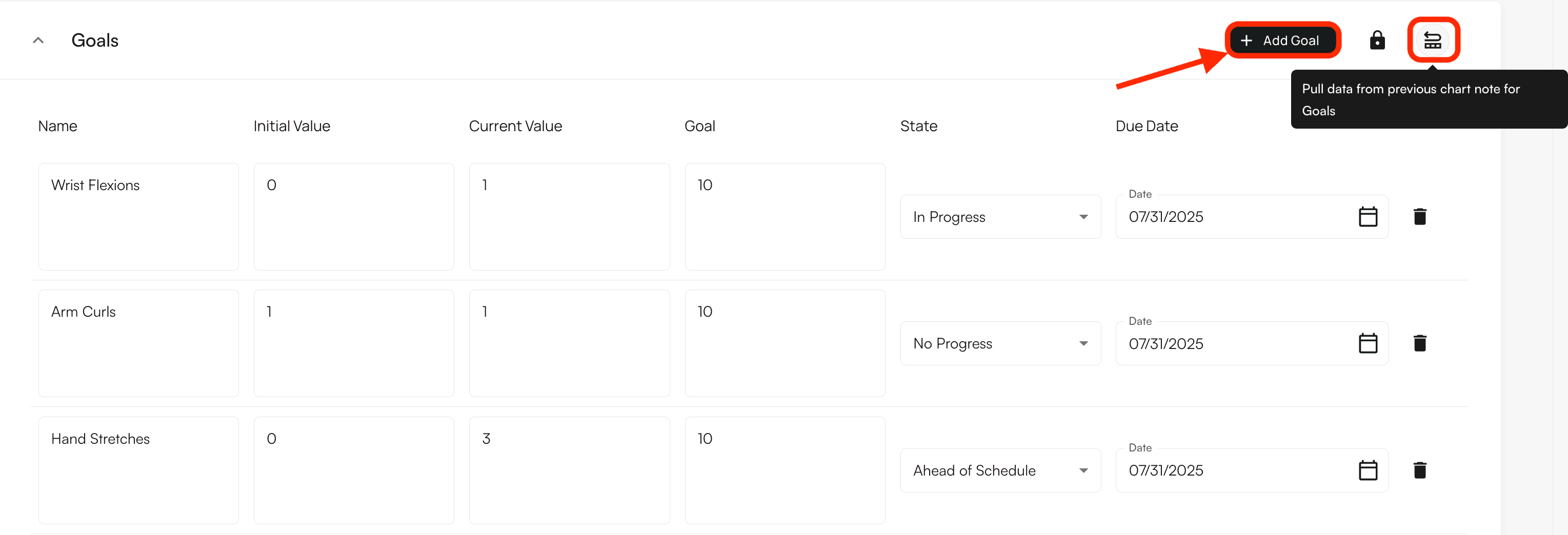
Enter goal details
Create a Plan of Care
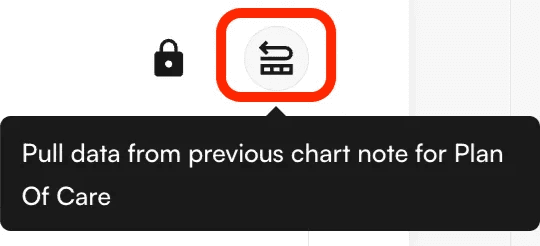
The Plan of Care defines treatment frequency, duration, and visit count for the patient, ensuring accurate documentation of the treatment plan. This differs from goals (which define objectives) and measurements (which capture current status) by specifying the treatment schedule and timeline.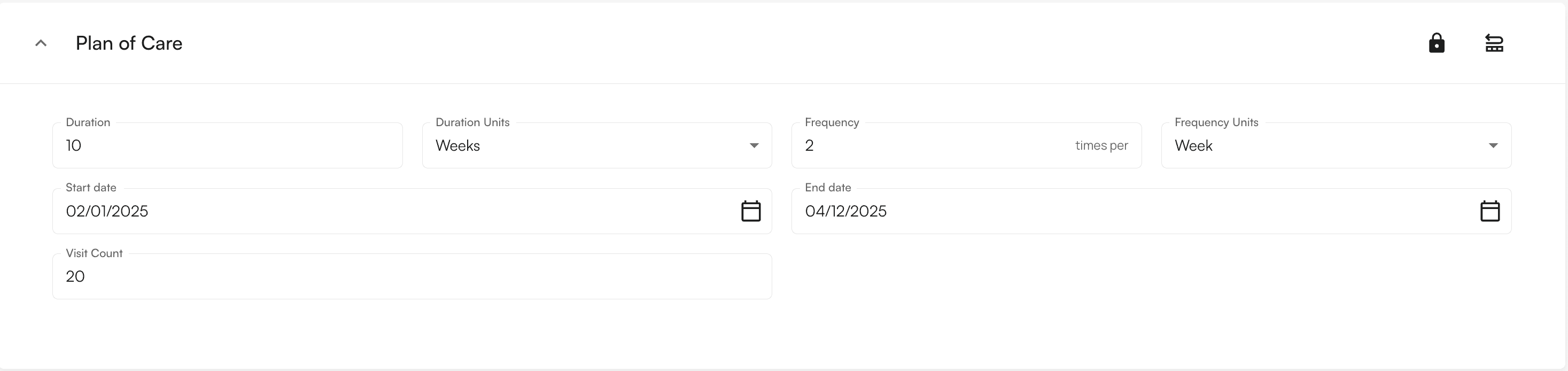
Plan of Care fields
When selecting Plan of Care, you’ll be prompted to input:- Start Date - When treatment begins
- End Date - When treatment concludes
- Frequency + Units - How often treatment occurs
- Duration + Units - Length of treatment period
- Visit Count - Total number of visits
Create Home Exercise Programs (HEP)
Create home exercise programs by selecting interventions marked asHEP. This feature helps you provide patients with clear exercise instructions they can reference at home, improving patient compliance and outcomes.
Select HEP interventions
HEP. This adds it to a staging area where you can prepare the Home Exercise Program.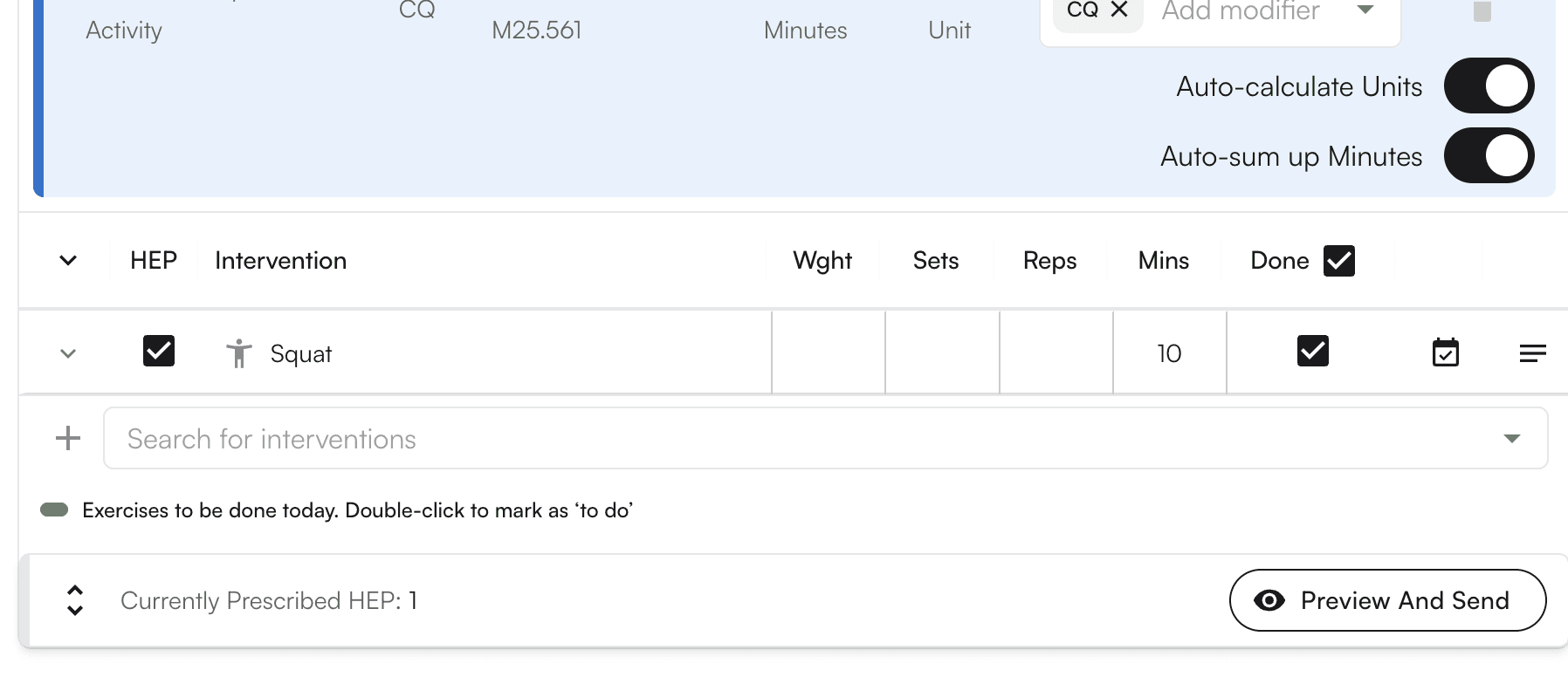
Add intervention notes
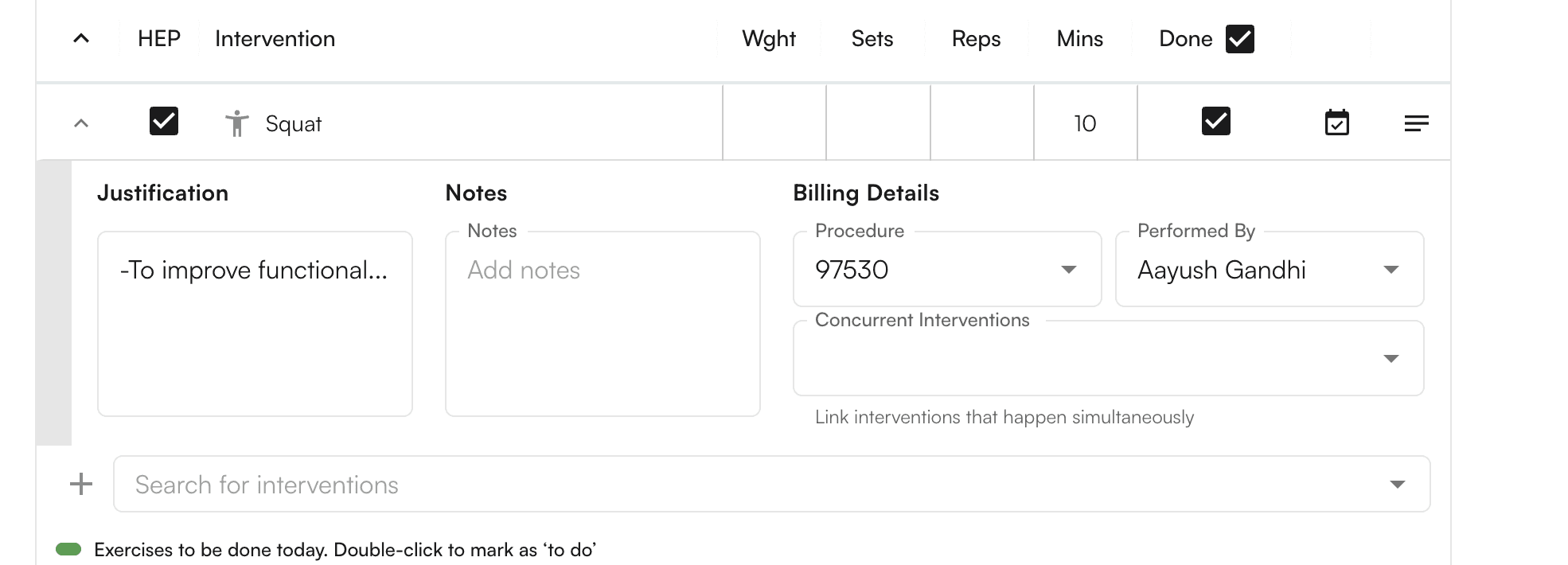
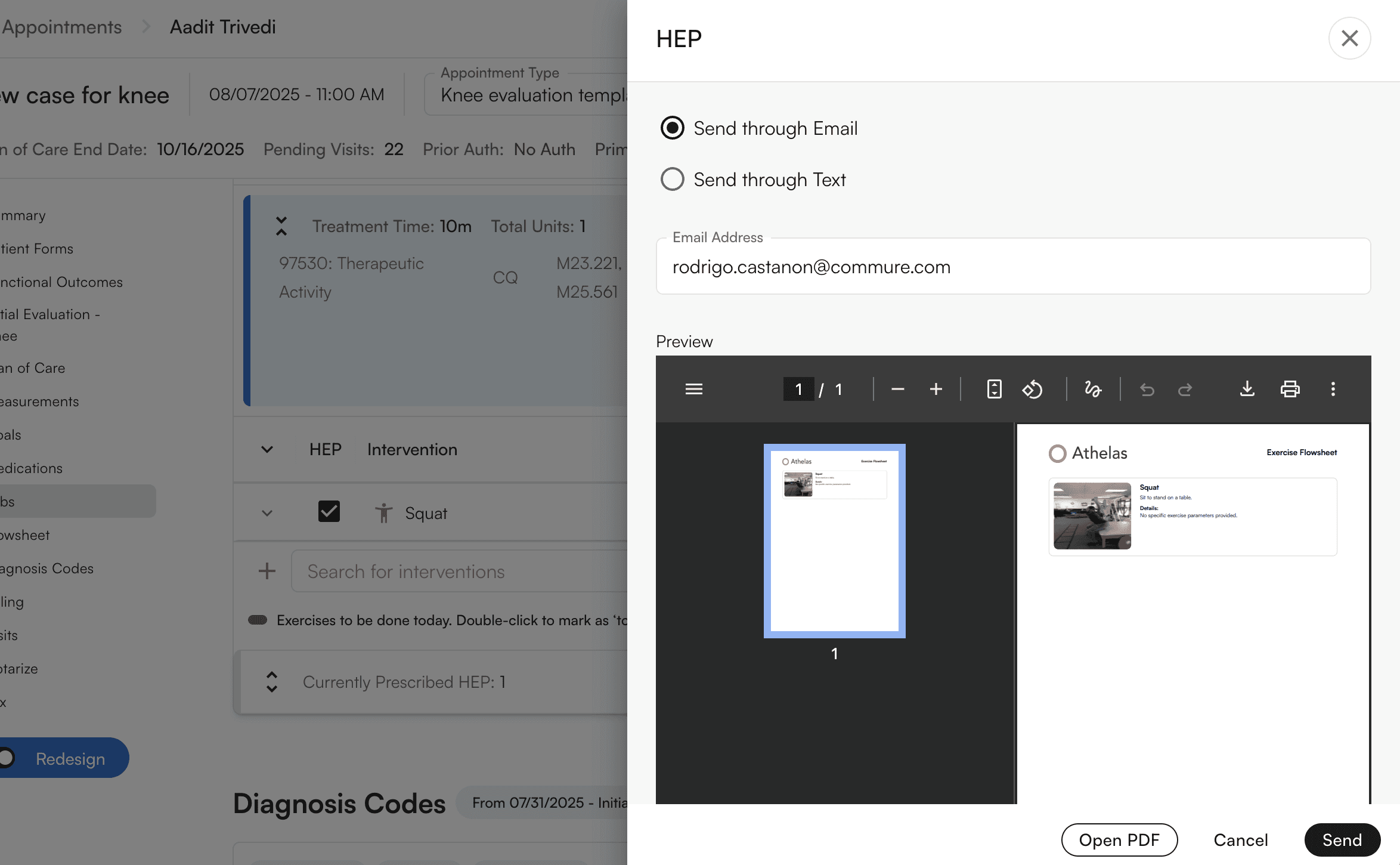
Preview and send
Document with templates
Templates are your primary tool for documenting information during patient encounters. They include SOAP notes, initial evaluations, and other specialized fields categorized under Selected Sections, helping you maintain consistent documentation standards. Unlike free-form notes, templates provide structure that ensures all required information is captured.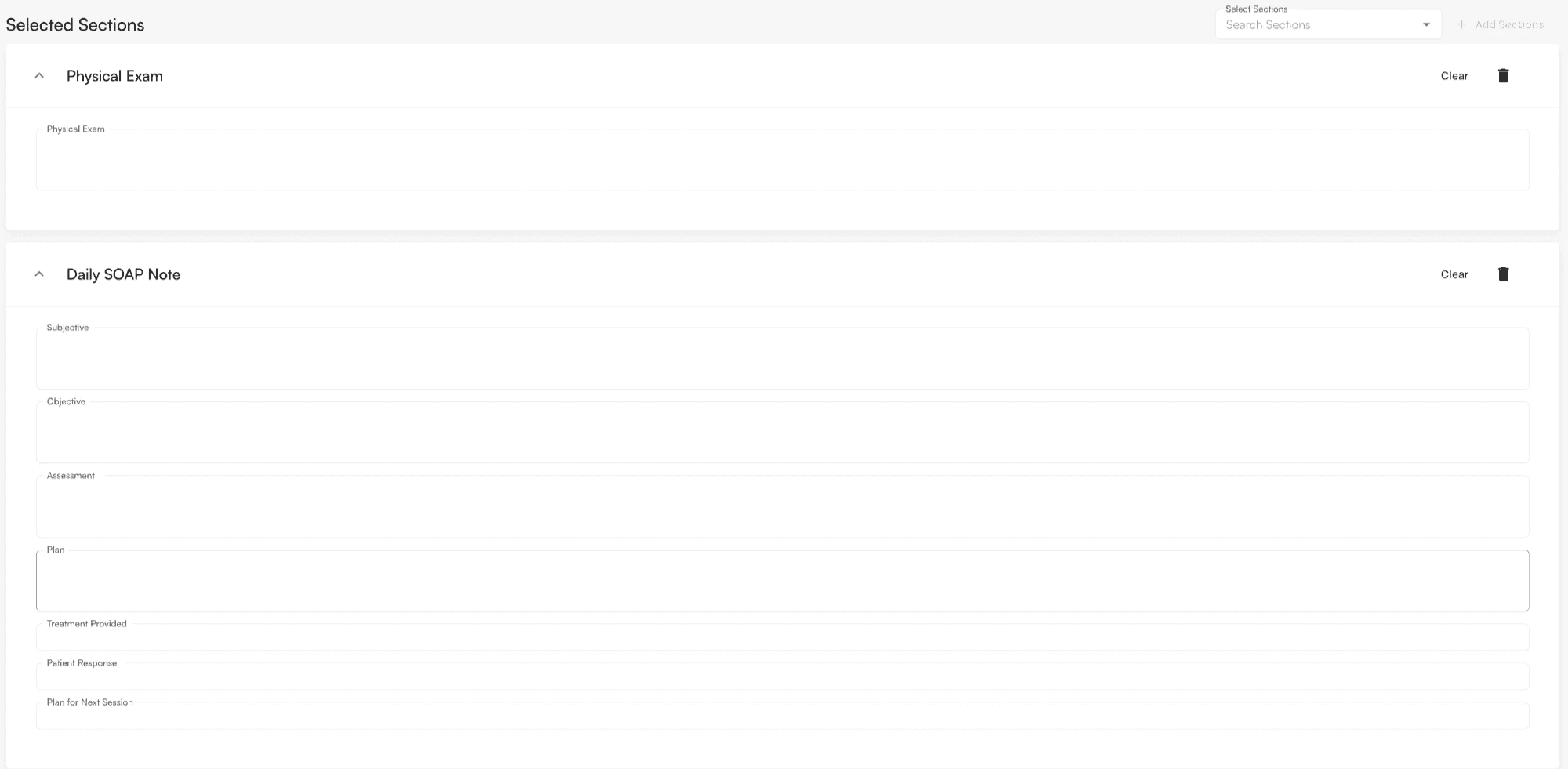
Template features
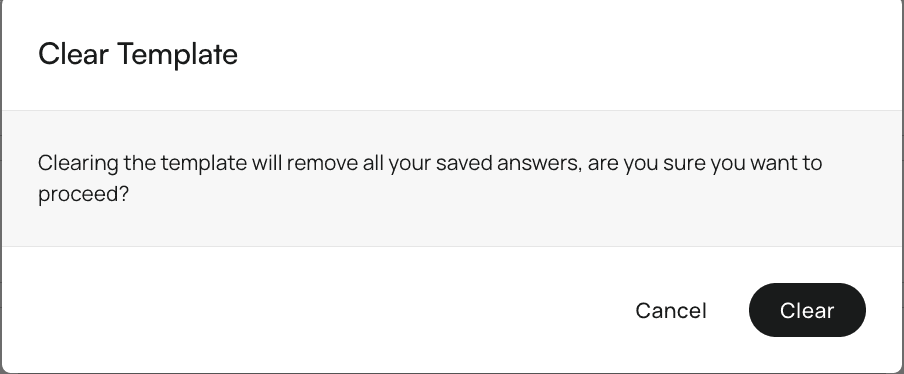
Templates support Air Scribe input, allowing you to dictate directly into template fields, which speeds up documentation while maintaining structure.Clear template content
Clear template

Confirm deletion
Delete templates
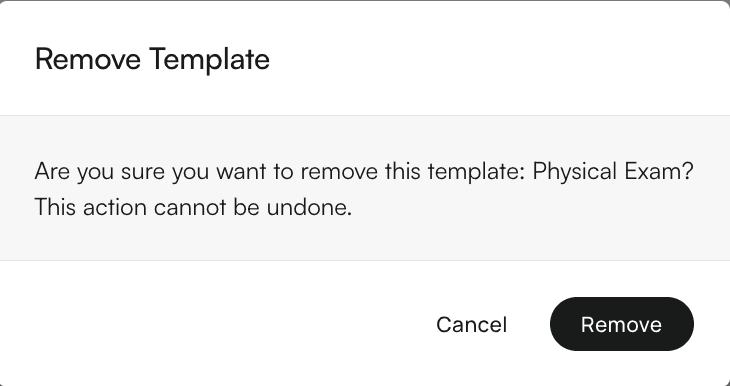
Delete template

Confirm deletion
Track compliance with checkmarks
Compliance checkmarks track specific details that must be captured within the chart note, helping you ensure complete documentation. They can be configured for any template in Insights. Unlike templates which provide structure, compliance checkmarks verify that required information is actually filled in.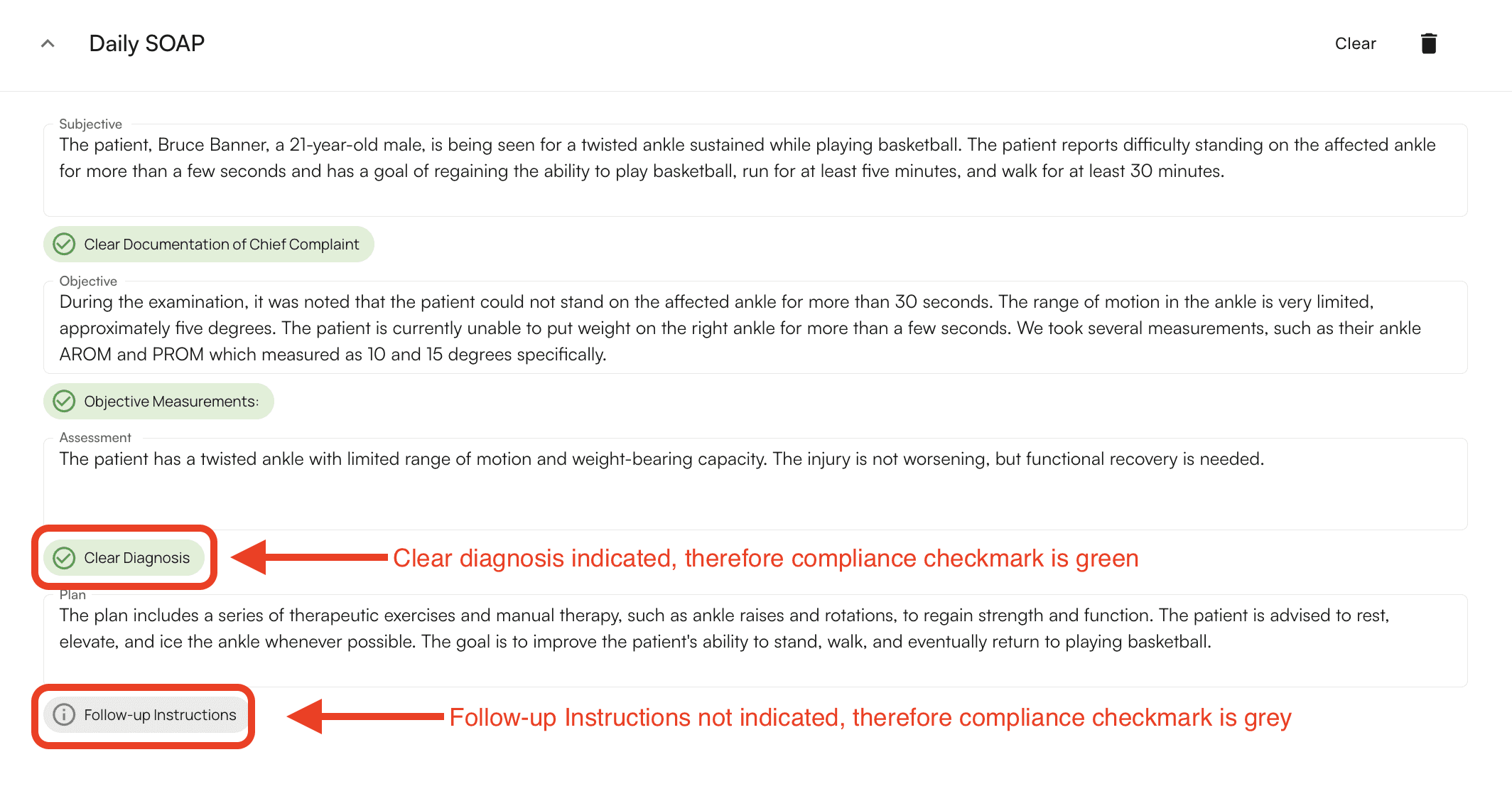
How compliance checkmarks work
- Grey checkmark - The required detail has not been captured
- Green checkmark - The required detail has been captured
Add treatments and CPT codes
Select treatments according to their corresponding CPT codes to ensure accurate billing and documentation of services provided. Treatments differ from interventions (which are exercises or procedures) by being tied to specific billing codes.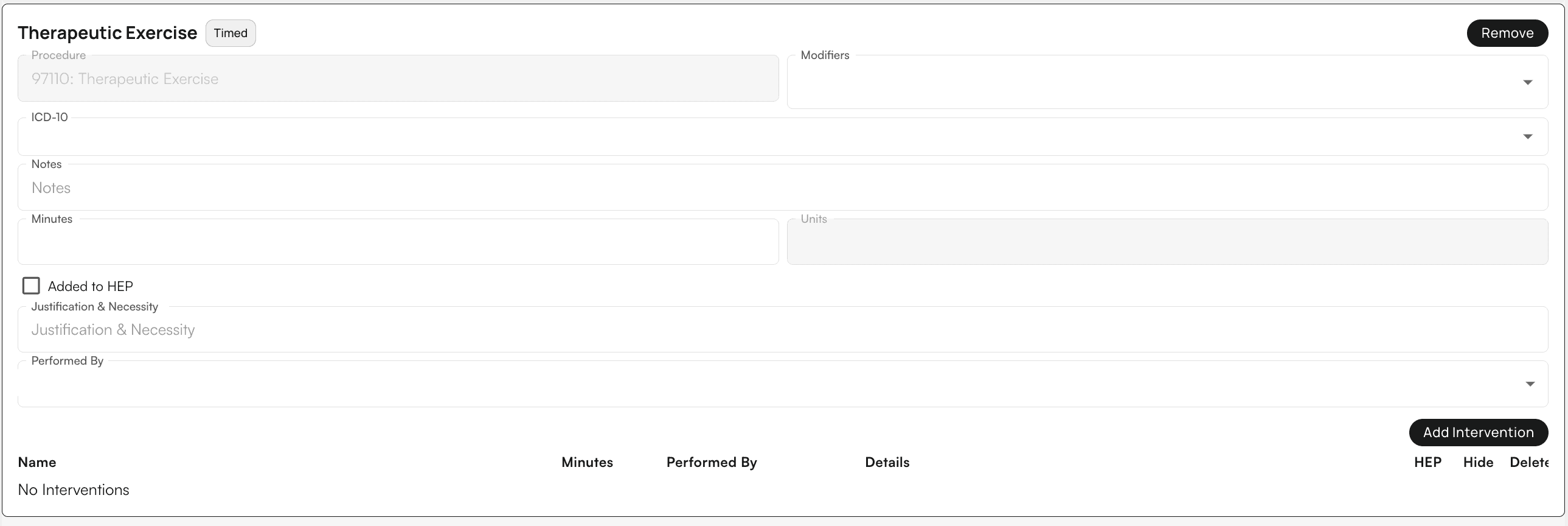
Treatment features
- Add Interventions - Specify exercises associated with the given treatment
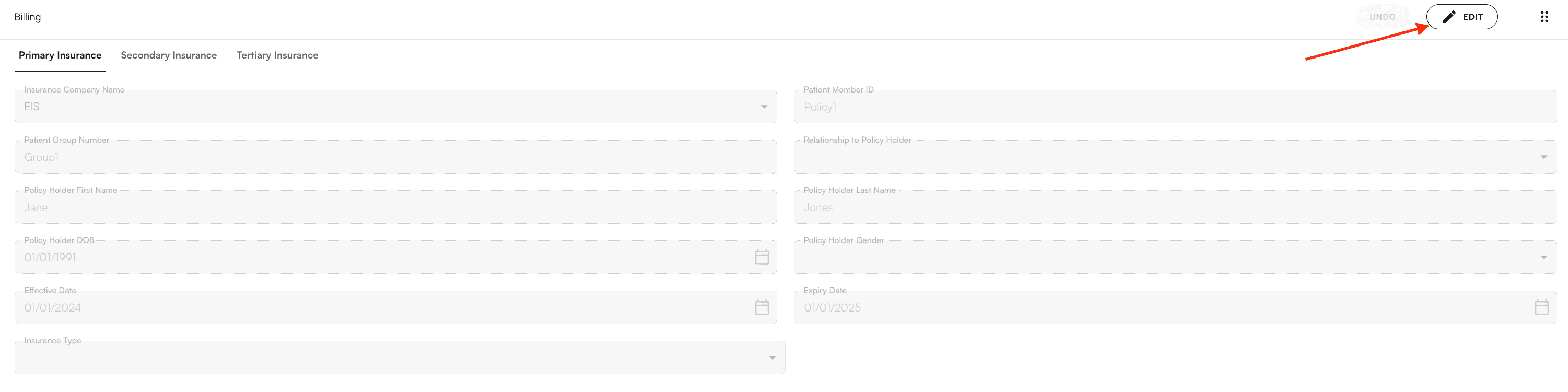
- Edit Billing - Click Edit under the billing section to modify insurance priority and billing information
Add co-signers
Add additional providers

Request fax signature
- Select their name in the dropdown menu
- Enter their fax number
- Ensure the Request Signature checkbox is selected
Send to individual fax number
Use this method when you need to send a chart note to a specific fax number that isn’t associated with a provider in the system.Select fax option

Send fax
Sign and submit the chart note
Complete the encounter by signing the note and submitting it as a claim. This finalizes your documentation and initiates the billing process.Sign the note
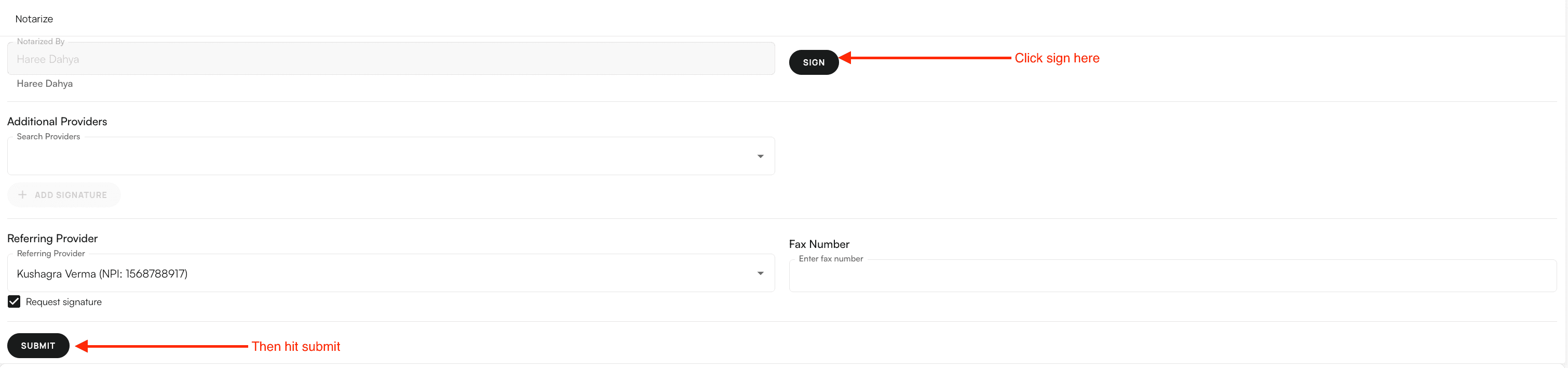
Submit the claim
Troubleshooting
Cannot check in appointment
Problem: You receive an error when trying to check in an appointment. Solution: Ensure a Case is assigned to the appointment. If no case exists, add one via the dropdown menu or create a new case before checking in.Air Scribe not processing
Problem: The Air Scribe processing takes longer than expected or fails. Solution:- Ensure your internet connection is stable
- Check that the recording uploaded successfully
- If processing fails, try recording again
- Contact support if the issue persists
Cannot submit chart note
Problem: The Submit button is disabled or you cannot submit the chart note. Solution:- Verify all required fields are completed
- Check that compliance checkmarks are green (if applicable)
- Ensure the note is signed
- Review any error messages displayed
Measurements not appearing
Problem: Expected measurements don’t appear in the measurements list. Solution:- Verify the measurements are configured for your practice
- Check that you’re looking in the correct category
- Contact your administrator if measurements should be available but aren’t showing
FAQ
What's the difference between opening a chart note from an appointment versus a patient profile?
What's the difference between opening a chart note from an appointment versus a patient profile?
Can I edit a chart note after submitting it?
Can I edit a chart note after submitting it?
How long does Air Scribe processing take?
How long does Air Scribe processing take?
What's the difference between goals and measurements?
What's the difference between goals and measurements?
Can I use Air Scribe with templates?
Can I use Air Scribe with templates?
What happens if I forget to complete a compliance checkmark?
What happens if I forget to complete a compliance checkmark?
How do I know if my chart note is ready to submit?
How do I know if my chart note is ready to submit?
- All required fields are completed
- Compliance checkmarks are green (if applicable)
- The note is signed
- You’ve reviewed all sections for accuracy