
Overview
Provider adjustments are the provider-level dollar amounts a payer reports on a remittance rather than against a single claim line — overpayment recoveries, forwarding balances, interest owed, and small-balance write-offs. Every provider adjustment arrives on the PLB (Provider-Level Balance) segment of the 835 electronic remittance advice (ERA), carrying a reason code and an amount. Most of these amounts belong at the check level, but some tie back to a specific claim. The Provider Adjustments tab on a check gives your billing team the tools to sort that out: post an adjustment to the check or to a claim, one at a time or in bulk; archive the ones that should never post; reallocate a posted adjustment across claims; and move a claim-linked adjustment back to the check. This page covers the actions on that tab. The tab sits inside a wider reconciliation workflow, documented in Remittances. To review posted adjustments across every check in a period, see the Provider Adjustments Report.Where to find provider adjustments
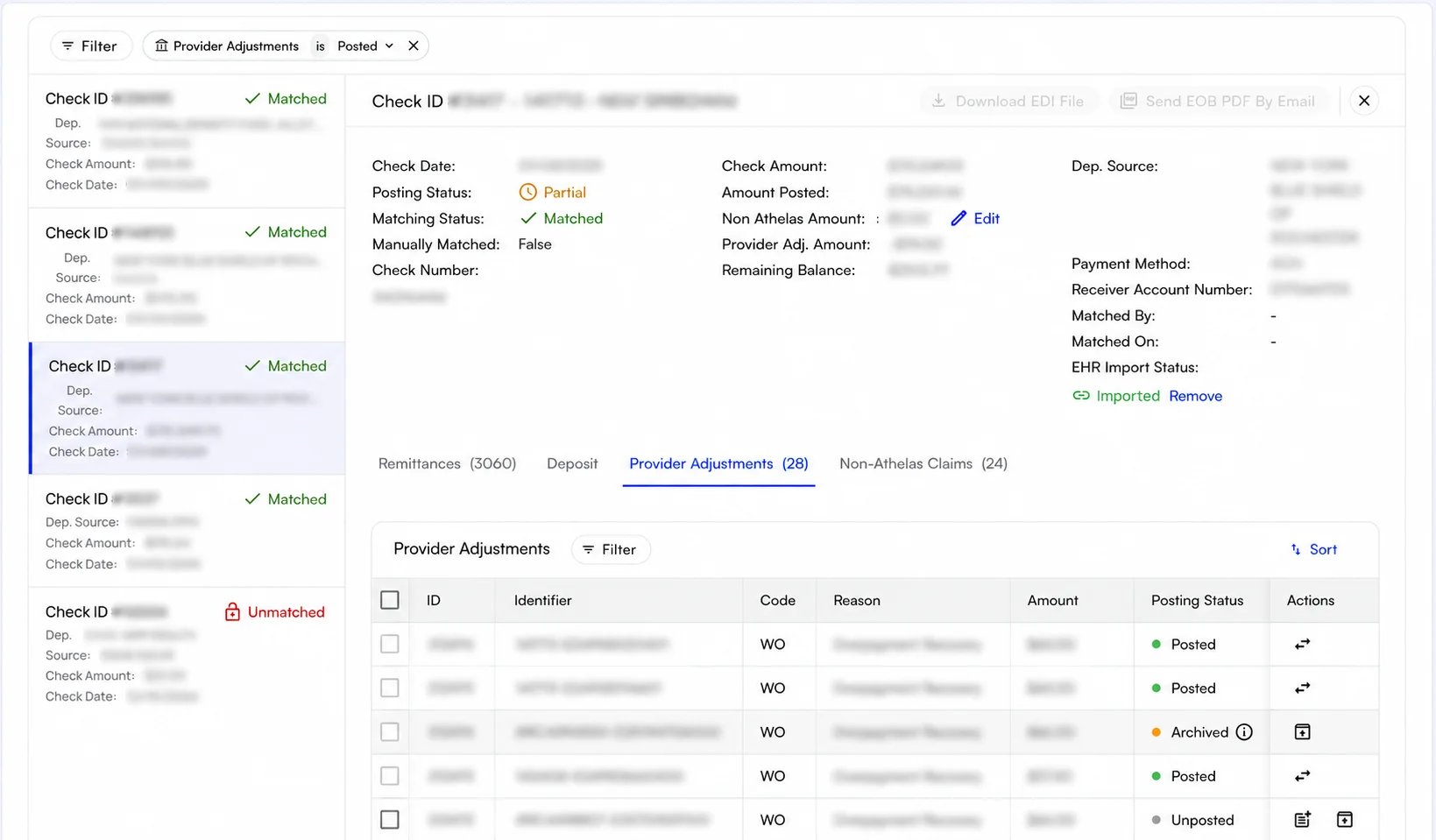
The Provider Adjustments table is scoped to one check:- Go to Insights → Daily Operations → Remittances.
- Open the Checks tab.
- Click a check to open its detail panel.
- Select the Provider Adjustments tab. The tab label carries a count, so you can see how many adjustments a check has before opening the tab.
Posting statuses and posting levels
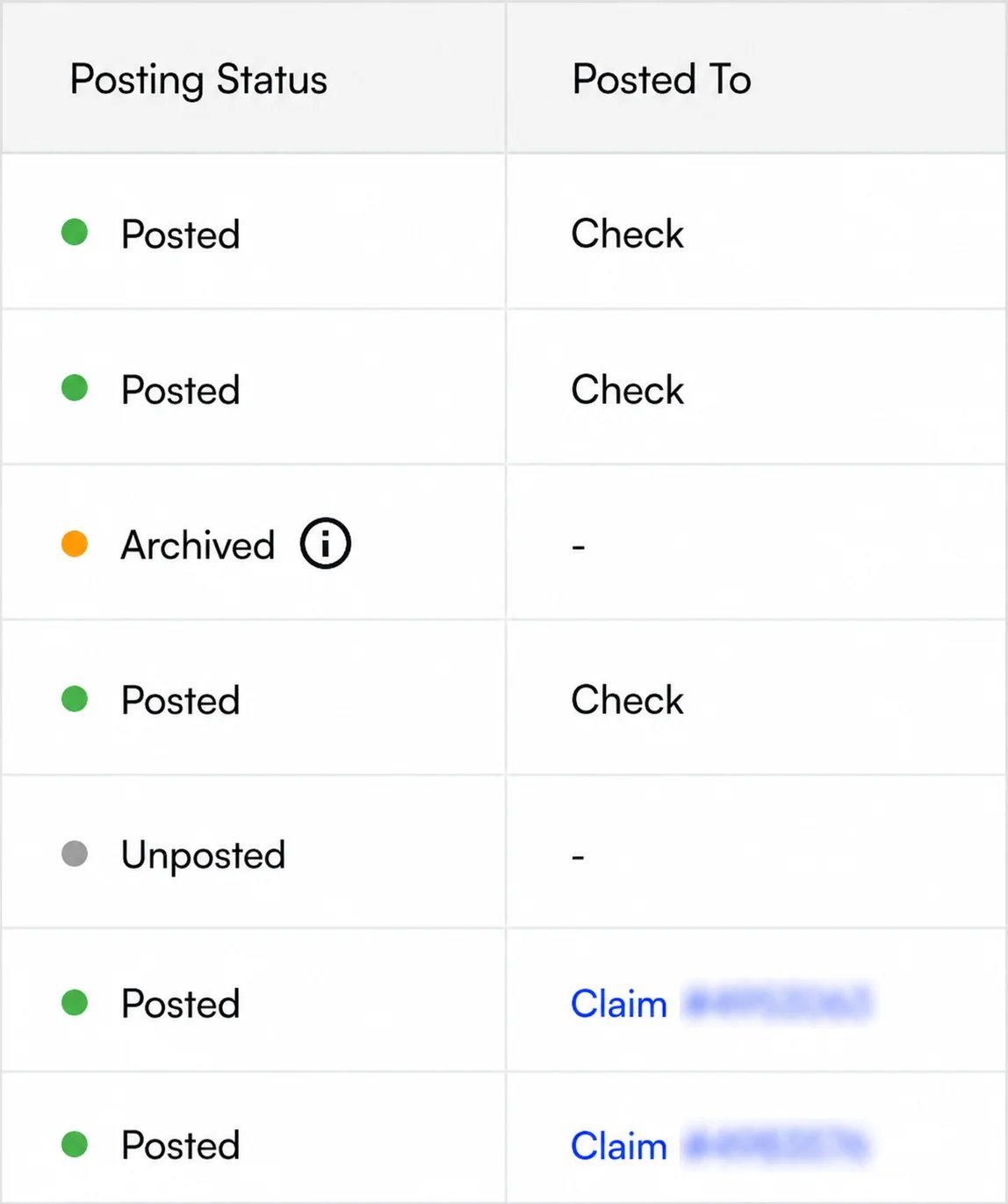
Two columns drive everything on this tab: Posting Status and Posted To. Posting Status sets the badge on the row and which actions the row offers:
Posted To records the level a posted adjustment landed at:
- Check — recorded against the check and not tied to any claim.
- Claim — tied to a specific claim, shown as a link to that claim.
WO - Overpayment Recovery or L6 - Interest Owed), and the Amount. Use Filter and Sort above the table to narrow a long list.
Post adjustments to a check or a claim
Posting takes an unposted adjustment and records it against a claim or at the check level. The flow is the same for one adjustment or for many — only the number of rows changes.- Post one: click the Post icon in the row’s Actions column.
- Post several: select the rows you want, then click Post in the toolbar above the table. Only unposted, non-archived rows are selectable.
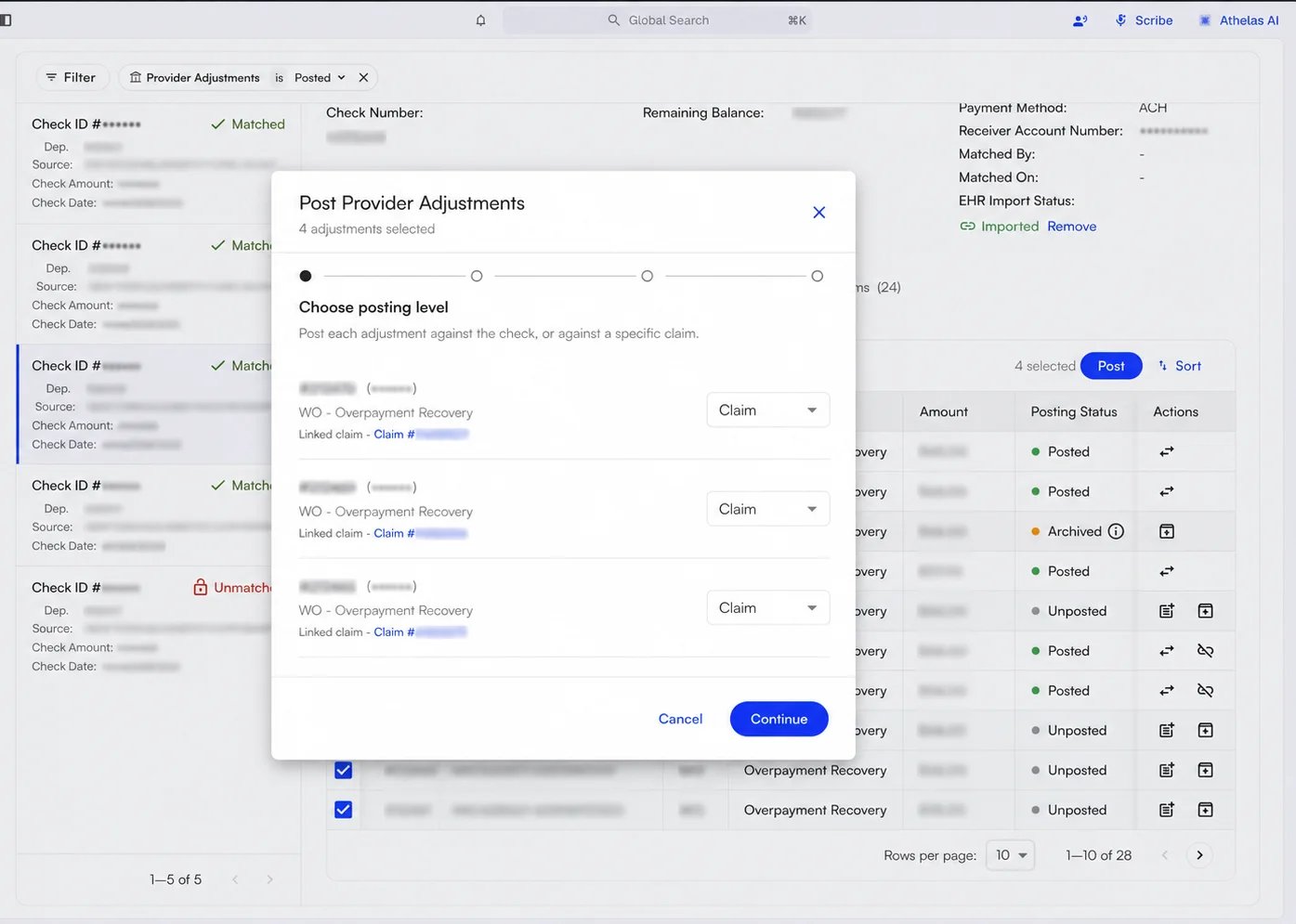
- Choose posting level. For each adjustment, pick Claim or Check. Adjustments that Insights already recognized as claim-related default to Claim and show the linked claim underneath; everything else defaults to Check.
- Select claims. This step appears only when at least one adjustment is set to Claim. Pick the claim to post each claim-level adjustment against. Continue stays unavailable until every claim-level row has a claim.
- Notes. Enter a note explaining the posting. The note is required.
- Review. Read the summary of what is about to post, then confirm.
Archive and unarchive adjustments
Not every adjustment needs to post. Archiving marks an unposted adjustment as finalized without posting it, which drops the row out of your active work. Unarchiving returns an archived adjustment to Unposted, putting the row back into the workflow. Both actions live in the row’s Actions column: unposted rows offer an archive icon, and archived rows offer an unarchive icon.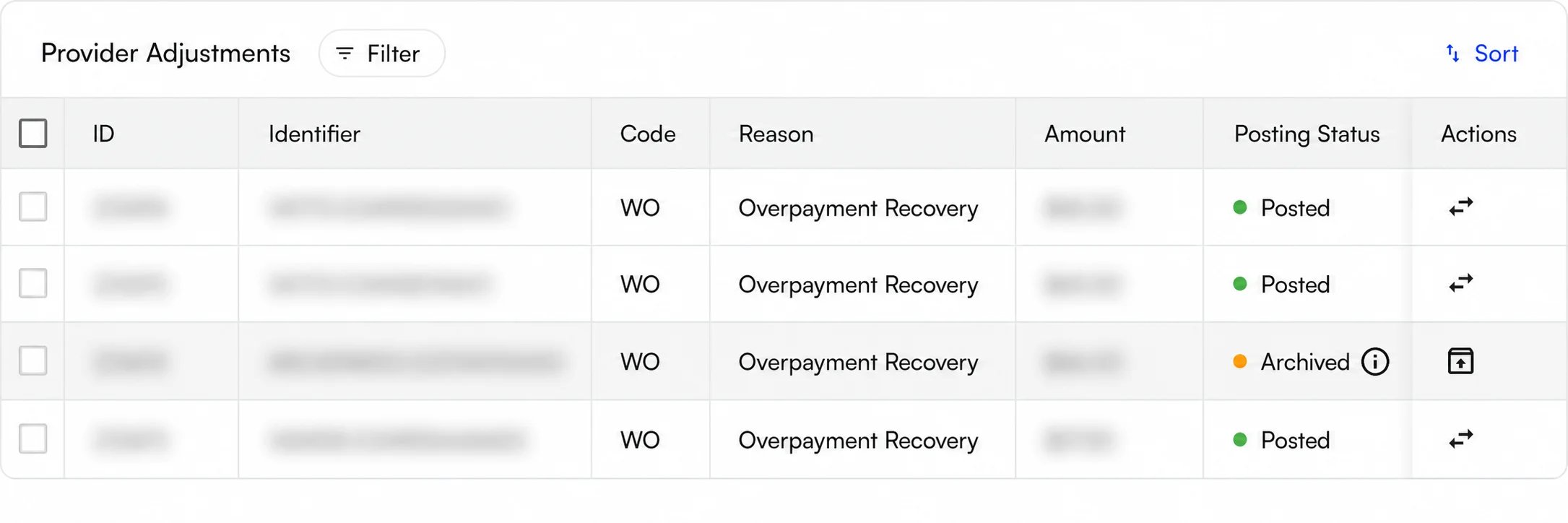
Reallocate a posted adjustment across claims
Reallocation redistributes an already posted adjustment across one or more claims. Reach for reallocation when an adjustment went to the wrong claim, or when a single adjustment really belongs to several. Reallocation works on any posted adjustment, check-level ones included: a check-level adjustment can still be reallocated onto claims. Open the modal from the Reallocate to claims icon on a posted row.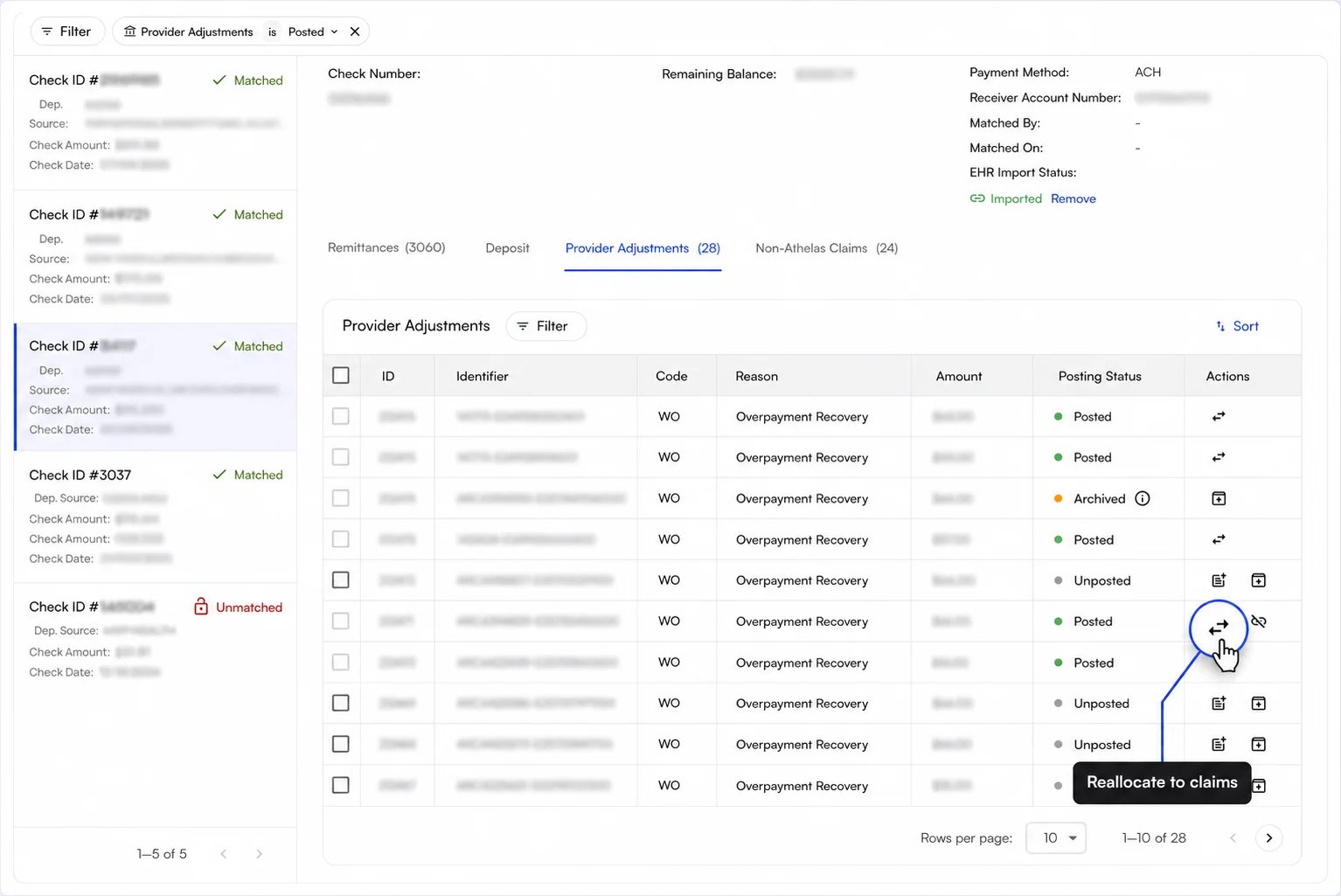
- Search for and select a claim for the row, using the same claim search the posting wizard uses.
- Enter an amount for the row.
- Click Add claim to split the adjustment across more rows.
Move a claim-linked adjustment back to the check
Move back to check level is the inverse of claim-level posting: the action takes a posted, claim-linked adjustment off its claims and records the amount at the check level instead. Insights reverses the claim-level postings and records a single check-level posting in their place. The action appears on claim-linked posted rows only.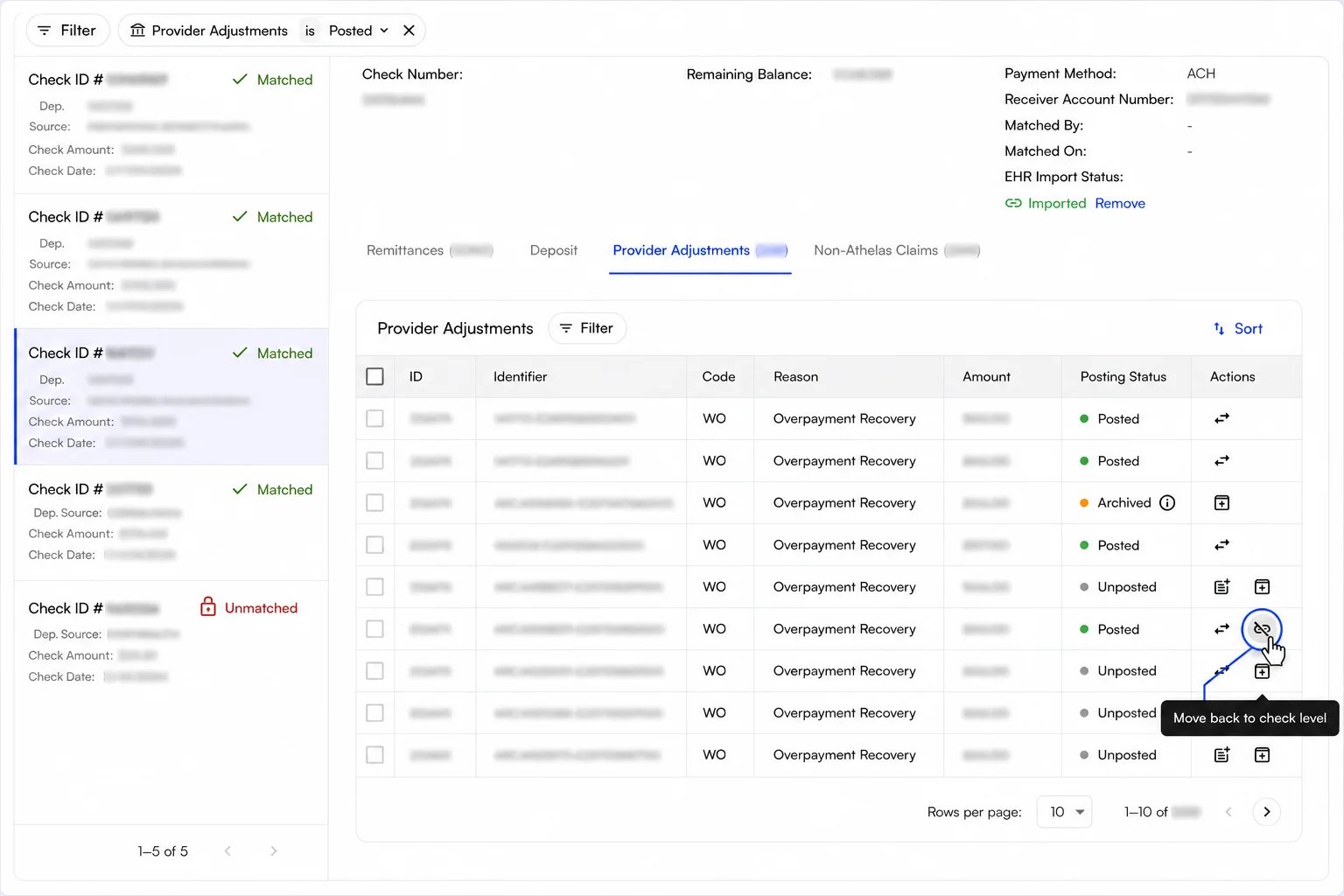
How claim matching and claim search work
Many adjustment identifiers already carry a patient control number. When an identifier does, the adjustment defaults to claim-level posting and Insights matches the adjustment to a claim for you. When the identifier has no control number, or the suggested match is wrong, find the claim yourself. You can search by patient, date of service, encounter, claim, or ARC number. Results are paged, and each result names the patient and the date of service so you can tell similar claims apart.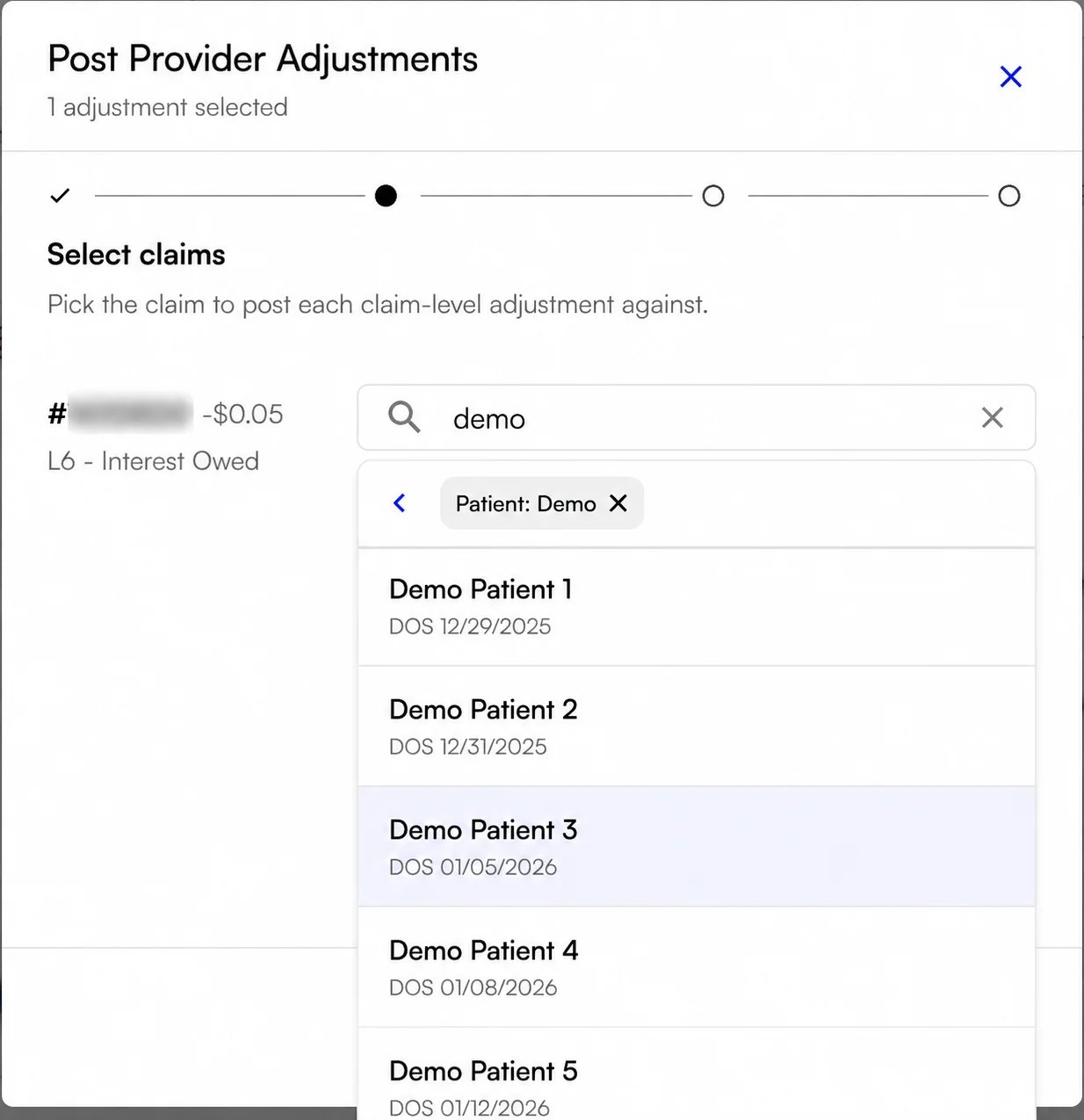
FAQ
Why is an adjustment sitting in Manual review?
Why is an adjustment sitting in Manual review?
Insights could not post the adjustment confidently. The most common cause is a mismatch between the insurance company on the ERA and the insurance on the claim.Review the adjustment, decide whether the amount belongs to the check or to a claim, then post the adjustment through the Post Provider Adjustments wizard.
I posted an adjustment to the check. Can I move it to a claim later?
I posted an adjustment to the check. Can I move it to a claim later?
Yes. Reallocate to claims works on any posted adjustment, check-level ones included, and one adjustment can be split across several claims in the same modal.
What happens when I unarchive an adjustment?
What happens when I unarchive an adjustment?
The adjustment returns to Unposted and the post and archive actions become available again. Archiving is not permanent.
Where can I see provider adjustments across all of my checks?
Where can I see provider adjustments across all of my checks?
The Provider Adjustments tab is scoped to a single check. For a period-level view grouped by payer and reason code, run the Provider Adjustments Report.To tie provider adjustments back to cash in the bank, cross-check that report against the Bank Deposit Reconciliation Report.