
Getting started with the Remittances Page
The Remittances page is your command center for ensuring that every insurance payment makes it from the payer → into your RCM system → and all the way into your bank account. It’s designed to give you confidence that:- Every dollar in Insights = every check reconciled = every bank deposit.
- If there are gaps, duplicates, or mismatches, you can quickly identify and fix them. In other words: it’s where you can see, reconcile, and act on your payment data.
How to Access the Remittances Page
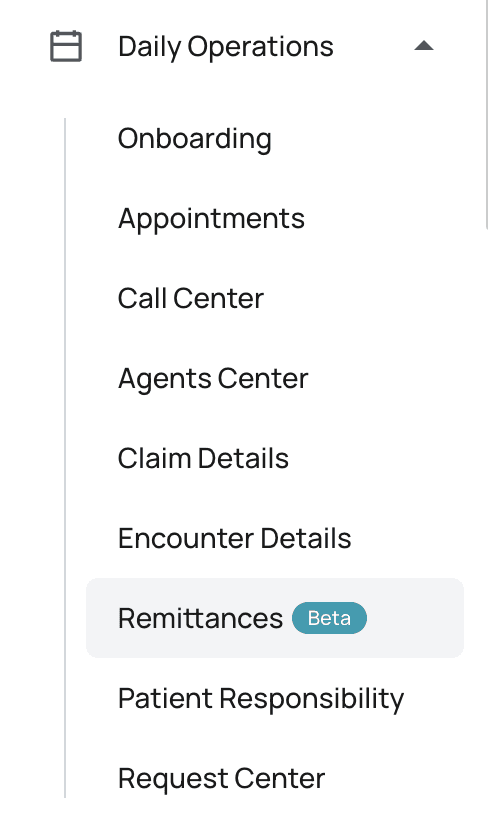
- From the Insights navigation menu, select Remittances
- You’ll land on a tab called Deposits
Fundamental Tabs
- Deposits Tab → Helps you confirm that every dollar that entered your bank is fully matched to checks and payments in Insights.
- Checks Tab → Helps you confirm that every payer check has been posted correctly to claims and is tied back to a deposit. You can think of them as two sides of the same equation:
Deposits = money in the bank
Checks = promise of money from the payerThis page helps you ensure that both sides always match.
Fundamental Concepts
Bank Deposit A bank deposit is the actual money hitting your bank account. This could be an ACH transfer, a virtual credit card payment, or a physical check deposit. Your goal is to make sure every deposit is represented in Insights and tied to the right checks. Check A check represents the payer’s promise to pay. It contains a check number, payment amount, and payer details. Your job is to:- Ensure the payments from this check are posted across the correct claims.
- Match the check to its associated deposit to confirm the payment actually arrived in your bank.
- Manual review → if our posting engine isn’t sure how to apply a payment.
- Archived → if the engine detects duplicates or bad data.
The Deposits Tab
The Deposits Tab gives you a complete view of the insurance deposits that have hit your bank account and allows you to reconcile them with checks and remittances inside Insights. This is the “money in” side of the reconciliation process.High-Level Overview
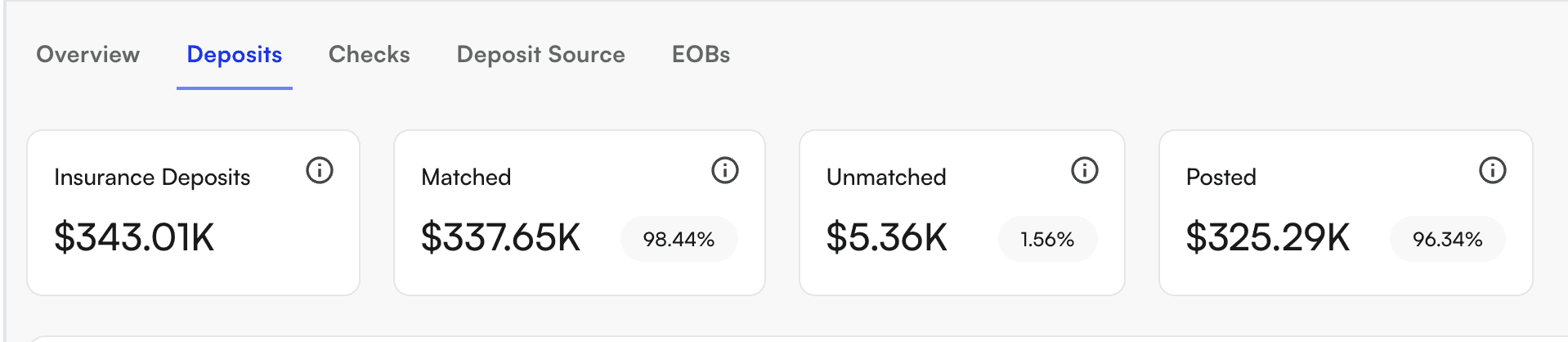
- Total Insurance Deposits → the sum of all insurance deposits in the filtered scope.
- Matched Deposits → how much of that total is tied to checks.
- Unmatched Deposits → how much is still not tied to any checks.
- Posted Deposits → how much of the matched deposits have posted payments inside Insights. This gives you an at-a-glance sense of the health of your deposit verification.
Filtering Deposits
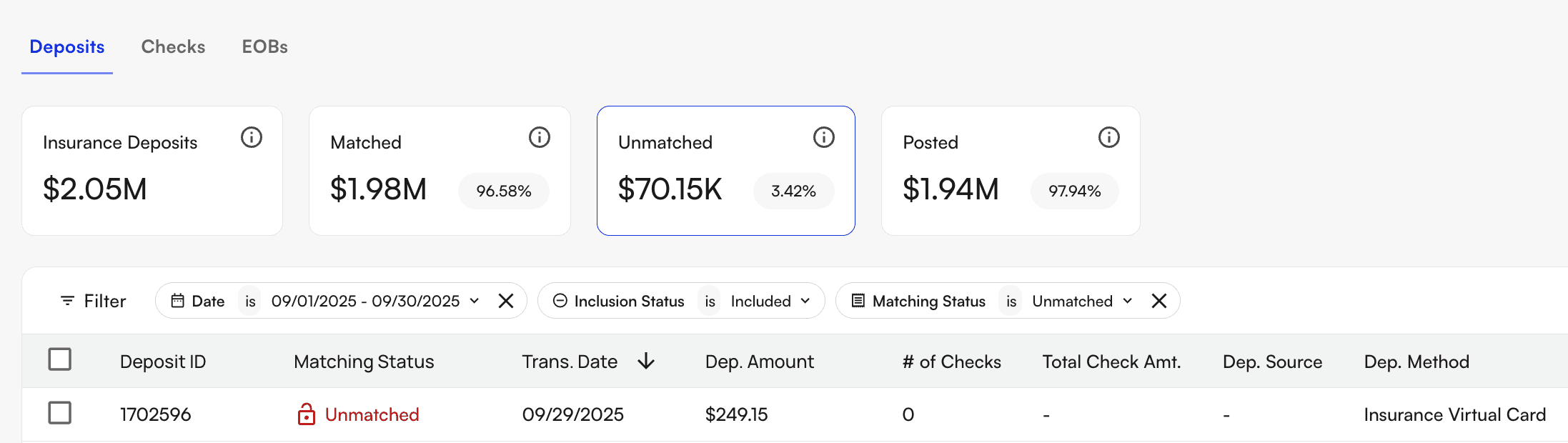
- Date range (transaction date)
- Matching Status (Matched, Unmatched, or Partially Matched)
- Matched - the deposit is linked to at least one check and the sum of the check(s) payment amounts = the deposit amount.
- Partially Matched - the deposit is linked to at least one check but the sum of the check(s) payment amounts does not equal the deposit amount.
- Unmatched - the deposit is not linked to any checks.
- Inclusion Status (Included or Excluded) - this is used as a way to mark certain deposits as non-insurance deposits
- Deposit Amount (range filters)
Deposit Table
Each row in the table shows:- Deposit ID, status, and transaction date
- Deposit amount and total check amount (sum of checks tied to the given deposit)
- Number of linked checks to the given deposit
- Deposit source (payer, normalized) and method (ACH - Automated Clearing House, CHK - Check, VCC - Virtual Credit Card)
- Description (from bank feed)
- Inclusion toggle 👉 If you exclude a deposit, you’ll be prompted to provide a reason, which is stored for audit visibility.
Clicking Into a Deposit
Clicking on a deposit opens a detailed view, where you can:- See the deposit details (source, method, Plaid Trans. ID, who included/excluded it).
- Review linked checks (check ID, number, amount, posting status).
- Drill down into remittances tied to those checks (with statuses like Fully Posted, Archived, or Unposted). From here, you can confirm:
- That the deposit amount matches the sum of linked checks.
- That all checks tied to the deposit are fully posted in Insights.
- Which remittances still need action (e.g., manual posting).
Matching and Unlinking Checks
When a deposit is unmatched or partially matched:- Open the deposit.
- Use View Unmatched Checks to see candidate checks.
- Link one or more checks to the deposit. If a mistake is made, you can always unlink a check from a deposit. Both linking and unlinking are tracked in the system so there’s a clear audit trail.
Posting Remittances
After a deposit is matched to checks, the final step is ensuring the remittances tied to those checks are posted:- Pending → The remittance has been created but not yet processed by the posting engine.
- Manual Review Required → The posting engine wasn’t sure how to apply the payment. User intervention is needed.
- Partially Posted → Some, but not all, of the remittance’s payments have been applied.
- Fully Posted → The remittance has been successfully posted in its entirety.
- Archived → The remittance was identified as a duplicate or bad data and excluded from posting. You can take action at the remittance level directly from the deposit view by clicking into a specific remittance. You will be directed to our posting tool that allows you to actually post these remittances to the payment ledger. The tool will highlight which remittances/payments are tied to the given check and what the total payment value should be for this claim based on the remittance data.
The Checks Tab
The Checks Tab is the “payer side” of reconciliation. It’s where you confirm that every check received from an insurance payer has been:- Posted into Insights (so all claim payments are recorded), and
- Matched to the corresponding deposit in your bank account.
High-Level Overview
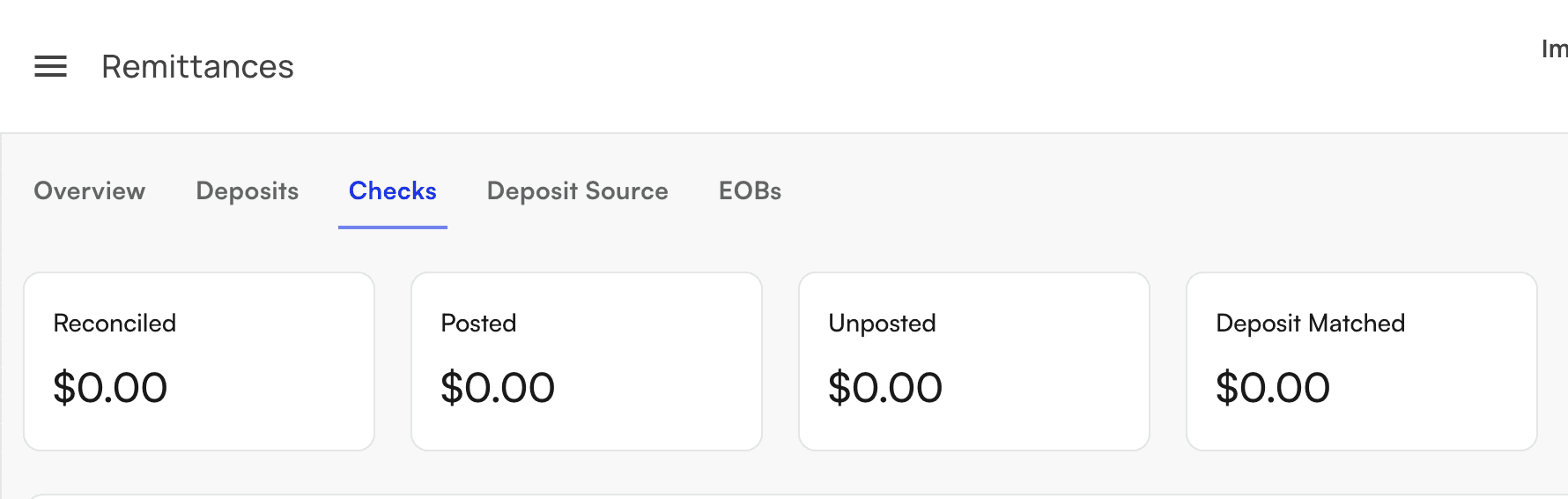
- Reconciled → Total value of filtered check payments reconciled.
- Posted → Total value of dollars that have been posted into Insights from these filtered checks.
- Unposted → Total value of dollars where payments are not yet fully posted for these filtered checks.
- Deposit Matched → Total value of checks that have been successfully matched to a bank deposit. These scorecards give you a snapshot of whether all checks are properly accounted for from payer → Insights → bank.
Filtering Checks
The check list can be filtered by:- Date range (check date)
- Check Number
- Amount (range)
- Posting Status (Posted, Partially Posted, Unposted)
- Matching Status (Matched vs. Unmatched to a deposit)
Check Table
Each row in the table shows:- Check ID / Check Number / Check Date
- Check Amount vs. Amount Posted
- Provider Adjustments Posted (if any)
- Remaining Balance (should be $0 if fully posted)
- Deposit Source (payer, normalized)
- Payment Method (ACH, check, etc.)
- Matching Status (Matched vs. Unmatched)
- Posting Status (see below)
Posting Statuses
Each check has one or more remittances tied to it. Those remittances determine the check’s Posting Status:- Posted → The sum of payments posted tied to this check = the total check payment amount.
- Partially Posted → The sum of payments posted for this check ≠ the total check payment amount AND ≠ 0.
- Unposted → The sum of payments posted for this check = 0. 👉 Your reconciliation goal is to have all checks Matched + Fully Posted.
Clicking Into a Check
Clicking on a check opens a detailed panel. Here you’ll see:- Check details (check number, date, amount, payer, payment method, match status).
- Remittances tab → shows all remittances tied to the check, with posting status, amounts, payer index, and claim IDs.
- Deposits tab → shows which deposit the check is tied to (or lets you match/unlink it).
- Provider Adjustments tab → shows the provider-level adjustments on this check, and lets you post, archive, or reallocate them. See Provider Adjustments.
- Match / Unlink the check to a deposit.
- Post/review individual remittances.
Deposit Slip Report Generation
From the Deposits tab, you can also generate a downloadable report of all of your deposit verification data. If you select the following download button: You will be prompted with the following view where you can choose the following: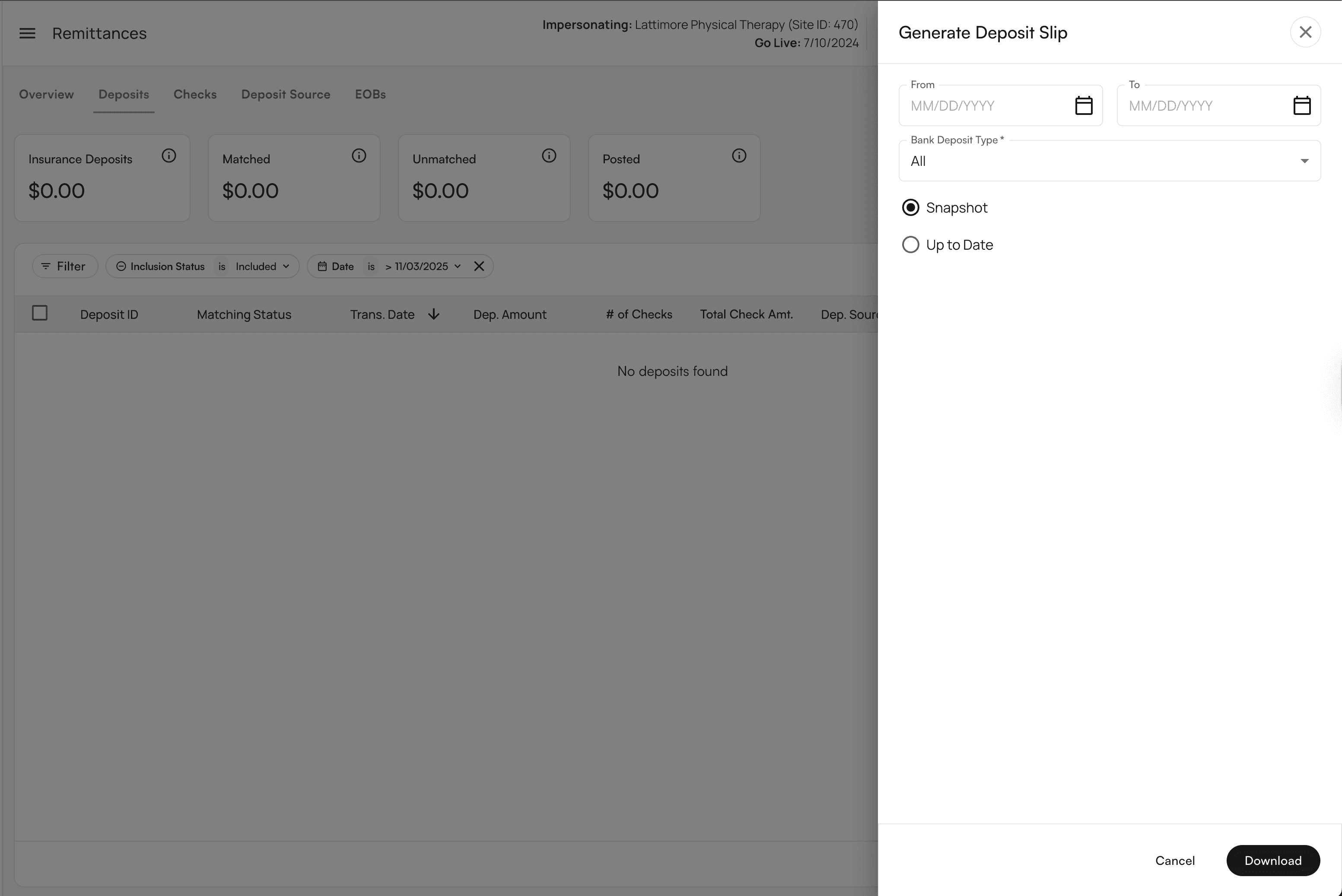
- Date Range Filter - this filters for all bank deposits that have a transaction date within the selected date range.
- Bank Deposit Type Filter - this filter allows you to select which types of bank deposits you would like to include in your report. You can filter for ACH deposits, Paper Check deposits, Virtual Credit Card deposits, or all deposits.
- Report Type Selection - there are two kinds of reports you can generate here:
- Snapshot Report- The Snapshot report will show you the status of your data as it looked at the end of your selected date range. Any updates that occurred afterwards will not show in this report.
- For example, if you are generating a report for the month of January and one of the January deposits was matched to a check in February, this report will always show the deposit as unmatched because that was its status when January ended.
- You can expect that any time you run this report for a given time range in the past, the data will always look the same.
- Up To Date Report:- The Up To Date report will show you your bank deposits from the filtered date range with their most up to date matching status.
- For example, if you are generating a report for the month of January and one of the January deposits was matched to a check in February, this report will show the deposit as match because the deposit is a January deposit and it’s current status is matched.
- You cannot guarantee that this report will always look the same.
- Check ID
- Check Number
- Check Date
- Bank Deposit Date
- Deposit Source from Check
- Deposit Source from Deposit
- Check Amount
- Posted Amount
- Facilities
- NPI(s)
- TIN
- Bank Account
Summary
Did I actually get paid what insurance said I would?- Earlier, sites had to see the check amount, download all their bank statements, and match them one by one — massively laborious and painful.
- Now, we do the work; sites just click the check and see the deposits, remits, and even claims directly enclosed.
- Earlier, at the end of every month you’d go transaction by transaction to find the matching check in your billing system — all manual, taking days.
- Now, click the Deposits tab, where Insights has automatically pulled in all your bank transactions and matched each one to a set of checks, remits, and claims you can audit.
FAQ
This section explains how to navigate the Check Deposit Manager and answers common questions.What's in scope and what is out of scope?
What's in scope and what is out of scope?
Our team matches remittances for ACH/EFT insurance-payment deposits we see via Plaid, and VCC payments processed via Stripe (included with patient payments).Bank reconciliation does not match bulk check deposits (paper checks) — the client matches those in the Check Deposit Manager by linking unmatched checks to the deposit. If you’d like Insights to also match paper check deposits, we offer a lockbox solution; contact your account manager to learn more.Insights removes out-of-scope transactions that aren’t insurance payments (e.g., vendor payments, bank-to-bank transfers). We’re actively working on removing these automatically; if you see one, exclude it with the Exclude button.
How do I view excluded deposits?
How do I view excluded deposits?
Filter Inclusion Status to “Excluded” to view all excluded deposits. Click any deposit to see its exclusion reason. If a transaction was incorrectly excluded, press Include to move it back.
How do I know if my Plaid connection is active, and how do I refresh it?
How do I know if my Plaid connection is active, and how do I refresh it?
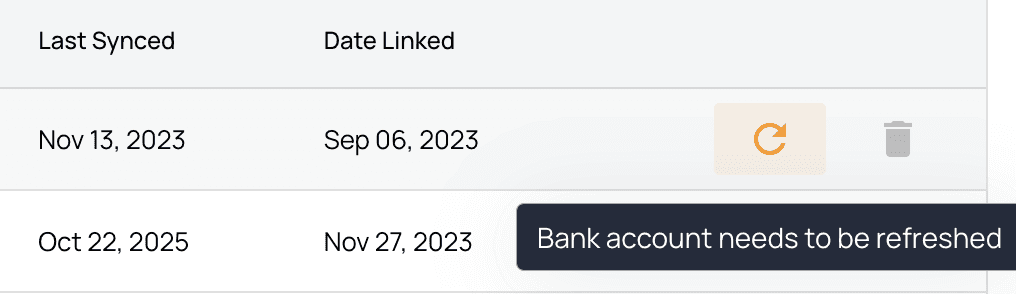
The page shows an alert if your Plaid connection is inactive for any reason.
What are common reasons something isn't matched, and how do you resolve it?
What are common reasons something isn't matched, and how do you resolve it?
Often we see the deposit in the bank but don’t yet have the matched remittance advice — our team hunts for the remittance tied to the deposit and posts it; once posted, we match it to the unmatched deposit. Common causes include not yet receiving electronic remittances for a payer, or needing a payer portal to pull the remittance advice. Providing as many payer portals as possible helps our team pull checks, post remits, and link them to deposits.
What causes the posted-to-bank gap, and how is it addressed?
What causes the posted-to-bank gap, and how is it addressed?
Posted-to-bank gaps are usually due to remittances flagged for manual review — posting them would put the encounter balance in a negative state, since a payment, adjustment, or PR amount is already posted and would conflict with the incoming remittance. These gaps are addressed with automations that unblock the remittances so they post; you can also post the payments manually using the Posting Tool.
What are your SLAs for bank matching and posting remittances?
What are your SLAs for bank matching and posting remittances?
Our team commits to matching at least 98% of in-scope deposits (ACH/EFT and virtual card payments) to posted remits each month. The bank reconciliation team continuously works to close any remaining gaps.