At a Glance
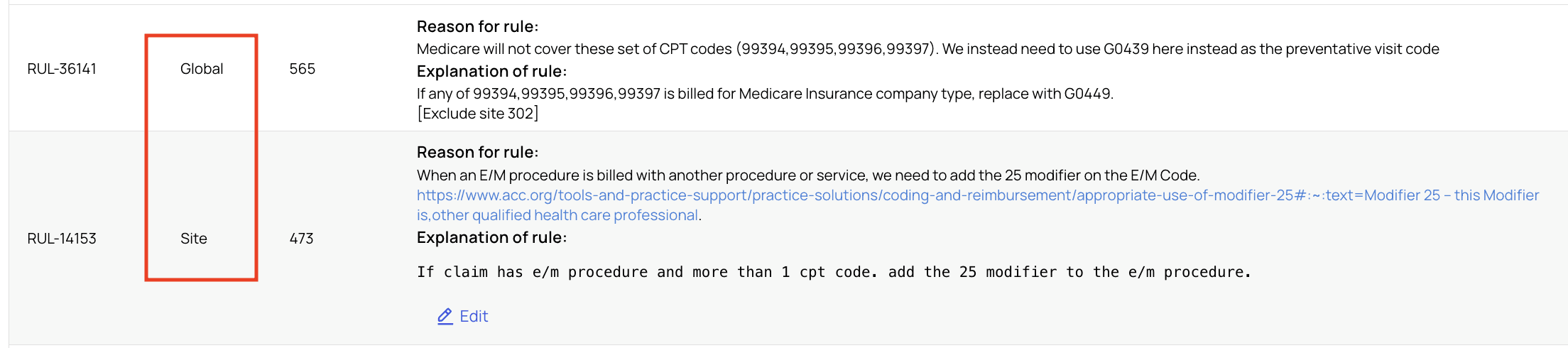
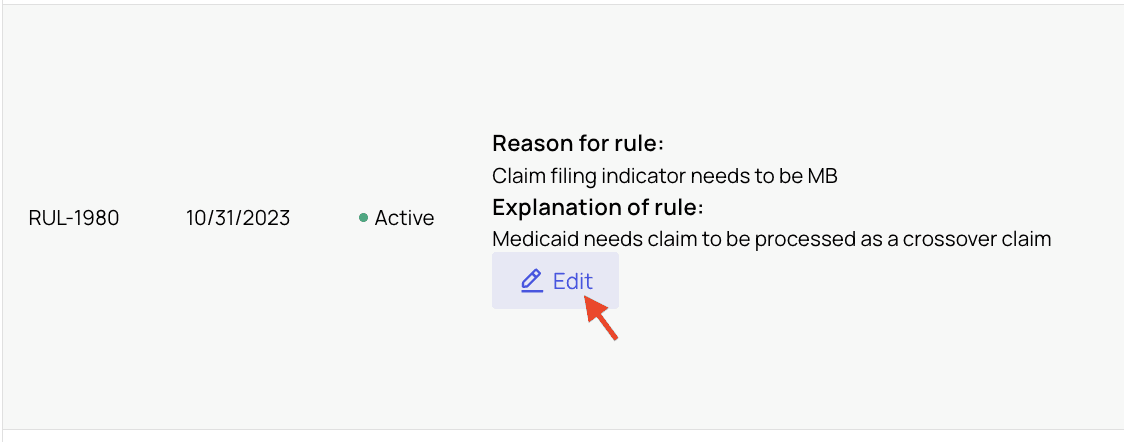
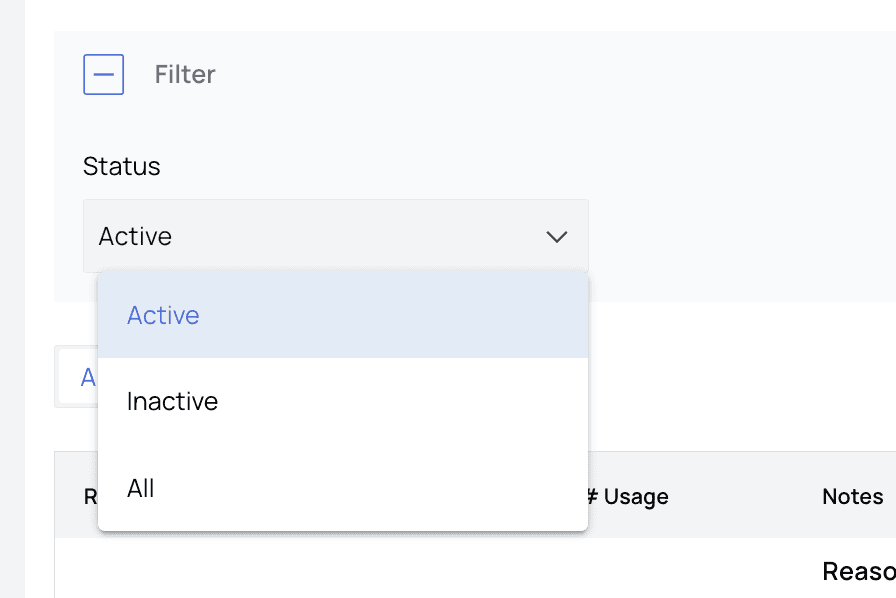
The Billing Rules Engine page lists all active and inactive billing rules implemented by a collaborative effort between your organization, an Athelas account manager, and our engineers. The two types of rules found here are categorized as Global or Site. More on that later in this guide.This is the older, engine-specific view of your billing rules. Every rule at your practice, across billing, submission blocking, posting, and the other engines, now also lives in one place on The Rules Tab, where you can read each rule in plain language, edit it, and dry run it before it goes live.
The Billing Rules Process
Early in the Athelas onboarding process for your organization, an account manager collaborated with your organization’s administrators to incorporate all existing billing rules, updates to those rules, and any new rules requested into Insights. These rules, along with any added manually since then, comprise the list visible on the Billing Rules Engine page.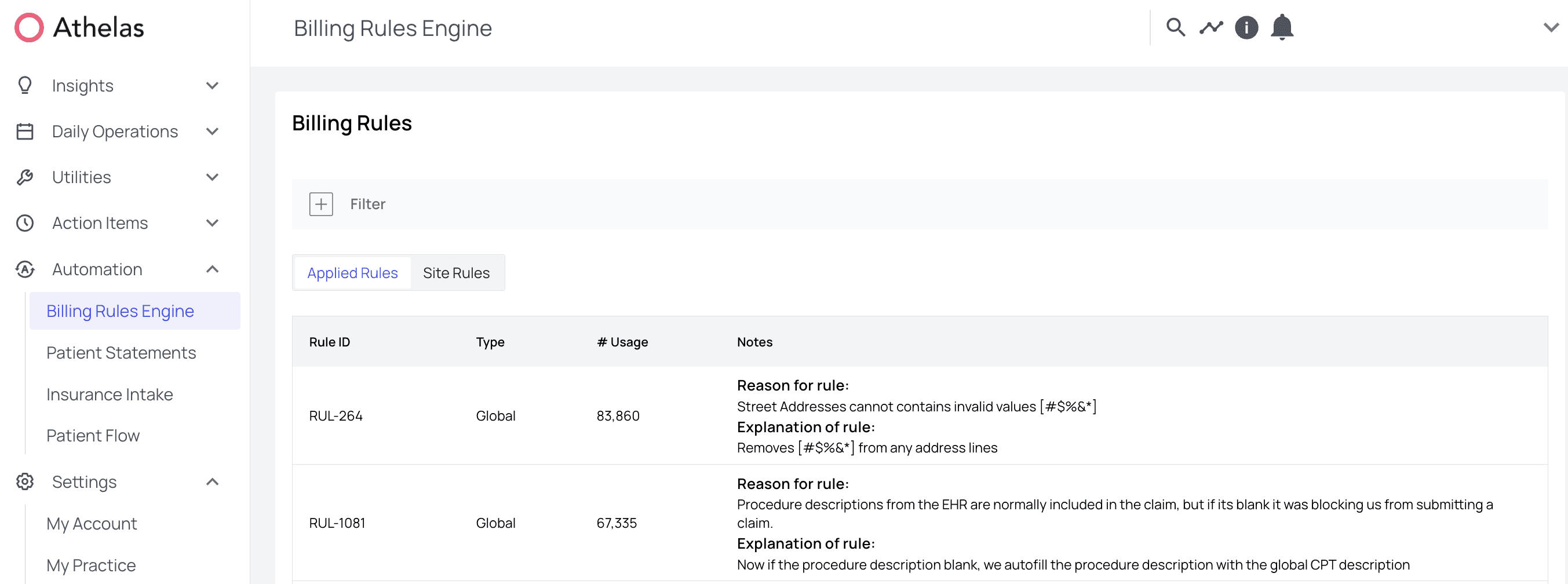
Types of Rules
- Global Rules — Global rules are standardized, stock rules available to all organizations using Insights. These rules tackle the most common claim adjustments to minimize rejections and denials and maximize collections for your practice.
- Site Rules — These rules are specific to your site.