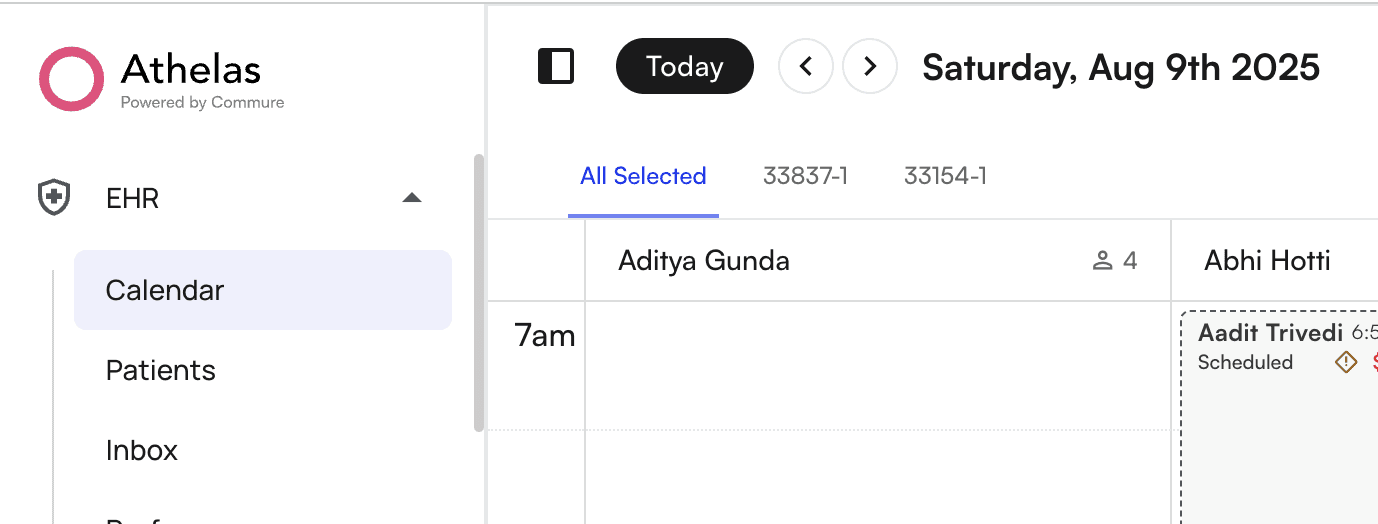
When it comes to understanding your calendar, what you’re really trying to do is get a good sense of what your day looks like in an instance’s glance, and this is exactly how it should be. The less time you need to decipher your calendar, the more time you can spend assisting patients along their healthcare journey. Navigate to the Calendar in the left Nav Bar You’ll see this block of appointments below structured by selected Provider, which we’ll review in “Filter the calendar view” section Now we’ll walk through what each component of the calendar means

Appointment Stages:

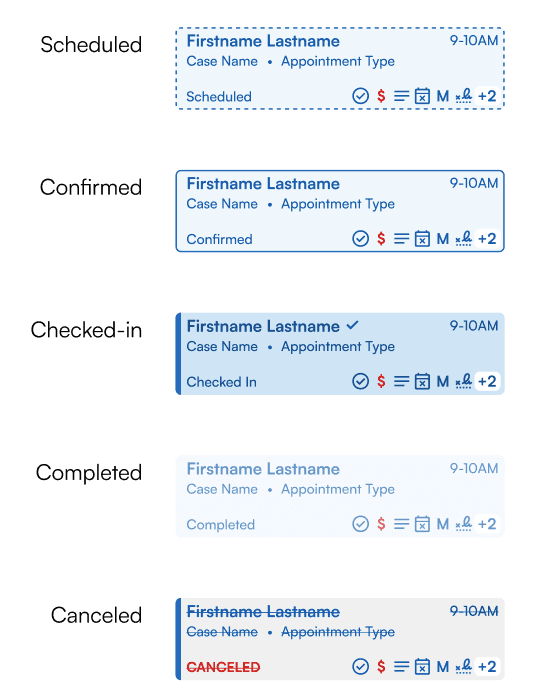
As appointments move through their different stages, the blocks will reflect the designs below. Some advantages:
  • Easier to see canceled appointments
  • Completed appointments fade from the schedule so you can focus on scheduled/confirmed appointments
Appointment Tooltip w/ Helpful Icons and Alerts:

Hover over a Calendar block to view the tooltip Condensed + Expanded View
Tooltip Design
The tooltip shows you the most helpful information first, namely:
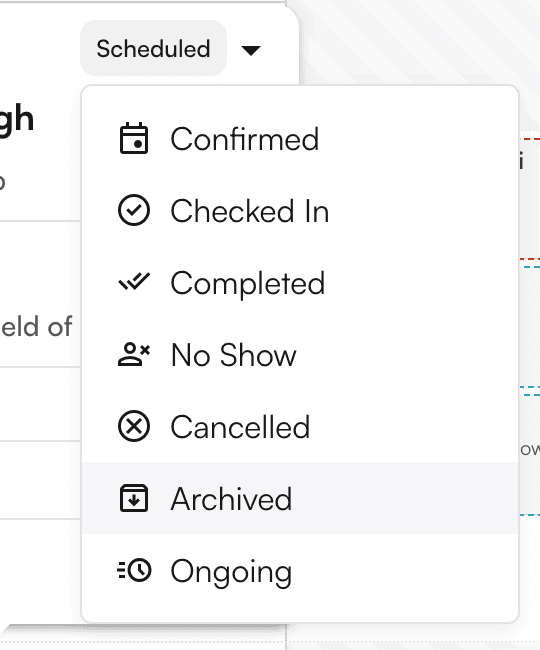
  • Appointment Status (”Scheduled”) - simply hover over your appointment to update status
  • Case and Appointment Type
  • Eligibility Status and Insurance
  • Authorization Status and Next Visit Scheduling
Types of Alerts
  • Eligibility
Unclear eligibility - requires a manual check Patient is not eligible per Athelas eligibility checks Check on right hand side indicates patient is eligible
  • Pre-Visit Payment
Pre-visit payment is due based on eligibility check or rules, can click to Charge
  • Visit Remainder
Number of visits remaining
  • Appointment Notes
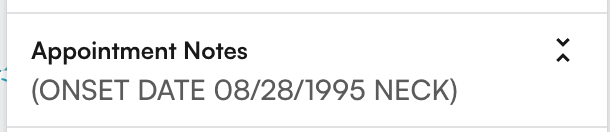
Three lines on the right indicates that there are **appointment notes. **You can see them by hovering on the appointment tooltip
  • Insurance Based
Patient has a Medicare type insurance