
At a Glance
Every claim, encounter, and payment that moves through Insights passes through rules: small IF/THEN decisions that clean up data before it reaches a payer, block submissions that would be rejected, and route work to the right place. The Rules tab puts all of them in one place, described in plain language, so you can see what your practice automates without reading code or opening a separate screen for every engine. Find it under Automations → Rules.Everyone at your practice can view rules. Creating, editing, submitting, and switching rules on or off take write access to rules, which your practice admin can add to your role. See Manage Staff & Permissions.
Finding Your Rules
The Rules tab opens on a page of cards, one for every rule type at your practice, grouped by the part of the revenue cycle each type controls. Each card shows how many rules of that type you have. The panel on the right totals your Active Rules, your Rule Types, and any Drafts that are Waiting for review.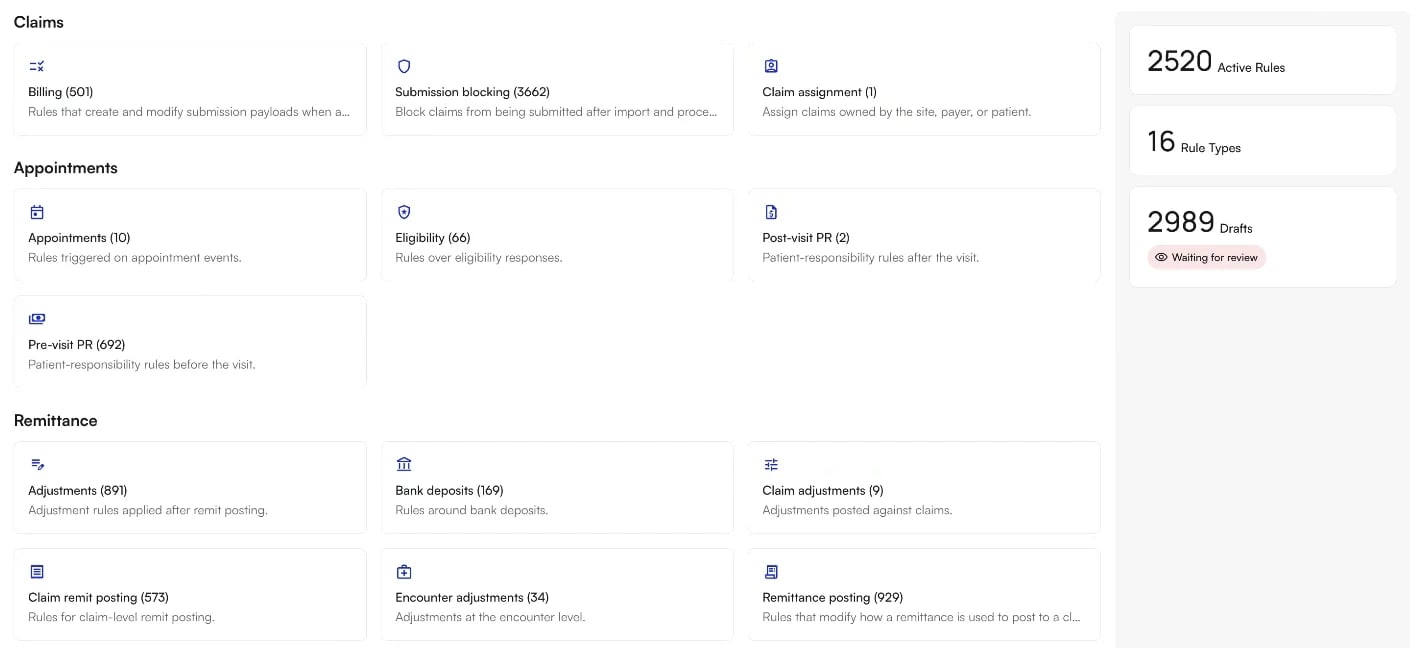
What Is a Rule?
A rule is a single IF these conditions are true, THEN take one or more actions statement. One rule can fire several actions off the same set of conditions. Every rule belongs to a rule type, and each rule type has its own rule engine: the system that evaluates those rules in order and applies the ones that match. The landing page groups rule types like this:
The rule types you see depend on how your practice is set up, so your landing page may show more or fewer cards than this table lists.
Every rule ID carries a prefix for its rule type, so an ID alone tells you where a rule lives:
BIL-1716 is a Billing rule, SBL-561439 is a Submission blocking rule, ADJ-434765 is an Adjustments rule, ENM-818753 is an Encounter modifying rule, and APT-219096 is an Appointments rule. A rule that has not been submitted yet carries a D after the prefix, such as BIL-D653, and gets its permanent number when you submit it.
Rules are a subset of automations. An automation is an end-to-end pipeline (a trigger, then steps, then an outcome). A rule is one self-contained decision inside that pipeline.
Reading the Rules Table
Open a rule type to see its rules in one table. The tabs above the table narrow the list:- All Rules shows every rule of that type, with a running count.
- Active Rules shows only the rules currently in effect.
- Drafts shows rules that are saved but not yet submitted.
- Any views you save appear as extra tabs beside these. See Saving a View.
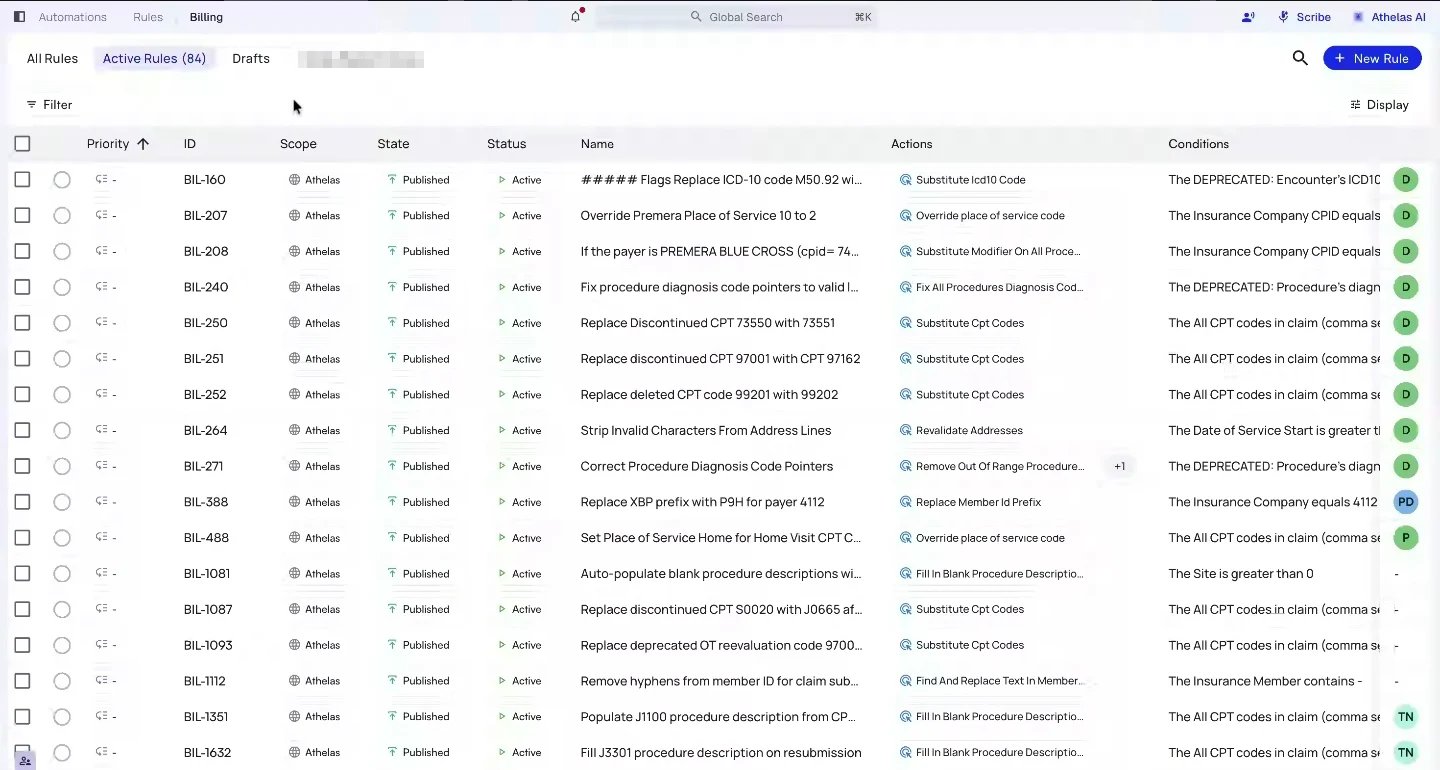
The avatar at the end of each row shows who last updated the rule. Hover over a State or Status badge for a reminder of what it means.
Adjusting Your View
Open Display to reshape the table around how you work.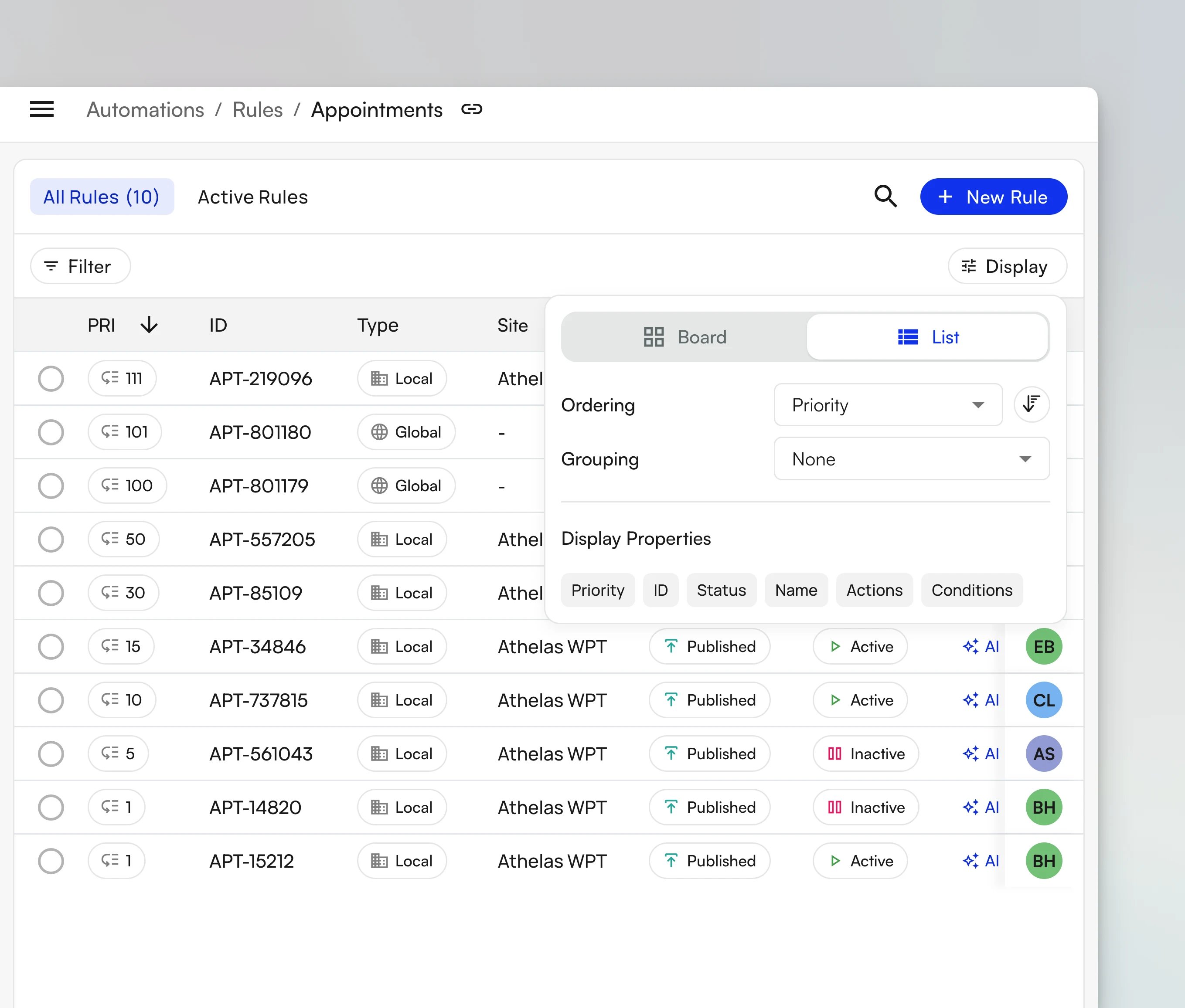
- Board or List switches between the standard table and a board of rule cards, laid out in one column per group.
- Ordering sorts the table by a property such as Priority, and the button beside it flips between ascending and descending.
- Grouping breaks the list into sections by Status, State, or Scope, or leaves it flat with None.
- Display Properties turns individual columns on and off.
Saving a View
Once you have filtered or sorted the table the way you like it, click Save to keep that setup as a view of its own. Saved views appear as tabs beside All Rules, Active Rules, and Drafts, so a list you check every week is one click away. Reset puts the table back the way it was. Hover over a saved view’s tab to see its name, ordering, and filters. Right-click the tab to edit, duplicate, or delete the view.Searching for a Rule
Click the magnifying glass to search. You can find a rule two ways: by its ID, or by its name.Inside a Rule
Click any row to open the rule. The Controls panel on the left holds four sections: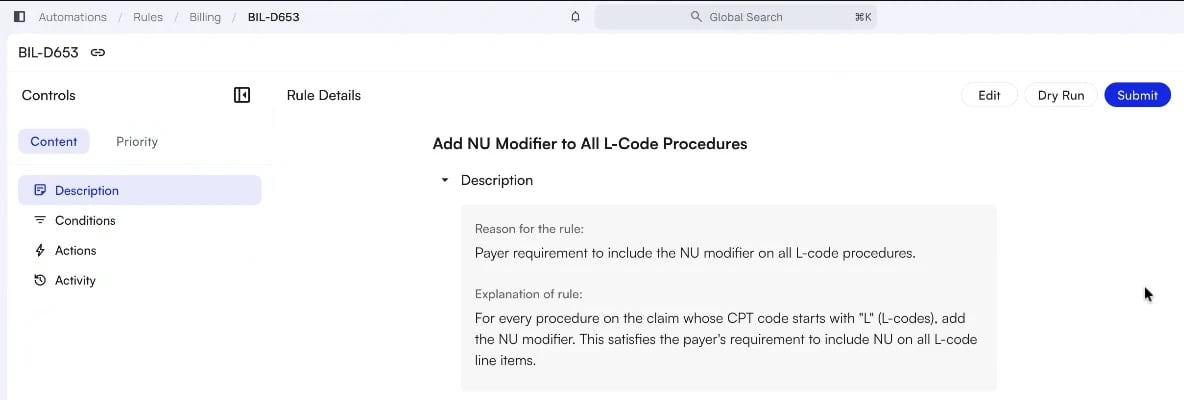
Conditions and actions are laid out as a Structure you can read top to bottom:
- Trigger states the moment the engine runs, for example “a claim is generated or verified for submission.”
- Conditions: When gives the plain-language test, then the underlying logic as nested ALL and ANY groups of individual conditions.
- Actions: Then gives the plain-language outcome, then the specific action the rule applies.
The Properties Panel
The Properties panel on the right shows the rule’s current settings at a glance.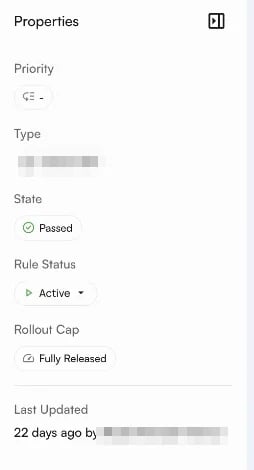
- Priority is the same value shown in the table.
- Type shows the rule’s scope: Athelas, or your site’s name.
- State is the rule’s review status, for example Passed.
- Rule Status is whether the rule is Active, Inactive, or a Draft. It is also where you switch a rule on or off; see Turning a Rule On or Off.
- Rollout Cap shows how many encounters a rule on a phased rollout applies to, or Fully Released once it applies to all of them.
- Last Updated shows when the rule last changed and who changed it.
Checking the Impact of a Rule
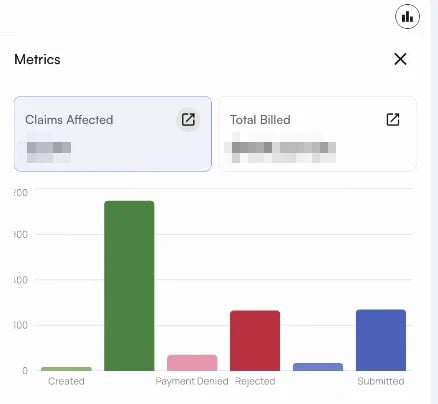
Before you change or switch off a rule, check what it has been doing. Click the chart icon in the top right of the rule to open Metrics:- Claims Affected counts the claims the rule has touched, and Total Billed adds up what those claims billed.
- A chart breaks the affected claims down by claim status, such as Created, Submitted, Rejected, and Payment Denied.
- The link icon on either total opens the Claims page filtered to those claims, so you can work through them directly.
Turning a Rule On or Off
To change whether a rule is running:- Open the rule.
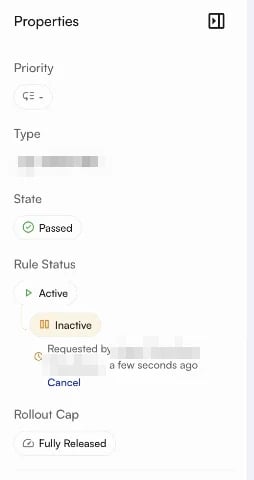
- In the Properties panel, click the Rule Status badge and choose the new status.
- Confirm the change.
Comparing Versions
The dropdown beside the rule ID in the breadcrumb lists every version of the rule. Use it to compare what changed between versions and to confirm which version is the one running today. The same version links also appear in the Activity section.Editing a Rule
Prerequisite: You need write access to rules.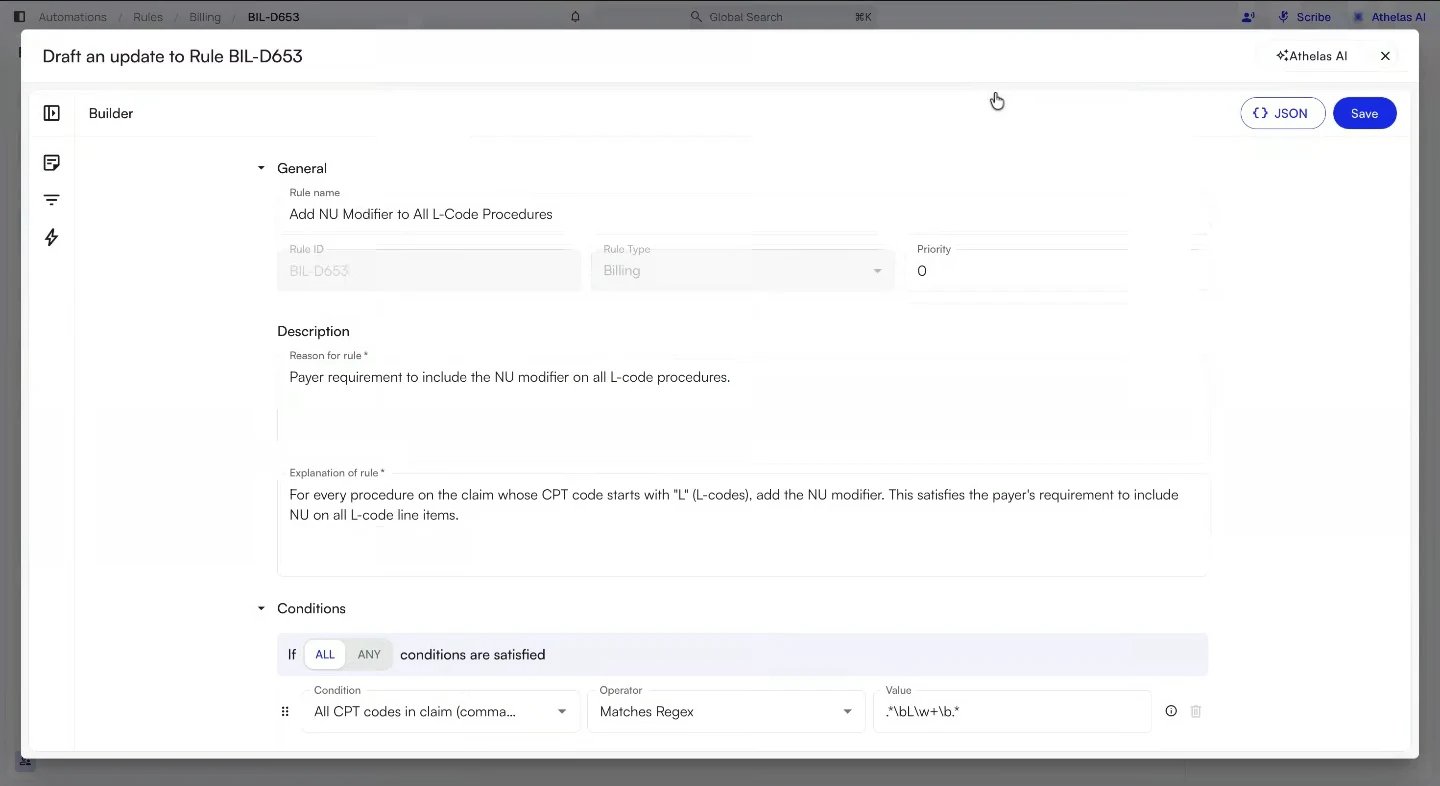
- Open the rule from the Rules table.
- Click Edit. The rule opens as Draft an update to Rule, followed by its ID.
- Update what you need:
- General holds the Rule name and Priority. Rule ID and Rule Type are fixed and cannot be changed here.
- Description holds Reason for rule and Explanation of rule. Both are required, so a rule always explains itself to whoever reads it next.
- Conditions and Actions hold the logic itself. Use + Condition for a single test, + Subgroup or + Group for a nested set, and Duplicate Group to copy a group you want to vary. You can drag a condition from one group to another, and the info icon beside each condition or action explains what it does.
- Click Save.
Dry Running a Rule Before It Goes Live
A dry run replays a rule against real records and shows you exactly what it would have done.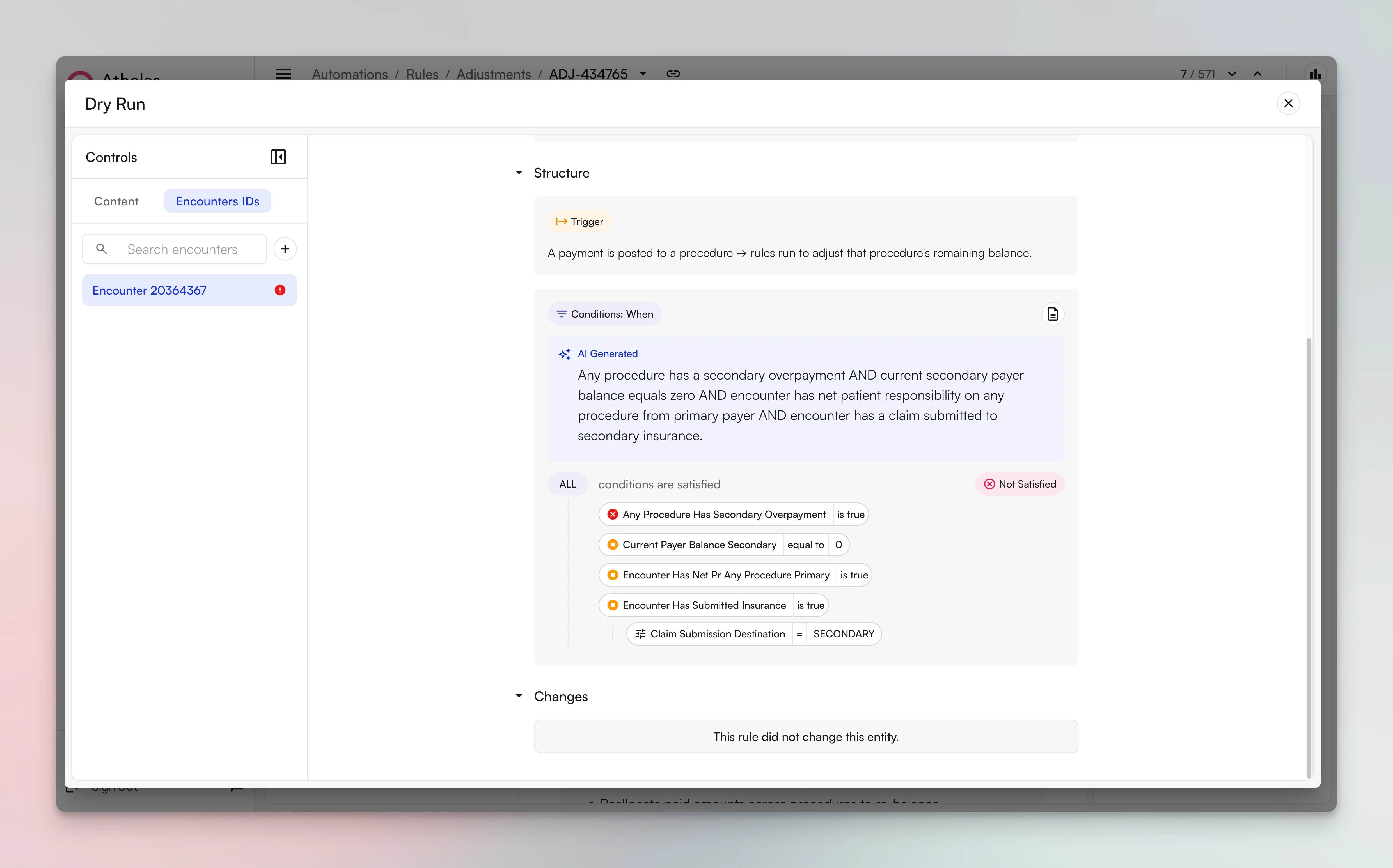
A dry run makes no changes to your environment. Nothing is saved, submitted, or posted.
- Open the rule and click Dry Run.
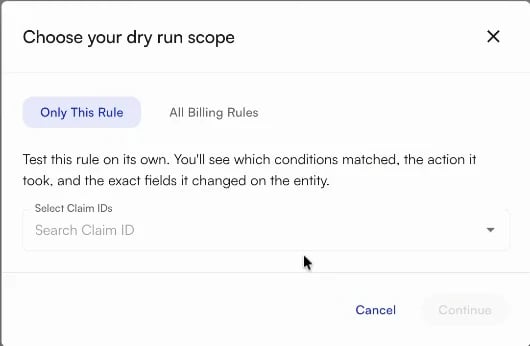
- In Choose your dry run scope, pick what to test:
- Only This Rule tests the rule on its own, so you see its conditions and its changes in isolation.
- All [Rule Type] Rules, for example All Billing Rules, tests your draft alongside every other active rule of the same type, so you can see how it interacts with rules that are already live.
- Search for the records you want to test against, such as claim IDs for a billing rule, and select them.
- Click Continue.
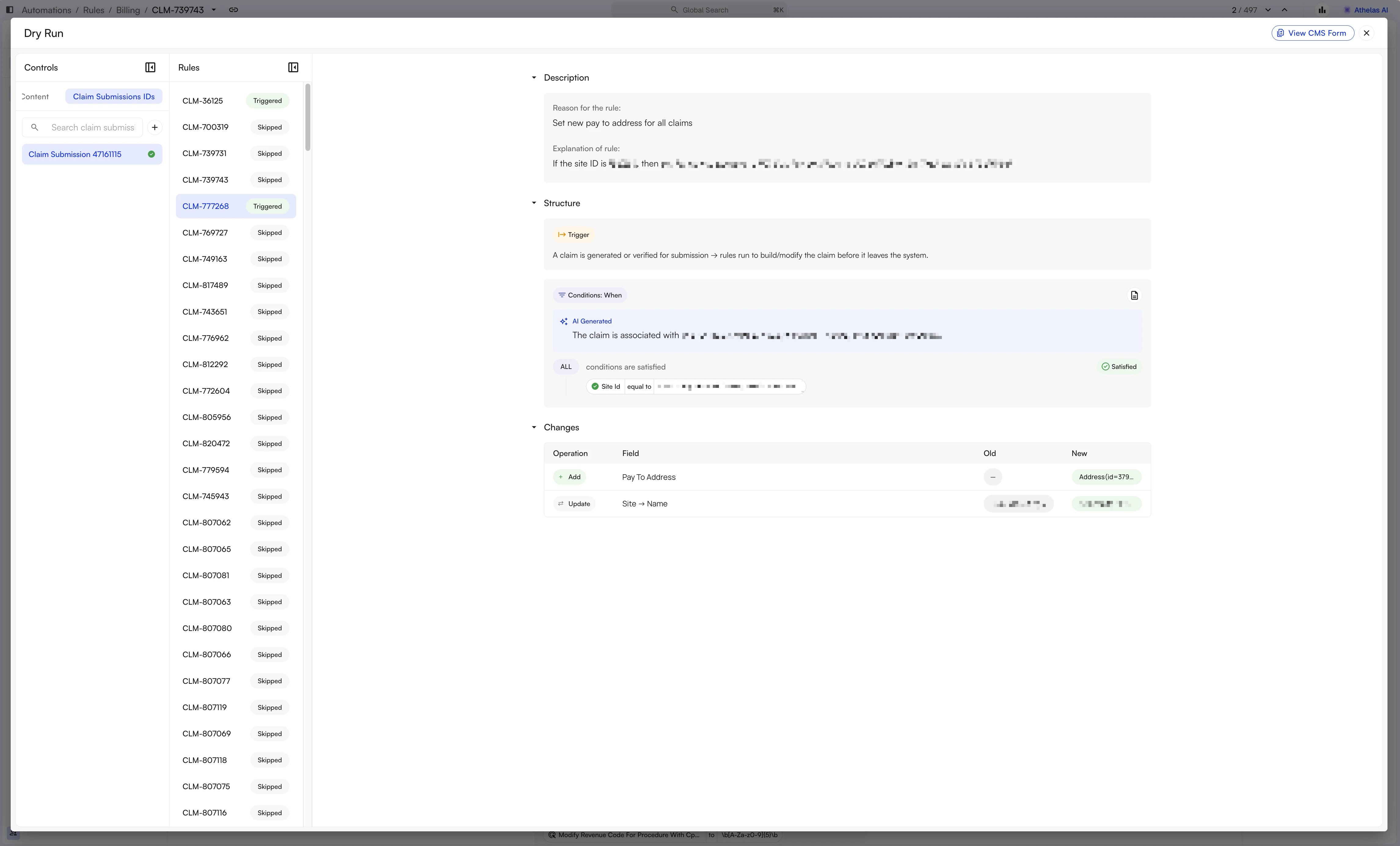
Reading Dry Run Results
Comparing the Claim Form
Once the dry run finishes, click View CMS Form in the top right to open a CMS 1500 Comparison. Before and After sit side by side, so you can confirm the rule changed the boxes you expected and nothing else.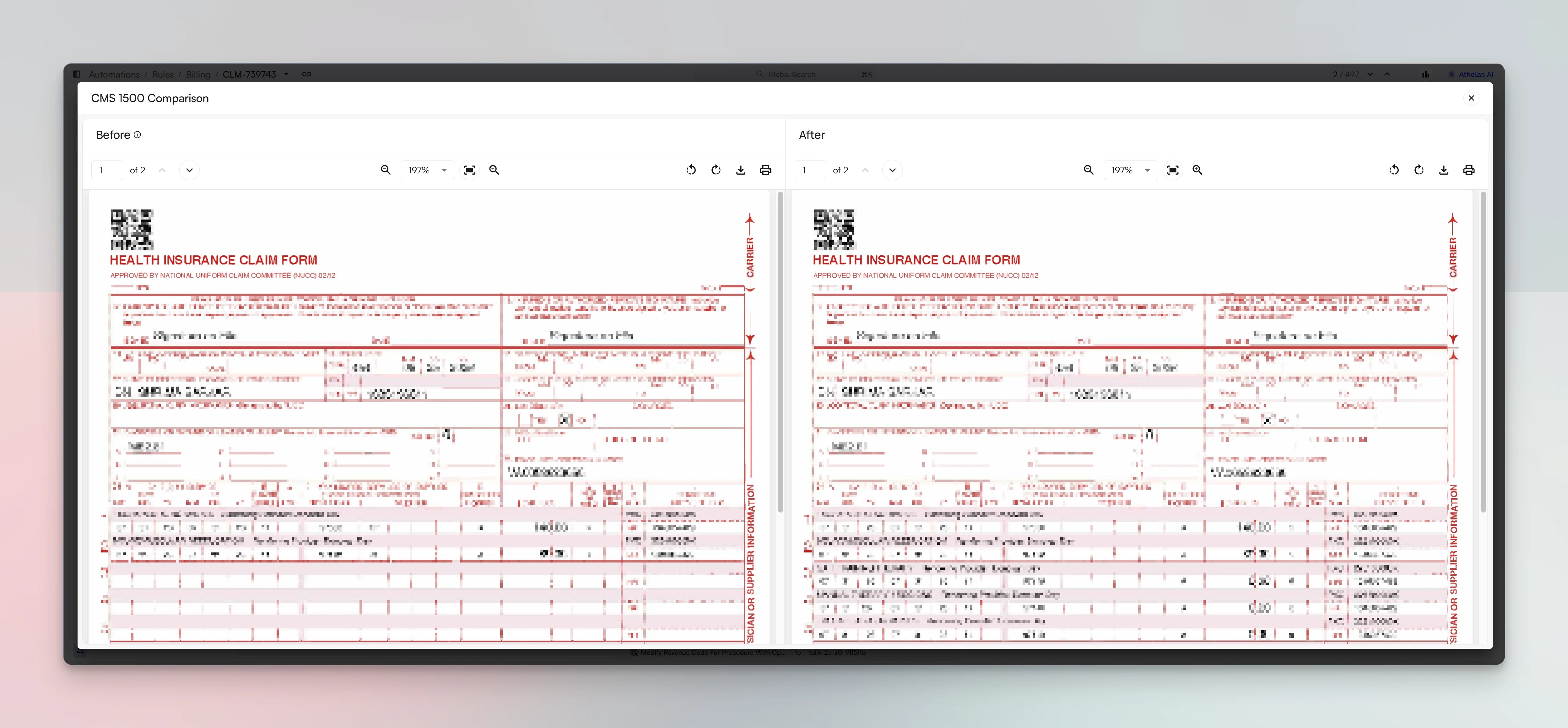
Related Guides
- Create a Rule covers building a new rule with AI, by cloning an existing one, or field by field, and submitting it.
- Clone Rules Across Sites covers copying rules to your other sites and submitting drafts in bulk.
- Working a Claim: Context & Activity Feed covers dry running billing rules from an individual claim before you submit it.
- The Billing Rules Engine covers the older engine-specific view of billing rules.
FAQ
In what order do my rules run?
In what order do my rules run?
Rules run in ascending priority order within the same rule type. A rule with no priority set runs first, then priority 0, then 1, then 2, and so on.Note: Sorting the table by Priority changes only how the list is displayed. It does not change the order rules actually run in.
Can I change a rule whose Scope is Athelas?
Can I change a rule whose Scope is Athelas?
No. A rule with an Athelas scope is maintained by Athelas across every site, so you can read it, dry run it, and check its metrics, but not edit it. If you think one is wrong for your practice, contact your account manager.
A rule says Passed but nothing is happening. Why?
A rule says Passed but nothing is happening. Why?
State and Status are two different things. State tells you the rule cleared review, so Passed means it is valid. Status tells you whether it is running, so a rule that is Passed but Inactive is approved and switched off.Check Rule Status in the Properties panel, including any request that is still waiting beneath it, and check Rollout Cap too: a rule on a phased rollout applies only to a set number of encounters until its Rollout Cap reads Fully Released.
What does Requested mean?
What does Requested mean?
Requested means a change is waiting for review. In the State column, it marks a rule that was submitted and has not finished review yet; when the review is done, the State changes to Passed or Failed. Under Rule Status, it marks a pending request to switch the rule on or off, which you can withdraw with Cancel while it waits.
Does a dry run affect real claims?
Does a dry run affect real claims?
No. A dry run replays the rule against records you choose and reports what it would have done. Nothing is saved, submitted, or posted, and the records you test against are left untouched.