
At a Glance
Sometimes a claim has work to be done — but not right now. Maybe you’re waiting on a callback from a payer, an appeal in litigation, or a coding update from a provider. Deferring lets you set a claim aside so it drops out of your worklist until it’s actionable again, without losing track of it. Deferring solves three everyday problems:- Clearing claims out of your view when there’s nothing you can do at the moment.
- Capturing why and how often claims get set aside, so your team can spot patterns.
- Making it clear when you can (or can’t) expect an update from your EHR.
Deferrals work only on the new Claims Page. They aren’t compatible with the legacy denials or rejections worklists.
What Happens When You Defer a Claim
Deferring hides a claim from views that filter forClaim is not deferred — most importantly the My Claims and Workable Claims views, which exclude deferred claims automatically.
When the expiration date arrives, one of two things happens:
- If the claim’s status has changed in the meantime (because new data moved the claim forward), no further work is needed — the deferral did its job.
- If the status is unchanged, the claim reappears in your worklist so you can pick it back up.
How to Defer a Claim
Open the claim’s Actions menu and choose Mark as Deferred.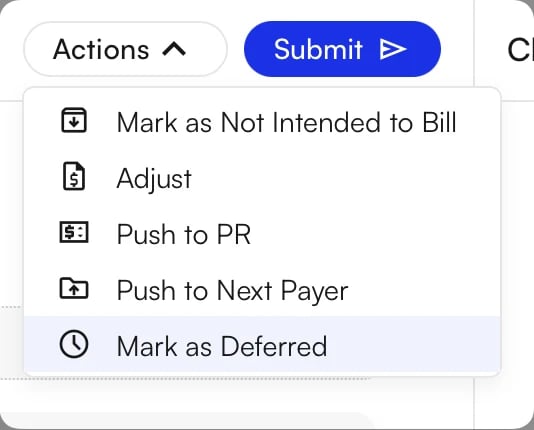
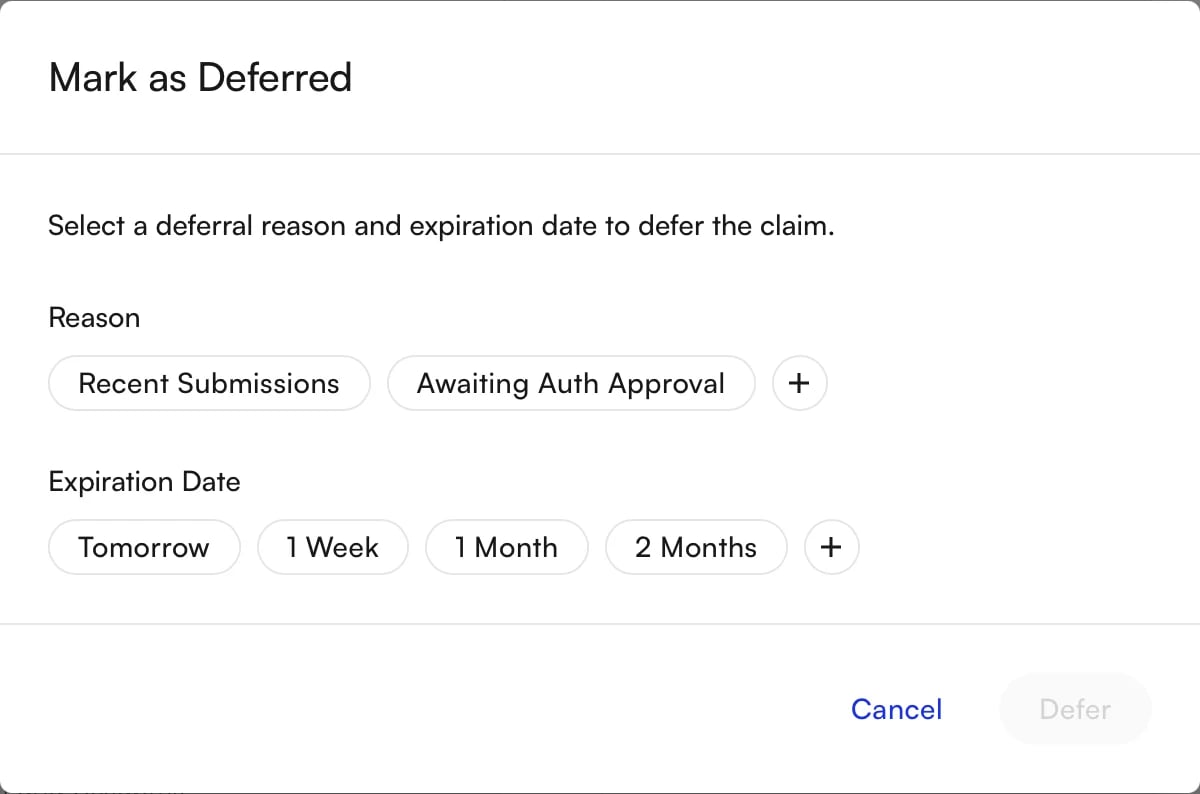
Deferring in Bulk
You can defer — and cancel deferrals — for many claims at once. Select the claims, open More Actions at the bottom of the screen, and choose Defer (or Cancel Deferral). The Defer Claims dialog works the same way as for a single claim.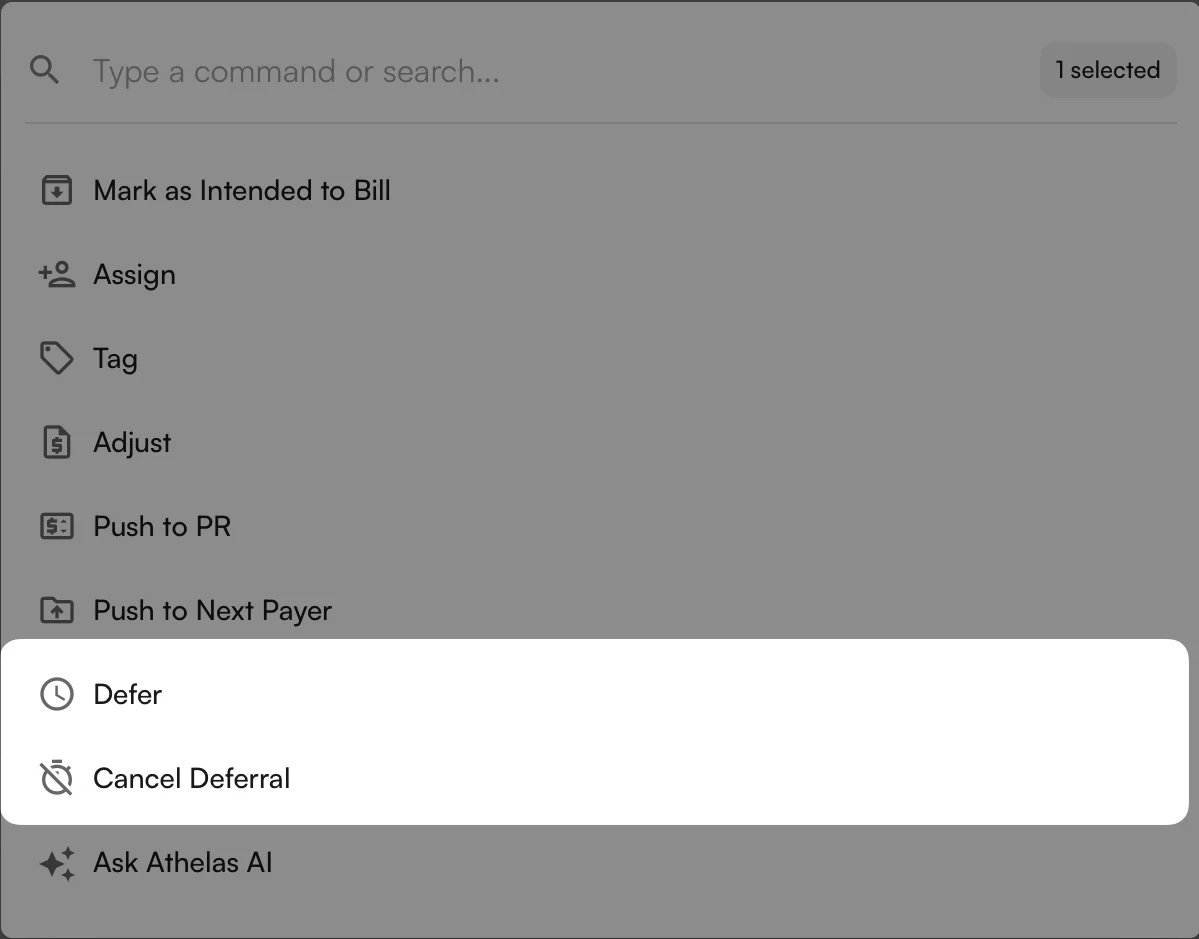
- If you defer a claim that’s already deferred, the expiration date resets to the new date — it does not add on to the existing deferral.
Canceling or Extending a Deferral
Once a claim is deferred, you can cancel the deferral at any time: open the claim’s Actions menu and choose Cancel Deferral, or use Cancel Deferral in More Actions for several claims. To extend a deferral, re-defer the claim with a new expiration date. Re-deferring without first canceling is supported through the bulk action.Creating Deferral Reasons
To add a new reason, click the + button next to the reasons, type it under New deferral reason, and click Add Reason.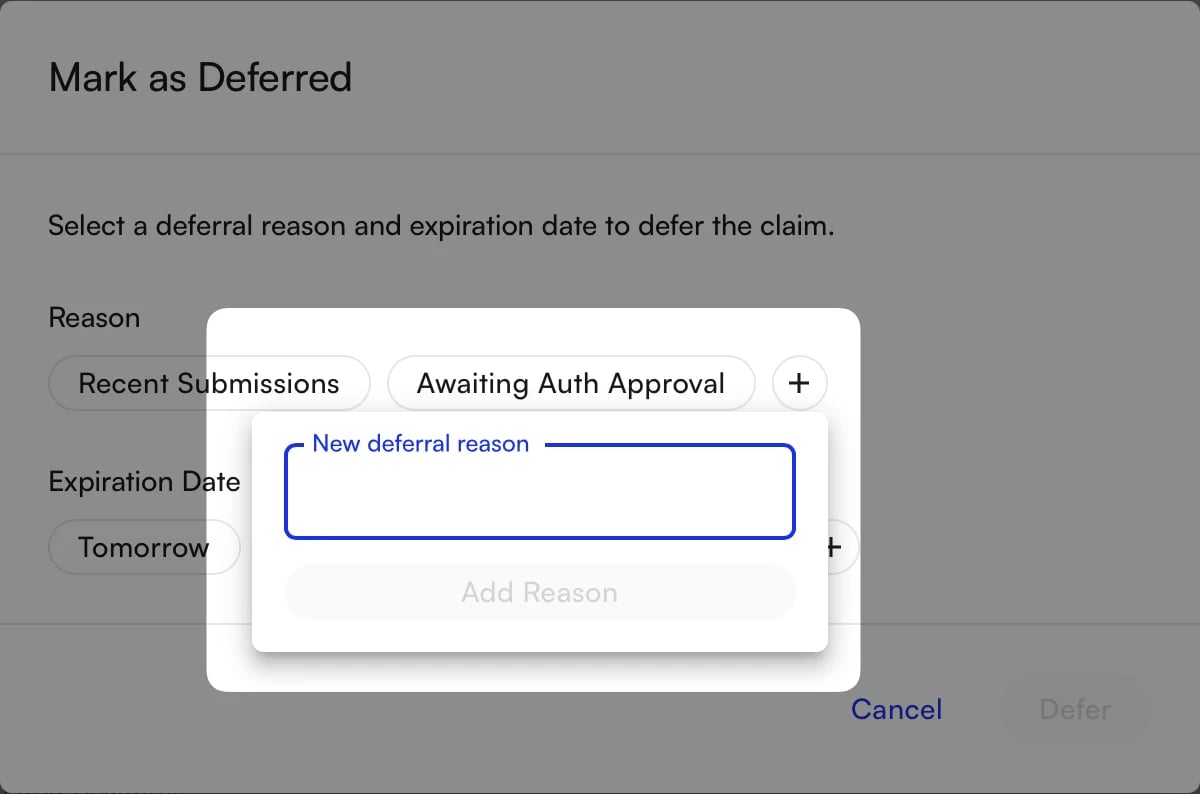
Deferral reasons are site-specific — once anyone at your site creates a reason, everyone at that site sees it as an option. Reasons can’t be deleted once created (the same behavior as claim tags), so agree on a shared set of reasons before you go wide.
Automatic Behavior
Deferrals take care of a few things on their own:- Auto-clear — a deferral clears automatically when it expires or when the claim’s status changes. Both events are logged in the Activity Feed.
- Pauses patient responsibility — while a claim is deferred, patient responsibility (PR) generation is paused, so you won’t send PR to a patient while you’re still waiting on the claim.
The “Updated in EHR” Reason (Billing-Only Sites)
Sites that use Insights for billing with an external EHR (not the Air EHR) get a built-in reason: Updated in EHR. Use it after you fix a claim in your EHR. When you choose it, the expiration date is set to Next EHR Import, the next time Insights imports that claim from your EHR; hover the option to see the date. You can still pick a different date.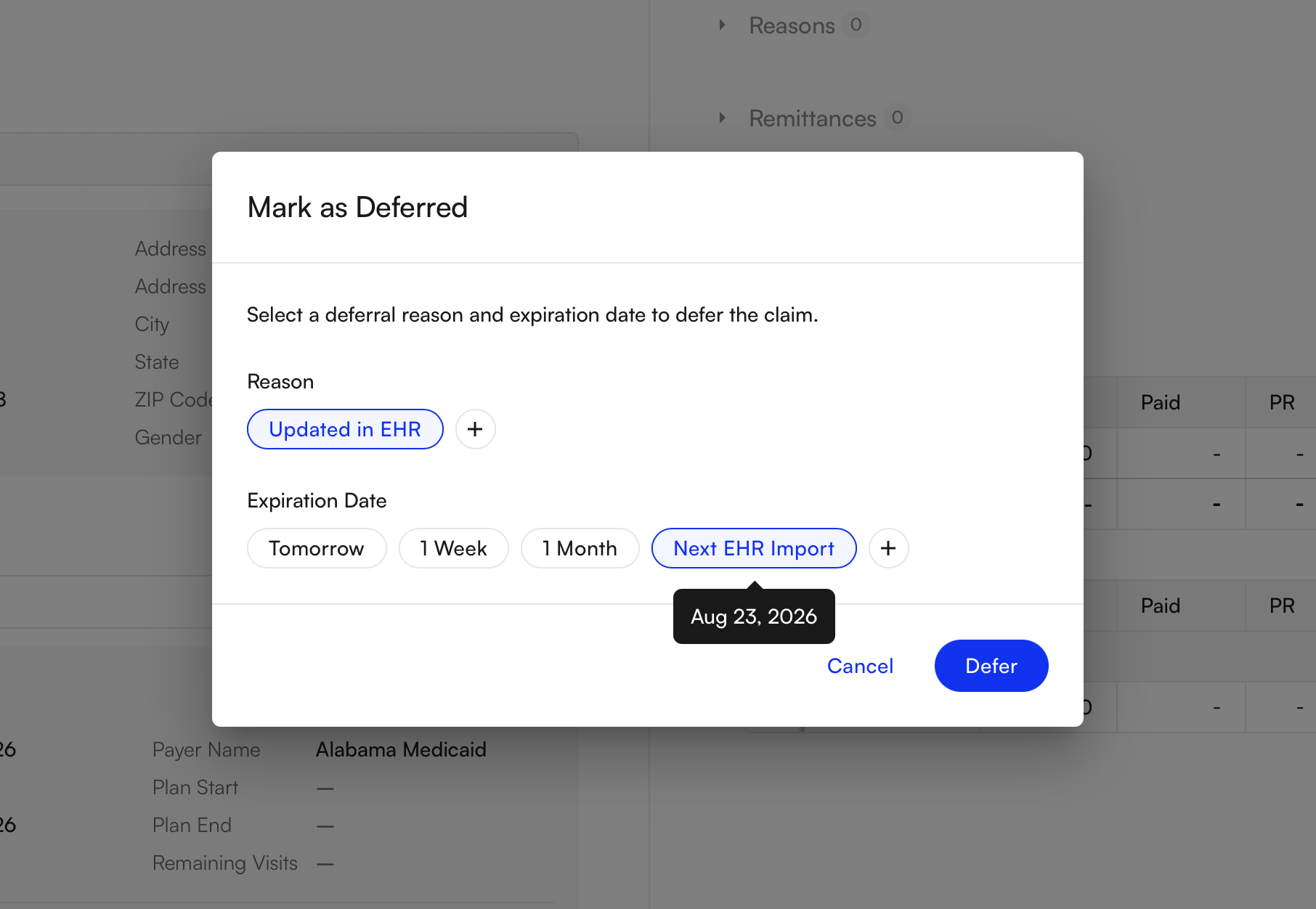
- Used in bulk, each claim is set to its own next import date.
- If the reason is grayed out, hover it to see why. It is unavailable when EHR import isn’t turned on for your site, when a claim has no EHR Claim ID, or when its date of service is too long ago to import again — a guardrail so you can’t wait on an update that will never arrive.
FAQ
Does deferring change a claim's status?
Does deferring change a claim's status?
No. Deferring only sets the claim aside in its current status and hides it from your workable views. When the deferral expires — if the status hasn’t advanced on its own — the claim reappears exactly where it was.
Where can I see that a claim was deferred, and by whom?
Where can I see that a claim was deferred, and by whom?
Every deferral is recorded in the claim’s Activity Feed with who deferred it, the reason, and the duration. To check a claim’s current deferral state, open its Actions menu.
What happens if I defer a claim that's already deferred?
What happens if I defer a claim that's already deferred?
The expiration date resets to the new date you choose — it doesn’t extend the original deferral. This applies whether you re-defer a single claim or a batch.
Why is the 'Updated in EHR' reason missing or grayed out?
Why is the 'Updated in EHR' reason missing or grayed out?
It only appears for billing-only sites (those not on the Air EHR). Even then, it’s disabled for a claim that Insights can’t import again — one with no EHR Claim ID, or a date of service too long ago — so you don’t defer a claim that would never receive an update. Hover the grayed-out reason to see which applies.
Can I still send patient responsibility while a claim is deferred?
Can I still send patient responsibility while a claim is deferred?
No — PR generation is paused for the duration of the deferral. This prevents a patient statement from going out while you’re still working the claim with the payer. PR resumes once the deferral clears.