
Getting Started with the Patient Profile Page
The Patient Profile Page is where you manage everything about a patient’s financial picture in Insights: their charges, payments, credits, and balance, all in a single view. Athelas Assistant sits alongside the page with full context, ready to explain any balance or trace any dollar back to where it came from.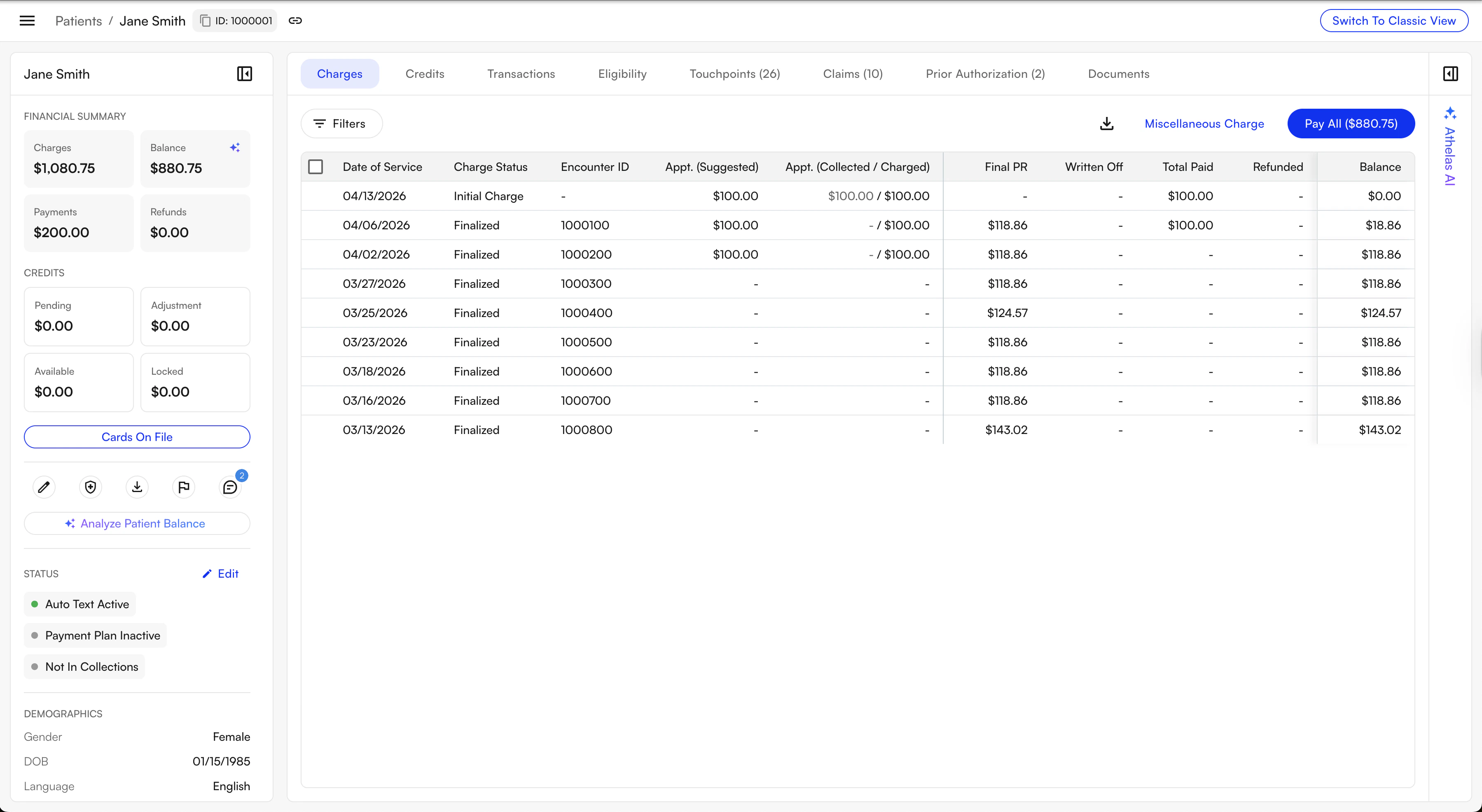
A few terms used throughout this page:
- PR (Patient Responsibility): the portion of a charge the patient owes, as opposed to insurance.
- DOS (Date of Service): the date a patient was seen. Charges and credits are tracked per DOS.
- Credit: money on the patient’s account that hasn’t been applied to a charge yet, typically from an overpayment or a refunded payment that was kept on account.
What is the Patient Profile Page?
The Patient Profile Page consolidates the entire financial history of a patient into one screen: every charge from pre-visit estimate through final remittance, every payment and refund, and every credit movement in between. It replaces jumping between the old charges list, payments list, and PR timeline to piece together what happened. Key capabilities:- One-click AI balance summary: click the patient’s balance and Athelas Assistant will explain why they owe what they owe, with no prompting required.
- End-to-end transaction activity: every credit is now traceable, linking back to the payment it originally came from, so “where did this money come from?” and “where did it go?” are always a couple of clicks away.
- Unified Charges table: one row per DOS, showing the full lifecycle from estimate to finalized balance.
- Charge Details drawer: per-CPT breakdown (Copay, Co-Insurance, Deductible, etc.) and the full PR timeline.
- Transactions table: every incoming payment on the patient, with clear status and refund information inline.
- Athelas Assistant with screen context: no need to re-type IDs. The assistant already knows the patient, charge, or transaction you’re looking at, and can act on credits (apply, move, refund, write off).
Getting Started
Accessing the Patient Profile
Log in to Insights at insights.athelas.com and navigate to a patient from the Patients tab, from a claim’s Patient link, or directly from global search. The first time you open the new Patient Profile, a guided tour walks you through the layout automatically.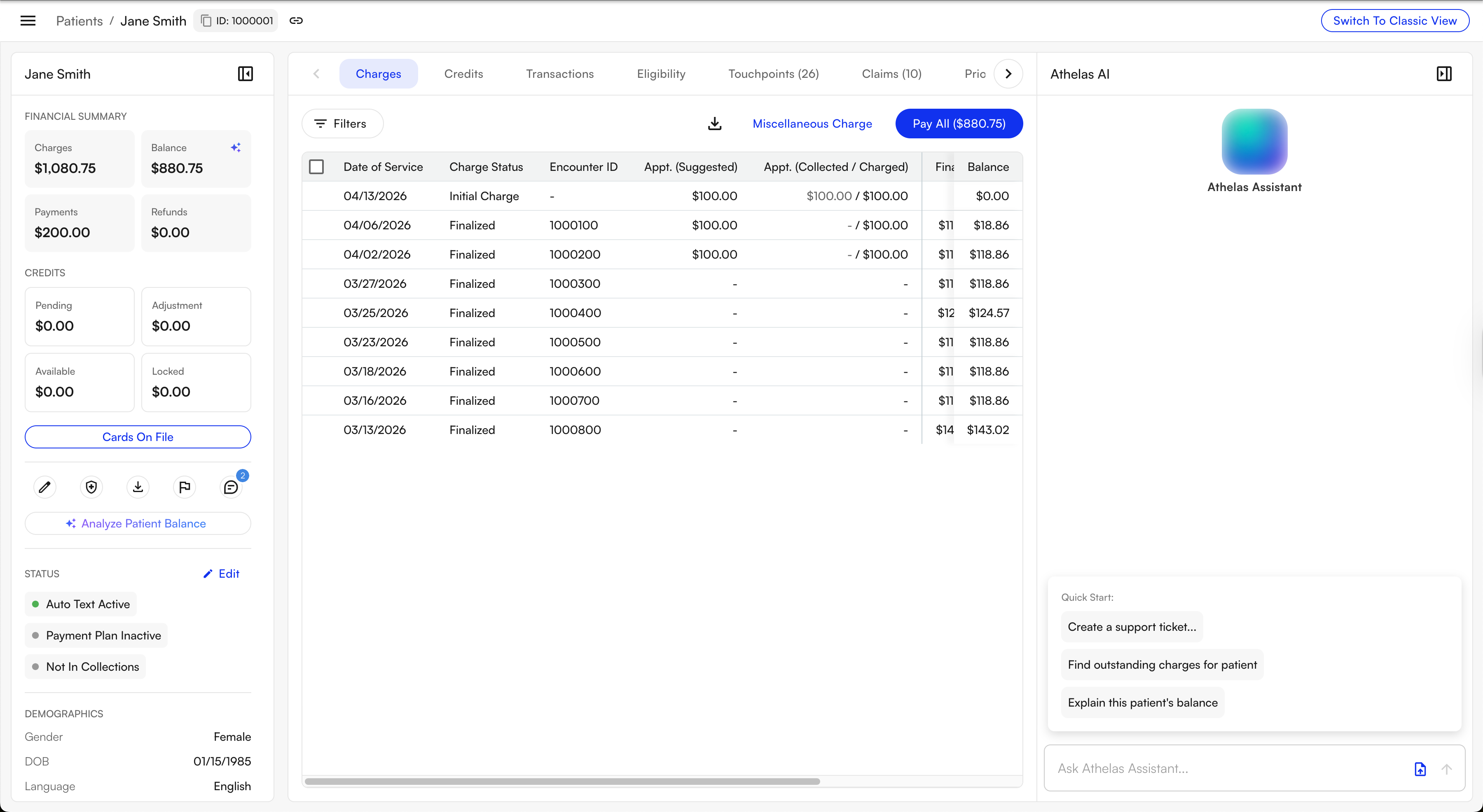
- Left: patient summary, quick actions, and communication/status controls.
- Center: the Charges and Transactions tables, with drill-down views for details.
- Right: the Athelas Assistant side panel, available throughout.
Quick Actions
The quick actions toolbar at the top of the patient summary is where you’ll find the most common patient-level tasks: edit patient information, download statements, add a note to the account, and more.Communication & Status
The status controls let you manage how Insights interacts with the patient: toggle automatic text messages on or off, set up a payment plan when your role allows it, or mark the account as In Collections. Changes take effect immediately and are logged in the patient’s activity history.The Charges Table
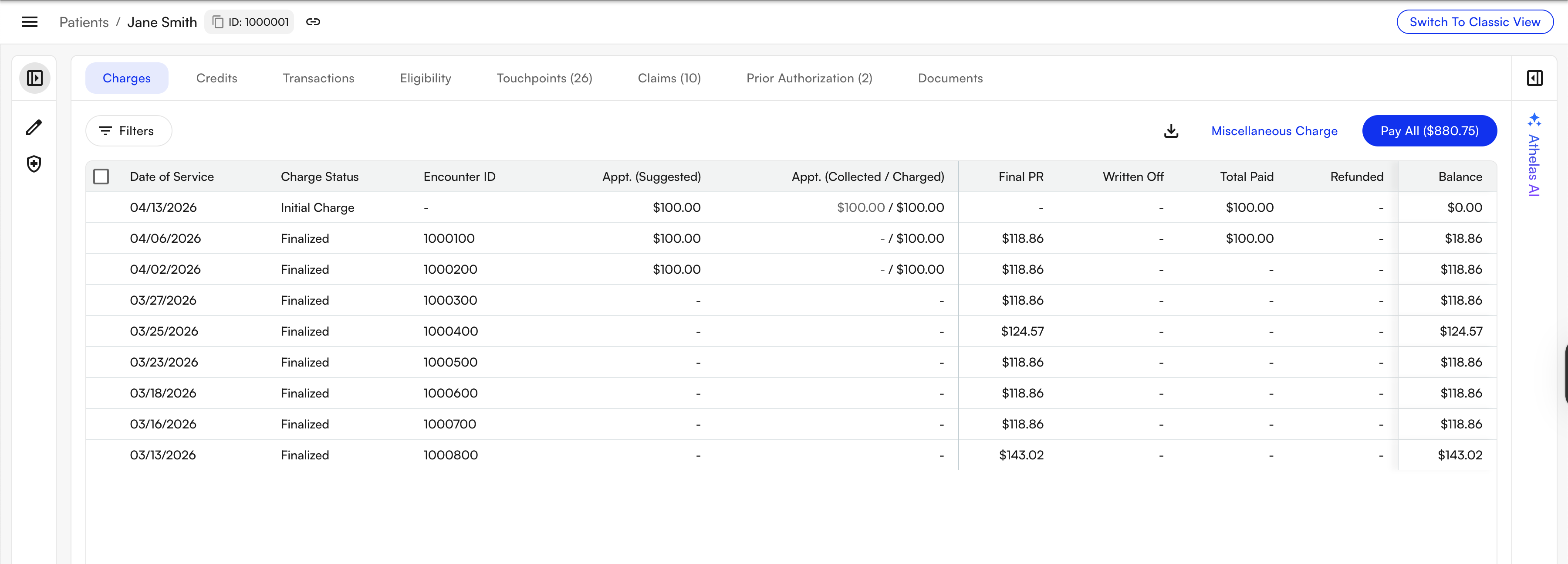
- Appt. (Suggested): the pre-visit estimate from the rule engine, before the patient arrived.
- Appt. (Charged): how much was put on the patient’s balance at check-in, whether or not they paid it.
- Appt. (Collected): how much was actually collected from the patient at check-in.
- Final PR: the patient’s responsibility after insurance adjudicated the claim.
- Charge Status: where the charge is in its lifecycle:
Initial Charge→Claim in Progress→Finalized. - Written Off / Paid / Refunded / Balance: how the balance has been settled, and what remains.
Charge Details
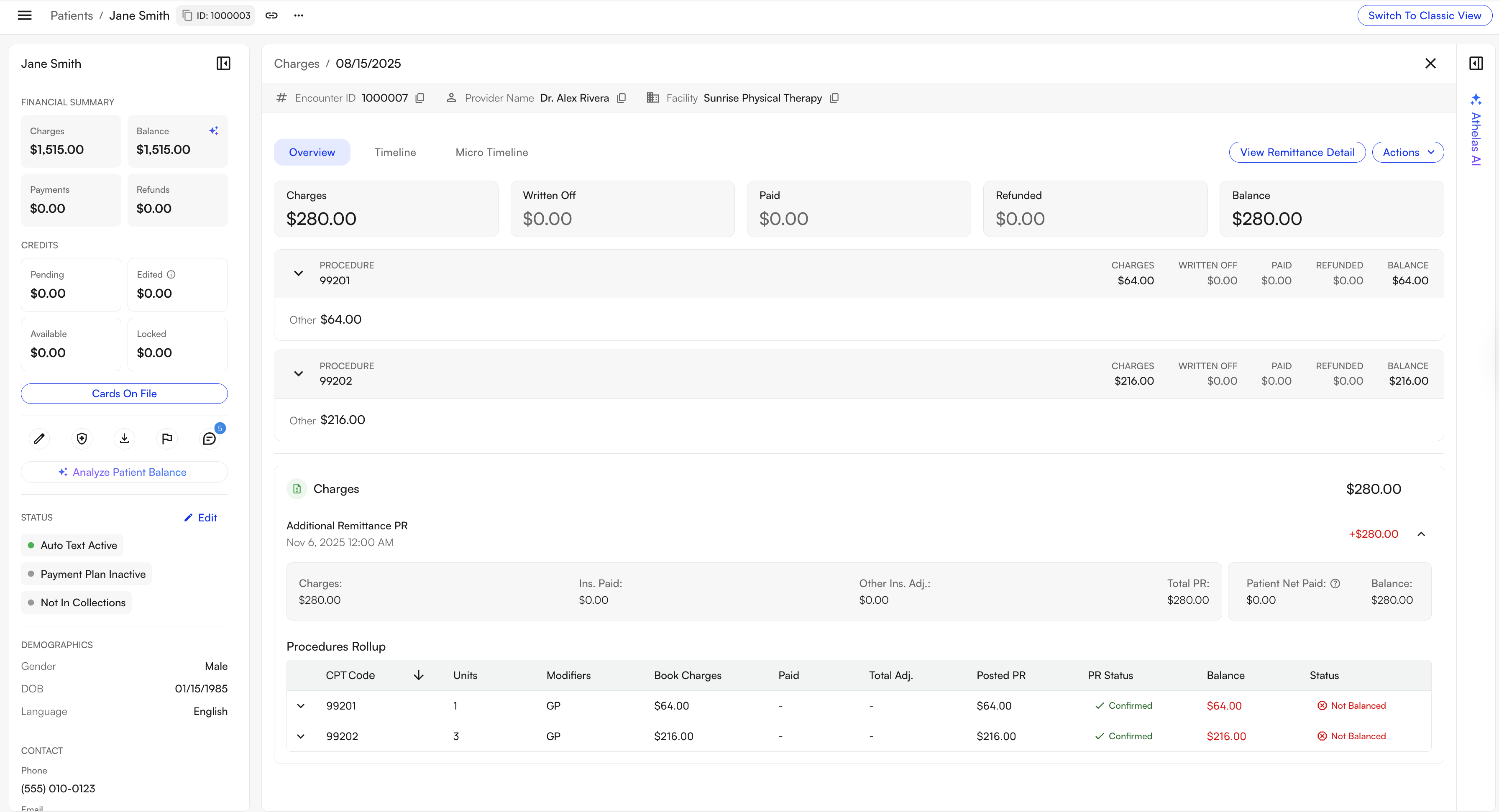
- Per-CPT summary table: a row per procedure code with Copay, Co-Insurance, Deductible, Other, and Self-Pay amounts.
- Overview: charge events (claim submissions, remittance, adjustments) separated from transaction events (payments, credits, refunds) so each side of the ledger is easy to read.
- PR Timeline: the full lifecycle from pre-visit estimate through final balance.
The Transactions Table
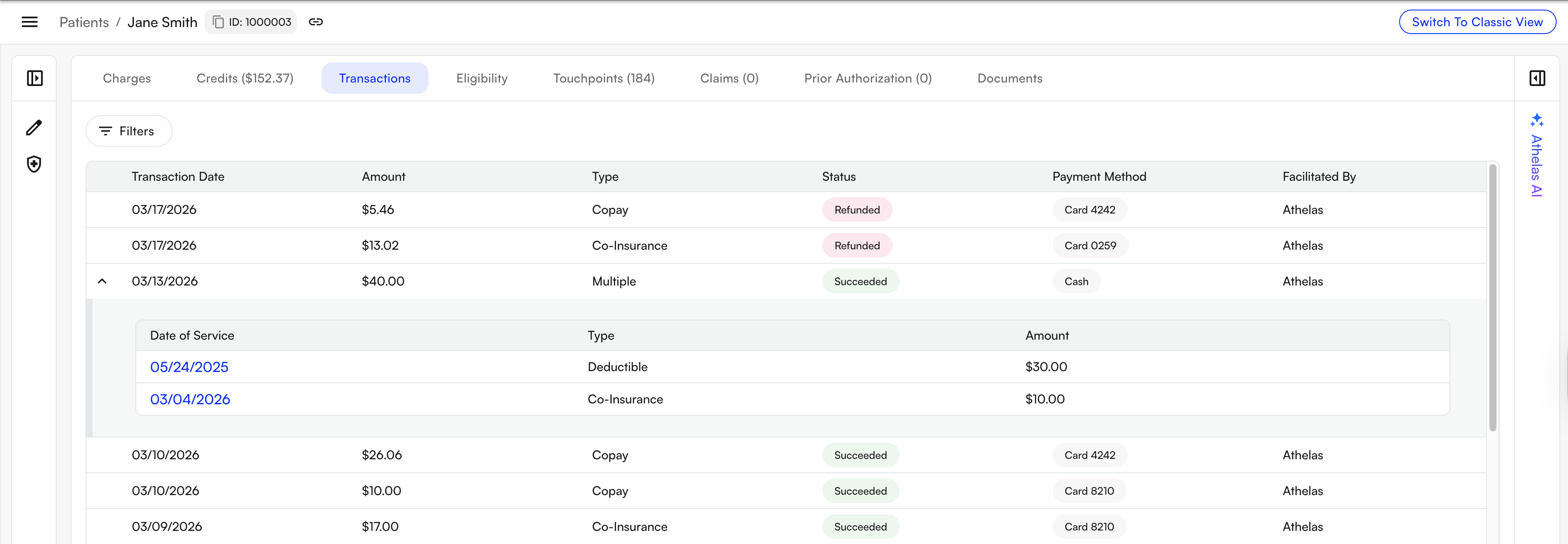
“Refund” now strictly means money leaving the system. Moving money from a payment into credits is labeled “moved to credits”. These used to look identical in the old UI, which was a frequent source of confusion. Credit operations (applications, movements between DOS) no longer clutter the transactions list; to see credit movements for a specific payment, open it and check the Activity feed on the Transaction Details page, or use the Credits tab.
- Date: when the payment was created.
- Type: the kind of transaction, covering the different payment sources Insights supports (card, SmartPay, cash, check, ACH, and more).
- Amount: the dollar amount.
- Payment Method: the specific method used for the transaction.
- Performed By: the user or system that created the transaction.
Succeeded: the payment went through cleanly and has not been refunded.Partially Refunded: some portion of the payment has been refunded or moved to credits.Refunded: the entire payment has been refunded or moved to credits.
- All: everything.
- Outstanding: payments not yet fully applied.
- Paid: fully applied payments.
- Canceled: voided transactions.
Transaction Details
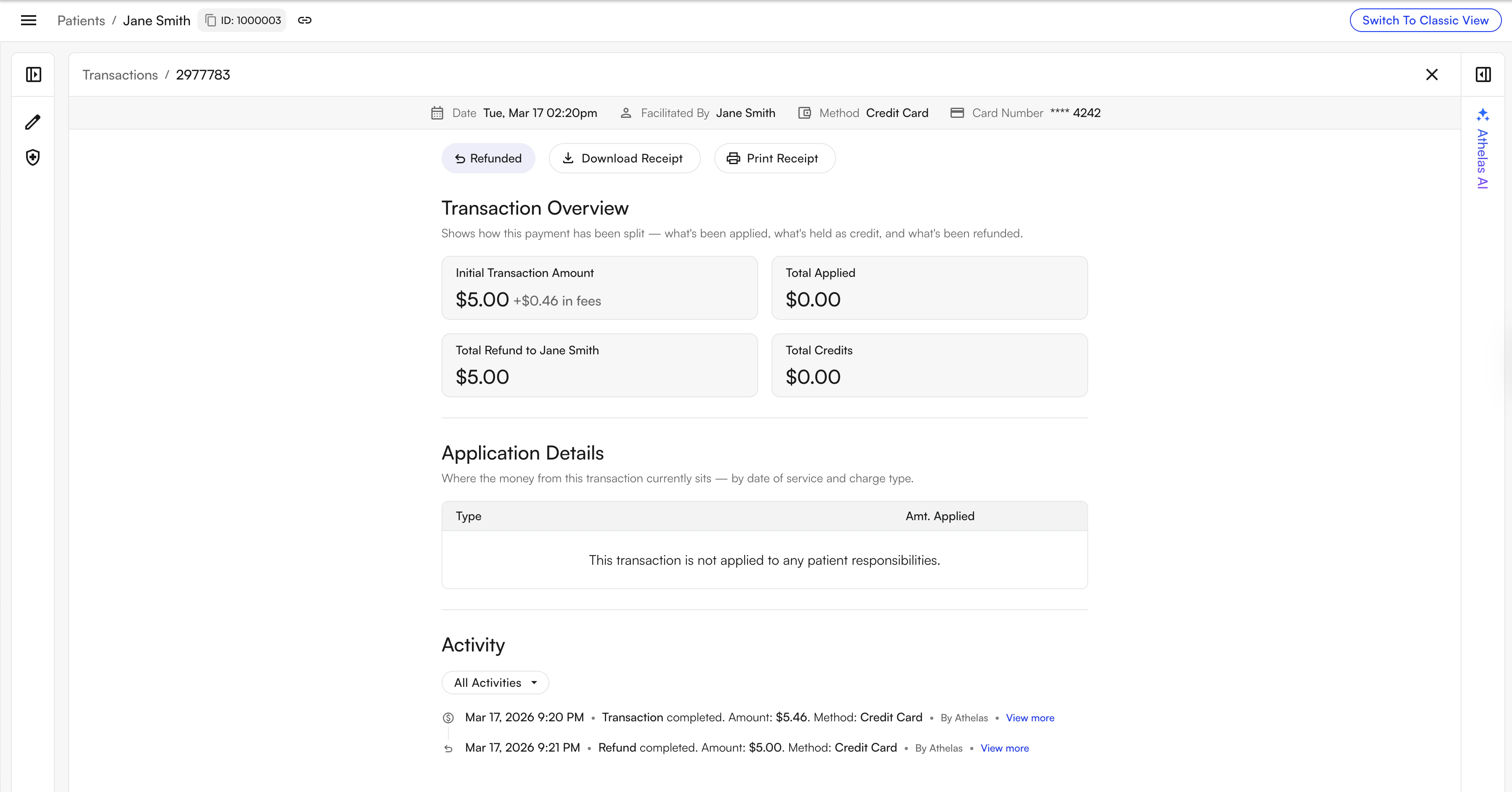
- Initial Amount: what this payment started as.
- Total Applied: how much of this payment has been applied to charges, whether directly or indirectly through credits.
- Total Refunded: how much has left the system as a refund back to the patient.
- Total Credits: how much is still sitting as credits on the account, traceable to this payment.
You can start from either end of the chain. From a charge, the credit application in the PR Timeline points you back to the payment that created the credit. From a payment, the application breakdown and activity feed point you forward to every charge and DOS that received money from it. Either direction, you can always follow the complete money trail.
Tracing Credits with Athelas Assistant
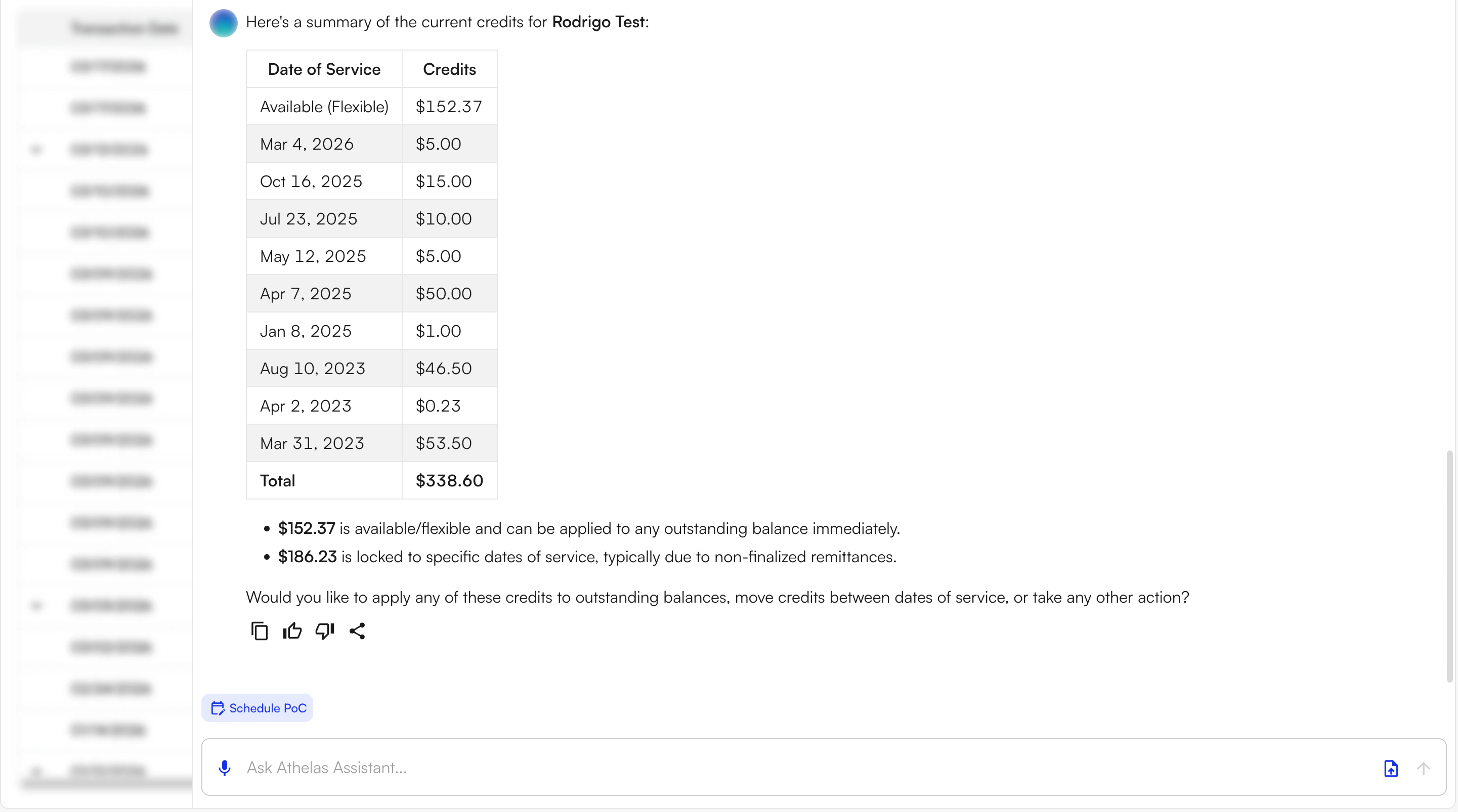
- The active patient and their full financial history.
- The charge, transaction, or detail view you currently have open.
- Credit chains, payment applications, and remittance data in real time.
- Explain: where a specific credit came from, why a balance exists, what a payment was applied to, why insurance paid what they paid.
- Act: apply credits to outstanding PRs, move credits between dates of service, write off a balance, refund a payment.
- “Where did the $50 credit on 3/12 come from?”
- “Why does this patient still have a balance after insurance paid?”
- “Move the unused credit from the 2/1 visit to the 4/3 visit.”
- “Explain how this payment was applied across dates of service.”
- “Refund the $25 overpayment from last Tuesday.”
FAQ
How is 'Appt. (Suggested)' different from 'Final PR'?
How is 'Appt. (Suggested)' different from 'Final PR'?
Appt. (Suggested) is the pre-visit estimate, meaning what our rule engine predicted the patient would owe based on their plan, benefits, and the scheduled procedures, before they arrived. It’s what front desk uses to collect at check-in.Final PR is what the patient actually owes after the payer adjudicates the claim and a remittance comes back. The two can differ: the estimate is a best guess, and the remittance is the truth. The Charges table shows both side-by-side so you can see where the estimate was accurate and where it wasn’t.
Where did credit movements go? I used to see them in the transactions list.
Where did credit movements go? I used to see them in the transactions list.
Credit operations no longer appear in the Transactions table; only incoming payments do. This was an intentional change: mixing credit movements with real transactions was a frequent source of confusion, especially around what “refund” meant.You can still see every credit event in two places:
- On the Credits tab, which lists credits for the patient and how they’ve moved.
- On the Activity feed of the Transaction Details page for a specific payment, which shows the credit events tied to that payment (creations, applications, movements between DOS, refunds) in chronological order.
What's the difference between a refund and moving money to credits?
What's the difference between a refund and moving money to credits?
A refund is money leaving the system, returned to the patient’s card, check, or account.Moving to credits keeps the money on the patient’s account as an unapplied credit, available to be applied to a future charge. The funds don’t leave; they just change from “applied to DOS A” to “available as credit.”In the new UI these are labeled differently. Refunds are reflected on the originating payment’s status and Transaction Details page; credit movements appear on the Credits tab and in the Activity feed of the source transaction.
Can I trace a credit back to its original payment?
Can I trace a credit back to its original payment?
Yes, from either direction.From a charge: open the Charge Details drawer and look for the credit application event in the PR Timeline. Each event links back to the payment that originally created the credit. If the credit was sourced from multiple payments (a split credit), a tooltip lists every source payment with its date, method, and amount, each clickable.From a payment: open the Transaction Details page and use the Application breakdown by DOS and Activity feed. Both show every charge and DOS that received money from this payment, including indirectly via credits.
A credit I expected isn't showing up — where do I look?
A credit I expected isn't showing up — where do I look?
Start by clicking the patient’s balance to get the AI summary; it will usually call out any credit movement and where it ended up. If you need to verify manually:
- Open the source payment in the Transactions table and go to Transaction Details.
- Check the Total Credits summary card, which shows credits still traceable to this payment.
- Scan the Activity feed for any
moved to credits,applied, orrefundedevents that explain what happened to the credit.