
Why payer mapping matters
Claims for an unmapped payer may fail to submit or route to the wrong destination, so work the list as new names appear.
Where to find payer mapping
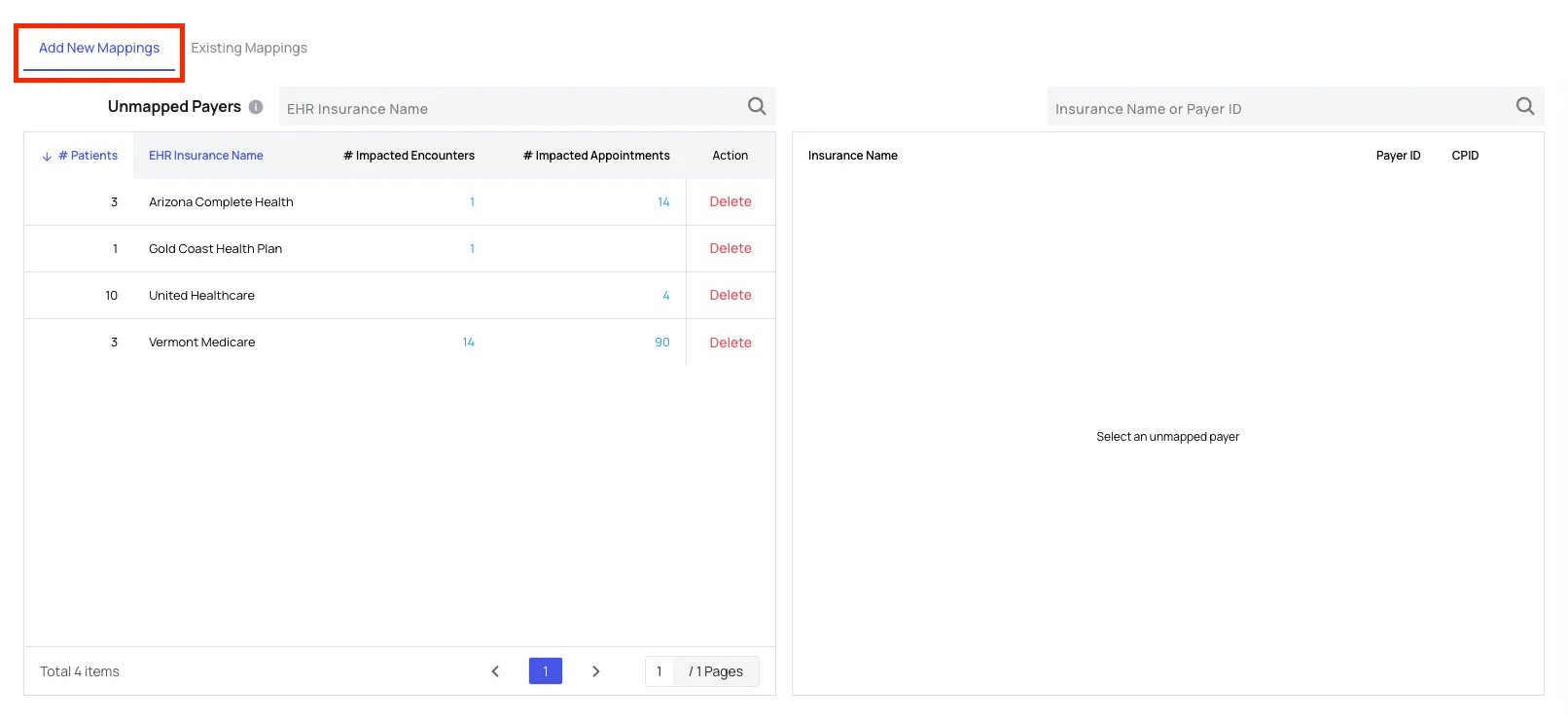
Go to Insights → Action Items → Payer Mapping. The page has two tabs:- Add New Mappings — EHR insurance names with no payer record attached yet.
- Existing Mappings — every name you have already mapped, and where you go to correct one.
Review your unmapped payers
The Unmapped Payers list on Add New Mappings shows each unrecognized EHR insurance name alongside the volume behind that name: # Patients, # Impacted Encounters, and # Impacted Appointments. Sort by any of those columns to work the highest-impact names first, and use Delete to drop a name you do not need mapped. Names land here when:- You are setting up your practice for the first time.
- A new insurance plan is added to a patient record.
- An insurance name in your EHR does not match an existing mapping.
Map a payer
To map an unmapped payer:- On Add New Mappings, click the insurance name in Unmapped Payers. The header confirms your choice with Selected: and that name.
- In the right panel, search by Insurance Name or Payer ID. Rows tagged Recommended are the candidates closest to the selected name, and the (Autofill) link above the search box proposes a match for you.

- Click Select on the payer record you want. Check the Payer ID and CPID columns as you choose — those are the identifiers the clearinghouse uses to route the claim.
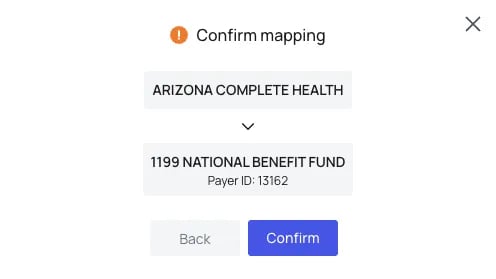
- Review the Confirm mapping dialog, which shows the EHR insurance name above the payer record that name will map to, then click Confirm.
Correct a mapping
To change a mapping you have already saved:- Open the Existing Mappings tab.
- Find the mapped insurance name.
- Edit that row and select the correct payer record.
- Save your change.
Things to know
- Map each name once. A mapping applies to every patient carrying that insurance name in your EHR, so there is nothing to repeat per patient.
- A missing payer record is not a dead end. If no record matches, your account team can add the payer or point you at the right existing record.
- Report names follow the map. When an insurance name looks wrong on a report or a claim, the mapping is the first thing to check.
- Charge Master mapping is separate. Mapping an unrecognized payer value during a charge-file import is a different prompt, covered in Getting Started with Charge Master.
FAQ
What happens if I leave a payer unmapped?
What happens if I leave a payer unmapped?
Claims for that insurance name may fail to submit, or they may route to the wrong clearinghouse destination. Review the Unmapped Payers list regularly rather than letting it build up.
Do I have to remap a payer for every patient?
Do I have to remap a payer for every patient?
No. You map an insurance name once, and the mapping covers every patient who carries that name in your EHR.
The payer I need is not in the list. What now?
The payer I need is not in the list. What now?
Reach out to your account team. They can add a new payer record or help you identify the correct existing one to use.
An insurance name looks wrong on my report. Where do I fix it?
An insurance name looks wrong on my report. Where do I fix it?
Insurance names on reports and claims come from the payer map, so correct the mapping on the Existing Mappings tab and later reports will follow.
Questions about a specific mapping? Reach out to your account team or support@getathelas.com.