
Overview
The Deposit Slip Ingestion tool lets you upload a deposit slip — as a CSV or a PDF — and automatically reconcile each individual check on the slip against the corresponding bank deposit and check records already in Insights. This guide covers where to find the tool, the supported file formats, and what each screen does end-to-end.Before you start
- Have your deposit slip ready as either a
.csvor a.pdf. PDFs are converted to CSV automatically by an LLM-based extractor, then queued for human review before they are finalized. - The corresponding bank deposit must already exist in Insights (it is typically pulled in via Plaid, BAI, or another upstream feed). Each slip is tied to exactly one bank deposit, and each bank deposit can have at most one slip.
- File limits: 10 MB max, up to 3,000 rows per CSV, and up to 800 line items per PDF (anything beyond that is truncated by the extractor).
CSV format
If you are uploading a CSV, the first row must use the header below — column names are matched verbatim:- Sequence — running
1, 2, 3 … - Check Type — must be exactly
Business Check,Personal Check, orCashier Check. - Check Number — required for
Business Checkrows; leading zeros are normalized during matching. - Amount ($) — decimal dollars (e.g.
123.45). - Check Date (optional) —
YYYY-MM-DD.
Step 1. Navigate to the Remittances tab
The Deposit Slip Ingestion tool lives in the Remittances tab.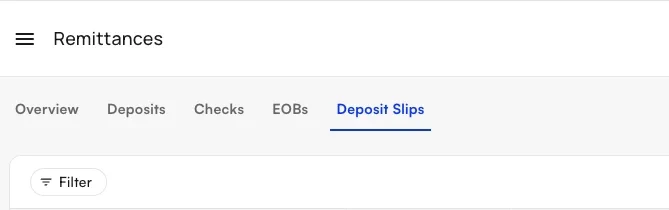
Step 2. Upload your deposit slip
Click Upload Deposit Slip and choose either a CSV or a PDF.- CSV — the file is parsed inline and the result is returned immediately.
- PDF — the file is queued for asynchronous conversion. Behind the scenes it is sent through an LLM-based extractor that produces an editable CSV for you to review before the slip is finalized.
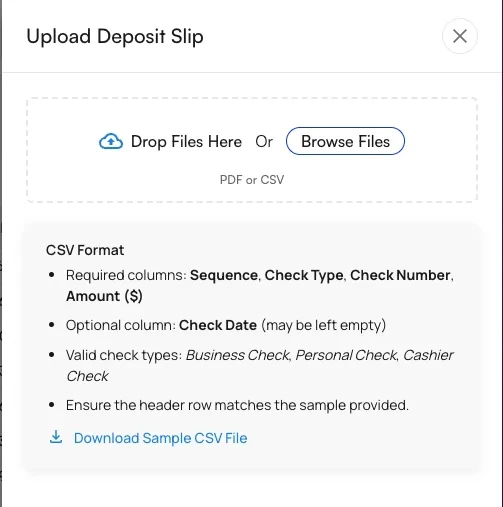
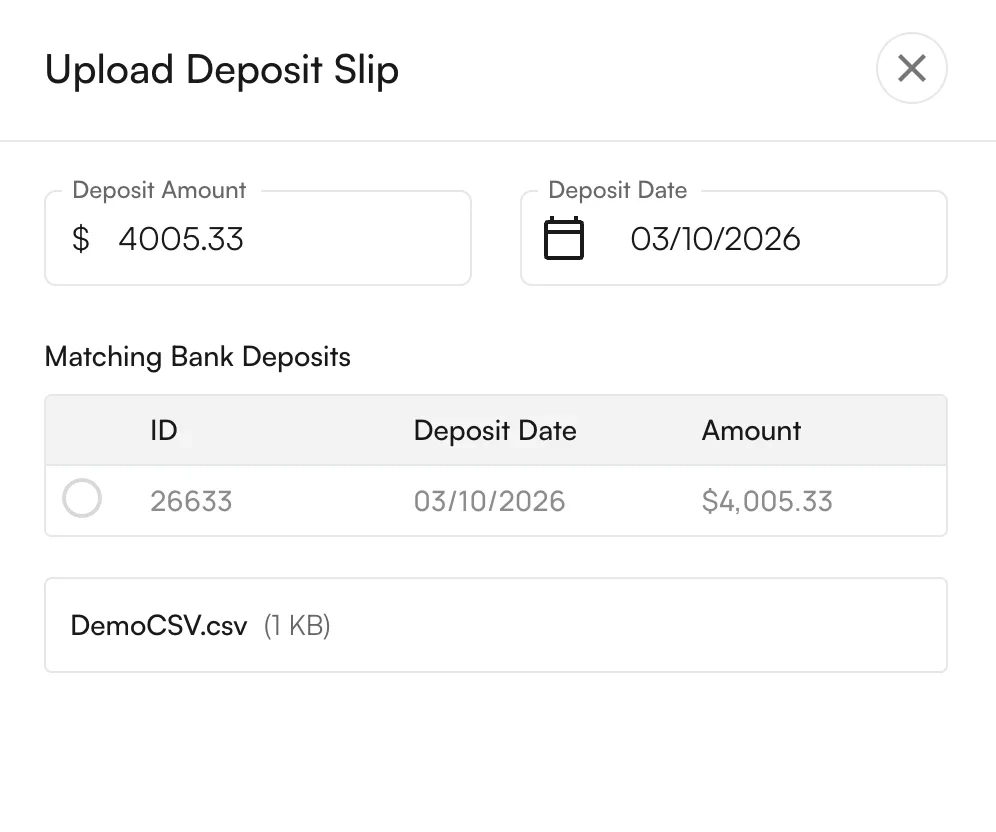
Step 3. Select the bank deposit
Enter the deposit amount and deposit date so Insights can find the corresponding bank deposit, then pick it from the search results. The search looks for bank deposits across all related sites (same Tax ID and NPI) where both the date and the amount match exactly. Each candidate shows:- The deposit date and total amount
- The bank deposit number, when available
- Whether a deposit slip is already linked to that bank deposit (each bank deposit can have only one slip, so anything marked as already linked is unavailable)
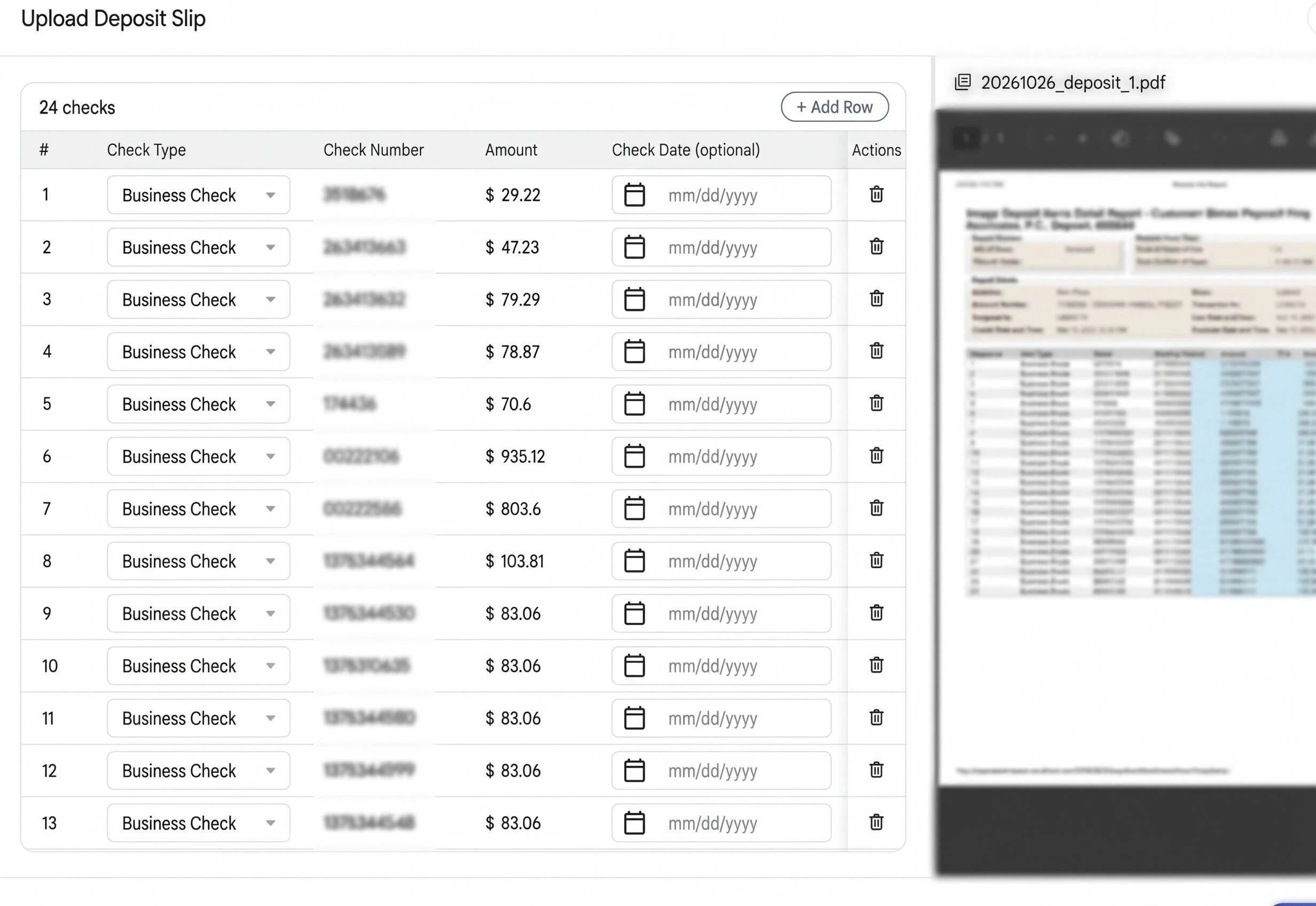
Step 4. Review the parsed slip
After upload, the slip enters a review state.- CSV uploads that parsed cleanly and reconcile against the bank deposit total move directly to
COMPLETED, and the breakdown view shows the auto-match results. - PDF uploads land in
PENDING_REVIEW. The LLM-generated CSV opens in an editable table — review each line, fix anything the extractor got wrong (especially check numbers, since 9-digit routing or account numbers are a common false positive), and re-upload the corrected CSV to finalize. - CSV uploads with row-level errors return a per-line error list so you can fix the source file and re-submit. Possible row-level error codes:
Step 5. Open a slip to see its breakdown
Clicking a deposit slip opens a per-line breakdown that shows every check the slip contains, along with aggregate counts:- Total checks on the slip
- Total dollar amount on the slip vs. the bank deposit amount
- How many lines were successfully linked to a system check
- Whether the line is matched (its linked check belongs to the same bank deposit) and whether the amount matches the linked check
- The linked check’s number and amount, when present
- Any line where the system could not find a match — these appear as unlinked

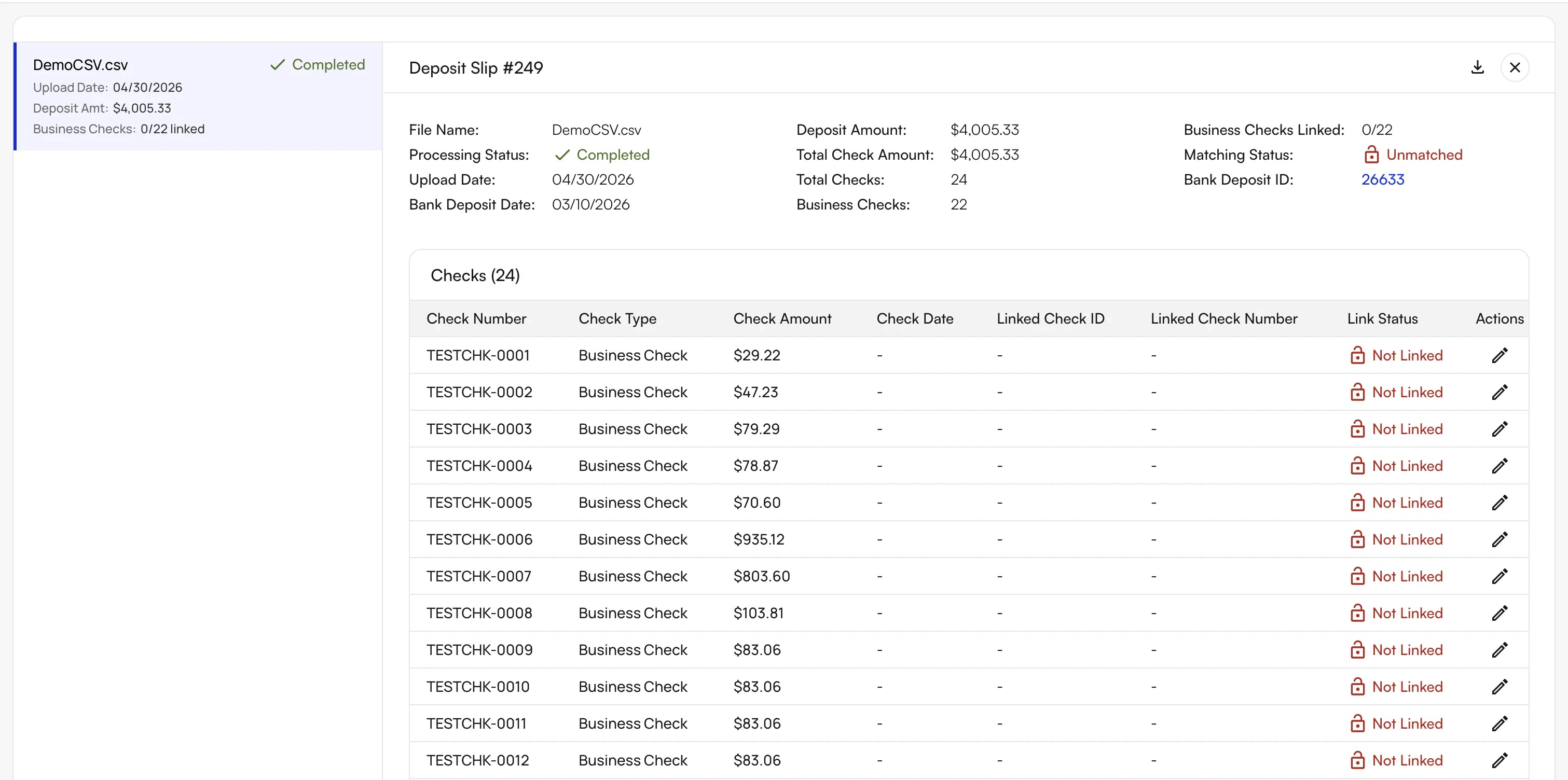
Step 6. Resolve unlinked checks
Use a row’s Actions menu to reconcile any unlinked Business Checks:- Search & link — search by check ID or check number across all related sites. The candidate must:
- Belong to a related site
- Match the line’s amount exactly
- Not already be linked to a different bank deposit
- Not already be linked to another deposit slip line
- Edit — for lines that have not been linked yet, you can correct the check number, type, amount, or date directly. After editing, the system re-attempts auto-link if the line is now a Business Check. Lines that are already linked are read-only — unlink them first if you need to make changes.

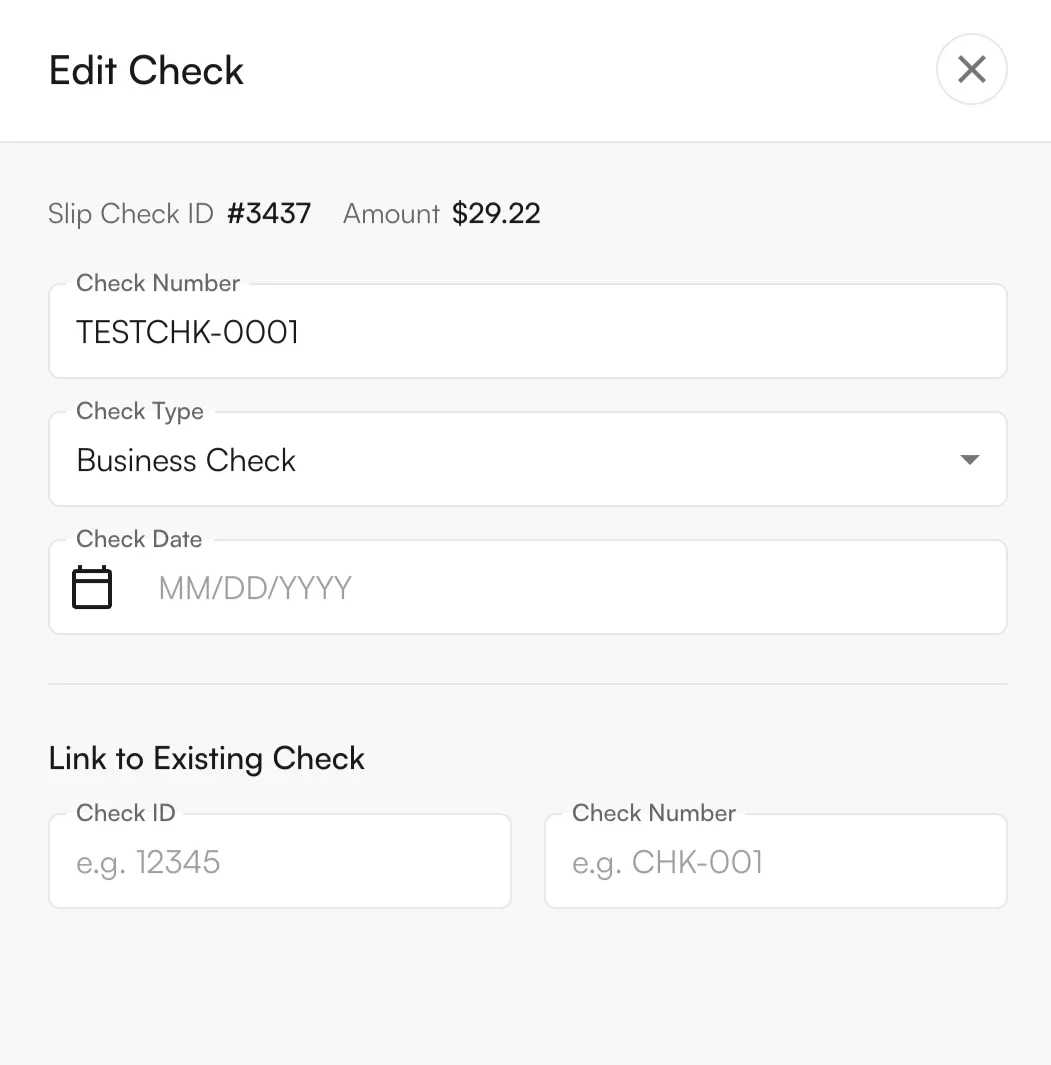
FAQ
Why was my upload rejected with 'Total of line items doesn't match bank deposit'?
Why was my upload rejected with 'Total of line items doesn't match bank deposit'?
The sum of every line on the slip must equal the selected bank deposit’s total to the cent. Edit the lines (or fix the source file) so they reconcile, then re-upload.
What does 'This check has already been matched' mean?
What does 'This check has already been matched' mean?
The check you are trying to link or edit is already attached to a different deposit slip line or bank deposit. Unlink it from the other location first, then retry.
I uploaded the same file twice — why is it blocked with 'File already uploaded'?
I uploaded the same file twice — why is it blocked with 'File already uploaded'?
The file’s content hash matches a previous successful upload. Use the existing slip, or modify the file (for example, fix a typo in a check number) before retrying.
What's the difference between uploading a CSV vs. a PDF?
What's the difference between uploading a CSV vs. a PDF?
CSV uploads are parsed inline and the auto-match result is returned immediately. PDF uploads are sent through an LLM-based extractor that produces an editable CSV for human review — the slip lands in
PENDING_REVIEW until you confirm the extracted data is correct.Note: PDF extraction can occasionally misread check numbers (9-digit routing or account numbers are a common false positive), so always QA the generated CSV before finalizing.Do I need to link Personal Check or Cashier Check rows?
Do I need to link Personal Check or Cashier Check rows?
No. Only Business Check lines are auto-matched against existing system checks. Personal Check and Cashier Check amounts are tracked separately as the bank deposit’s non-insurance receipts.