
Overview
A payment that has been recorded in Insights cannot be deleted or edited from transaction history. When a payment is posted incorrectly, do not try to erase the original transaction. Neutralize it with an offsetting refund or credit, then record the payment correctly. A correct correction leaves you with four things:- The original transaction still visible for audit and history purposes.
- The incorrect payment financially neutralized.
- The appropriate payment or credit on the correct patient account.
- A final balance that reflects the payment you intended to take.
Which correction to use
Why transaction history cannot be edited
Once a payment has been recorded, the original transaction stays in the patient’s transaction history. Say the original transaction reads:- $100 → Cash → Patient A
- $100 → Credit Card → Patient B
- What was originally posted
- What was corrected
- Why the patient’s balance changed
- When the correction occurred
Scenario 1: Payment posted to the wrong patient
A $100 credit-card payment was posted to patient ID 1234, but the payment belongs to patient ID 6789. Two options correct this mis-post. Choose the one that fits your situation.Option 1: Move the money with credits
Use this option when the patient does not need money back on their card. The $100 stays inside Insights and moves from the wrong account to the right one.1
Verify the payment
Confirm the payment details against the receipt or the transaction report:
- Patient name and ID
- Payment amount
- Payment date
- Payment method
- Card last four digits, if applicable
2
Locate the incorrect payment
Open the incorrect patient’s account and find the payment — in this example, $100 by credit card on patient ID 1234.
3
Correct the incorrect account
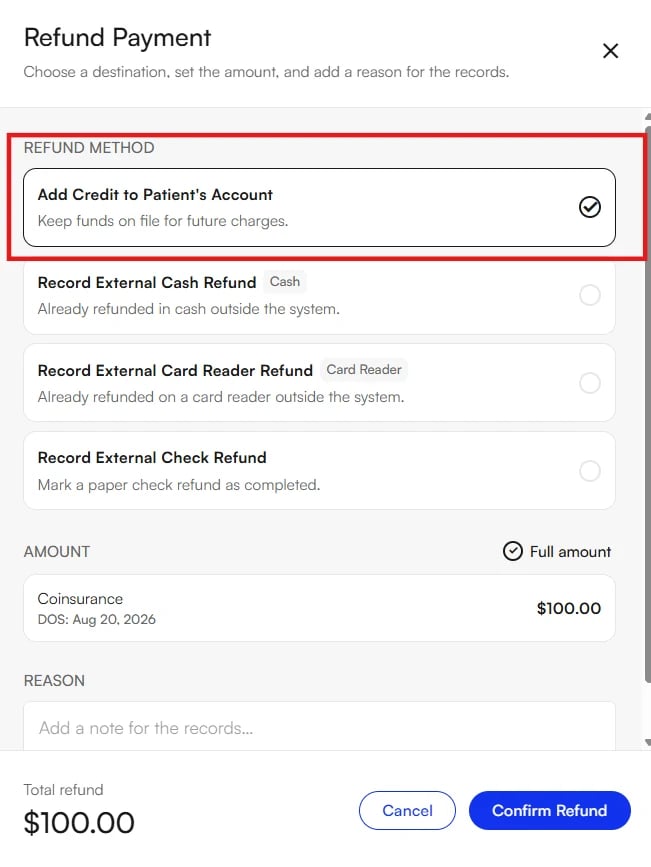
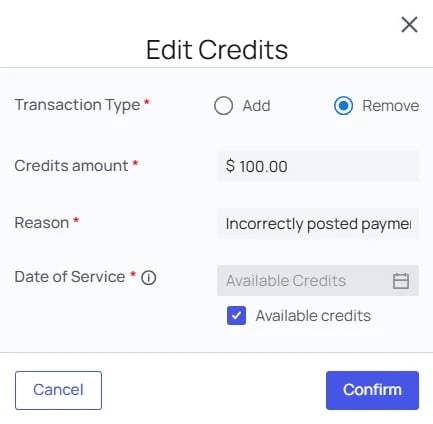
The original transaction cannot be deleted or edited, so start by checking whether the payment has already been converted into a credit.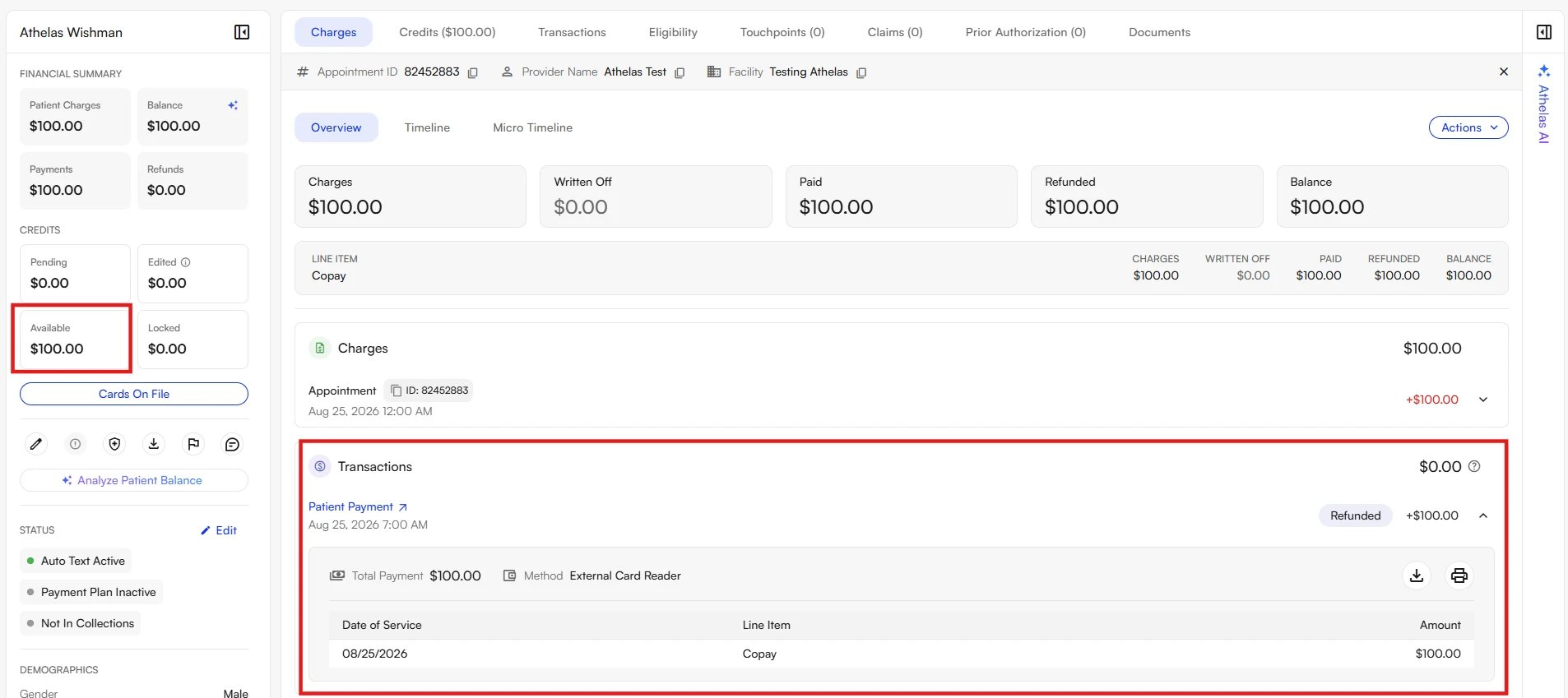
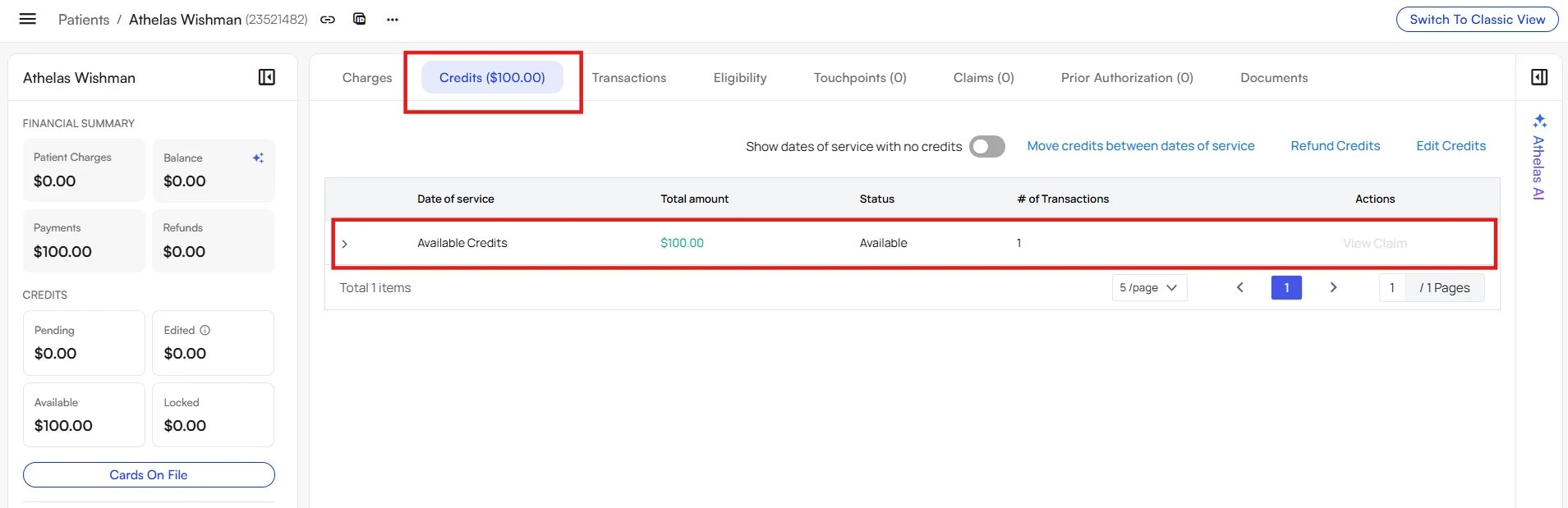
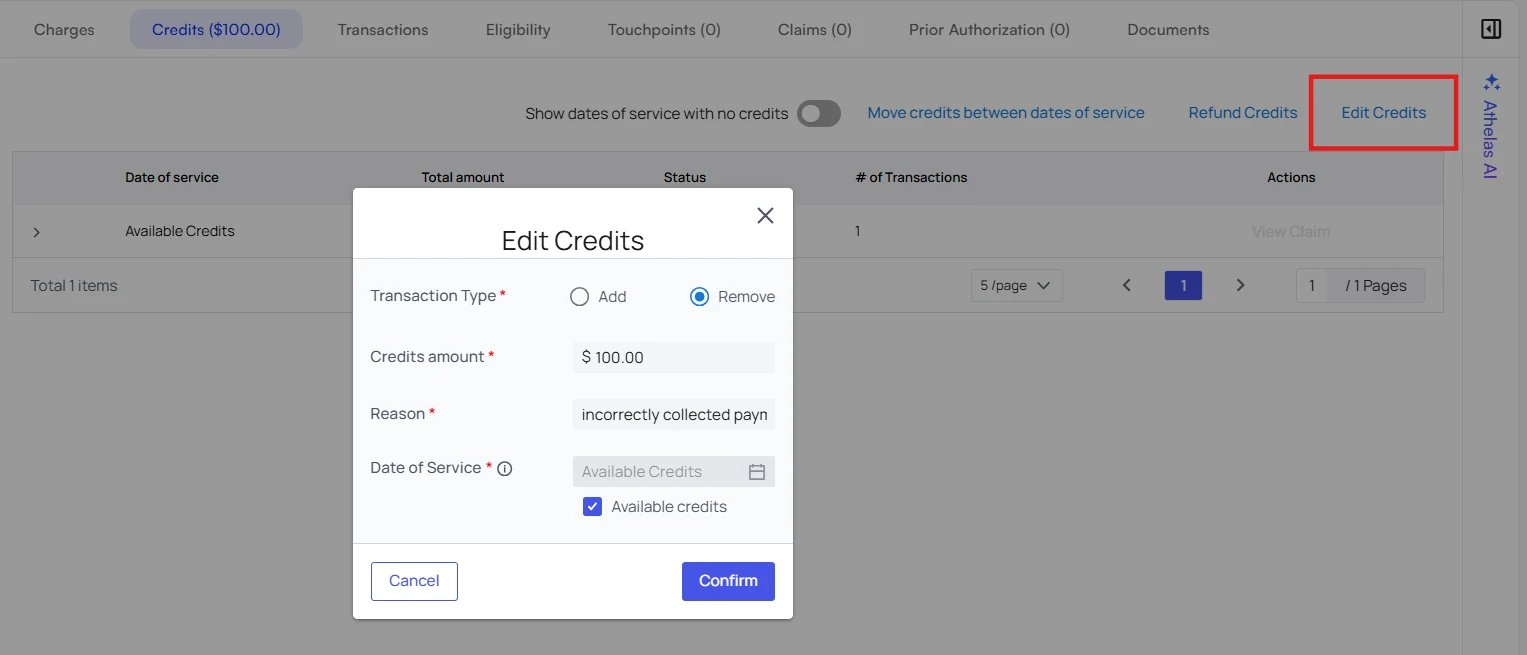
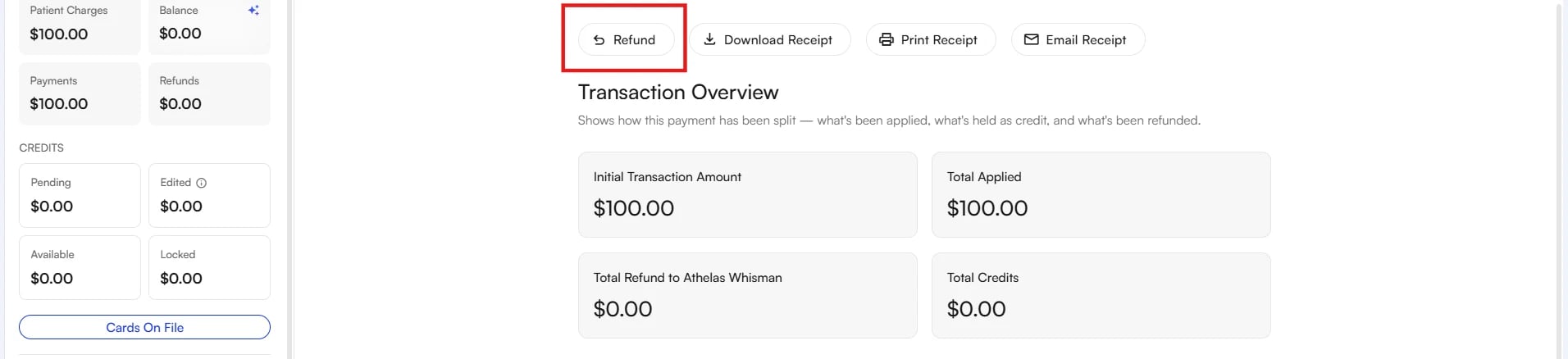

- Open the incorrect patient’s profile.
- Go to the Charges tab and select the relevant date of service (DOS).
- Open Charge Details.
- Review the transaction timeline at the bottom of Charge Details. This mini transaction log shows whether the payment was already refunded as credit.
4
Credit the correct account
Now move the $100 onto patient ID 6789.Open the correct patient’s profile, go to the Credits tab, and add $100 in credits to the account.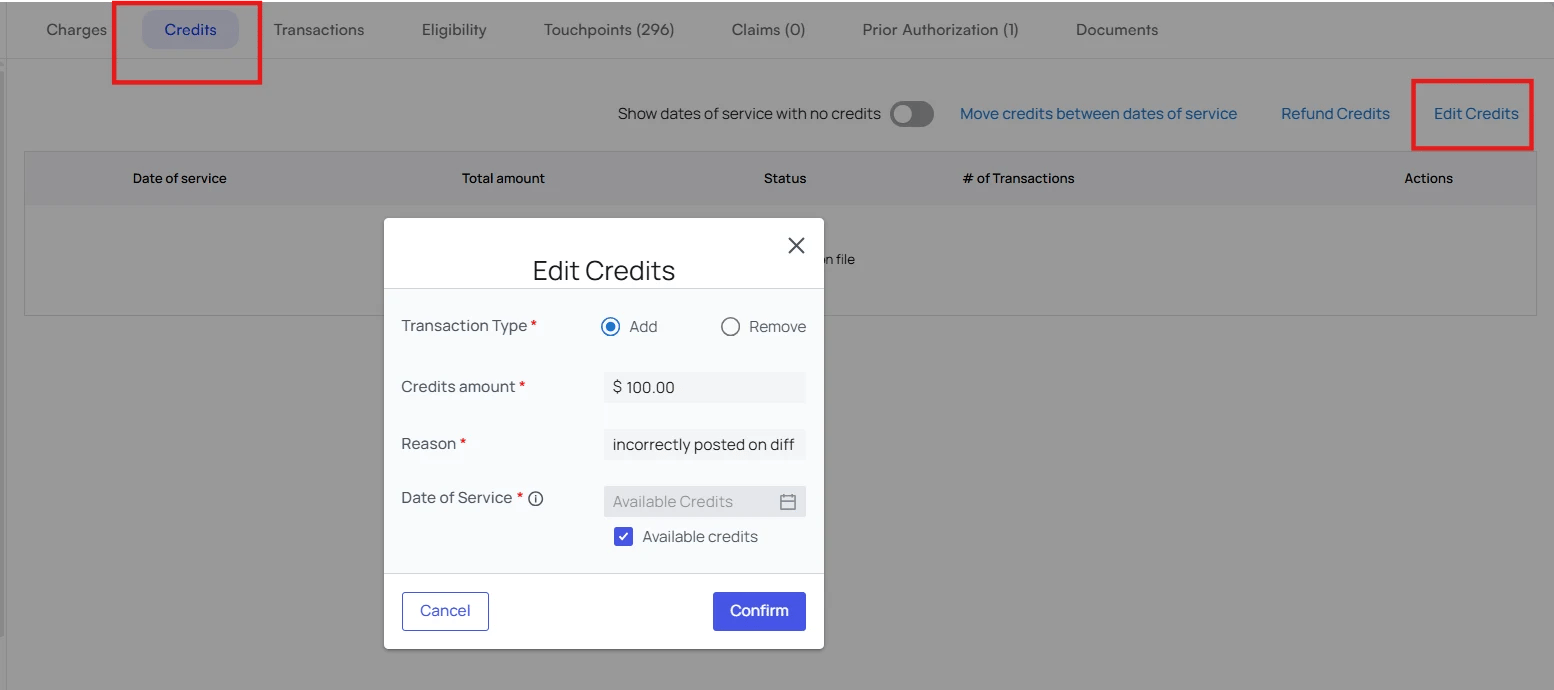

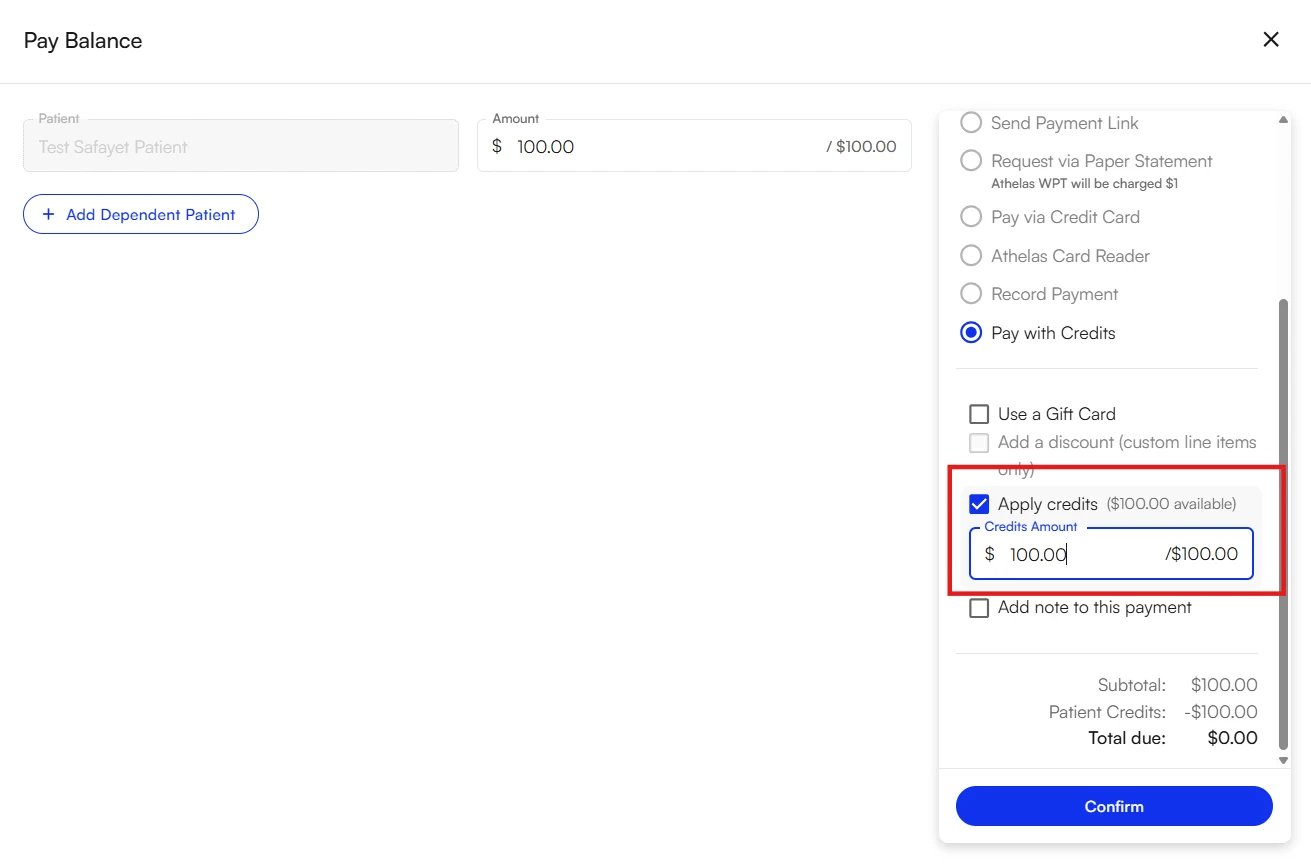
Option 2: Refund the card and re-collect
Use this option when the money needs to go back to the cardholder. Refund the payment to the credit card on the incorrect account (patient ID 1234), then process the payment again on the correct account (patient ID 6789).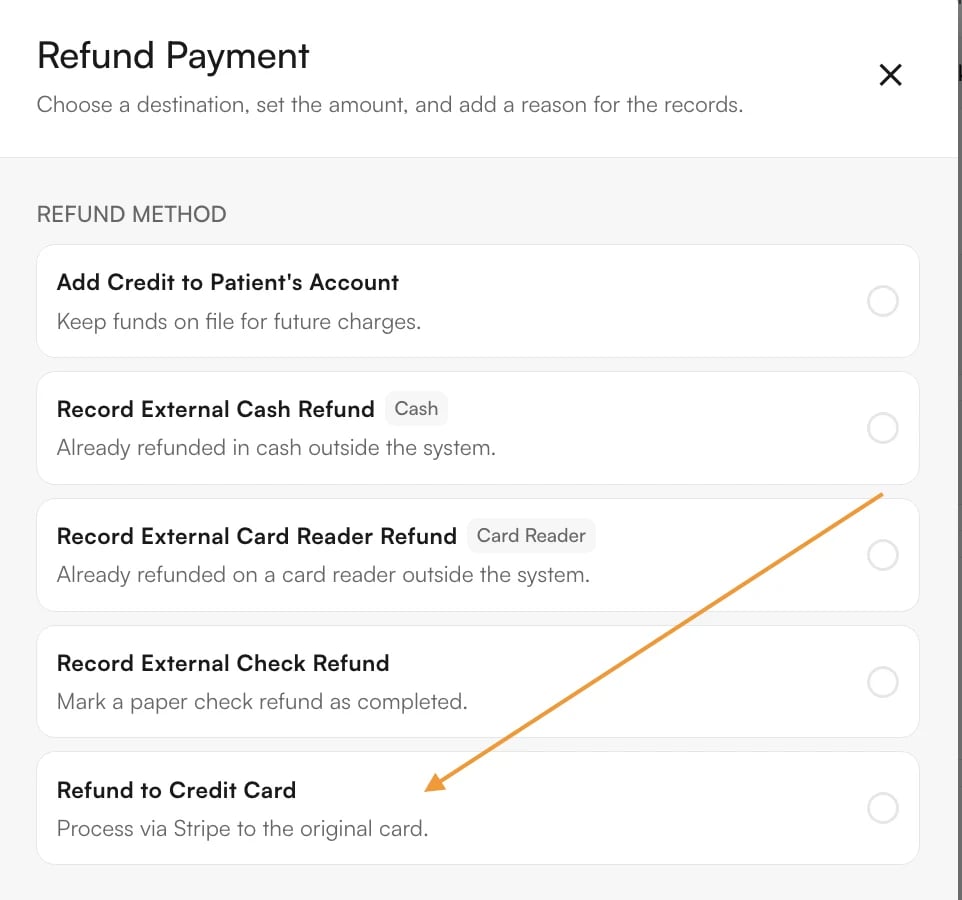
Scenario 2: Wrong payment amount posted
The correct amount was $100.00, but $150.00 was collected from the patient. Because transaction history cannot be edited from $150.00 down to $100.00, correct the incorrect charge and create a new one for the right amount. Start by reviewing the receipt, the PR timeline, and the charge details in Insights to confirm what the patient should have been charged. Then work out which of these three cases you have:- Over-collection — the patient paid more than the correct amount.
- Under-collection — the patient paid less than the correct amount.
- Correct amount, wrong amount posted — the patient paid the right amount, but staff posted a different one.
Over-collection
Correct amount $100.00, collected $150.00, over-collected $50.00.- Refund $100.00 of the incorrect charge as credits to cancel the original PR.
- Decide with the site how to handle the $50.00 overpayment: return it to the patient by credit card, cash, or check, or keep it as a patient credit to apply against a future balance.
- Create a new charge for $100.00.
- Apply the refunded $100.00 credit to the new charge.
- Collect payment for the new charge.
- Verify the patient’s final balance, and confirm that the $50.00 is either refunded or showing correctly as a credit.
Under-collection
Correct amount $150.00, collected $100.00, under-collected $50.00.- Refund the original $100.00 payment to cancel the original PR, either as credits or back through the original payment method.
- Create a new charge for $150.00.
- Collect payment for the new charge. Because this was an under-collection, the patient owes the remaining $50.00. If you refunded the original payment to the credit card, the patient can repay the full $150.00 by whichever method they prefer.
- Verify that the account reflects the correct $150.00 charge and payment.
Correct amount, wrong amount posted
Correct amount $100.00, collected $100.00, posted $150.00.- Refund $100.00 of the payment as credits.
- Refund the remaining $50.00 through the original payment method, then cancel the original PR. This offsetting refund reconciles the $50.00 that was posted but never collected.
- Create a new charge for $100.00 and pay it with the $100.00 refunded credit.
- Verify that the account reflects the correct $100.00 charge and payment.
Scenario 3: Wrong payment type posted
The patient intended to pay by credit card, but staff selected Cash in Insights. The amount is right and the payment method is wrong. Because the payment was recorded as cash, nothing was collected from the patient’s card, so correct the cash transaction and then collect the payment properly.- Correct the incorrectly recorded payment. The cash transaction cannot be edited into a credit-card transaction. Record a refund using the original payment method — cash, in this case — to offset the incorrect record.
- Post the payment correctly. Go to Charges and record the payment with Credit Card as the payment method.
- Verify the transaction history. History now holds the original cash transaction alongside the transactions that corrected it. That is expected.
Scenario 4: Wrong patient and wrong payment type
Patient 1234 paid $100 by credit card, but staff posted the $100 as cash under patient 5678. Because the payment was recorded as cash, nothing was collected from patient 1234’s card.Correct patient 5678
Refund the incorrect cash payment using the original payment method. That cash payment existed only as a record in Insights, so no money was ever taken from a card under patient 5678.Correct patient 1234
Create a $100 charge for patient 1234 if one does not already exist, then collect the $100 by credit card.Reconcile both accounts
Confirm that patient 5678 no longer holds the incorrect $100 cash payment or credit, and that patient 1234 has the correct $100 credit-card payment recorded.Document the correction
Keep the receipt and the end-of-day documentation with the support request or your internal records, so the reason for the correction stays clear.Understanding credits
Credits let you move the financial amount of a payment without sending money back to the patient. The Add Credits payment type adds a matching amount of credit to the patient’s account. A credit can be flexible or tied to a particular date of service, depending on the workflow. Credits are what make Option 1 of Scenario 1 work: the $100 leaves the wrong account as a credit and lands on the right one, and the patient’s card is never touched.Key reminders
- Transaction history stays. Original payment transactions remain in history. Corrections happen through the refund and credit workflow, never by editing the original transaction.
- Avoid duplicate payments. Before you record a new payment, confirm that the incorrect payment has been corrected.
- Verify the patient. Use the receipt, the patient profile, transaction history, and your payment reports together to confirm which patient the payment belongs to.
- Review credits carefully. A credit may represent a legitimate patient payment. Check where a credit came from before you change it.
- Transaction date is not the date of service. The transaction date records when the payment activity happened; the date of service records when the service was provided. The two dates are often different.
FAQ
Can I just delete the wrong transaction?
Can I just delete the wrong transaction?
No. Payment transactions cannot be deleted or edited once recorded, because transaction history is the audit trail for the account. Correct a mis-post by adding an offsetting refund or credit, which keeps both the original activity and the correction visible.
Should I refund to credits or back to the card?
Should I refund to credits or back to the card?
Refund to credits when the money needs to move inside Insights — to another date of service or another patient — and the patient is not expecting money back. Refund to the card when the patient should actually be repaid. A card refund takes 5 to 10 business days to appear, so set that expectation with the patient.
I refunded the payment but the patient still shows a balance. Why?
I refunded the payment but the patient still shows a balance. Why?
Refunding a payment does not remove the patient responsibility tied to it. Go to the Charges tab and cancel the PR to clear the balance as well.
How do I create the new charge for a corrected amount?
How do I create the new charge for a corrected amount?
Add a miscellaneous line item charge for the correct amount. See How to Set Up Miscellaneous Line Item Charges.