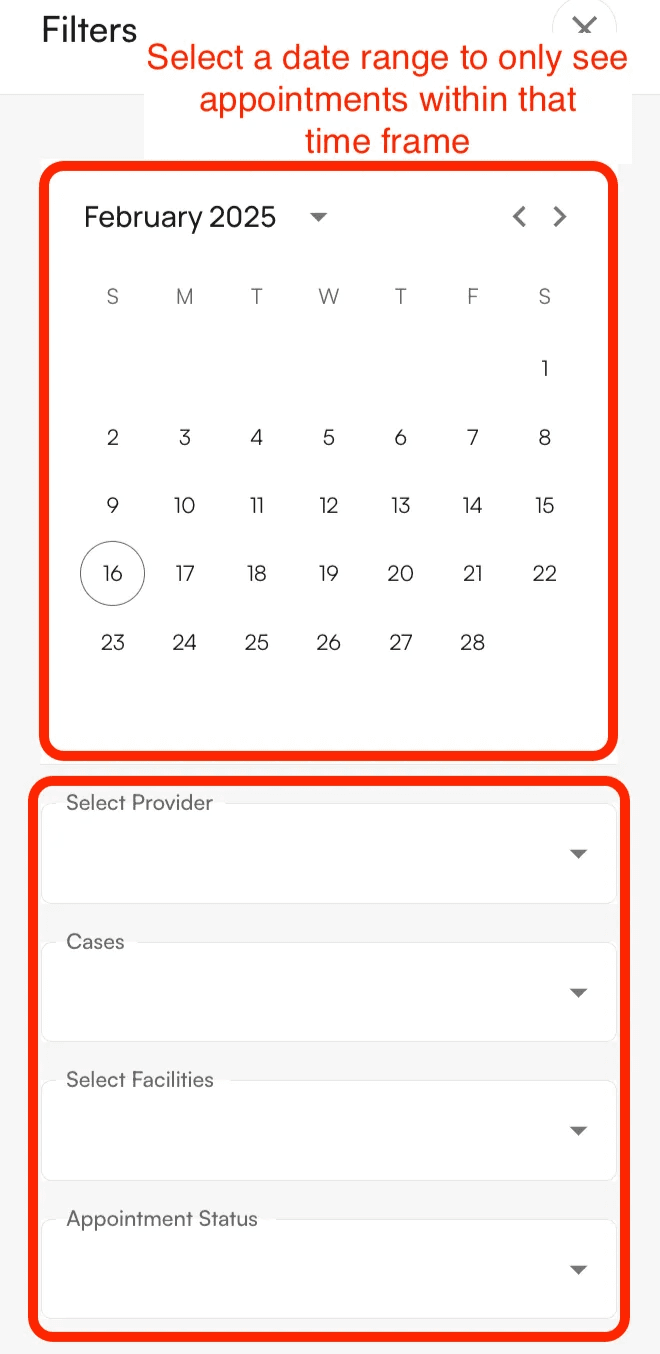
- Providers
- Cases
- Facilities
- Appointment Status You can combine different filters to find specific appointments that the patient has/ had.
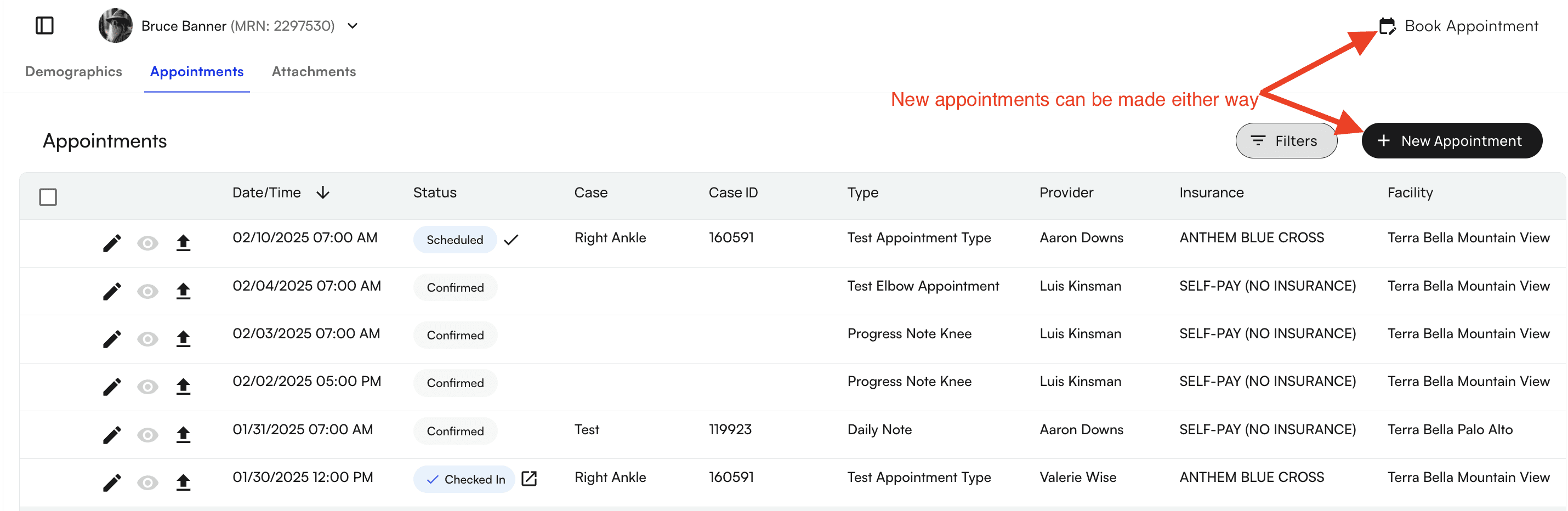
- Cancelled
- Clicking on the eye icon will show the cancellation reason
- Confirmed
- The patient has confirmed their appointment via their appointment reminder text/ email
- An Appointment can only be updated to Confirmed if “Confirmed” via completion of the patient’s intake form
- Front office staff are unable to “Confirm” an appointment for a patient
- Checked In
- Clicking on the box arrow icon will open up the chart note
- Scheduled
- Clicking on the checkmark will check in the patient for that appointment
- Completed
- Clicking on the box arrow icon will open up the completed chart note
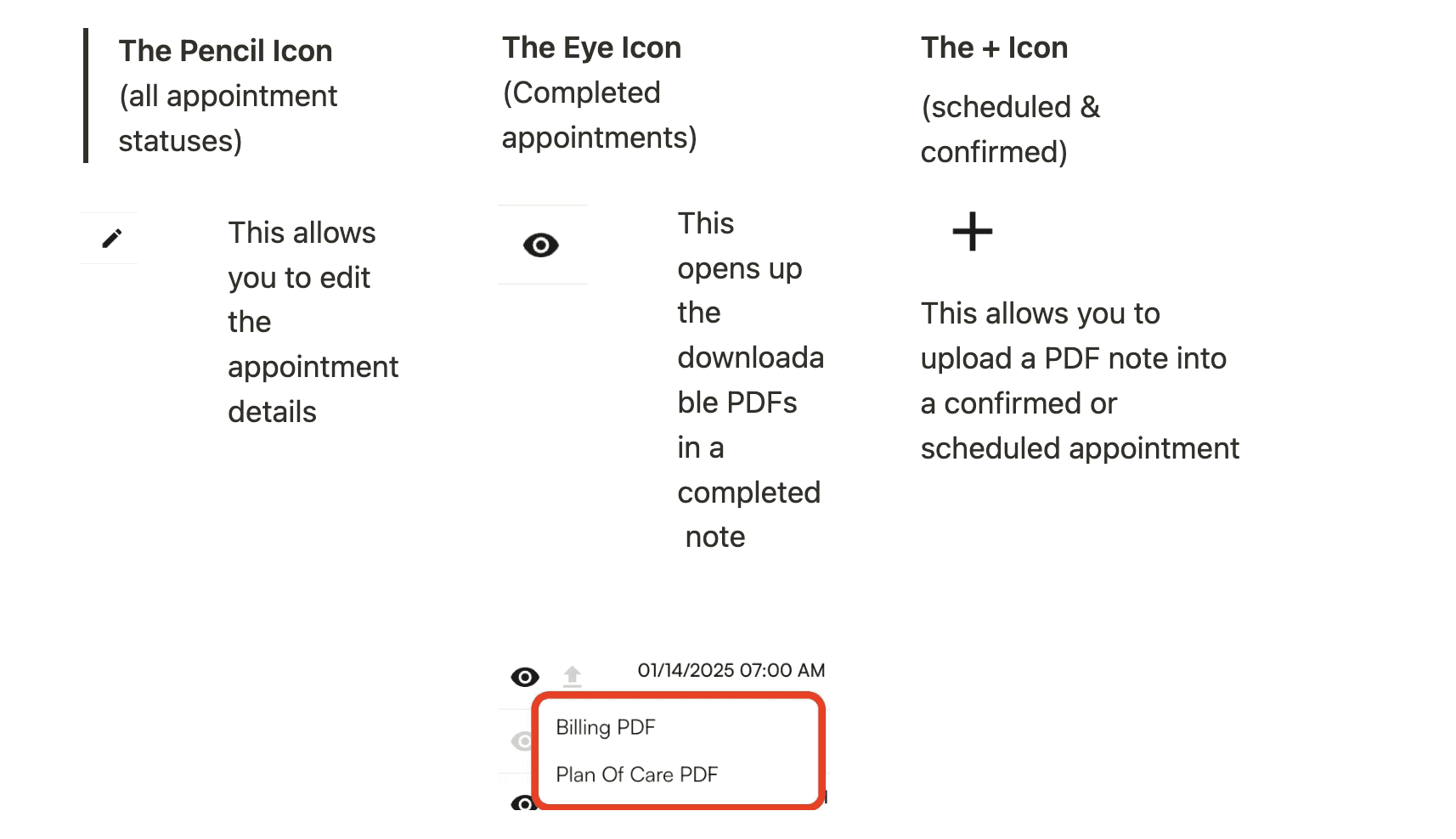
Faxing Through Appointments
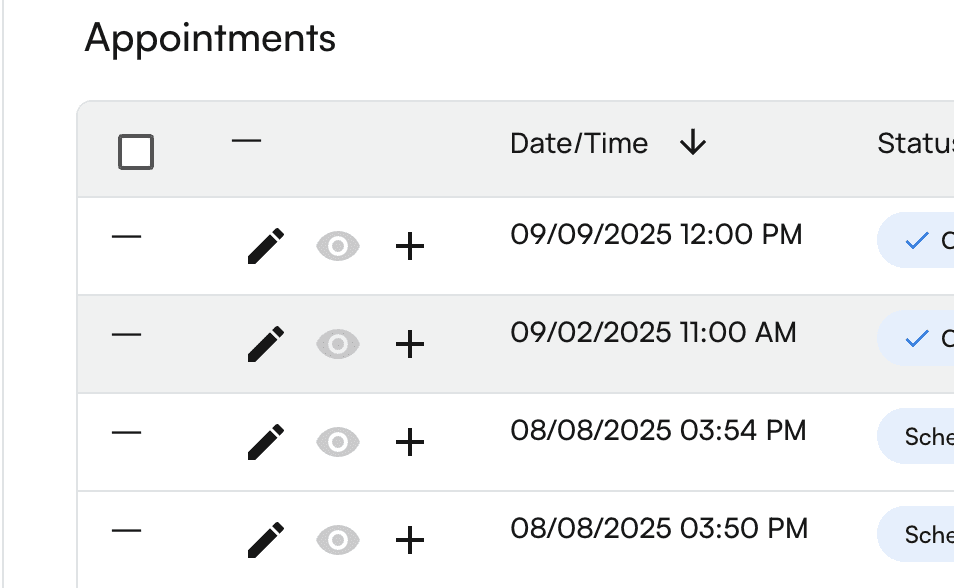
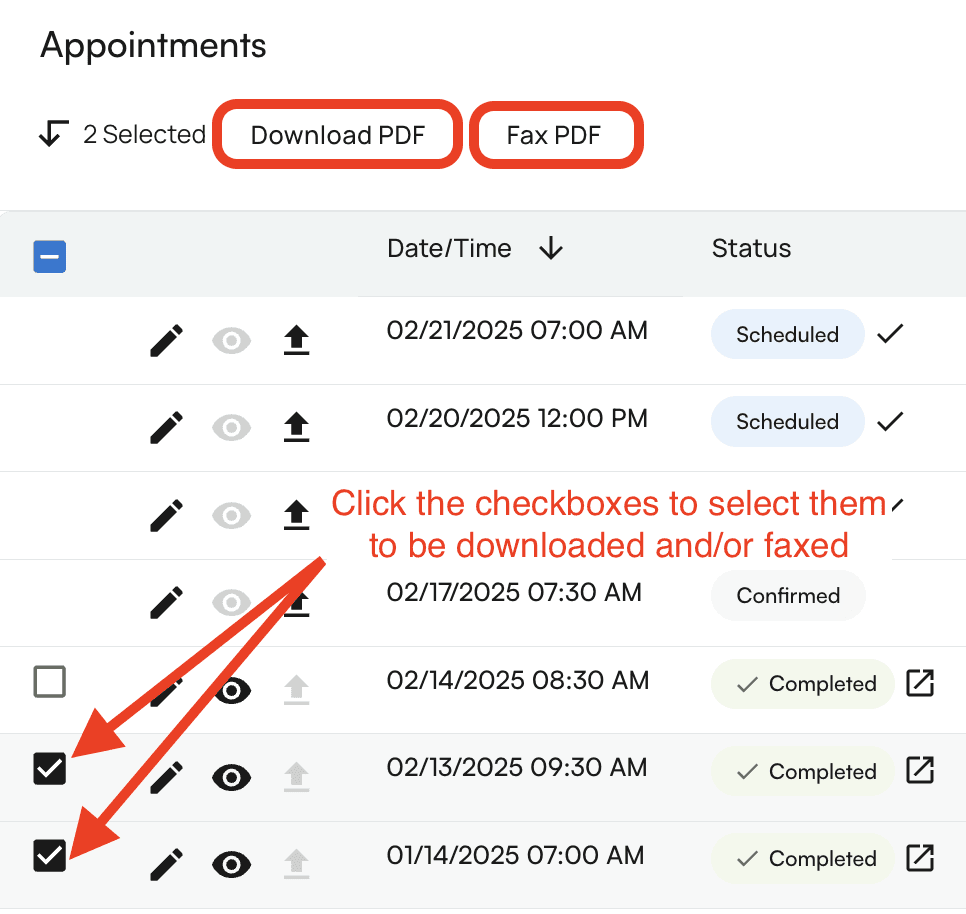
You can easily bulk fax and download PDFs by clicking on the checkbox at the very top of the appointments table. All of the completed appointments will have a checkbox next to them. You’ll be able to uncheck any that you don’t want to download or simply check the boxes next to the appointments you’d like to download or fax.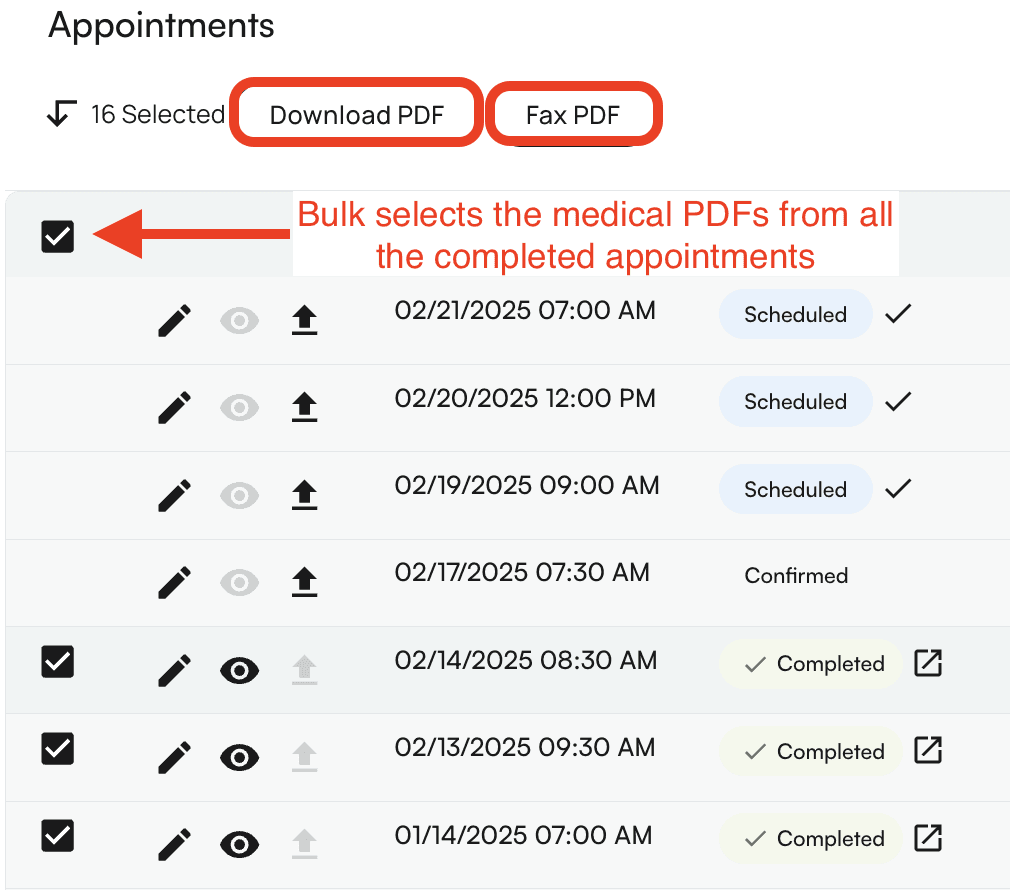
Faxing through Chart Note
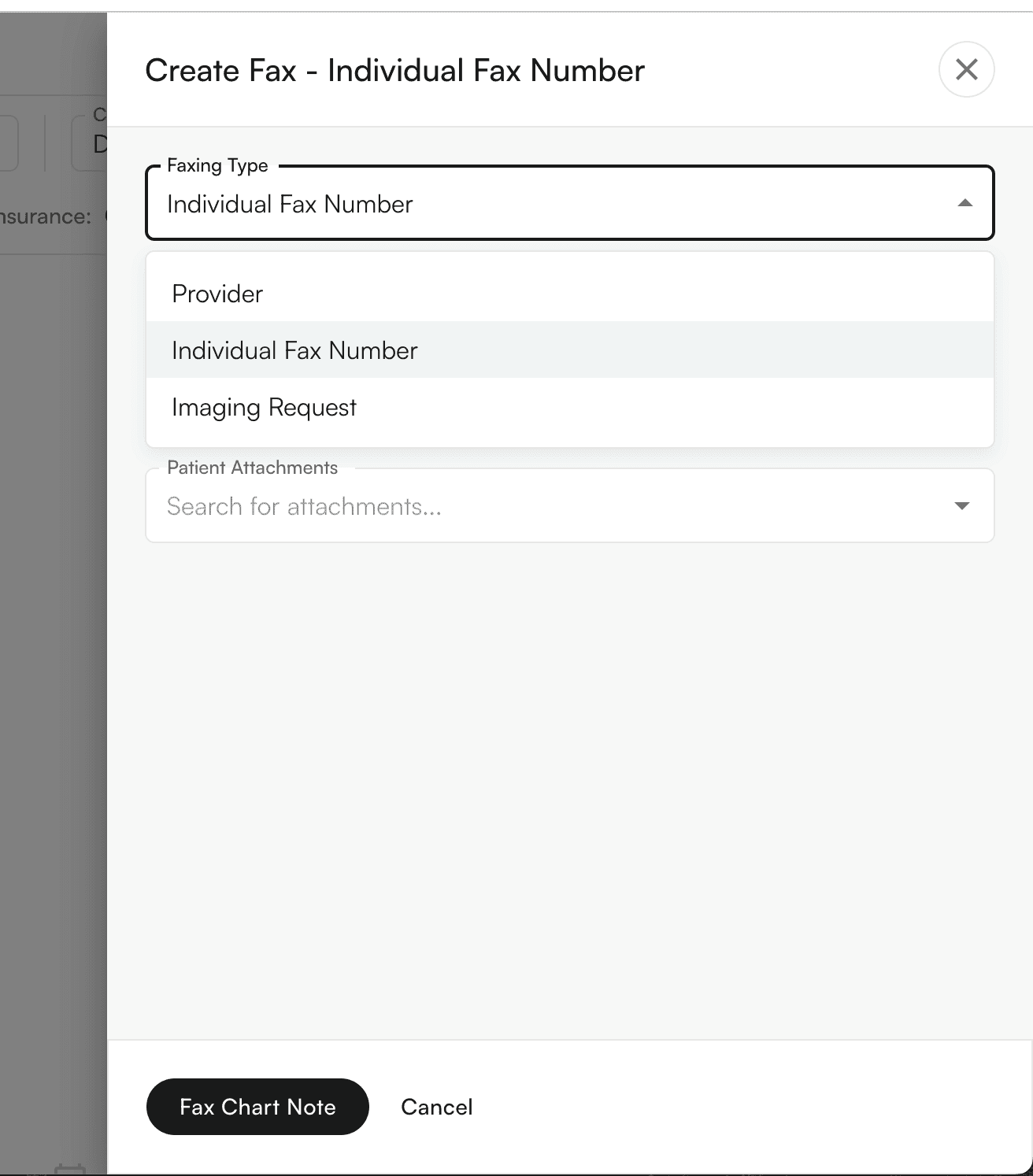
Providers can also Fax the chart note through the Chart note itself. Navigate to the “Fax” section of the Chart note. You can “+ Create Fax”, select the Faxing Type, and input required information: