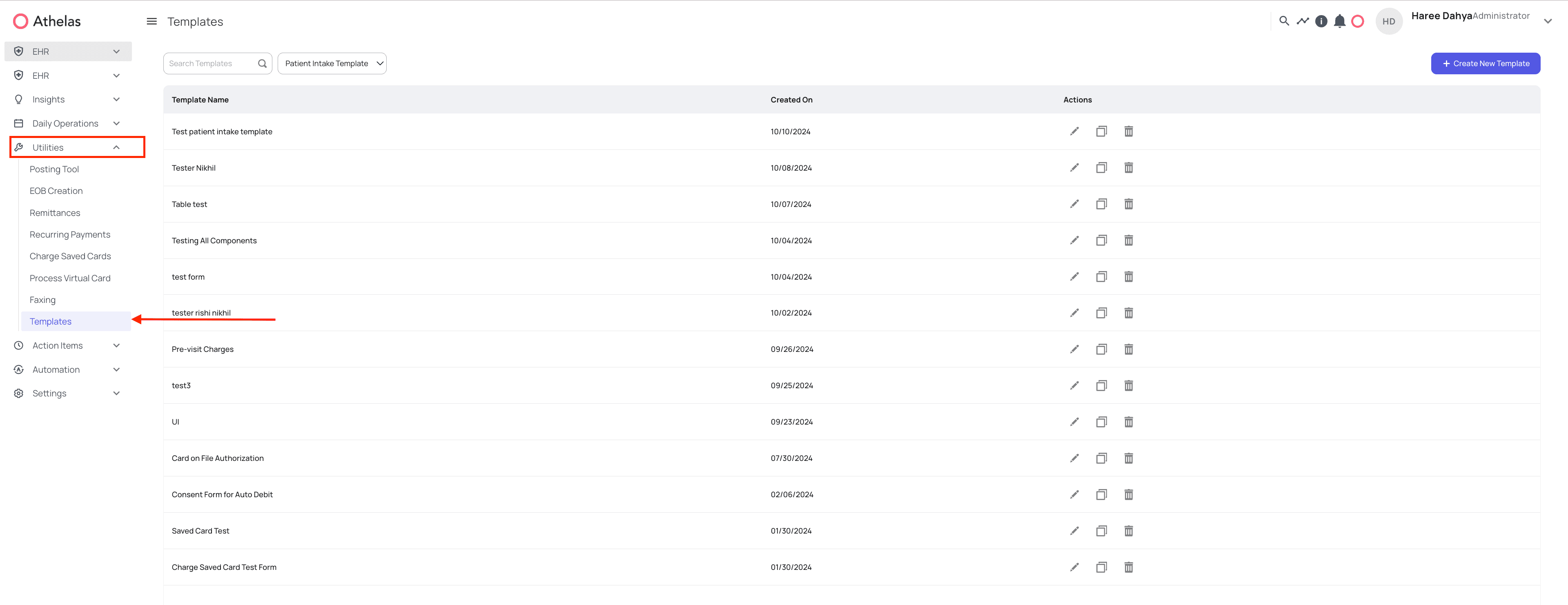
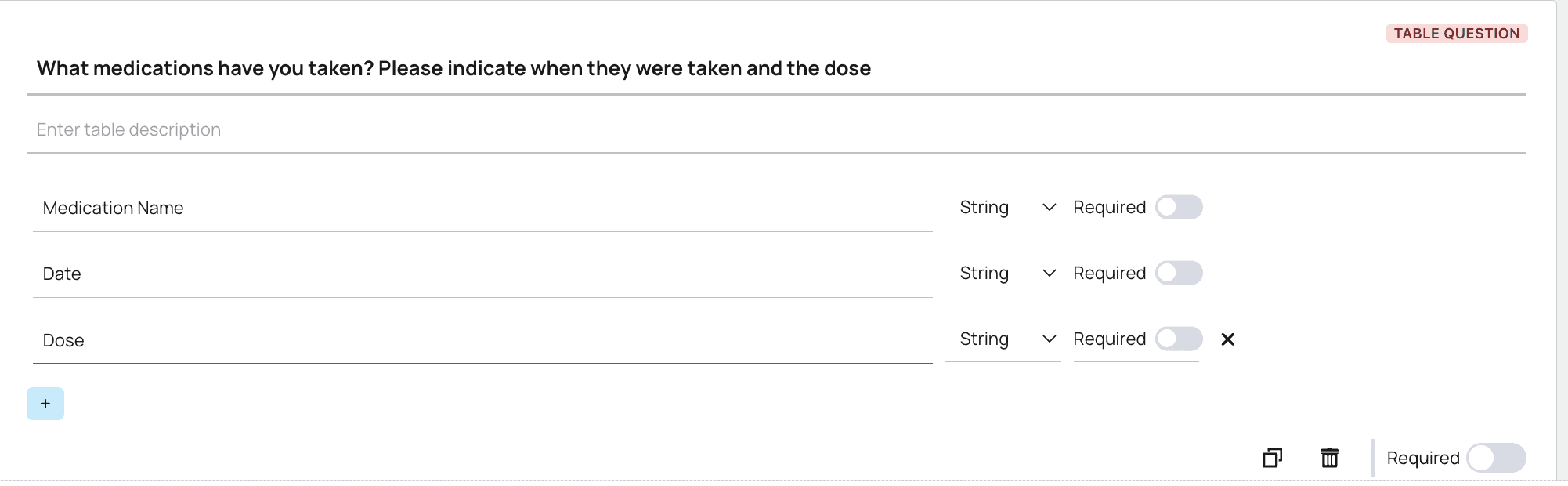
To begin setting up custom templates, first locate the side navigation menu item titled “Utilities.” Inside here, click on “Templates.”On this Templates page, you are able to search and filter for your different templatesTo create a new template, click on “+Create New Template” on the top right corner.You’ll be navigated to a new page. This is how you will configure intake and chart note templates. At the top, you can title your template then drag and drop components from the left hand side to the right to add questions/sections into your template.Components are what you will be using to create your desired intake form. Drag and drop the components from the left to the right to add intake form fields. The different components available to you are:Single Choice: Ask a question where only a single choice can be chosen as the answer. Click the + to make a new option.Short Answer: Ask a question where a short answer can be typed in, this is intended for short responsesMultiple Choice: Ask a question where multiple options can be chosen as the answer. Click the + to make a new option.Paragraph Answer: Ask a question where a paragraph answer can be typed in, this is intended for long responsesYes/No Question: Ask a question where only yes or no can be chosen as the answerNumber Answer: Ask a question where only a number can be inputted as the answerRating Question: Ask a question where a rating from 1-5 is determined as the answerTable Answer: Ask a question in a table format. Each line creates a new column, click the + button to create a new oneDate Question: Ask a question where only a date can be inputted as the answerText Box: This component is not available for EHR templates and only for patient intake.Once you’ve created your form, select the type of template you want it saved as and click on “Save”. You will create EHR chart note templates and patient intake forms based on what you save it as.You can also configure compliance checkmarks on Paragraph Answer components to automatically verify that required details are captured in the note — see How to Set up AI Compliance.