
At a Glance
Deposit verification automatically matches your bank deposits to the insurance payments you have posted, so you can confirm each payment actually reached your bank account. The deposit verification page shows you what that automation did: where your deposits came from, which ones were set aside, and which ones matched or are still unmatched. Find the page under Automations → Workflows → Deposit Verification.Deposit Verification is in beta and is not yet live for every practice.Admins can open Automations by default. If you do not see automations at all, ask your admin to give you the automations permission. See Manage Staff & Permissions.
Overview
The page opens on the overview. At the top, you see how much you have matched out of your total insurance deposits.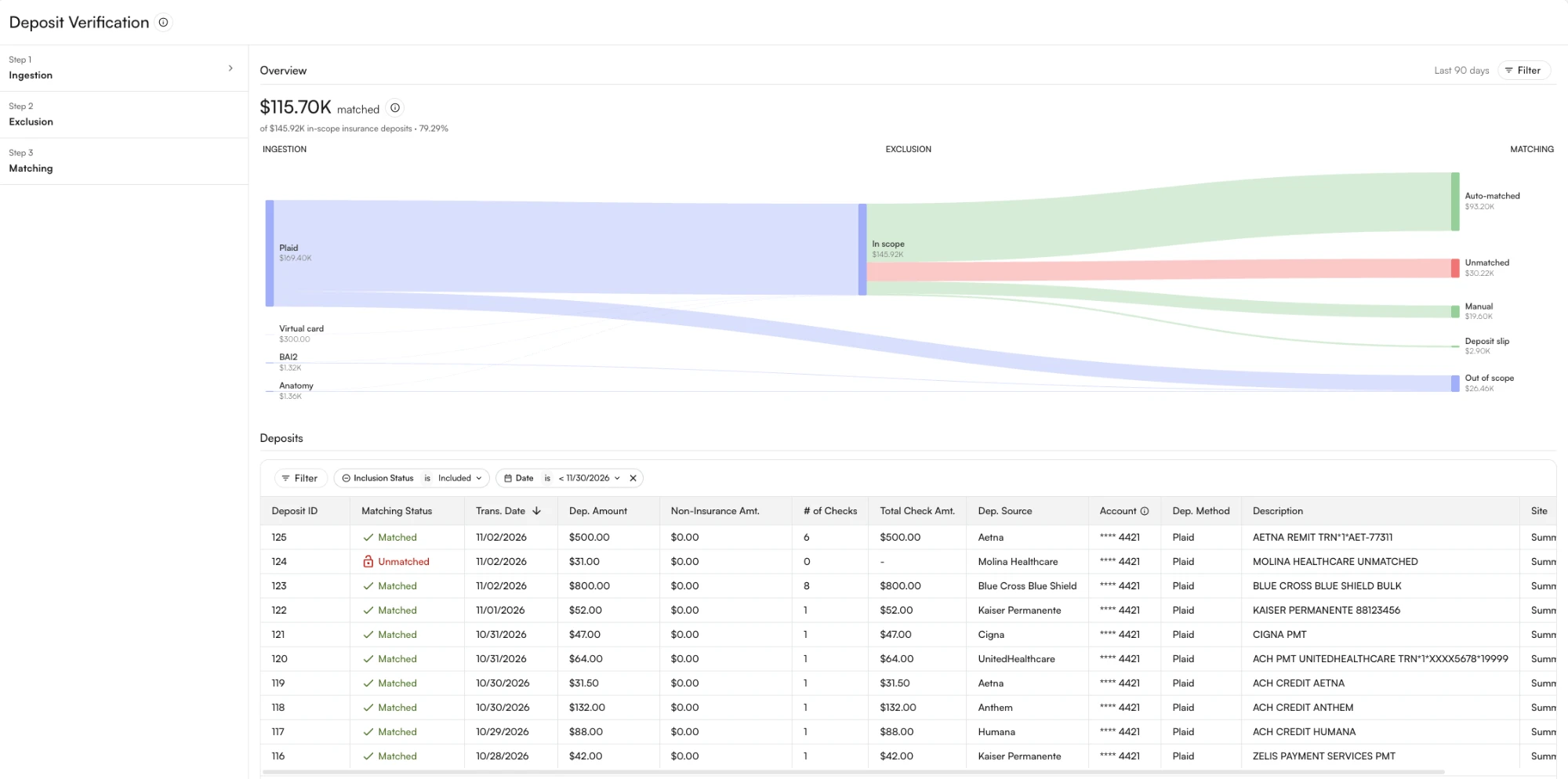 The chart follows your deposit dollars from your bank to a match result. Click a deposit in the table below it to open that deposit on the remittances page.
Ingestion
Ingestion brings in each deposit from your bank, through Plaid, BAI2 files, Anatomy, or virtual cards.Exclusion
Exclusion sets aside deposits that are not insurance payments, such as transfers, so they do not count against your match rate. The excluded deposits table lists the deposits that were taken out of scope for matching, and shows who or what excluded each one and why. Use the excluded by filter to separate rule, manual, and system exclusions. To change the exclusion rules, click manage rules.Matching
Matching ties each remaining deposit to the checks it covers. Use the matched by filter in the matched deposits table to separate auto-matched, manual, and deposit slip matches.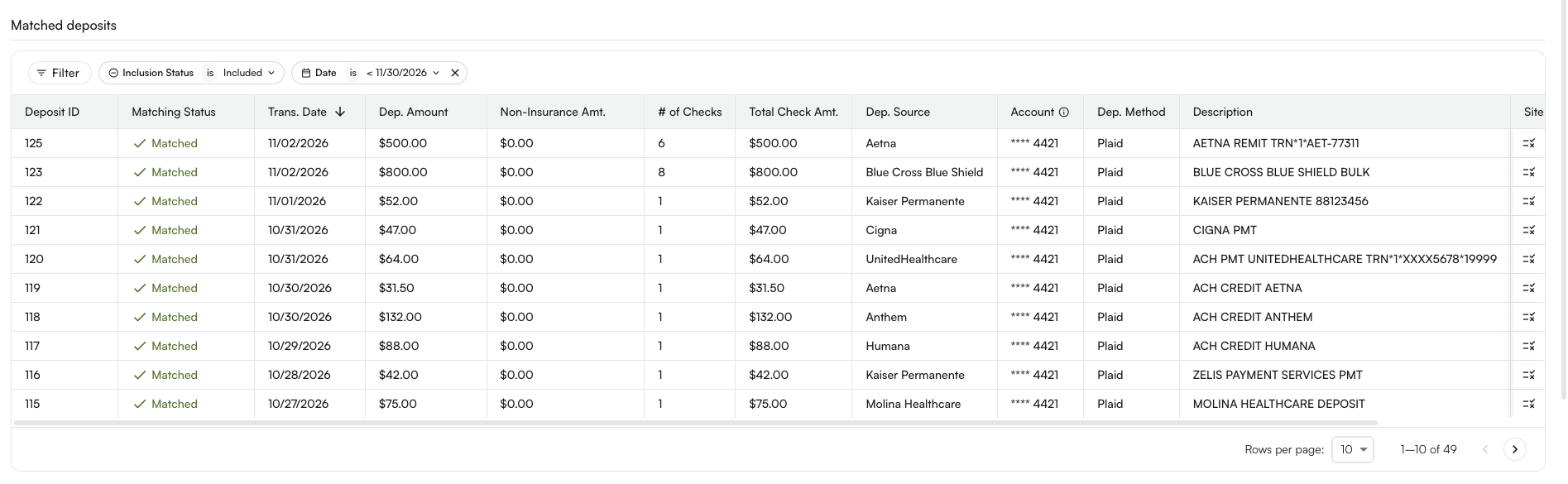
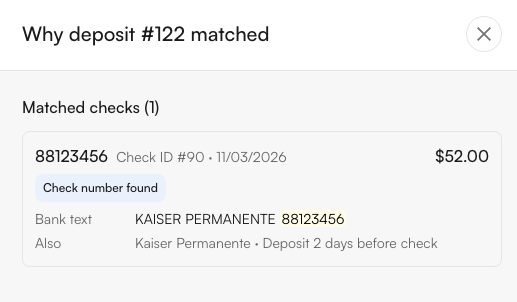
Why it matched
Click the why it matched icon on any row to see each matched check and how it was matched:- Auto-match: the rule that made the match. Hover over it to read what it means.
- Manual: the person who matched it, and the date.
- Deposit slip: the deposit slip it came from.
Settings
This step also shows two read-only settings. Match before posting shows whether payments wait for a matched deposit before they post. Deposit source aliases lists payer names that matching treats as the same payer. To change either one, contact your account manager.If you do not see Deposit Verification under workflows, reach out to your account manager or support@getathelas.com to get it enabled.