
Configure practice preferences
Set up your practice’s preferences through each setting under the Preferences tab. These settings control how your practice operates and how your team interacts with the platform.General
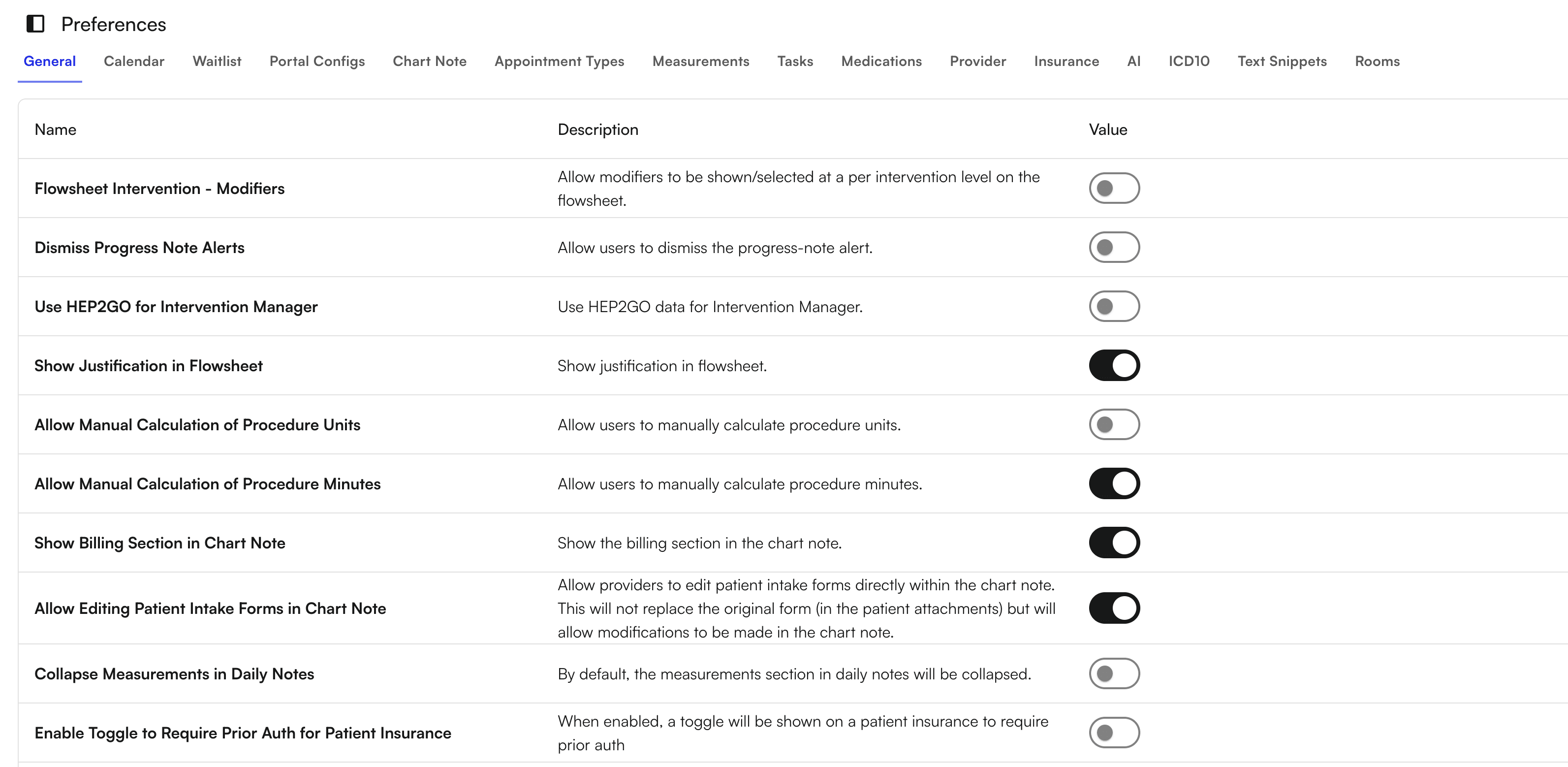
Configure general practice settings that affect how modifiers, justifications, alerts, and calculations appear throughout the platform.- Show or hide modifiers in various views
- Enable or disable justifications
- Configure alert settings
- Allow manual calculations
- Enable provider editing permissions
Calendar
Configure your calendar settings to match your practice’s scheduling needs. Set the duration of each time block and define start and end times based on site or facility.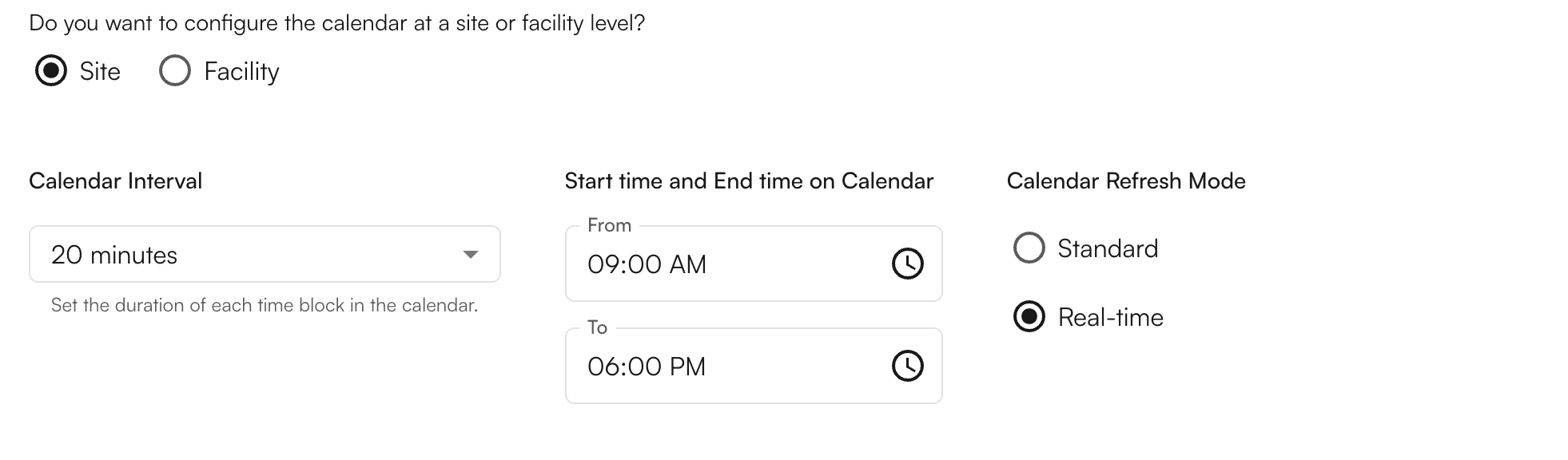
Waitlist
Control how patients can schedule appointments:- Allow patients to join a waitlist for appointments
- Enable direct scheduling without waitlist
Portal Configs
Define scheduling rules for your patient portal. Configure how far in advance patients can schedule appointments.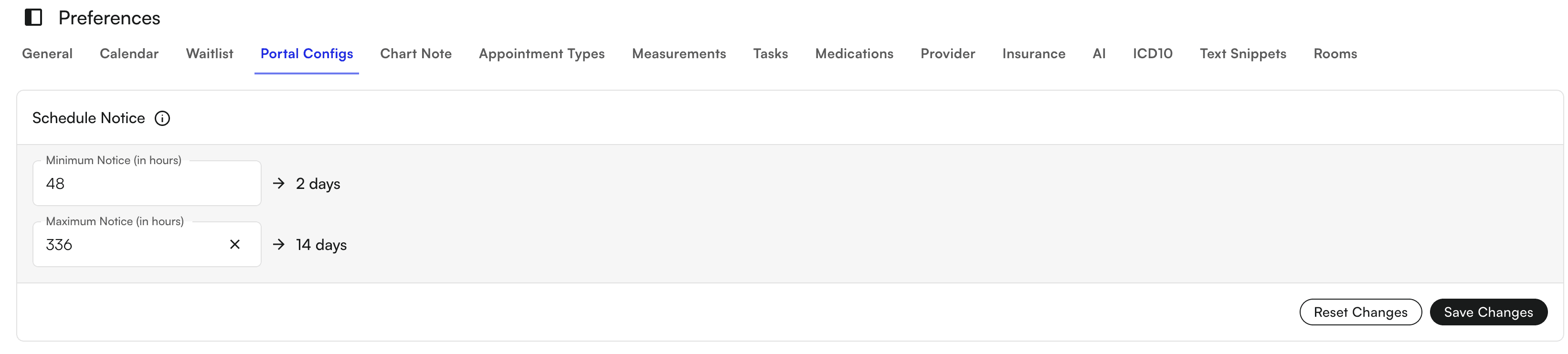
Chart Note
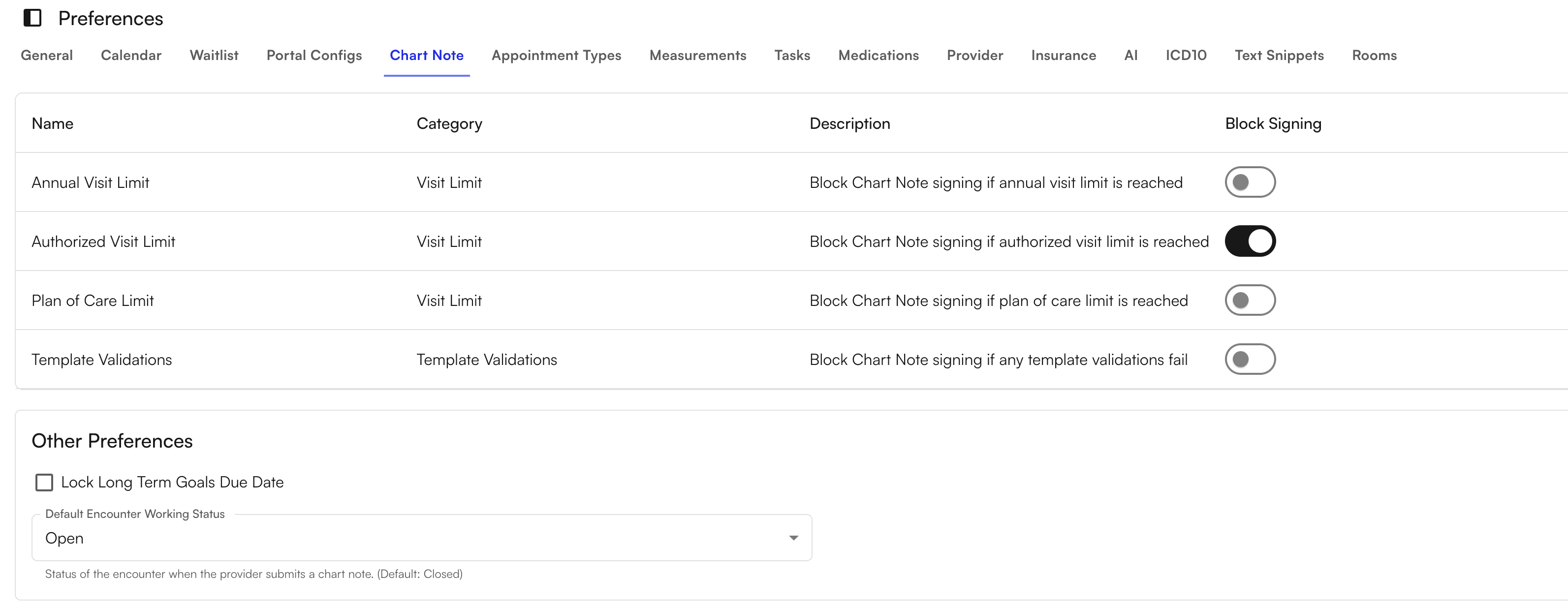
Set up restrictions for chart note signing based on specific criteria:- Configure visit limits that must be met before signing
- Enable template validation requirements
- Set other criteria that must be satisfied before chart notes can be signed
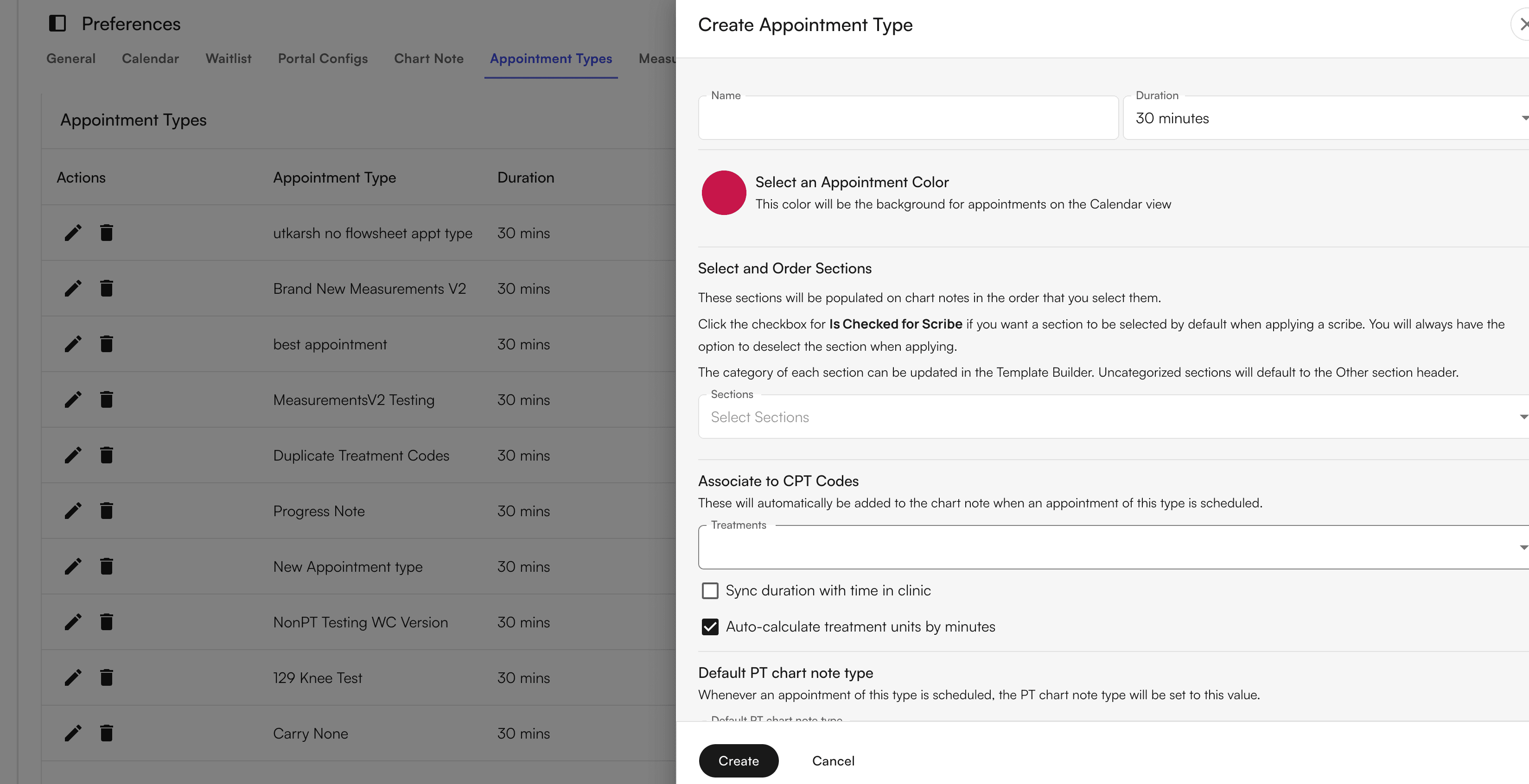
Appointment Types
Create different appointment types to organize your calendar. For each appointment type, you can configure:- Duration
- Color coding on your calendar
- Other appointment-specific settings
Measurements
Create custom measurements that your practice tracks for patients. These measurements can be used in chart notes and patient records.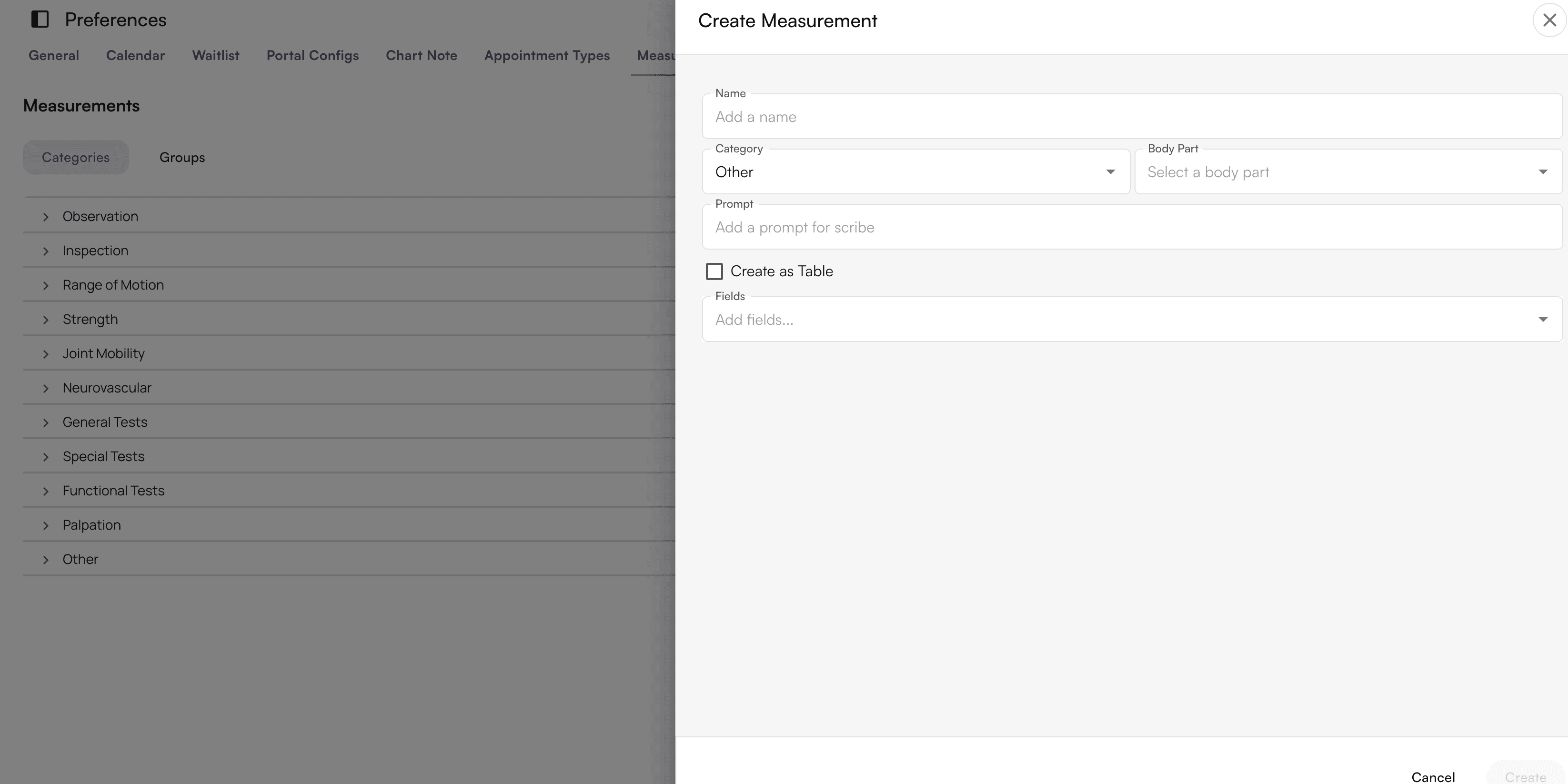
Medications
Nominate providers who are authorized to prescribe uncontrolled substances. This setting ensures only qualified providers can prescribe certain medications.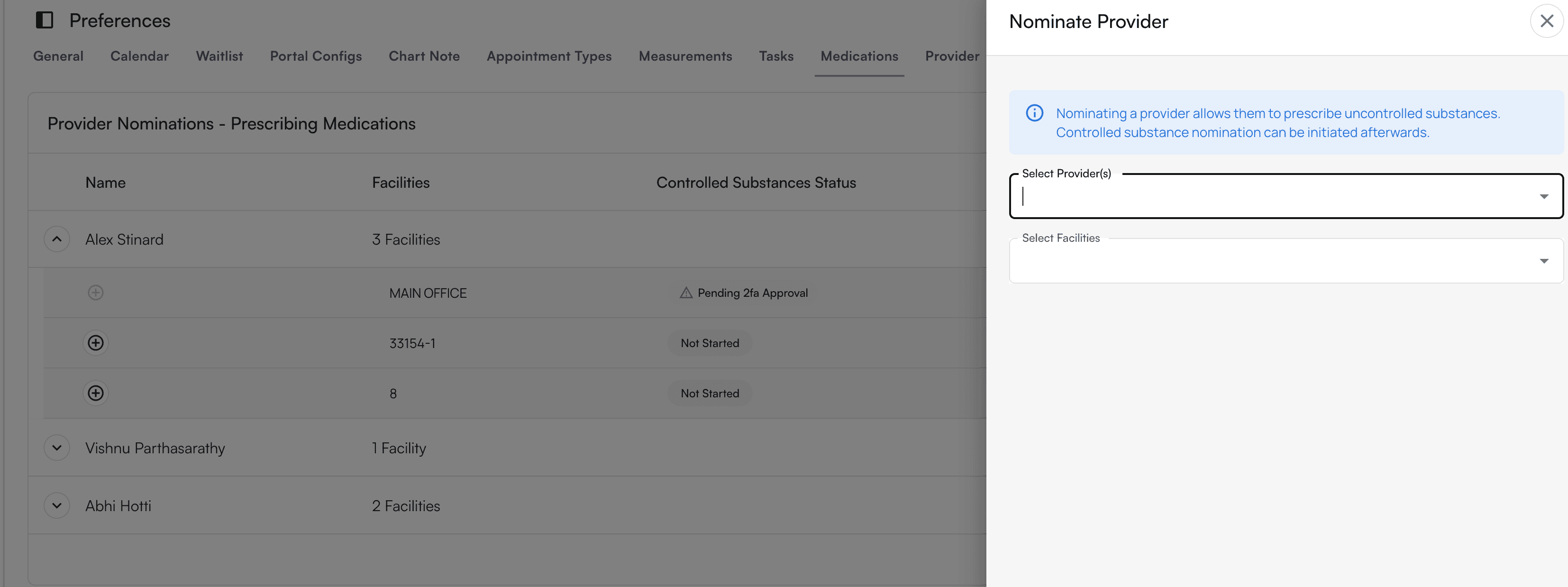
Provider
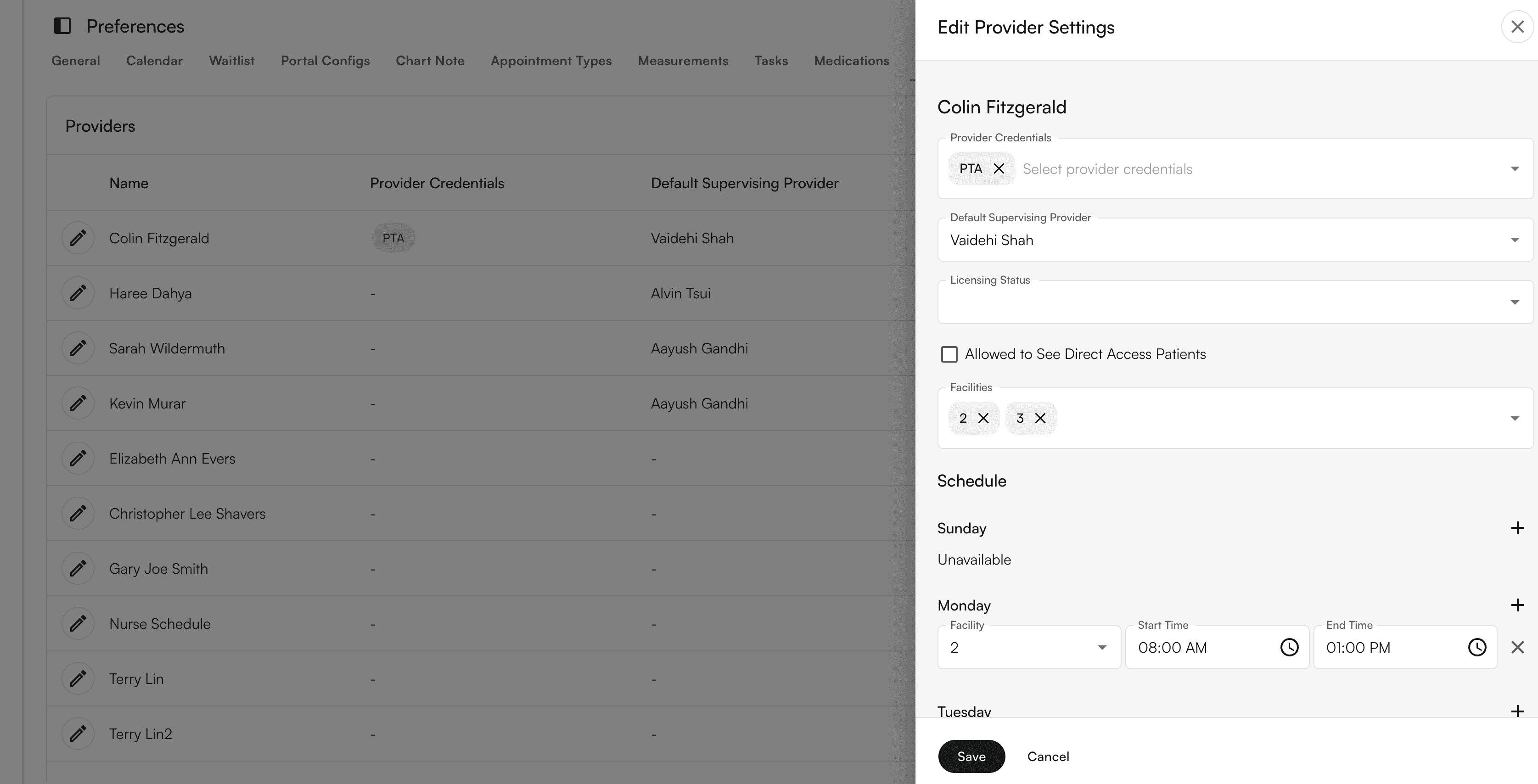
Set up provider credentials and schedules. Configure each provider’s:- Credentials and certifications
- Schedule availability
- Site assignments
Insurance
Add insurance plans that your practice accepts. This ensures proper billing and claim submission.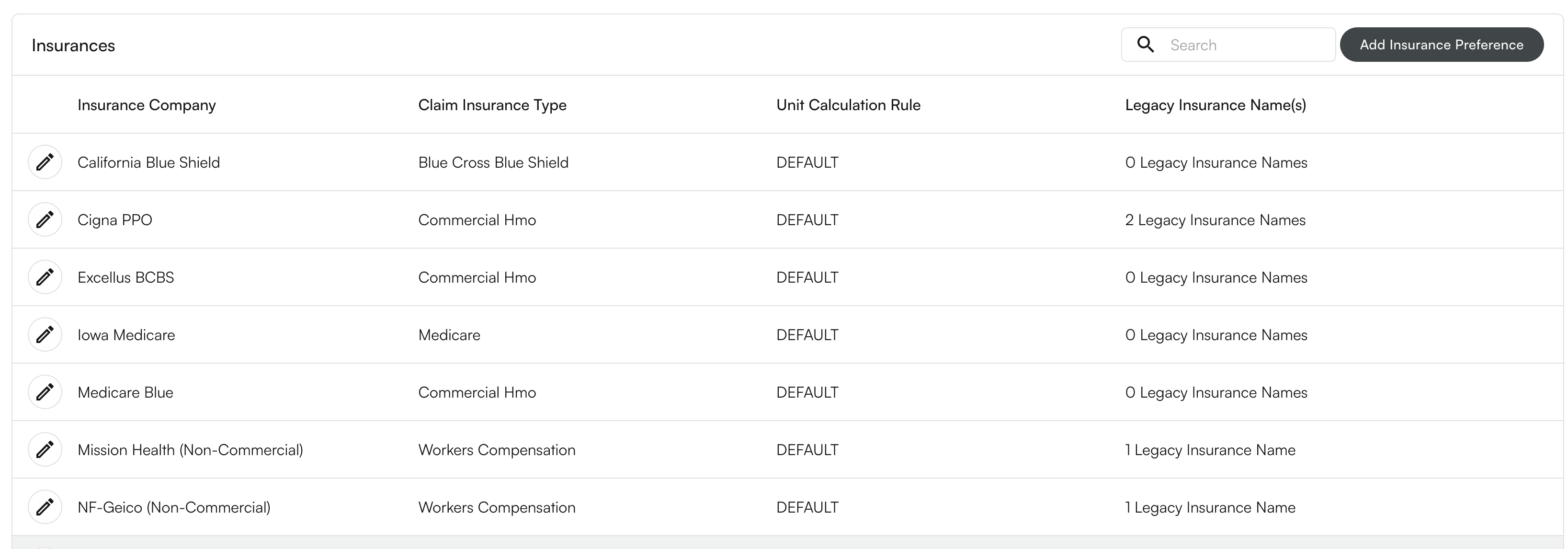
AI
Configure Air Scribe settings for chart note documentation. Set up dot phrases that Air Scribe uses when documenting within chart notes.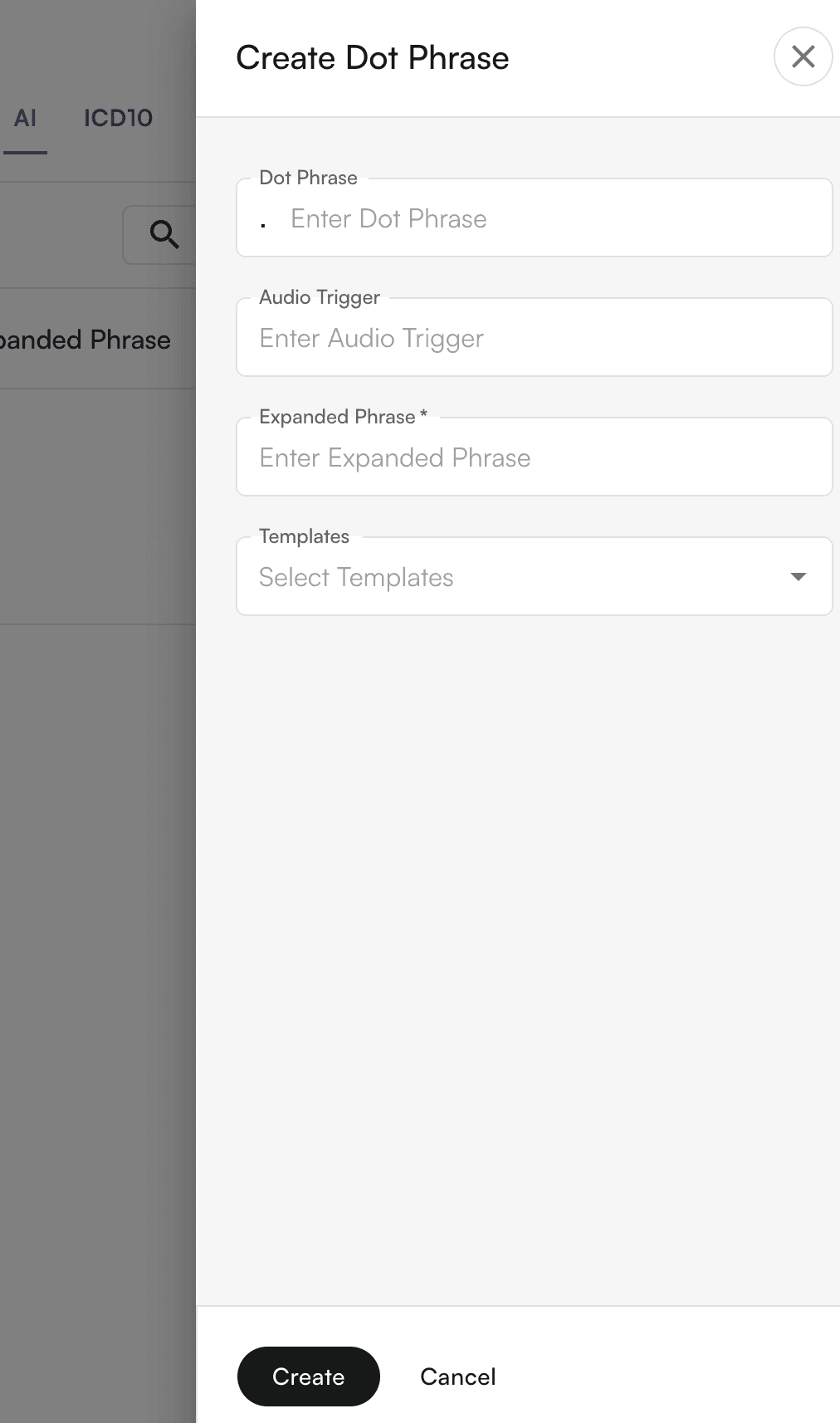
ICD10
Select the ICD10 code groups you want to use for your practice. This determines which diagnosis codes are available when creating chart notes and submitting claims.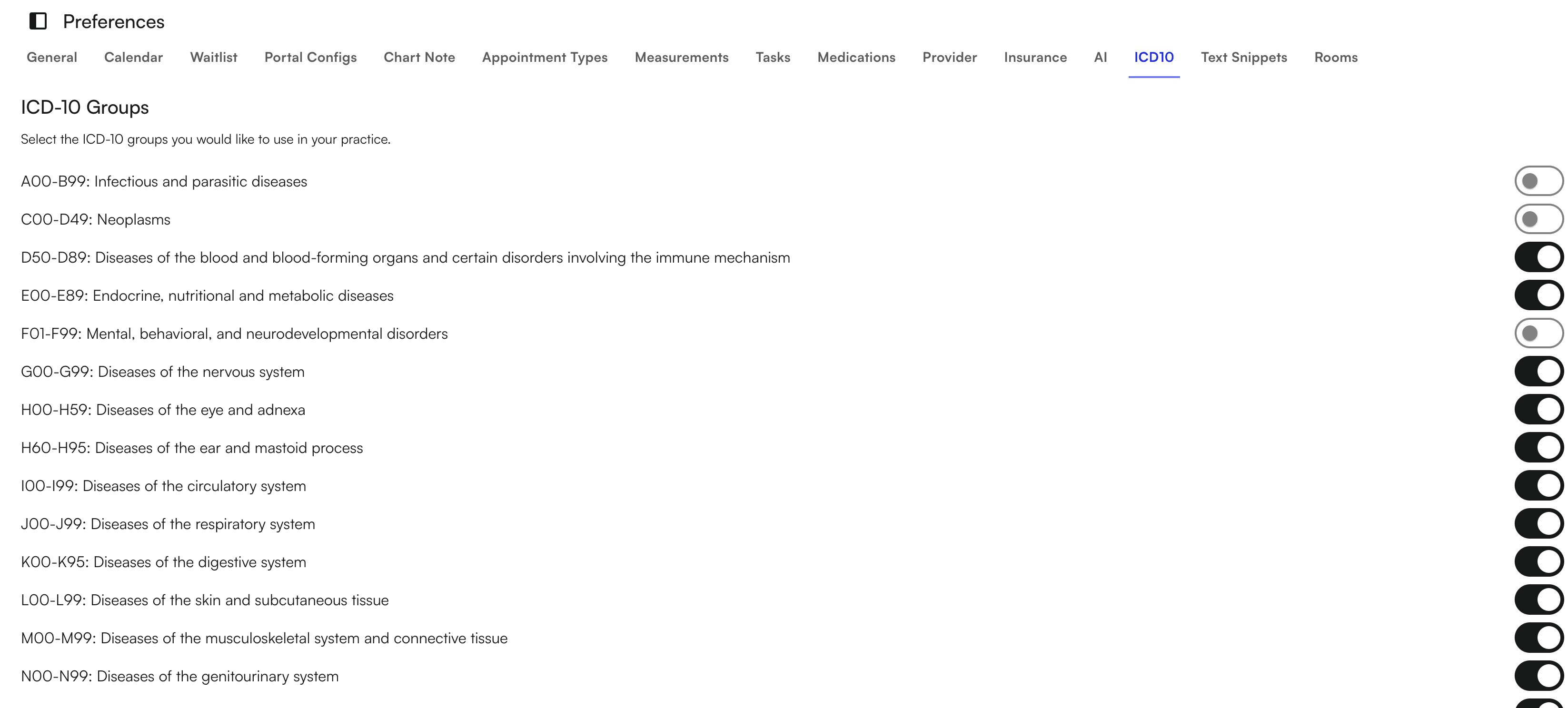
Text Snippets
Text snippets serve as reusable templates or pre-written text blocks that providers can quickly insert into their documentation. Create and manage text snippets to standardize documentation across your practice.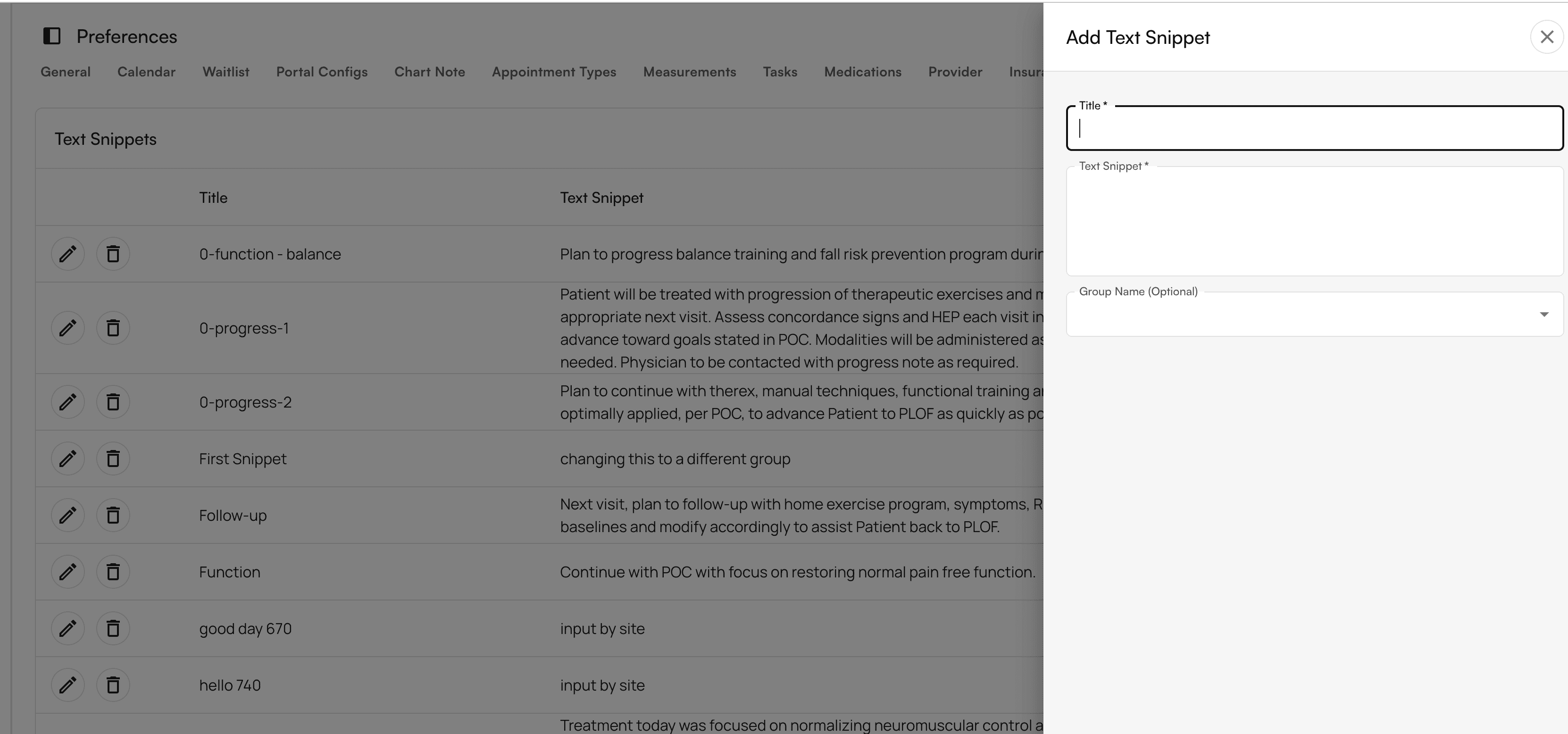
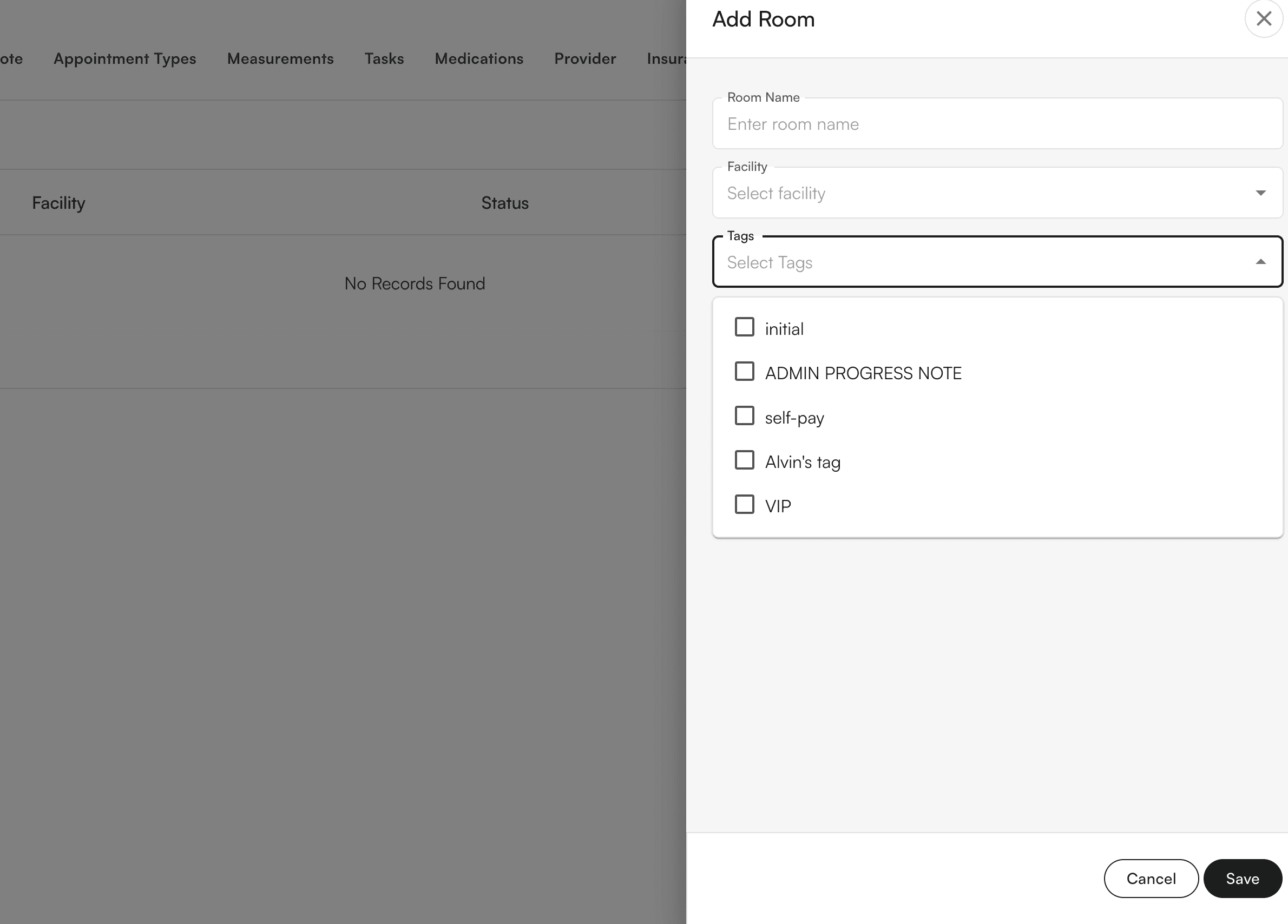
Rooms
Create dedicated spaces for different types of patient encounters or clinical activities. Rooms help you separate different aspects of your practice, such as:- Routine visits
- Urgent care
- Telehealth appointments
Reporting
Calculate reports to provide bonuses to your staff. Configure reporting settings that track performance metrics and calculate compensation.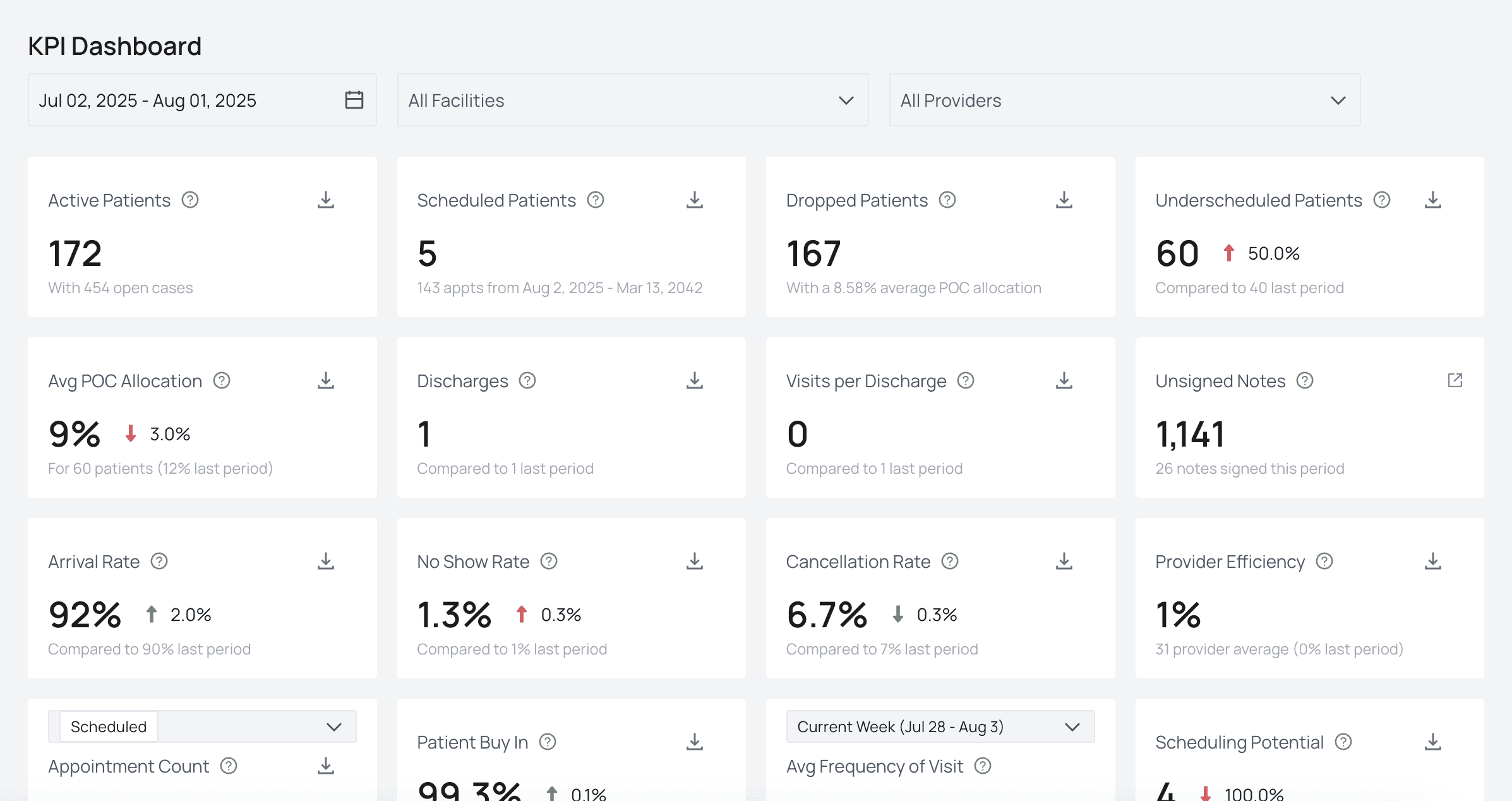
Monitor practice performance
Check important KPIs that pull from Air on the Performance Analysis tab. This tab shows high-level data on clinical outcomes and practice health, helping you track your practice’s performance over time.FAQ
Where do I find the Preferences tab?
Where do I find the Preferences tab?
Navigate to the main menu and select Preferences. This tab contains all the settings you need to configure your practice.
Can I change preferences after initial setup?
Can I change preferences after initial setup?
Yes, you can modify any preference settings at any time. Changes take effect immediately and apply to future encounters and workflows.
Do preference changes affect existing data?
Do preference changes affect existing data?
Most preference changes only affect new data created after the change. Some settings, such as calendar configurations, may affect how existing appointments are displayed.
How do I set up multiple providers?
How do I set up multiple providers?
Use the Provider section under Preferences to add each provider. Configure their credentials, schedules, and site assignments individually.
What is the Performance Analysis tab?
What is the Performance Analysis tab?
The Performance Analysis tab provides an overview of your practice’s key performance indicators, including clinical outcomes and practice health metrics. Access it from the main navigation menu.