This page covers how to generate a transaction report from the Patient Responsibility page. For the column-by-column field reference, see the Site Transaction Report; for the payment-method summary variant (cash, check, card, and insurance virtual cards), see the Site Transaction Report Summary.
At a Glance
For the health of any medical practice, or any business for that matter, regular audits of transactions are a standard best practice. Here’s how Athelas can get you your daily, weekly or monthly financial data with ease.Here’s How to Do It
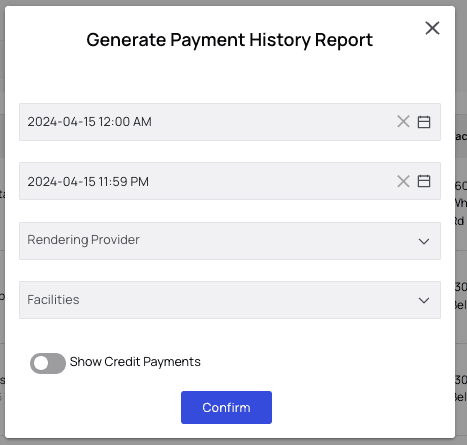
In the Patient Responsibility page, choose the Transaction View tab and click Transaction Report.
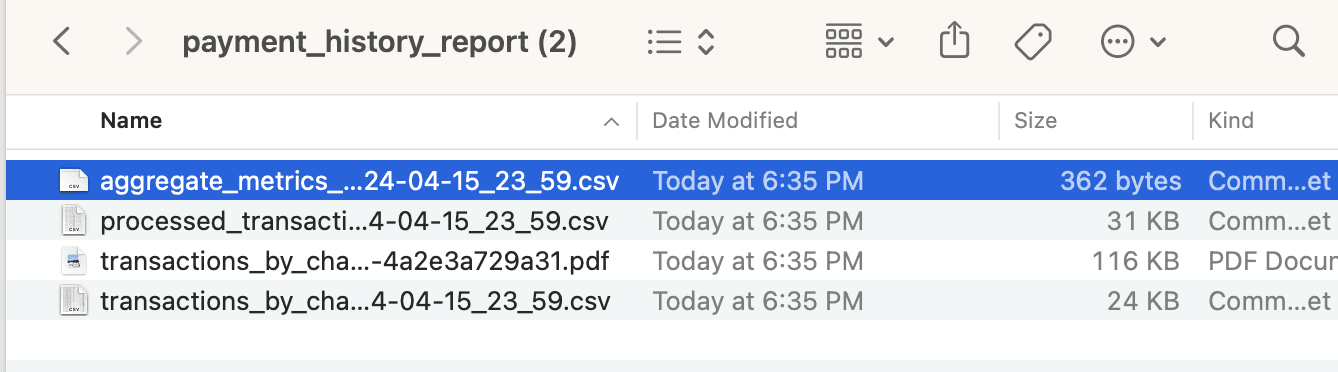
- Aggregate Metrics shows a single line of all totals in all categories — Outstanding Balance, Paid Cash, etc.
- Processed Transactions shows all payments, refunds and write-offs that successfully went through.
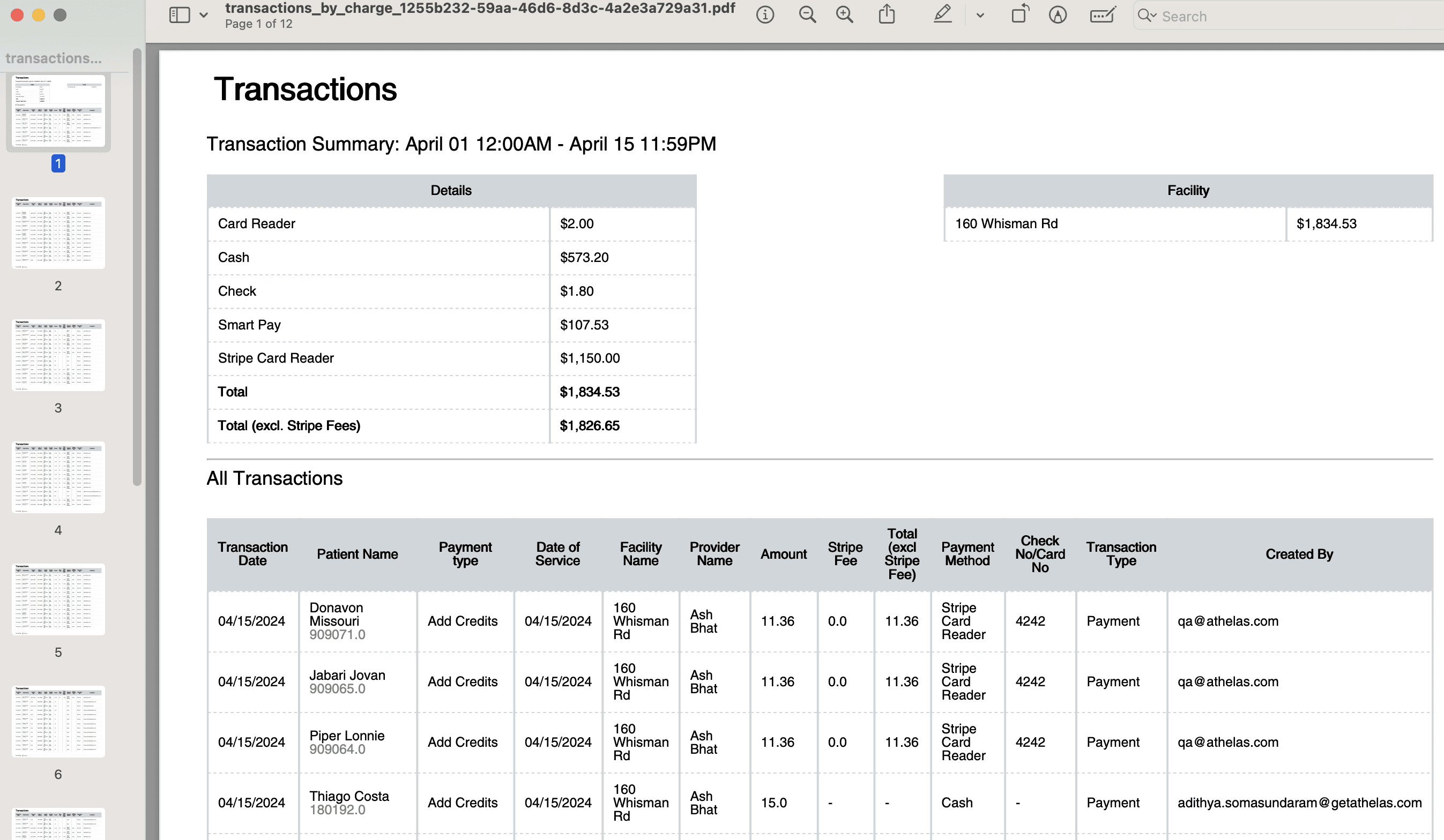
- Transactions by Charge shows individual charges assigned to patients, including any credits added.