
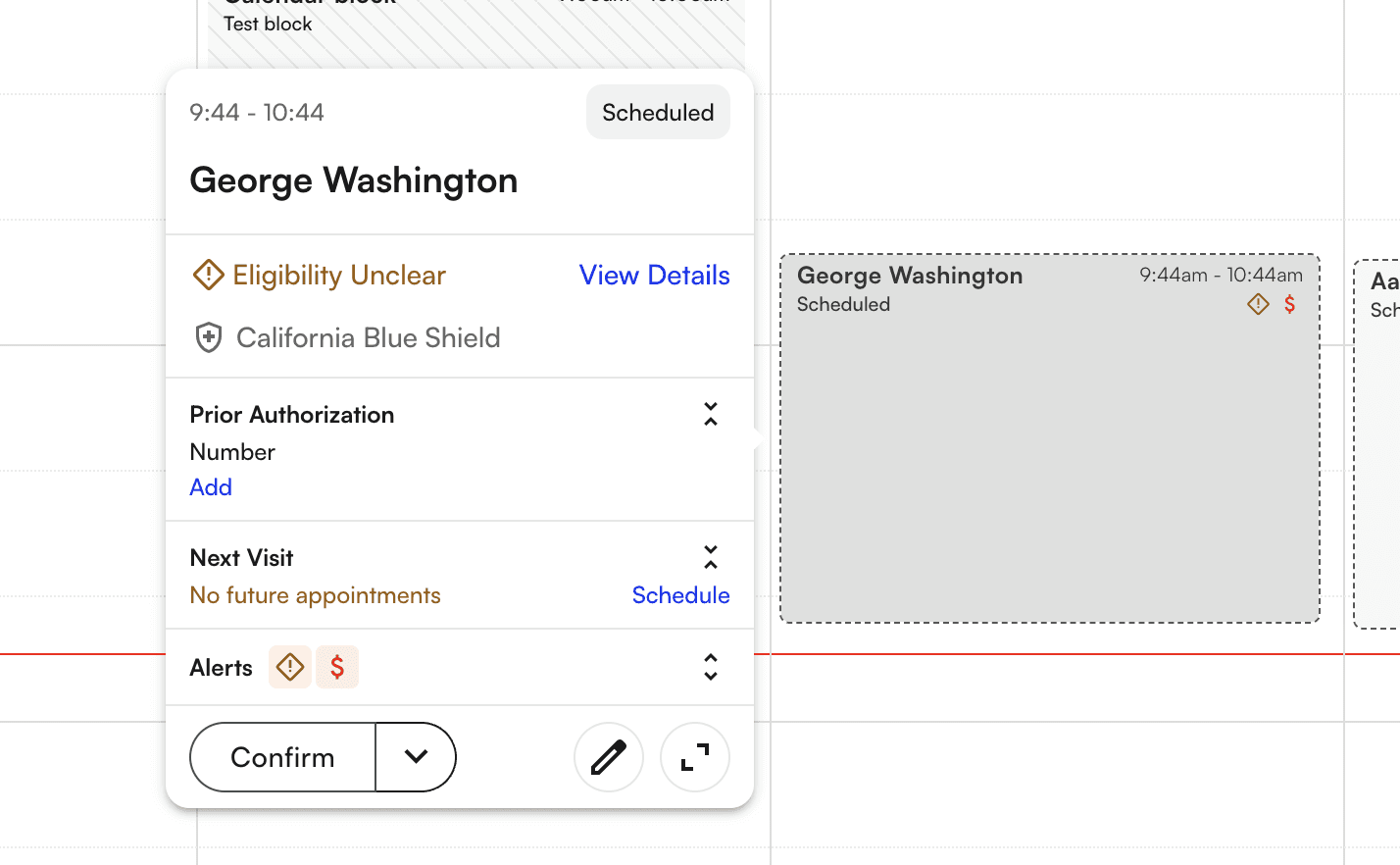
- Patient Name
- Primary Insurance Company
- Appointment Status
- Appointment start and end time
- Eligibility Button
- Payment Button And take action from this tooltip:

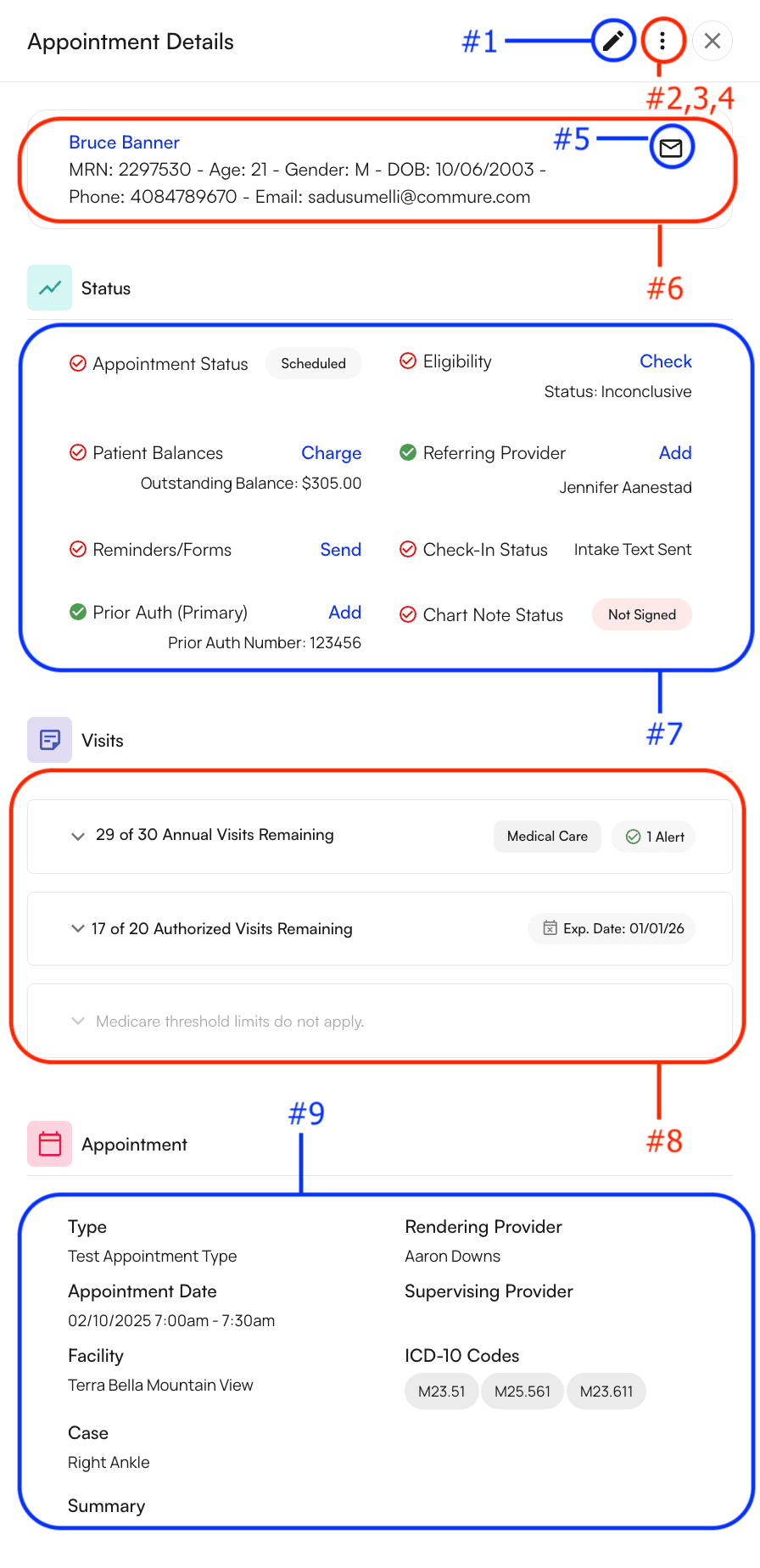
- Edit the appointment
- Change the appointment status
- Checked in
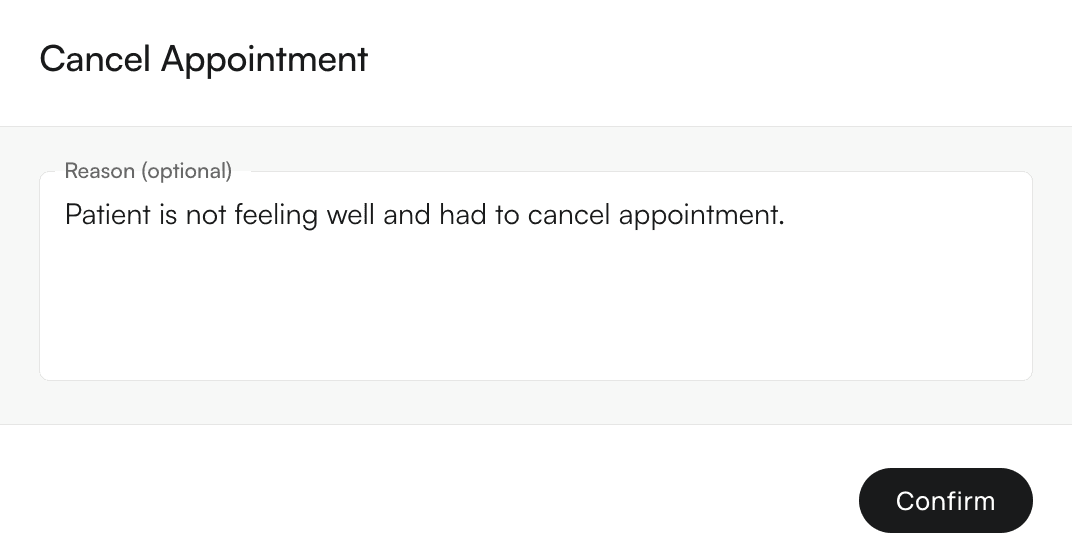
- Cancelled- You will be prompted to add a cancellation reason which will be available to view on the patient’s profile under the appointments tab.
- No-Show
- Add a follow up appointment
- Delete the appointment
- Email the patient
- View the patient’s general demographics
- Clicking on the patient’s name in blue will route you to the patient’s profile
- Check the status of several appointment related items. The red circled checkmark will turn green when these items are completed or confirmed.
- Appointment Status
- Patient Balances
- Reminders/ Forms
- Prior Auth
- Eligibility
- Referring Provider
- Check-In Status
- Chart Note Status- Indicates if a chart note is signed or not
- Check the amount of prior auth, annual and medicare visits allowed for the patient.
- Alerts will populate when you’re nearing expiration dates or running low on visits.
- View the appointment details and previous appointment summary Features Supported:
- View an appointment’s high level details
- View an appointment’s eligibility details
- View an appointments visit limits and prior auth
- View and collect (suggested) charges for appointments
- View patient notes
- Update appointment type, status, PII Features Not Supported:
- Editing provider, appointment reason