
At a Glance
The Encounter Details page is one of the most important and heavily used pages in Insights. From here you can create encounters, update their insurance information, service lines, modifiers, etc., and even submit/resubmit/forward the associated claim(s) or simply save to complete later.Feature Walkthrough Video
This video goes through the full process of creating an encounter and submitting a claim from the Encounter Details page. Scroll down for full written details of the page.Encounter Details Page Header

Editing an Existing Encounter
Upon opening the Encounter Details page, you’ll see a list of all encounters.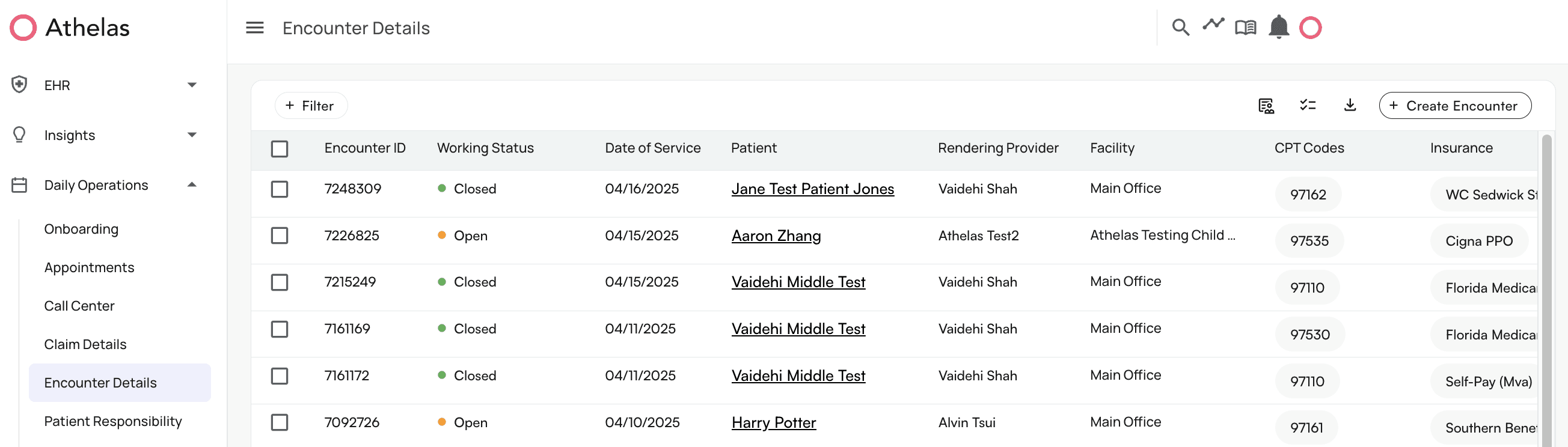
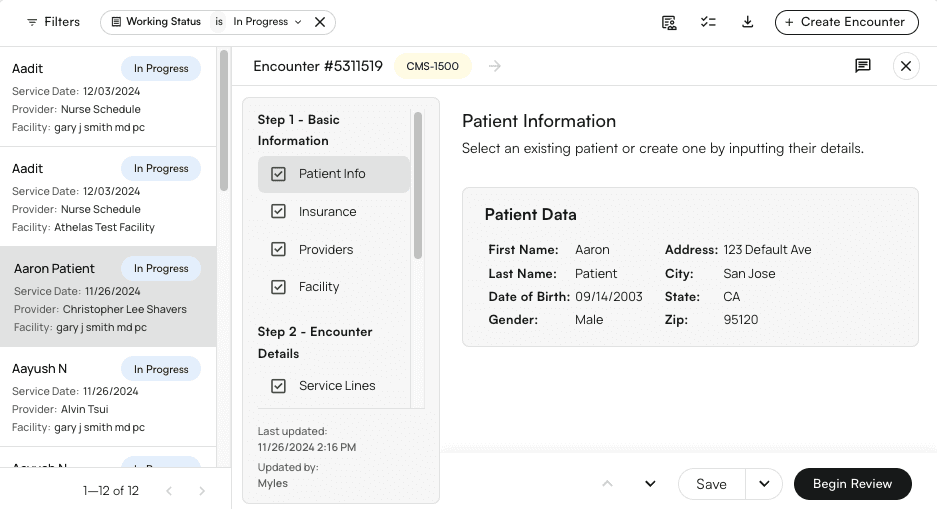
X in the upper right corner to close the editing window.
Once you manually edit an encounter, that encounter will no longer automatically receive updates from your EHR.
How to Bulk Edit Encounter Working Status
You can select multiple encounters in the Encounter Details page and update their working status (e.g. ‘Open,’ ‘In Progress,’ ‘Blocked,’ or ‘Not Intended to Bill’) in bulk. Check out this quick video for a demonstration.Walkthrough Encounter Creation and Section Information
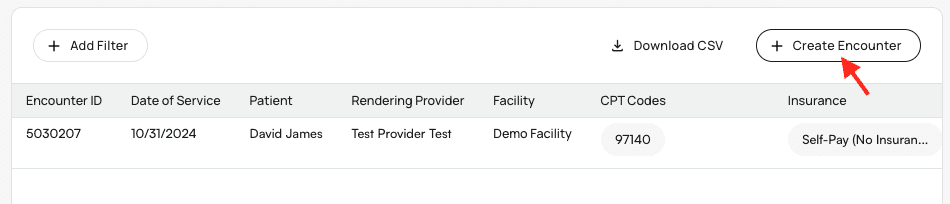
Let’s create a new encounter as an example case. Note that the same process would apply if you were editing an encounter, but many fields would already be filled in with existing information. ClickCreate Encounter.
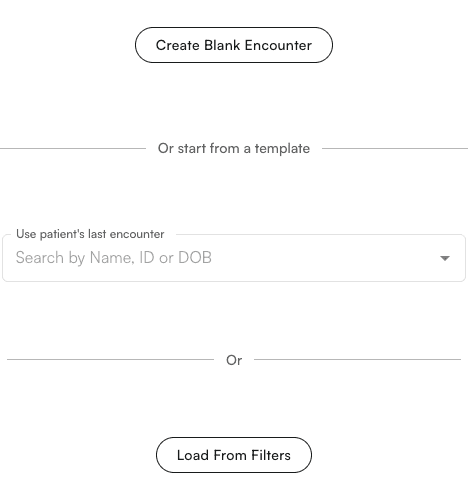
Load from Filters, which is an excellent way to automatically enter known basic information. For example, you could set filters for the patient, provider, and facility, then select Load from Filters. All of that information would populate in the appropriate fields.
For this demonstration, we’ll click
**Create Blank Encounter**.
You can also create an encounter based on previous encounters. Use encounter templates based on a patient’s last encounter wisely and often! They greatly expedite data entry and reduce the possibility of human error.
Encounter Information
Patient
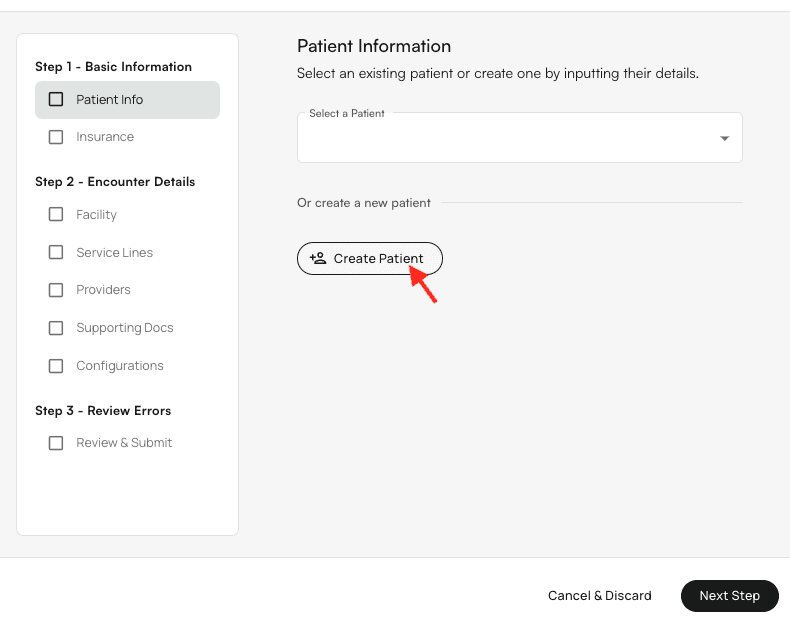
This section allows you to use existing patient information, or toCreate Patient. We’ll choose Create Patient.
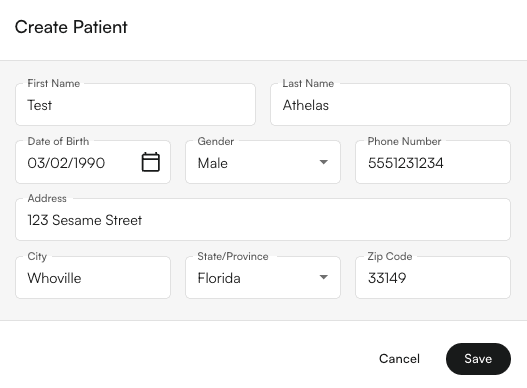
Save.
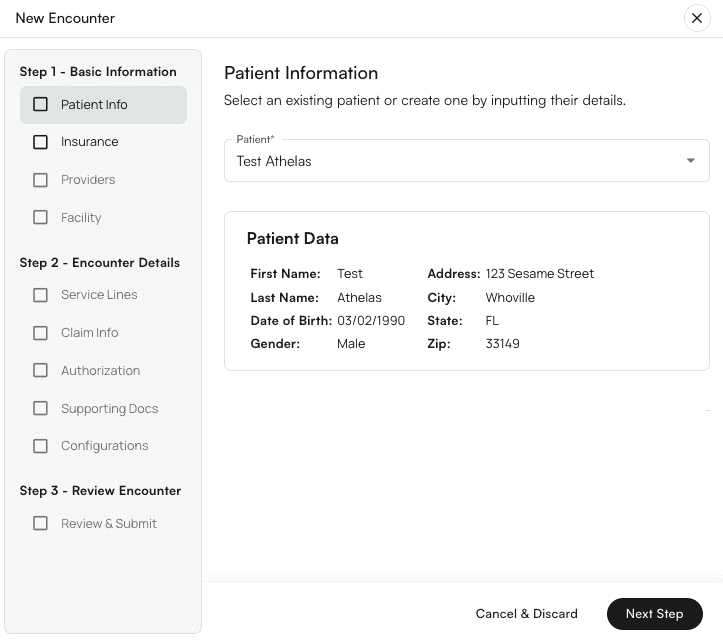
Next Step when everything looks correct.
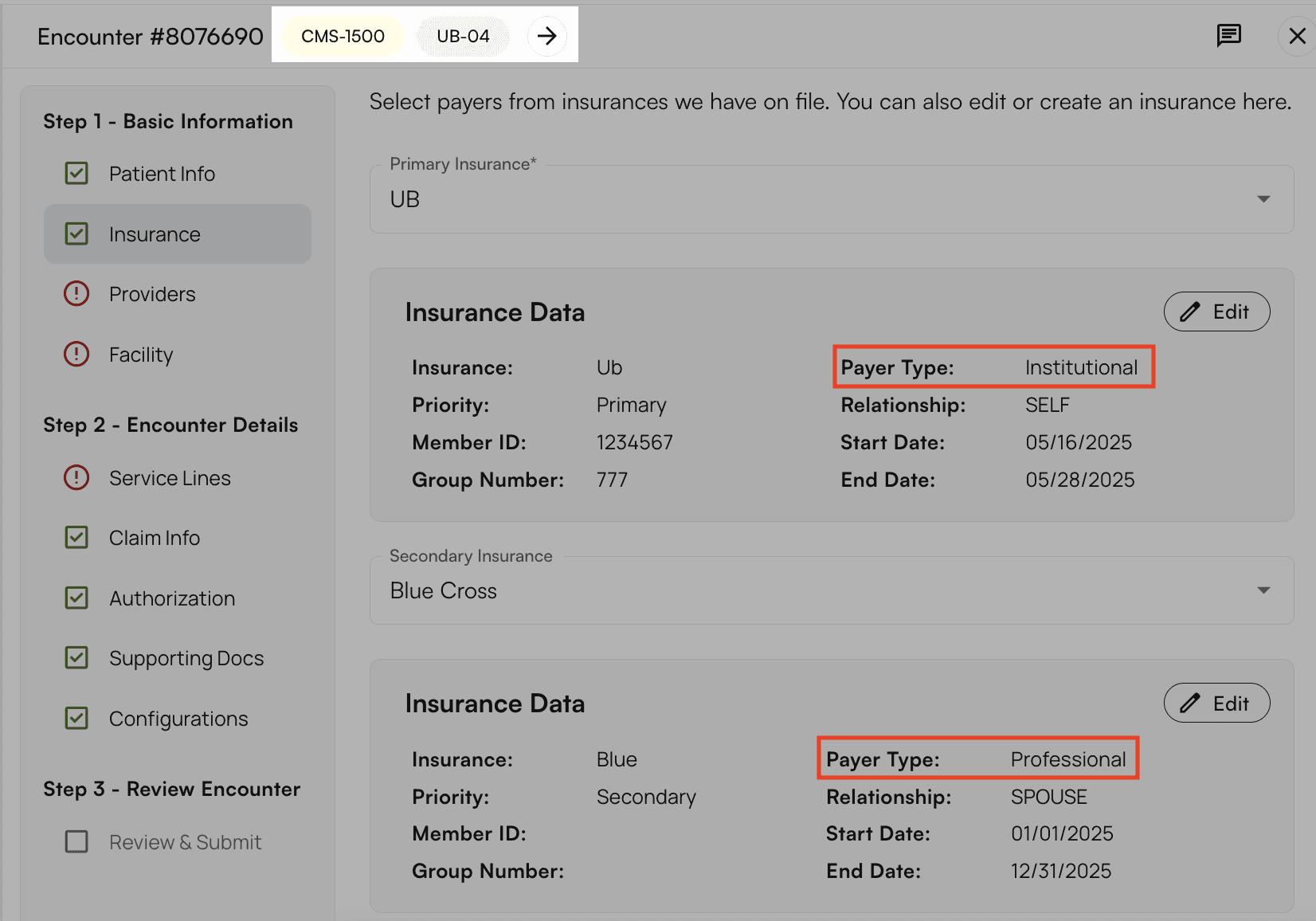
Insurance
In the encounter’s Insurance section, you can add or update primary, secondary, and tertiary insurance information.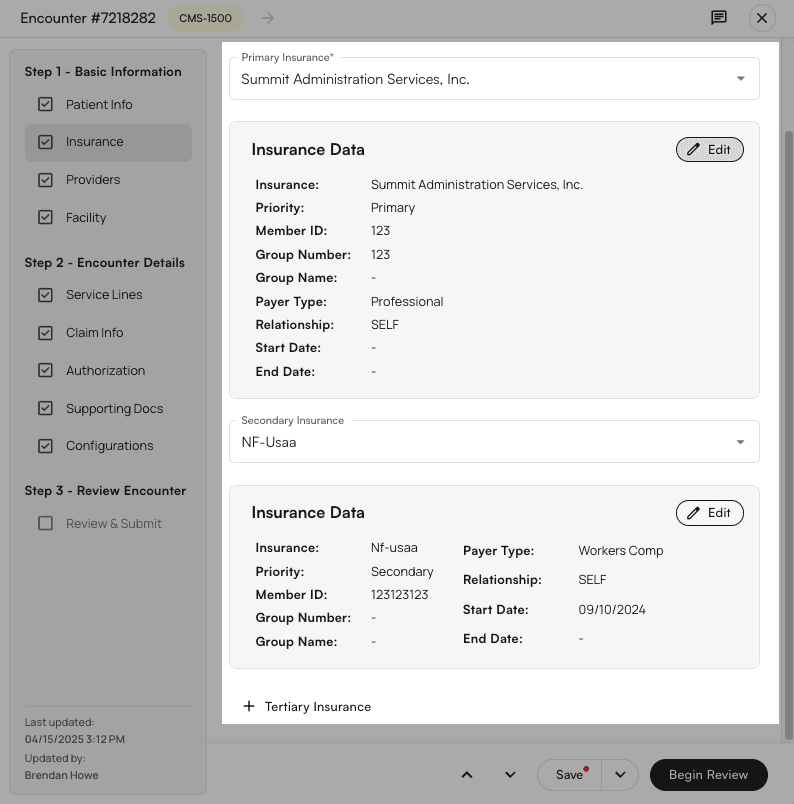
- The options that pre-populate these lists come directly from information that Athelas has extracted from your EHR.
- The initial list only shows insurances previously associated with this patient.
- If you click
*Create Insurance*in one of the dropdown menus (primary, secondary, or tertiary), you can select from all known insurances associated with your practice. Fill in the new insurance information and click*Create Insurance*. This will now be a selectable option in the Insurance menus for this patient.
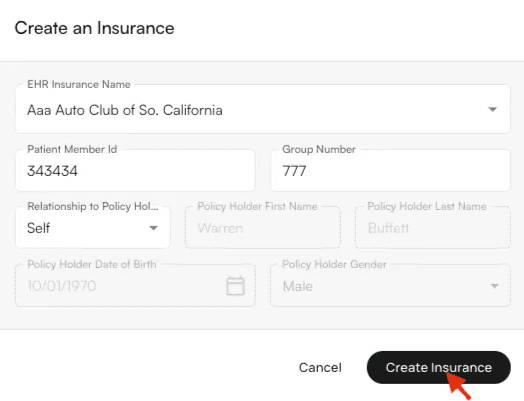
- *If you need a new insurance to appear here, please contact our account management team. *
Providers
Input the rendering, attending, referring, and supervising provider if applicable (these provider fields may change depending on whether a CMS-1500 and/or UB-40 forms will be filed for this encounter). You can either visit the My Practice page to create new providers, or you can simply type a provider’s NPI number into the search field and their information will populate, as shown below. Note that we source this information directly from the NPI registry, but you can update this information if necessary.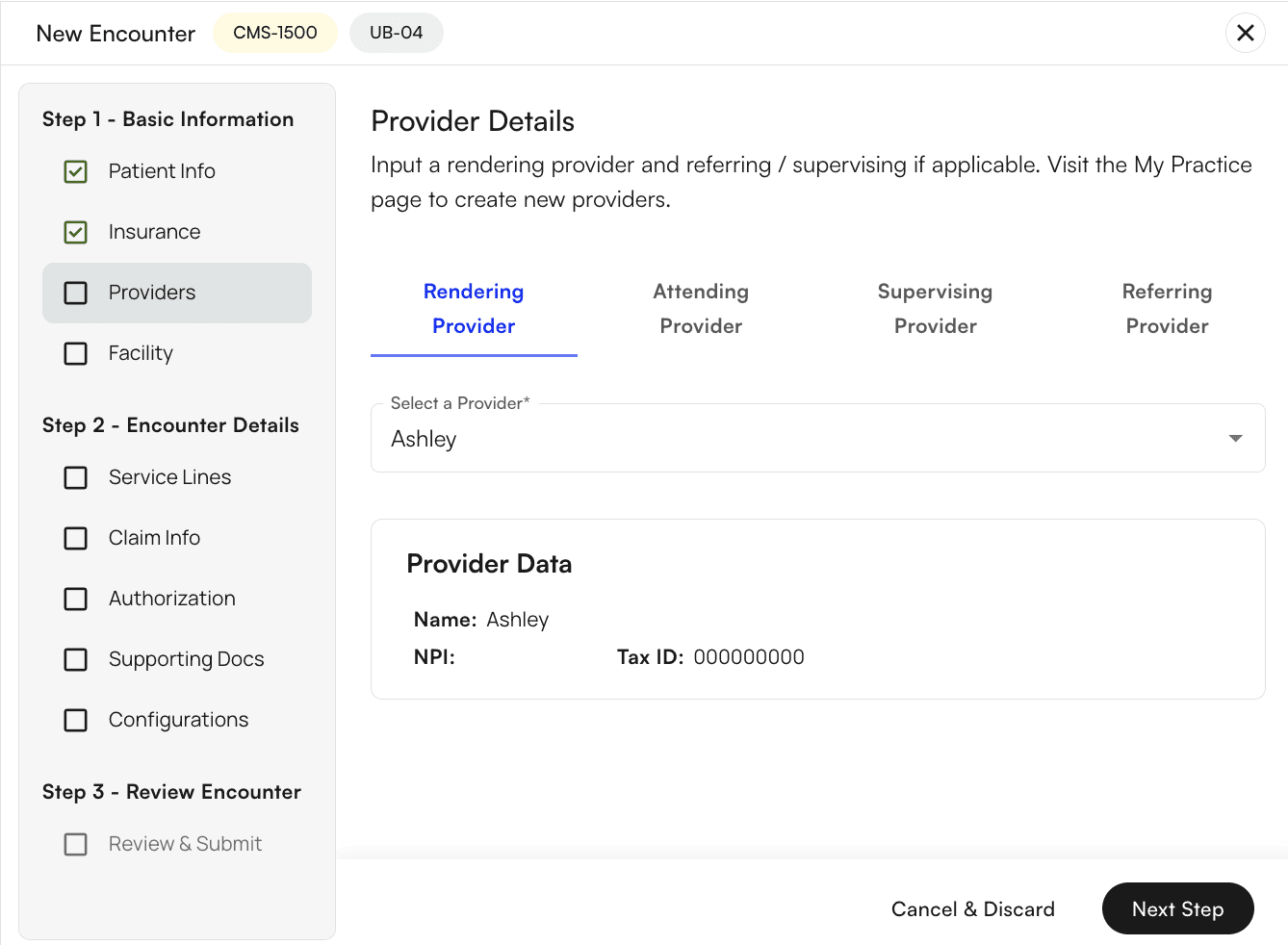
Facility
Facility, Place of Service code, type of facility, type of care, and claim frequency code may all be entered here. Type of bill is automatically determined by the information you input in these optional fields. Admission and discharge data should be entered here as well.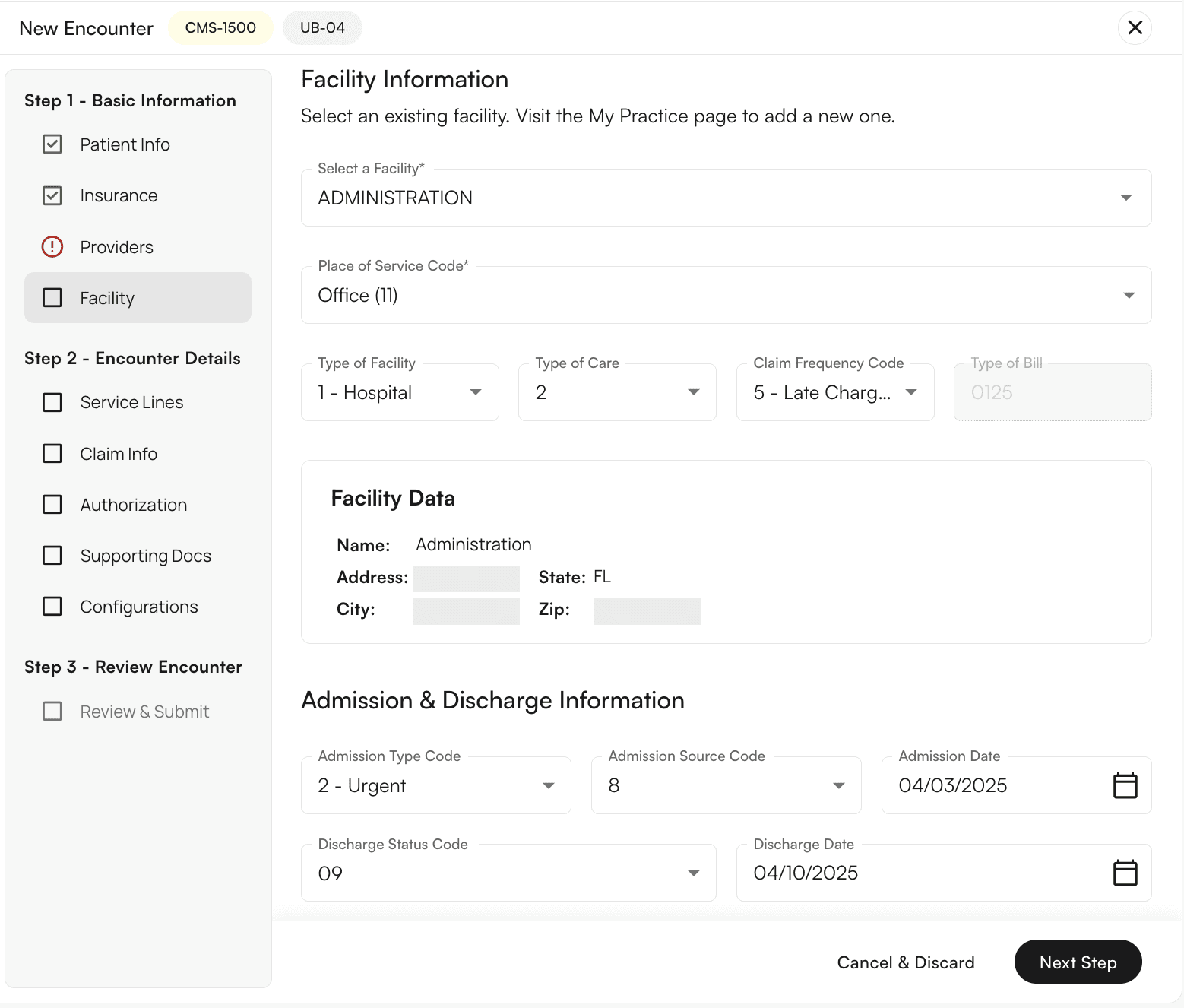
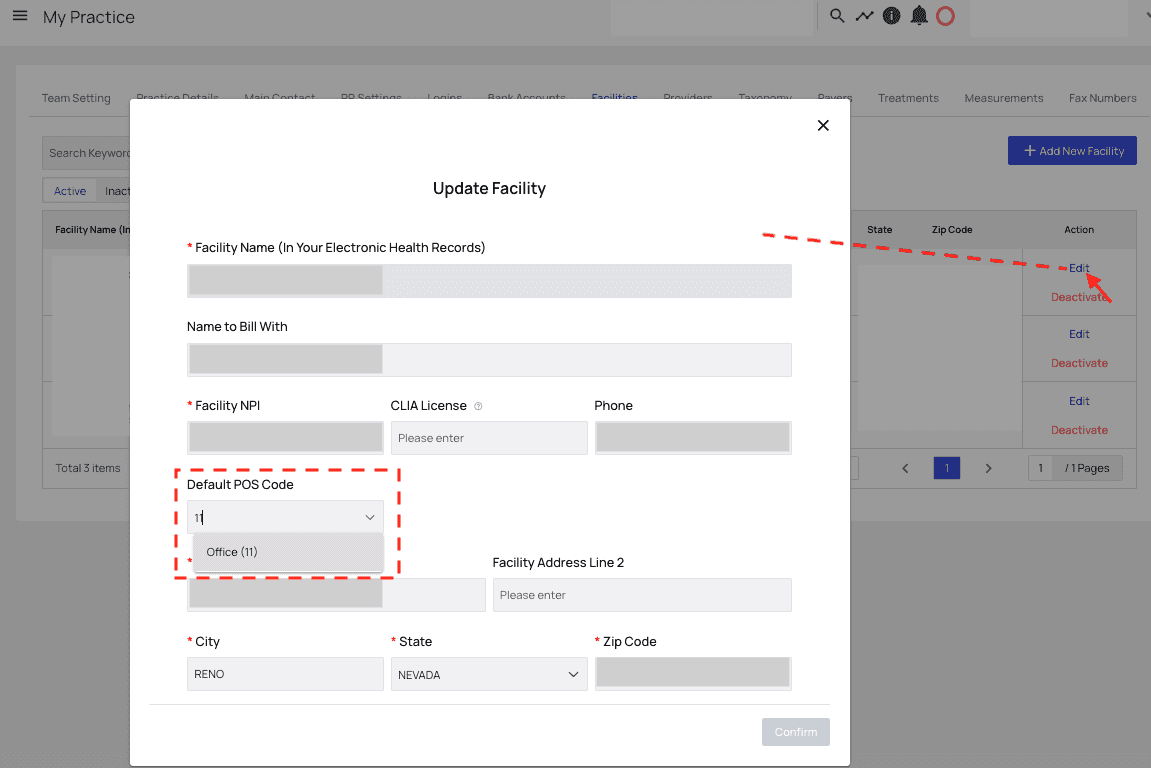
Next Step.
Service Lines
This section allows you to add or update dates of service, templates (detailed below), ICD-10 codes, and service lines. The claim charge amount is automatically calculated as a sum of all service line charges.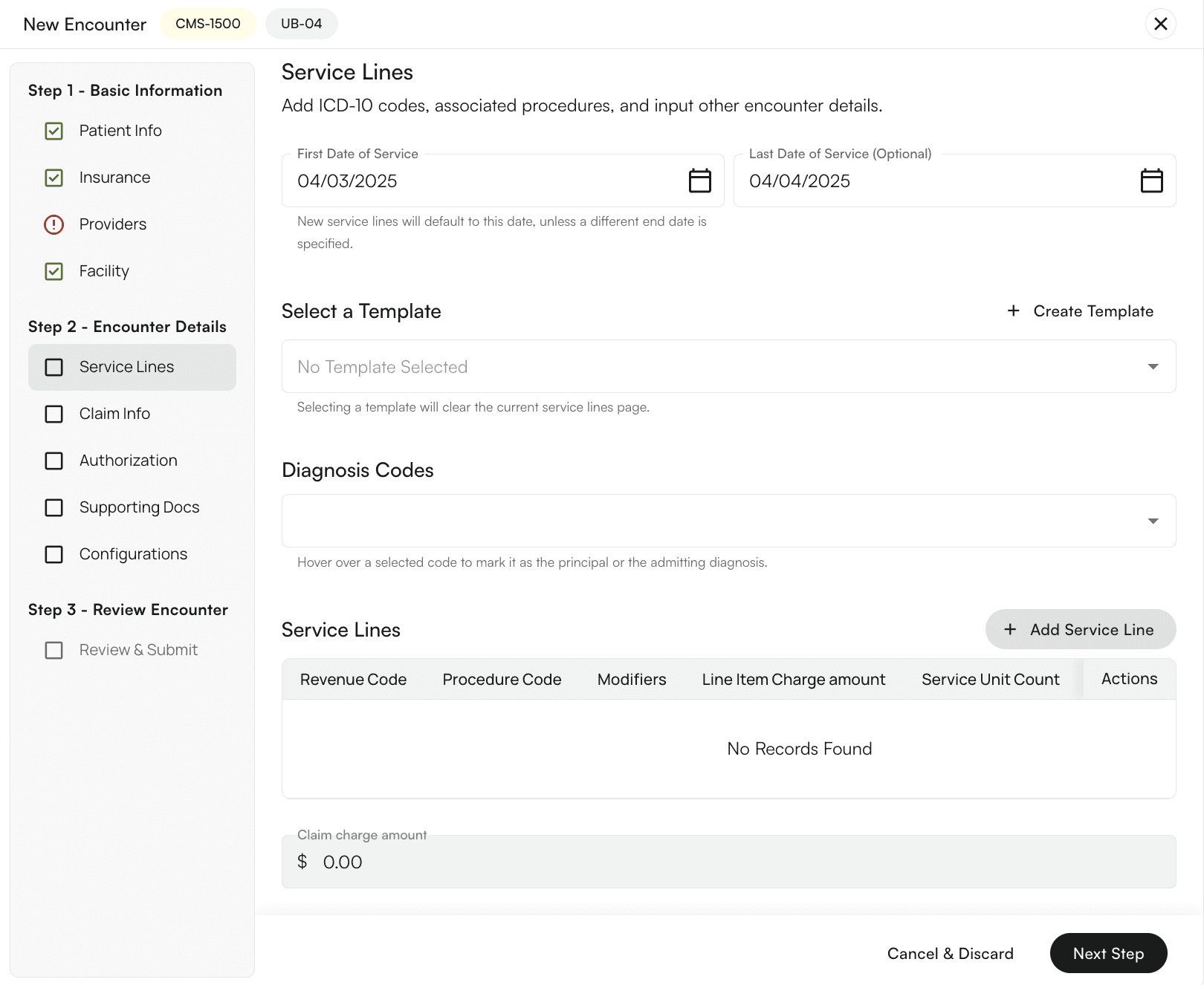
Contact our support team at support@getathelas.com for help with mapping revenue codes.
Templates
Access service line templates here. They’ll help you speed up data entry and reduce opportunities for human error.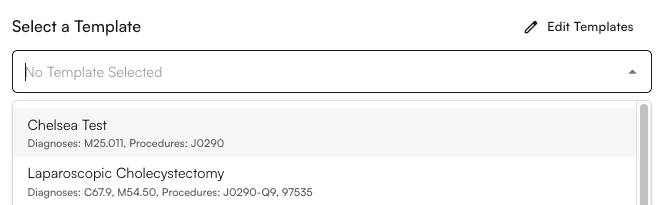
Edit Templates a window will appear in which you can create and delete templates.
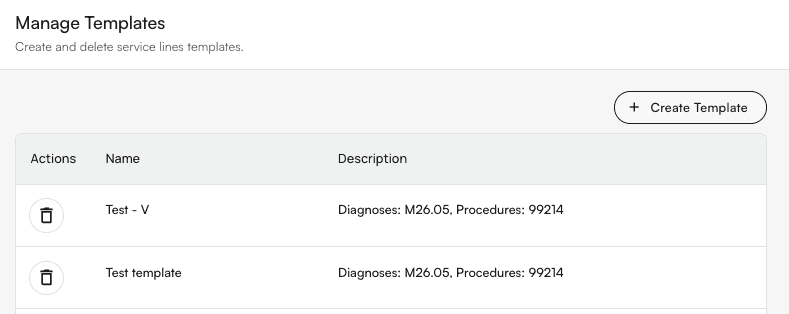
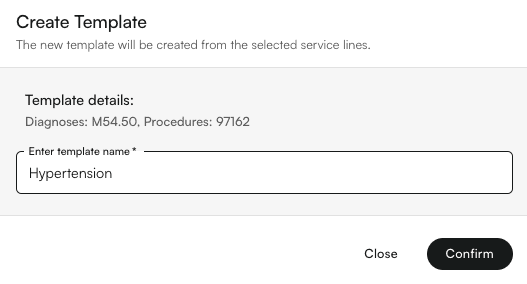
Confirm.
Diagnosis Codes
Start typing to find the diagnosis code you want to add, then click to select it.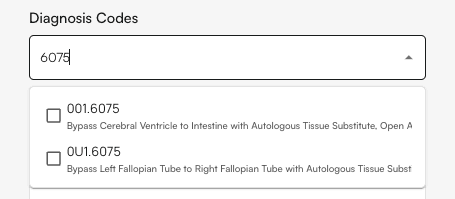
Insurances page has a preferred billing type of UB-04, then you will be able to differentiate between Admitting, Principal, and other relevant diagnoses in this section.
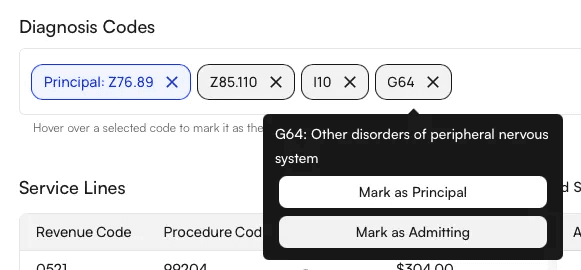
Service Lines
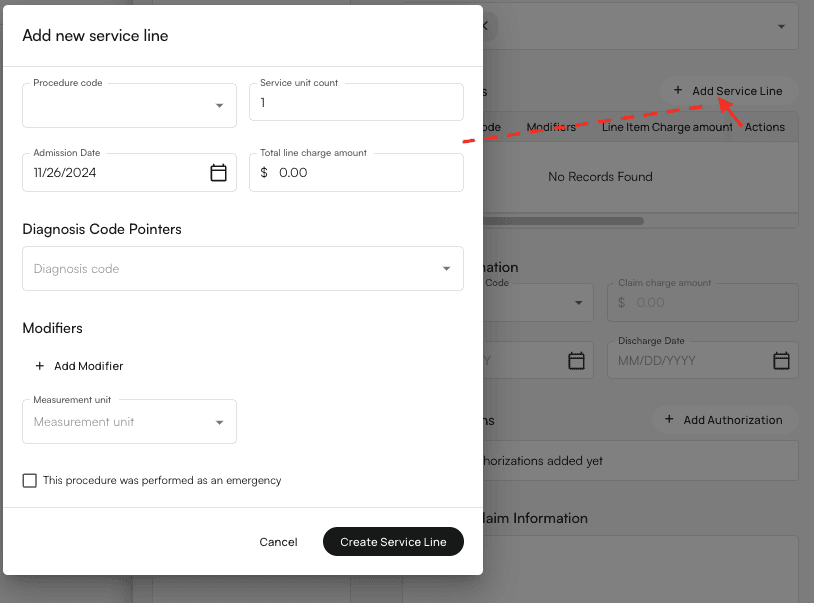
When you clickAdd Service Line, a window will appear.
Fill in the details of the service line here, including procedure code, diagnosis code pointers, modifiers, and so forth (UB-40 encounters will also show a field for revenue code).
You can also check the box to indicate if the procedure was performed as an emergency (which will update section 24c on the CMS-1500 form).
Once everything looks correct, click Create Service Line.
- Procedures from your practice’s self-pay fee schedule will appear here only if the visit/DoS was self-pay
- Charges for CPT codes that auto-populate are based on insurance information and your practice’s fee schedule, but you can overwrite them if necessary.
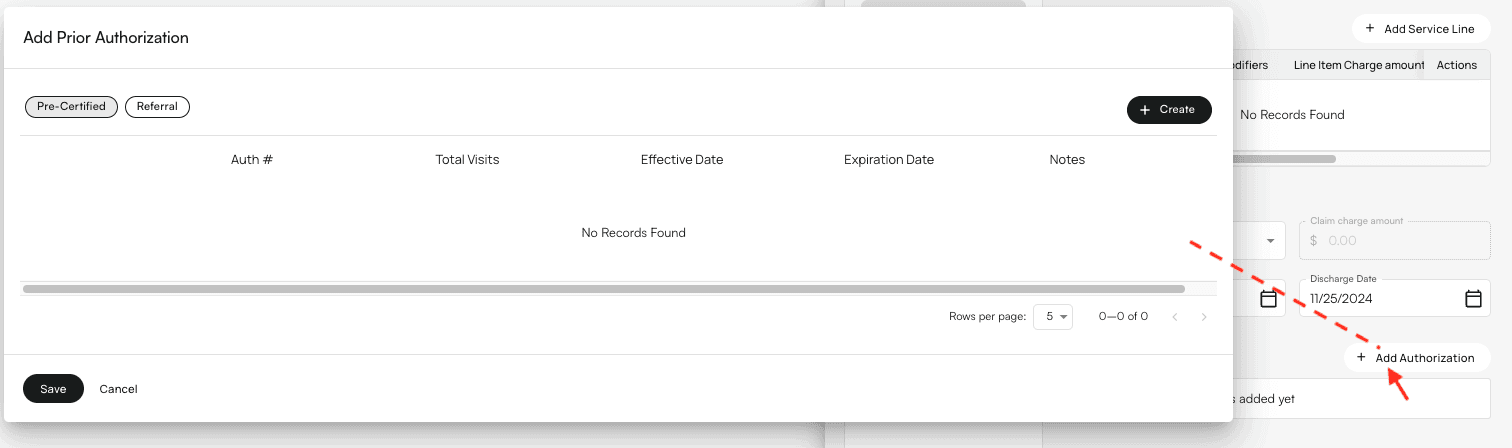
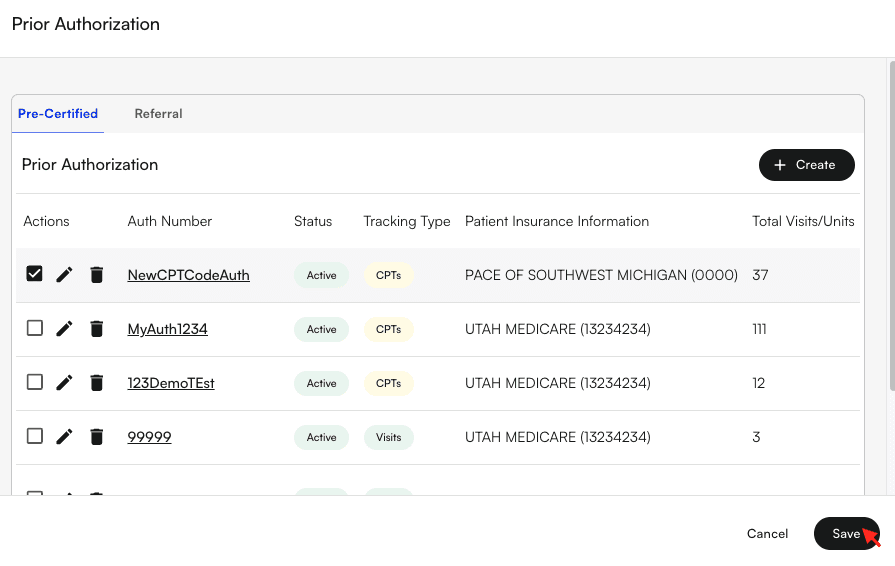
Add Authorization. This will bring up a window in which we can create and edit either a pre-certified authorization or a referral.
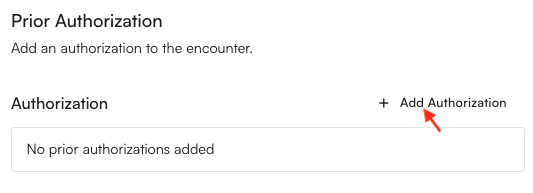
Add Authorization.
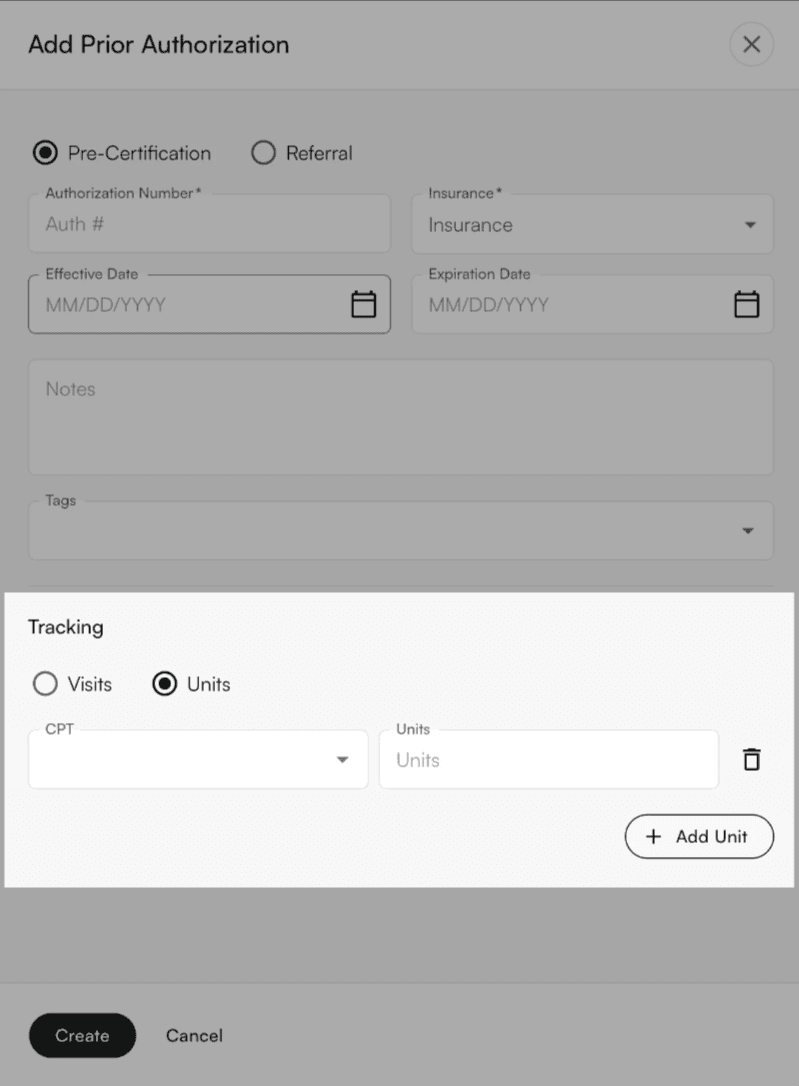
Create.
Indicate whether this is a pre-certification or a referral. Then fill in all required fields and click Create.
Save.
Supporting Documentation
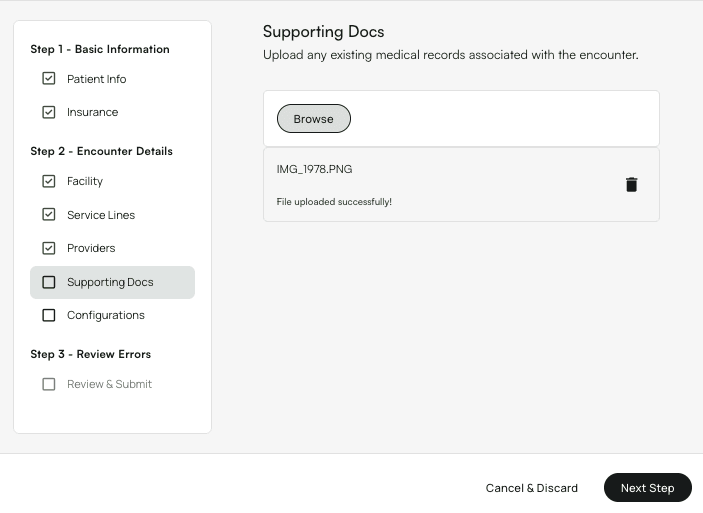
Submissions tab.
You will see both the claim submissions and any additional documents.
Click View at the right end of the corresponding row to view that documentation, as shown in this screenshot.

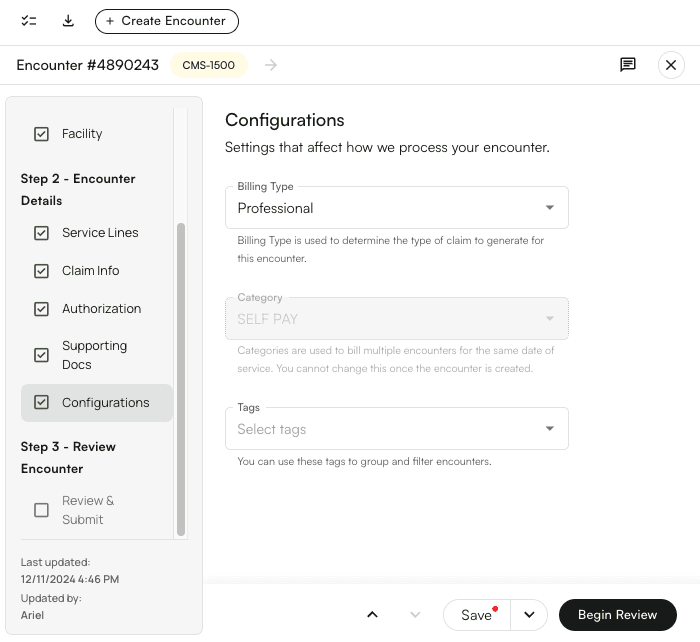
Configurations
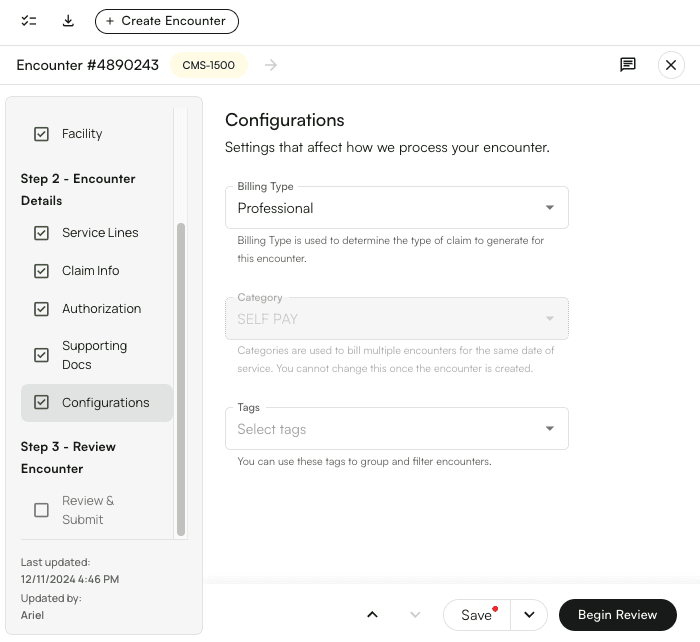
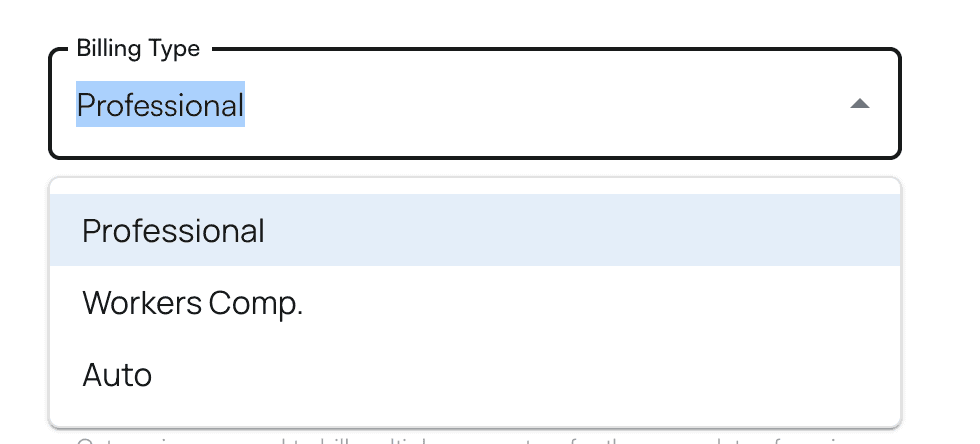
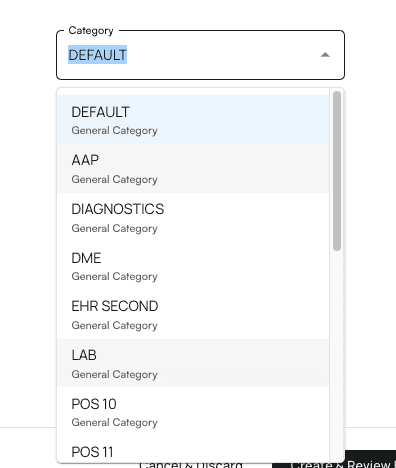
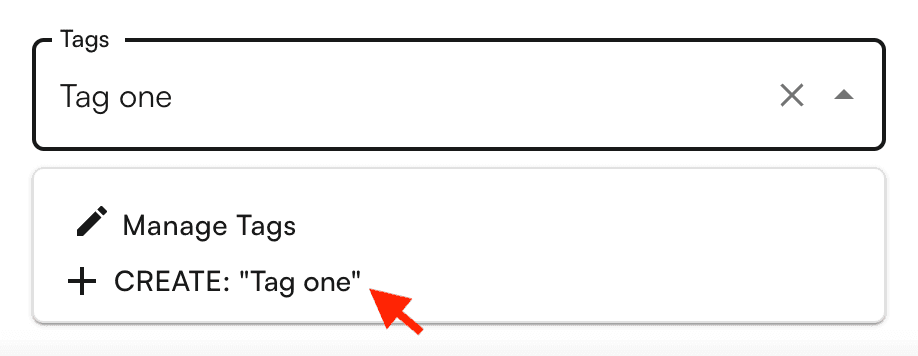
+ Create.
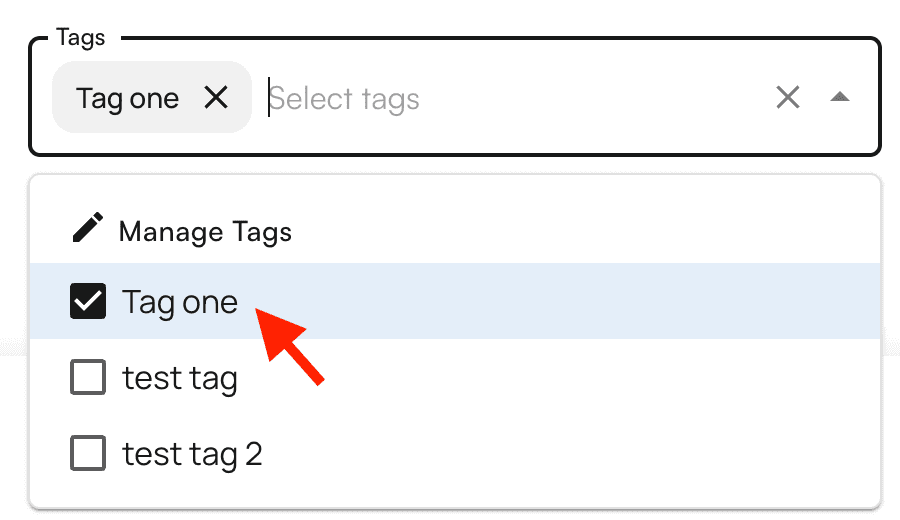
To edit or delete tags, click Manage Tags.
- Open
- No one has touched this encounter yet. Go ahead and get it started so your practice can get paid!
- In Progress
- Someone is working on this encounter.
- Blocked
- Someone is working on this encounter but has run into an obstacle that may require more time, or Athelas’ help. For example, perhaps the claim can’t be submitted because a prior authorization needs to be updated, or the provider’s notes are incomplete.
- Archived
- This encounter is not currently being prepared for submission.
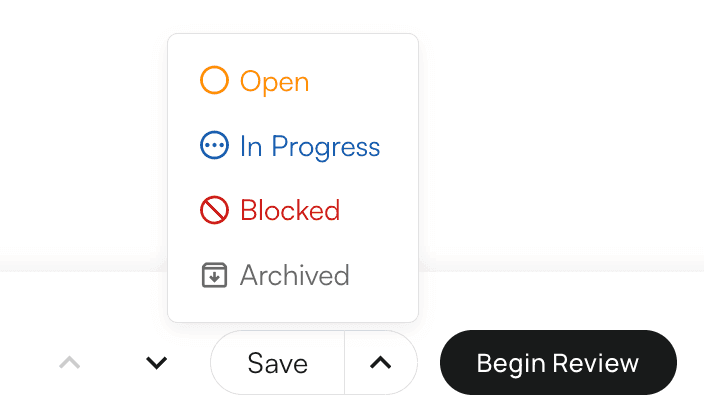
Begin Review.
Review / Submit
After clickingBegin Review in the Configurations section, Insights will ensure that the encounter details are free of technical errors that could lead to claim rejection or denial.
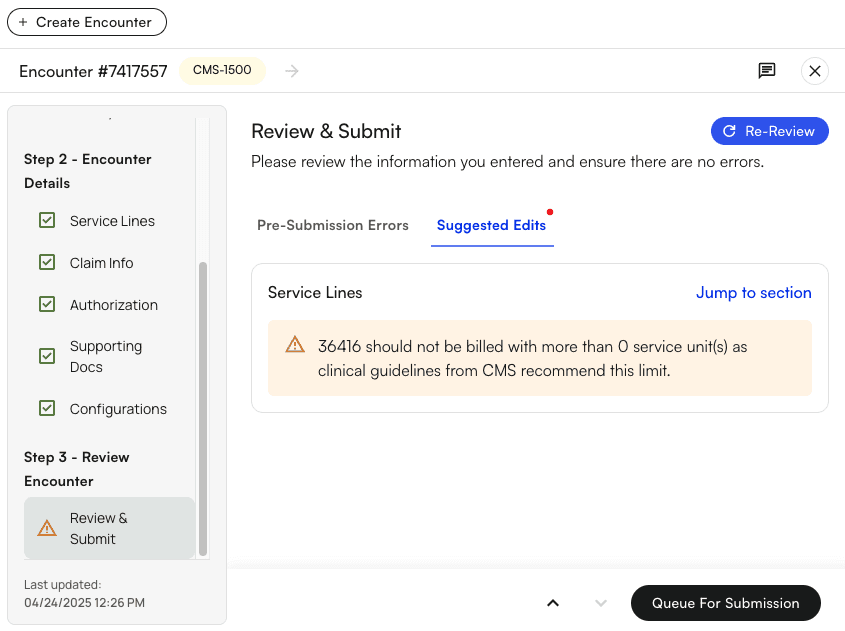
Jump to section so that you can address the issue quickly.
The ‘Suggested Edits’ tab offers an additional layer of actionable direction for avoiding potential denials. The information provided here comes directly from CMS’ National Corrective Coding Initiative (NCCI). We can see in the example below that certain CPT codes cannot be billed together, and only one of the listed modifiers should be used on a given CPT code instead of multiple.
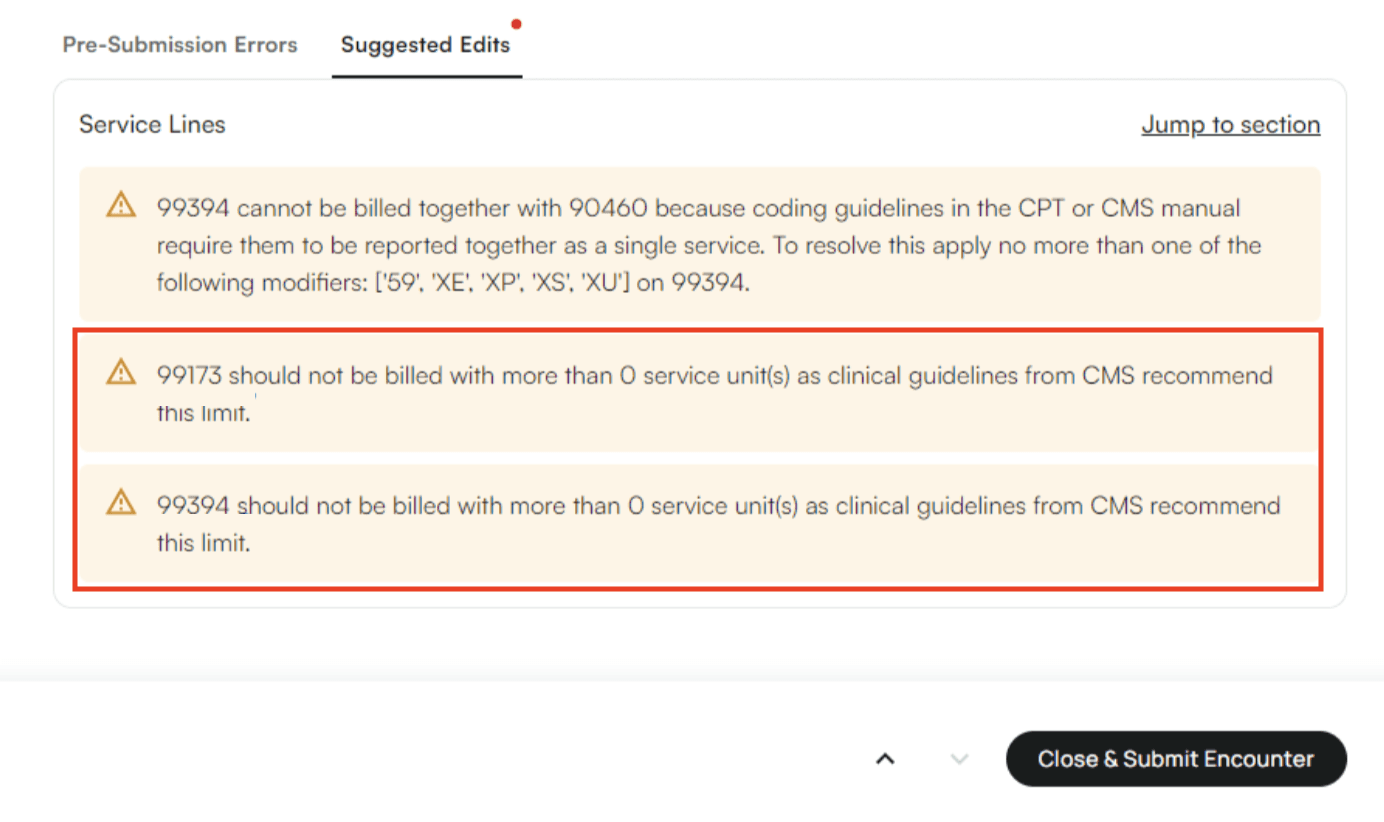
Re-Review to find out whether more corrections are required, or if the encounter is now ready for submission.
If it can be submitted successfully, click Close & Submit Encounter.
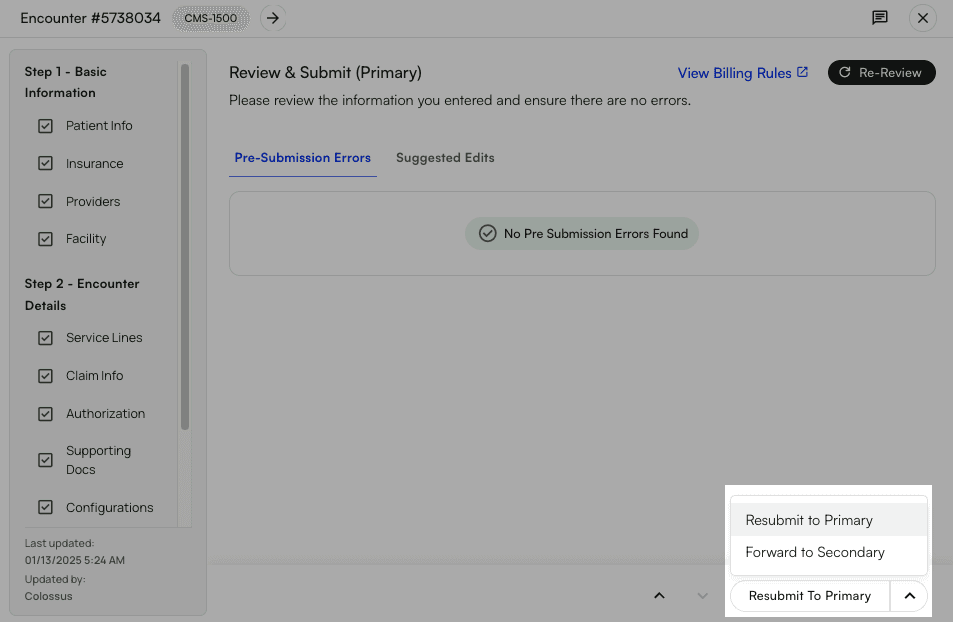
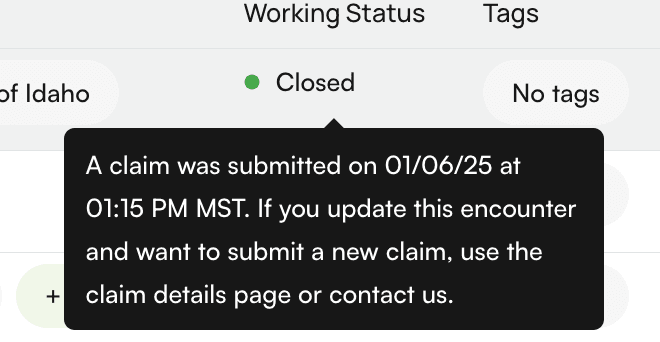
If you’re updating an encounter and there are no errors or suggested edits, select the closing option that best suits your needs (*Resubmit to Primary*, *Forward to Secondary*, etc.)
Mobile-Friendly Encounter Details Page
The Encounter Details page is mobile-friendly. This is particularly notable for providers who work out of multiple facilities, as they can easily create and update encounters on the go. Features In Development:- Add default values when creating encounters
- Hide/show certain fields on encounter creation
- Create dental encounters
- Ability to see when the most recent/next extraction pulls will be