At a Glance
Incorrect insurance information (or any other incorrect information—service lines, ICD-10 codes, etc.) is one of the primary blockers for claim submissions. Fortunately, Insights has a speedy solution to get these kinds of issues off your plate and back to payer responsibility. This guide will help you quickly address issues of incorrect encounter data and then take appropriate action on a claim by resubmitting or forwarding to the next payer.Here’s How to Do It
From Encounter Details
Video Tutorial
In short:
- Edit the incorrect information on the encounter in question
-
Click
Begin Review - Address any pre-submission errors or suggested edits (if applicable)
-
Select the closing option that best suits your needs (
Resubmit to Primary,Forward to Secondary, etc.)
Walkthrough and Notes on the Encounter Details update method
In the encounter’s Insurance section, you can add or update primary, secondary, and tertiary insurance information.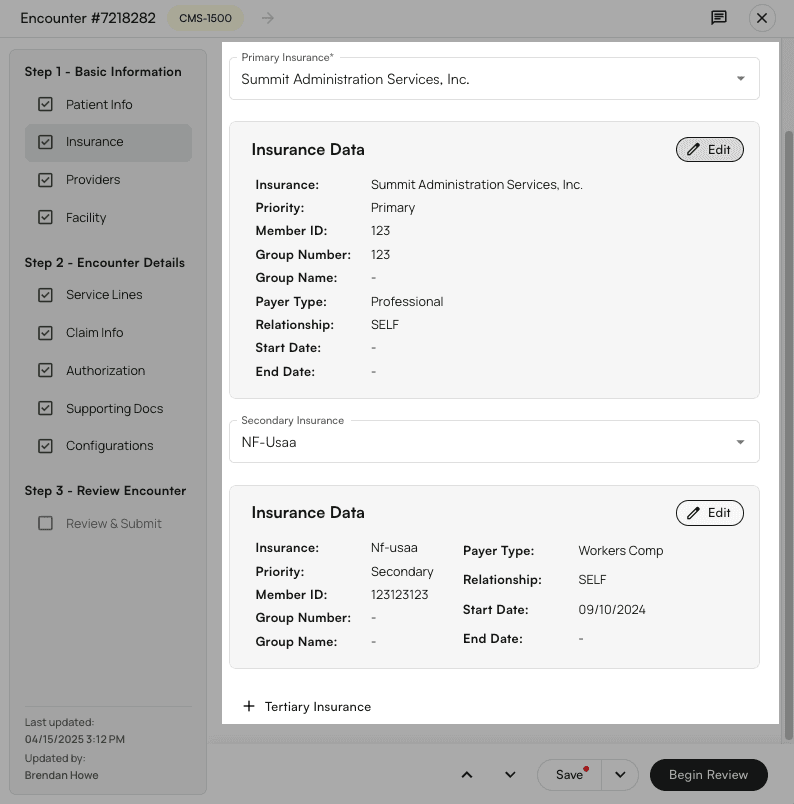
- The options that pre-populate these lists come directly from information that Athelas has extracted from your EHR.
- The initial list only shows insurances previously associated with this patient.
- If you click
Create Insurancein one of the dropdown menus (primary, secondary, or tertiary), you can select from all known insurances associated with your practice.
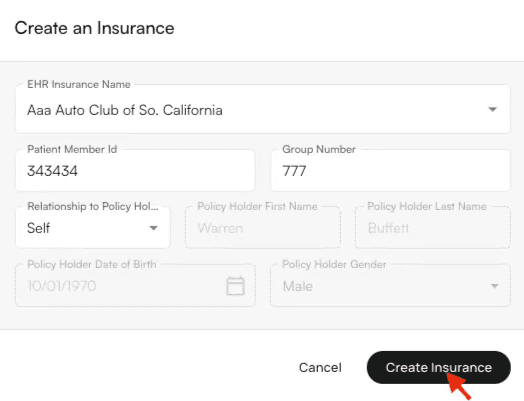
- Fill in the new insurance information and click
Create Insurance. This will now be a selectable option in the Insurance menus for this patient. If you need a new insurance to appear here, please contact our account management team.
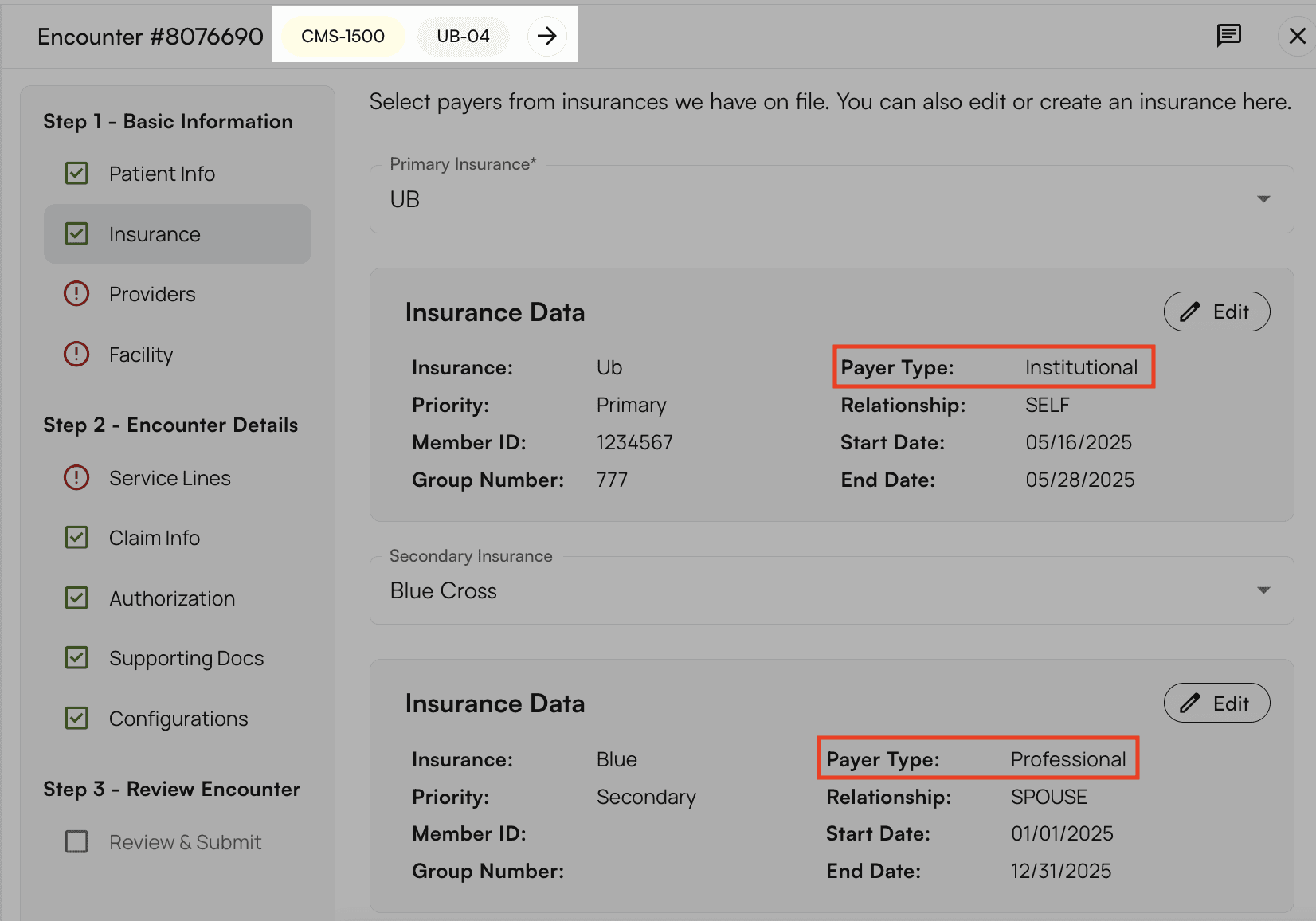
Begin Review.
- If there are presubmission errors or suggested editsSometimes you’ll see errors that prevent you from closing out the encounter. For many of these, quick fixes to incorrect data are possible (a missing CPT code, incorrect facility information, etc.)Use the
Jump to Sectionbutton to get straight to the page with the issue.
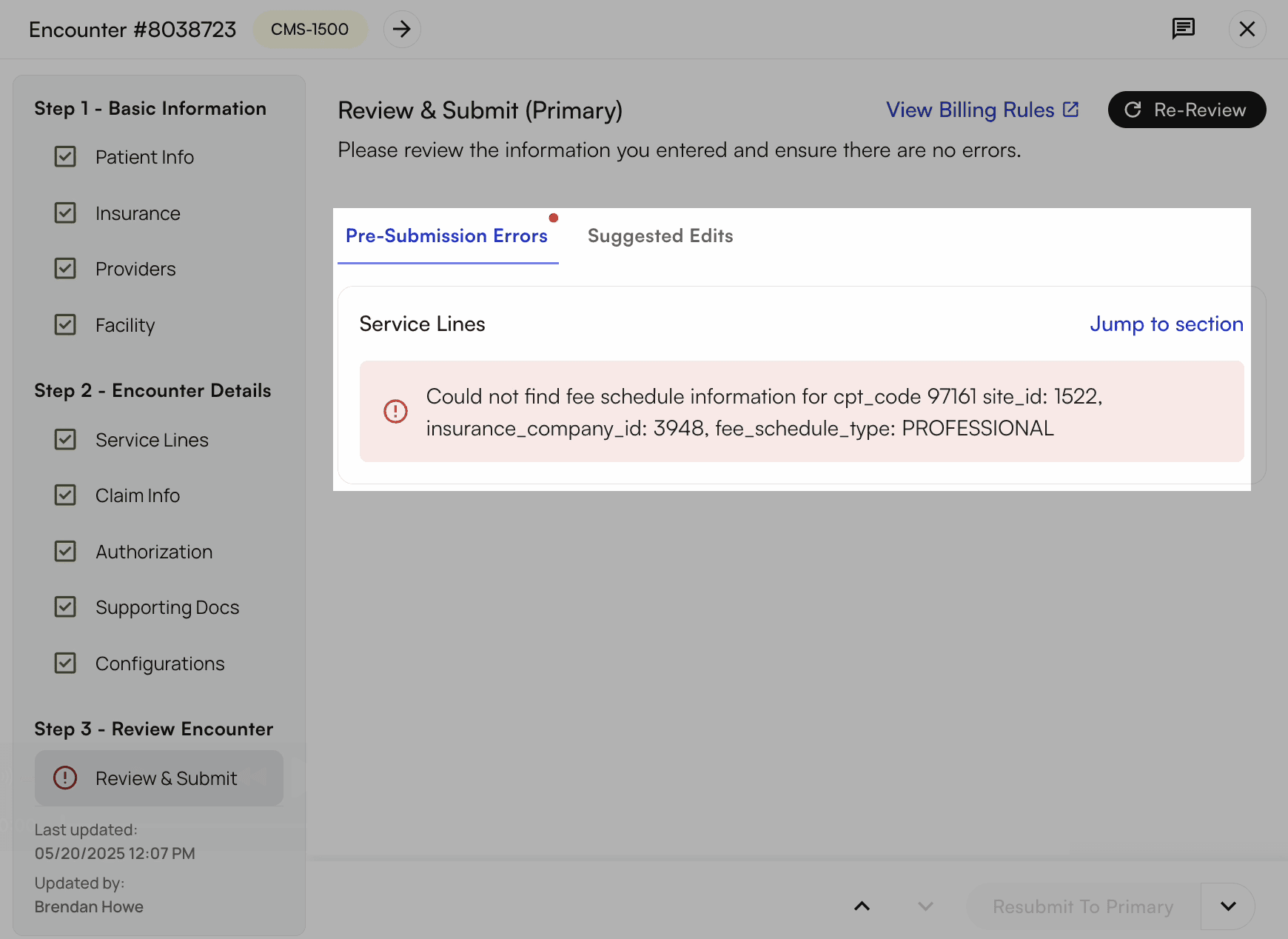
- If you can’t make sense of the error message, or can’t find the incorrect information, please flag the encounter to Athelas and we’ll look into it.Once all information is updated, click
Begin Review. If there are no errors or suggested edits, select the closing option that best suits your needs (Resubmit to Primary,Forward to Secondary, etc.)
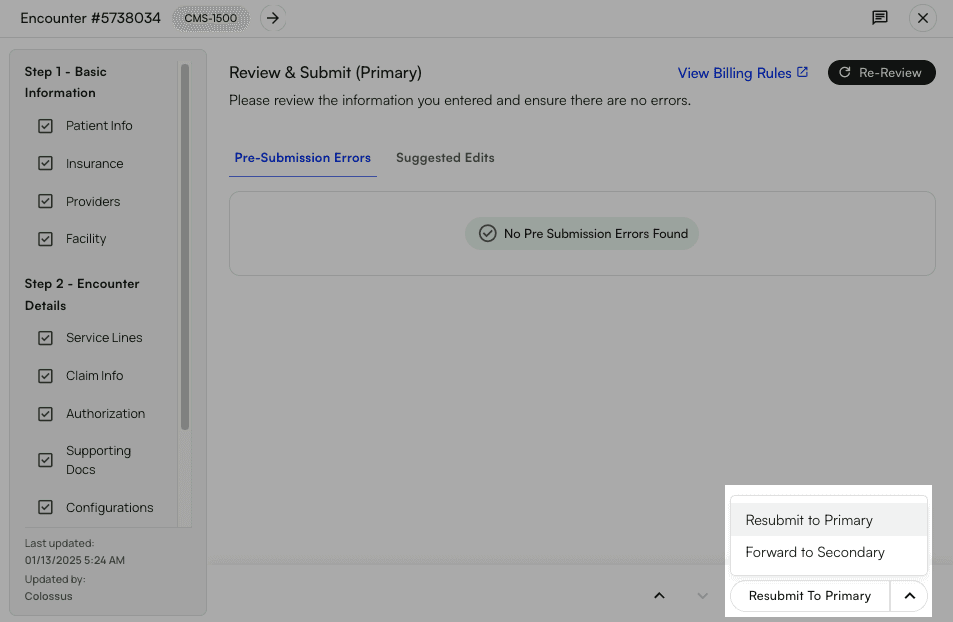
- All possible options when closing an encounter
- Save
- Add to Patient Balance
- Submit to Primary
- Resubmit to Primary
- Forward to Secondary
- Resubmit to Secondary
- Forward to Tertiary
- Resubmit to Tertiary
From the Appointments Page
We recommend using the Encounter Details method detailed above if you also need to take further action on the encounter, such as claim forwarding or resubmission. Video TutorialWalkthrough and Notes on the Appointments page update method
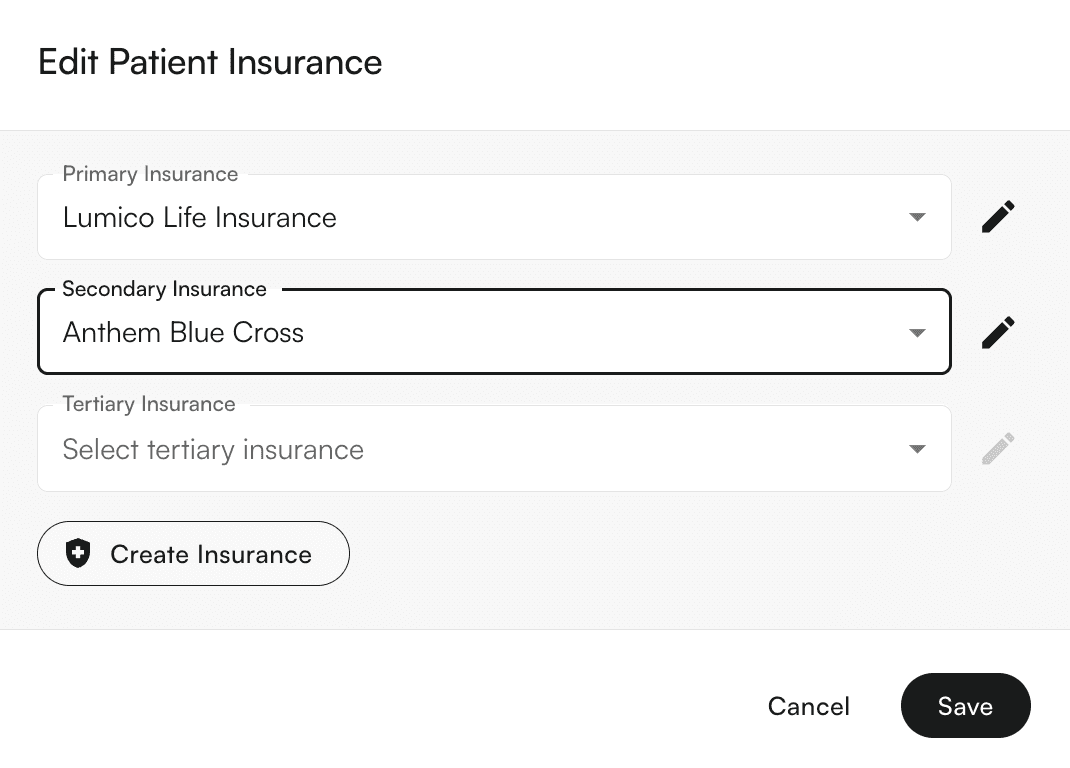
Click into the appointment in question, open the ‘Actions’ menu, then selectPatient Insurance.
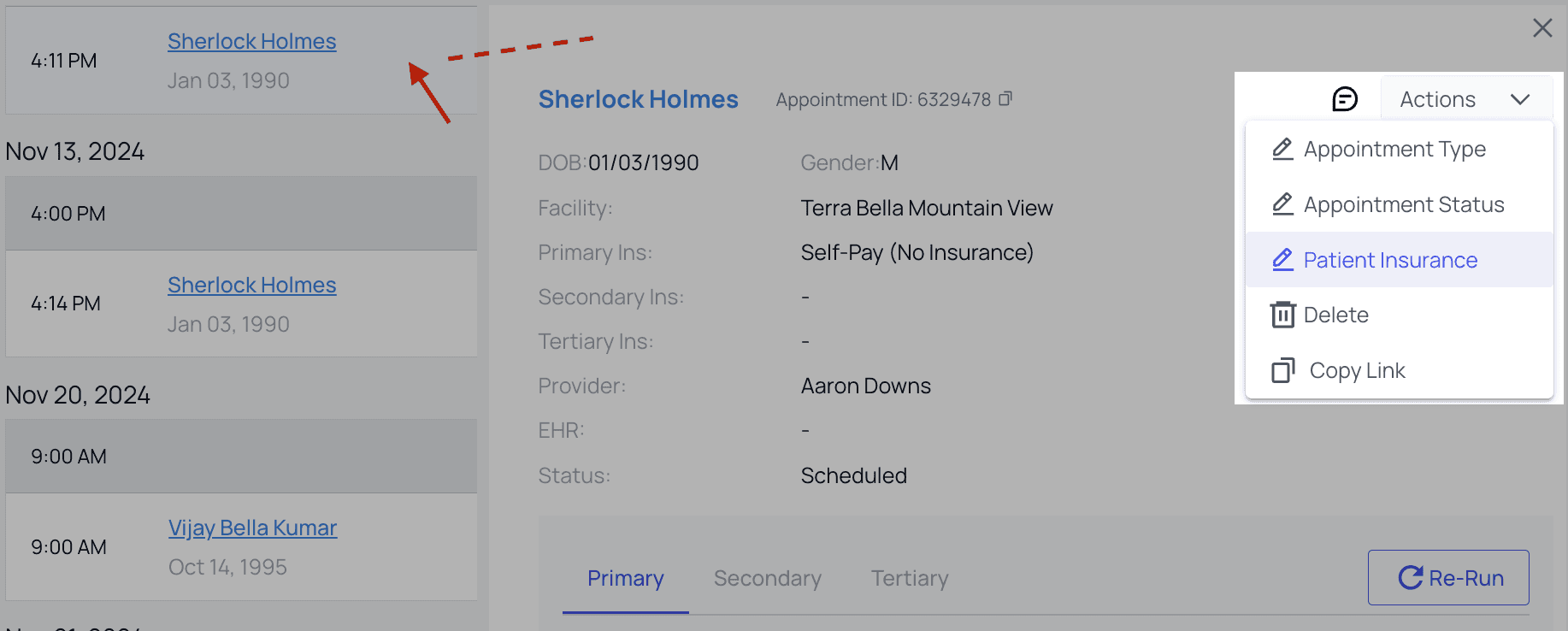
Update Insurance, then click Save.