
Overview
The Self-Serve Credentialing Matrix is a centralized tool designed to simplify and standardize how providers and insurance companies manage credentialing requirements. It provides an at-a-glance reference for the credentialing status of each provider–payer relationship, ensuring clarity, compliance, and faster decision-making. Credentialing is a critical process that validates whether providers meet the requirements of insurance companies to deliver care under their plans. Traditionally, this information is fragmented, requiring manual lookups and repeated back-and-forth. The self-serve credentialing matrix eliminates that friction by giving all stakeholders immediate visibility into credentialing statuses.How would it help?
- Efficiency – Cuts down on time spent searching for or verifying credentialing requirements.
- Transparency – Provides providers and payers with a shared source of truth.
- Scalability – Supports onboarding, cross-coverage, and expanding provider networks with minimal administrative overhead.
Key concepts
| Term | Meaning |
|---|---|
| Provider | A healthcare professional or organization (e.g., physician, nurse practitioner, clinic) delivering care to patients. |
| Insurance company | A payer organization that contracts with providers to cover healthcare services for its members. |
| Provider credentials | The qualifications, licenses, certifications, and verifications required for a provider to be approved by an insurance company. |
| Credentialing group | A set of providers managed together for credentialing purposes, often by specialty, practice, or organizational affiliation. |
| Credentialed | Indicates whether a provider is fully approved and recognized by the insurance company to deliver covered services. |
| Cosigner required | Shows whether the provider can deliver services only under supervision, requiring a credentialed provider’s cosignature (e.g., trainees, newly licensed practitioners). |
| Credentialing type | Type of credentialing. Includes GROUP, INDIVIDUAL, UNKNOWN, PENDING, NONE |
Selecting credentialing type values
- You can select either of the 3 values:
| Is credentialed? | Cosigner required? | Allowed? |
|---|---|---|
| ✅ | ❌ | ✅ |
| ❌ | ✅ | ✅ |
| ❌ | ❌ | ✅ |
| ✅ | ✅ | ❌ |
- Group to selection of values:
| Credentialing type | Can select Is Credentialed? | Can select Cosigner required |
|---|---|---|
| Group | ✅ | ❌ |
| Individual | ✅ | ❌ |
| Unknown | ✅ | ✅ |
| Pending | ✅ | ✅ |
| None | ✅ | ✅ |
Provider credentials
Adding a provider credential
Steps:- Click on
+ Add Credentialingbutton once navigating to ‘Provider Credentialing’ tab within Utilities

- Select the provider name from the list of providers from the site.
- Select the insurance company from the list of insurance companies.
- Select the credentialing type. Based on the credentialing type, you would get the options to modify
CredentialedandCosigner required. - Click on
Submit. - The provider credentialing entry would be created.
Bulk edit provider credentials
Steps:- In the table, you can select multiple rows by clicking on the empty checkboxes to the left of the row.
- You can select multiple rows across different providers, insurance companies, and credentialing groups.
- You have the ability to change the:
Credentialing typeCredentialedCosigner Required- You can either keep the existing values for these rows, or apply the same settings to all rows.
- Click on
Submitto reflect your changes. - Example video:
Select all results in a filter for bulk editing
When a filter is applied, a prompt to select all the results for bulk editing shows up.Credentialing Group
Credentialing group allows you to bundle multiple insurance companies under one group, so when you get credentialed for a group, you can apply the same configuration. 💡 Important Notes:- An Insurance company can be part of multiple credentialing groups.
- Groups are mutually exclusive with individual insurance selection in the Add Credential modal
- You can select multiple groups when adding credentials to credential a provider with all insurances across those groups
Creating Credentialing Groups
- Navigate to Provider Credentialing page
- Click the ”+ Credential Group” split button in the top right

- Fill out the group details:
- Enter a group name (e.g., “Optum Group”, “Medicaid Plans”)
- Add an optional description
- Select insurance companies to include in the group
- Click “Save Group” to create the group
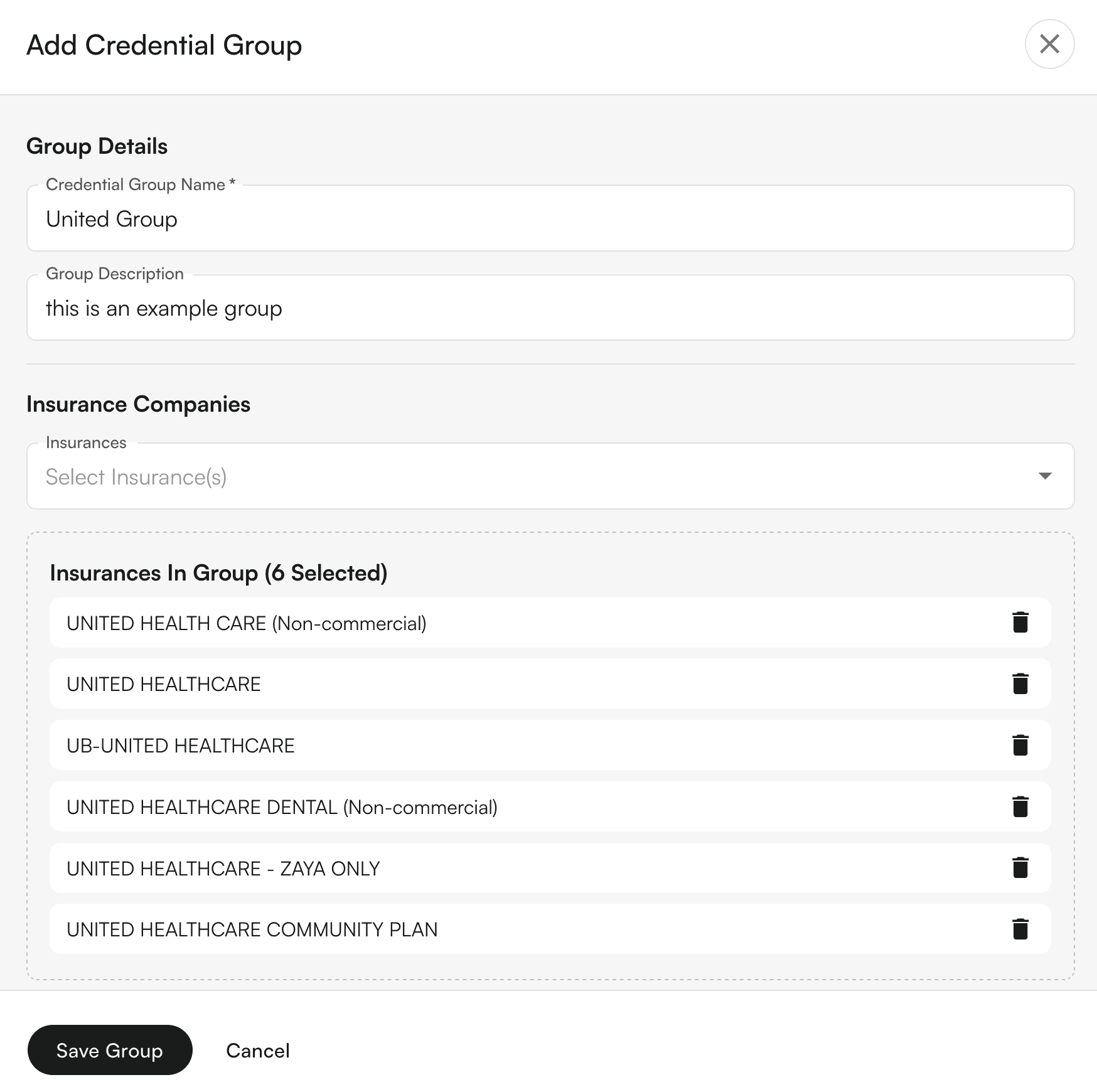
Editing Credentialing Groups
- Click the dropdown arrow on the “Credential Group” button
- Select “Edit Credential Group”

- Choose the group you want to edit from the dropdown
- Modify the details as needed (name, description, insurance companies)
- Click “Save Group” to update, or “Delete Group” to remove it
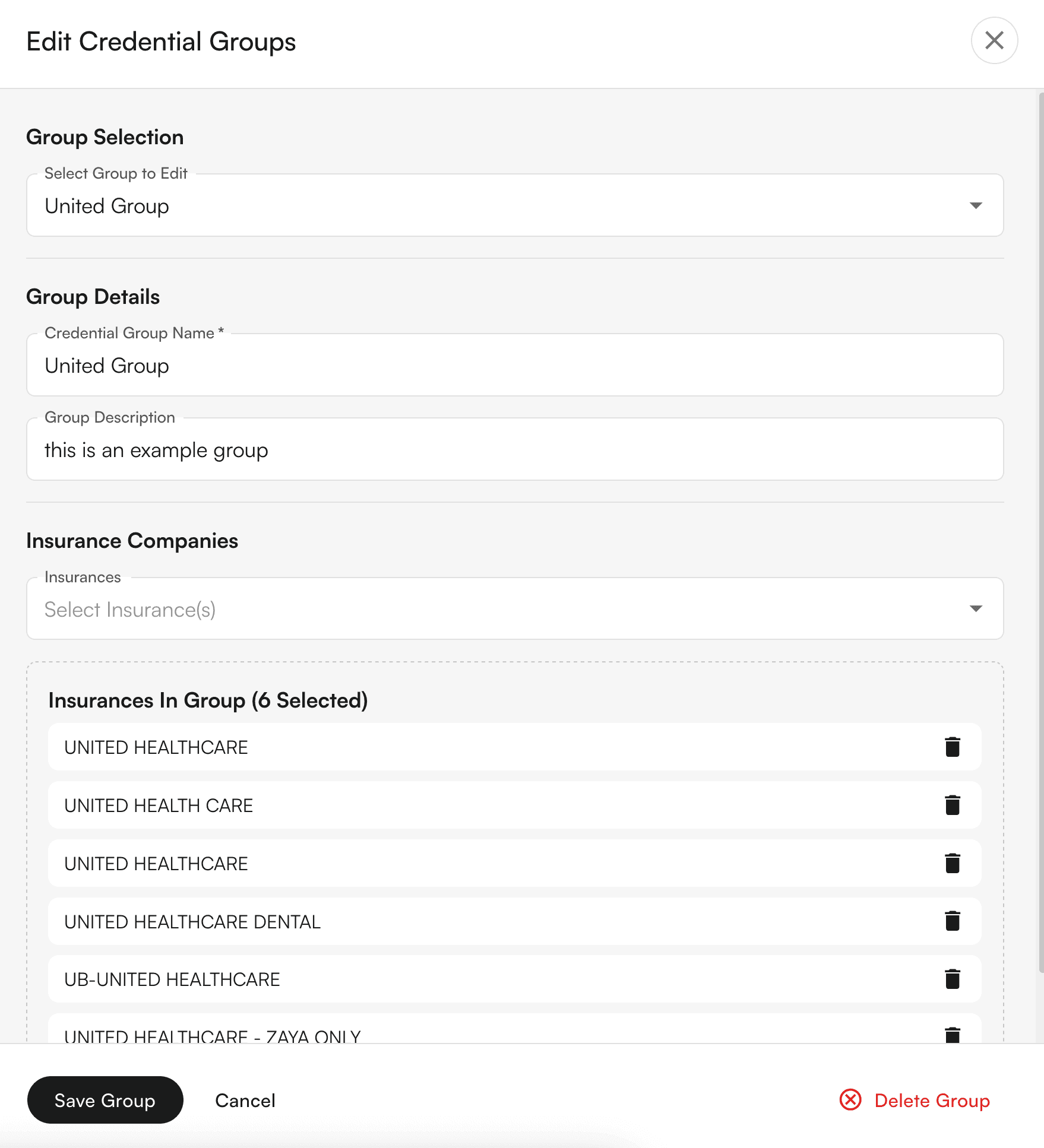
Adding Credentials Using Groups
- Click “Add Credentialing” to open the credential modal
- Select a provider
- Choose your credentialing approach:
- Individual: Select a specific insurance company, OR
- Group: Select one or more credentialing groups
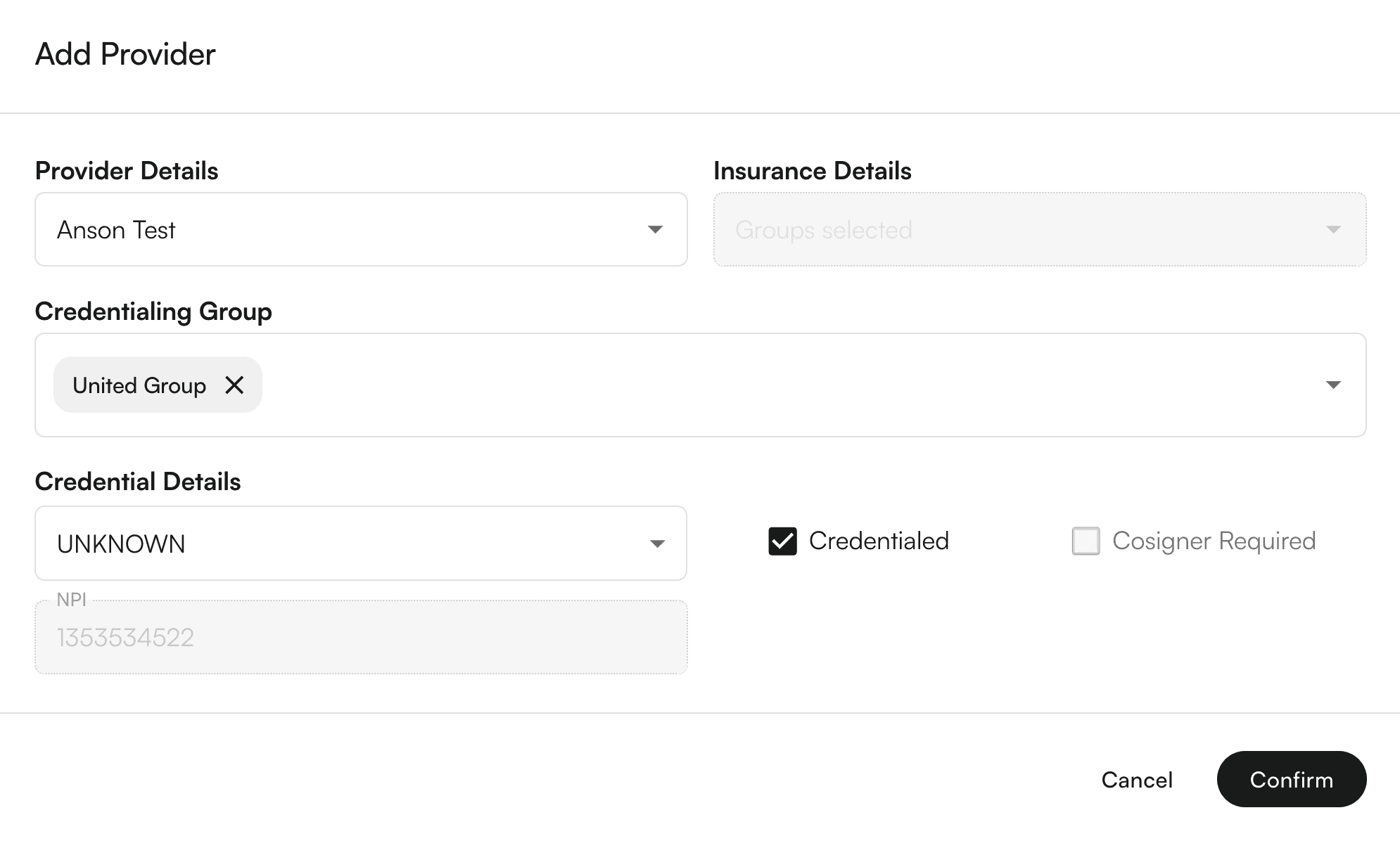
- Set credential details (type, status, cosigner requirements)
- Click “Confirm” - the system will automatically create individual credentials for each insurance in the selected groups
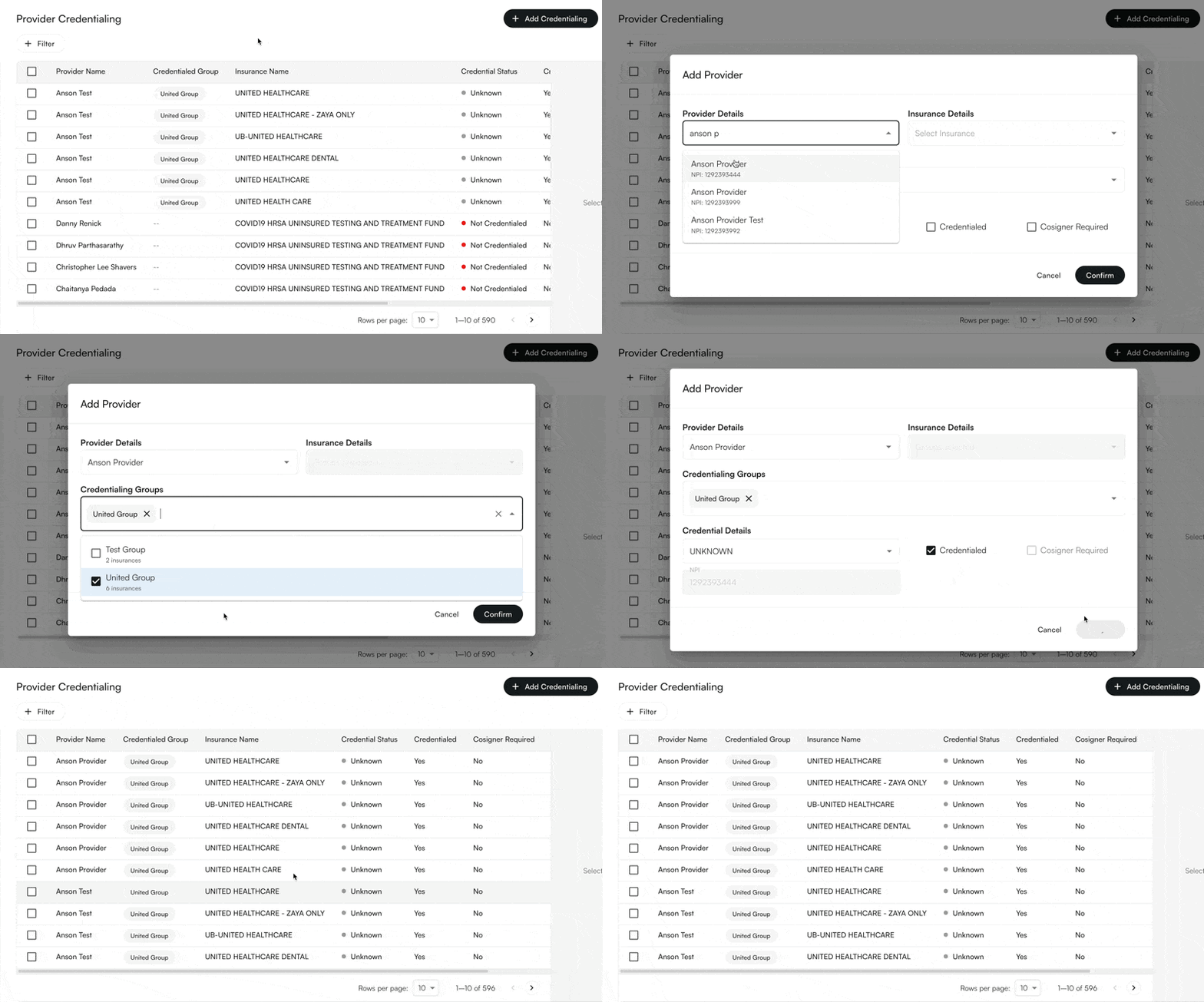
Viewing Group Information
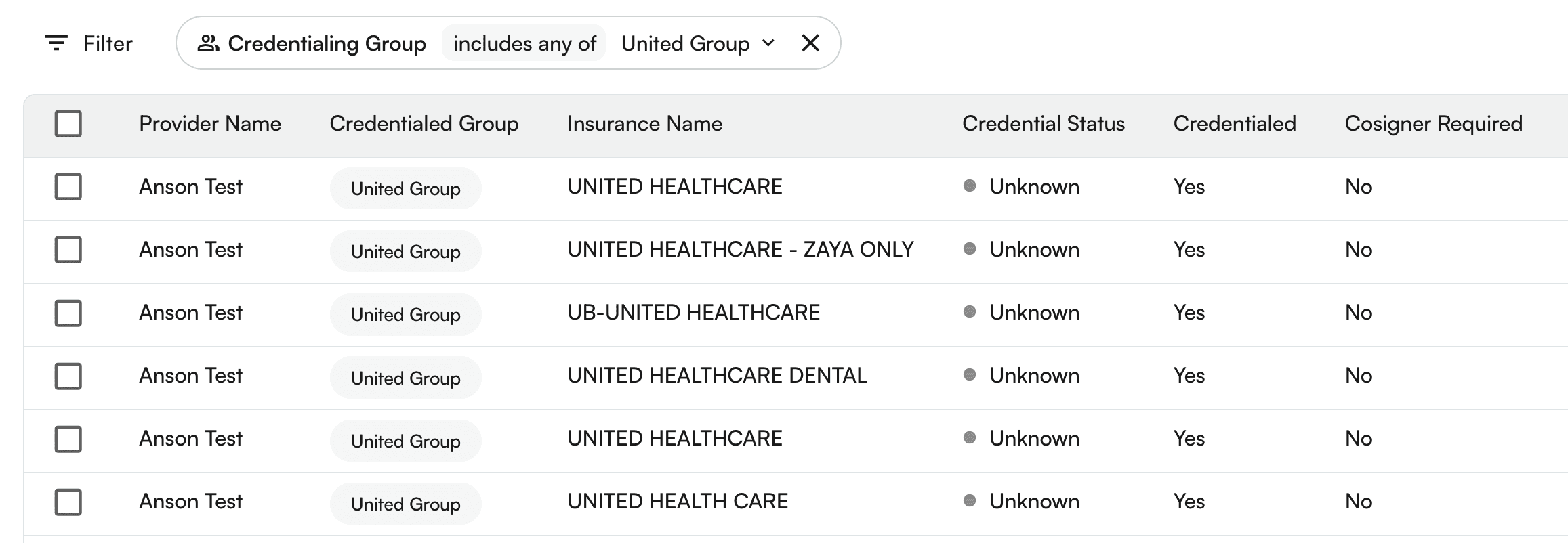
- Table Column: The “Credentialed Group” column shows which groups each provider belongs to
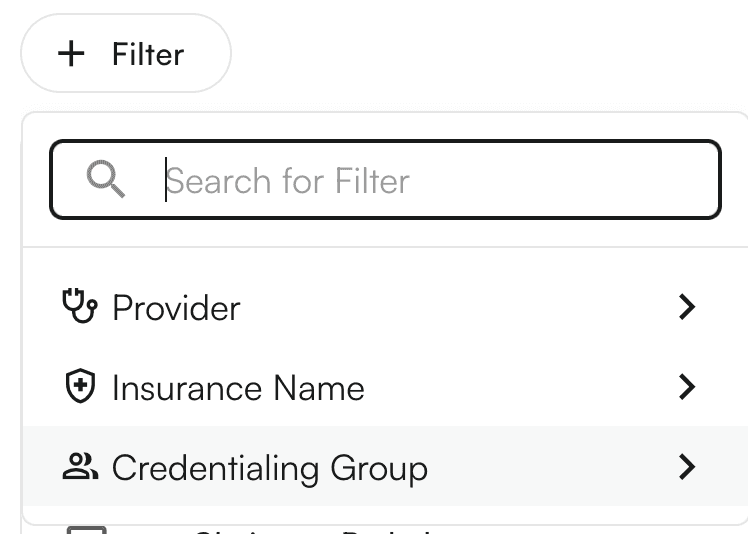
- Filtering: Use the new “Credentialing Group” filter to view only providers who qualify for specific groups
- Group Qualification: Providers only appear in a group if they have credentials for ALL insurance companies in that group
Deleting a credentialing group
You can also delete a credentialing group. Steps:- Click on the credentialing group, then the down arrow icon, then
Edit Credentialing group - Select the group to be edited.
- On the bottom of the drawer, you can see the
Delete credentialing group. - A confirmation modal appears. On click of
Delete Group, the credentialing group would be Permanently deleted!
Using credentialing group as filters
Steps:- Click the
+ Filterbutton above the table. This will show various filters. SelectCredentialing Group - You can search for various groups.
- Click on each row to select/deselect the credentialing group.
- On click, the table would load the filtered rows.
Using credentialing groups to add credentials
Steps:- Click on
+ Add Credentialingbutton - Select the provider name from the list of providers from the site.
- Select the credentialing group from the existing list of credentialing groups.
- Select the credentialing type. Based on the credentialing type, you would get the options to modify
CredentialedandCosigner required. - Click on
Submit. - The provider credentialing entries for provider + insurance companies under the credentialing group would be created.