
Change the Case Type
Add an Existing Case TypeEnter existing Case Type: Open the appointment → click the Edit icon → select the Case from the drop-down in the Case bar.The only required field is Case Name. However, because insurance is required on the Appointments page, we recommend setting the Insurance Priority as well.
Change the Appointment Type
Change Appointment Type: Use this option to quickly update documentation sections and templates to match a different appointment type.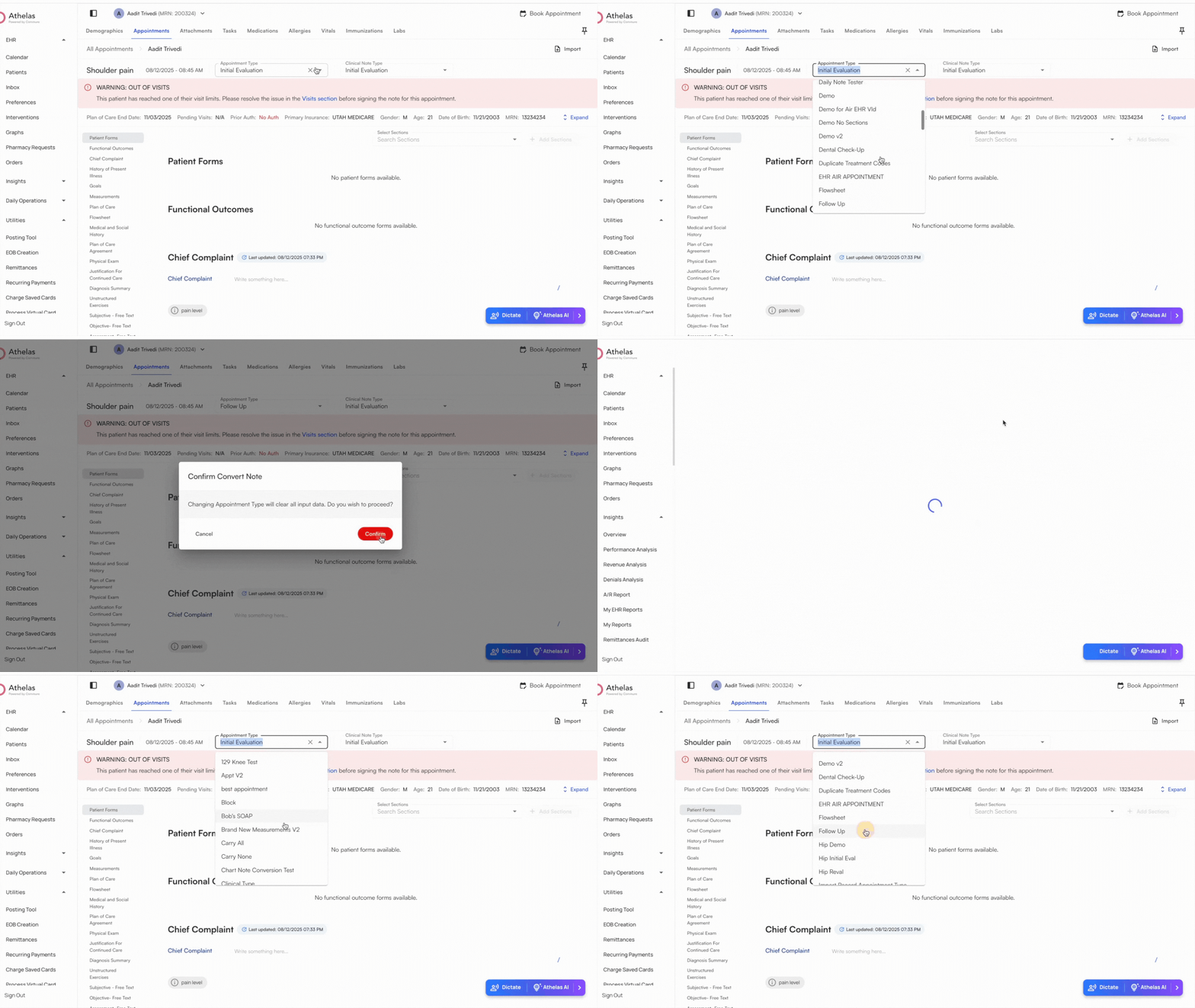
Change the Clinical Note Type
Change Clinical Note Type: This allows you to update documentation based on plan of care logic. This is only available to be updated from within the chart note.Available Clinical Note Types include:
- Initial Evaluation
- Daily Note
- Progress Note
- Re-Certification Note
- Discharge Note