
Set a default for each provider
Each provider has a default for every facility they are nominated for. Air uses this default on every new prescription the provider sends from that facility. To set a provider’s default:- Go to Preferences → Medications.
- In Provider Nominations - Prescribing Medications, click the arrow next to the provider to show their facilities.
- In the Pharmacy Fill Status column, select an option for each facility. Air saves your choice as soon as you select it.
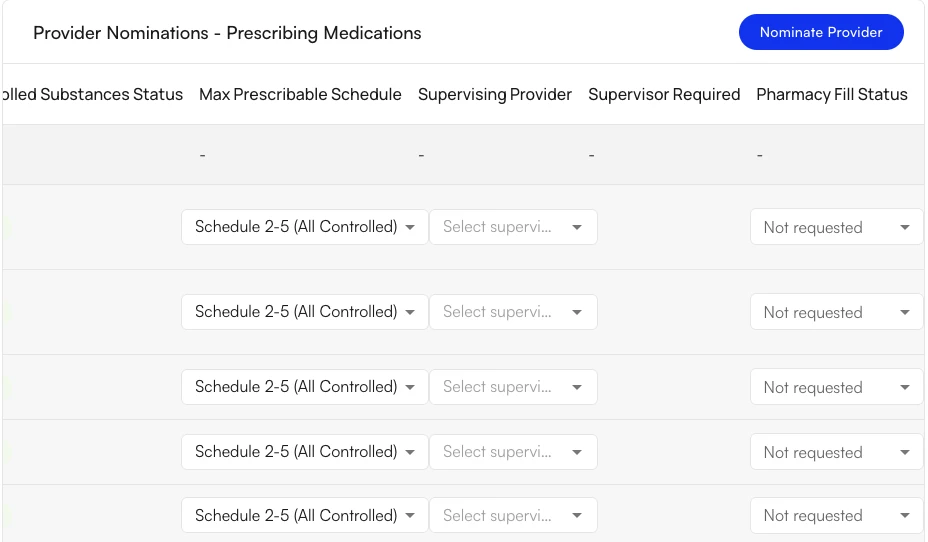 Note: A facility shows Not requested until you choose a default. Prescriptions from that facility do not ask the pharmacy for fill updates unless you pick an option on the prescription itself.
Choose notifications on a new prescription
The Pharmacy fill status notifications field appears in the Create Medication drawer, below the appointment and facility fields. Air fills it with the prescribing provider’s default for the selected facility. If you pick a different option, Air keeps your choice even when you change the provider or facility. To choose notifications for a prescription:- Open the patient’s profile and select the Medications tab.
- Click Create New and select Pharmacy Order.
- Review Pharmacy fill status notifications. Keep the default, or select a different option.
- Complete the medication and click Proceed to Review.
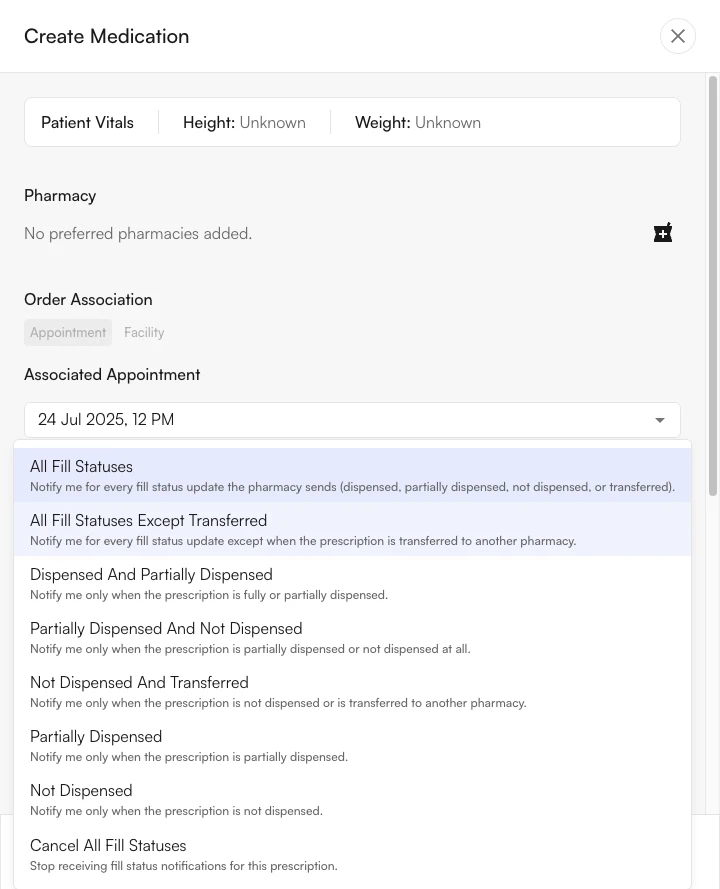
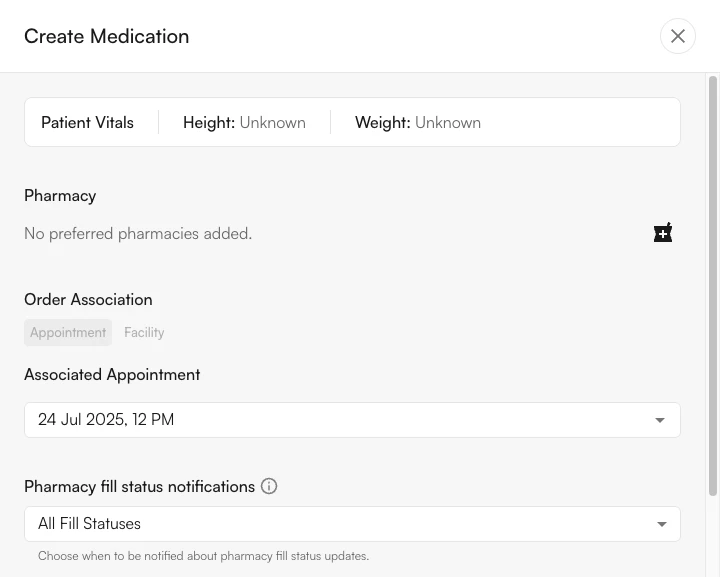 The setting applies to every medication in the order, not to each medication separately. Each option controls which fill updates the pharmacy sends back:
Change notifications on a sent prescription
You can change the setting after Air sends a prescription. Air sends the new setting to the pharmacy. To change notifications on a sent prescription:- Open the patient’s profile and select the Medications tab.
- Find the prescription and click the More actions icon (⋮).
-
Select Change pharmacy fill status notifications.
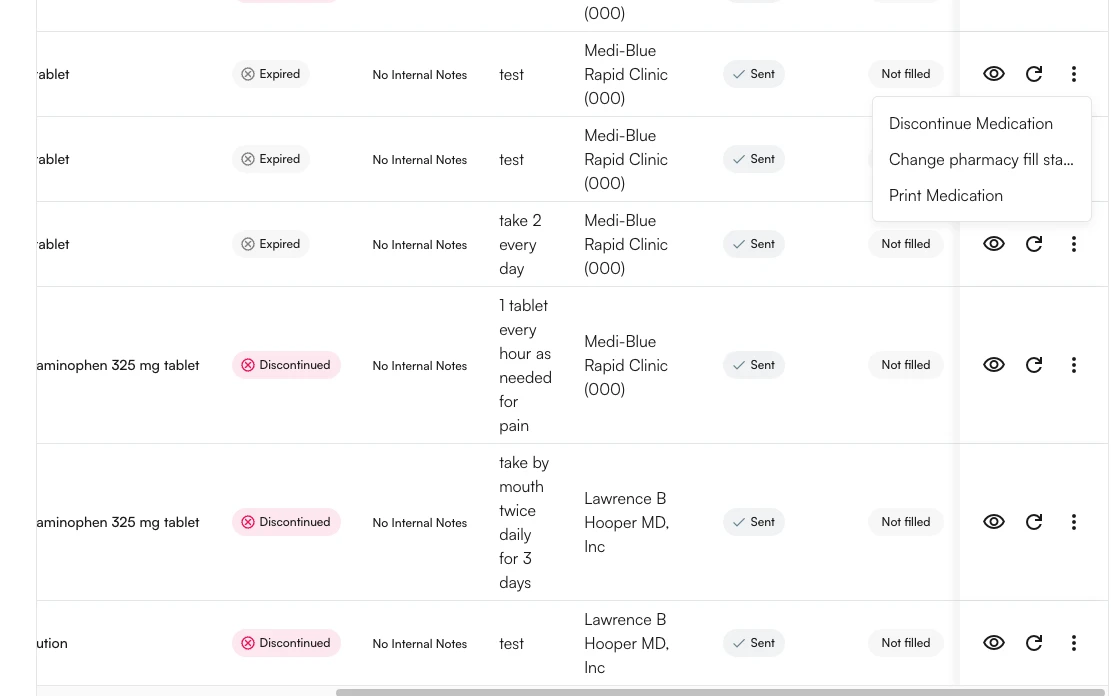
- Select the new option.
- Click Send To Pharmacy. The button stays disabled until you pick an option different from the current one.
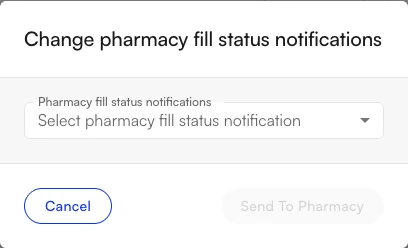 Note: This action appears only on prescriptions Air has sent to a pharmacy. It does not appear on drafts or discontinued medications.
Respond to renewal and change requests
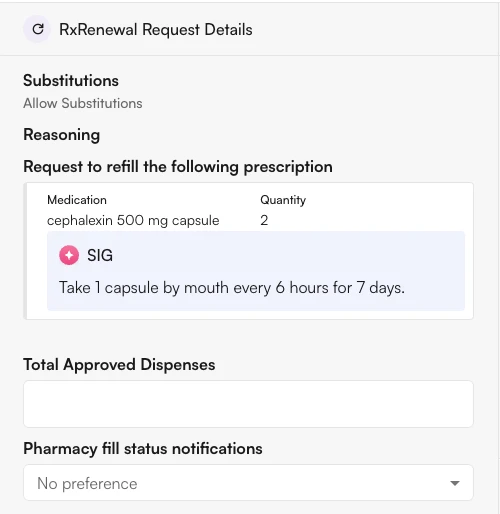
When a pharmacy sends a renewal or change request, you can set fill status notifications for the prescription you send back. To set notifications on a response:- Go to Pharmacy Requests and click Review on a renewal or change request.
- Under Pharmacy fill status notifications, select an option. Leave it as No preference to keep the setting from the original prescription.
- Finish reviewing the request and send your response as usual.
Read the fill status
The Fill Status column on the patient’s Medications tab shows the latest update from the pharmacy. Hover over a status to see what it means.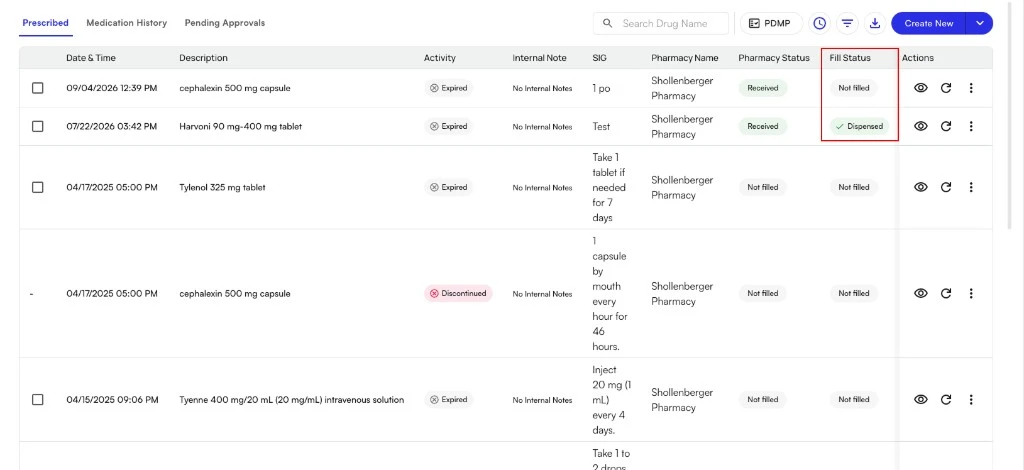
FAQ
Why does a prescription still show Not filled?
Why does a prescription still show Not filled?
The pharmacy only reports the statuses you asked for. If the setting is Not requested, Cancel All Fill Statuses, or an option that excludes what happened, Air does not receive an update.
Does changing a provider's default update prescriptions that are already sent?
Does changing a provider's default update prescriptions that are already sent?
No. The default applies only to new prescriptions. To change a prescription that is already sent, use More actions → Change pharmacy fill status notifications.
Can I set different notifications for each medication in one order?
Can I set different notifications for each medication in one order?
No. The setting applies to the whole order. To use different settings, send the medications as separate orders.
Why don't I see the Pharmacy fill status notifications field?
Why don't I see the Pharmacy fill status notifications field?
Pharmacy fill status is in Beta. Ask your Athelas team to turn it on for your practice.