When a C-CDA (Consolidated Clinical Document Architecture) arrives in your CCDA inbox, you can open and read it on its own—before, after, or independently of reconciling its data into the chart. This page covers reading a received document, what each clinical section contains, and customizing how the document is laid out. To open a document, go to the CCDA tab in the Inbox and select an entry from the list. See Viewing and Reconciling Incoming C-CDAs for how to find and sort the inbox.

Read the document

The document opens as a Continuity of Care Document, showing the patient’s name, date of birth, the sending site, and the date received. Its contents are organized into the standard C-CDA clinical sections—for example Guardians & Related Persons, Allergies and Intolerances, Medications, Problems, Immunizations, Results, and more. You also have two ways to keep the source data:
  • Additional Files — Files attached during the transition of care (for example, an X-ray report or urinalysis). Clicking a file downloads it so you can open it in your preferred viewer.
  • Download XML — Downloads the exact XML document that was sent to you.
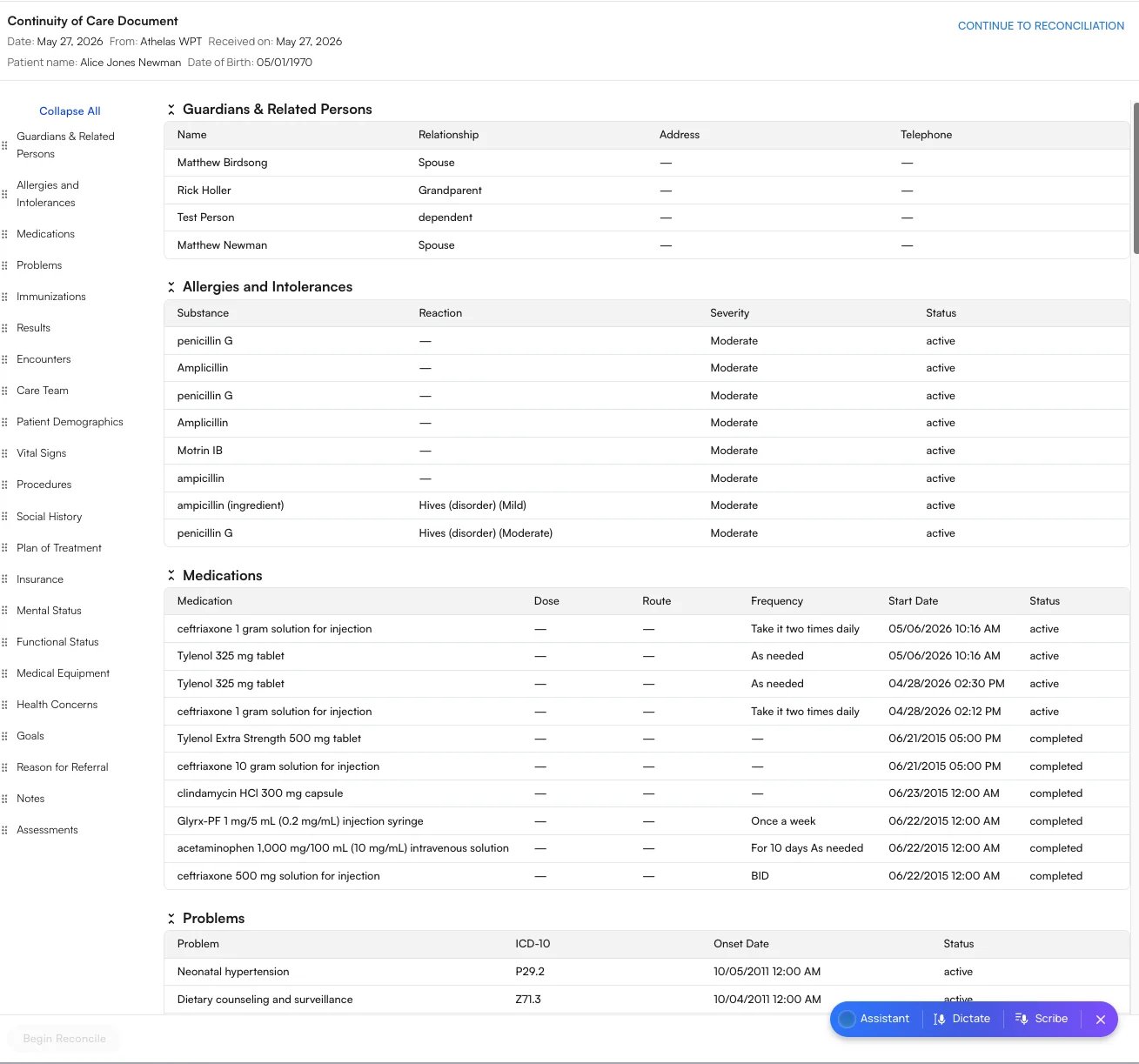
When you’re ready to incorporate the data, click Continue to Reconciliation (or Begin Reconcile) to start reconciliation. The Continuity of Care Document view with its clinical sections

Understanding the C-CDA sections

A C-CDA is organized into standard clinical sections defined by the C-CDA / USCDI standard. Each section is a self-contained part of the patient’s chart—allergies, medications, problems, and so on—and is shown in Air as a labeled table. Not every document includes every section: a section only appears when the sending system populated it, so a given C-CDA may show only a handful of the sections below. The table below explains every section you may encounter, what clinical information it holds, and the columns you’ll see inside it.
SectionWhat it containsWhat you’ll see
Allergies and IntolerancesSubstances—drugs, foods, or environmental triggers—the patient reacts to, with the type and severity of the reaction. Review carefully before prescribing.Substance / Reaction / Severity / Status
ProceduresSurgical, diagnostic, and therapeutic procedures the patient has had (e.g. an inhalation treatment or a pacemaker insertion).Procedure / Date / Status
MedicationsDrugs the patient is taking or has taken, including how much, how it’s given, and how often.Medication / Dose / Route / Frequency / Start Date / Status
ProblemsThe patient’s diagnoses and clinical conditions, coded to ICD-10, marked active or resolved.Problem / ICD-10 / Onset Date / Status
ImmunizationsVaccines the patient has received. Codes (e.g. 88, 106) are CVX vaccine codes when no name is supplied.Immunization / Date / Status
ResultsLaboratory and diagnostic test results, with the measured value and its unit (e.g. a urinalysis panel).Name / Value / Unit / Date / Status
EncountersVisits and interactions the patient has had with providers or facilities.Type / Date / Location / Status
Care TeamThe clinicians responsible for the patient’s care and how to reach them.Name / Role / Phone
Guardians & Related PersonsFamily members, guardians, and other people connected to the patient (e.g. spouse, grandparent, dependent).Name / Relationship / Address / Telephone
Patient DemographicsIdentity and administrative details—name, date of birth, race, ethnicity, language, address, contact info, and occupation.Field / Value
Vital SignsMeasured vitals such as blood pressure, heart rate, temperature, weight, height, BMI, and oxygen saturation.Name / Value / Unit / Date
Social HistoryLifestyle and social factors—tobacco use, occupation, sexual orientation, gender identity, and social-needs screenings.Type / Value / Status
Plan of TreatmentPlanned or ordered future care, including follow-up activities and referrals to address the patient’s needs.Description / Status / Date
InsuranceThe patient’s coverage—payer, plan, policy details, and effective dates.Payer / Plan / Group Number / Policy Number / Plan Type / Effective Date
Mental StatusObservations about the patient’s cognitive and psychological state.Name / Value / Date / Status
Functional StatusThe patient’s ability to perform daily activities—mobility, dependence on aids (e.g. a cane), and disability status.Name / Value / Date / Status
Medical EquipmentDevices the patient uses or has implanted, identified by a Unique Device Identifier (UDI) where available.Device / UDI / Status / Start Date / End Date
Health ConcernsRisks or issues the care team is actively tracking (e.g. food insecurity), distinct from formal diagnoses.Concern / Status / Onset Date / Resolution Date
GoalsTargets the patient and care team are working toward (e.g. resolving recurring fever, gaining energy).Goal / Description / Date / Status
Reason for ReferralWhy the patient was referred—the prompt for this transition of care.Referral / Indication / Date / Status
NotesFree-text clinical narratives such as progress notes, procedure notes, and laboratory report summaries, with their author.Type / Text / Date / Author / Status
AssessmentsThe clinician’s evaluation of the patient’s condition and reasoning, often summarizing findings and next steps.Assessment / Author / Date
When you reconcile a document, the categories you actively incorporate into the chart—per ONC criterion §170.315(b)(2)—are Medications, Allergies and Intolerances, and Problems. The remaining sections are read-only clinical context that travels with the document. See Viewing and Reconciling Incoming C-CDAs.

Customize your view

To make long documents easier to read:
  • Every section is collapsible. Use Collapse All to collapse them at once.
  • Rearrange sections by dragging them using the handles in the left sidebar.
Your view preferences are saved across all notes, not just the document you’re looking at. If you collapse or rearrange the sections while viewing Alice Newman’s document, the next patient you open—say, Jeremy Bates—will be laid out exactly the same way. You set up your view once and it carries over to every patient, so there’s no need to switch it back each time.

FAQ

Yes. Use Download XML to save the exact document that was sent to you, and open any attachments from the Additional Files menu.
Yes. View preferences are saved across all notes, so the layout you set on one patient’s document carries over to every patient you open next—no need to rearrange each time.