
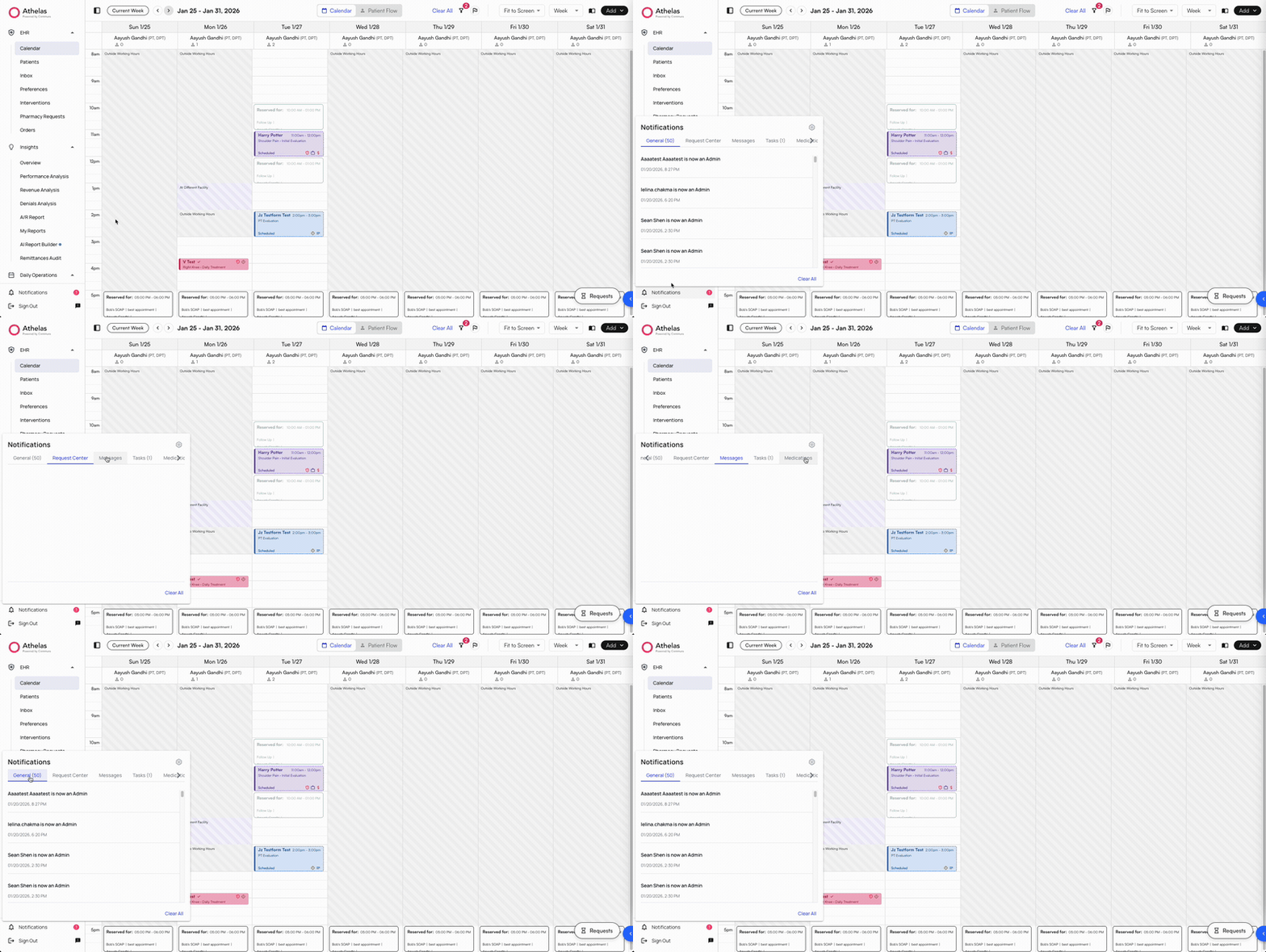
Messages in the Notifications Center
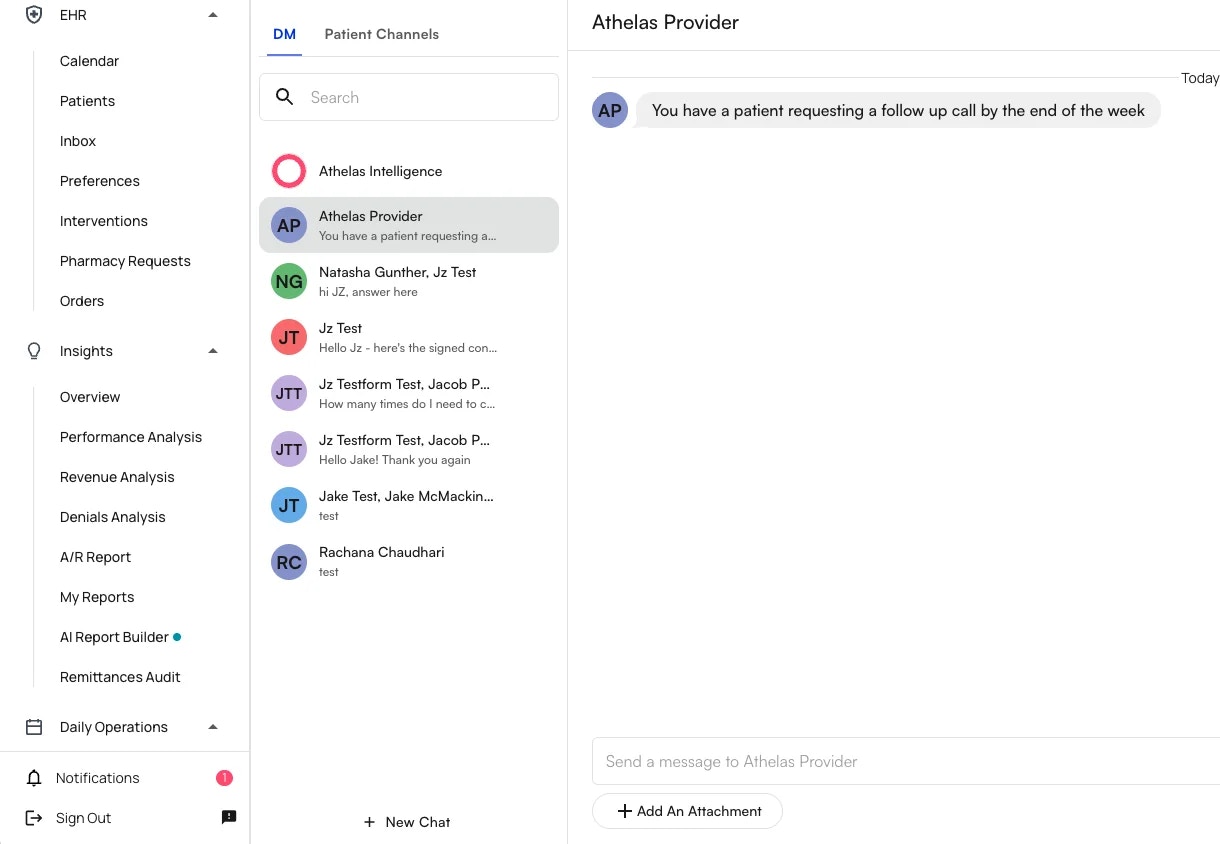
From the Notifications Center, you can view a preview of any unread messages.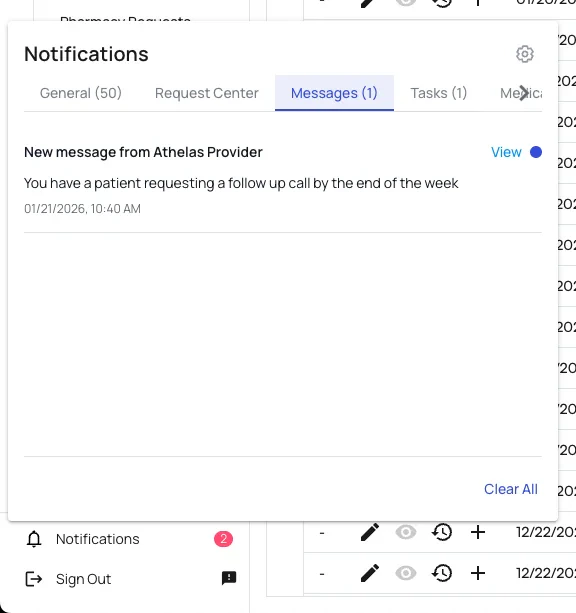
Tasks in the Notifications Center
From the Notifications popup, you can also view any tasks assigned to you. Clicking View on the task takes you to My Tasks in the Tasks tab.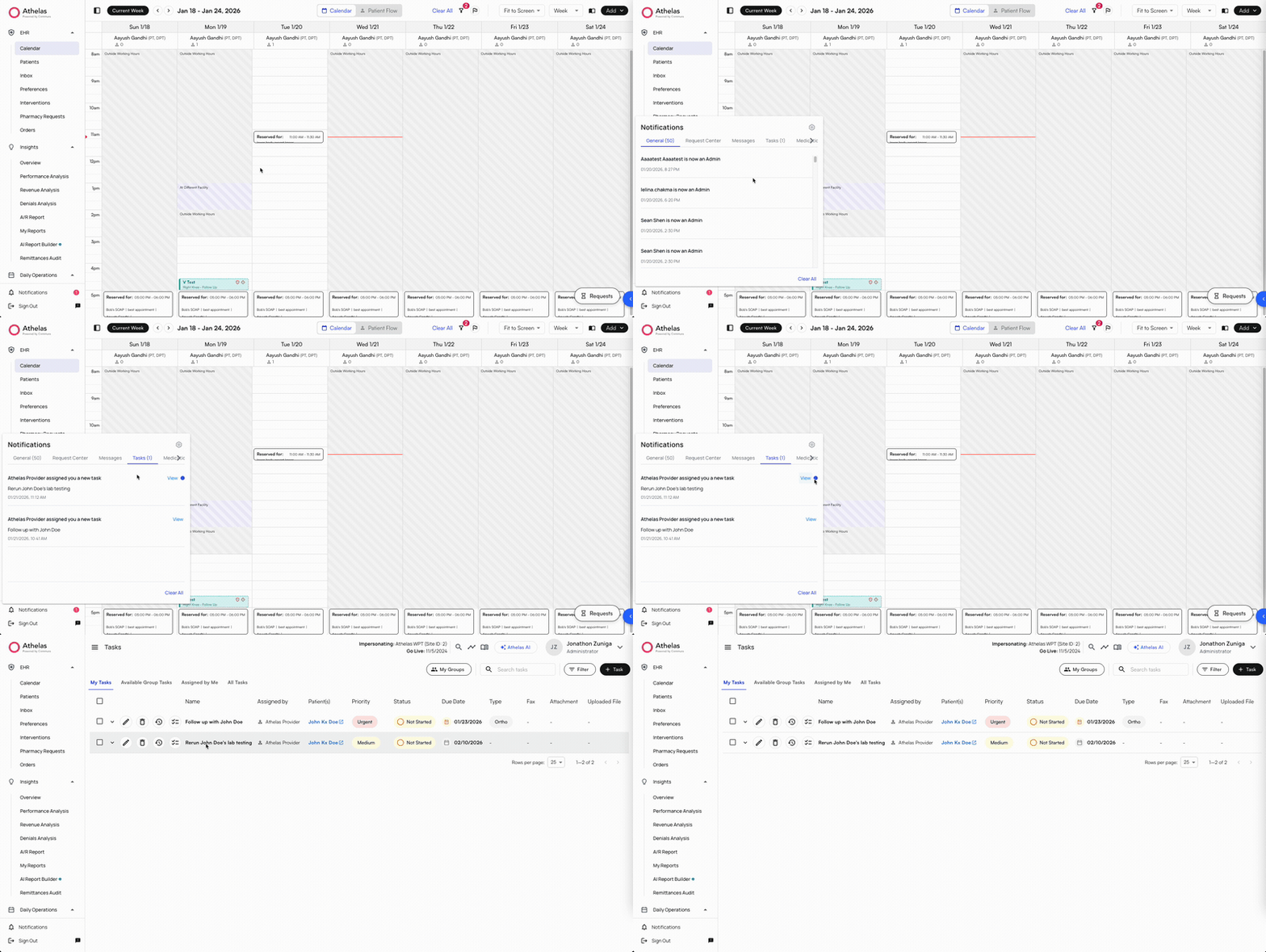
Patient Channels
Insights supports patient-level notes called Patient Channels that staff can use to communicate about a patient’s profile and share information outside of visit notes or appointment notes. Patient Channels consist of: EHR notes, Insights notes, and Universal notes.EHR Notes
A patient’s EHR notes can be accessed by clicking the notes icon in the top right corner of any patient profile page — for example, Demographics, Appointments, or Medications. You can tag other users in messages or attach documents. Any messages posted in EHR notes are visible across all other patient pages by other users.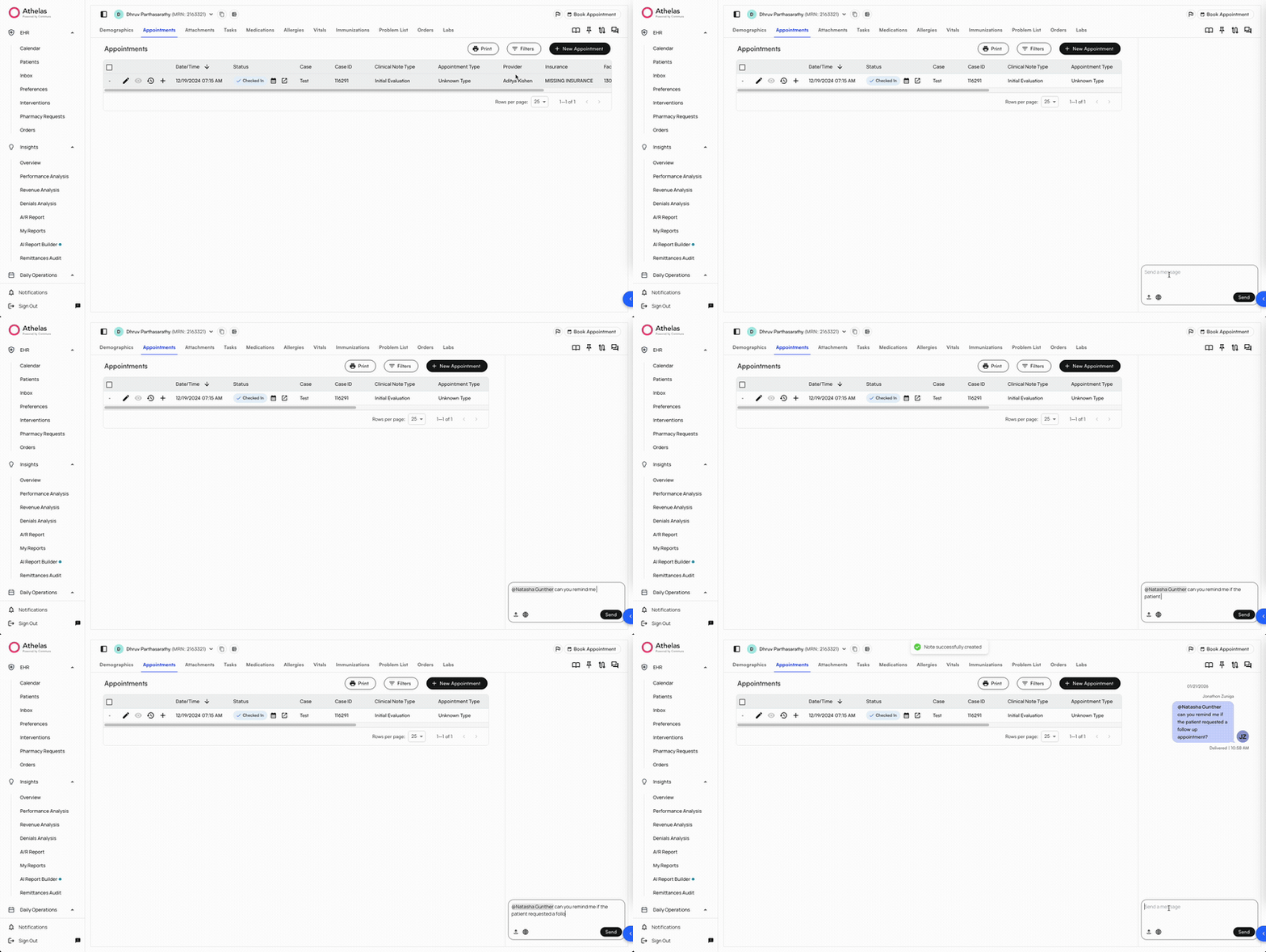
Insights Notes
Insights notes are patient-level notes accessed from Insights pages like Patient Responsibility, Claim Details, or Encounter Details. Each of these patient-level pages is kept separate to avoid crossing communication lines for different activities or personas.Universal Notes
In any patient-level note, you can toggle the globe icon to create a Universal Note. Universal Notes appear across EHR notes and all Insights notes.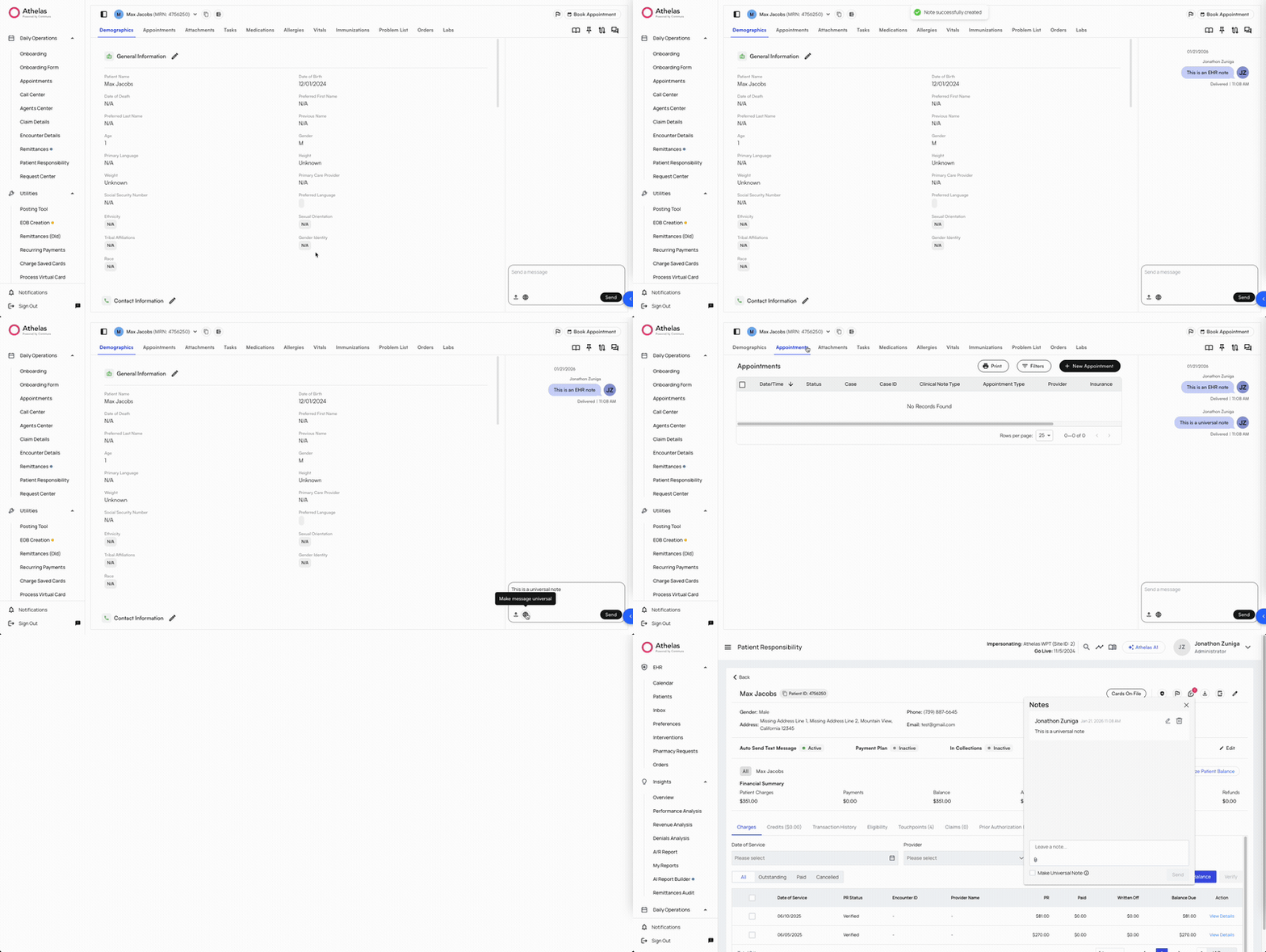
Accessing Patient Channels
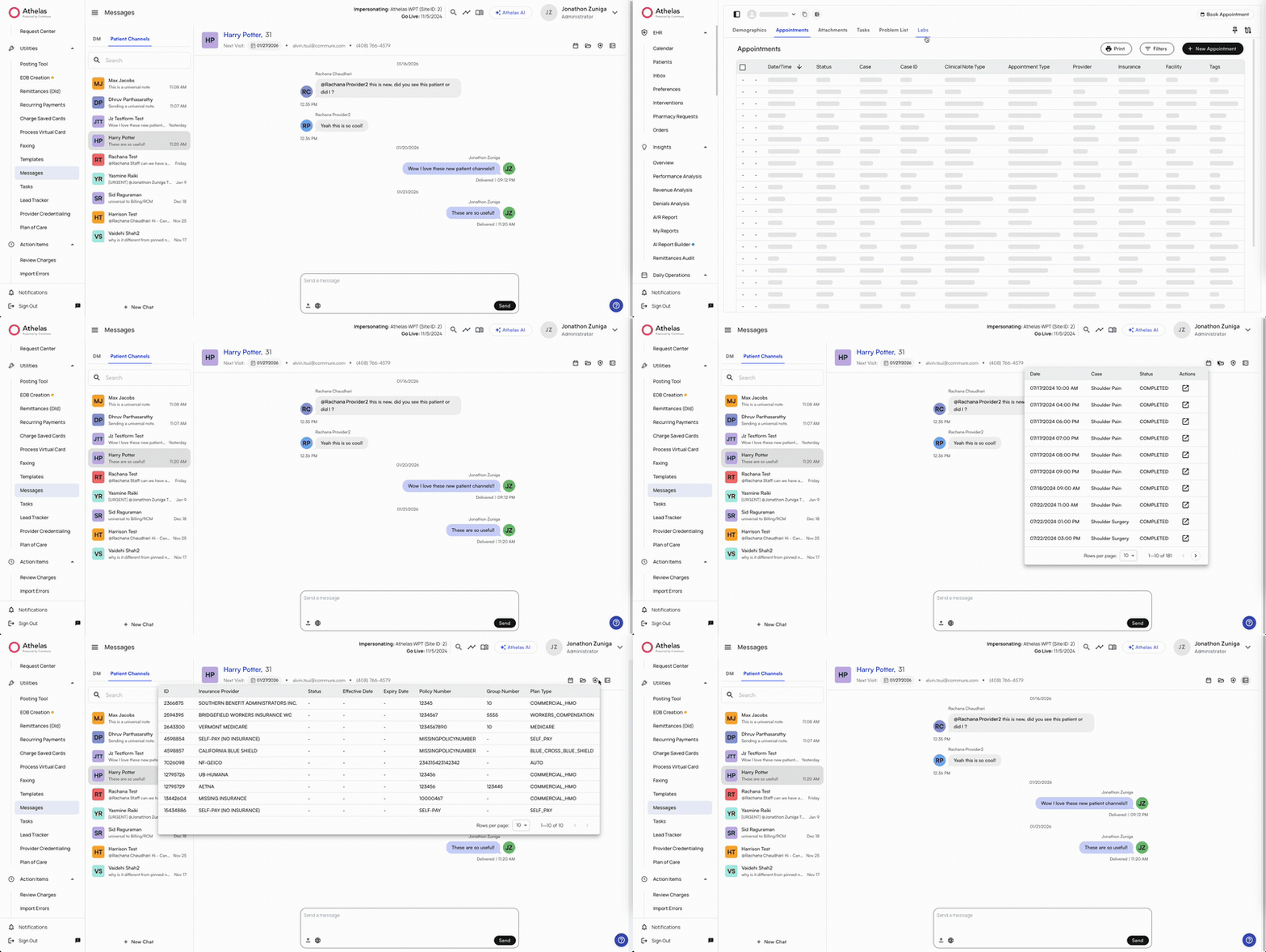
Patient Channels can also be accessed through Messages, in the Patient Channels tab. From here, you can see all Patient Channels, including any EHR or Universal notes. You can send EHR notes or Universal notes directly from this view.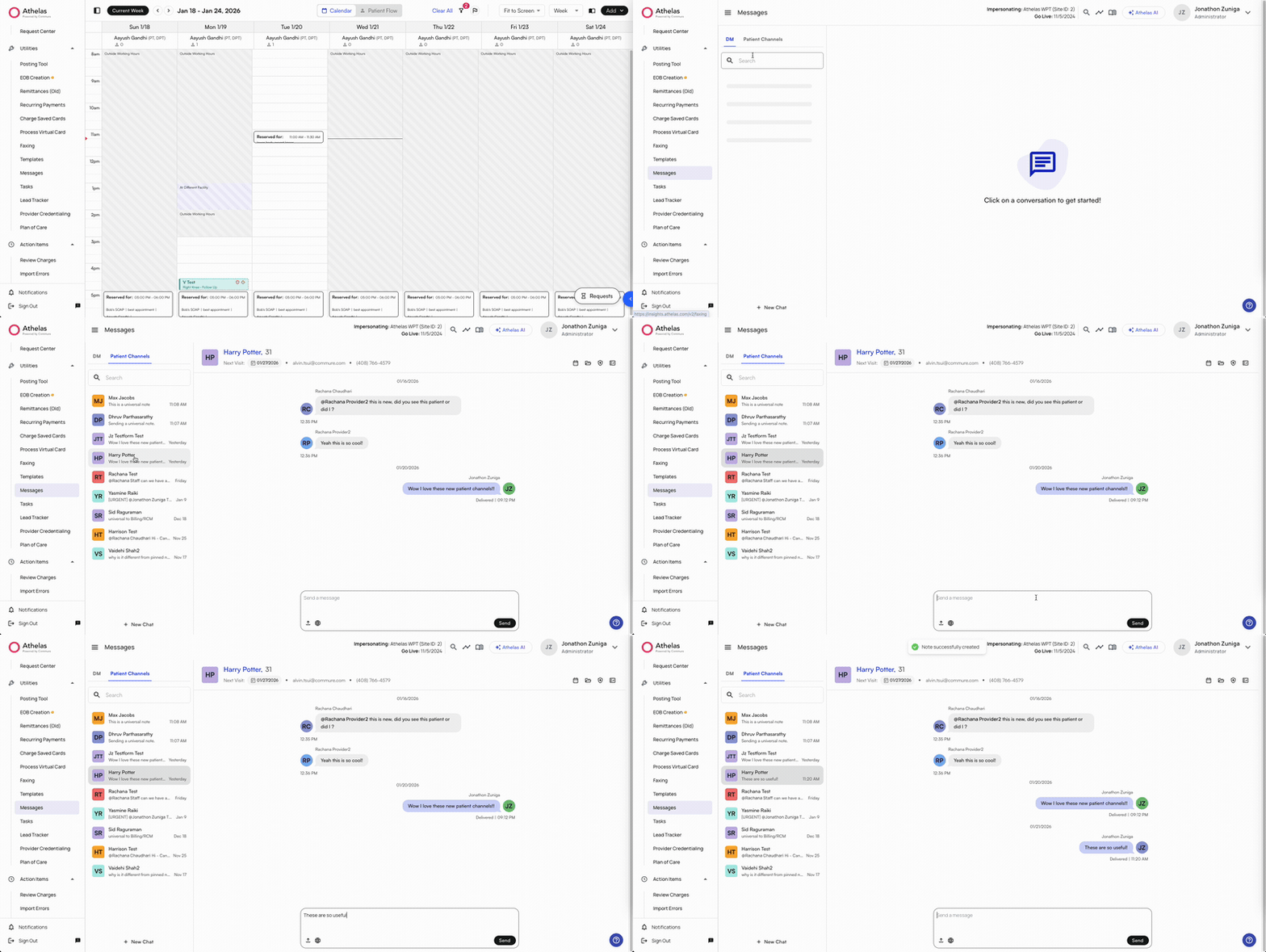
FAQ
Where is the Notifications Center located?
Where is the Notifications Center located?
It lives at the bottom of the sidebar and is visible from every Insights page. The badge count reflects unread messages and pending tasks combined.
What's the difference between an EHR note, an Insights note, and a Universal note?
What's the difference between an EHR note, an Insights note, and a Universal note?
EHR notes live on patient profile pages (Demographics, Appointments, Medications) and are visible to clinical staff across those EHR pages. Insights notes live on Insights-side pages (Patient Responsibility, Claim Details, Encounter Details), scoped to billing/RCM work. Universal notes are the cross-cutting variant — toggle the globe icon on any patient-level note and it appears in both EHR and Insights contexts.
Can I tag other users in a Patient Channel note?
Can I tag other users in a Patient Channel note?
Yes. Both EHR notes and Universal notes support tagging users and attaching documents. Tagged users receive a notification in the Notifications Center.
Is there a way to see all patient notes without opening each profile?
Is there a way to see all patient notes without opening each profile?
Yes — open Messages and switch to the Patient Channels tab. You can browse every patient channel from there, and send new EHR or Universal notes inline.
Why do I still see a notification count when I've read the messages?
Why do I still see a notification count when I've read the messages?
The badge reflects unread messages and unfinished tasks. If the count persists after reading messages, check the Tasks section of the popup for pending items.