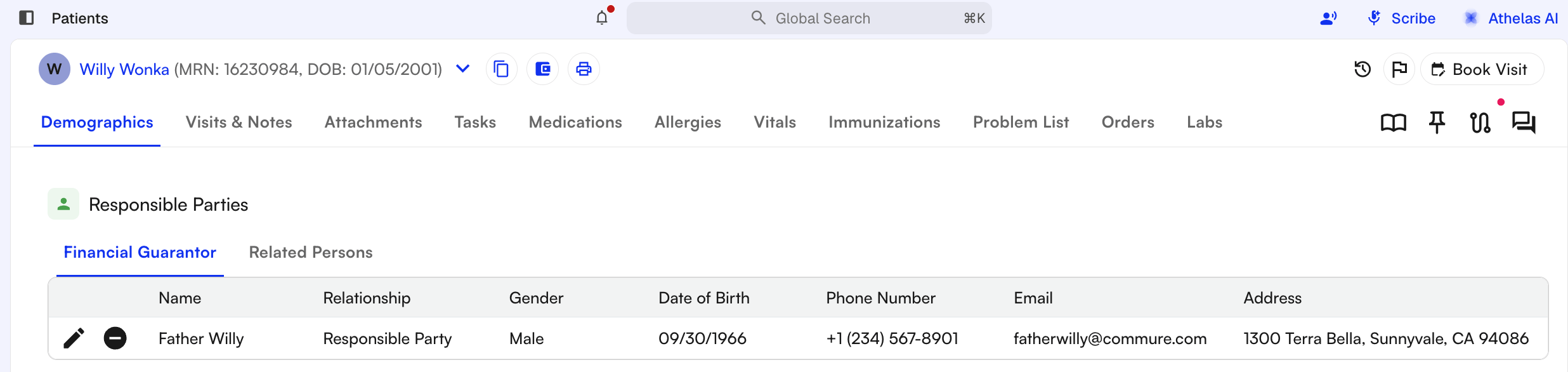
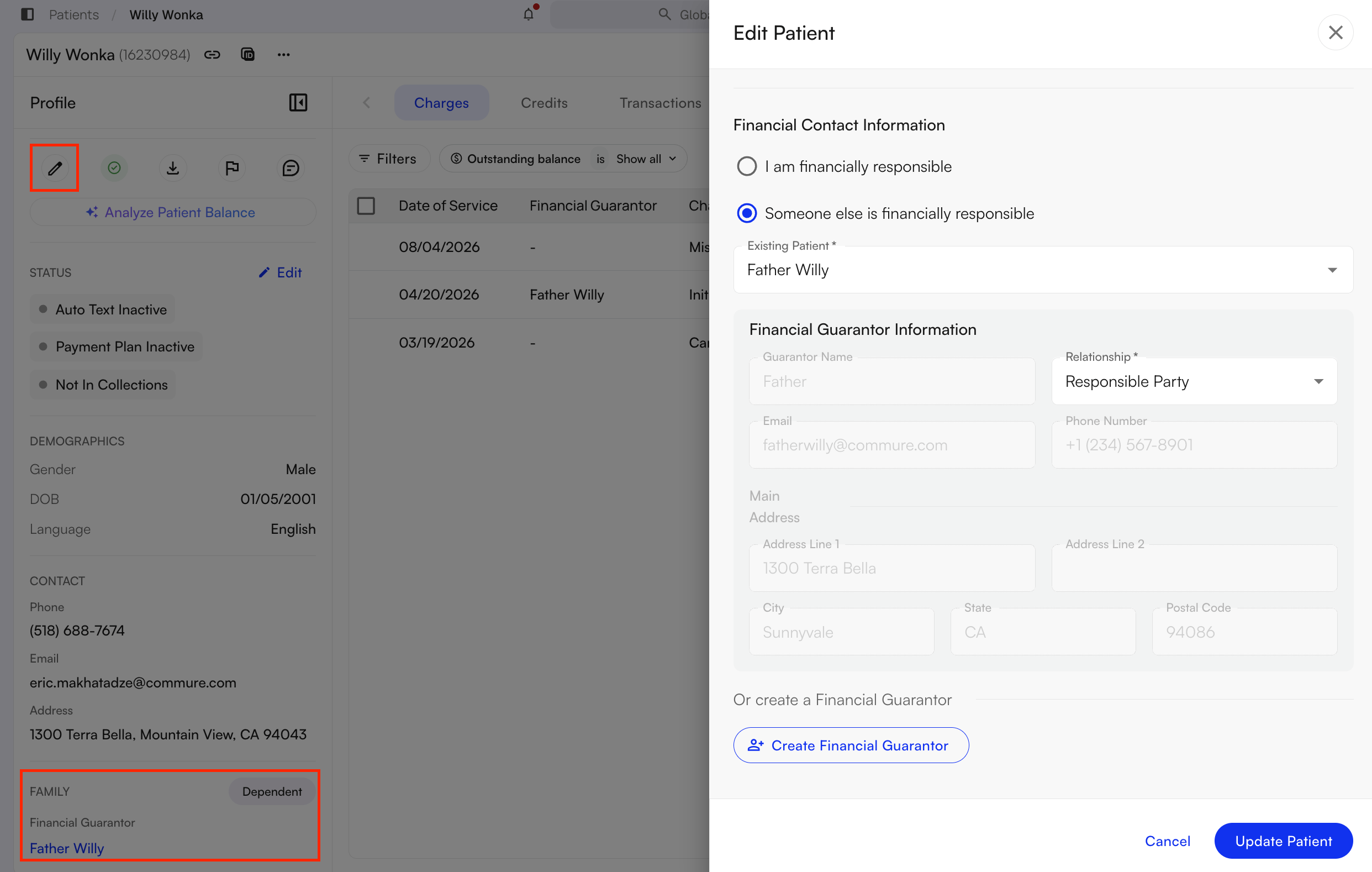
Patient Information
- General Information: Patient Name, Date of Birth, Age, Gender, Primary Language, Height, Weight, Primary Care Provider, SSN, Ethnicity, Sexual Orientation, Tribal Affiliations, Gender Identity, and Race
- Contact Information
- Emergency Contact
- Financially Responsible Parties
- Insurance Providers: You can delete an insurance record here. An alert will appear asking you to confirm your decision. Even after deletion, the insurance record will remain visible in this section and can be restored at any time.
- Prior Authorization and Referral Details: Prior authorization numbers can be created and deleted here. Deleting a prior authorization does not permanently remove it. You can restore it at any time, similar to the insurance deletion function.
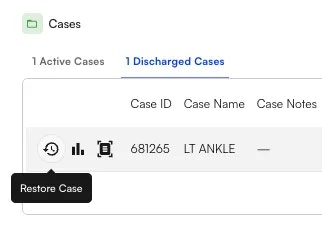
Active and Discharged Cases
Discharge Cases- Navigate to Patient Demographics →Cases
- Click the Discharge Case icon (black folder)
- Enter a reason for discharge
- Choose the type of discharge (with the option to cancel or archive all future appointments)
✨Smart Tip: Type “/” in the Reason box to insert a pre-created text snippet.
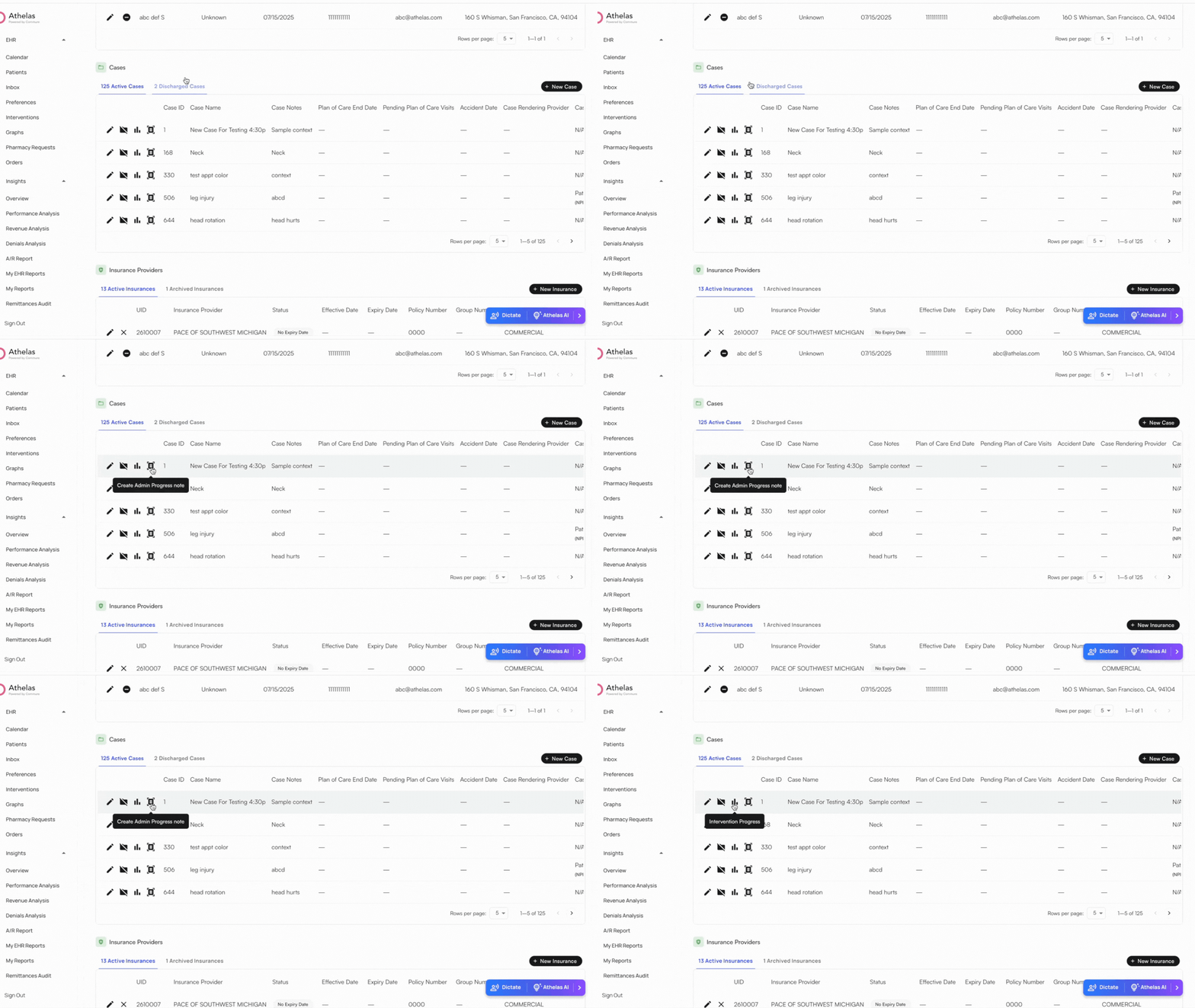
Within Active Cases, you can:
- Add or edit a Case
- Review the patient’s intervention progress
-
Create an Admin Progress Note
- Supervising Provider on the case
- Case Owning Provider on the case (also used to calculate the Active Patient Breakdown report)
-
Add or view case notes for the patient