
Care Notes General Guide
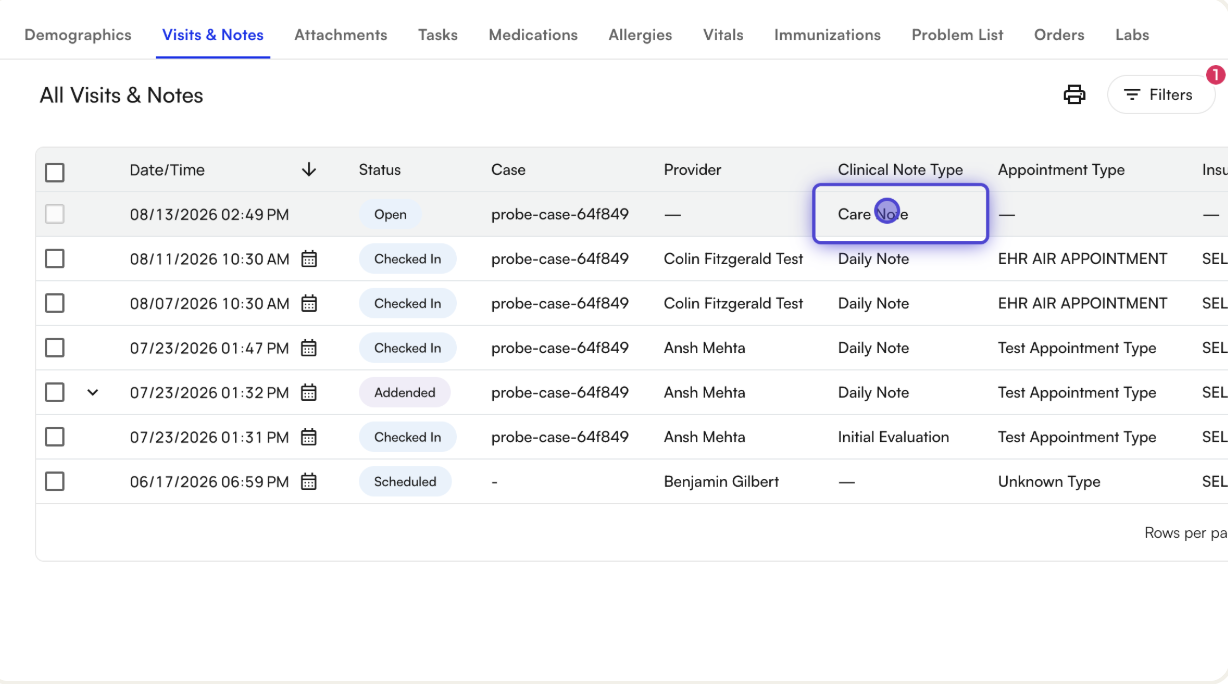
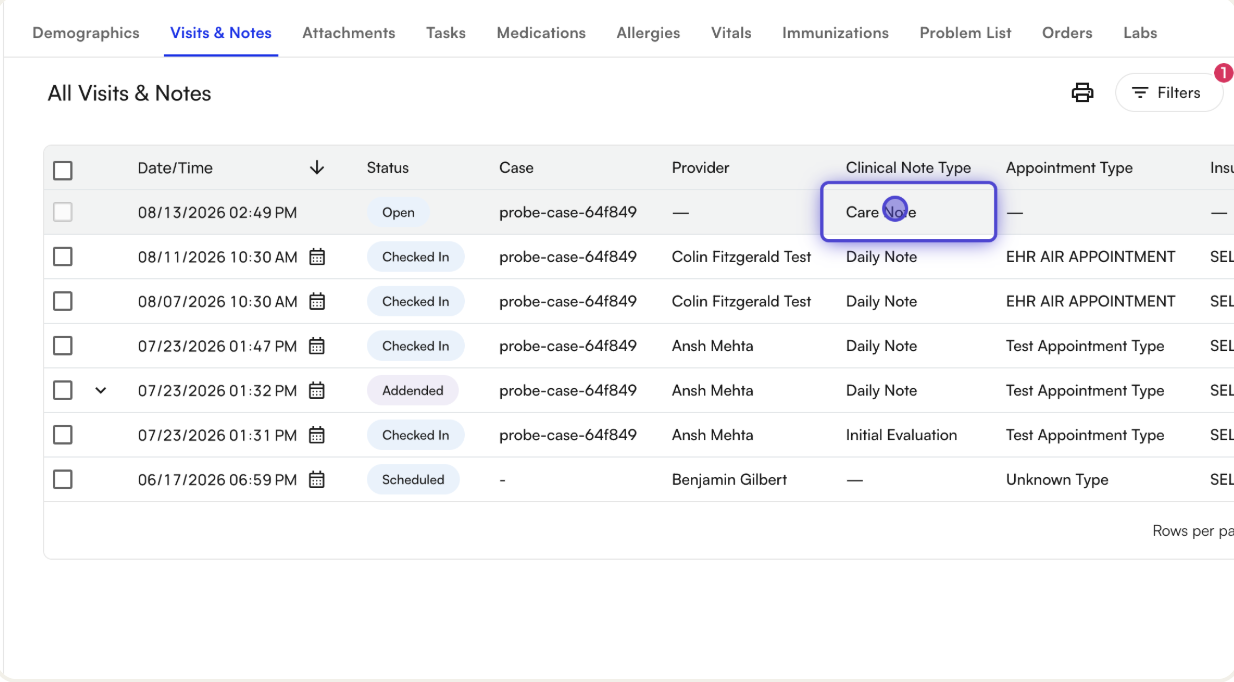
To access Care Notes, navigate to a patient’s Visits & Notes tab.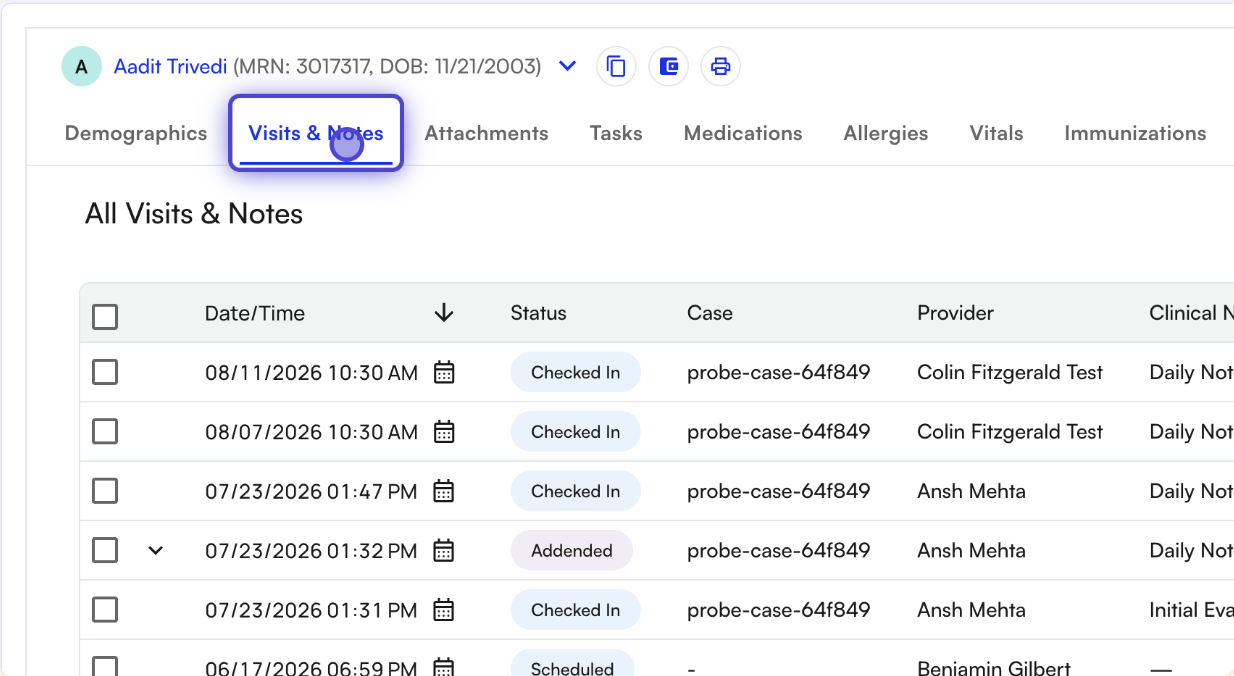 Care note rows appear merged into the same timeline as visit rows, distinguished by the Clinical Note Type column showing “Care Note”.
Care Note statuses
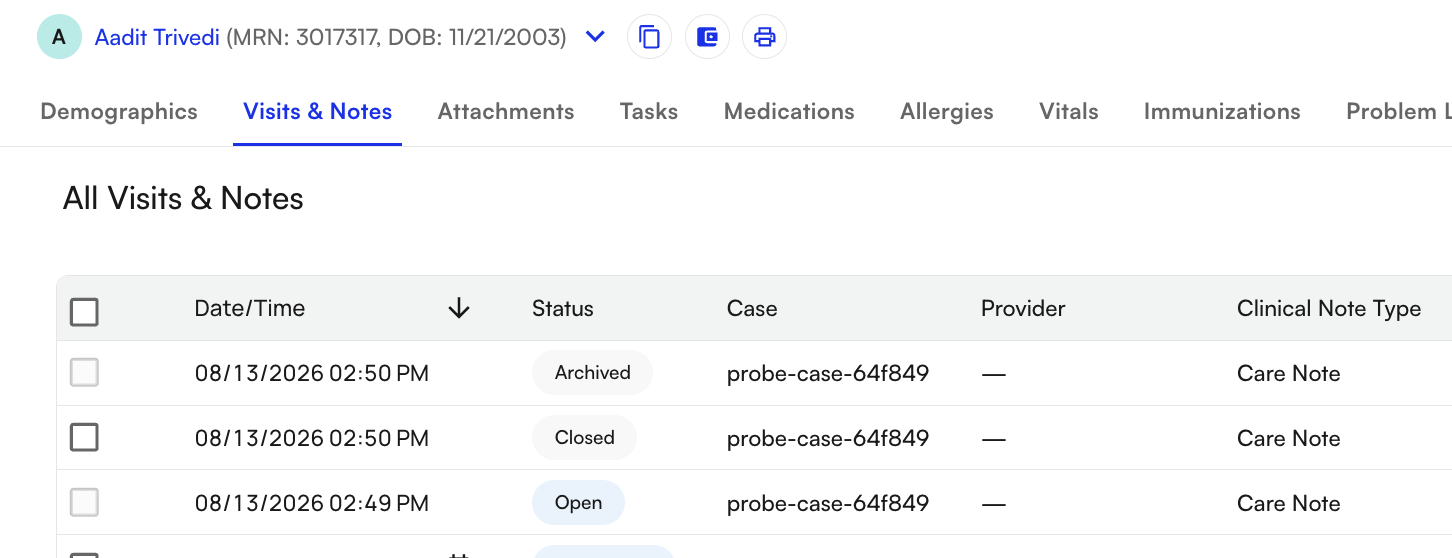
Each care note has one of three statuses:- Open (blue): editable, can receive new entries
- Closed (grey): read-only, exportable
- Archived: hidden from the default view
Creating a Care Note
Click the Care Note button in the page header to open the creation drawer.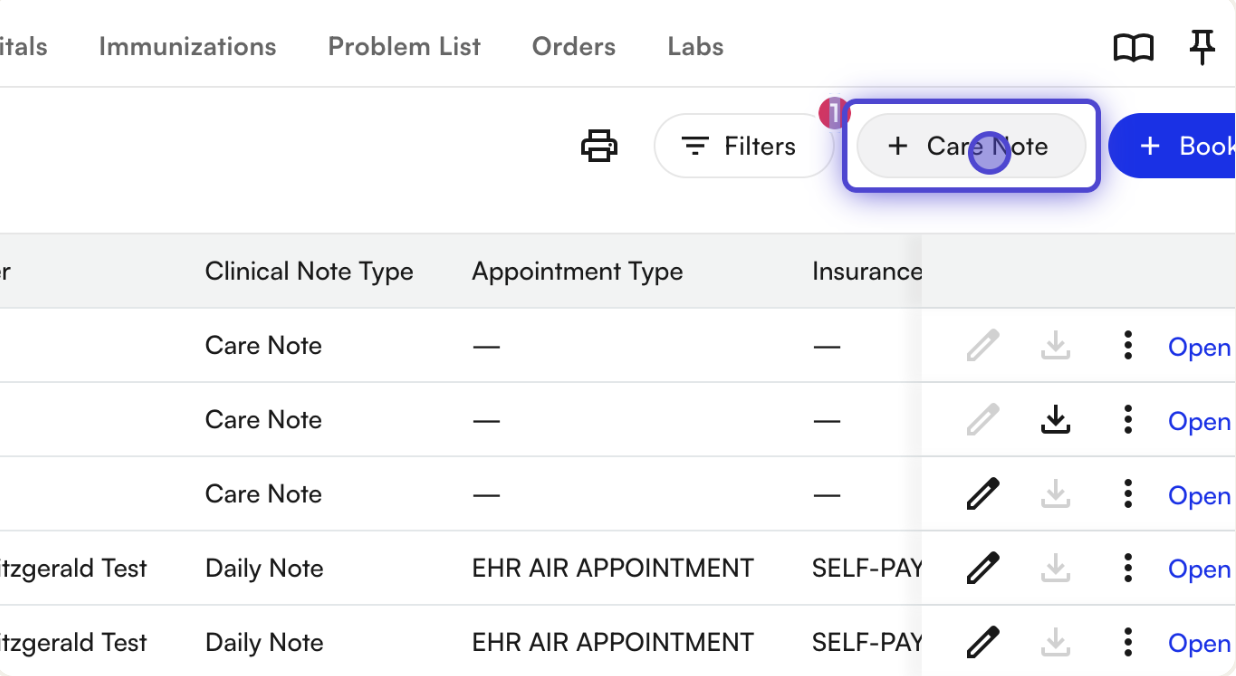 The creation form includes:
- Note (required): the free-text entry, written in a rich-text composer
- Case (optional)
- Source (optional): who provided the information for this note (Patient, PCP / Physician, Hospital, Fax, etc.)
- Attachment (optional): one existing patient attachment
- Assign member as task (optional): creates a task for a teammate, linked back to this note
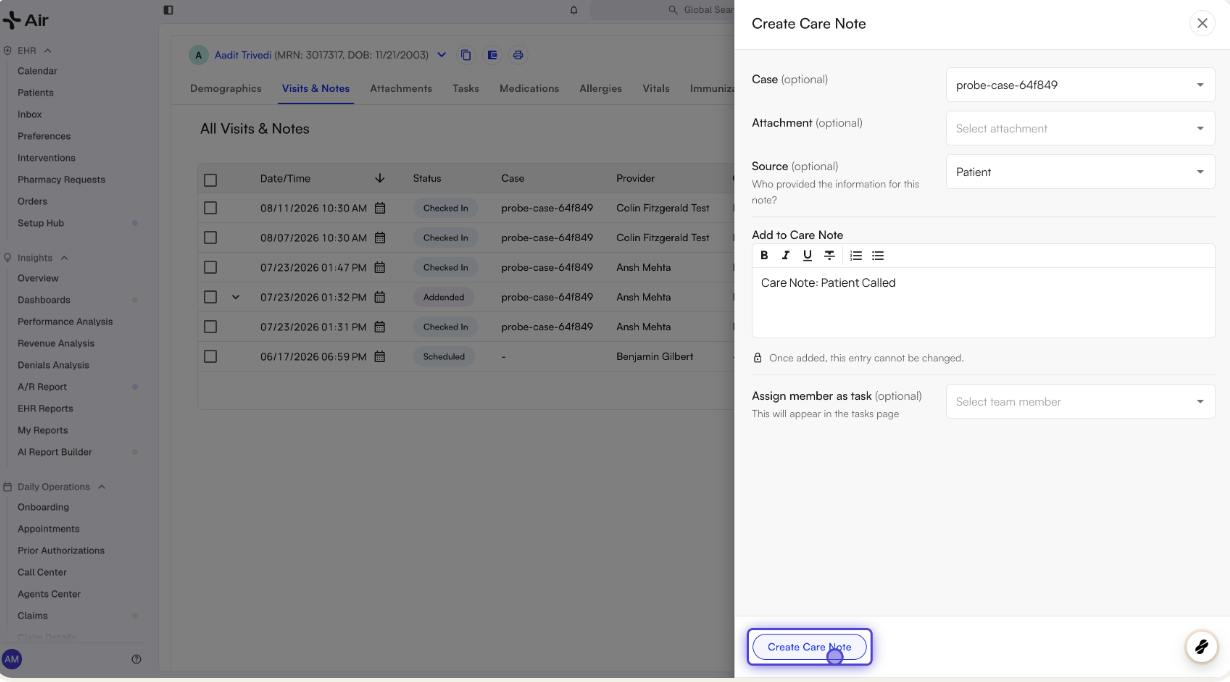 Click Create Care Note to save. The drawer switches into edit/view mode, and the note appears as a new Open row in the table.
The Activity thread
Once a note is created, all updates render as an append-only, immutable thread in the Activity section of the drawer. New note entries, metadata changes, assignments, closures, exports, and faxes are all logged with the actor and timestamp.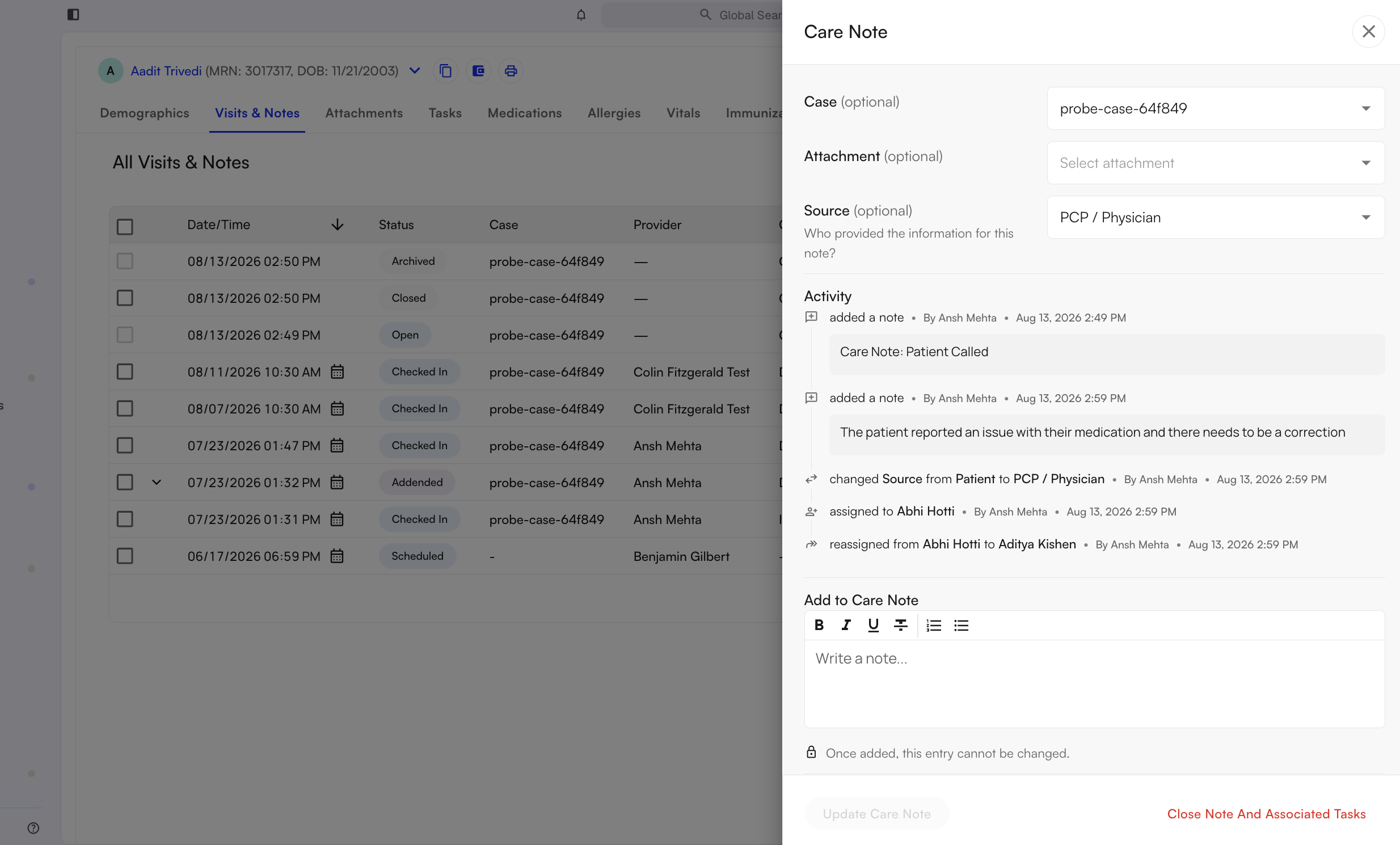
Filtering the timeline
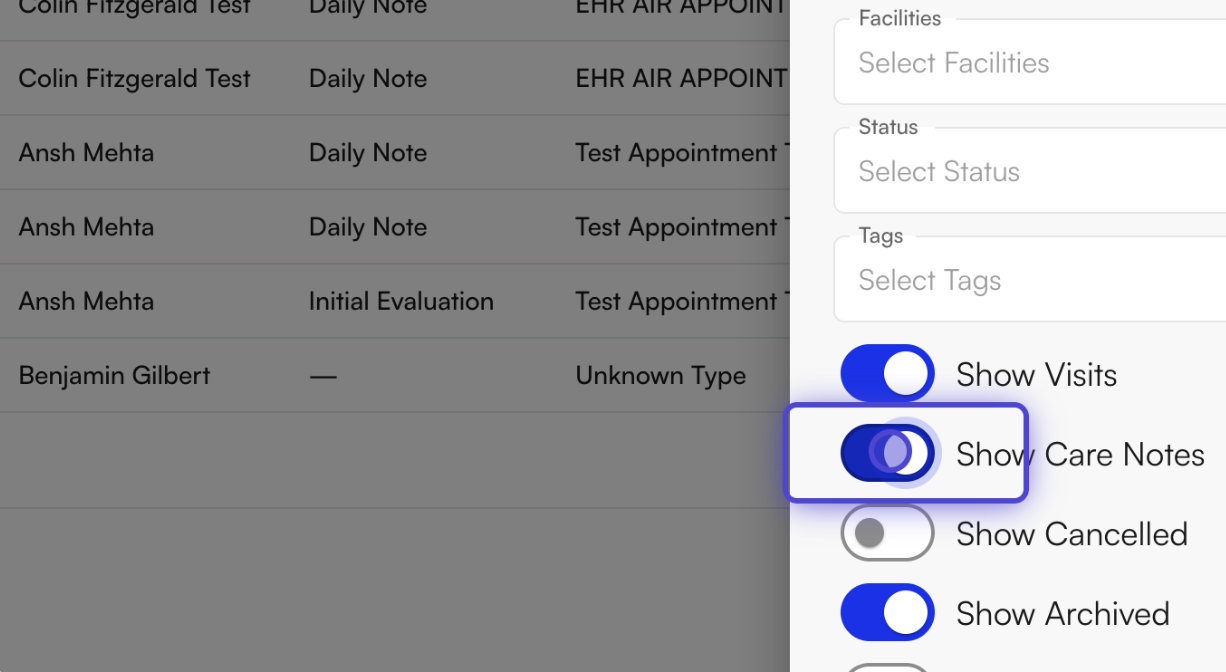
Use the Filters drawer to toggle Show Visits / Show Care Notes, filter by date range or case, and toggle Show Archived to reveal archived notes.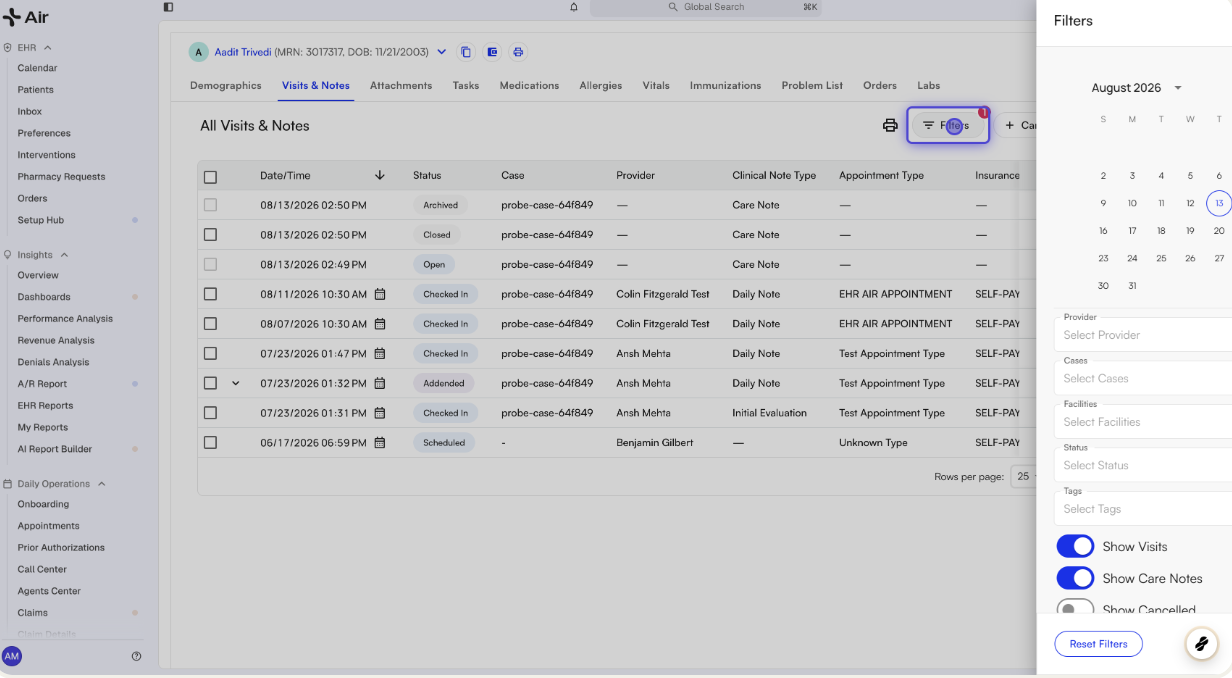
Example Workflows
Document a non-visit patient interaction
Steps:- From the patient’s Visits & Notes page, click Care Note.
- Enter the note body describing the interaction (e.g. a phone call summary).
- Select a Source describing who provided the information.
- Optionally select a Case if the note is related to an active case.
- Click Create Care Note.
Add supporting documentation to a Care Note
Steps:- Open an existing Care Note, or start creating a new one.
- In the Attachment field, select an existing patient attachment.
- Save (Create Care Note or Update Care Note).
- Once the note is closed, export it as a PDF. The attachment is appended after the note content.
Hand off follow-up as a task
Steps:- Open a Care Note.
- In Assign member as task, select a teammate.
- Click Update Care Note (or Create Care Note, if new).
- Navigate to the Tasks page to find the generated task, titled “Care journey note: {patient name}”.
- From the task, click Open care note to return to the note.
Continue and reassign a Care Note
Steps:- Open an existing Open care note.
- Add a new entry in the composer.
- Change the assignee to a different teammate.
- Click Update Care Note.
- Review the Activity feed for the “added a new entry” and “reassigned from X to Y” events.
Close a resolved Care Note
Steps:- Open the note.
- Click Close note and Associated Tasks in the drawer footer.
- Confirm with Close Out.
ℹ️ Any unsaved text in the composer is auto-saved before the note closes.
Reopen a Care Note
Steps:- Open a Closed note.
- Click Reopen in the drawer footer.
- Confirm.
⚠️Reopening clears the assignee. A new task is not automatically created, so reassign manually if follow-up is still needed.
Export a single closed Care Note
Steps:- Locate a Closed care note row.
- Click the Download icon.
- Review the PDF preview.
Bulk download or fax Care Notes
Steps:- Select up to 25 closed care note rows using the checkboxes.
- Click Download PDF or Fax PDF in the bulk action bar.
- Complete the fax form if faxing.
Archive and restore a Care Note
Steps:- On a Closed care note row, open More (⋮) then Archive Care Note.
- Confirm.
- Enable Show Archived in Filters to find it again.
- Open More (⋮) then Unarchive Care Note to restore it.
Important Behavior & Limitations
- A note entry is required to create a Care Note; all other fields are optional.
- Submitted entries are immutable. Once added, an entry cannot be edited.
- Only one existing patient attachment can be selected per note.
- Notes must be Closed before they can be exported or faxed.
- Dismissing the drawer with X or clicking the backdrop discards unsaved text. Use Update Care Note, or the footer’s close action, to save first.
- Care Notes cannot be backdated or deleted. Closed notes can be archived instead, with a full audit trail.
- Bulk export/fax is capped at 25 notes at a time.