
Overview
The Lead Tracker gives you a structured way to handle inbound leads by breaking the process into stages and sub-stages. You can see where every lead sits in the pipeline and what has to happen to move it forward. Stages, sub-stages, and lead types are all configurable, so the tracker can follow the workflow your practice already runs.How the Lead Tracker helps
- Improved organization: Sorting leads into stages and sub-stages keeps lead management systematic. Fewer leads fall through the cracks, and each one has an obvious next action.
- Full customization: You configure your own stages, sub-stages, and lead types, so the tracker matches how your practice actually takes referrals.
- Increased efficiency: Because you can move leads between stages and edit their details as you go, the pipeline stays current instead of drifting out of date.
- Data-driven insights: Tracking leads and their outcomes produces conversion data you can act on — which sources convert, and where leads stall.
Key concepts
Configuring the Lead Tracker
Lead stages
Open Tracker Settings to manage stages and sub-stages. Add a stage with the+ button; drag to reorder, rename inline, or delete.
Click a stage to configure:
- Columns — show, hide, and reorder the table columns for that stage. The panel is titled after the stage you selected, for example Outreach Columns.
- Sub-stages — add as many as you need per stage, each with its own name and color; reorder as needed.
- Reporting Category — defaults to
No Category; set it to feed the KPI metrics (see Lead Tracker reporting).
Lead Types
In Tracker Settings → Lead Types, use + Add New to create a type, the pencil icon to rename one, and the delete icon to remove one. Click Save Changes to apply.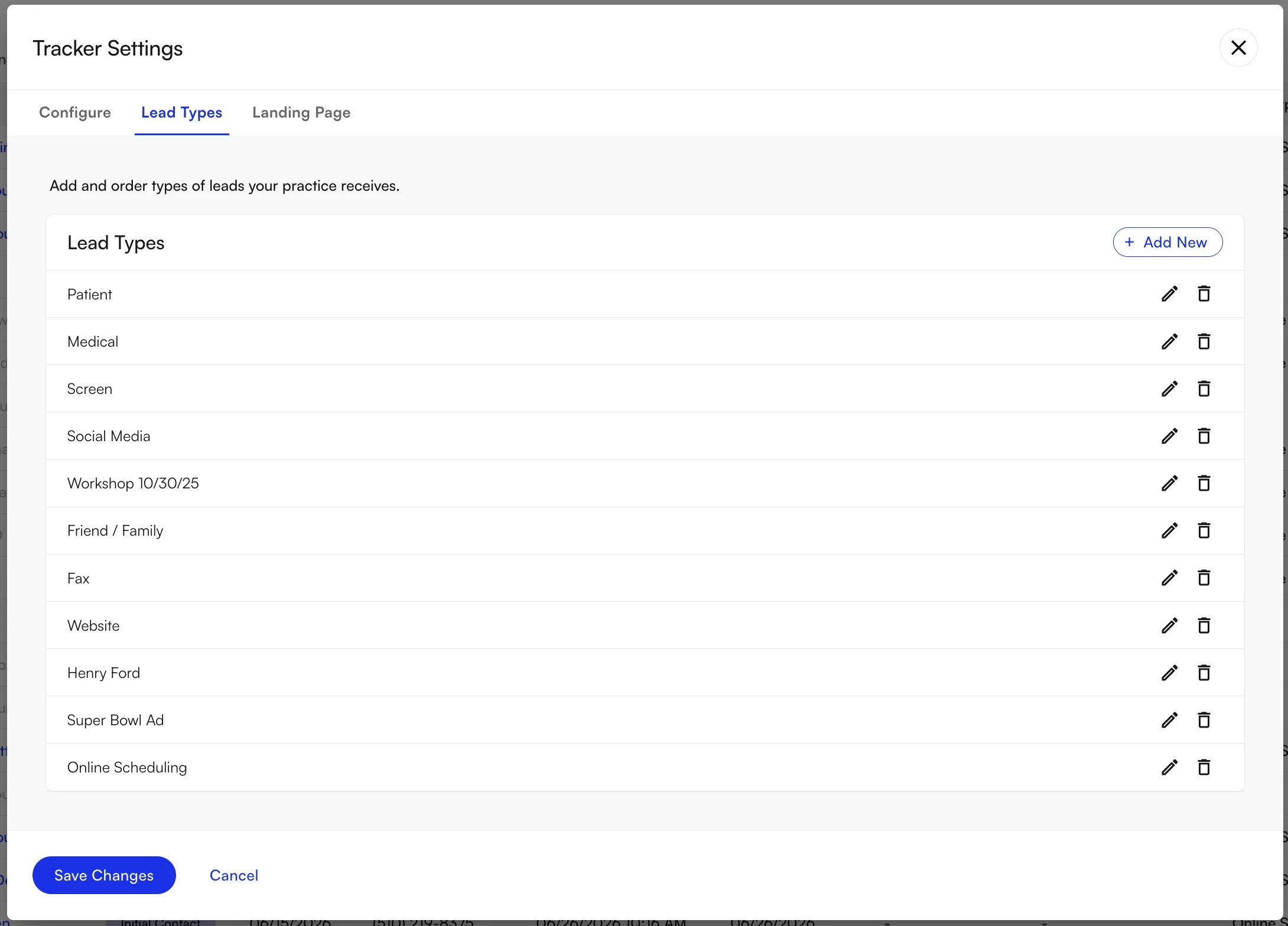
Leads
Beyond the basics: leads also capture patient address and insurance. When a patient or appointment is created during an outbound call tied to a lead, the result is written back automatically, and patient linking works across every appointment-creation flow.
Creating a lead
Click + New to open the lead drawer, fill in the fields below, then click Save. The new lead appears in the table.- Patient info — name, phone, date of birth, plus address and insurance.
- Lead Type and facility — pick from your configured lead types and the site’s facilities.
- Lead Stage and Status — the status options depend on the stage you select.
- Optional — Referring Medical Provider, Initial Contact Date, Last Contact Date, and Staff Contact.
Modifying a lead
Click the pencil icon on a row to edit that lead’s referral details and progress, then click Save. Changing the Lead Stage clears the Status, because each stage defines its own sub-stages. Reselect a status before saving.Linking a lead to a new patient
Edit the lead with the pencil icon, click Create Patient, confirm, then click Save. A linked-patient link appears on the row and opens that patient’s demographics in a new tab.Linking a lead to an existing patient
As you fill in a lead’s name and date of birth, the drawer checks your records. If it finds a likely match, it shows a This patient might already be in your system panel with the matching profile — select that profile to link the lead to that patient, then click Save. You can also start from the lead itself: edit it, click Link Patient, search by name, select the patient, then click Save.Marking a lead as Treatment Declined
Edit the lead, click Treatment Declined at the bottom-right of the drawer, choose a reason (with optional details), and click Submit. Declined leads move to the Declined Treatment bucket. You can undo this.Filtering and searching leads
Use the filter and search controls at the top of the tracker to narrow the list. You can filter by:- Stage — show only the leads currently in a selected stage.
- Sub-stage — drill into a specific sub-stage for finer granularity, for example to see how many leads sit at each step within a stage.
- Responsible Staff Member — show the leads assigned to a particular team member.
- Referring Provider — filter by the provider who referred the lead.
- Patient name search — type a name to locate one lead quickly.
Lead Tracker reporting
Assigning Reporting Categories to your stages turns the tracker into a source of KPI metrics.Configuring a Reporting Category for a stage
In Tracker Settings, open a stage and set its Reporting Category toConverted, In Progress, or No Category (the default). Click Save Changes.
KPI metrics and downloading the report
Go to Performance Analysis → Lead Tracker, set the date range (it defaults to the past week), and click the Overall Conversion card for the detailed breakdown. You can export the metrics as CSV. The metrics shown, overall and per facility:- Total leads created and total converted (leads in stages tagged
Converted), with a conversion percentage. - Therapy Refused count and percentage (leads marked Treatment Declined).
- In Progress count and percentage (leads in stages tagged
In ProgressorNo Category).
For more on lead and referral reporting, see EHR Reports.
Custom landing page
You can also build a custom landing page to host on your website. Forms that potential patients submit there feed straight into the Lead Tracker.Configuration
Open Lead Tracker → Tracker Settings → Landing Page. Toggle Landing Page Active Status on, configure the required fields (default stage, lead type, logo, heading, and sub-heading), then click Save Changes.External website
The public form, hosted on the Athelas Leads site, shows the logo, header, and sub-header you configured. Patients fill in name, phone, email, and date of birth, pick a preferred facility, add an optional message, then Submit.Submission success page
After submitting, patients see a full thank-you page rather than a toast with the form still on screen, which also improves conversion tracking on the “Request an Appointment” flow.Automatic lead creation from faxes
Air can classify inbound faxes and, when one is a referral, create a lead automatically and link it back to the originating fax. You enable this per site.For setup, the extraction logic, and the manual fallback, see Automatic Lead Creation from Faxes.
FAQ
What does a Reporting Category actually change?
What does a Reporting Category actually change?
It decides which KPI bucket a stage’s leads land in on Performance Analysis → Lead Tracker. Leads in stages tagged
Converted count toward the conversion percentage; leads in stages tagged In Progress or left at No Category both count as in progress.Why did the Status clear when I changed a lead's Stage?
Why did the Status clear when I changed a lead's Stage?
Each stage defines its own sub-stages, so a status from the previous stage would not be a valid option on the new one. Reselect a status before you save.
Can a lead marked Treatment Declined be brought back?
Can a lead marked Treatment Declined be brought back?
Yes. Marking a lead Treatment Declined moves it into the Declined Treatment bucket, and the action can be undone.
Do leads from the public landing page need a manual step before they appear?
Do leads from the public landing page need a manual step before they appear?
No. A submitted form creates a lead directly, using the default stage and lead type you set on the Landing Page tab.