
- Users are the individual team members who log in to the platform.
- Roles define what a user is allowed to do — which pages they can open and which actions they can perform.
- Facilities, facility groups, and facility tags define how your locations are organized, and facility access controls which of those facilities a user can see data for.
Roles answer “What can this user do?” Facility access answers “Whose data can this user see?” Every user has both — together they form the full picture of what the user experiences in the app.
Key concepts
Users (team members)
A team member is anyone with a login to your practice. Every team member has:
Team members are managed from Settings → My Practice → Team Members.
Roles
A role is a named bundle of permissions, managed in the Roles sidebar of the Team Members page. There are two kinds:- Managed roles are built-in roles provided by Athelas. They show a view icon (not an edit icon) and the message “This role is managed by Athelas. It cannot be edited.” You can assign them and view exactly what they grant, but you cannot edit, rename, duplicate, or delete them.
- Custom roles are roles your administrators create. You can rename them, change their permissions, duplicate them, and delete them.
When you create a custom role, you start from a role template that provides a sensible starting set of permissions. If a user has more than one role, their effective permissions are the union of all their roles:
- If any of their roles grants access to a page or feature, they have it.
- Removing one role only removes the permissions unique to that role; permissions granted by their other roles remain.
Permissions
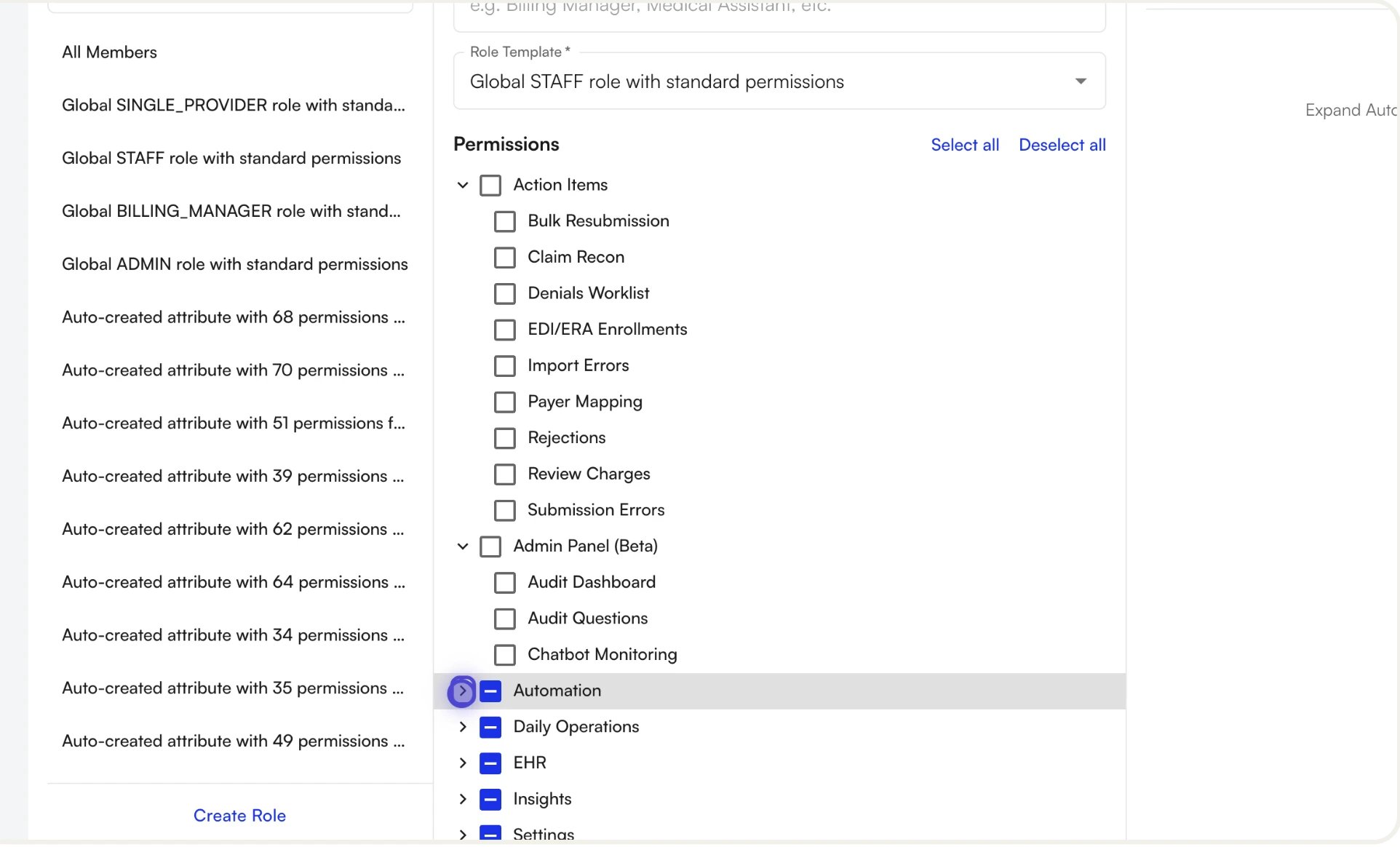
Permissions are organized into a tree, from broad to specific:- Use Select all / Deselect all at any level to quickly enable or disable an entire branch.
- A partially selected branch shows an indeterminate state — handy for spotting roles that “mostly” cover a section.
- Save your changes when done. The user’s view updates after they refresh or log in again.
Facilities
A facility is a physical location that belongs to your site, carrying identifying and billing information used across scheduling, claims, and reporting. Editable fields include Facility Name, Facility NPI, Billing Name, Group, Phone, Default POS Code, Tax ID, Taxonomy Code, CLIA License, and Address. Facilities can be archived (reversible) instead of permanently deleted. An archived facility is removed from its group, loses its tags, continues to exist but is hidden from active pickers, and appears in a dedicated Archived section where it can be unarchived later.Facility groups
A facility group is a collection that holds facilities and/or other facility groups — how you express the structure of your practice (regions, divisions, service lines, etc.).- Groups can be nested: a group can have child groups, which can have their own children.
- A facility belongs to at most one group. Moving it into a new group removes it from its previous one.
- Group names must be unique within your site.
- Granting a user access to a group automatically grants access to every active facility inside that group and inside any of its descendant groups.
Facility tags
A facility tag is a label you apply to facilities to categorize and filter — for example “Pelvic Health”, “Self-Scheduling Enabled”, or “Pilot Site”. A facility can have many tags, and a tag can apply to many facilities. Tag names must be unique within your site.Facility access
Facility access is the per-user setting that determines which facility data the user can see across the platform. It is set when you create or edit a team member, as either All Facilities or Specific Facilities. If you select a group and also select an individual facility already inside that group, the system automatically deduplicates.Roles vs. facility access: an example
Imagine your practice has 8 facilities organized into two groups — North Region (4) and South Region (4) — and a team member, Jordan, who is a regional billing manager for the South Region only. To give Jordan the right access, an administrator would:- Create Jordan as a team member.
- Assign the Billing Manager role (this defines what Jordan can do — Claims, Denials, Revenue Analysis, etc.).
- Set facility access to Specific Facilities and select the South Region group (this defines which facilities’ data Jordan can see).
Manage team members
Navigate to Settings → My Practice → Team Members.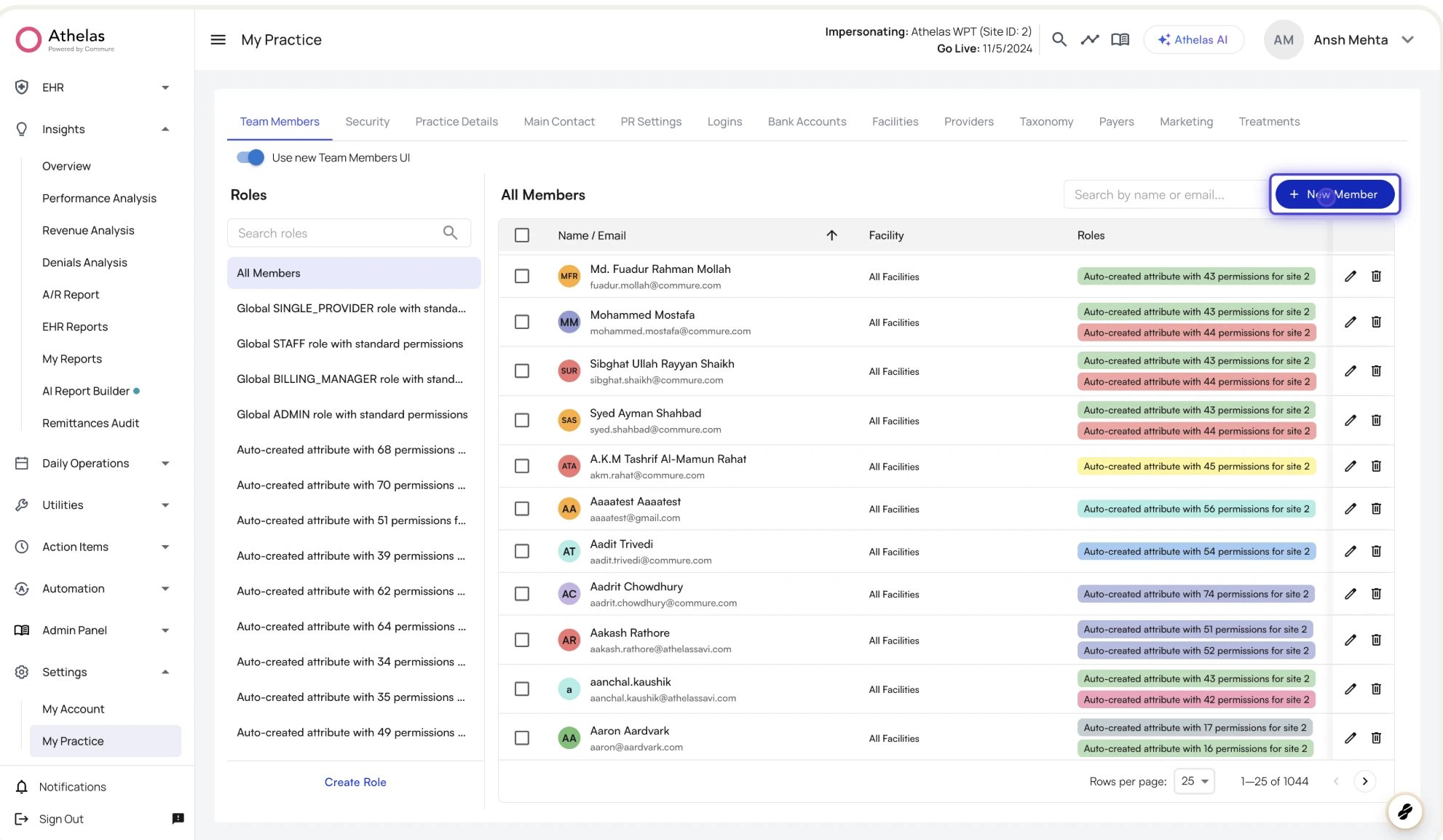
- The Roles sidebar on the left lists every role on your site, plus an All Members entry at the top. Clicking a role filters the table to members who hold it; clicking All Members returns to the full list.
- The main panel shows the members table with Search by name or email…, a New Member button, and three columns: Name / Email, Facility, and Roles.
Add a team member
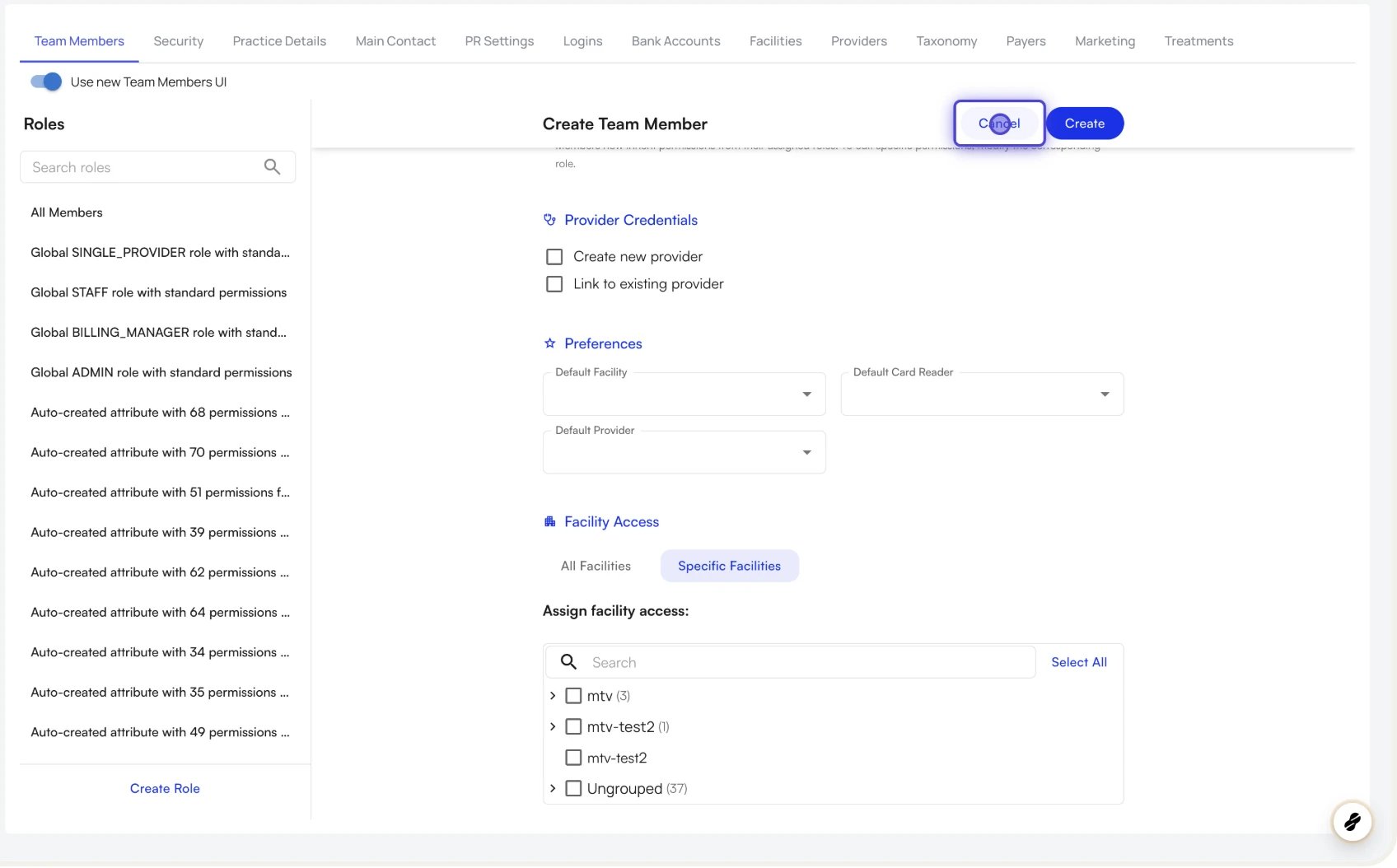
- Click New Member.
- Fill out Basic Info: Full Name (required), Email (required, cannot be changed later), Location (optional), and Phone Number (optional).
- In Permission Roles, select one or more roles from the Roles picker. You can search by name and select multiple.
- (Optional) Fill out Provider Credentials if the team member is also a clinical provider — choose Create new provider (supply NPI, DOB, license, Tax ID, and Medicare PTAN) or Link to existing provider. Provider records can also be created on their own, ahead of the invitation: see Provider Records.
- (Optional) Set Preferences — Default Facility, Default Card Reader, and Default Provider. These are convenience defaults and do not affect what data the user can see.
-
In Facility Access, choose All Facilities or Specific Facilities (pick particular groups and/or facilities from the tree, using Select all / Deselect all and search to navigate quickly).
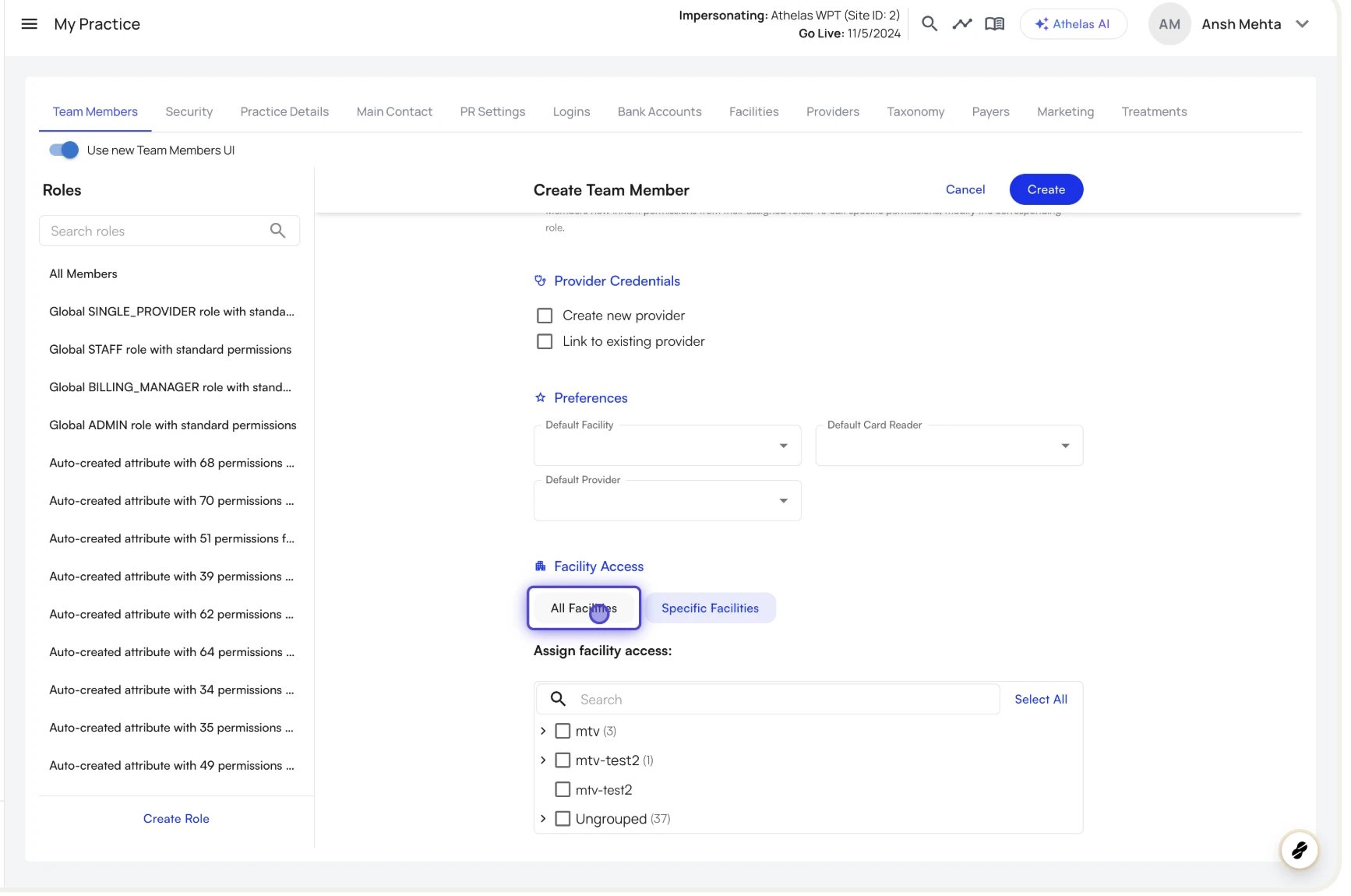
- Click Create.
Edit a team member
- Locate the user in the table (use search if needed).
- Click the Edit icon at the end of the row.
- Change any field (the email is locked). You can add or remove roles, change facility access, link or unlink a provider, and update preferences.
- Click Save.
Remove a team member
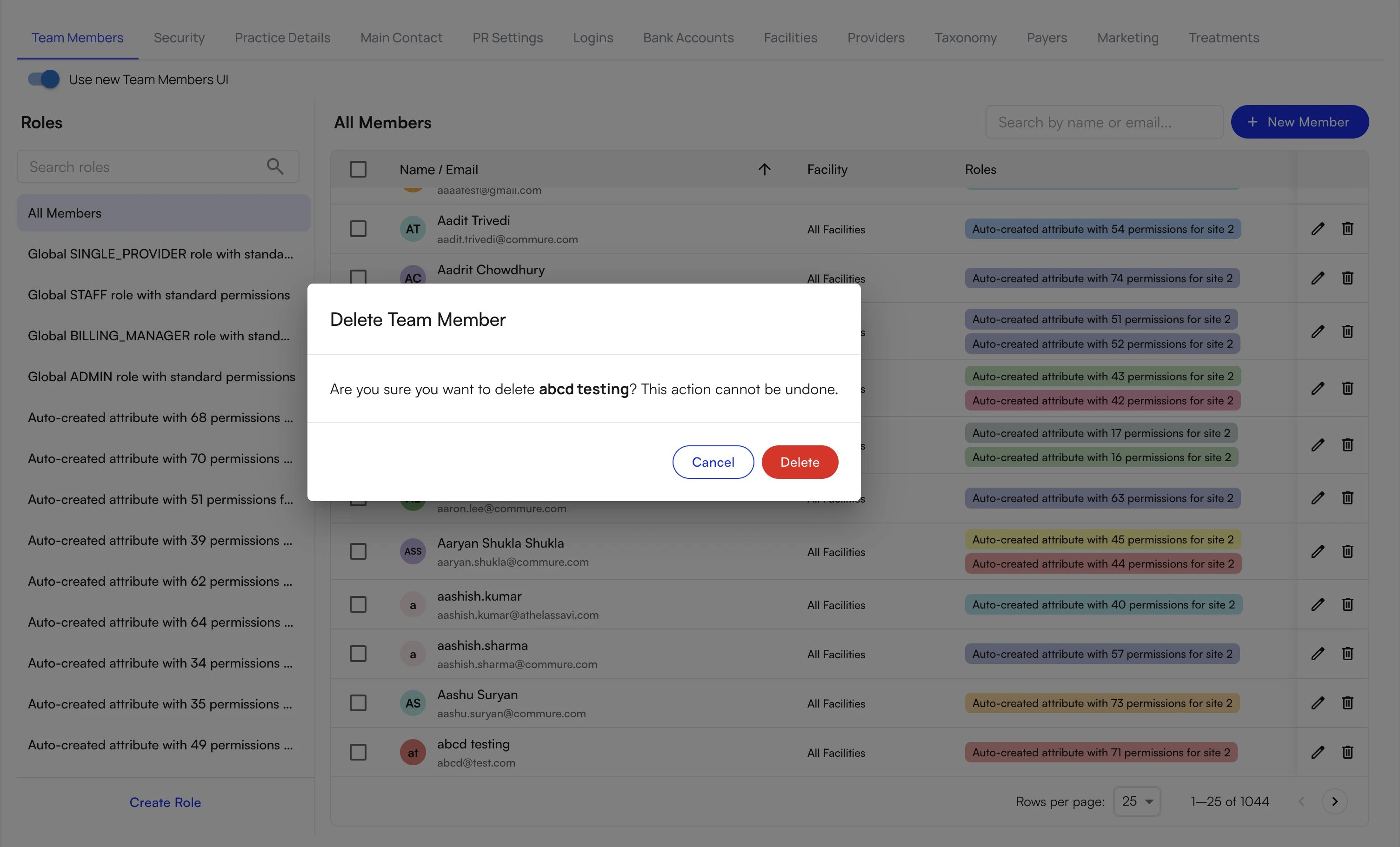
- Click the Delete icon at the end of the row.
- Confirm the deletion in the dialog. This action cannot be undone.
Search and filter
- Type a name or email in the Search by name or email… box to narrow the table.
- Click any role in the left sidebar to filter to members with that role.
- Combine both to find, for example, all Billing Managers named Smith.
Manage roles
The Roles sidebar is the home for role administration — see every role, search, create new ones, and edit any role not managed by Athelas.Create a custom role
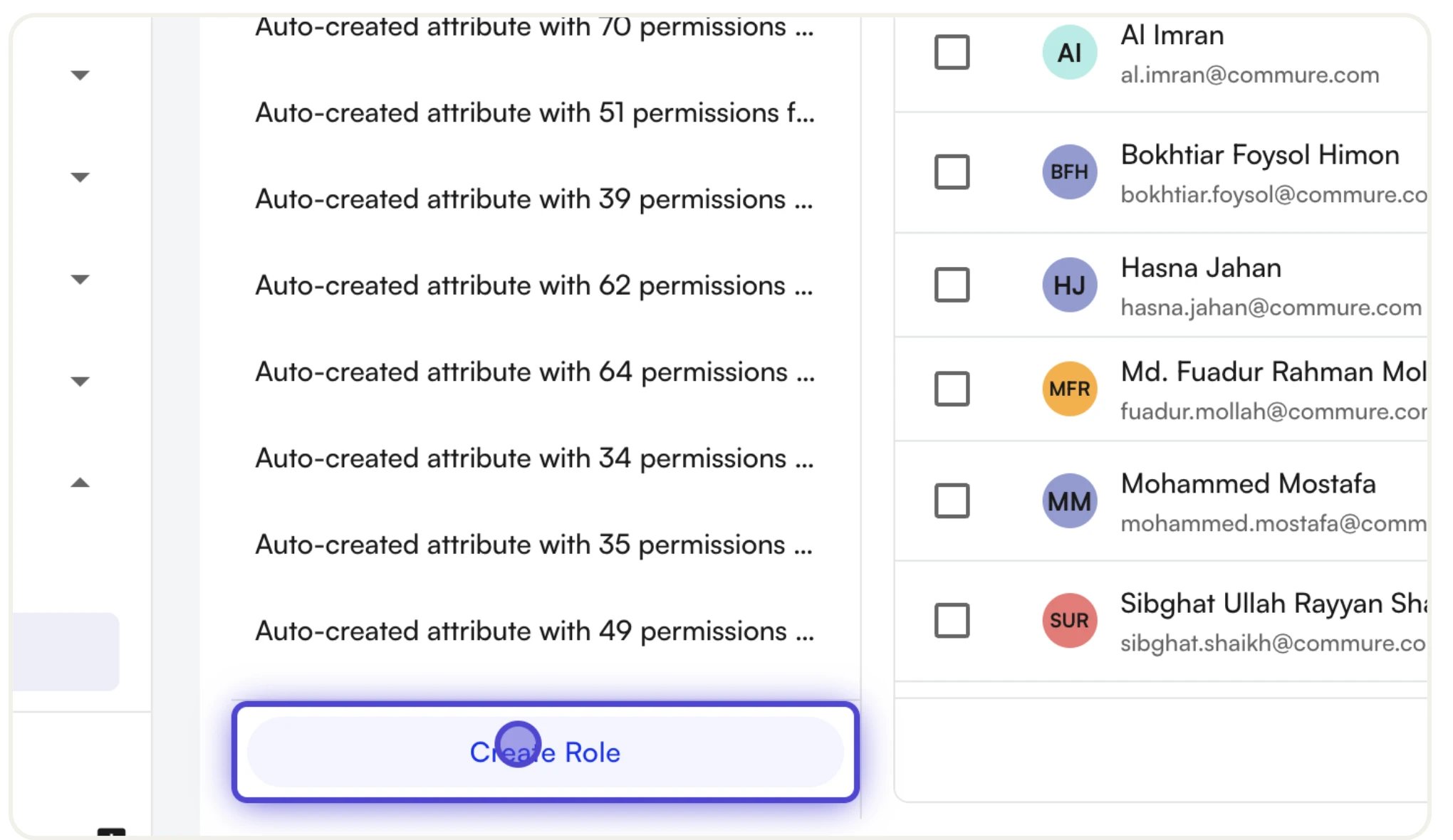
- In the Roles sidebar, click Create Role.
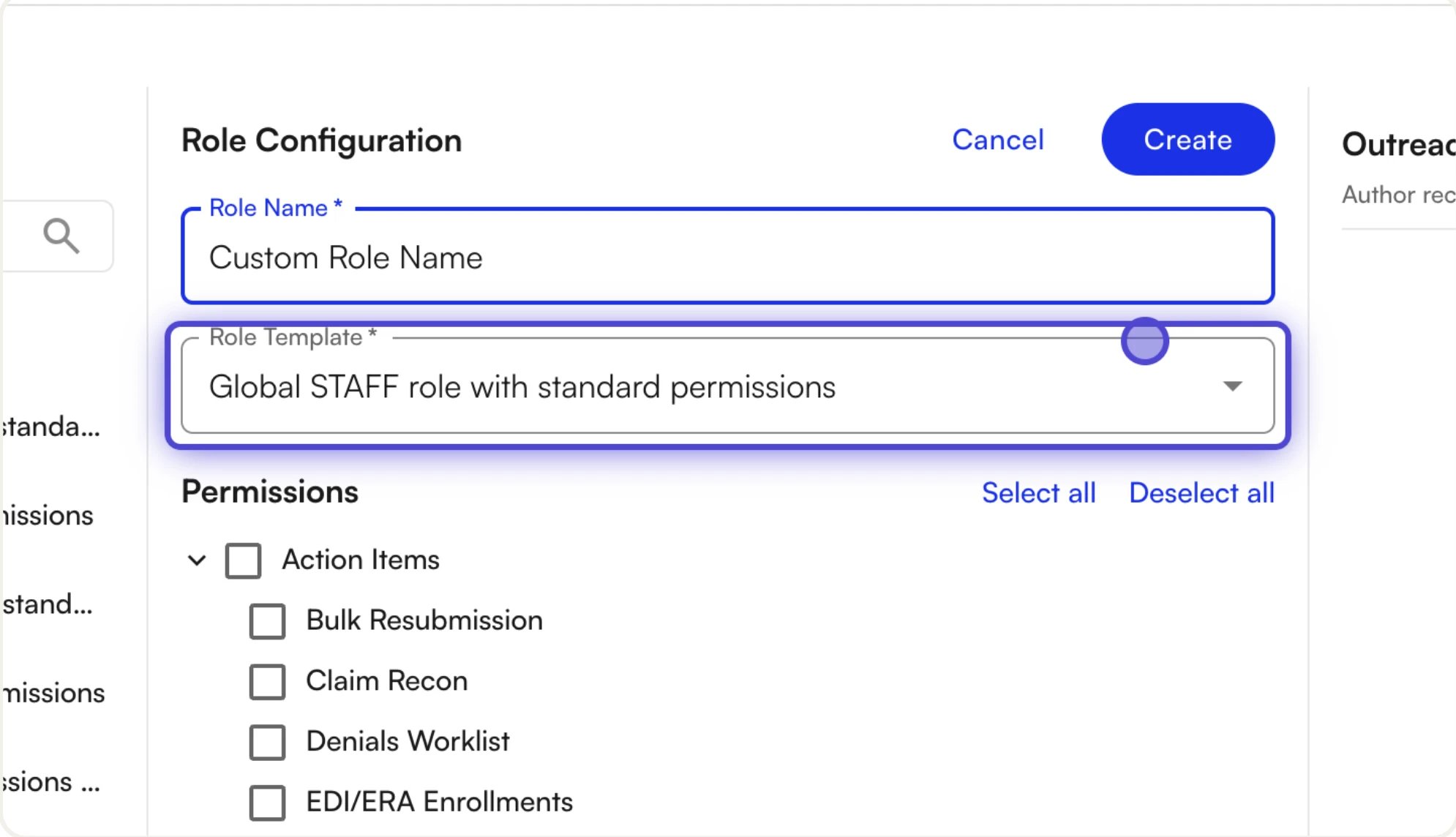
- From Start from a template, pick a role template that closely matches the access this role should have.
-
In the Role Configuration panel, enter a Role Name (e.g., “Front Desk Lead”, “Claims Specialist”) and confirm or change the Role Template.
-
Adjust the permission tree: use the left panel to enable/disable entire packages or pages, click any page with sub-permissions to fine-tune individual features in the right panel, and use Select all / Deselect all where helpful.
- Click Create. The role is now available in the picker when you create or edit team members.
Edit or rename a role
- Hover over the role in the sidebar and click the Edit (pencil) icon.
- Change the name, template, or permissions.
- Click Save.
Duplicate a role
Duplicating is the recommended way to create a new role that closely resembles an existing custom role.- Hover over the role, open its menu, and click Duplicate.
- The system creates a copy named “[Original Name] (Copy)” with identical permissions.
- Edit the copy to give it a new name and adjust its permissions.
Delete a role
- Hover over the role, open its menu, and click Delete.
- Confirm in the Delete Role dialog. It shows how many members currently hold the role and warns you if any member would be left with no role.
View Athelas-managed roles
Click any managed role in the sidebar to open it in view-only mode. The name field is disabled, the permission tree is read-only, and a banner explains the role is managed by Athelas. You can still see exactly what each managed role grants — useful when deciding which role to assign.Manage facilities
Navigate to Settings → My Practice → Facilities. The Facilities Manager shows a tree of every facility group and facility on your site: your facility groups at the top (with nested child groups and facilities), an Ungrouped section, and an Archived section at the bottom. The toolbar offers Search, a Tags button, and an Add button.Add a facility
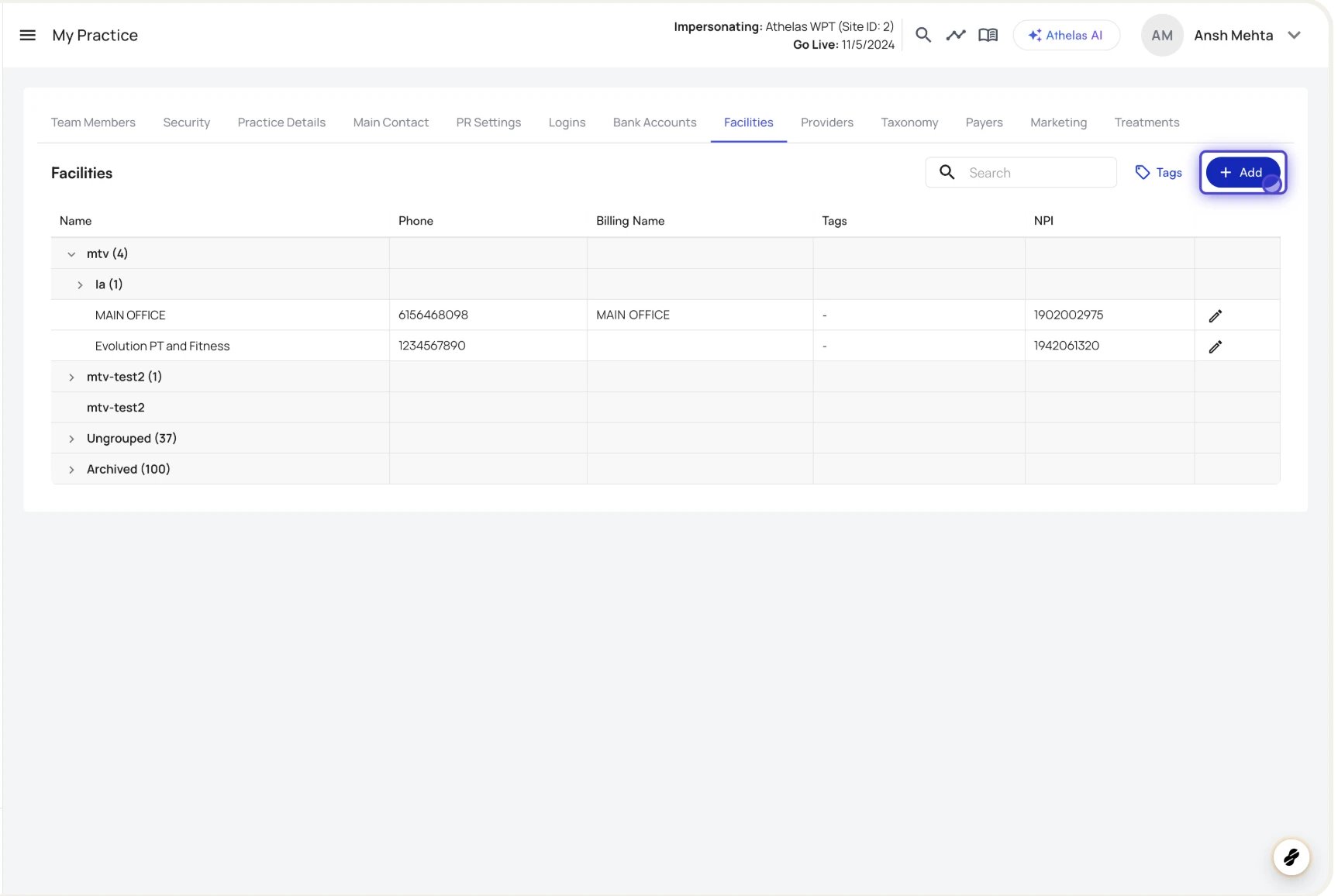
- Click Add → Facility.
- Fill in the Create Facility form: Facility Name (required), Facility NPI (required), Billing Name (required; check Same as facility name to copy it), Group (optional), Phone (required), Default POS Code, Tax ID (9 digits), Taxonomy Code (10 characters), CLIA License (10 characters if provided), and Address (Line 1, City, State, Zip required).
- Click Create.
Edit a facility
- Click the Edit icon on the facility row, or click the facility name.
- Change any editable field. The form won’t save invalid values (missing required fields, malformed CLIA, etc.).
- Click Save.
Archive and unarchive facilities
- Open the facility in the edit drawer and click Archive.
- Confirm in the Deactivate Facility dialog. This action can be reversed later.
The Facilities Manager favors archiving over permanent deletion. Archiving is reversible and preserves history; permanent deletion is reserved for administrative cleanup and is blocked if the facility has clinical or billing data attached. In normal day-to-day administration, archive is the right choice.
Manage facility groups
Create a group
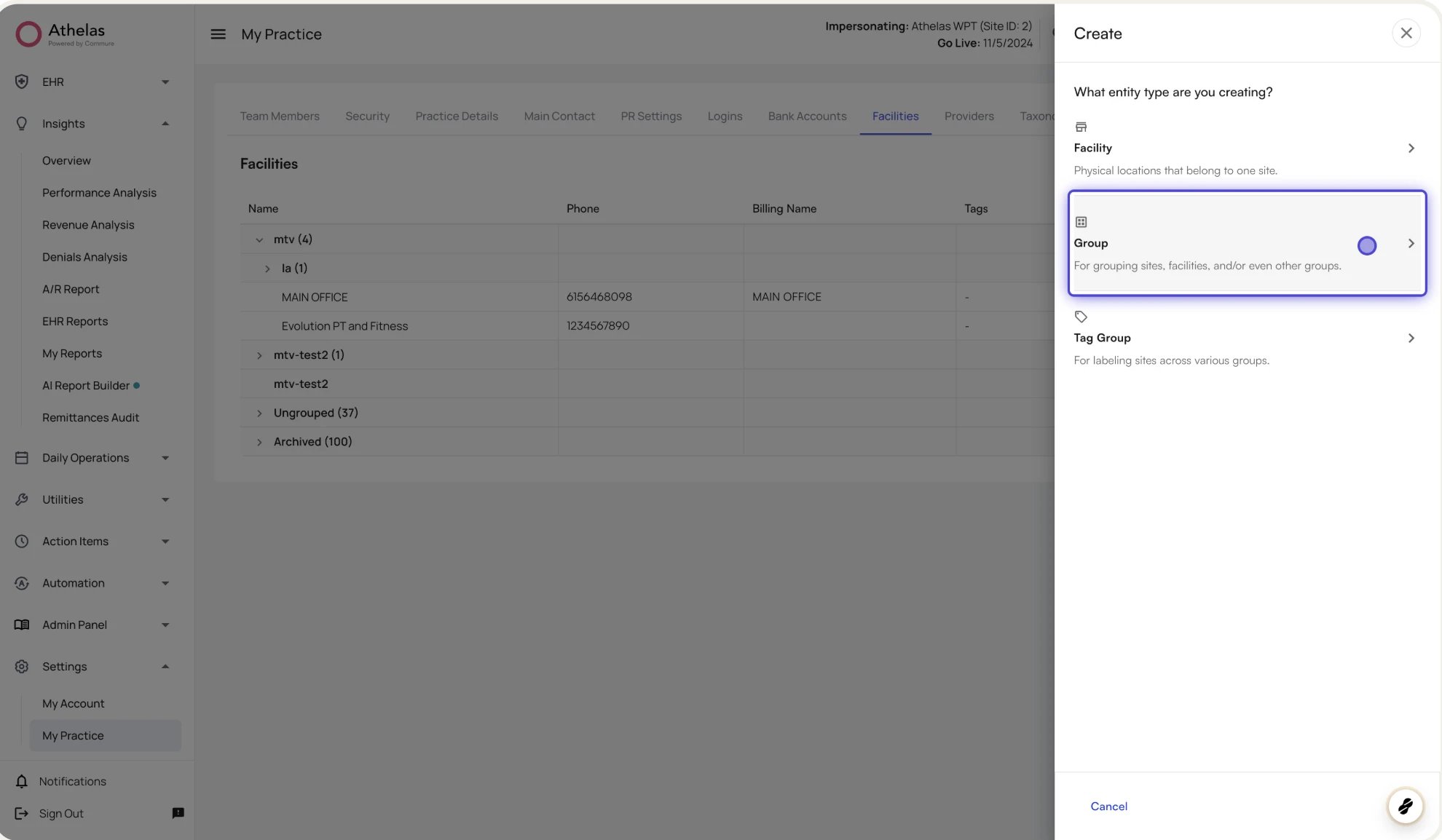
- Click Add → Group.
- Fill in the Create Group form: Group Name (required, unique within your site), Phone Number (optional), Parent Group (optional — pick an existing group to nest under, or leave empty for a top-level group), and Select child entities (the facilities and/or top-level groups that should belong to this group).
- Click Create.
Edit a group
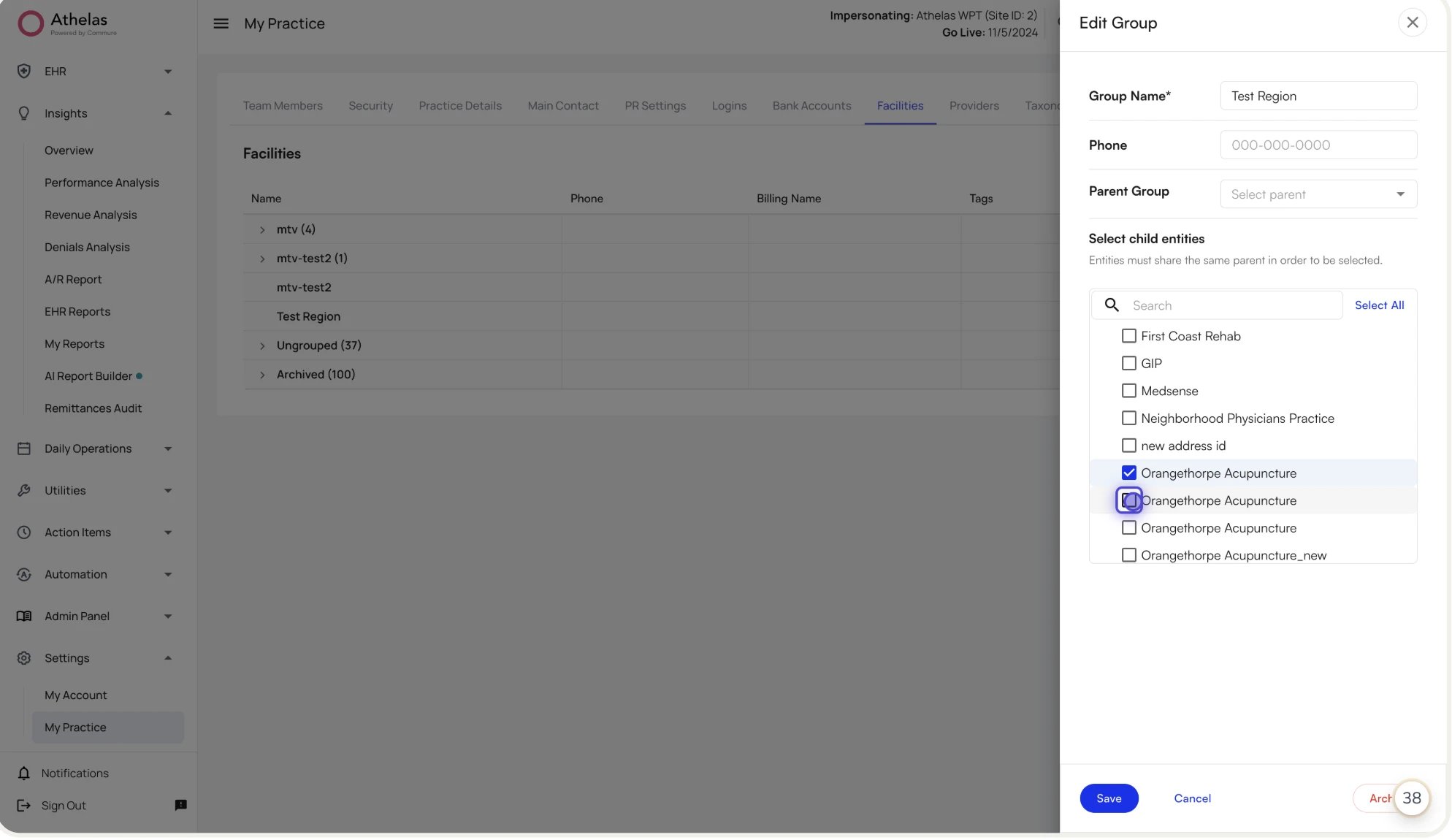
- Click the Edit Group icon on the group row.
- Rename the group, change its parent, or add/remove member facilities and child groups.
- Click Save.
Move facilities between groups
You can move facilities three ways, and in every case the facility leaves its previous group automatically:- Edit the facility and change its Group field.
- Edit the destination group and add the facility to Select child entities.
- From the destination group’s row, use Add to group to open facility creation with the group preselected.
Delete a group
- Open the group in edit mode and click Archive.
- Confirm in the dialog. Facilities in the group become ungrouped.
Group hierarchy rules
- No cycles. A group cannot be its own ancestor.
- Unique names per site. No two active groups can share a name.
- One group per facility. Adding a facility to a new group removes it from any prior group.
Manage facility tags
Tags are managed in a dedicated Tags drawer, separate from the main facility tree. Click the Tags button in the Facilities toolbar to open Manage Tags, which shows each tag and the number of facilities it applies to.Create a tag
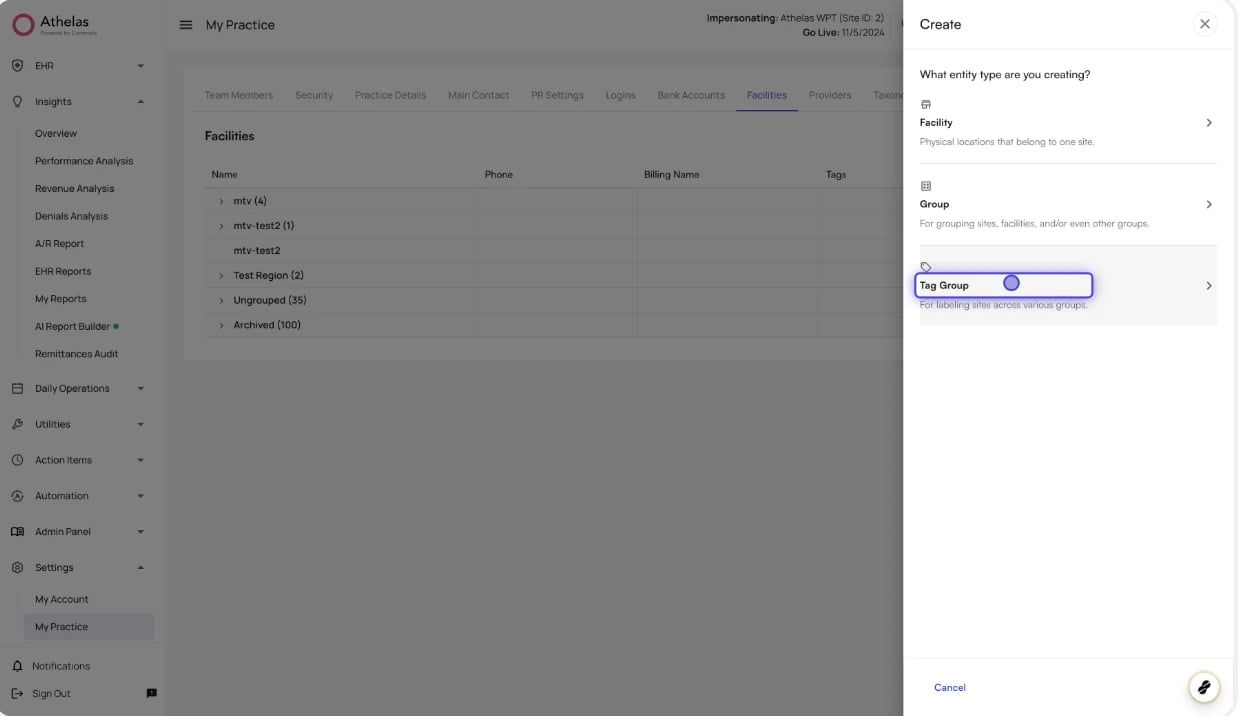
- Click Add → Tag.
- Fill in the Create Tag form: Tag Name (required), Description (optional), and Select entities to tag.
- Click Create.
Edit a tag
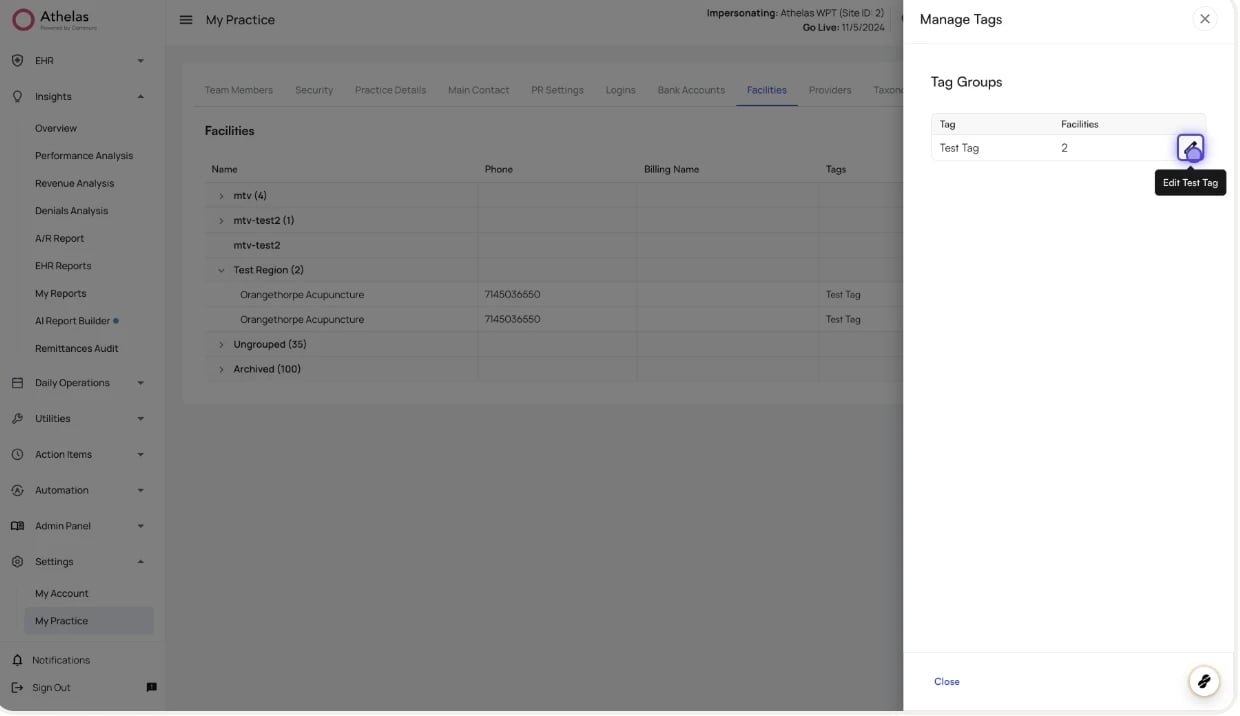
- Open the Manage Tags drawer and click the tag.
- Change its name, description, or which facilities it applies to.
- Click Save.
Remove a tag or delete it
- Remove from a facility: open the tag in Edit Tag, deselect the facility in Select entities to tag, and Save. Other tagged facilities are unaffected.
- Delete the tag entirely: open the tag in Edit Tag and click Delete, then confirm. The label is removed everywhere; the facilities themselves are unchanged.
Common scenarios
- New front-desk user at a single clinic — New Member → enter name and email → assign the Staff (or appropriate) role → Facility Access → Specific Facilities, select the single facility → Create.
- Regional billing manager — New Member → assign the Billing Manager role → Facility Access → Specific Facilities, select the regional group → Create. When facilities are added to or removed from the region later, access updates automatically.
- A “Claims Only” custom role — Roles sidebar → Create Role → start from a billing/claims template → name it “Claims Only” → Deselect all, then enable only the Claims page and its needed sub-features → Create → assign to the relevant users.
- Give a user multiple roles — open the user, add an additional role in the Roles picker (e.g., Staff + Claims Only), and Save. The user gets the union of both roles’ permissions.
- Reorganize facilities into regions — Facilities → Add → Group to create parent groups, optionally add nested sub-regions, then set each facility’s Group. Review the facility access of anyone tied to the old structure.
- Tag facilities offering a specialty service — Facilities → Tags → Add → Tag → name it (e.g., “Pelvic Health”) → select the facilities → Create. The tag becomes available as a filter wherever facility filtering is supported.
Glossary
FAQ
Can a user have more than one role?
Can a user have more than one role?
Yes. A user can hold any number of roles at once. Their effective permissions are the union of all their roles — if any role grants access to a page or feature, they have it.
Can I limit a user to certain facilities but still give them every permission?
Can I limit a user to certain facilities but still give them every permission?
Yes. Permissions and facility access are configured independently. Assign the Administrator role (or any role you like) and set Facility Access to Specific Facilities with only the facilities they should see.
Does giving a user access to a parent group include the child groups' facilities?
Does giving a user access to a parent group include the child groups' facilities?
Yes. Granting access to a group grants access to every active facility inside that group and inside all of its descendant groups. If a facility is later added to the group, the user gains access automatically.
Why can't I edit a role like Administrator?
Why can't I edit a role like Administrator?
Administrator and the other Athelas-managed roles are maintained by Athelas so they stay correct as new features ship. To customize, use Create Role, start from the matching template, and edit that new custom role instead.
What happens when I delete a role that is assigned to users?
What happens when I delete a role that is assigned to users?
The role is removed from those users, but the users themselves are not deleted. Each keeps any other roles they had; a user who held only the deleted role loses its permissions until you assign them another.
How long does a permission change take to apply?
How long does a permission change take to apply?
Most changes apply on the user’s next page refresh or login. Role changes propagate through the authorization service, which can take a few seconds. If a user doesn’t see the change, ask them to refresh or sign out and back in.