Team Members
View, add, edit, and remove users. Default Role Permissions: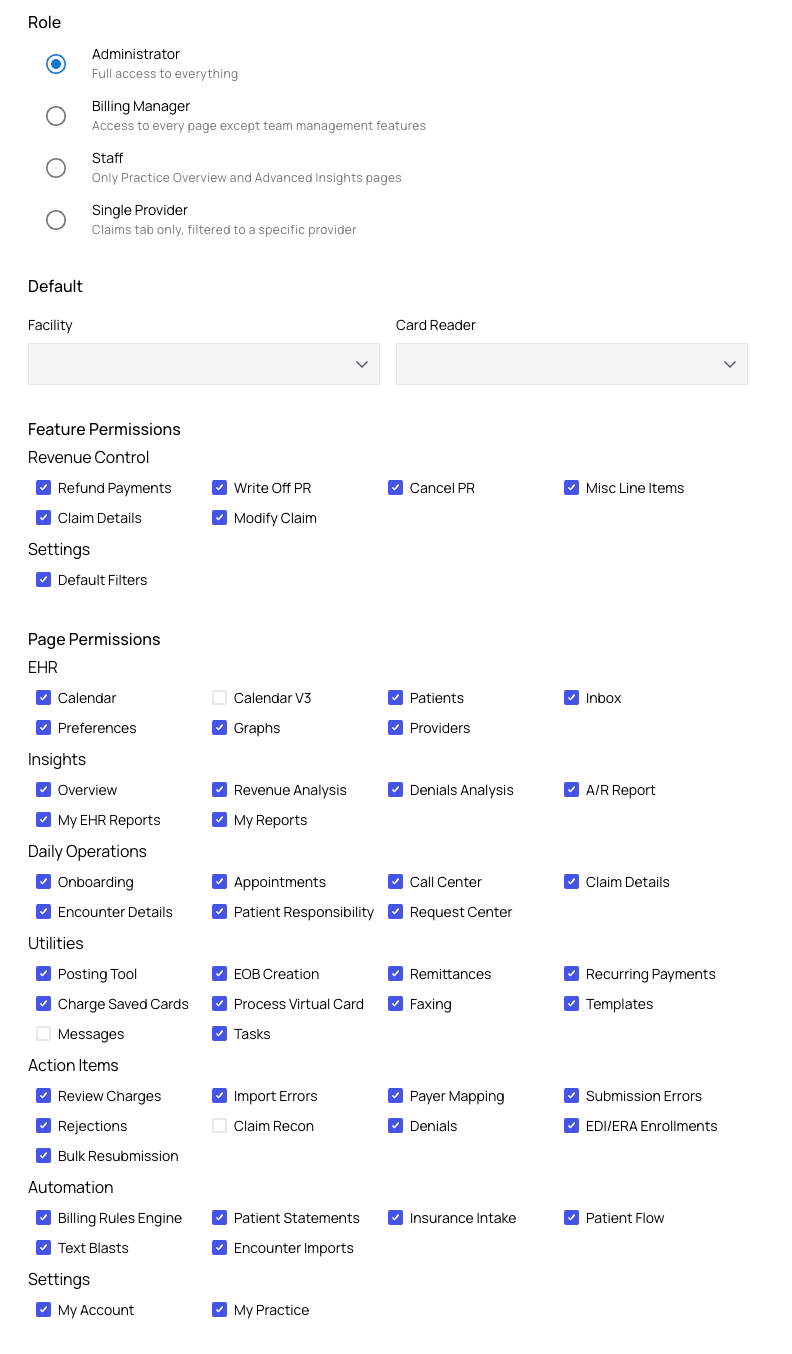
- Administrator – Full access to all pages and features.
- Billing Manager – Access to all pages except team management.
- Staff – Limited access (Practice Overview + Advanced Insights). Best for front desk staff.
-
Single Provider – Claim Details page only, filtered to their own claims.
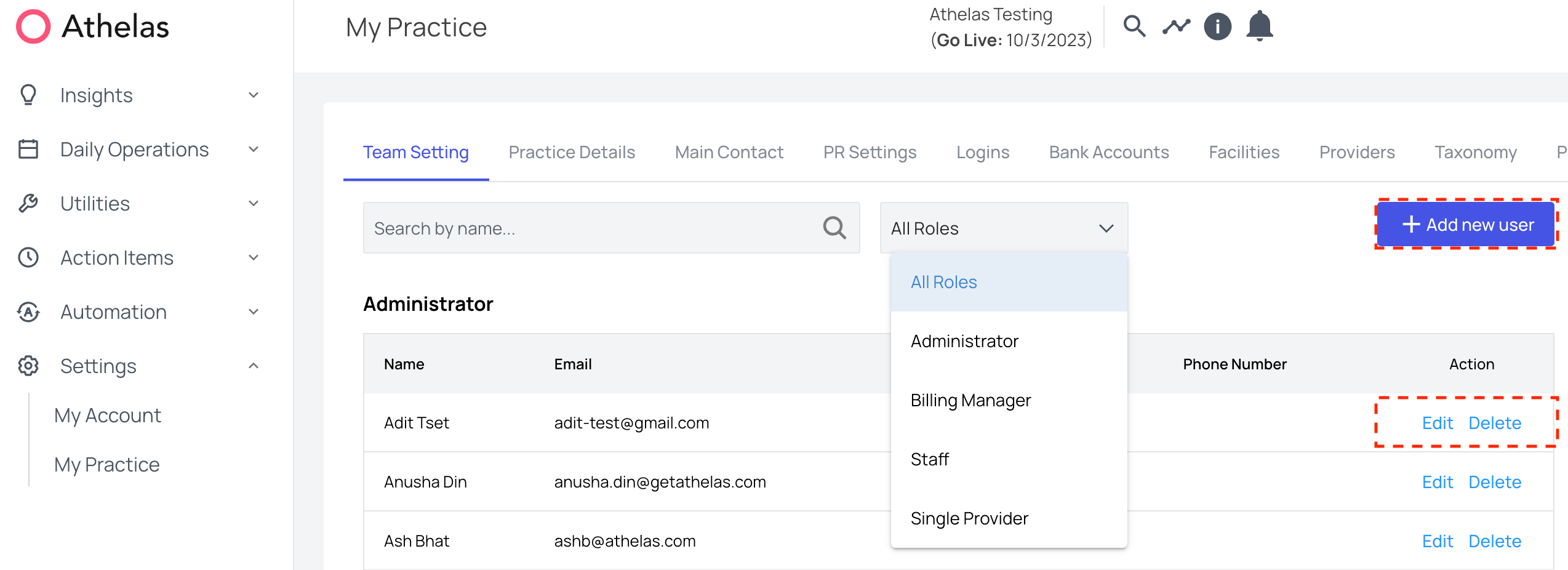
- The Feature Permissions options allow you to configure which features are available for your team member to utilize.
- The Page Permissions options allow you to configure which pages your team member can view.
Practice Details
Enter and update your practice and corporate information.Ensure the corporate address is your official billing address. This appears in Box 33 on the CMS-1500 form and is required for compliance and enrollments.
Main Contact
Store contact information for the practice owner and billing liaison.
Facilities
Add, edit, or deactivate your organization’s facilities.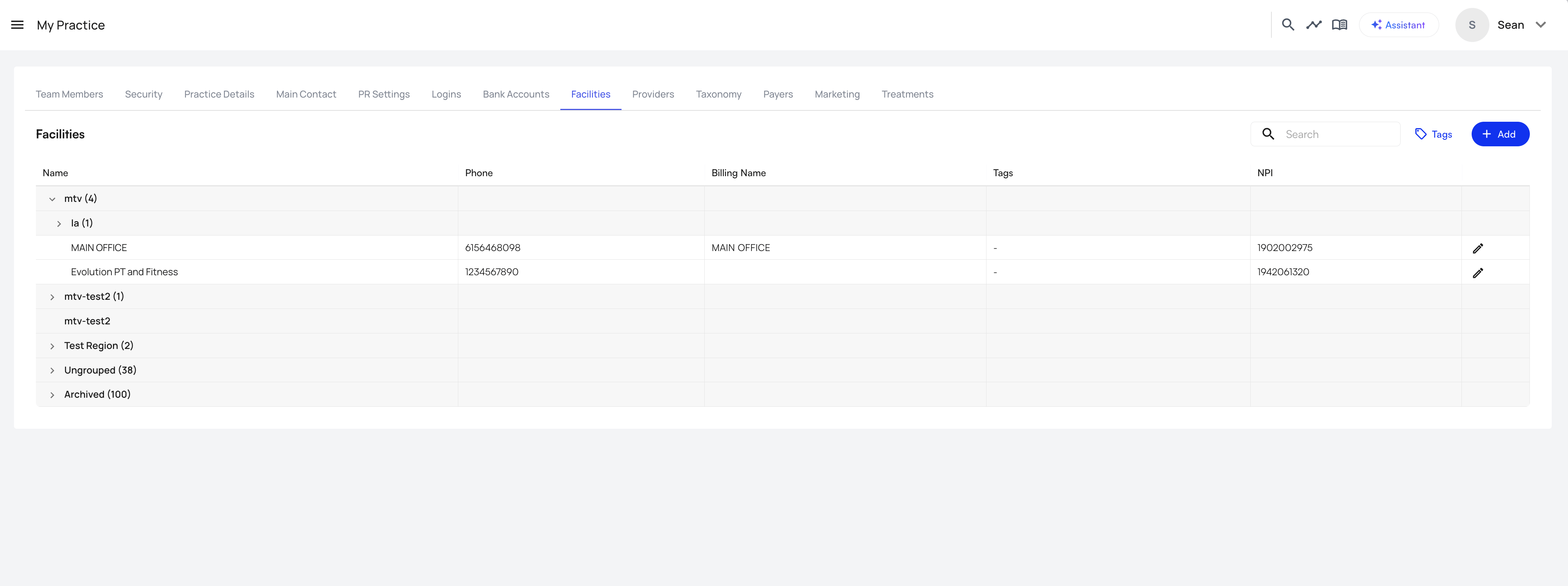
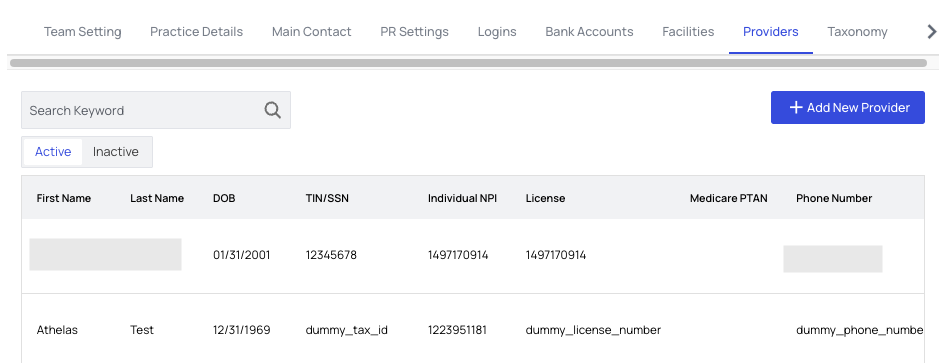
Providers
Manage your practice’s healthcare providers.
- Add, edit, or deactivate providers in the Active tab.
-
View deactivated providers in the Inactive tab, where you can reactivate or permanently delete them.
Taxonomy
Manage your practice’s taxonomy codes.Provider Taxonomy Codes are self-selected by each provider. They reflect area of specialty (based on education and licensure), not services rendered.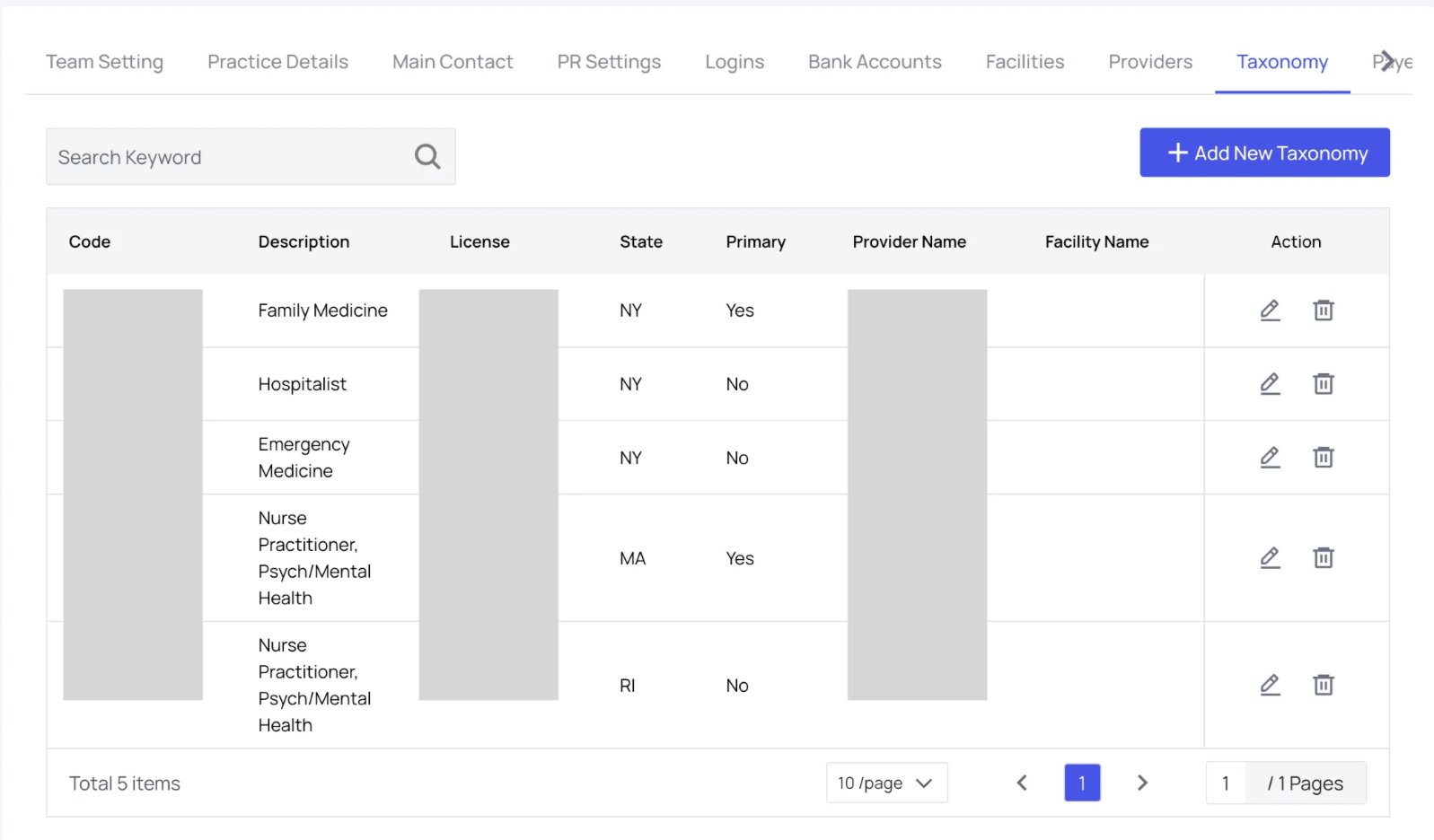
Treatments
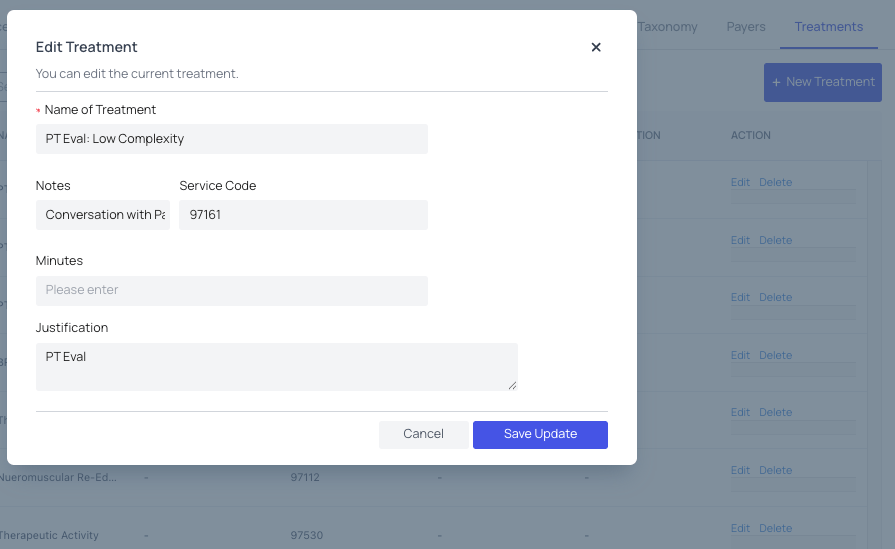
Create, update, or delete default treatment information, including Service Type Codes.