
Before You Start
- Alert Rules are informational only and do not block Sign & Submit.
- Each site can have up to 50 active rules.
- Rules apply at the site level and can appear for any matching appointment.
Access Alert Rules
To open Alert Rules:- Go to EHR Preferences.
- Open the Alert Rules tab in General Settings.
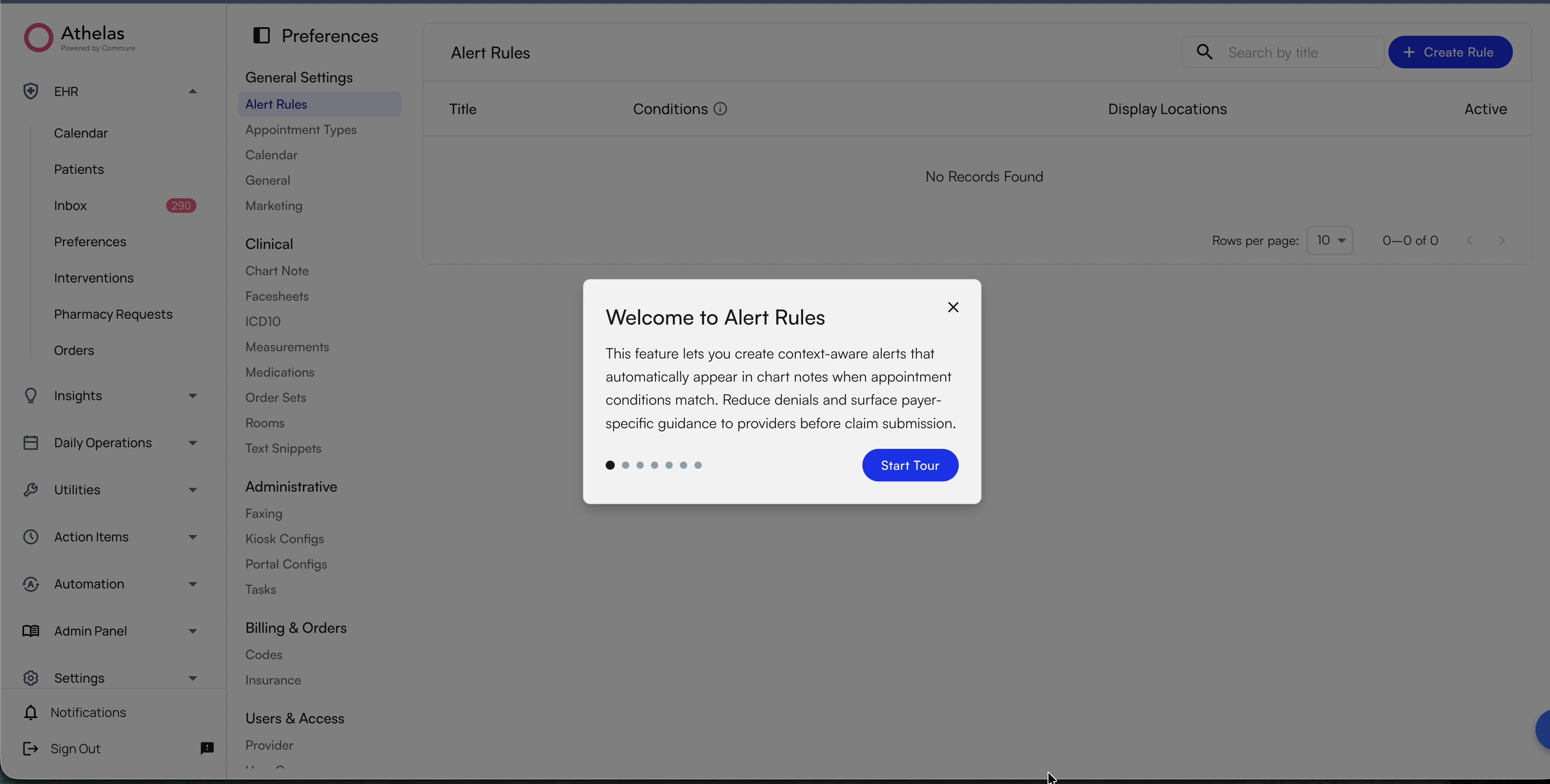
Understand the Alert Rules Table
The table shows all configured rules for your site. For each rule, you can review:- Title: Rule name.
- Conditions: A See Conditions control to inspect matching filters.
- Display Locations: Chart note sections where the alert can appear.
- Active Toggle: Whether the rule is currently evaluated.
Create a New Alert Rule
To create a rule:- Click Create Alert Rule.
- Enter a Title (required).
- Enter Content (required). Multi-line text is supported.
- Configure at least one Condition (required).
- Choose one or more Display Locations.
- Click Create.
Available Condition Types
How Matching Logic Works
- Within one condition type (OR): Multiple selected values match if any one value matches.
- Across condition types (AND): Every populated condition type must match.
- Empty condition type: Treated as no filter for that dimension.
Edit, Activate, or Delete Rules
Edit a Rule
- Click the Edit icon on a row.
- Update title, content, conditions, or display locations.
- Click Save.
Activate or Deactivate a Rule
- Active: Rule is evaluated and can display alerts.
- Inactive: Rule is preserved but not evaluated.
Delete a Rule
- Click the Delete icon on the rule row.
- Confirm deletion.
How Alerts Appear in Chart Notes
When a provider opens a chart note, the system evaluates active rules against appointment context, including insurance, note type, appointment type, facility, and provider credential. Matching alerts appear as banner callouts in configured chart note sections.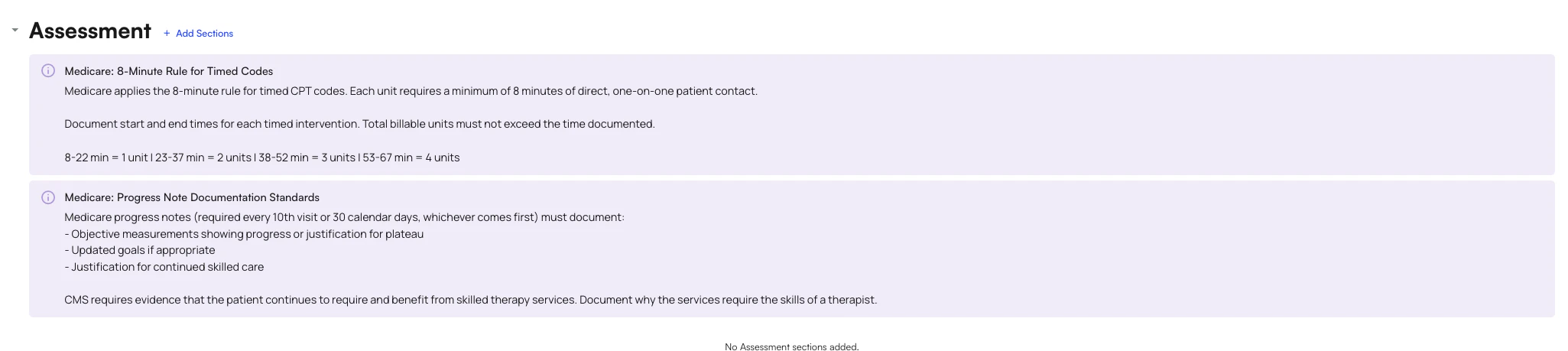
- An info icon
- Rule title
- Rule content
- A dismiss (X) action
Alert Behavior
- Alerts are non-blocking and do not prevent Sign & Submit.
- Dismissing an alert hides it for the current session only.
- Dismissed alerts reappear on the next chart note load if conditions still match.
- If the alert service fails, chart note loading still succeeds.
Display Locations and Feature Availability
Core locations are always available:- Subjective
- Objective
- Assessment
- Plan
- Other
- Notarize
Common Use Cases
- Payer-specific billing guidance: Surface reminders for selected insurance companies in Billing Details.
- Initial evaluation prompts: Show required coding reminders only on Initial Evaluation notes.
- Credential-specific compliance alerts: Display supervision reminders based on provider credential.
- Facility-specific workflows: Add site-specific instructions for selected facilities.
FAQ
How many alert rules can my site have?
How many alert rules can my site have?
Your site can have up to 50 active rules. Inactive rules do not count toward the active limit.
Do Alert Rules block providers from submitting chart notes?
Do Alert Rules block providers from submitting chart notes?
No. Alert Rules are informational and do not block Sign & Submit.
Can I target a rule to a single patient?
Can I target a rule to a single patient?
Not currently. Rules are site-level and appear for any appointment that matches your configured conditions.
What happens when a provider dismisses an alert?
What happens when a provider dismisses an alert?
Dismissing an alert hides it for the current session. It can appear again the next time the chart note is opened if conditions still match.
Why do I not see every display location in the dropdown?
Why do I not see every display location in the dropdown?
Some locations are feature-dependent and only appear when the corresponding feature is enabled for your site configuration.