
Edit an Appointment
Click on an appointment to open the Appointment details pop-up.Click on the edit (pencil) icon on the top right to edit appointment details entered (such as data, time, provider, facility, patient details).You can also review patient demographics by clicking on the patient’s name, see change logs of the appointment.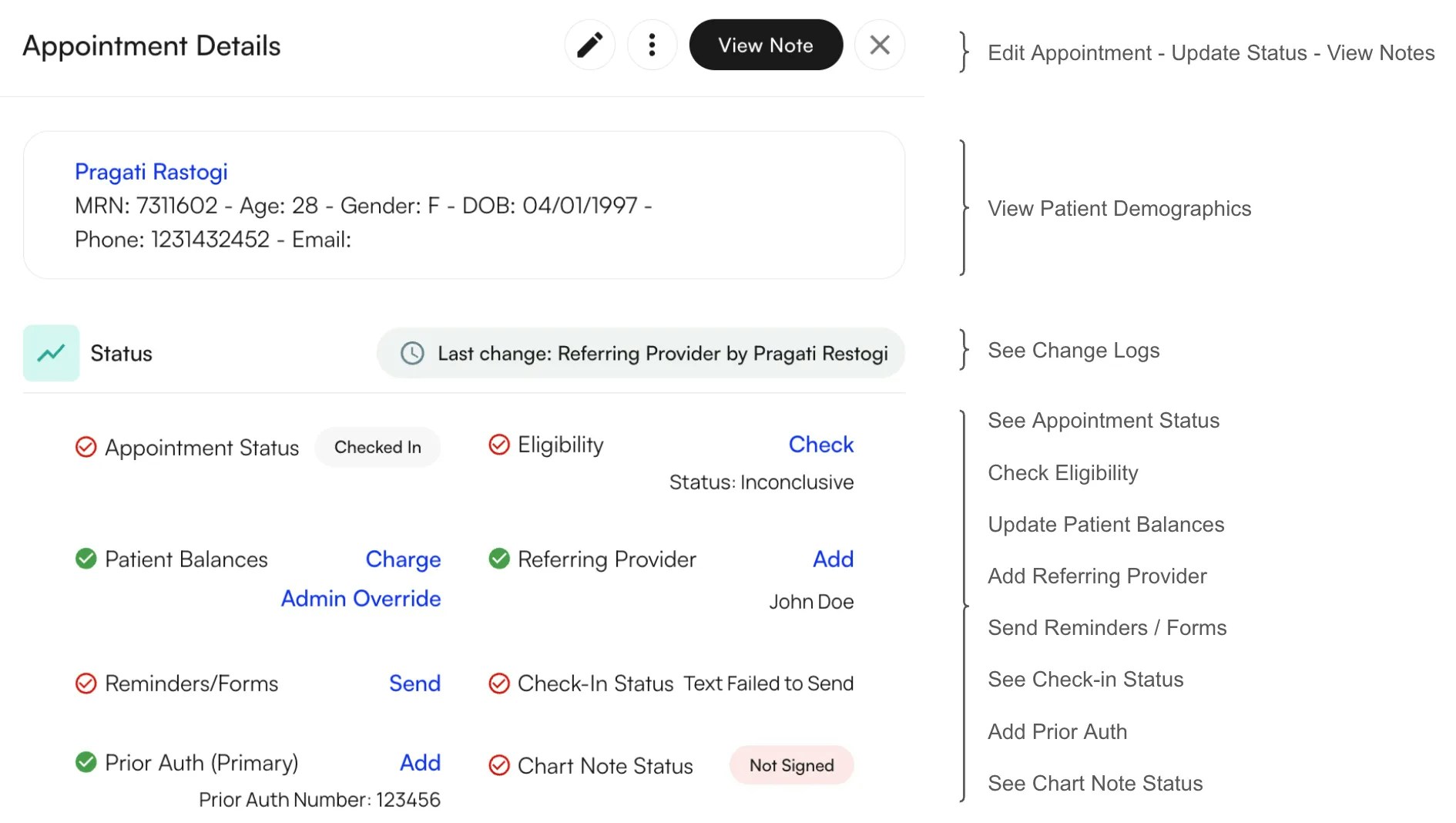
Change Appointment Status
Click on the three vertical dots on the top right of the page. From here you can:
- Add a Follow-up Appointment → This will open up a new appointment pop-up to fill
- Check-in the patient
- Cancel the appointment → You will be prompted to add a cancellation reason which will be available to view on the Patient’s Profile under the Appointments Tab.
- Mark the appointment as a No Show
- Delete the appointment
- See Schedule → You can see all upcoming appointments for the patient
Send Reminders & Intake Forms
If an appointment is scheduled more than 24 hours in advance, patient intake forms are sent automatically 24 hours before the appointment. If it’s scheduled within 24 hours, you’ll need to manually send the forms.From the appointment details, click Send next to Reminders/Forms.
- Select individual forms or workflows (groups of forms).
- Send via text, email, or both (auto-populated based on what is set within Patient Demographics)
- However, you are able to change the email or phone number directly in this window.
Track Prior Authorizations
You can check the status of Prior Authorizations, number of visits left and link an existing authorization or add a new authorization if required.Click on +New Prior Auth to add a Pre-Certification or Referral along with the Authorization number, # visits, effective to and from date.You can also edit an existing authorization or delete it. If you delete an authorization you will still be able to restore it.**Tracking Prior Auth Status: **Prior Authorization Tracking
Track Visit Alerts
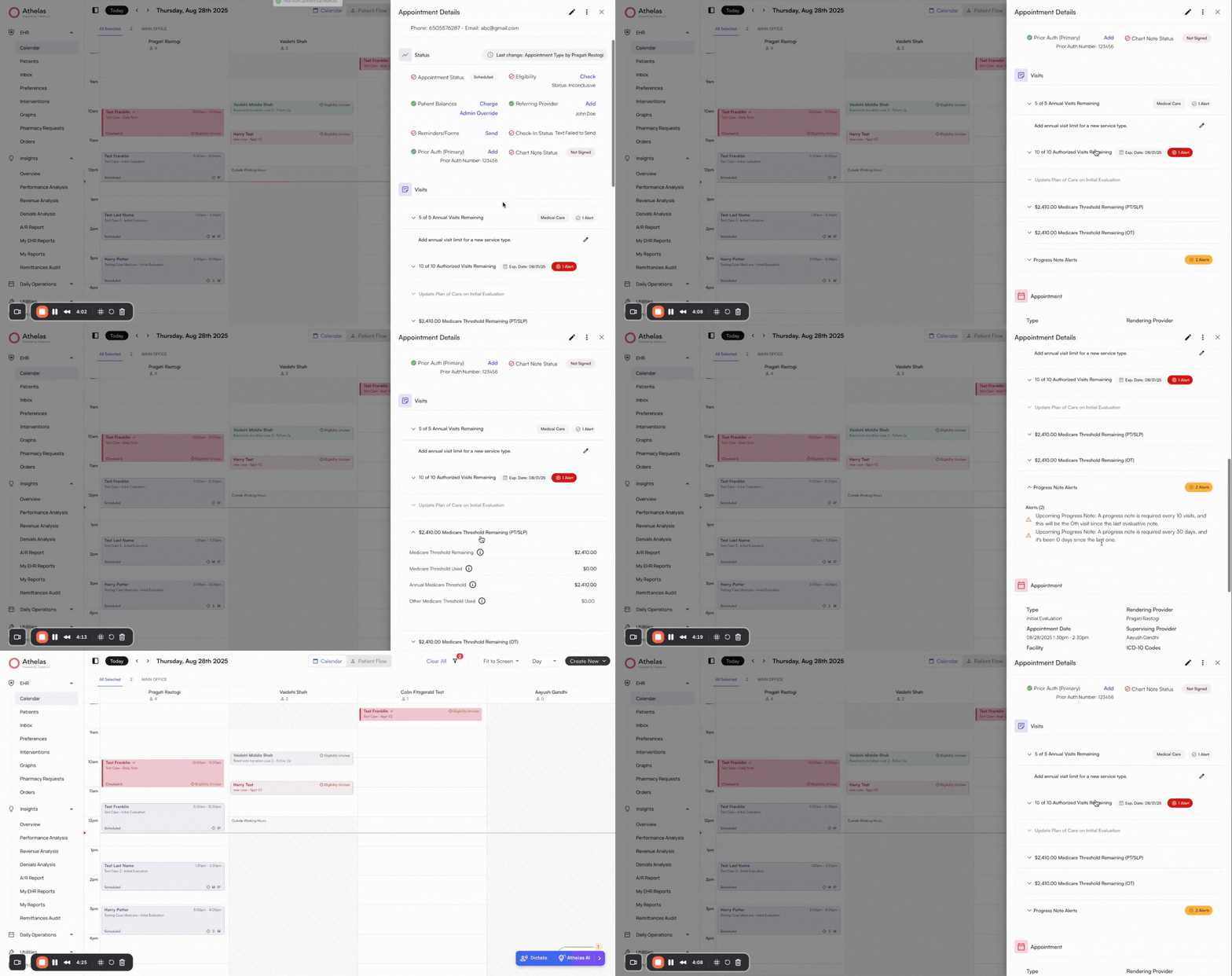
Air will automatically alert you when prior authorizations or visit counts are nearing expiration/limits.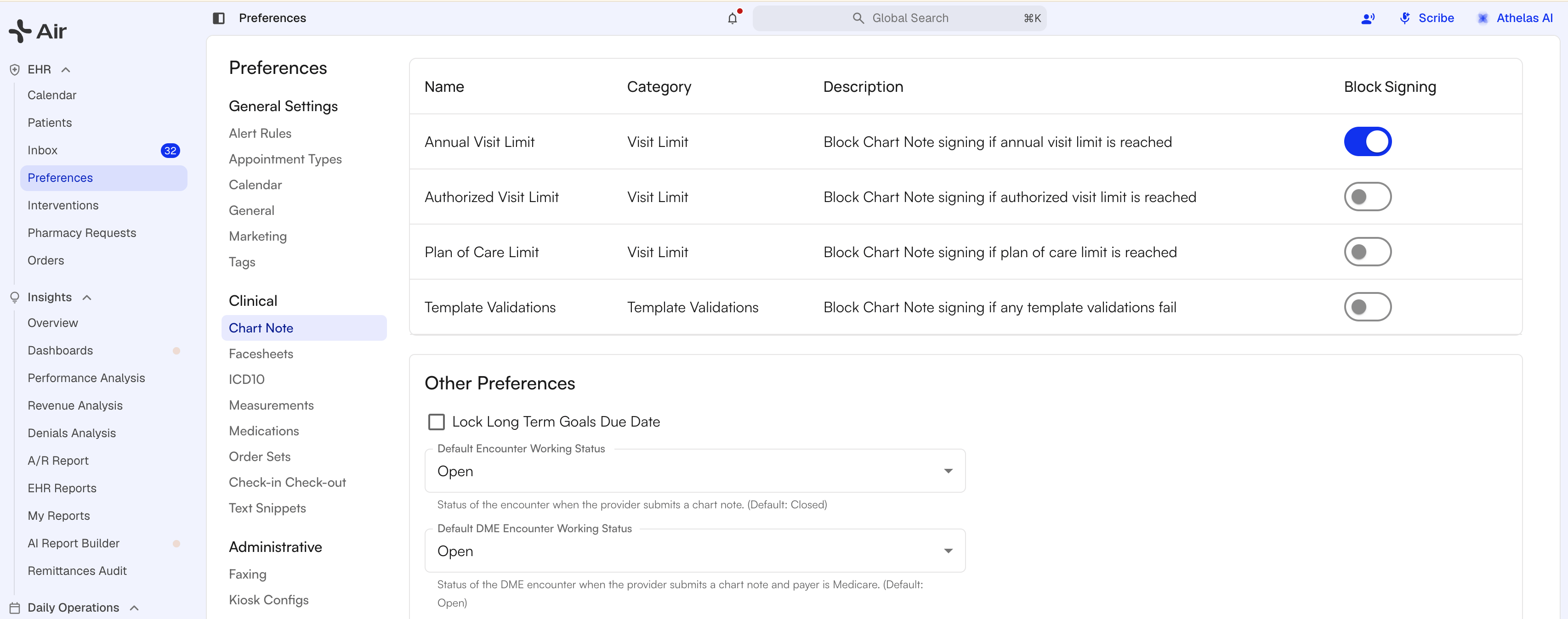
- Orange alert = nearing expiration
- Red alert = expired or no visits left
- Click on the edit icon next to a visit count to update it
- For a custom visit count: Edit the Annual visit limit > Add a service type and # visits
- Click on custom start date to start the visit count from a date that is not the date of appointment
- Annual Appointment limits
- Prior authorization visits
- Plan of Care visits
- Medicare thresholds
- Progress note upcoming (e.g., every 10 visits, every 45 days)
-
Future appointments scheduled
FAQ: The visit counter is not accurate for a patient:
- Check if the same prior authorization is attached to all past visits
- Ensure all previous chart notes are completed, else they may not be accounted within the visits counter
Conduct Eligibility Checks
Air runs an automatic eligibility check once before each appointment: 7 days before the date of service by default, or at the other lead time your practice is set to use. Results are updated to Active or Inconclusive. You can re-run checks anytime from the appointment details.
Review Patient Balances
View and charge outstanding balances from the appointment details. Clicking Charge routes you to the modal to finalize payment.You can choose the mode of communication, payment method, payment amount and also send a welcome message.
Print Appointment Schedules
There are 2 ways to download the appointment schedule for a patient:From the calendar
- Go to the Calendar > Open an appointment > click on the caret icon in the tooltip to open the appointment details
- Click on the 3 dots on the top right > Select “See Schedule”
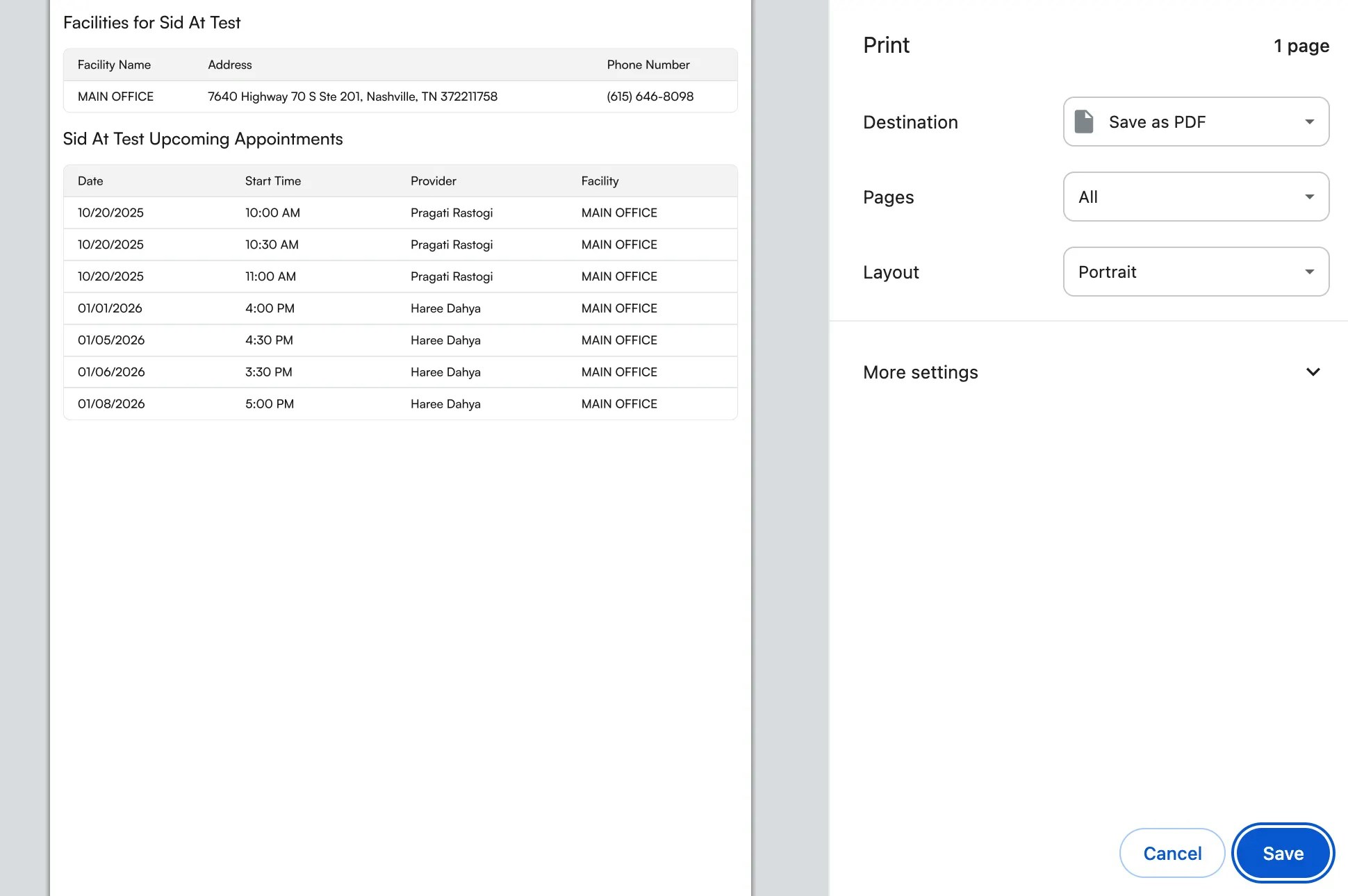
- Click print to download the schedule. It will include the list of upcoming appointments for the patient, facility address and phone number.
- Go to the patient’s profile > Appointments
- Click on the print icon on the top right
- This will print the list of appointments (upcoming and completed) for the patient, status of appointment, provider, date and facility address.