
What is reconciliation?
In the context of ONC Health IT certification, clinical information reconciliation is the process of comparing the data in a document received from an outside source against the data already in the patient’s record, then deciding what to incorporate. Air’s C-CDA reconciliation supports ONC criterion §170.315(b)(2) Clinical Information Reconciliation and Incorporation, which covers reconciling and incorporating medications, medication allergies, and problems (along with other USCDI data) from a received C-CDA into the patient record.Open the CCDA inbox
- From the left navigation, open the Inbox.
- At the top of the inbox, select the CCDA tab. This shows the C-CDA documents for your whole site.
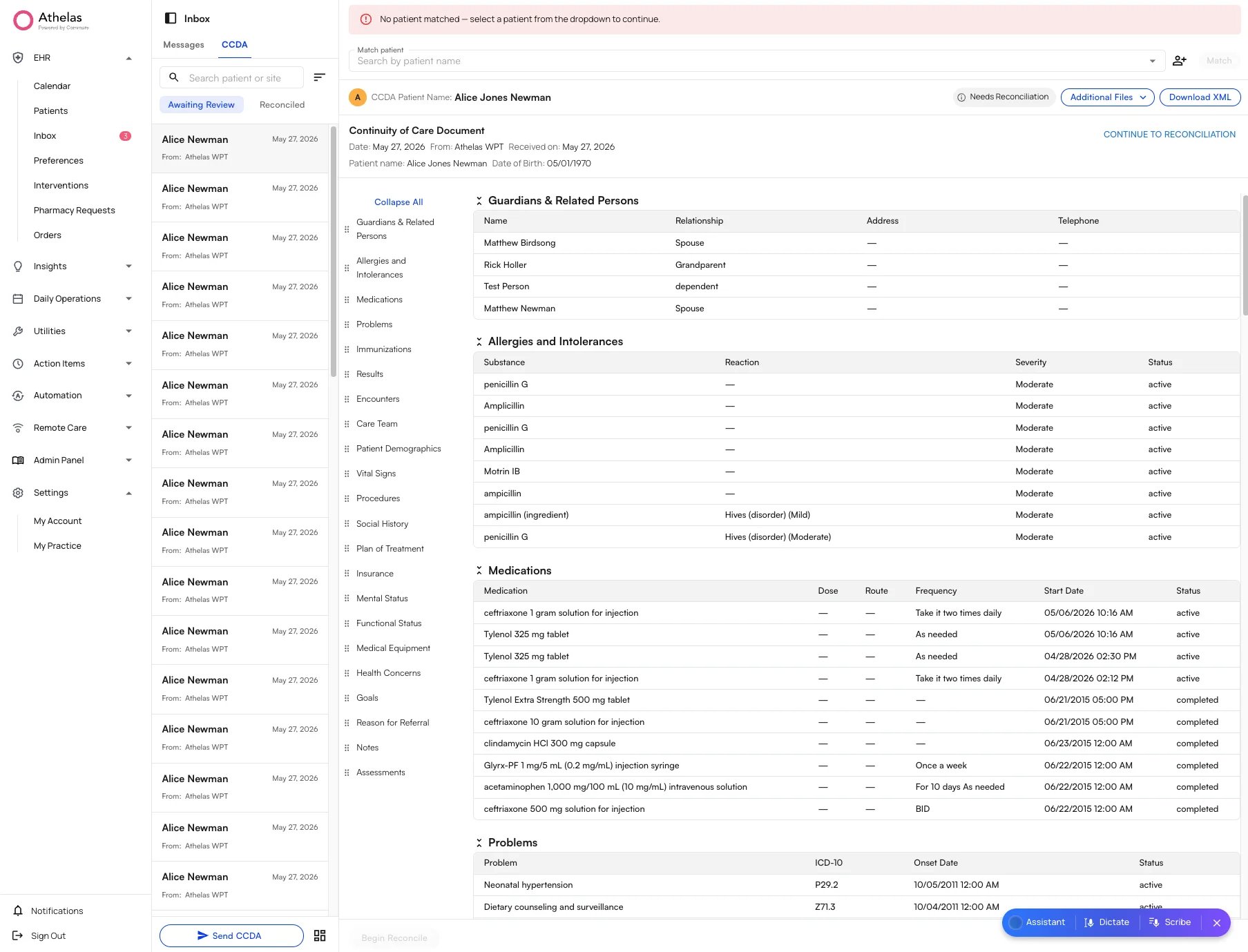
Unlike the Claims page, the CCDA view is site-wide—every clinician at your site sees the same list of documents.
Find and sort C-CDAs
The list of documents appears on the left. Each entry shows the patient, the date, and a From field—the clinic or provider name the document was sent from.- Use the search box at the top to find a document by patient or site.
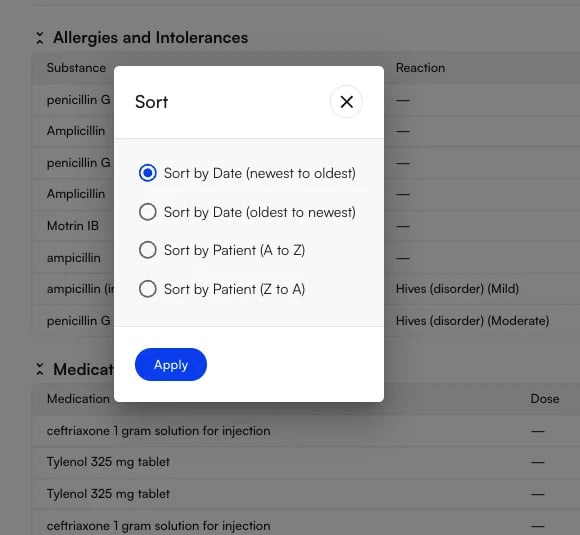
- Use the sort button below the search box to change the order. By default, documents are sorted by date sent, so the most recently received document appears at the top.
Reconcile a C-CDA
Reconciliation brings the incoming clinical data into the patient’s chart in five steps: match the document to a patient, begin reconciliation, map the incoming problems to ICD-10, reconcile each item, and confirm the merge. Select a document from the CCDA inbox to begin.1. Match the document to a patient
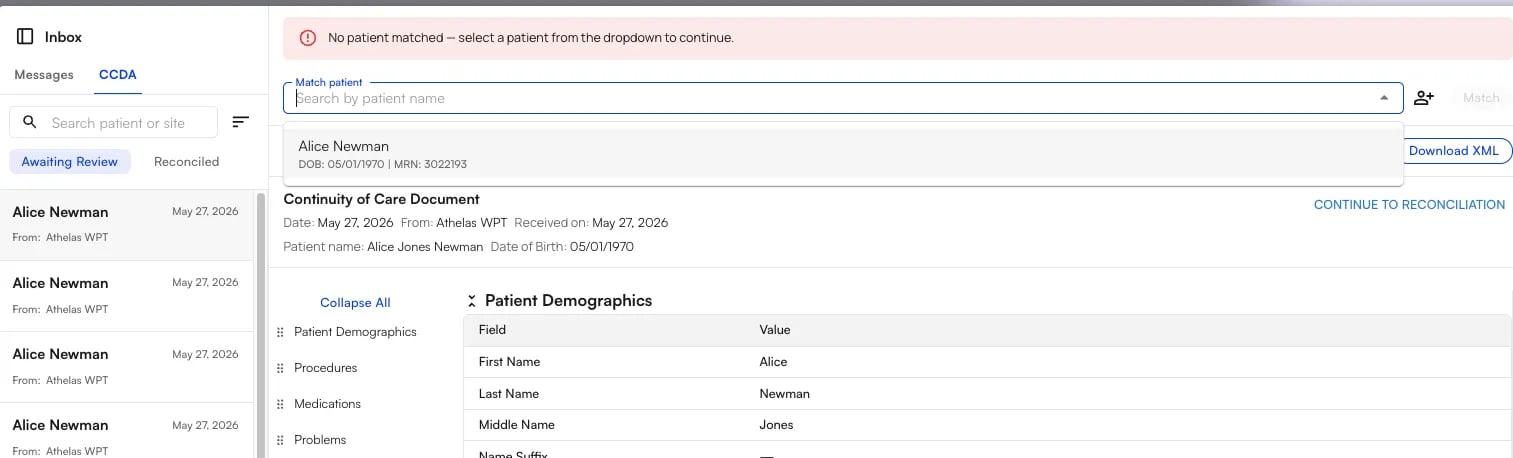
A new document opens with a No patient matched banner. Use the Match patient bar at the top to link the C-CDA to the correct patient in Air. Air automatically searches your database and surfaces the most likely matches first, in this order:- Same name and same date of birth
- Same first and last name, different date of birth
- Same last name, different first name, same date of birth
- Same first name, different last name, same date of birth
2. Begin reconciliation
Once a patient is matched, the document shows Matched Patient and a Needs Reconciliation badge. Before incorporating anything, you can review the document’s clinical sections, attachments, and original XML—see Viewing a C-CDA Document for the full walkthrough. When you’re ready, start reconciliation by clicking either Begin Reconcile at the bottom-left or Continue to Reconciliation at the top-right.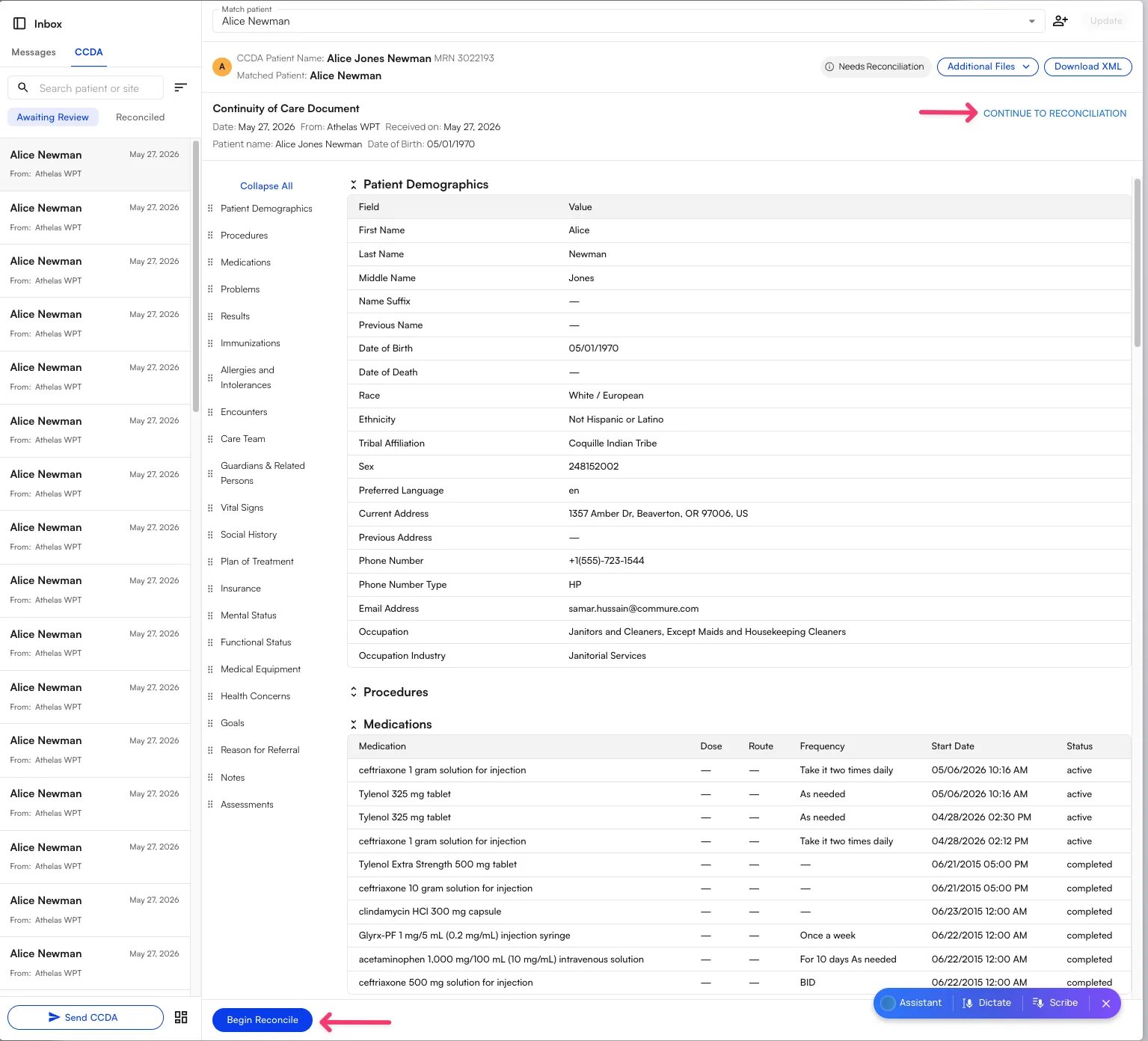
3. Map the incoming problems to ICD-10
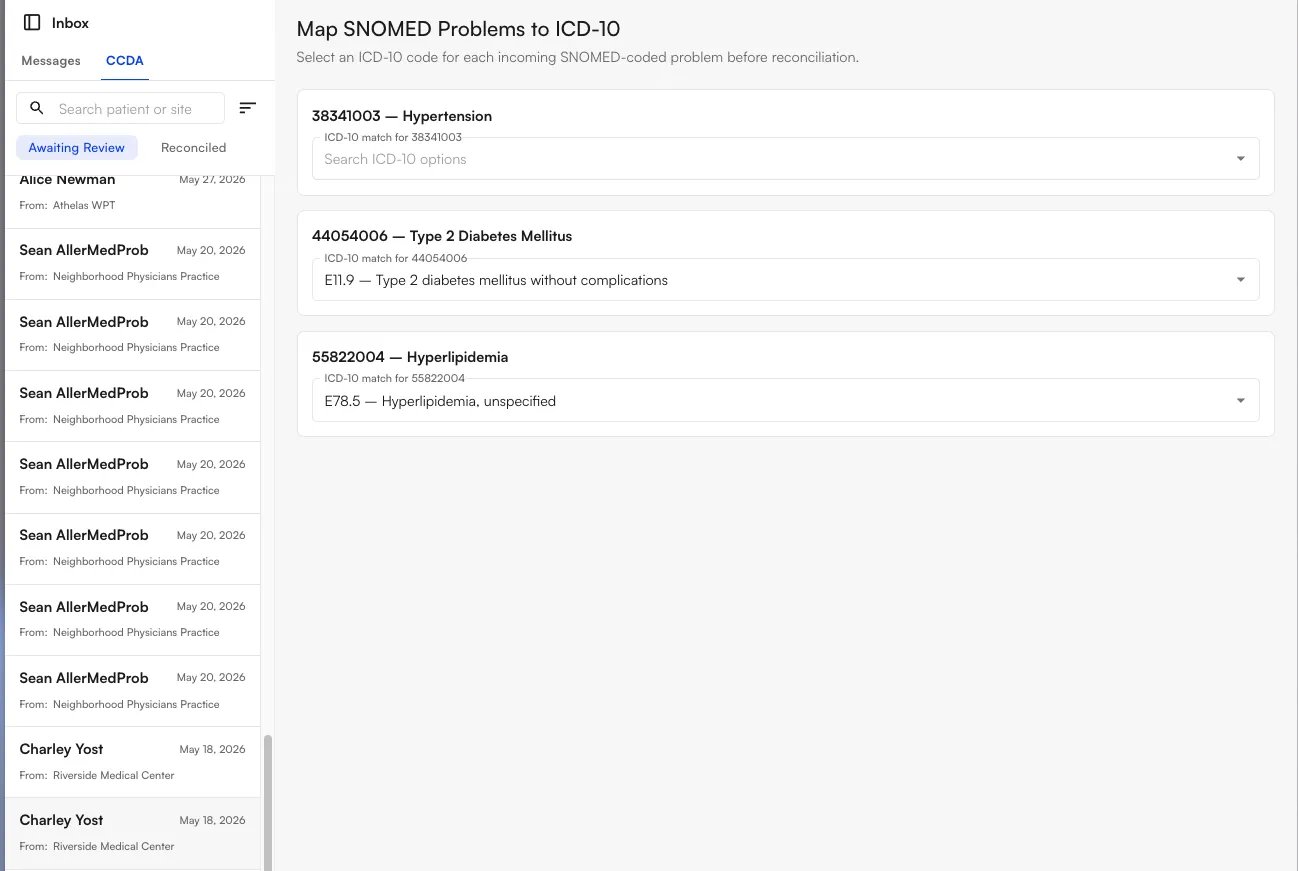
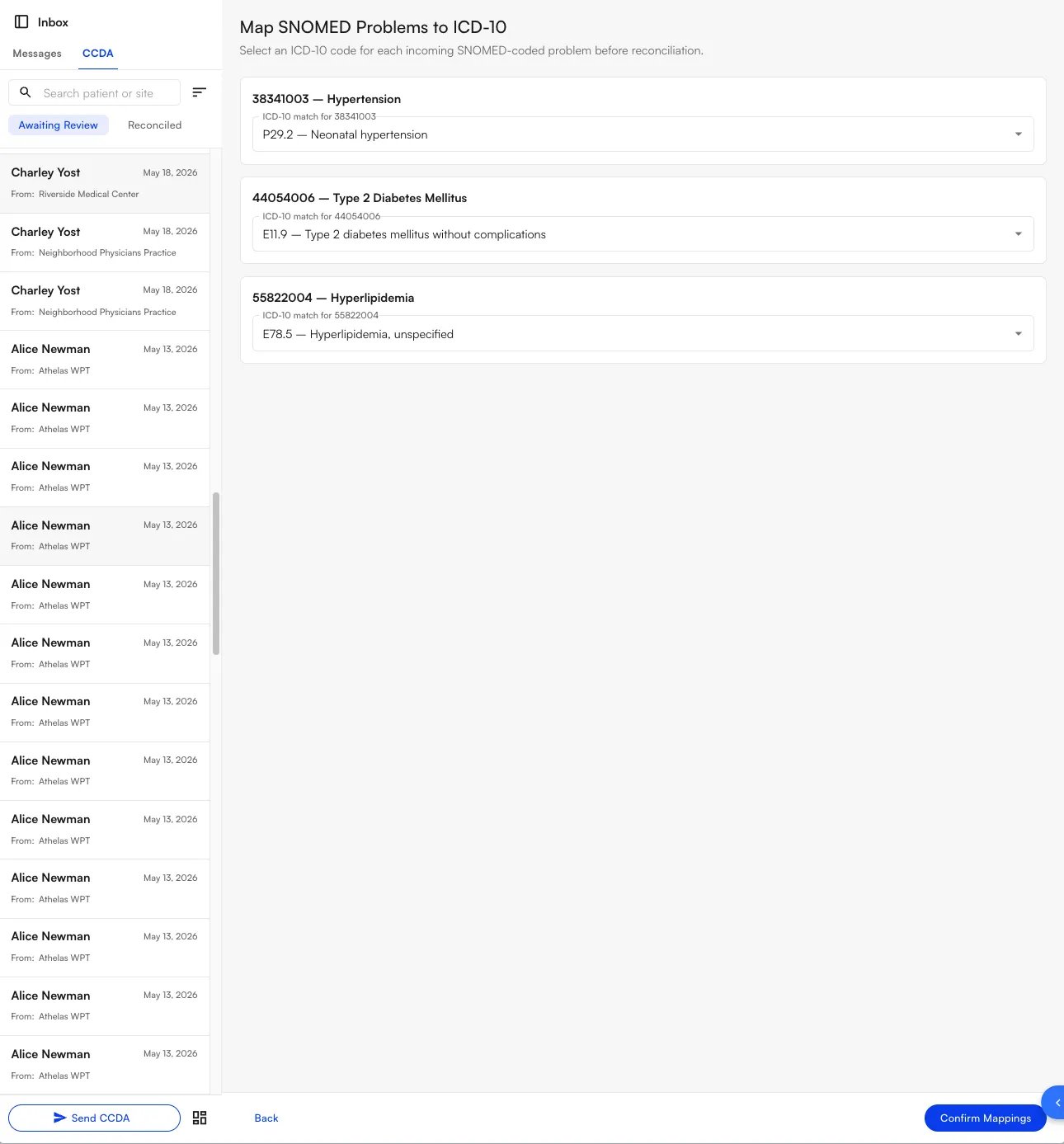
Air codes problems using ICD-10, but most incoming C-CDAs code their problems in SNOMED. So before you can reconcile, the Map SNOMED Problems to ICD-10 screen asks you to confirm an ICD-10 code for each incoming problem.- When there’s a single clear match, Air pre-selects the ICD-10 code for you.
- When a problem has more than one possible match (or none is pre-filled), the dropdown reads Search ICD-10 options—open it and select the correct code yourself.
4. Reconcile problems, medications, and allergies
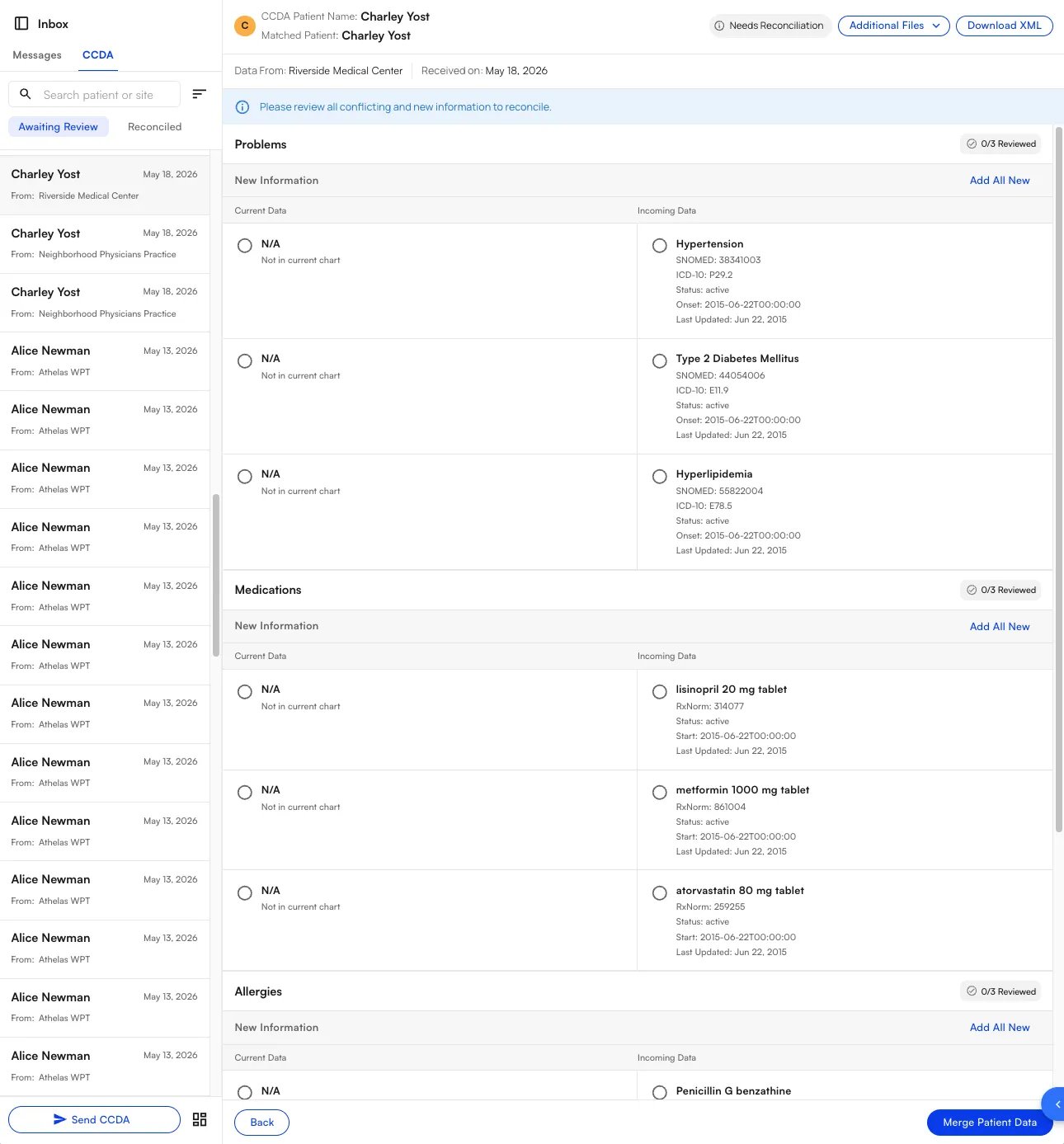
The reconciliation screen places the patient’s current chart data on the left and the incoming C-CDA data on the right, grouped into the three categories required by ONC criterion §170.315(b)(2): Problems, Medications, and Allergies. Each category tracks your progress with a Reviewed counter (for example, 0/3 Reviewed). For each item:- Add new data. When the current chart shows N/A — Not in current chart, select the Incoming Data entry to add it. Use Add All New to accept every new item in a category at once.
- Resolve conflicts. When both sides have a value, choose whether to keep the current entry or accept the incoming one.
5. Review and confirm the merge
When you’ve reviewed every item, click Merge Patient Data at the bottom-right. The Reconciliation Review window opens with a final summary of every problem, medication, and allergy that will be written to the chart—review it carefully, then click Confirm Merge to incorporate the data. (Click Cancel to go back without merging.)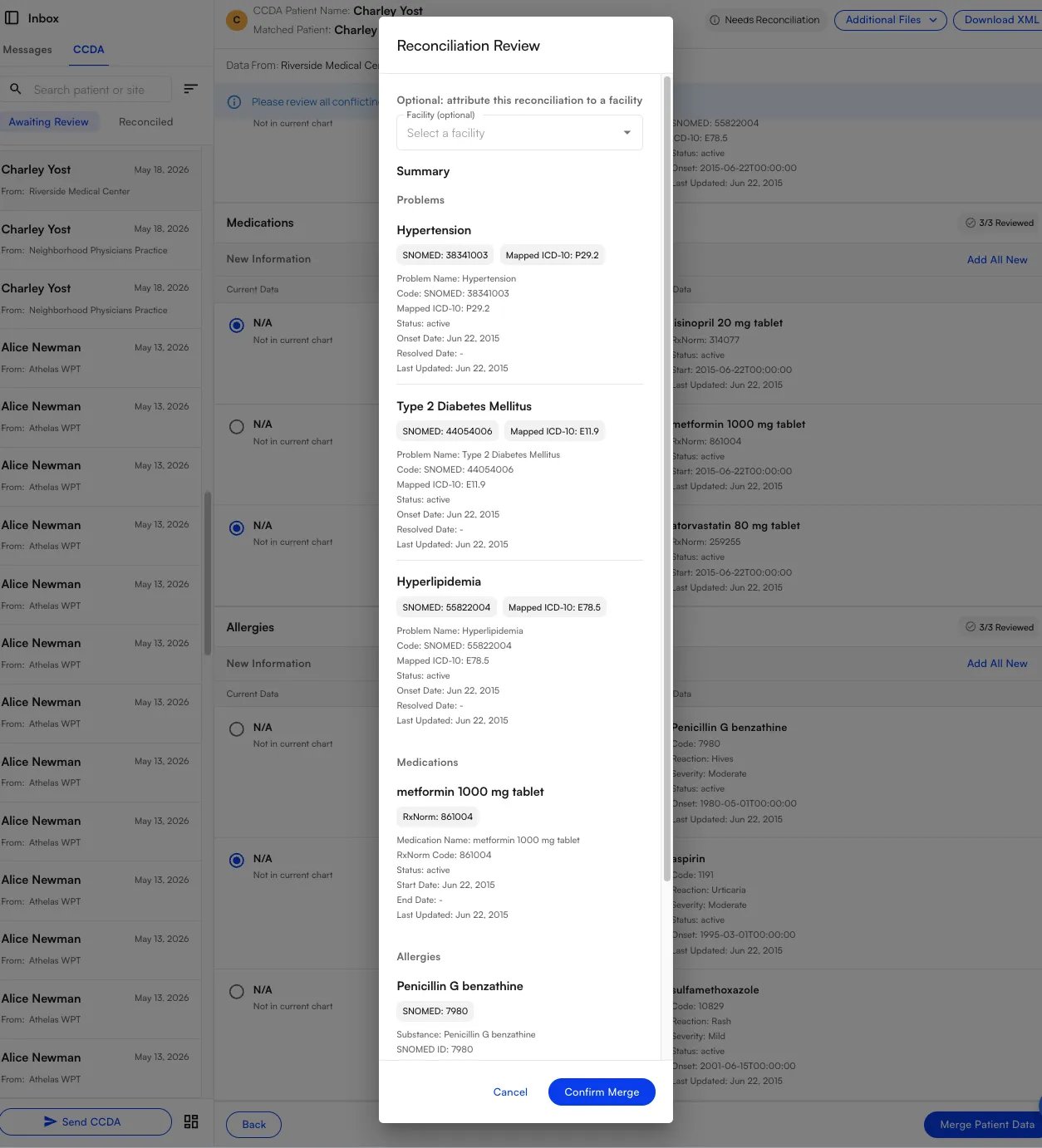
At the top of the review window you can optionally attribute this reconciliation to a facility using the Select a facility dropdown. This is used for MIPS reporting. If you leave it blank, the reconciliation is attributed to the default TIN of the parent facility you belong to.
FAQ
Who can see the CCDA inbox?
Who can see the CCDA inbox?
The CCDA view is site-wide, so all clinicians at your site see the same list of incoming and reconciled documents. This is different from the Claims page, which is more narrowly scoped.
What if the patient on the document isn't in Air yet?
What if the patient on the document isn't in Air yet?
Click the add patient (+) button to the right of the Match patient bar to add the patient, then match the document to the new record.
Why do I have to map problems to ICD-10?
Why do I have to map problems to ICD-10?
Air stores problems using ICD-10 codes, while most incoming C-CDAs code their problems in SNOMED. The mapping step translates each incoming SNOMED problem to the right ICD-10 code so it lands correctly in the chart. Air pre-selects the code when there’s a single clear match; otherwise you choose it from the Search ICD-10 options dropdown.
Which data does reconciliation incorporate?
Which data does reconciliation incorporate?
Per ONC criterion §170.315(b)(2), reconciliation covers three categories: Problems, Medications, and Allergies. The other C-CDA sections are read-only clinical context—see Viewing a C-CDA Document.
Can I remove an allergy during reconciliation?
Can I remove an allergy during reconciliation?
No. Allergies are kept evergreen for patient safety—you can add new allergies, but existing ones can’t be removed during reconciliation, so a known allergy is never dropped by accident.
Why would I pick a facility on the final review screen?
Why would I pick a facility on the final review screen?
Selecting a facility attributes the reconciliation to that location for MIPS reporting. It’s optional; if you don’t choose one, the reconciliation defaults to the parent facility’s TIN.