
Navigate to Family Health History
Open the patient’s demographics
- From the left navigation, open the Patients tab and search for the patient by name or MRN.
- On the patient’s profile, open the Demographics tab.
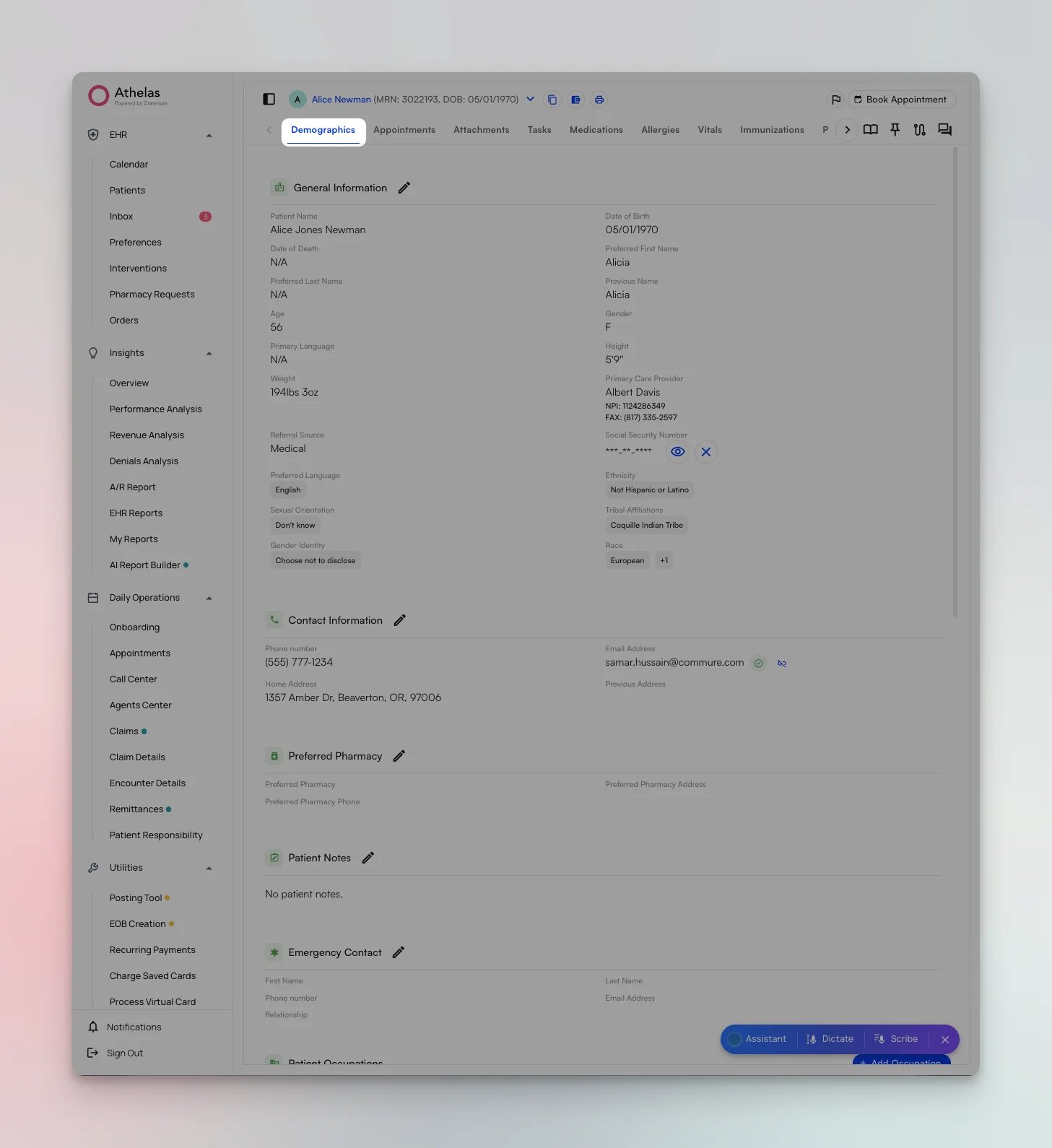
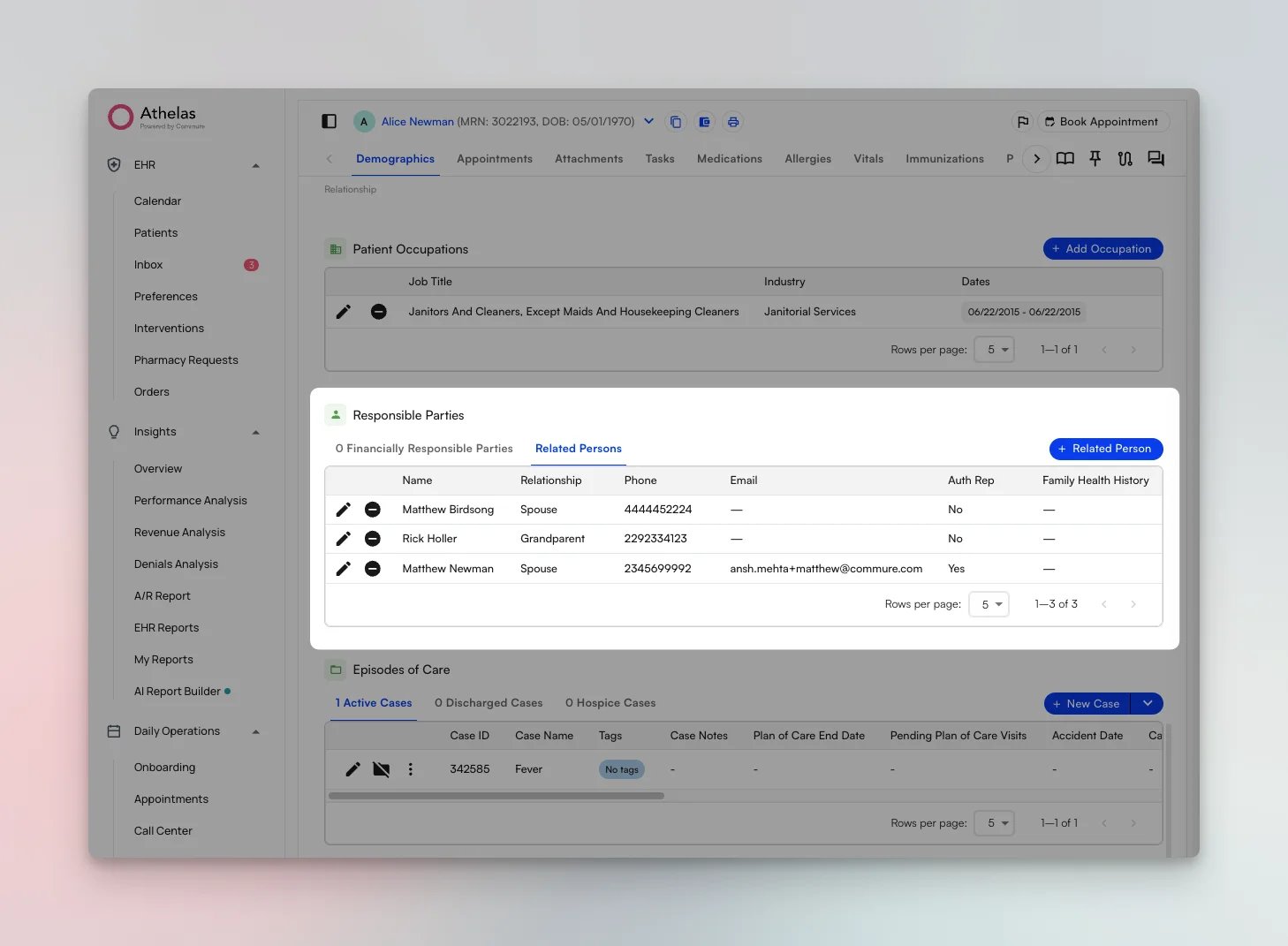
- Scroll down to the Responsible Parties section. This section has two tabs: Financially Responsible Parties and Related Persons.
- Select the Related Persons tab. Family health history is recorded against related persons, and the table includes a dedicated Family Health History column.
Create a Family Health History
Add a related person with health history
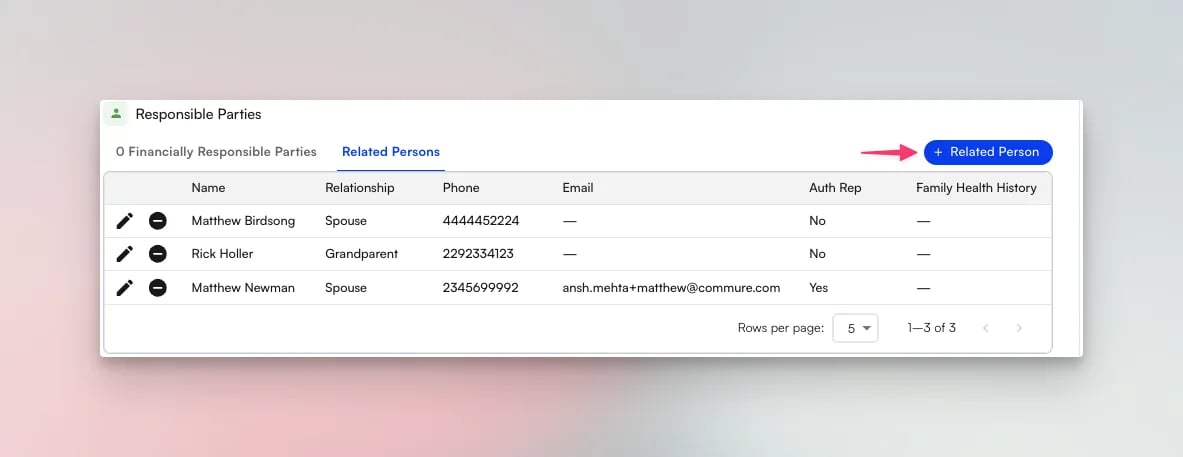
To record family health history, you first add the family member as a related person.- On the Related Persons tab, click the + Related Person button.
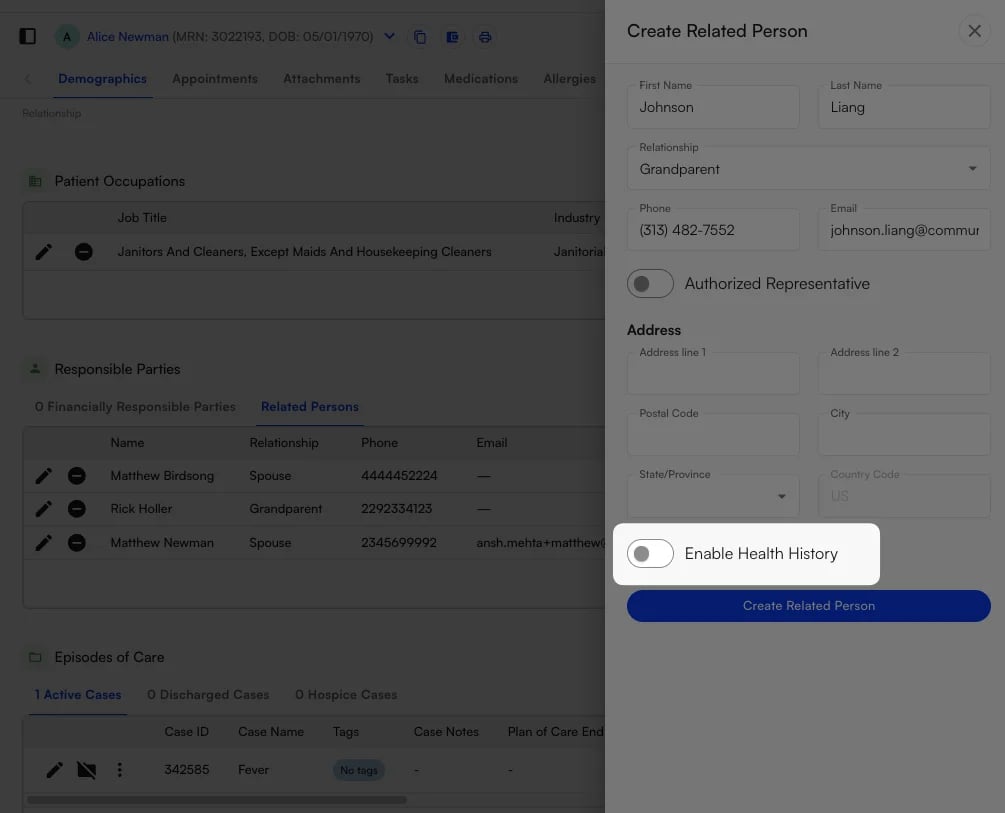
- In the Create Related Person panel, enter the person’s First Name and Last Name, choose their Relationship to the patient, and add their Phone, Email, and Address as needed.
- Toggle on Enable Health History. This opens the Family History Conditions widget, where you record the related person’s conditions.
- In the Family History Conditions widget, select the condition in the Family Health History (ICD-10) field, then choose a Clinical Status for that condition. Click the + icon to add additional conditions for the same person.
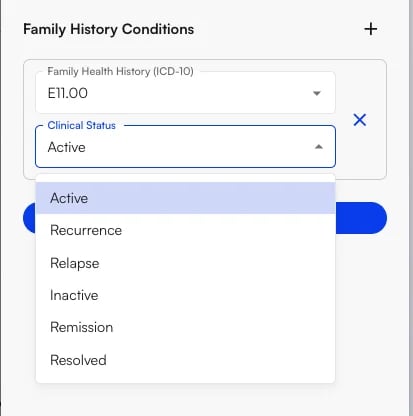
- Click Create Related Person to save. The family health history is stored on the related person under Responsible Parties.
Edit a Family Health History
Update an existing related person
To add or modify conditions for a family member you have already created:- On the Related Persons tab, click the pencil (edit) icon next to the person.
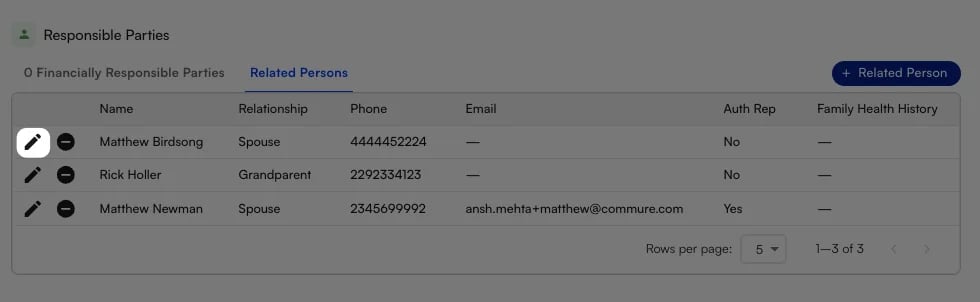
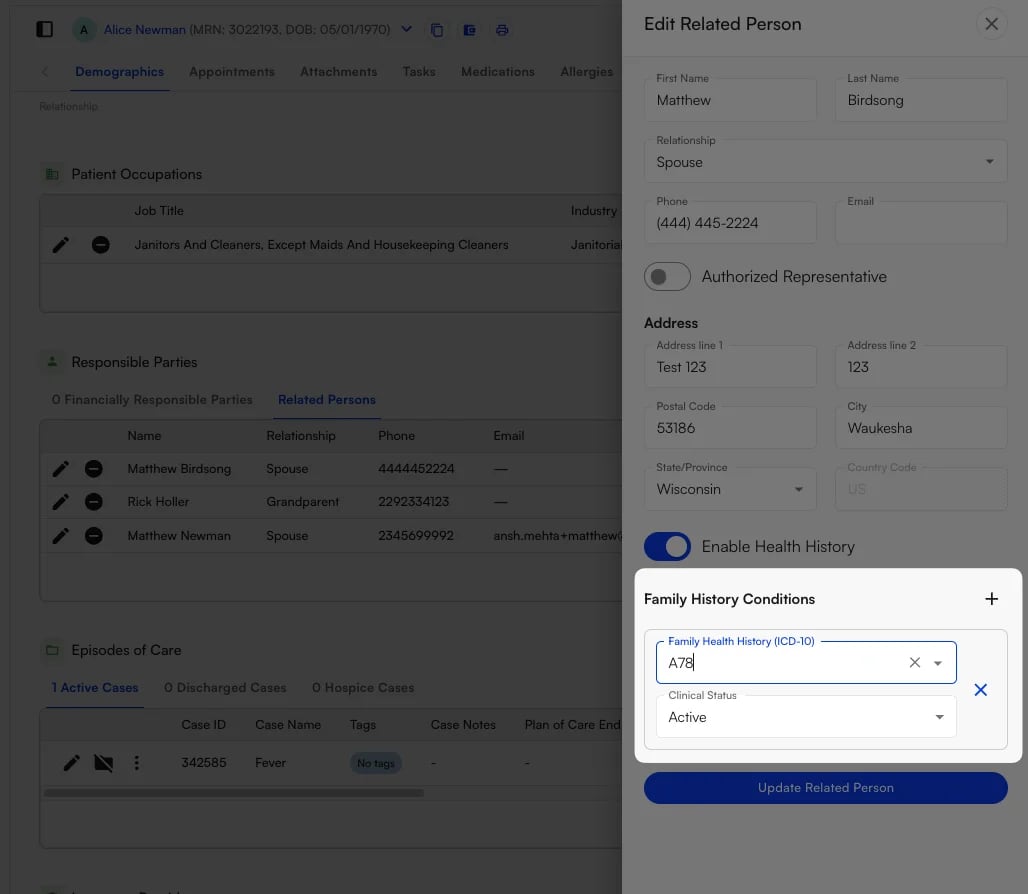
- In the Edit Related Person panel, make sure Enable Health History is toggled on, then use the Family History Conditions widget to add, change, or remove conditions—just as you did when creating the person.
- To delete a condition, click the X to the right of that condition row.
- Click Update Related Person to save your changes.
FAQ
Where is a patient's family health history stored?
Where is a patient's family health history stored?
Family health history lives on the patient’s Related Persons, found under Demographics → Responsible Parties → Related Persons. The table includes a Family Health History column so you can see at a glance which related persons have conditions recorded.
Can I record more than one condition for a single family member?
Can I record more than one condition for a single family member?
Yes. In the Family History Conditions widget, click the + icon to add another condition row. Each row has its own Family Health History (ICD-10) code and Clinical Status, so you can record as many conditions as needed for one person.
How do I remove a condition I added by mistake?
How do I remove a condition I added by mistake?
Click the pencil icon next to the related person to open the Edit Related Person panel, then click the X to the right of the condition you want to remove. Click Update Related Person to save.Note: Deleting a condition removes it from that related person’s family history.