
- Draft prescriptions (for controlled medications)
- Prescribe medications (for non-controlled medications)
Pre-requisite for Provider to Nominate an Agent
Note: A pre-requisite to be able to assign a Prescriber Agent is:-
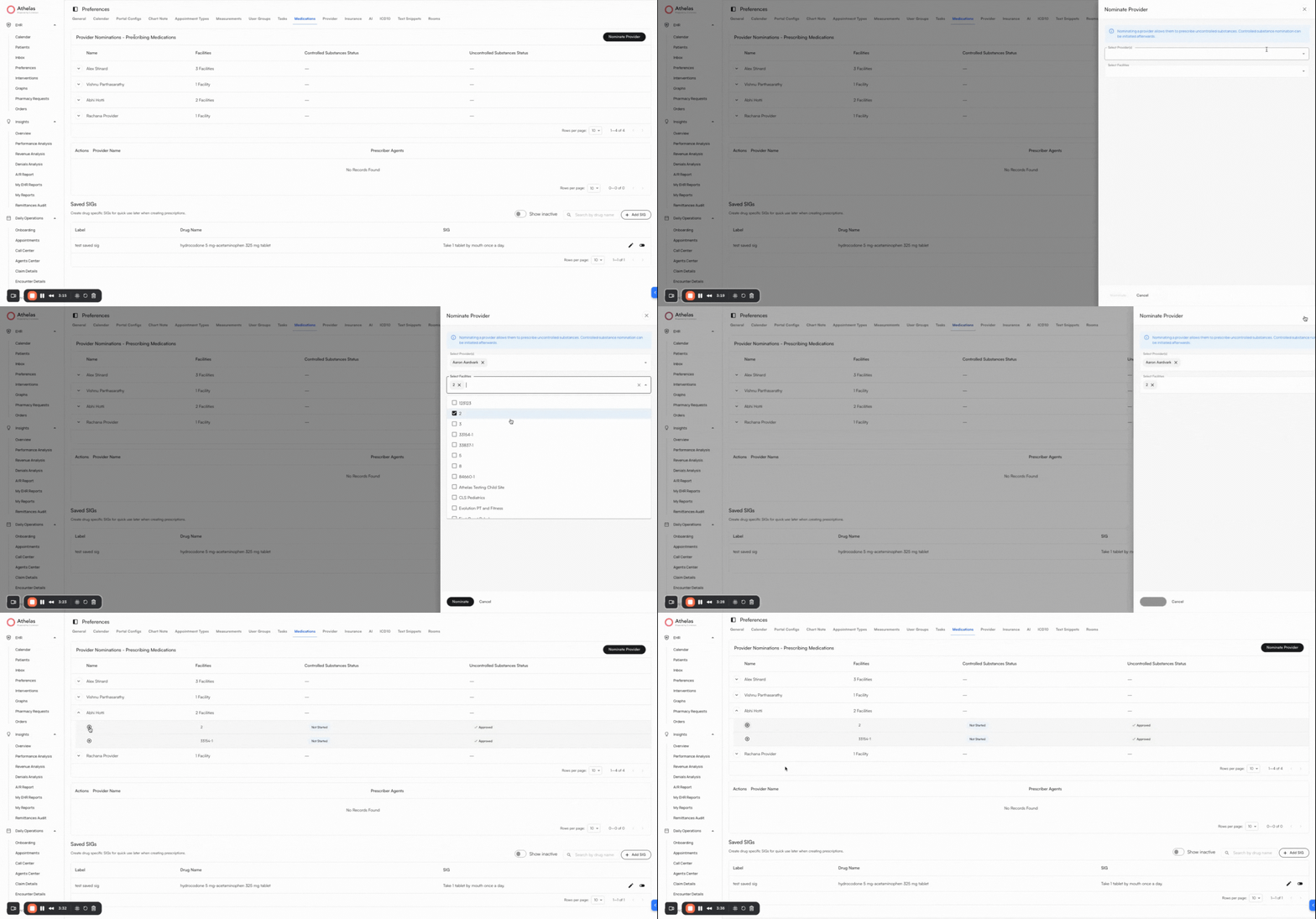
Provider should be assigned to the relevant facilities they want to prescribe for (update within Preferences Tab > Provider Section > Edit Provider Details)
-
Provider should be nominated to prescribe for the relevant facilities they want to prescribe for (update within Preferences Tab > Medications Section > Nominate Provider)
Add Prescriber Agents to a Provider
- Go to the Preferences Tab > Medications > Prescriber Agents
-
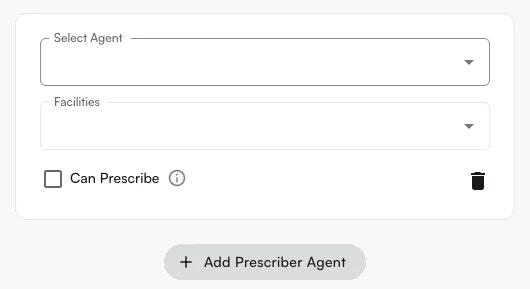
Click +Add Prescriber Agent.
- You will see yourself listed as the provider by default. This cannot be changed, since prescriber agents must be set up by the provider or admin.
- Select one or more agents, then add the facilities where you want them to create draft medications.
- Can prescribe → allows the prescriber agent to prescribe uncontrolled substances directly. If Can prescribe is checked, the agent can still create drafts, but will also have the option to prescribe.
- Click Submit when done. This creates the prescriber agent for the selected site and facilities.
Prescribe Medications as a Prescriber Agent
- Go to the Patient’s Profile > Medications tab.
-
Click Create Medication Order.
-
When selecting an appointment, the prescriber agent will only see appointments for facilities where they are authorized as a prescriber agent.
-
On the medication form, the prescriber agent can choose:
- Prescribe as agent
- Save draft (required if they are ineligible to prescribe for that facility or if the medication is controlled).
- Medications saved as drafts will appear with a Draft status.
-
Once submitted:
- Draft medications will appear in the Medications table.
- A confirmation toast will display details of the medications created.
- A task is automatically created for the provider, who must review and sign off on the medications.
Review Prescriptions by Prescriber Agents
Key Points to Remember
- MAs or Providers can also be assigned as prescriber agents for other providers. For example, a midlevel can be a prescriber agent for another provider and will be drafting/prescribing under their name.
- Any prescriber agent has the ability to directly prescribe non-controlled medications on behalf of another provider. This can be disabled in Preferences > Medications > Prescriber Agents to only allow drafting.
- A prescriber agent can only draft (cannot prescribe) controlled medications on behalf of another provider. The provider will have to verify with ID.me and approve the medication order.
- Controlled medications will only appear for providers who are permitted to prescribe them.
FAQ
Can a prescriber agent prescribe controlled medications?
Can a prescriber agent prescribe controlled medications?
No. Prescriber agents can only draft controlled medications on behalf of a provider. The provider must verify their identity via ID.me and approve the order before it is sent.
How do I disable direct prescribing for a prescriber agent?
How do I disable direct prescribing for a prescriber agent?
Navigate to Preferences > Medications > Prescriber Agents and uncheck the Can prescribe option for that agent. This limits them to creating drafts only.
Can one provider be a prescriber agent for another provider?
Can one provider be a prescriber agent for another provider?
Yes. MAs and providers (including midlevels) can be assigned as prescriber agents for other providers. Drafts and prescriptions will appear under the supervising provider’s name.
What happens after a prescriber agent saves a draft medication?
What happens after a prescriber agent saves a draft medication?
The draft appears in the Medications table with a Draft status, and a task is automatically created and assigned to the supervising provider to review and sign off.