
This guide is for providers and front desk staff. It explains how progress note (PN) alerts and automatic conversion work, what you’ll see in the product, and what to do when you see it.
What is progress note alerting and auto-conversion?
Progress notes (PNs) are required at certain clinical and regulatory intervals during a patient’s course of care. Missing them can affect reimbursement, compliance, and patient management. The goal is simple: you should never be surprised that a progress note is due. The system surfaces alerts before scheduling, during scheduling, and before documentation — and automatically converts qualifying appointments to a progress note type — without creating noise.When is a progress note required?
Progress note rules are configured per insurance type (Medicare, Medicaid, Commercial, Workers’ Comp, Auto, and others) by your Athelas administrator, based on your preferences and state requirements. The system evaluates these rules automatically for every patient appointment. There are three core triggers.Medicare regulatory cadence (default rule)
A progress note is required at whichever comes first:- A configurable number of visits (for example, 10) since the last evaluative note (initial evaluation, re-evaluation, or progress note)
- A configurable number of calendar days (for example, 30) since the last evaluative note
Example alert timing — visit 10 or day 30 — is illustrative. Actual thresholds are set by your site’s configuration.
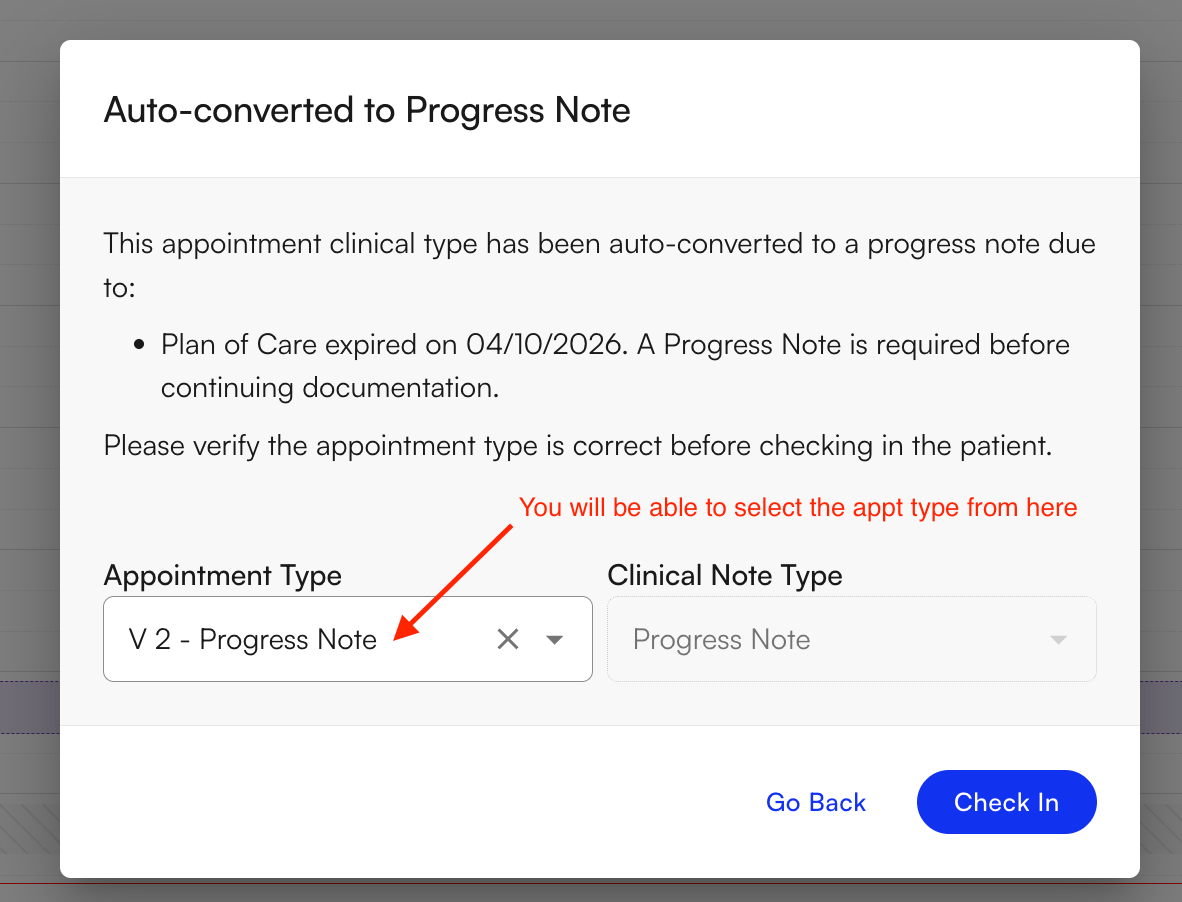
Plan of care (POC) expired
A progress note is required when:- The POC end date is before the appointment date, or
- The POC visit count is exhausted
Prior authorization nearing expiration
A progress note is prompted when a configurable number of visits remain on the authorization. Payers frequently require updated functional measures, goal progress, and medical-necessity documentation before approving additional visits.What you’ll see and when
For front desk staff
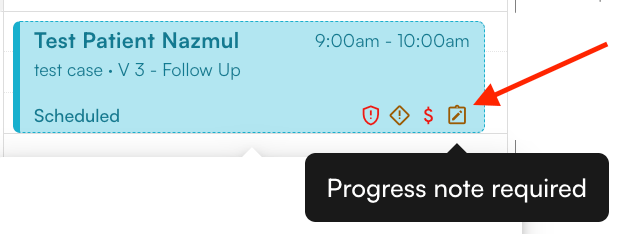
While scheduling an appointment If a patient is approaching or at a progress note threshold, an alert appears during scheduling, with a suggested appointment type. This helps ensure the correct appointment type is booked before the visit. On the calendar Two visually distinct icons tell you the difference between “a PN is coming” and “this appointment is already a PN”:- 🔔 PN Required — appears on appointments where a progress note will be due at that visit.
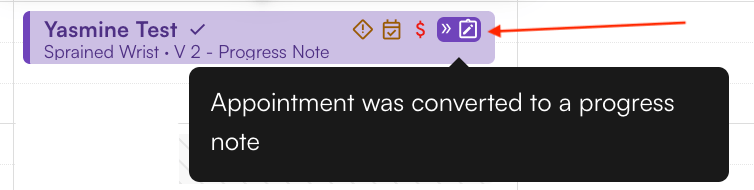
- ✅ Auto-converted to a PN — appears on appointments that have already been auto-converted to a progress note type.
For providers
On the calendar (before the visit) A badge appears on your calendar appointment when a progress note is required for that visit, based on the alert timing configured for your site. This solves the most common frustration: being surprised mid-documentation that a progress note was due. Inside the note (during documentation) An alert appears when you open documentation if a progress note is due and the visit is not already a progress note — for example, the patient’s 10th treatment day, or 30+ days since the last progress note. You’ll be prompted to complete a progress note before continuing with routine documentation. Air Scribe app You can view auto-converted progress notes in the Air Scribe mobile app. If the front office hasn’t checked the patient in — for any reason — you can check the patient in directly from Air Scribe and start scribing.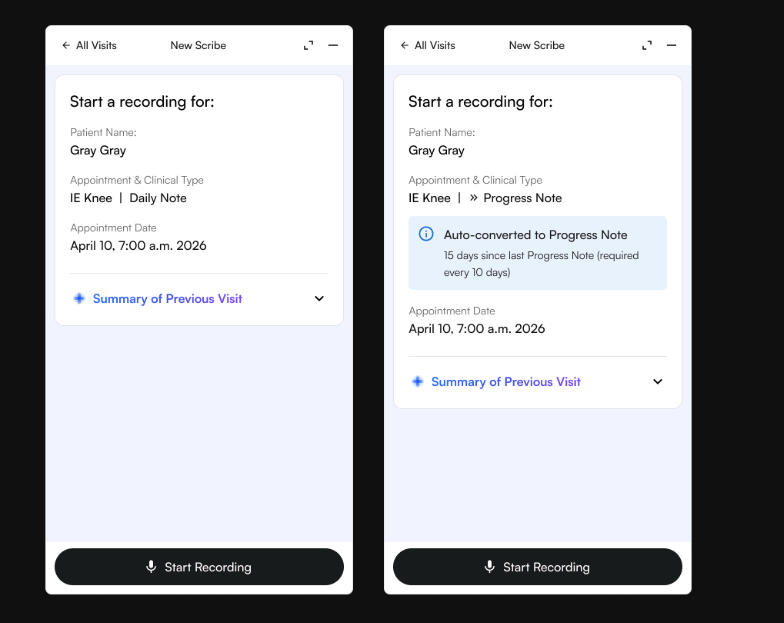
How auto-conversion works
Auto-conversion is a background process that automatically changes a qualifying appointment to a progress note type — so the right visit type is already in the system before the patient arrives.Conversion timeline
- 48 hours before the appointment — the system checks whether the appointment meets PN criteria. If it does, the appointment is auto-converted to a progress note type.
- 24 hours before the appointment — if it wasn’t converted at the 48-hour check, the system runs a second check and converts it if the criteria are now met.
What gets converted
Only appointments that match the PN rules configured for the patient’s insurance type are converted. The following are never auto-converted:- Appointments already scheduled as a progress note type
- Canceled or no-show appointments
What stays the same after conversion
All original scheduling details are preserved — date, time, provider, patient, and location. Only the clinical note type changes.Quick reference: alert summary
FAQ
What if the appointment was already scheduled as a progress note?
What if the appointment was already scheduled as a progress note?
Nothing changes. Auto-conversion only applies to appointments that aren’t already set as a progress note type.
Can the rules be customized per insurance or site?
Can the rules be customized per insurance or site?
Yes. Progress note alert rules are configurable by insurance type and are managed by your Athelas administrator. The 24-hour and 48-hour auto-conversion checks, however, are not configurable per site.
What if I see an alert but a progress note isn't actually due?
What if I see an alert but a progress note isn't actually due?
Alerts are driven by the configured rules — if the rule criteria are met, the alert fires. If the rules look incorrect for your site, review the progress note rule configuration with your administrator so they can be updated.