
Creating a Reserve Block
Access the reserve-block creation drawer through either of the following: Option 1 — The Add button in the top right of the calendar view: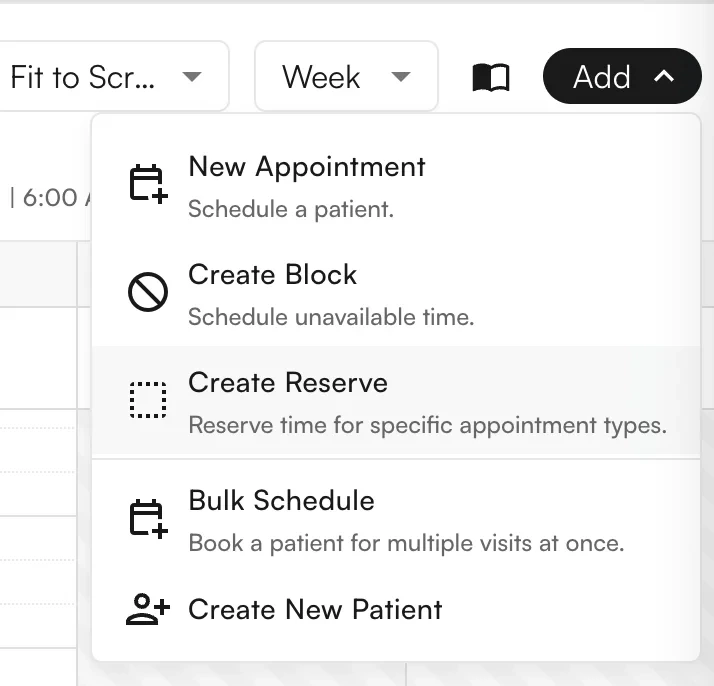
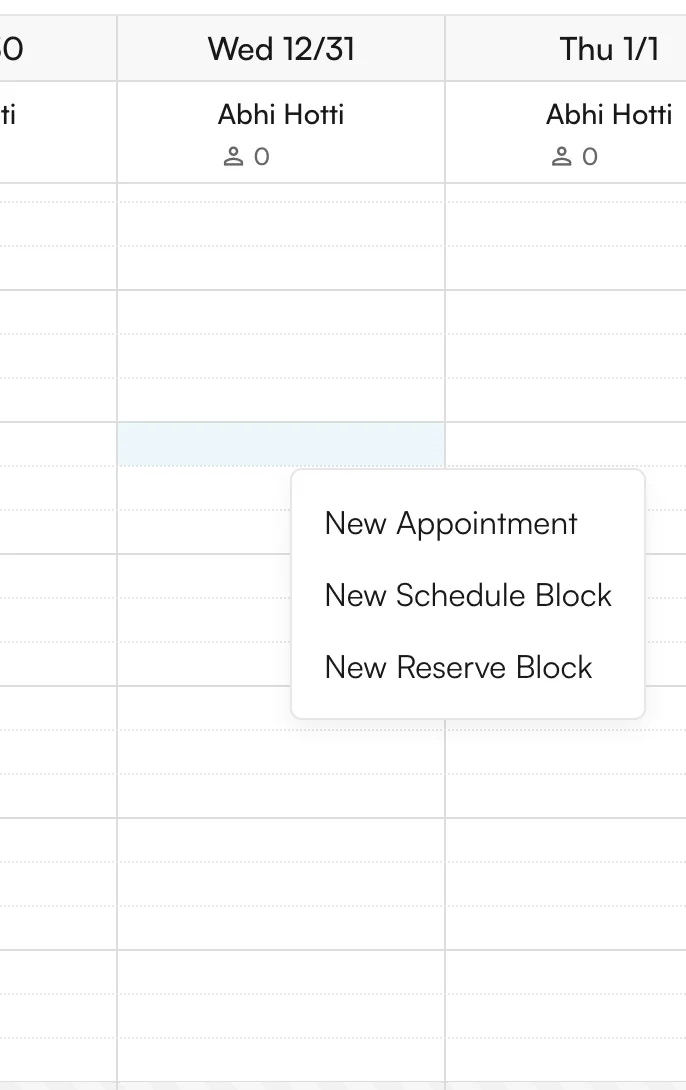
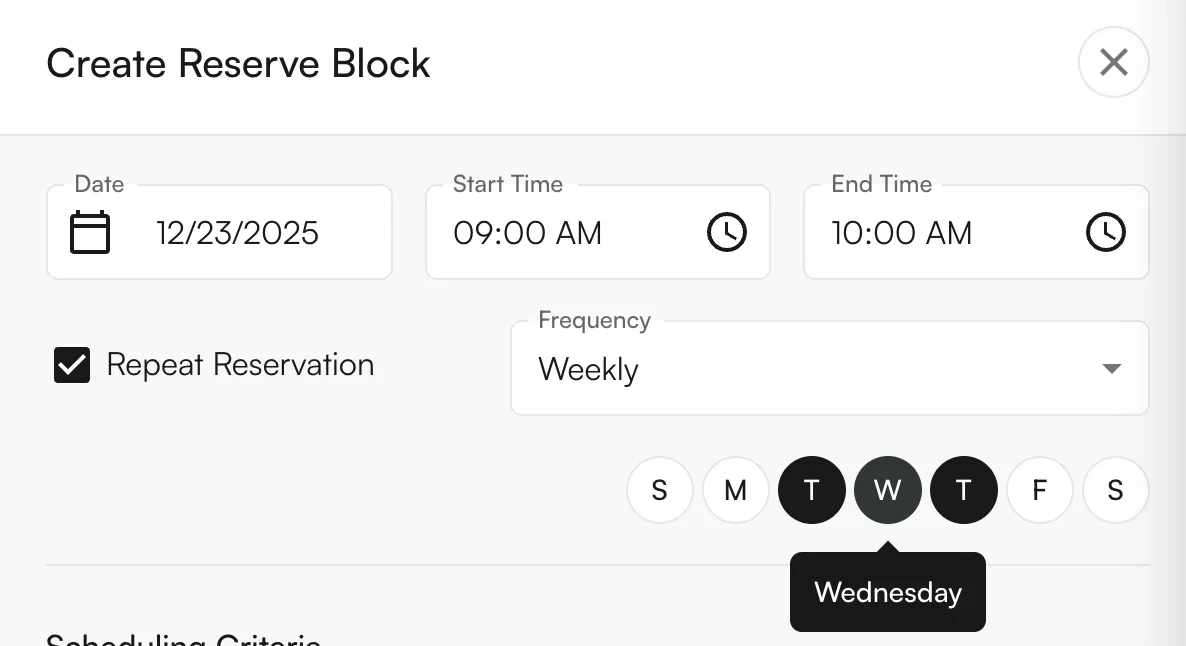
Timing properties
- Date of the block (pre-populated if accessing directly from a calendar slot).
- Start and end times (pre-populated if accessing directly from a calendar slot).
- Whether to repeat the block, with frequency: Once, Daily, Weekly (SMTWTFS), Monthly, on Weekdays, or on Weekends.
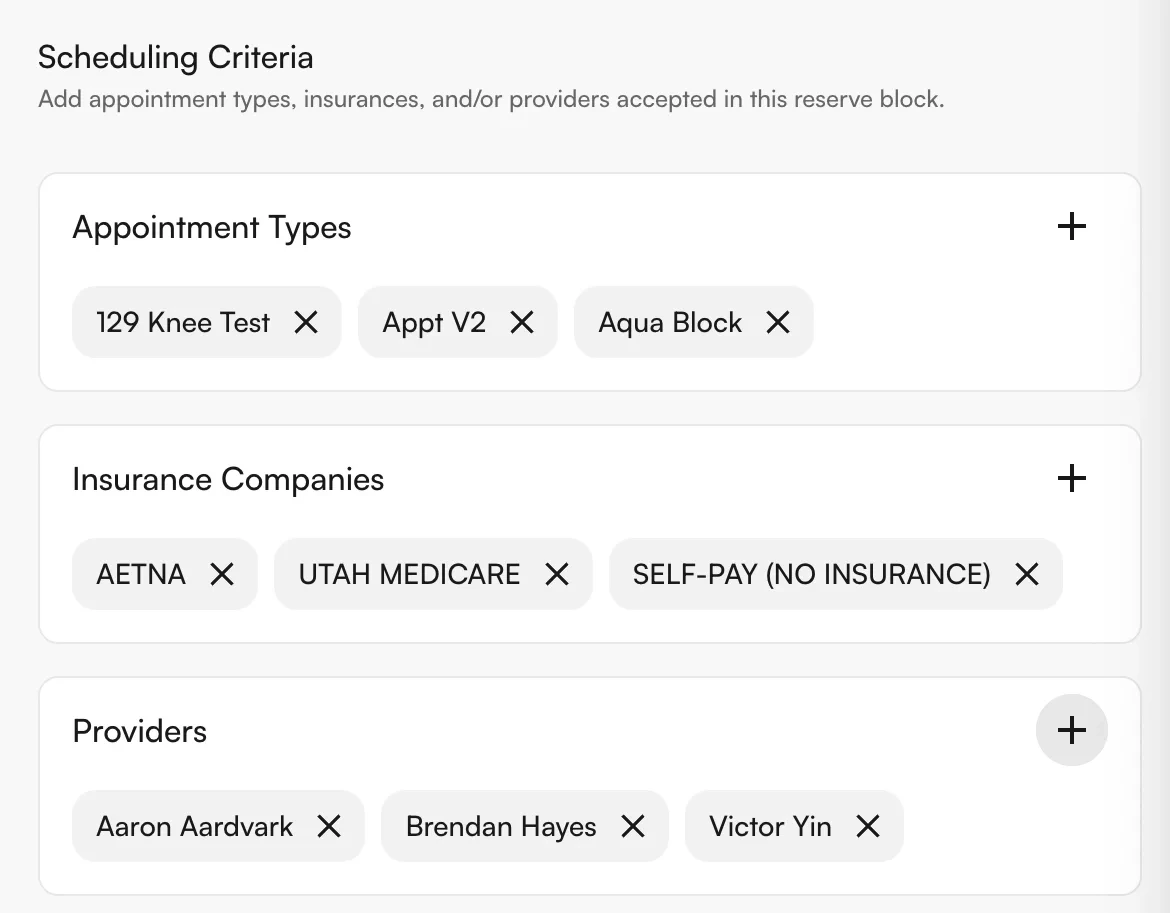
Scheduling criteria
- Appointment Types (optional, multi-select)
- Insurance Companies (optional, multi-select)
- Providers (required, multi-select)
Overlapping logic
You can configure whether reserve blocks allow overlapping appointments in their timeslot. This can be general (across all appointment types and insurance types) or specific to a single insurance type or appointment type. For example, a reserve block could allow double-booking at maximum on the timeslot. However, if a patient tries to book Iowa Medicare or Utah Medicare, they cannot double-book over another patient. Similarly, if an Iowa Medicare or Utah Medicare patient is already booked in that timeslot, no other appointments can book at that time.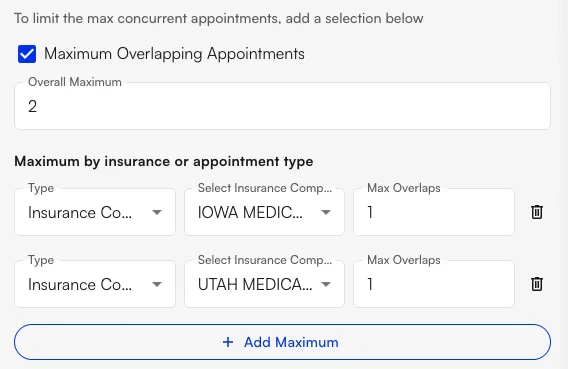
Viewing reserve block details
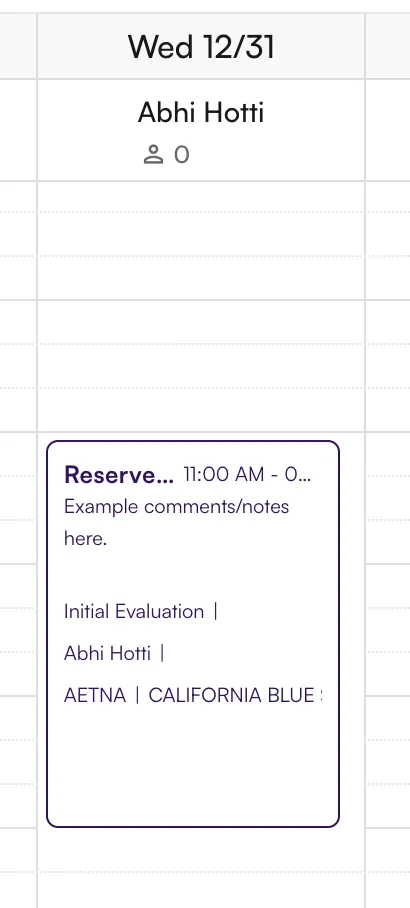
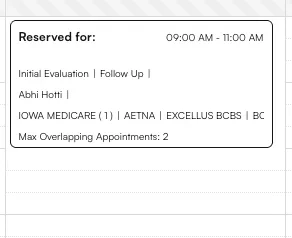
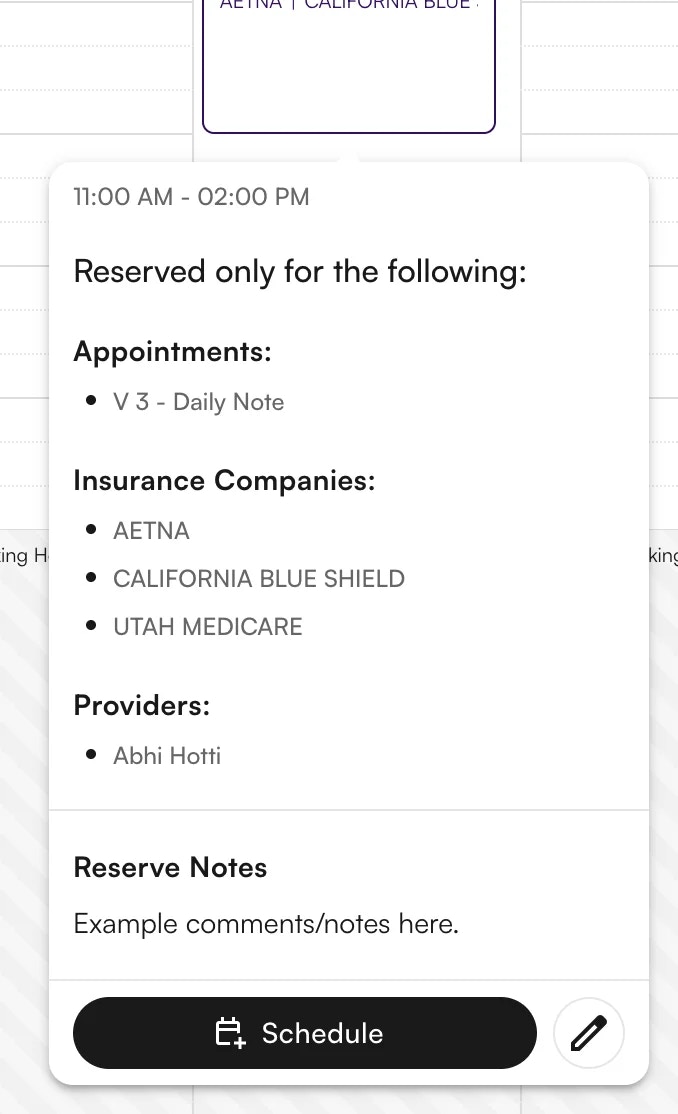
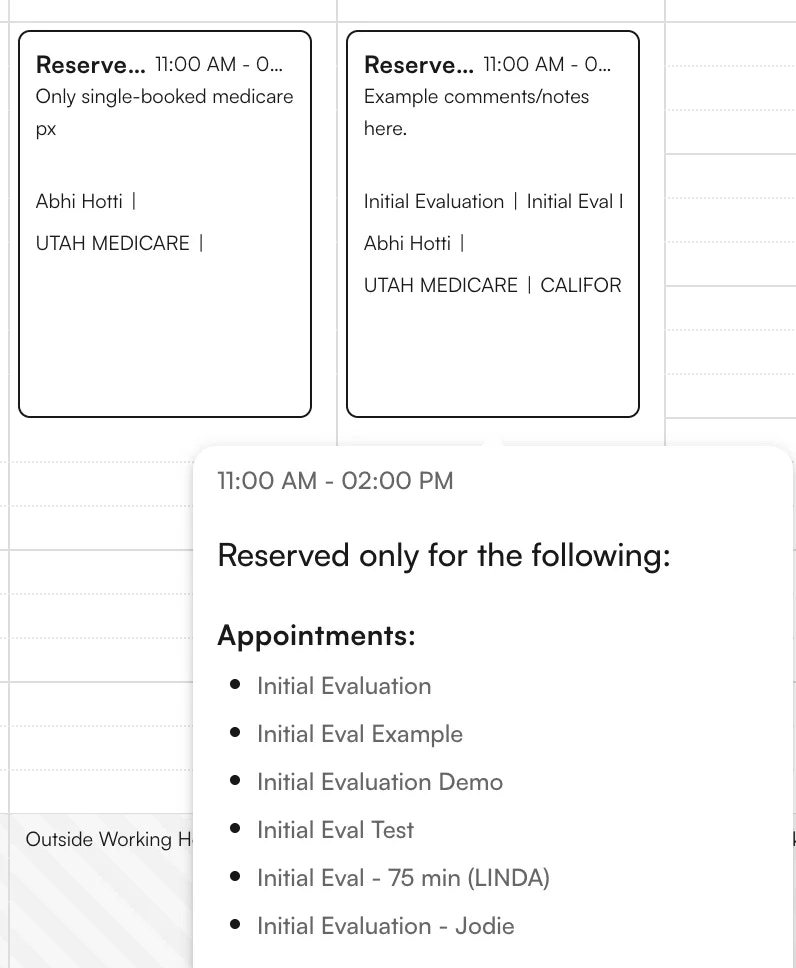
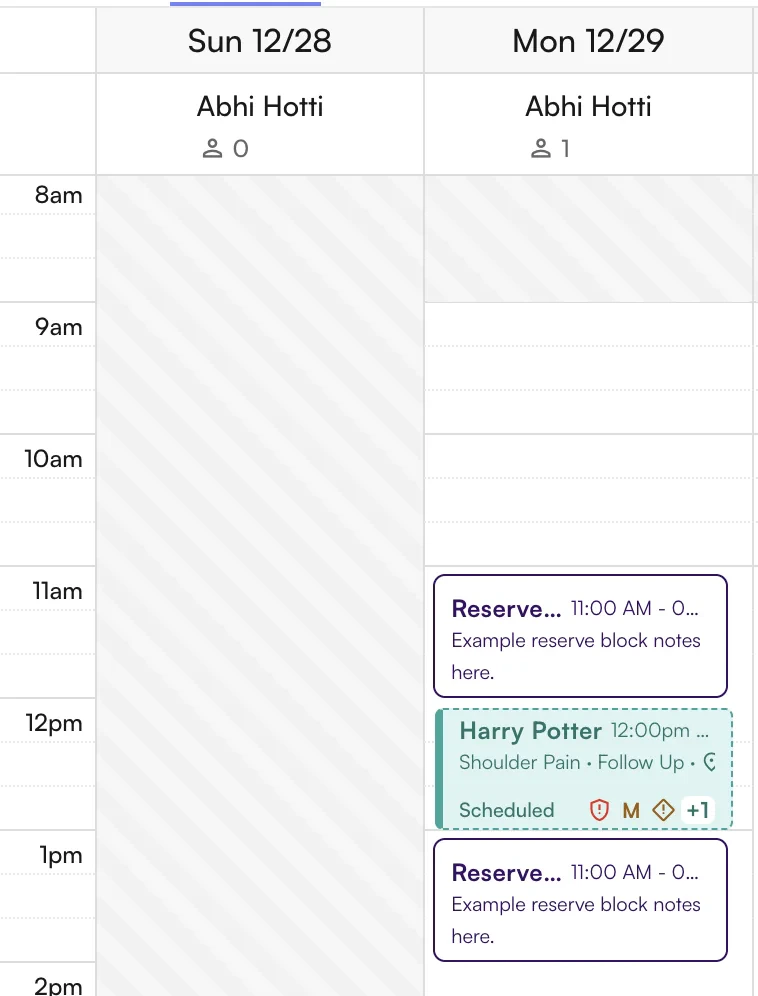
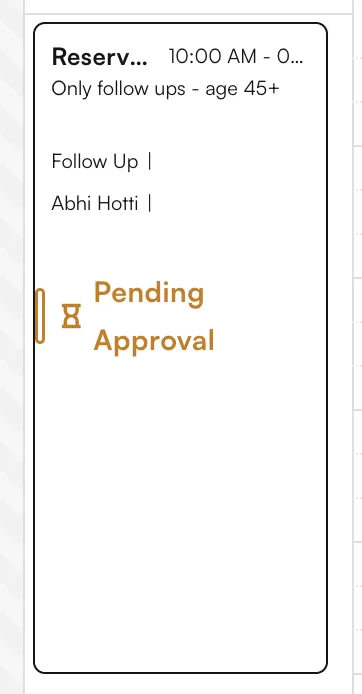
Once a reserve block has been created, it can be viewed on the calendar with the scheduling criteria and any Notes that have been added. Overlapping logic for any specific appointment type or insurance type is shown in parentheses next to the type (e.g.,(1)). The max overlapping for the entire block is shown at the bottom.
Reserve block color system
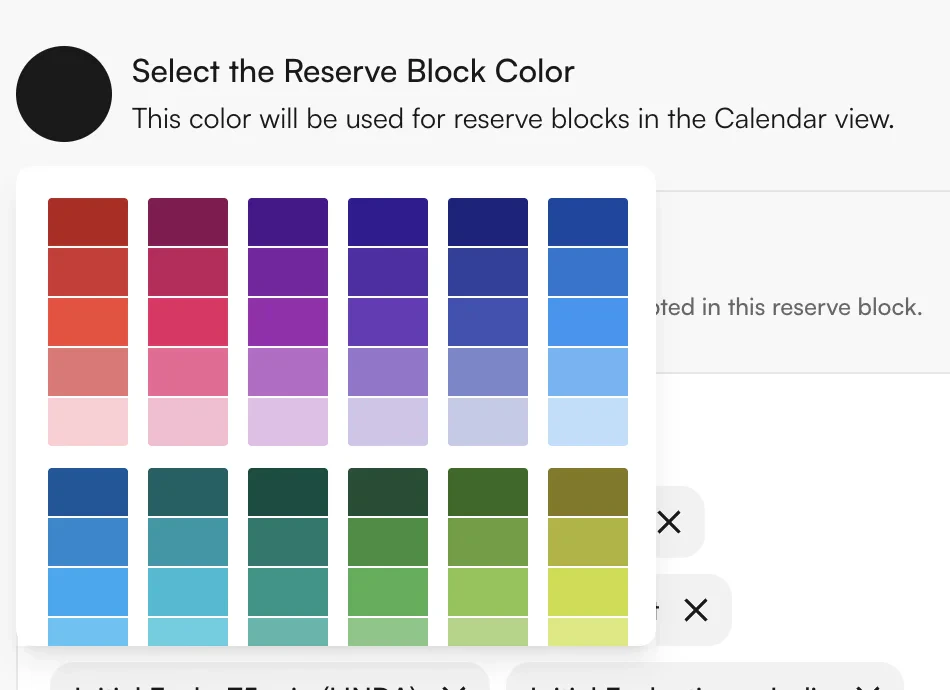
If a single Appointment Type is included in the scheduling criteria, the block has the same color boundary as the appointment type.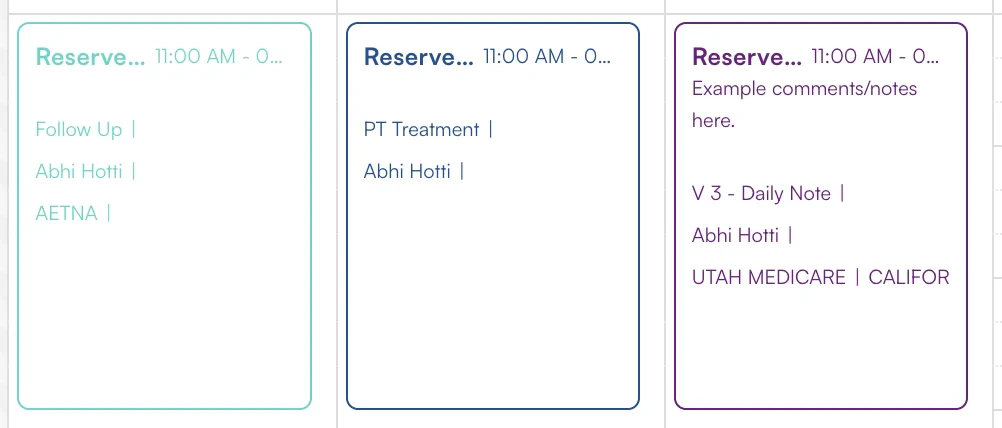
External and internal appointment types
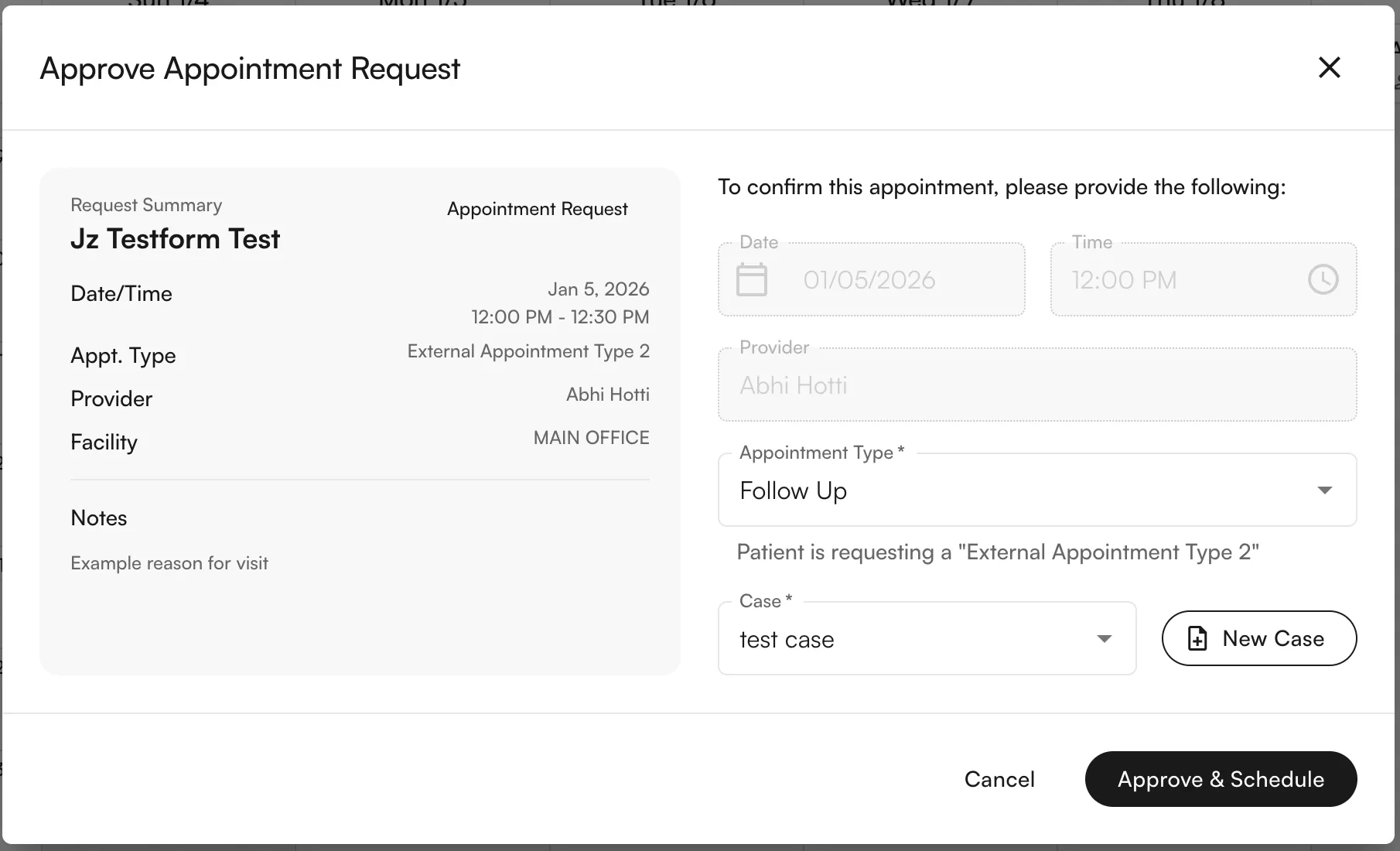
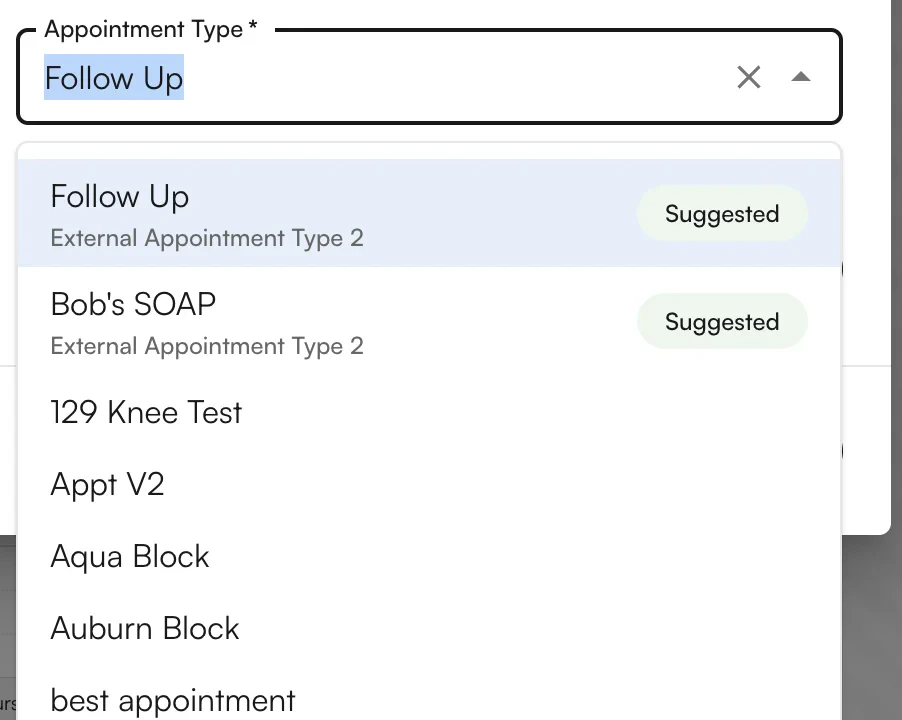
As part of Reserve Blocks, you can map multiple internal appointment types (visible to internal personnel) to a single external appointment type (visible to patients). When patients schedule in the Athelas Patient Portal, they are offered only the external appointment types, which reduces confusion on which option to select. To edit the mappings:-
Navigate to Calendar Preferences.
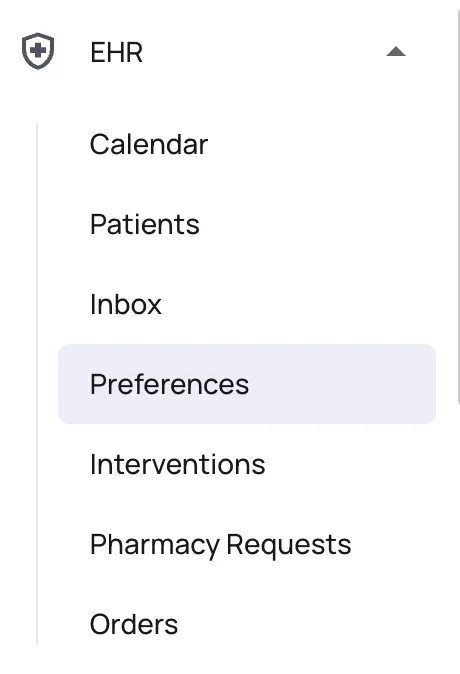
-
Navigate to the Appointment Types tab.
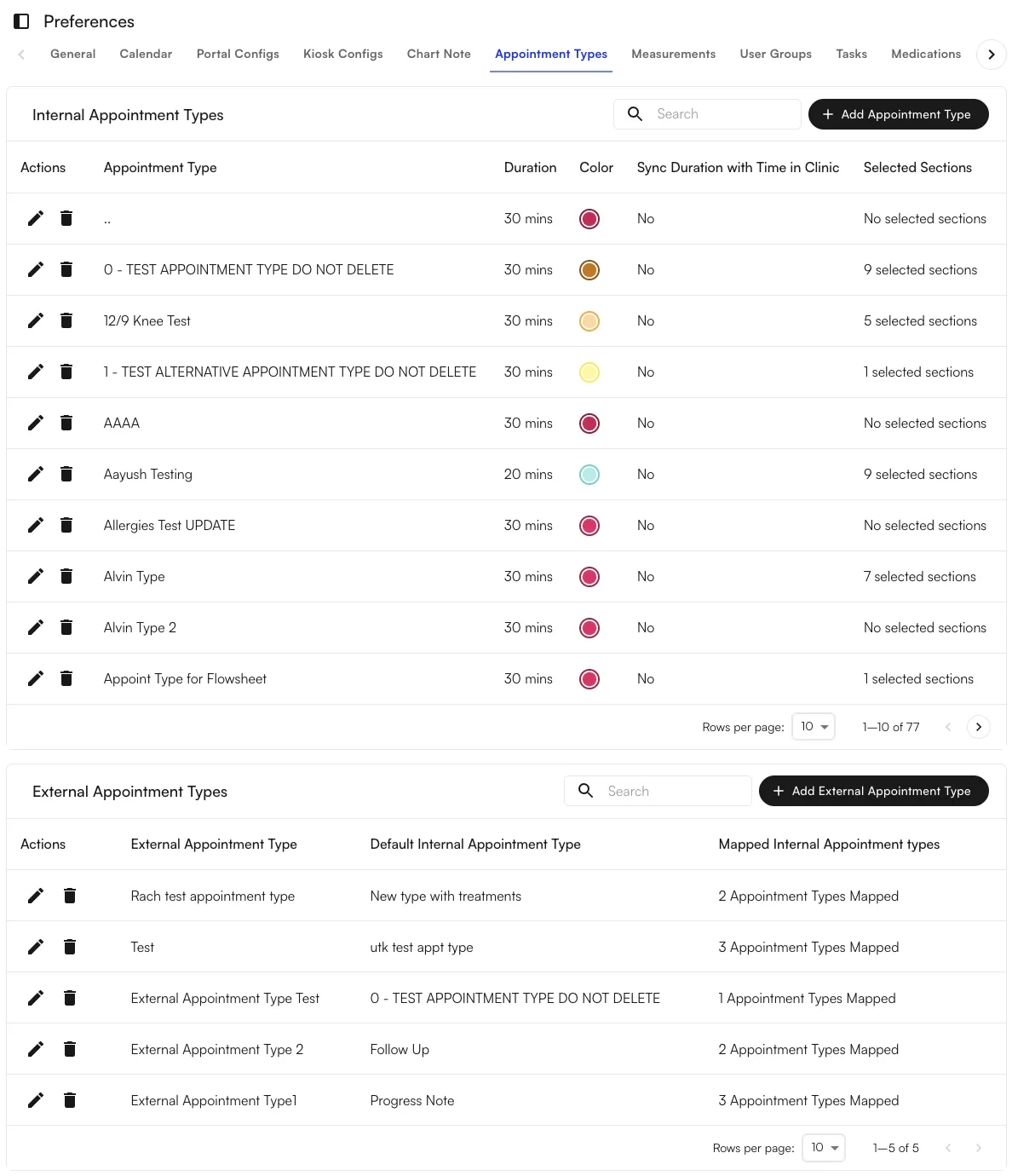
Note: Internal appointment types can only be mapped to a single external appointment type, to ensure there is no confusion about what the patient sees.
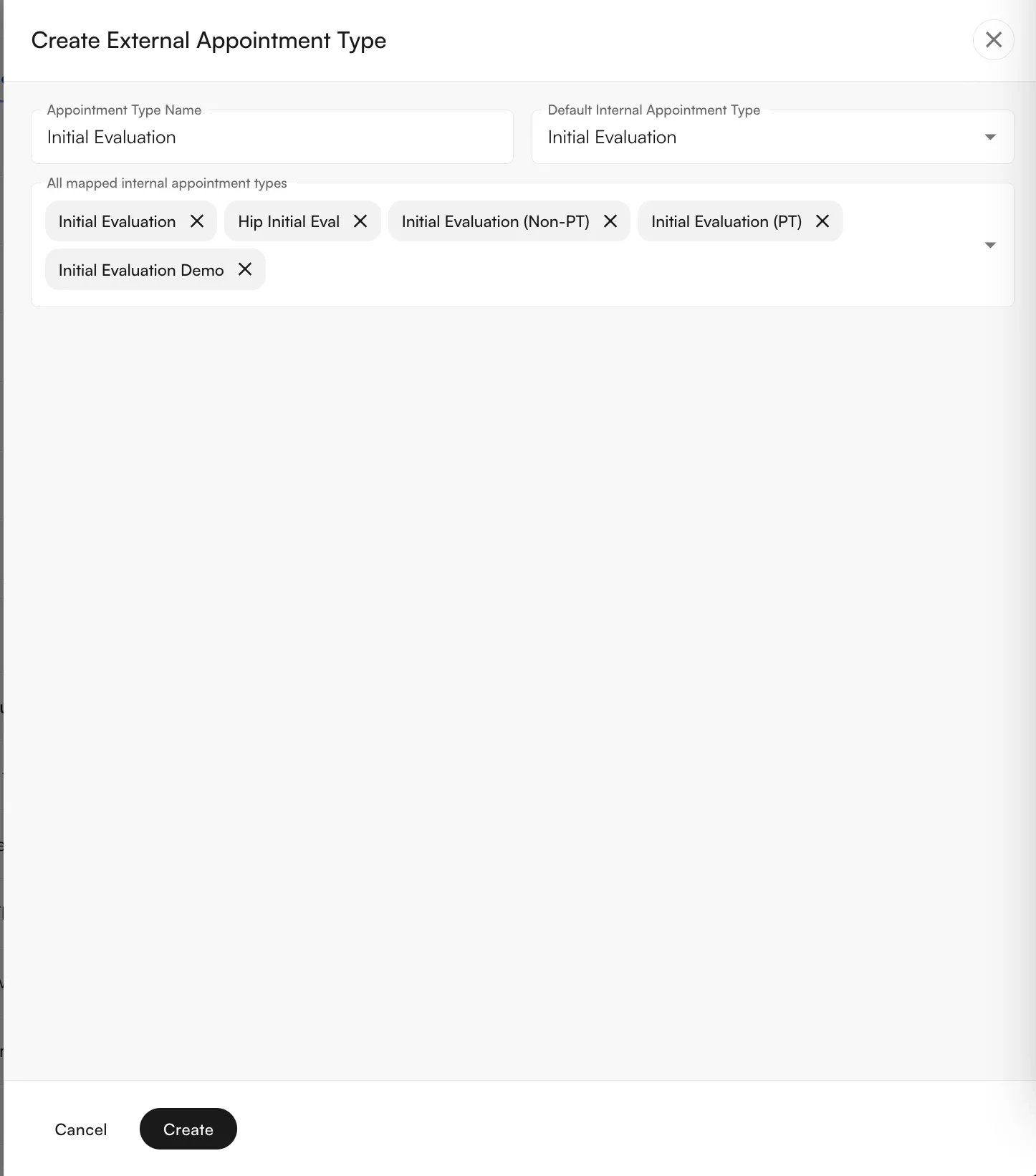
IE Knee, IE Lumbar, IE Lower Extremity), while providing patients with only one external type (Initial Evaluation).
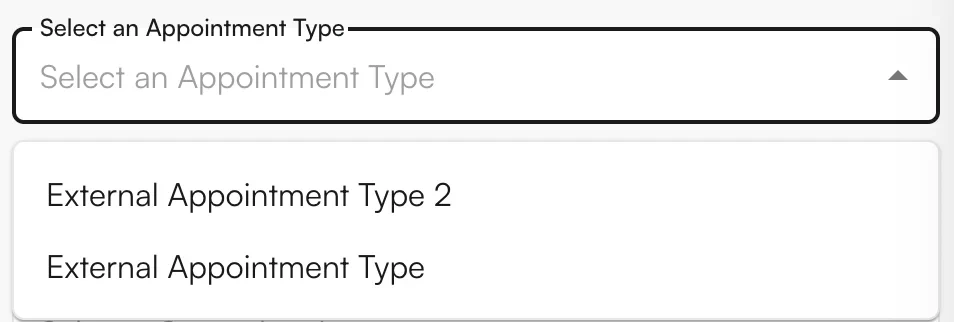
Scheduling from the Insights Calendar
When scheduling from the Athelas Patient Portal during a reserve block, appointments that meet the scheduling criteria are accepted as normal. The appointment displays inside the frame of the reserve block. When scheduling an appointment that does not meet the scheduling criteria, the user is presented with an alert informing them of the conflict. They can either confirm an override of the reserve block or cancel the scheduling.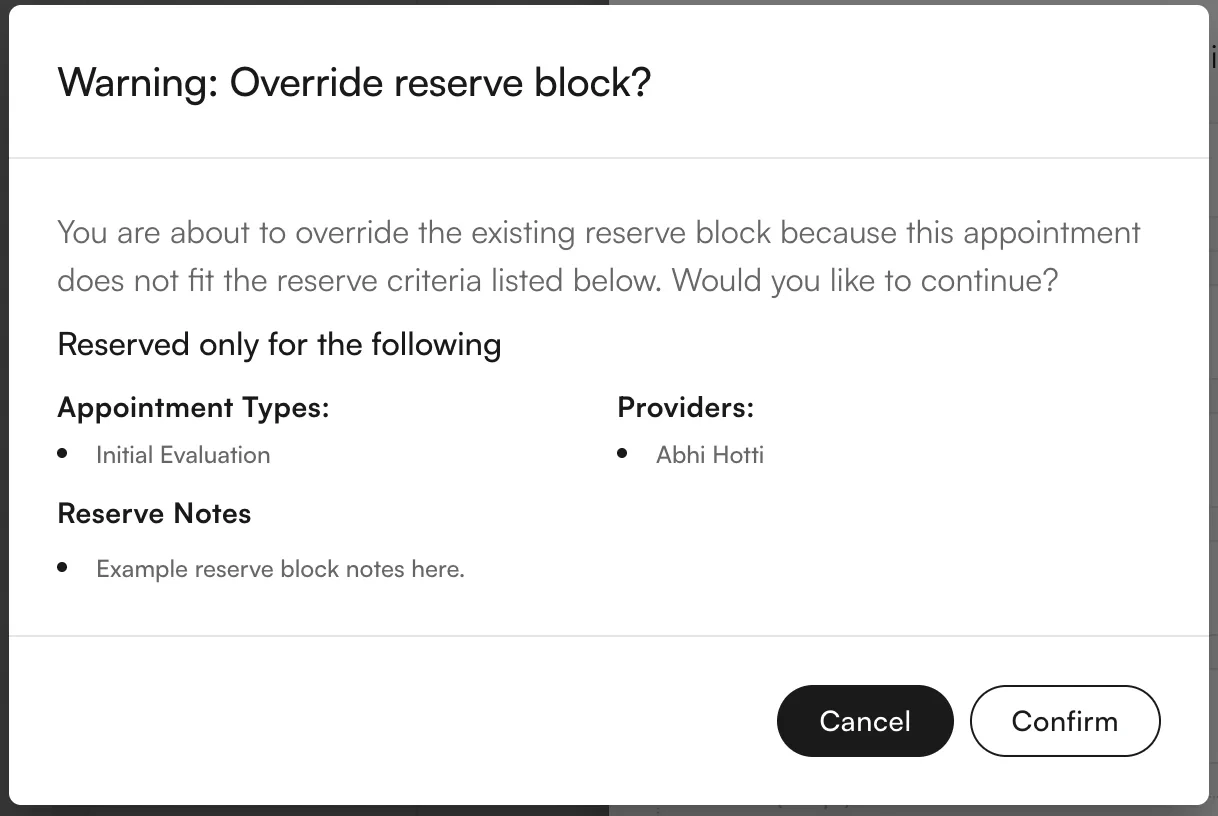
Scheduling from the Athelas Patient Portal
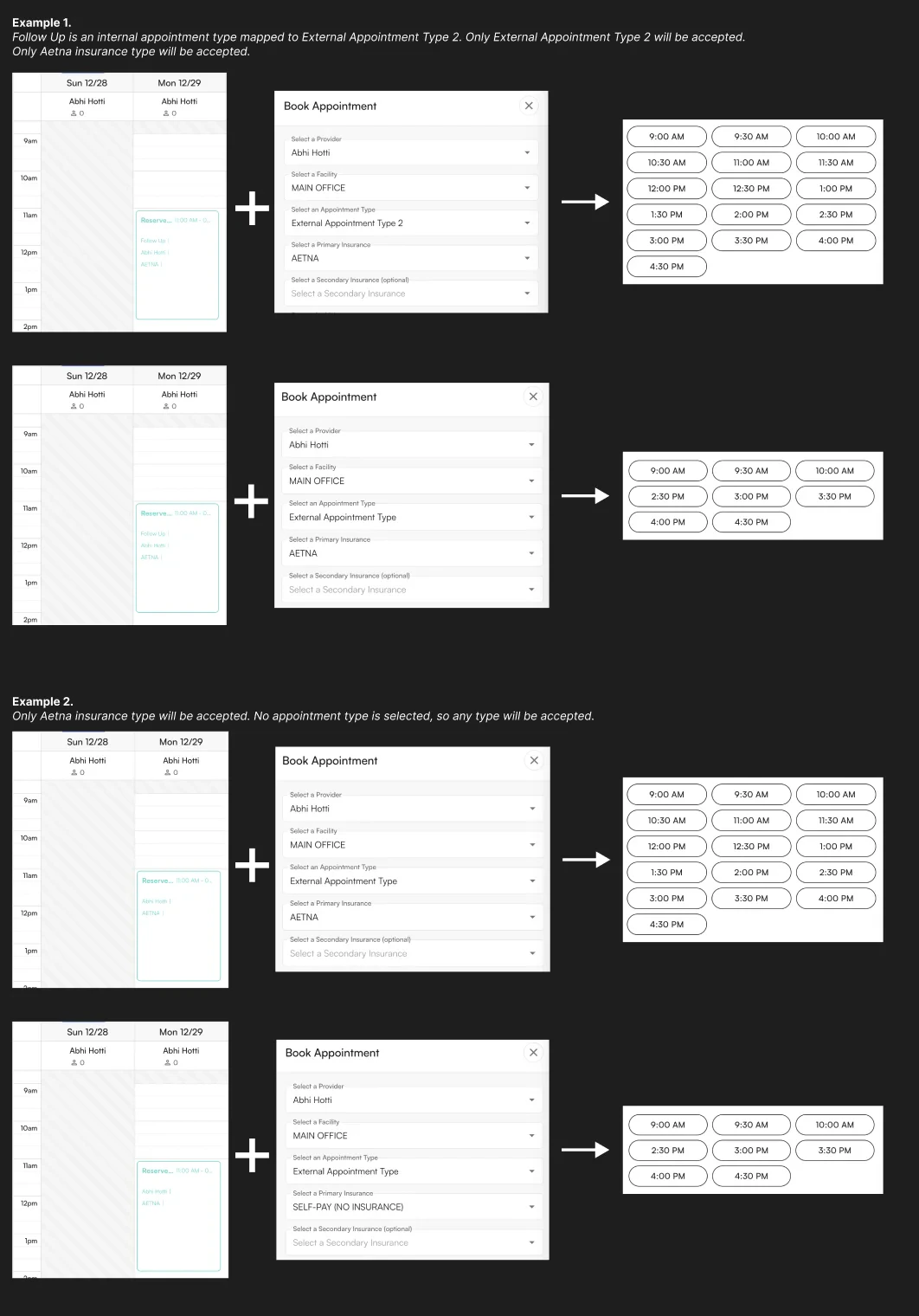
When scheduling from the Athelas Patient Portal, the available times shown to patients are filtered to only show times that:- Do not have any reserve blocks on them, or
- Have reserve blocks that match the patient’s desired appointment:
- For any criteria not specified in the reserve block, all values are accepted (e.g., if no insurance is a criterion, any insurance is accepted).
- For any criteria that are specified, one of the selected options must match the patient’s preference in the portal (e.g., if
AetnaandBCBSare criteria, only patients with Aetna or BCBS see those times).
FAQ
What's the difference between a reserve block and a schedule block?
What's the difference between a reserve block and a schedule block?
A schedule block prevents all bookings in a time window. A reserve block is selective — it only allows bookings that match the configured criteria (appointment type, insurance, provider). Think of schedule blocks as “closed” and reserve blocks as “reserved for specific types of visits.”
Can I still book over a reserve block if I need to?
Can I still book over a reserve block if I need to?
Yes. When you schedule an appointment that doesn’t match the criteria, you’ll see an override alert. Confirming the override splits the reserve block around the new appointment. Canceling the new appointment re-merges the reserve block.
Why would I need external vs. internal appointment types?
Why would I need external vs. internal appointment types?
Internal types capture operational detail (“IE Knee,” “IE Lumbar”) that matters for your staff’s workflow. External types hide that complexity from patients, who only need to pick “Initial Evaluation.” The external-to-internal mapping drives which internal type the system picks when a patient books online.
What happens if I add a reserve block in the All Selected facility view?
What happens if I add a reserve block in the All Selected facility view?
The block applies to all facilities in the active filter. To restrict a reserve block to just one facility, switch to that facility’s view first, then click directly into a calendar slot to create it.
Does the reserve block color follow the appointment type if I change the criteria later?
Does the reserve block color follow the appointment type if I change the criteria later?
Only if you haven’t set a custom color. If you pick a specific color override, that color sticks regardless of future appointment-type changes. Remove the override to return to the auto-matching behavior.