
This guide covers three synchronization flows that maintain data accuracy between AIR and your encounter records.
Overview
Three automated synchronization flows keep your data consistent across AIR and your billing system:- Flow 1: Administrative Updates - Changes in AIR automatically update billing encounters
- Flow 2: Billing Addendums - Compliant way to edit chart notes after submission
- Flow 3: Billing Corrections - Changes in billing flow back to AIR to keep records accurate
Flow 1: Administrative Updates (AIR ➔ Encounter)
Purpose: Automatically updates billing encounters when you change administrative details in AIR. When it happens: When you update an appointment or case (e.g., changing a provider, updating insurance, or adding a prior authorization) after a chart note has already been submitted. The benefit: Your billing records stay current even if insurance information is discovered or corrected after the visit.How It Works
- You make changes to an appointment or case in AIR.
- If the chart note(s) are already submitted, the system:
- Checks for any active addendums (see Flow 2).
- Automatically updates the linked encounter.
What Data Syncs
From Appointments:- Provider, patient, site, facility
- Appointment dates and time spent
- Accident dates
- Workers comp information
- Prior authorizations
- Insurance information (primary/secondary/tertiary)
- Referring provider
- Supervising provider
Administrative updates will not overwrite any clinical data (notes, diagnoses, etc.) entered by a provider in the chart note.
Flow 2: Post-Submission Corrections (Billing Addendums)
Purpose: Provides a compliant way to edit chart notes after they have been signed and submitted for billing. When to use: Use this when a provider needs to correct clinical documentation or when billing needs to update coding on a finalized note.How It Works
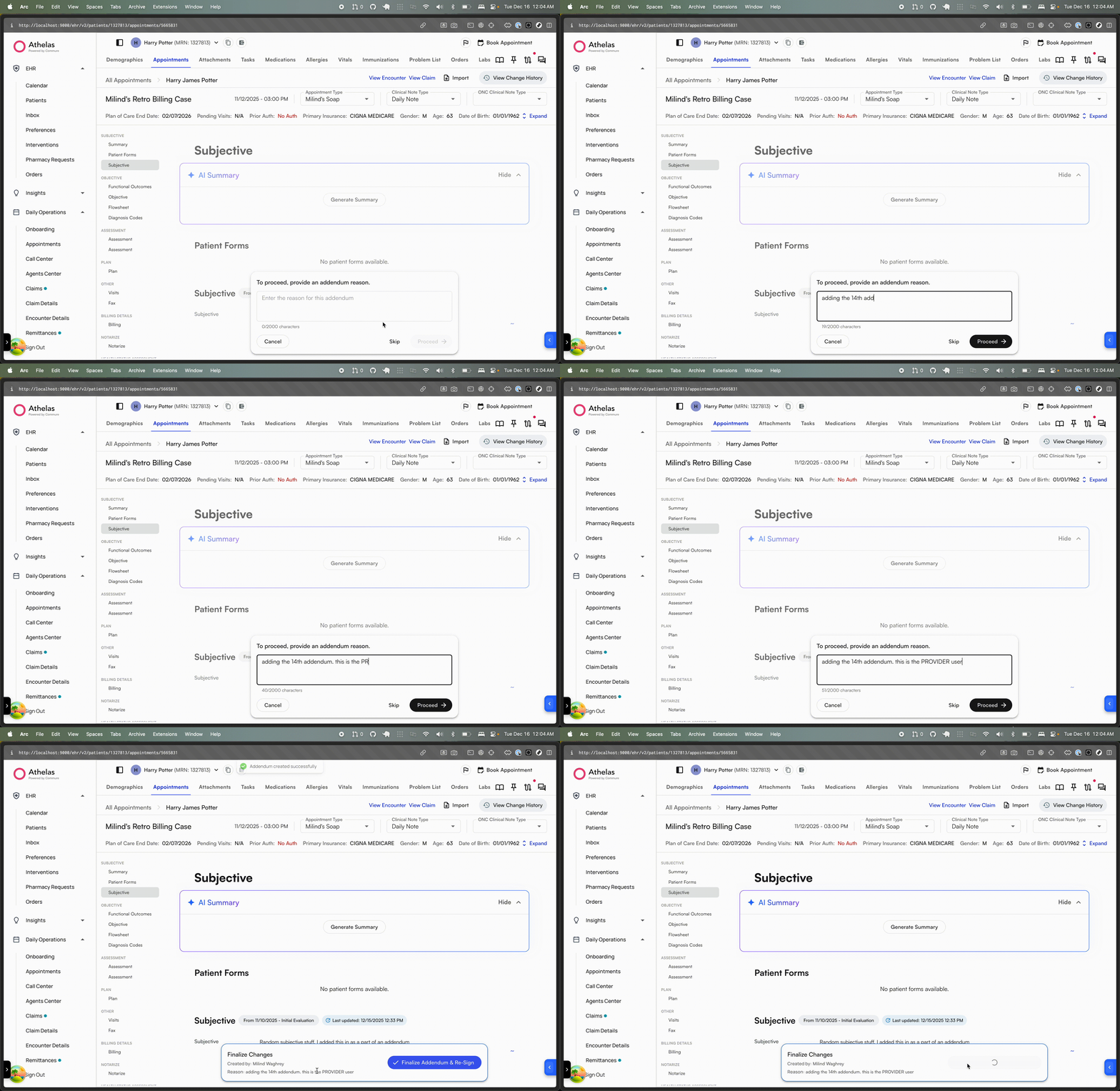
- Create an Addendum: After submission, you can create an Addendum and specify a Reason.
- Make Changes: While an addendum is active (not finalized), the chart note is fully editable.
- Finalize (Provider Only): To maintain compliance, only providers can finalize an addendum. This:
- Validates all clinical documentation
- Updates the encounter with all relevant changes
- Re-locks the chart note
User Impact
- Audit Trail: Enables corrections after submission without losing the legal record
- One-at-a-Time: Only one addendum can be active at a time per chart note
- Provider Signature Required: The provider must sign/finalize the addendum to trigger the resubmission to billing
Flow 3: Billing Corrections (Encounter ➔ AIR)
Purpose: Ensures that changes made by the billing team flow backward to keep AIR records accurate. When it happens: When you update encounter information from the Encounter Details page (manually or via bulk updates).How It Works
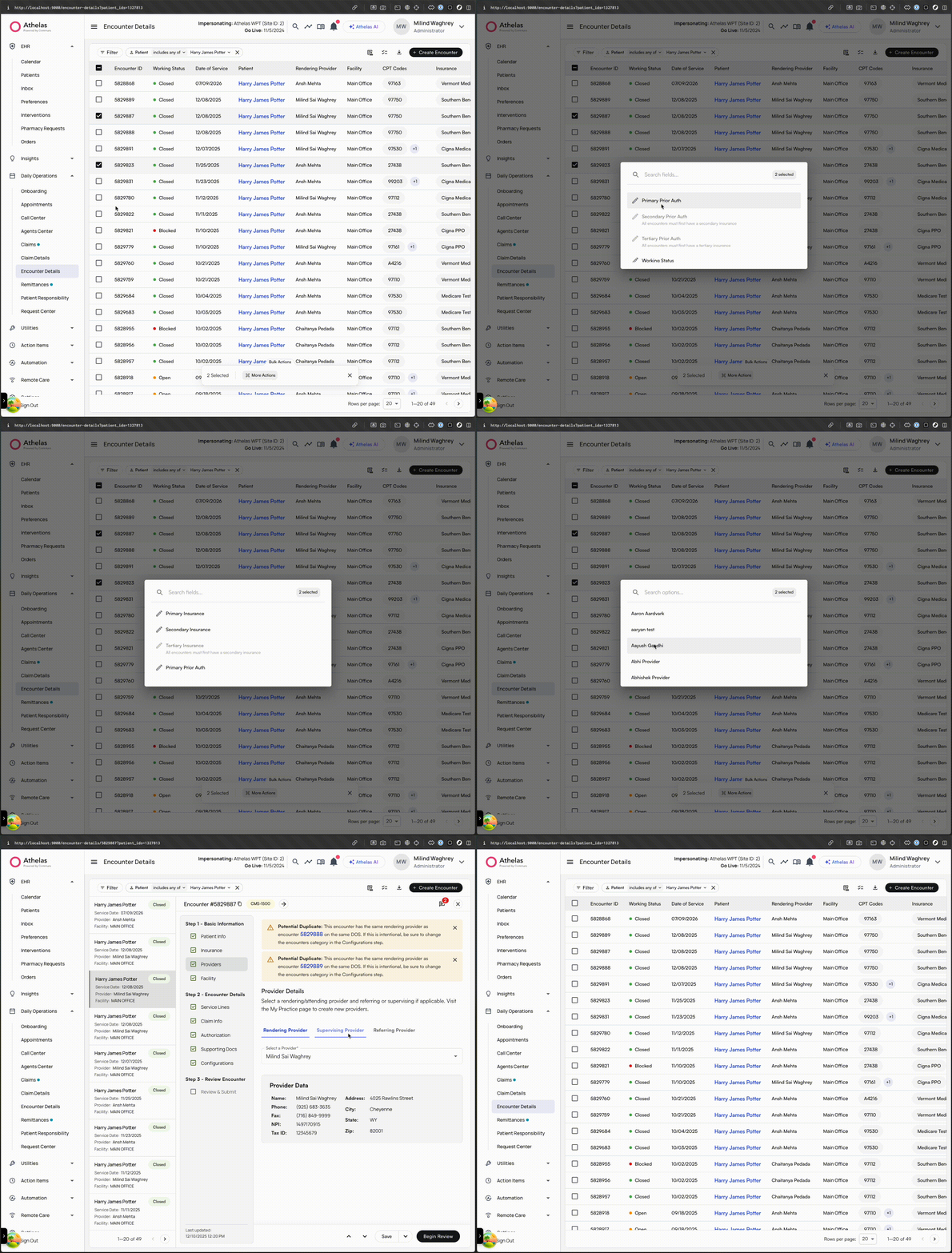
- You update encounter information in the EHR system.
- IMPORTANT: You must filter for an individual patient to perform bulk actions.
- The system detects if the encounter is linked to an AIR appointment.
- If yes, the system:
- Identifies which fields changed and determines if they are “significant”
- Queues asynchronous updates to both the appointment and its associated case in AIR
What Data Syncs
- Insurance information (primary/secondary/tertiary)
- Prior Authorizations (primary/secondary/tertiary)
- Referring provider
- Supervising provider
Bulk Updates
When updating multiple encounters at once (e.g., changing billing type for 10 encounters), the system processes them in a batch and queues updates to AIR to maintain a single source of truth across the patient’s history.Key Points for Users
For Providers
- Flow 2 (Addendums) is your main tool for fixing submitted chart notes
- Clinical changes sync to billing automatically once you finalize the addendum
- Only providers can finalize addendums to maintain compliance
For Billing Staff
- Flow 1 keeps billing records current when admin data changes
- Flow 3 ensures AIR stays accurate when you make billing corrections
- Administrative Changes: You may initiate addendums for administrative fixes, but a provider must sign to finalize clinical documents
Best Practices
- Addendum Safety: Ensure you are ready to make a correction before initiating an addendum, as there is currently no “cancel” action
- Reading Locked Notes: Use the Open All Sections view to view data in submitted notes rather than creating an addendum
- Claim Resubmission: While the system updates the encounter data automatically, follow your standard protocol for resubmitting claims to the payer after the data has synced
- Data Accuracy: Double-check encounter edits before saving, as Flow 3 updates AIR based on EHR changes
FAQ
What happens if I create an addendum by mistake?
What happens if I create an addendum by mistake?
Currently, there is no “cancel” action for addendums once they are created. To avoid leaving a chart note in an unlocked state, ensure you are ready to make a correction before initiating an addendum. If you only need to view data in a submitted note, use the Open All Sections view instead.
Can I create multiple addendums for the same chart note?
Can I create multiple addendums for the same chart note?
Yes, you can create as many addendums as needed for a single note. However, only one addendum can be active at a time per chart note.
Who can finalize an addendum?
Who can finalize an addendum?
Only providers can finalize an addendum to maintain compliance. This ensures that clinical documentation is properly validated before the encounter is updated and the chart note is re-locked.
What data gets synced when I update an appointment or case in AIR?
What data gets synced when I update an appointment or case in AIR?
From appointments: Provider, patient, site, facility, appointment dates, time spent, accident dates, workers comp info, and prior authorizations. From cases: Insurance information (primary/secondary/tertiary), referring provider, and supervising provider. Note: Administrative updates will not overwrite any clinical data entered by a provider.
Do I need to resubmit claims after data syncs?
Do I need to resubmit claims after data syncs?
Yes, while the system updates the encounter data automatically, you should follow your standard protocol for resubmitting claims to the payer after the data has synced.
Can I perform bulk updates on encounters?
Can I perform bulk updates on encounters?
Yes, you can update multiple encounters at once. However, you must filter for an individual patient to perform bulk actions. The system processes them in a batch and queues updates to AIR to maintain a single source of truth.