
Why enable Text Snippets for Scribe
When a snippet is enabled for Scribe, the AI uses it as it turns your transcription into a finished note. This helps you:- Standardize documentation so common phrases and clinical patterns read the same way every time.
- Improve consistency across providers and appointment types.
- Save time by removing repetitive edits and re-typing.
If you don’t enable a snippet for Scribe, it will not affect AI note generation — even if it exists in your Text Snippets list.
Accessing the feature
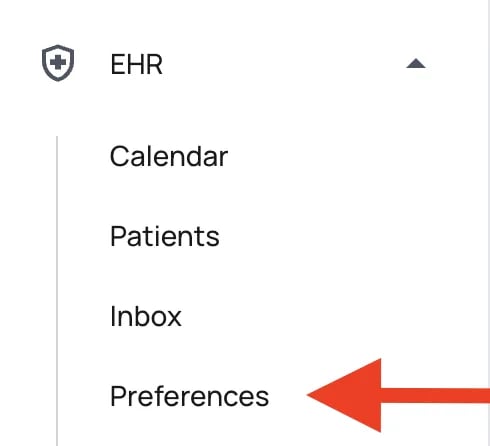
Text Snippets live in your EHR Preferences.- Open Preferences within the EHR.
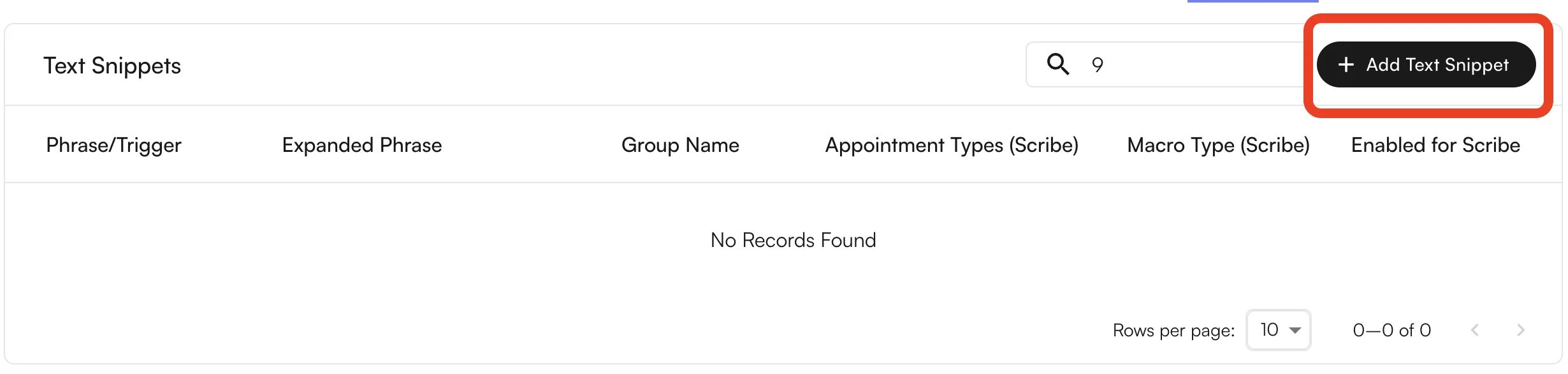
- Click the Text Snippets section. The Text Snippets Settings page lists all existing snippets.
- Click Add Text Snippet to create a new one.
Understanding macro types
Choose a macro type based on what you want the snippet to do. You set this in the Macro Type for Scribe field when creating or editing a snippet.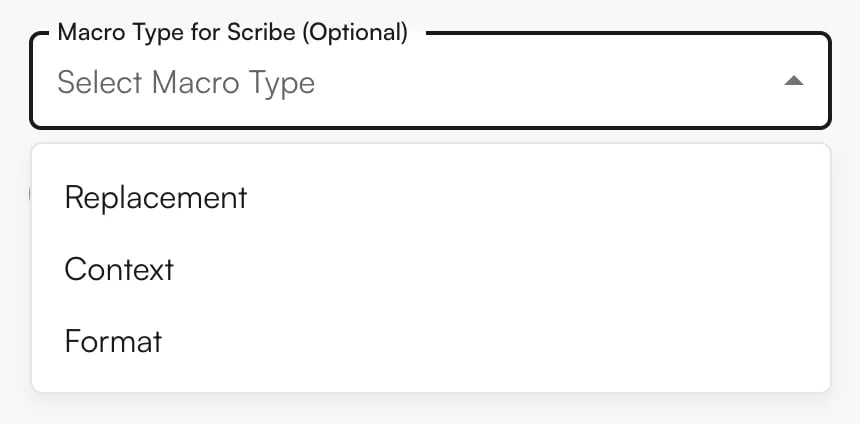
Replacement macros
Use when you want to replace a trigger phrase with exact expanded text and standardize common phrasing.- The AI finds matching phrases in the transcription (exact or semantic matches).
- The trigger phrase is replaced with the exact snippet value, before note generation.
- Trigger: “no chest pain”
- Value: “Patient denies chest pain, shortness of breath, or palpitations”
- Result: Whenever “no chest pain” appears in the transcription, it’s replaced with the full expanded phrase.
Context macros
Use when you want to give the AI additional clinical context or guide its reasoning without directly changing the transcription.- Context snippets are passed to the AI during note generation.
- They influence how the AI paraphrases and structures the note.
- They do not replace text in the transcription.
- Trigger: “diabetes protocol”
- Value: “Follow standard diabetes management protocol: check A1C every 3 months, monitor for complications, emphasize diet and exercise”
- Result: The AI uses this context when generating notes for diabetic patients, ensuring more comprehensive documentation.
Format macros
Use when you want to control formatting or conciseness in the final note.- Format snippets guide the AI’s output structure.
- They influence how information is presented.
- They do not modify the transcription content.
- Trigger: “brief format”
- Value: “Use concise bullet points. Limit each section to 2-3 key points. Avoid lengthy descriptions.”
- Result: The AI generates more concise, bulleted documentation when this format is applied.
Creating a macro for Scribe
To create a snippet:- Click Add Text Snippet in the Text Snippets Settings page.
- Fill in the required fields: Title (trigger phrase) and Text Snippet (expanded phrase).
- Set the optional fields as needed (see the table below), including Macro Type for Scribe and the Use for EHR Scribe toggle.
- Click Save.
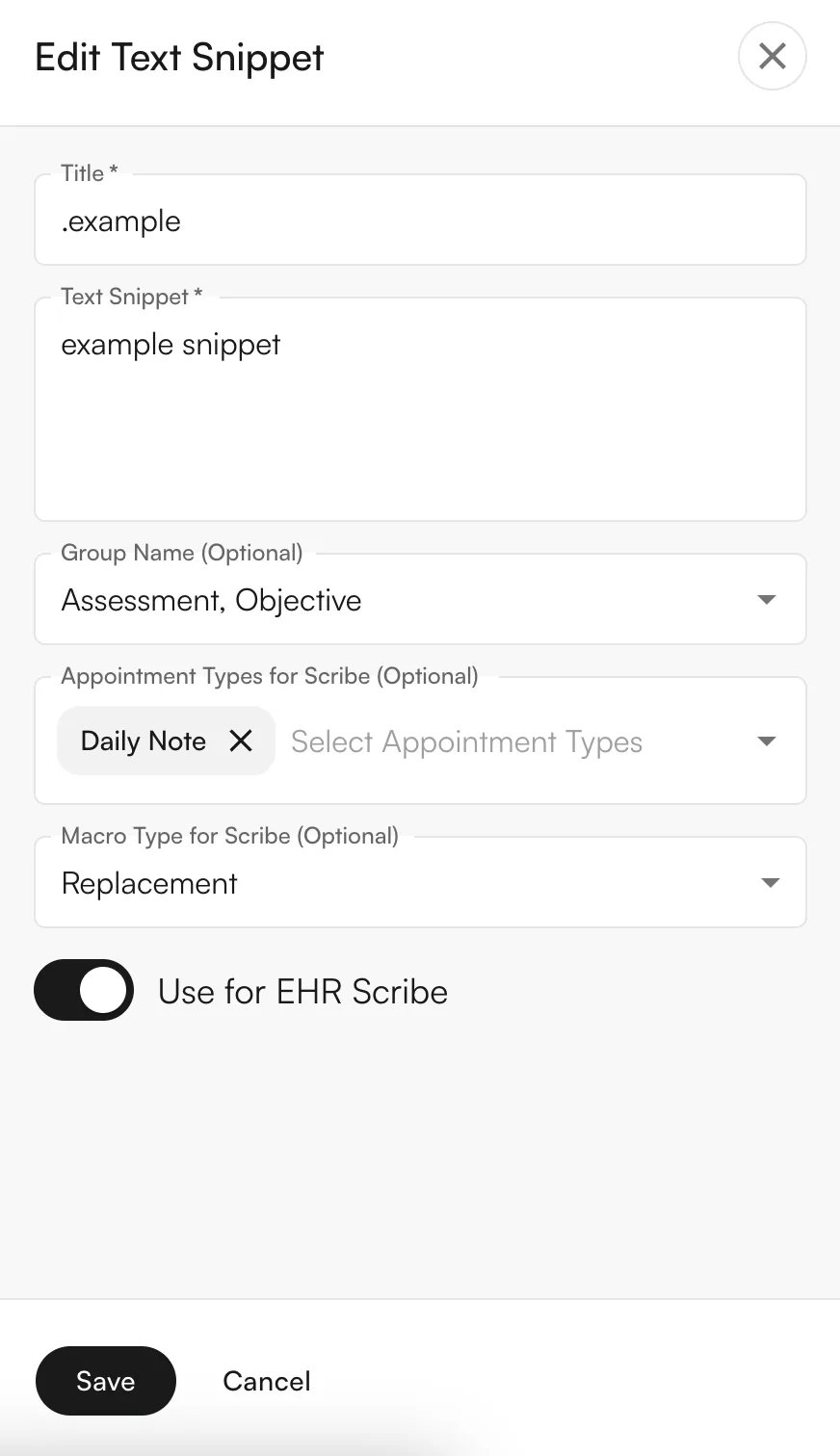
If no macro type is selected, the snippet defaults to Replacement during processing.
Managing snippets
To edit a snippet:- Go to Text Snippets Settings.
- Find the snippet in the table and click the Edit icon (pencil) in the Actions column.
- Modify any fields in the drawer and click Save.

- Macro Type — use the dropdown in the Macro Type (Scribe) column.
- Use for EHR Scribe — toggle the switch in the Enabled for Scribe column.
- Enabled for Scribe — only snippets with Use for EHR Scribe turned on.
- Appointment type matching — snippets tied to the appointment type, plus global snippets (no appointment types selected).
Best practices
- Replacement: use exact clinical terminology and test semantic matching to confirm correct replacements.
- Context: provide clear, actionable guidance and update it as protocols change.
- Format: be explicit about structure and conciseness; consider creating multiple options (brief, detailed).
- Organize with groups and use appointment types to keep snippets relevant.
- Start small, then expand as you confirm snippets behave as expected.