
- CPT / HCPCS code — the specific service you performed.
- ICD-10 diagnosis — the medical necessity behind it.
- Units — how much of the service was delivered.
- Modifiers — optional context for special billing circumstances, like laterality.
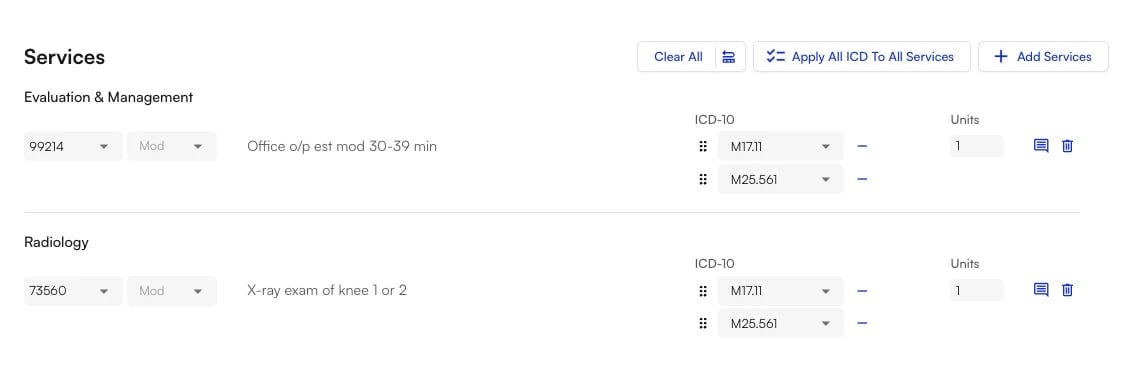
Services replaces the older Treatments section of the visit note at enabled sites.
What counts as a service
Think of a service as a single billing line item. Every service you add is the same simple building block: A service = CPT code + modifiers + ICD-10 code(s) + units
Everything else is optional context.
Adding a service
Open a visit note and scroll to the Services section. Before you add anything, the section reads No Services. Three controls sit in the section header: Clear All, Apply All ICD To All Services, and + Add Services.
- Click + Add Services to open the service picker.
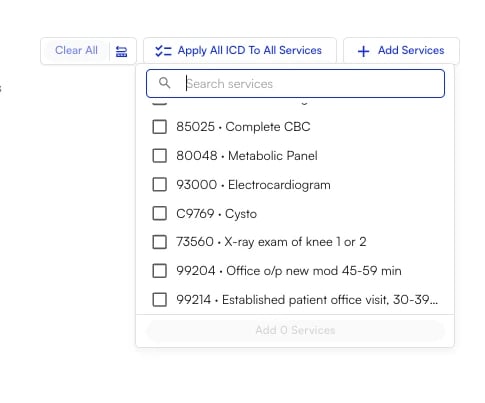
- Search for what you did. Type the CPT code directly (e.g.,
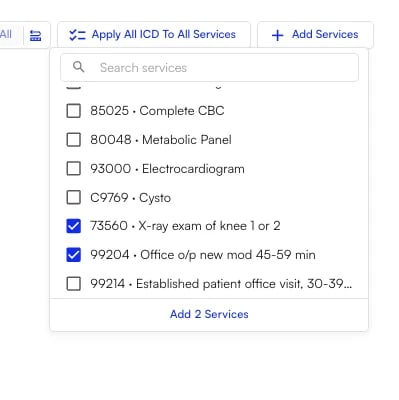
73560), or free-text the name from your site’s list (e.g., “X-ray exam of knee”) — the name resolves to the right CPT code for you. - Check every service you want to add. The picker is multi-select, and the confirm button counts your selection — Add 2 Services, for example. Click it to add them all at once.
- Review the details. Diagnosis codes are auto-applied from the Diagnosis Codes section above, and units default to
1. Adjust the Mod, ICD-10, and Units fields on any row as needed.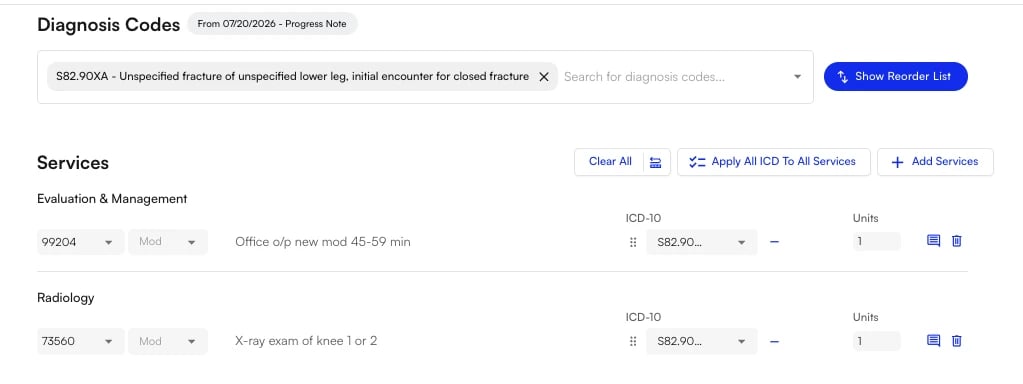
Services auto-saves. Refresh the page or come back later and your services, units, modifiers, ICD-10 links, and category grouping all reload exactly as you left them.
Editing and removing services
- Edit any service inline — change the units, swap the CPT code, or adjust the linked diagnoses directly on the row.
- Add a comment with the comment icon at the end of a row to open the optional Comments flyout.
- Delete a single service with the trash icon at the end of its row.
- Clear All removes every service at once when you want to start fresh.
Automatic categories
You never have to categorize a service manually. Services reads the CPT code and files it under the right billing section for you, so your entries organize themselves into labeled groups as you add them.
Because codes are mapped by range, new CPT codes released each year automatically slot into the correct group.
Linking diagnoses (ICD-10)
Every service needs at least one diagnosis to justify it. Services pulls from the diagnoses already on your chart note, so you can attach them quickly.Apply All ICD To All Services
This is the headline shortcut. One click links every diagnosis on the note to every service, in chart-note order — instead of linking the same codes over and over, line by line.Per-service control
- Fine-tune diagnoses on any individual service using the ICD-10 dropdowns on its row. Use the
–control to remove a diagnosis from that service. - You can only attach ICD-10 codes that are already on the chart note. Codes that aren’t on the note are rejected, which keeps claims clean.
- Most specialties link two to three diagnoses per service. The system supports more when you need them.
The CMS claim form allows up to 12 diagnoses per appointment and 4 diagnosis pointers per service line. Staying inside those limits ensures nothing gets dropped downstream.
Modifiers
Modifiers tell the payer about special circumstances — which side of the body, whether a service was distinct, whether an E&M was separately identifiable. They are optional, and the Mod dropdown on each service row is where you set them.
Note: A CPT code can appear more than once on the same note as long as each instance carries a different modifier.
Air Scribe auto-fill
Services was built to work hand-in-hand with the Air Scribe. Instead of typing services in yourself, the scribe can populate them from your visit conversation. How it works:- The scribe listens to the encounter and infers the likely CPT code, ICD-10 code(s), units, and modifiers.
- Open the Scribe panel and choose Apply to accept everything, or apply individual services and ICD-10 codes one at a time.
- Already-added services are de-duplicated automatically — matched on CPT plus modifier — so applying the scribe won’t create doubles.
- The scribe shows a short justification for why a code was or wasn’t suggested, which makes for a quick sanity check.
FAQ
Does this change how claims are submitted?
Does this change how claims are submitted?
No. The billing pipeline downstream is unchanged — Services feeds it through the same path. You are simply entering the data through a cleaner front door.
Where did the minutes, performed by, and justification fields go?
Where did the minutes, performed by, and justification fields go?
They were removed, because none of them are required for billing.
- Medical necessity is established by the visit note itself and the ICD-10 link.
- The rendering provider comes from the encounter.
Can I still add free-text notes to a service?
Can I still add free-text notes to a service?
Yes. A Comments flyout is available on every service row. It’s optional and tucked away so it doesn’t clutter the section.
What if a service doesn't fall into a clear category?
What if a service doesn't fall into a clear category?
It lands under Other. Genuine billing codes are mapped by code range, so anything outside the standard ranges — including HCPCS Level II codes — is grouped there rather than being left uncategorized.
Do orders from the Assessment & Plan show up here?
Do orders from the Assessment & Plan show up here?
Yes. Orders configured with a CPT code, and orders configured in Smart Charge Capture, flow into the Services section automatically — so there’s no duplicate entry.