Search all docs
Provider Workflows
Chart Notes
Auto-apply KX Modifier
Getting Started with Chart Notes
AI Appt. Summaries
Chart Note Clinical Types
Download Chart Notes as PDFs
Goals on the chart note
How to add Measurements
Import Previous Medical History
Navigating Flowsheets
Navigating Inbox Workflows
Navigating the Chart Note
Set up Custom Chart Note Templates
Setting up Co-signers on Your Note
Sign a Chart Note
Text Snippets For Your Note
Chart Note Features Not Supported
Chart Notes
Claim Details
Claim Details
Front Office Workflows
Appointments
The Insights Appointments Page
Adding Prior Auth and Alerting
Alternate Methods for Scheduling
How to Add a Walk-In Patient
How to Run an Eligibility Check
How to Schedule an Appointment
How to Take Payments
Sending out reminders and forms
Understanding Appointment Details
Updating Appointment Statuses
Appt. Features not supported
Appointments
Daily Operations
Daily Operations
Patient Communications
General Patient Flows Features
Text Blast Page
Insurance Intake Page
Functional Outcome Measurements
Getting Started with Patient Portal
Complete Intake Forms
Navigating Patient Workflows
Manage Patient Appointments
Manage Payments through Patient Portal
Patient Intake Automation
Update Insurance Info
View Home Exercise Programs
Patient Communications
Patient Responsibility
Charge Saved Credit Cards
Manage Credit Cards
Setting up a Payment Plan
How to Cancel PR
How to Send a Patient Payment Link
How to Push to PR
How to Record Payments
How to Refund a Payment
How to Request via Text or Email
How to Set Up Miscellaneous Line Item Charges
How to Take Payment for Families
How to Undo a Write Off
How to Write Off PR
Patient Responsibility Page
PR Overpayment Refunds and Estimated vs. Remittance PR
PR Settings
PR Timeline
Patient Responsibility
Billing Workflows
Front Office Payments
Front Office Payments
Reports
A/R Reports
Building and Running Reports
Claim Adjustments Report
Collections Report
Custom Collections Report
Detailed Charges Report
Export Claim Details
Generate a Transaction Report
Patient Balances Report
Patient Charges Report
Patient Claims One-pagers
Patient Collections Report
Patient Eligibility Report
Posting Log Report
Site Transaction Report
Site Transaction Report Summary
Submitted Claims Report
Upcoming Patient Statements Report
Reports
Owners & Administration
Last updated:
Nov 3, 2025
Remittances
General Billing
Billing Workflows
Getting started with the Remittances Page
The Remittances page is your command center for ensuring that every insurance payment makes it from the payer → into your RCM system → and all the way into your bank account. It’s designed to give you confidence that:
Every dollar in Insights = every check reconciled = every bank deposit.
If there are gaps, duplicates, or mismatches, you can quickly identify and fix them.
In other words: it’s where you can see, reconcile, and act on your payment data.
How to Access the Remittances Page
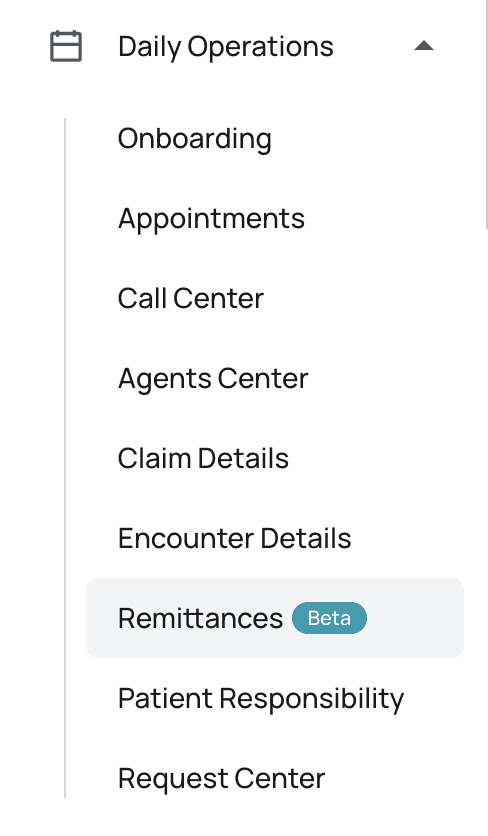
From the Insights navigation menu, select Remittances
You’ll land on a tab called Deposits
Fundamental Tabs
Deposits Tab → Helps you confirm that every dollar that entered your bank is fully matched to checks and payments in Insights.
Checks Tab → Helps you confirm that every payer check has been posted correctly to claims and is tied back to a deposit.
You can think of them as two sides of the same equation:
Deposits = money in the bank
Checks = promise of money from the payer
This page helps you ensure that both sides always match.
Fundamental Concepts
Bank Deposit
A bank deposit is the actual money hitting your bank account. This could be an ACH transfer, a virtual credit card payment, or a physical check deposit. Your goal is to make sure every deposit is represented in Insights and tied to the right checks.
Check
A check represents the payer’s promise to pay. It contains a check number, payment amount, and payer details. Your job is to:
Ensure the payments from this check are posted across the correct claims.
Match the check to its associated deposit to confirm the payment actually arrived in your bank.
Remittances / Payments
Every individual claim payment is tracked as a remittance. By default, remittances are auto-posted within 6 hours of creation. Exceptions:
Manual review → if our posting engine isn’t sure how to apply a payment.
Archived → if the engine detects duplicates or bad data.
Deposit Source
Deposit sources are cleaned-up payer identities. Because payer names can vary across checks and deposits, we normalize them into a single source (e.g., “Blue Cross Blue Shield” instead of “BCBS of TX,” “BlueCross TX,” etc.). This makes matching deposits and checks much easier.
The Deposits Tab
The Deposits Tab gives you a complete view of the insurance deposits that have hit your bank account and allows you to reconcile them with checks and remittances inside Insights. This is the “money in” side of the reconciliation process.
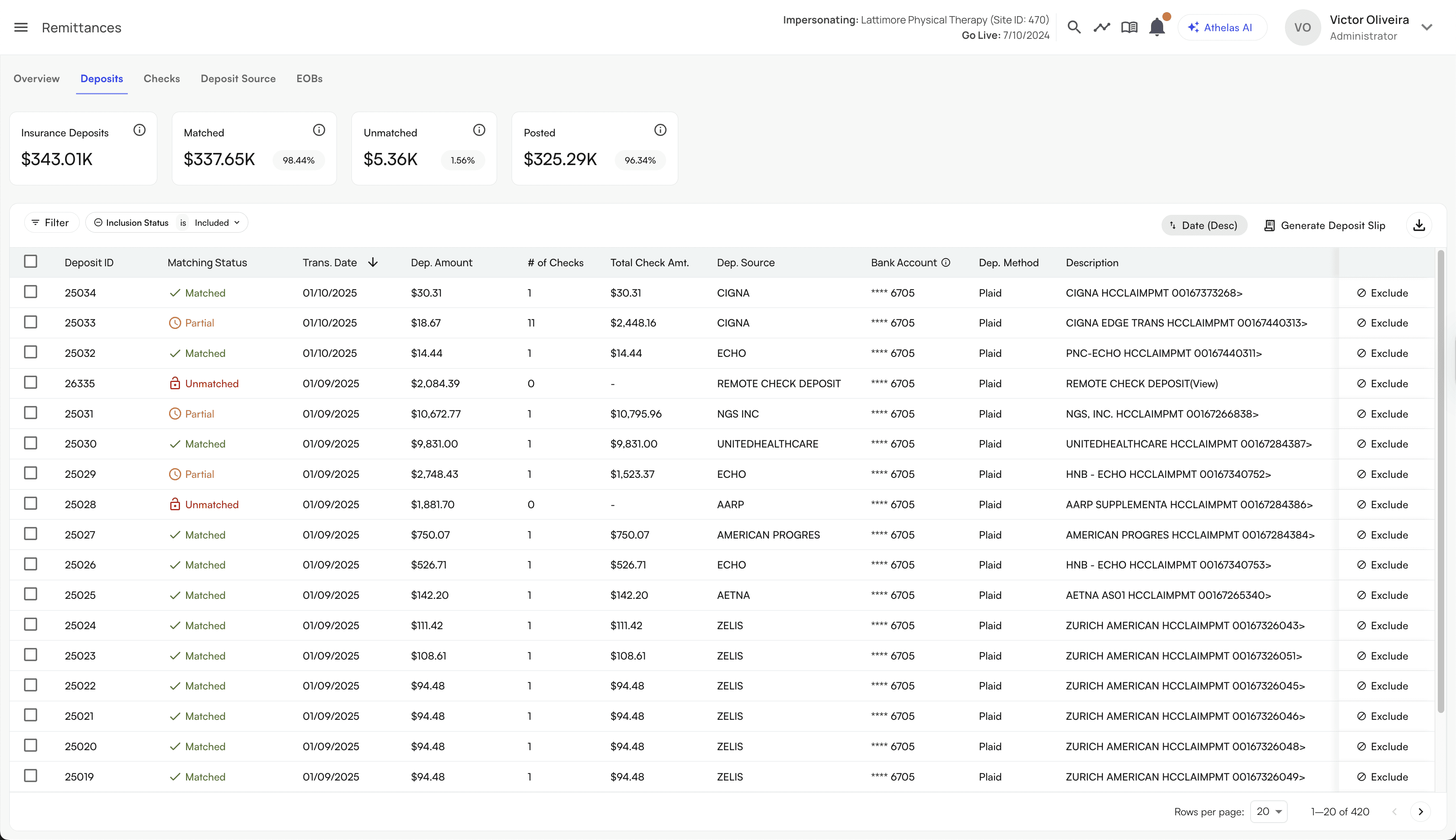
High-Level Overview
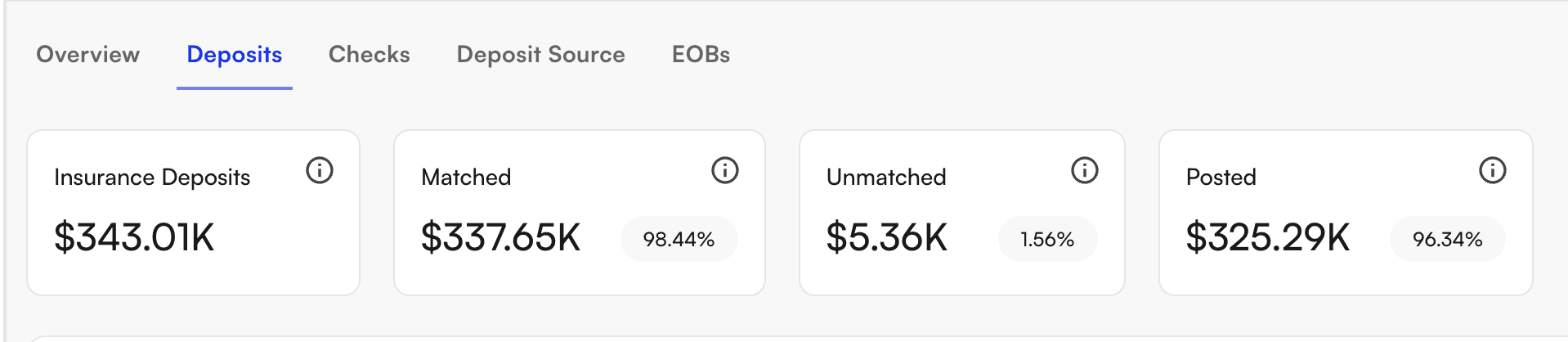
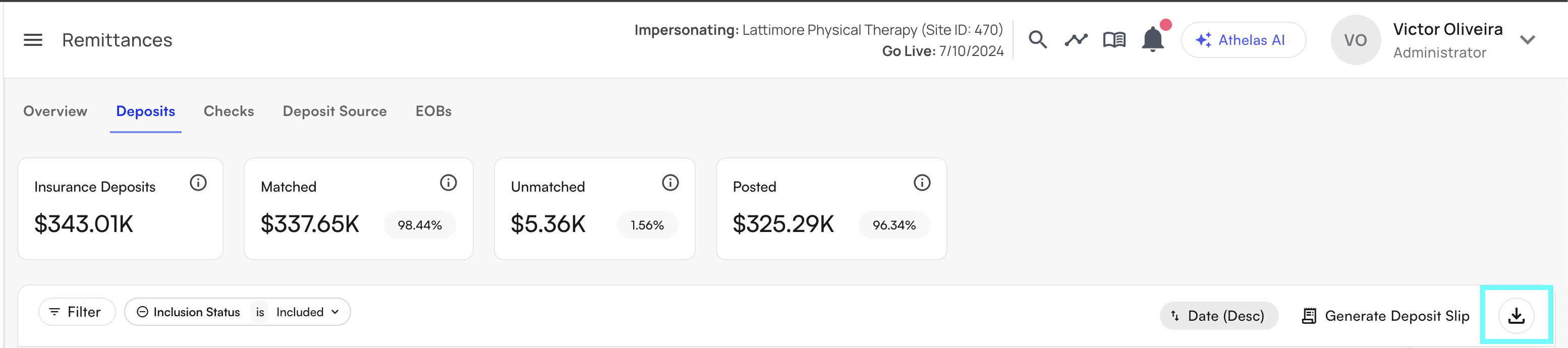
At the top of the page, you’ll see scorecards that summarize:
Total Insurance Deposits → the sum of all insurance deposits in the filtered scope.
Matched Deposits → how much of that total is tied to checks.
Unmatched Deposits → how much is still not tied to any checks.
Posted Deposits → how much of the matched deposits have posted payments inside Insights.
This gives you an at-a-glance sense of the health of your deposit verification.
Filtering Deposits
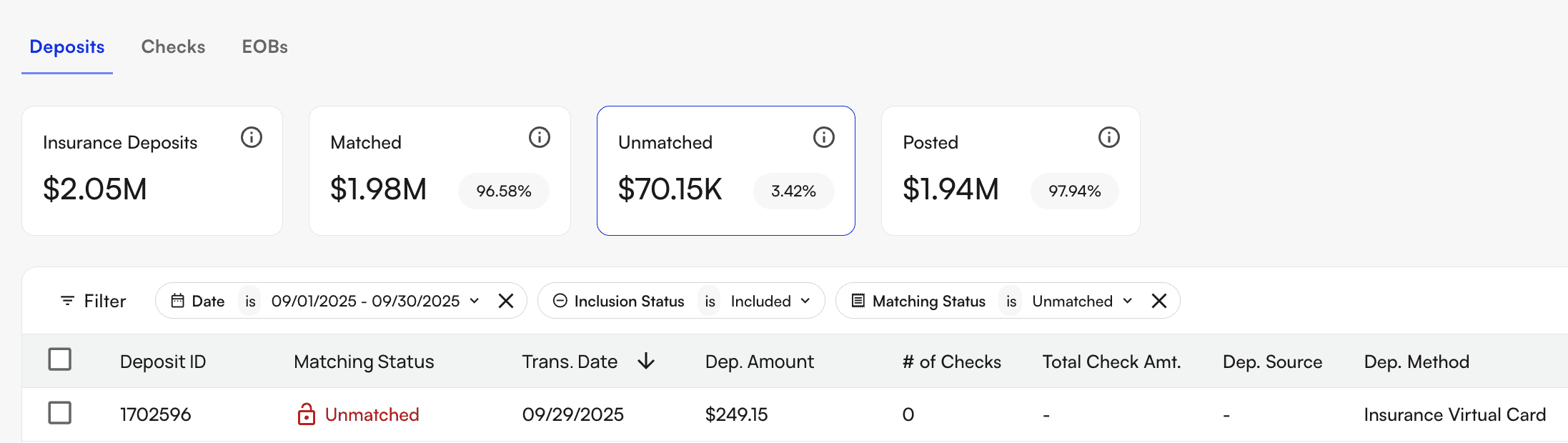
The deposit table can be filtered by:
Date range (transaction date)
Matching Status (Matched, Unmatched, or Partially Matched)
Matched - the deposit is linked to at least one check and the sum of the check(s) payment amounts = the deposit amount.
Partially Matched - the deposit is linked to at least one check but the sum of the check(s) payment amounts does not equal the deposit amount.
Unmatched - the deposit is not linked to any checks.
Inclusion Status (Included or Excluded) - this is used as a way to mark certain deposits as non-insurance deposits
Deposit Amount (range filters)
These filters let you focus quickly — for example, to find deposits in a certain week, to review only unmatched deposits, or to isolate very large deposits.
Deposit Table
Each row in the table shows:
Deposit ID, status, and transaction date
Deposit amount and total check amount (sum of checks tied to the given deposit)
Number of linked checks to the given deposit
Deposit source (payer, normalized) and method (ACH - Automated Clearing House, CHK - Check, VCC - Virtual Credit Card)
Description (from bank feed)
Inclusion toggle
👉 If you exclude a deposit, you’ll be prompted to provide a reason, which is stored for audit visibility.
Clicking Into a Deposit
Clicking on a deposit opens a detailed view, where you can:
See the deposit details (source, method, Plaid Trans. ID, who included/excluded it).
Review linked checks (check ID, number, amount, posting status).
Drill down into remittances tied to those checks (with statuses like Fully Posted, Archived, or Unposted).
From here, you can confirm:
That the deposit amount matches the sum of linked checks.
That all checks tied to the deposit are fully posted in Insights.
Which remittances still need action (e.g., manual posting).
Matching and Unlinking Checks
When a deposit is unmatched or partially matched:
Open the deposit.
Use View Unmatched Checks to see candidate checks.
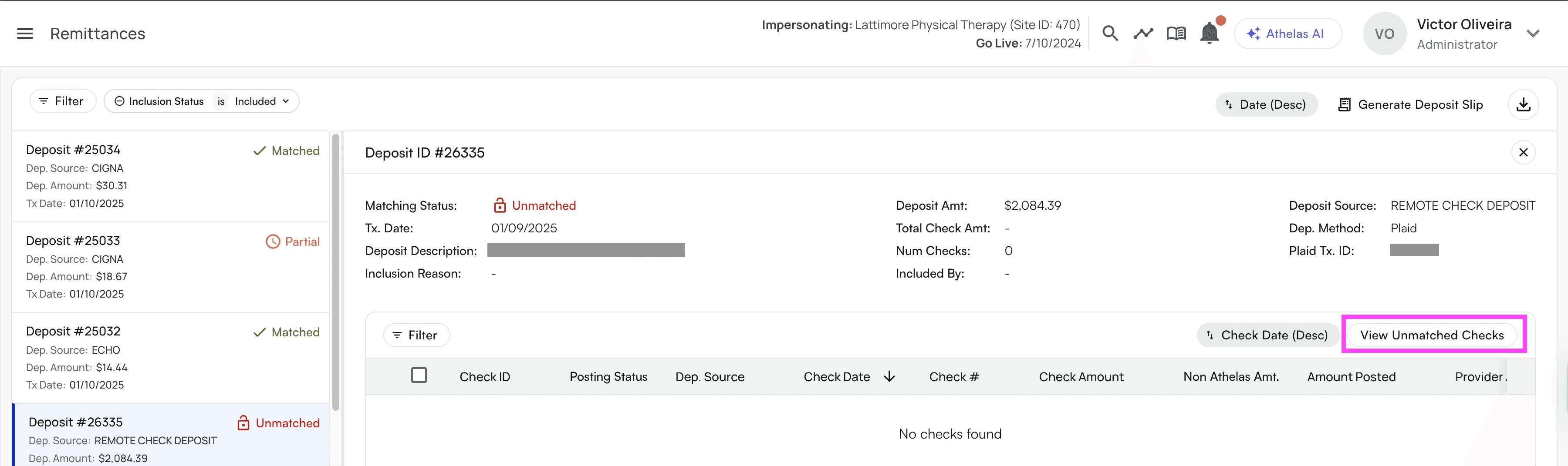
Link one or more checks to the deposit.
If a mistake is made, you can always unlink a check from a deposit. Both linking and unlinking are tracked in the system so there’s a clear audit trail.
Posting Remittances
After a deposit is matched to checks, the final step is ensuring the remittances tied to those checks are posted:
Pending → The remittance has been created but not yet processed by the posting engine.
Manual Review Required → The posting engine wasn’t sure how to apply the payment. User intervention is needed.
Partially Posted → Some, but not all, of the remittance’s payments have been applied.
Fully Posted → The remittance has been successfully posted in its entirety.
Archived → The remittance was identified as a duplicate or bad data and excluded from posting.
You can take action at the remittance level directly from the deposit view by clicking into a specific remittance. You will be directed to our posting tool that allows you to actually post these remittances to the payment ledger. The tool will highlight which remittances/payments are tied to the given check and what the total payment value should be for this claim based on the remittance data.
The Checks Tab
The Checks Tab is the “payer side” of reconciliation. It’s where you confirm that every check received from an insurance payer has been:
Posted into Insights (so all claim payments are recorded), and
Matched to the corresponding deposit in your bank account.
High-Level Overview
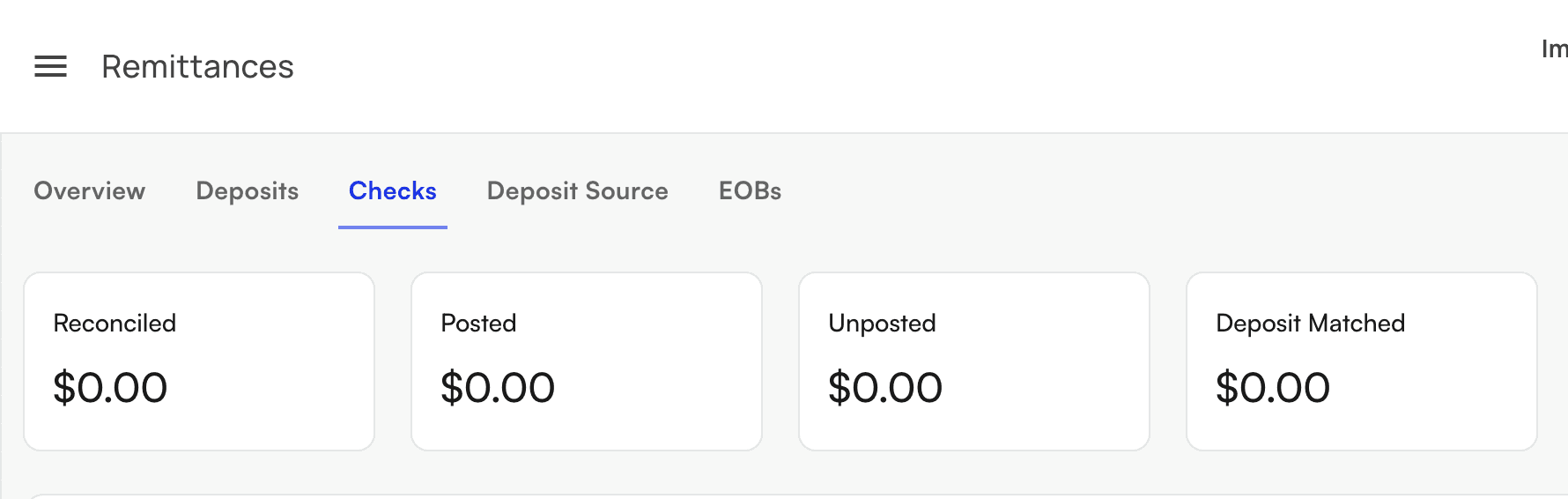
At the top of the page are Check Scorecards:
Reconciled → Total value of filtered check payments reconciled.
Posted → Total value of dollars that have been posted into Insights from these filtered checks.
Unposted → Total value of dollars where payments are not yet fully posted for these filtered checks.
Deposit Matched → Total value of checks that have been successfully matched to a bank deposit.
These scorecards give you a snapshot of whether all checks are properly accounted for from payer → Insights → bank.
Filtering Checks
The check list can be filtered by:
Date range (check date)
Check Number
Amount (range)
Posting Status (Posted, Partially Posted, Unposted)
Matching Status (Matched vs. Unmatched to a deposit)
This makes it easy to zero in on unposted checks, unmatched checks, or checks within a certain dollar range.
Check Table
Each row in the table shows:
Check ID / Check Number / Check Date
Check Amount vs. Amount Posted
Provider Adjustments Posted (if any)
Remaining Balance (should be $0 if fully posted)
Deposit Source (payer, normalized)
Payment Method (ACH, check, etc.)
Matching Status (Matched vs. Unmatched)
Posting Status (see below)
Posting Statuses
Each check has one or more remittances tied to it. Those remittances determine the check’s Posting Status:
Posted → The sum of payments posted tied to this check = the total check payment amount.
Partially Posted → The sum of payments posted for this check ≠ the total check payment amount AND ≠ 0.
Unposted → The sum of payments posted for this check = 0.
👉 Your reconciliation goal is to have all checks Matched + Fully Posted.
Clicking Into a Check
Clicking on a check opens a detailed panel. Here you’ll see:
Check details (check number, date, amount, payer, payment method, match status).
Remittances tab → shows all remittances tied to the check, with posting status, amounts, payer index, and claim IDs.
Deposits tab → shows which deposit the check is tied to (or lets you match/unlink it).
Provider Adjustments tab → shows provider level adjustments for this check.
From here you can:
Match / Unlink the check to a deposit.
Post/review individual remittances.
Deposit Slip Report Generation
From the Deposits tab, you can also generate a downloadable report of all of your deposit verification data. If you select the following download button:
You will be prompted with the following view where you can choose the following:
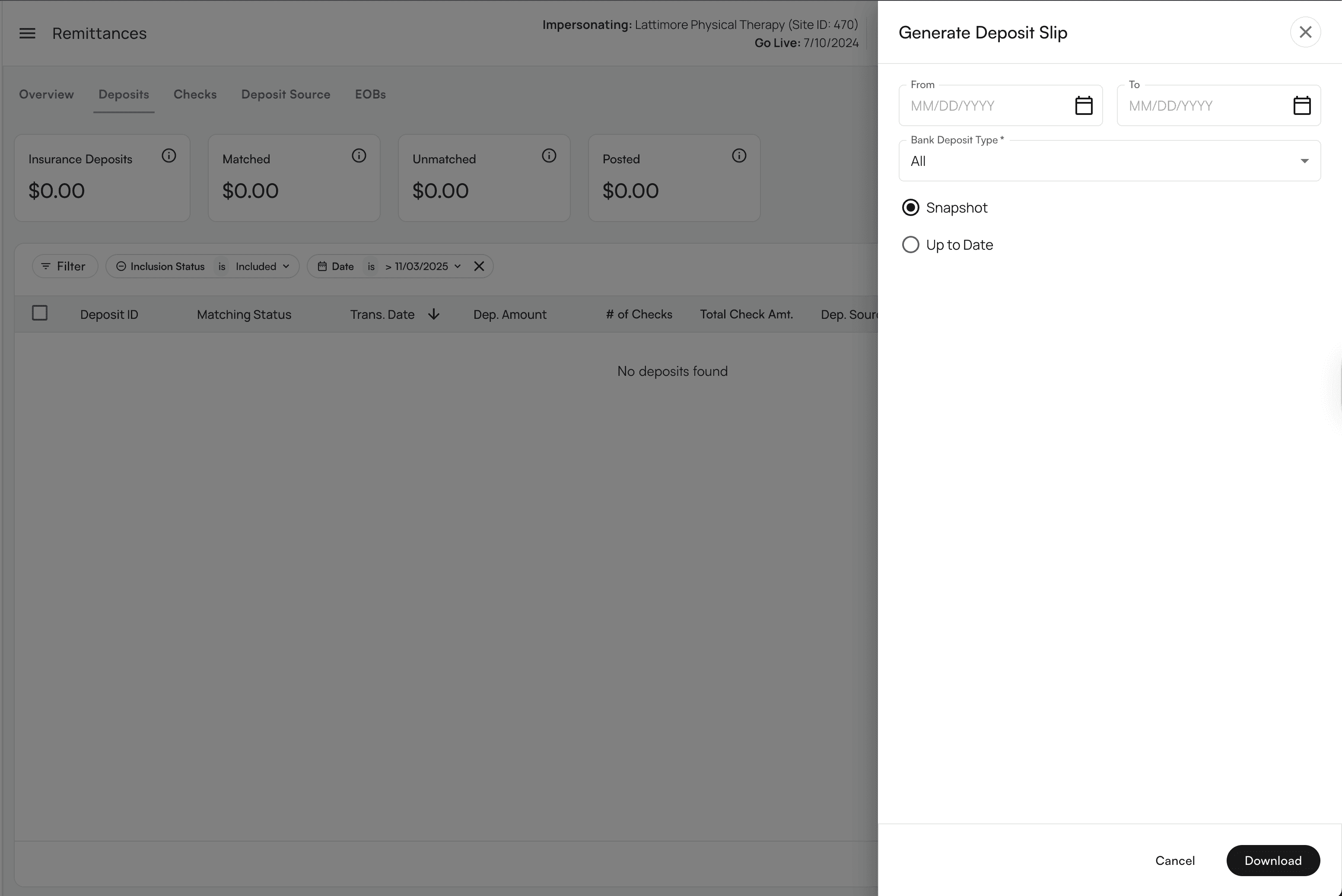
Date Range Filter - this filters for all bank deposits that have a transaction date within the selected date range.
Bank Deposit Type Filter - this filter allows you to select which types of bank deposits you would like to include in your report. You can filter for ACH deposits, Paper Check deposits, Virtual Credit Card deposits, or all deposits.
Report Type Selection - there are two kinds of reports you can generate here:
Snapshot Report
The Snapshot report will show you the status of your data as it looked at the end of your selected date range. Any updates that occurred afterwards will not show in this report.
For example, if you are generating a report for the month of January and one of the January deposits was matched to a check in February, this report will always show the deposit as unmatched because that was its status when January ended.
You can expect that any time you run this report for a given time range in the past, the data will always look the same.
Up To Date Report:
The Up To Date report will show you your bank deposits from the filtered date range with their most up to date matching status.
For example, if you are generating a report for the month of January and one of the January deposits was matched to a check in February, this report will show the deposit as match because the deposit is a January deposit and it’s current status is matched.
You cannot guarantee that this report will always look the same.
In your report, you can expect to view the following fields:
Check ID
Check Number
Check Date
Bank Deposit Date
Deposit Source from Check
Deposit Source from Deposit
Check Amount
Posted Amount
Facilities
NPI(s)
TIN
Bank Account
Summary
Question 1 - Did I Actually Get Paid What Insurance Said I Would?
Earlier, sites would have had to see the check amount, go download all their bank statements, and go and try and match one by one. This is massively laborious and painful.
Now, we do all the work and all sites have to do is click the check and see the deposits, remits, and even claims directly enclosed.
Question 2 - Does my bank account match my billing books?
Earlier, at the end of every month, I go transaction by transaction and somehow try my best to find the matching check in my billing system. I do this all manually. It takes me days.
Now I just click the deposits tab where Insights has automatically pulled all my bank transactions in. It's automatically matched every transaction to a set of checks, remits, and claims that I can audit.
FAQ's
This document is meant to provide guidance on how to navigate and understand what the Check Deposit Manager too is showing and addressing frequently asked questions.
What’s in scope and what is out of scope?
Our team matches remittances for ACH/EFT deposits for insurance payments we see via Plaid and VCC payments processed that are paid out via Stripe which are included with patient payments.
The Bank Reconciliation is not matching bulk check deposits (paper checks). These are to be matched by the client on the Check Deposit Manager tool by linking unmatched checks to this deposit (link to instructions here)
If you are interested in Athelas also matching paper checks deposits, we are offering a lockbox solution. Please contact your account manager to set-up time to learn more on this offering.
There are transactions that Athelas removes from scope that are not related to insurance payments. Examples including vendor payments, bank-to-bank transactions. We are actively working on removing these and if you see a transaction that is not in scope, you can exclude it by pressing the exclude button (screenshot 1)

How do I view excluded deposits?
You can filter for inclusion status set to “Excluded” and view all excluded deposits. By click on any specific deposit, you will see an exclusion reason. If you believe that a transaction has been incorrectly marked as excluded, press “Include” to move the deposit back.

How do I know if my plaid connection is active? How do I refresh it?
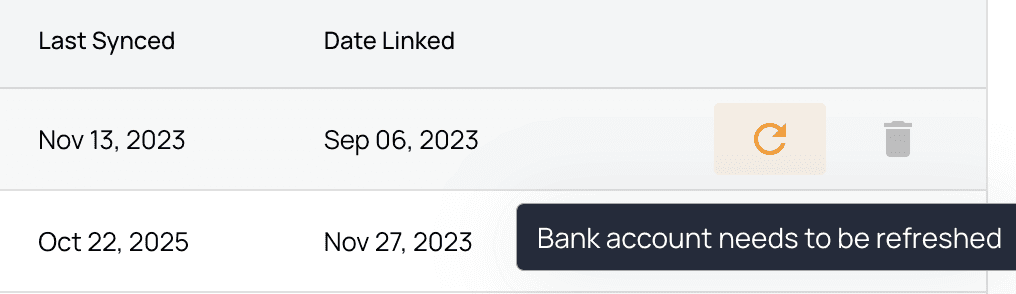
We will have alerting on the page to show you that your plaid is not active for any reason. Example of alert here.

Please press the refresh icon to refresh your plaid sync. Please do not delete the bank account and re-add it. Please write to Support and your Account Manager if the plaid re-sync fails and we will investigate the issue.
What are the common reasons something may not be matched? How can you help unblock/resolve this?
We see the deposit in the bank but do not have the matched remittance advice. This means that the Athelas is working on hunting for the remittance tied to this deposit and posting the remittance. Once the remittance is posted, we will match it to the unmatched deposit.
Common reasons transactions are not matching quickly is we are not receiving electronic remittances for this payer (or have not received them yet), we require a payer portal to pull the remittance advice for the full check to post the remittance. By ensuring we have as many payer portals as possible, our team will be able to pull the checks and reconcile/post these remits and link them to deposits.What are the common reasons for the posted to bank gap?
What are the common reasons for the posted to bank gap? How are the match rate gaps or posted to bank gaps addressed?
A reason for the posted to bank gap are usually due to remittances that have been flagged for manual review. If posted, these would set the encounter balance in a negative state as either a payment, adjustment, or PR amount is already posted which would conflict with the incoming remittance.
These gaps in matched rates versus posting amounts are addressed by creating automations which unblock these remittances so that they are posted. One can also manually intervene and post the payments to the ledger using the Posting Tool.
What are our SLAs regarding bank matching and posting remittances?
Our team commits to at matching at least 98% of deposits in scope (ACH/EFT payments, virtual card payments) to remits posted for each month. The bank recon team is actively working

Table of Contents
Search all docs
Provider Workflows
Chart Notes
Auto-apply KX Modifier
Getting Started with Chart Notes
AI Appt. Summaries
Chart Note Clinical Types
Download Chart Notes as PDFs
Goals on the chart note
How to add Measurements
Import Previous Medical History
Navigating Flowsheets
Navigating Inbox Workflows
Navigating the Chart Note
Set up Custom Chart Note Templates
Setting up Co-signers on Your Note
Sign a Chart Note
Text Snippets For Your Note
Chart Note Features Not Supported
Chart Notes
Claim Details
Claim Details
Front Office Workflows
Appointments
The Insights Appointments Page
Adding Prior Auth and Alerting
Alternate Methods for Scheduling
How to Add a Walk-In Patient
How to Run an Eligibility Check
How to Schedule an Appointment
How to Take Payments
Sending out reminders and forms
Understanding Appointment Details
Updating Appointment Statuses
Appt. Features not supported
Appointments
Daily Operations
Daily Operations
Patient Communications
General Patient Flows Features
Text Blast Page
Insurance Intake Page
Functional Outcome Measurements
Getting Started with Patient Portal
Complete Intake Forms
Navigating Patient Workflows
Manage Patient Appointments
Manage Payments through Patient Portal
Patient Intake Automation
Update Insurance Info
View Home Exercise Programs
Patient Communications
Patient Responsibility
Charge Saved Credit Cards
Manage Credit Cards
Setting up a Payment Plan
How to Cancel PR
How to Send a Patient Payment Link
How to Push to PR
How to Record Payments
How to Refund a Payment
How to Request via Text or Email
How to Set Up Miscellaneous Line Item Charges
How to Take Payment for Families
How to Undo a Write Off
How to Write Off PR
Patient Responsibility Page
PR Overpayment Refunds and Estimated vs. Remittance PR
PR Settings
PR Timeline
Patient Responsibility
Billing Workflows
Front Office Payments
Front Office Payments
Reports
A/R Reports
Building and Running Reports
Claim Adjustments Report
Collections Report
Custom Collections Report
Detailed Charges Report
Export Claim Details
Generate a Transaction Report
Patient Balances Report
Patient Charges Report
Patient Claims One-pagers
Patient Collections Report
Patient Eligibility Report
Posting Log Report
Site Transaction Report
Site Transaction Report Summary
Submitted Claims Report
Upcoming Patient Statements Report
Reports
Owners & Administration
Search all docs
Provider Workflows
Chart Notes
Auto-apply KX Modifier
Getting Started with Chart Notes
AI Appt. Summaries
Chart Note Clinical Types
Download Chart Notes as PDFs
Goals on the chart note
How to add Measurements
Import Previous Medical History
Navigating Flowsheets
Navigating Inbox Workflows
Navigating the Chart Note
Set up Custom Chart Note Templates
Setting up Co-signers on Your Note
Sign a Chart Note
Text Snippets For Your Note
Chart Note Features Not Supported
Chart Notes
Claim Details
Claim Details
Front Office Workflows
Appointments
The Insights Appointments Page
Adding Prior Auth and Alerting
Alternate Methods for Scheduling
How to Add a Walk-In Patient
How to Run an Eligibility Check
How to Schedule an Appointment
How to Take Payments
Sending out reminders and forms
Understanding Appointment Details
Updating Appointment Statuses
Appt. Features not supported
Appointments
Daily Operations
Daily Operations
Patient Communications
General Patient Flows Features
Text Blast Page
Insurance Intake Page
Functional Outcome Measurements
Getting Started with Patient Portal
Complete Intake Forms
Navigating Patient Workflows
Manage Patient Appointments
Manage Payments through Patient Portal
Patient Intake Automation
Update Insurance Info
View Home Exercise Programs
Patient Communications
Patient Responsibility
Charge Saved Credit Cards
Manage Credit Cards
Setting up a Payment Plan
How to Cancel PR
How to Send a Patient Payment Link
How to Push to PR
How to Record Payments
How to Refund a Payment
How to Request via Text or Email
How to Set Up Miscellaneous Line Item Charges
How to Take Payment for Families
How to Undo a Write Off
How to Write Off PR
Patient Responsibility Page
PR Overpayment Refunds and Estimated vs. Remittance PR
PR Settings
PR Timeline
Patient Responsibility
Billing Workflows
Front Office Payments
Front Office Payments
Reports
A/R Reports
Building and Running Reports
Claim Adjustments Report
Collections Report
Custom Collections Report
Detailed Charges Report
Export Claim Details
Generate a Transaction Report
Patient Balances Report
Patient Charges Report
Patient Claims One-pagers
Patient Collections Report
Patient Eligibility Report
Posting Log Report
Site Transaction Report
Site Transaction Report Summary
Submitted Claims Report
Upcoming Patient Statements Report
Reports
Owners & Administration
Last updated:
Nov 3, 2025
Remittances
General Billing
Billing Workflows
Getting started with the Remittances Page
The Remittances page is your command center for ensuring that every insurance payment makes it from the payer → into your RCM system → and all the way into your bank account. It’s designed to give you confidence that:
Every dollar in Insights = every check reconciled = every bank deposit.
If there are gaps, duplicates, or mismatches, you can quickly identify and fix them.
In other words: it’s where you can see, reconcile, and act on your payment data.
How to Access the Remittances Page
From the Insights navigation menu, select Remittances
You’ll land on a tab called Deposits
Fundamental Tabs
Deposits Tab → Helps you confirm that every dollar that entered your bank is fully matched to checks and payments in Insights.
Checks Tab → Helps you confirm that every payer check has been posted correctly to claims and is tied back to a deposit.
You can think of them as two sides of the same equation:
Deposits = money in the bank
Checks = promise of money from the payer
This page helps you ensure that both sides always match.
Fundamental Concepts
Bank Deposit
A bank deposit is the actual money hitting your bank account. This could be an ACH transfer, a virtual credit card payment, or a physical check deposit. Your goal is to make sure every deposit is represented in Insights and tied to the right checks.
Check
A check represents the payer’s promise to pay. It contains a check number, payment amount, and payer details. Your job is to:
Ensure the payments from this check are posted across the correct claims.
Match the check to its associated deposit to confirm the payment actually arrived in your bank.
Remittances / Payments
Every individual claim payment is tracked as a remittance. By default, remittances are auto-posted within 6 hours of creation. Exceptions:
Manual review → if our posting engine isn’t sure how to apply a payment.
Archived → if the engine detects duplicates or bad data.
Deposit Source
Deposit sources are cleaned-up payer identities. Because payer names can vary across checks and deposits, we normalize them into a single source (e.g., “Blue Cross Blue Shield” instead of “BCBS of TX,” “BlueCross TX,” etc.). This makes matching deposits and checks much easier.
The Deposits Tab
The Deposits Tab gives you a complete view of the insurance deposits that have hit your bank account and allows you to reconcile them with checks and remittances inside Insights. This is the “money in” side of the reconciliation process.
High-Level Overview
At the top of the page, you’ll see scorecards that summarize:
Total Insurance Deposits → the sum of all insurance deposits in the filtered scope.
Matched Deposits → how much of that total is tied to checks.
Unmatched Deposits → how much is still not tied to any checks.
Posted Deposits → how much of the matched deposits have posted payments inside Insights.
This gives you an at-a-glance sense of the health of your deposit verification.
Filtering Deposits
The deposit table can be filtered by:
Date range (transaction date)
Matching Status (Matched, Unmatched, or Partially Matched)
Matched - the deposit is linked to at least one check and the sum of the check(s) payment amounts = the deposit amount.
Partially Matched - the deposit is linked to at least one check but the sum of the check(s) payment amounts does not equal the deposit amount.
Unmatched - the deposit is not linked to any checks.
Inclusion Status (Included or Excluded) - this is used as a way to mark certain deposits as non-insurance deposits
Deposit Amount (range filters)
These filters let you focus quickly — for example, to find deposits in a certain week, to review only unmatched deposits, or to isolate very large deposits.
Deposit Table
Each row in the table shows:
Deposit ID, status, and transaction date
Deposit amount and total check amount (sum of checks tied to the given deposit)
Number of linked checks to the given deposit
Deposit source (payer, normalized) and method (ACH - Automated Clearing House, CHK - Check, VCC - Virtual Credit Card)
Description (from bank feed)
Inclusion toggle
👉 If you exclude a deposit, you’ll be prompted to provide a reason, which is stored for audit visibility.
Clicking Into a Deposit
Clicking on a deposit opens a detailed view, where you can:
See the deposit details (source, method, Plaid Trans. ID, who included/excluded it).
Review linked checks (check ID, number, amount, posting status).
Drill down into remittances tied to those checks (with statuses like Fully Posted, Archived, or Unposted).
From here, you can confirm:
That the deposit amount matches the sum of linked checks.
That all checks tied to the deposit are fully posted in Insights.
Which remittances still need action (e.g., manual posting).
Matching and Unlinking Checks
When a deposit is unmatched or partially matched:
Open the deposit.
Use View Unmatched Checks to see candidate checks.
Link one or more checks to the deposit.
If a mistake is made, you can always unlink a check from a deposit. Both linking and unlinking are tracked in the system so there’s a clear audit trail.
Posting Remittances
After a deposit is matched to checks, the final step is ensuring the remittances tied to those checks are posted:
Pending → The remittance has been created but not yet processed by the posting engine.
Manual Review Required → The posting engine wasn’t sure how to apply the payment. User intervention is needed.
Partially Posted → Some, but not all, of the remittance’s payments have been applied.
Fully Posted → The remittance has been successfully posted in its entirety.
Archived → The remittance was identified as a duplicate or bad data and excluded from posting.
You can take action at the remittance level directly from the deposit view by clicking into a specific remittance. You will be directed to our posting tool that allows you to actually post these remittances to the payment ledger. The tool will highlight which remittances/payments are tied to the given check and what the total payment value should be for this claim based on the remittance data.
The Checks Tab
The Checks Tab is the “payer side” of reconciliation. It’s where you confirm that every check received from an insurance payer has been:
Posted into Insights (so all claim payments are recorded), and
Matched to the corresponding deposit in your bank account.
High-Level Overview
At the top of the page are Check Scorecards:
Reconciled → Total value of filtered check payments reconciled.
Posted → Total value of dollars that have been posted into Insights from these filtered checks.
Unposted → Total value of dollars where payments are not yet fully posted for these filtered checks.
Deposit Matched → Total value of checks that have been successfully matched to a bank deposit.
These scorecards give you a snapshot of whether all checks are properly accounted for from payer → Insights → bank.
Filtering Checks
The check list can be filtered by:
Date range (check date)
Check Number
Amount (range)
Posting Status (Posted, Partially Posted, Unposted)
Matching Status (Matched vs. Unmatched to a deposit)
This makes it easy to zero in on unposted checks, unmatched checks, or checks within a certain dollar range.
Check Table
Each row in the table shows:
Check ID / Check Number / Check Date
Check Amount vs. Amount Posted
Provider Adjustments Posted (if any)
Remaining Balance (should be $0 if fully posted)
Deposit Source (payer, normalized)
Payment Method (ACH, check, etc.)
Matching Status (Matched vs. Unmatched)
Posting Status (see below)
Posting Statuses
Each check has one or more remittances tied to it. Those remittances determine the check’s Posting Status:
Posted → The sum of payments posted tied to this check = the total check payment amount.
Partially Posted → The sum of payments posted for this check ≠ the total check payment amount AND ≠ 0.
Unposted → The sum of payments posted for this check = 0.
👉 Your reconciliation goal is to have all checks Matched + Fully Posted.
Clicking Into a Check
Clicking on a check opens a detailed panel. Here you’ll see:
Check details (check number, date, amount, payer, payment method, match status).
Remittances tab → shows all remittances tied to the check, with posting status, amounts, payer index, and claim IDs.
Deposits tab → shows which deposit the check is tied to (or lets you match/unlink it).
Provider Adjustments tab → shows provider level adjustments for this check.
From here you can:
Match / Unlink the check to a deposit.
Post/review individual remittances.
Deposit Slip Report Generation
From the Deposits tab, you can also generate a downloadable report of all of your deposit verification data. If you select the following download button:
You will be prompted with the following view where you can choose the following:
Date Range Filter - this filters for all bank deposits that have a transaction date within the selected date range.
Bank Deposit Type Filter - this filter allows you to select which types of bank deposits you would like to include in your report. You can filter for ACH deposits, Paper Check deposits, Virtual Credit Card deposits, or all deposits.
Report Type Selection - there are two kinds of reports you can generate here:
Snapshot Report
The Snapshot report will show you the status of your data as it looked at the end of your selected date range. Any updates that occurred afterwards will not show in this report.
For example, if you are generating a report for the month of January and one of the January deposits was matched to a check in February, this report will always show the deposit as unmatched because that was its status when January ended.
You can expect that any time you run this report for a given time range in the past, the data will always look the same.
Up To Date Report:
The Up To Date report will show you your bank deposits from the filtered date range with their most up to date matching status.
For example, if you are generating a report for the month of January and one of the January deposits was matched to a check in February, this report will show the deposit as match because the deposit is a January deposit and it’s current status is matched.
You cannot guarantee that this report will always look the same.
In your report, you can expect to view the following fields:
Check ID
Check Number
Check Date
Bank Deposit Date
Deposit Source from Check
Deposit Source from Deposit
Check Amount
Posted Amount
Facilities
NPI(s)
TIN
Bank Account
Summary
Question 1 - Did I Actually Get Paid What Insurance Said I Would?
Earlier, sites would have had to see the check amount, go download all their bank statements, and go and try and match one by one. This is massively laborious and painful.
Now, we do all the work and all sites have to do is click the check and see the deposits, remits, and even claims directly enclosed.
Question 2 - Does my bank account match my billing books?
Earlier, at the end of every month, I go transaction by transaction and somehow try my best to find the matching check in my billing system. I do this all manually. It takes me days.
Now I just click the deposits tab where Insights has automatically pulled all my bank transactions in. It's automatically matched every transaction to a set of checks, remits, and claims that I can audit.
FAQ's
This document is meant to provide guidance on how to navigate and understand what the Check Deposit Manager too is showing and addressing frequently asked questions.
What’s in scope and what is out of scope?
Our team matches remittances for ACH/EFT deposits for insurance payments we see via Plaid and VCC payments processed that are paid out via Stripe which are included with patient payments.
The Bank Reconciliation is not matching bulk check deposits (paper checks). These are to be matched by the client on the Check Deposit Manager tool by linking unmatched checks to this deposit (link to instructions here)
If you are interested in Athelas also matching paper checks deposits, we are offering a lockbox solution. Please contact your account manager to set-up time to learn more on this offering.
There are transactions that Athelas removes from scope that are not related to insurance payments. Examples including vendor payments, bank-to-bank transactions. We are actively working on removing these and if you see a transaction that is not in scope, you can exclude it by pressing the exclude button (screenshot 1)
How do I view excluded deposits?
You can filter for inclusion status set to “Excluded” and view all excluded deposits. By click on any specific deposit, you will see an exclusion reason. If you believe that a transaction has been incorrectly marked as excluded, press “Include” to move the deposit back.
How do I know if my plaid connection is active? How do I refresh it?
We will have alerting on the page to show you that your plaid is not active for any reason. Example of alert here.
Please press the refresh icon to refresh your plaid sync. Please do not delete the bank account and re-add it. Please write to Support and your Account Manager if the plaid re-sync fails and we will investigate the issue.
What are the common reasons something may not be matched? How can you help unblock/resolve this?
We see the deposit in the bank but do not have the matched remittance advice. This means that the Athelas is working on hunting for the remittance tied to this deposit and posting the remittance. Once the remittance is posted, we will match it to the unmatched deposit.
Common reasons transactions are not matching quickly is we are not receiving electronic remittances for this payer (or have not received them yet), we require a payer portal to pull the remittance advice for the full check to post the remittance. By ensuring we have as many payer portals as possible, our team will be able to pull the checks and reconcile/post these remits and link them to deposits.What are the common reasons for the posted to bank gap?
What are the common reasons for the posted to bank gap? How are the match rate gaps or posted to bank gaps addressed?
A reason for the posted to bank gap are usually due to remittances that have been flagged for manual review. If posted, these would set the encounter balance in a negative state as either a payment, adjustment, or PR amount is already posted which would conflict with the incoming remittance.
These gaps in matched rates versus posting amounts are addressed by creating automations which unblock these remittances so that they are posted. One can also manually intervene and post the payments to the ledger using the Posting Tool.
What are our SLAs regarding bank matching and posting remittances?
Our team commits to at matching at least 98% of deposits in scope (ACH/EFT payments, virtual card payments) to remits posted for each month. The bank recon team is actively working
Last updated:
Nov 3, 2025
Remittances
General Billing
Billing Workflows
Getting started with the Remittances Page
The Remittances page is your command center for ensuring that every insurance payment makes it from the payer → into your RCM system → and all the way into your bank account. It’s designed to give you confidence that:
Every dollar in Insights = every check reconciled = every bank deposit.
If there are gaps, duplicates, or mismatches, you can quickly identify and fix them.
In other words: it’s where you can see, reconcile, and act on your payment data.
How to Access the Remittances Page
From the Insights navigation menu, select Remittances
You’ll land on a tab called Deposits
Fundamental Tabs
Deposits Tab → Helps you confirm that every dollar that entered your bank is fully matched to checks and payments in Insights.
Checks Tab → Helps you confirm that every payer check has been posted correctly to claims and is tied back to a deposit.
You can think of them as two sides of the same equation:
Deposits = money in the bank
Checks = promise of money from the payer
This page helps you ensure that both sides always match.
Fundamental Concepts
Bank Deposit
A bank deposit is the actual money hitting your bank account. This could be an ACH transfer, a virtual credit card payment, or a physical check deposit. Your goal is to make sure every deposit is represented in Insights and tied to the right checks.
Check
A check represents the payer’s promise to pay. It contains a check number, payment amount, and payer details. Your job is to:
Ensure the payments from this check are posted across the correct claims.
Match the check to its associated deposit to confirm the payment actually arrived in your bank.
Remittances / Payments
Every individual claim payment is tracked as a remittance. By default, remittances are auto-posted within 6 hours of creation. Exceptions:
Manual review → if our posting engine isn’t sure how to apply a payment.
Archived → if the engine detects duplicates or bad data.
Deposit Source
Deposit sources are cleaned-up payer identities. Because payer names can vary across checks and deposits, we normalize them into a single source (e.g., “Blue Cross Blue Shield” instead of “BCBS of TX,” “BlueCross TX,” etc.). This makes matching deposits and checks much easier.
The Deposits Tab
The Deposits Tab gives you a complete view of the insurance deposits that have hit your bank account and allows you to reconcile them with checks and remittances inside Insights. This is the “money in” side of the reconciliation process.
High-Level Overview
At the top of the page, you’ll see scorecards that summarize:
Total Insurance Deposits → the sum of all insurance deposits in the filtered scope.
Matched Deposits → how much of that total is tied to checks.
Unmatched Deposits → how much is still not tied to any checks.
Posted Deposits → how much of the matched deposits have posted payments inside Insights.
This gives you an at-a-glance sense of the health of your deposit verification.
Filtering Deposits
The deposit table can be filtered by:
Date range (transaction date)
Matching Status (Matched, Unmatched, or Partially Matched)
Matched - the deposit is linked to at least one check and the sum of the check(s) payment amounts = the deposit amount.
Partially Matched - the deposit is linked to at least one check but the sum of the check(s) payment amounts does not equal the deposit amount.
Unmatched - the deposit is not linked to any checks.
Inclusion Status (Included or Excluded) - this is used as a way to mark certain deposits as non-insurance deposits
Deposit Amount (range filters)
These filters let you focus quickly — for example, to find deposits in a certain week, to review only unmatched deposits, or to isolate very large deposits.
Deposit Table
Each row in the table shows:
Deposit ID, status, and transaction date
Deposit amount and total check amount (sum of checks tied to the given deposit)
Number of linked checks to the given deposit
Deposit source (payer, normalized) and method (ACH - Automated Clearing House, CHK - Check, VCC - Virtual Credit Card)
Description (from bank feed)
Inclusion toggle
👉 If you exclude a deposit, you’ll be prompted to provide a reason, which is stored for audit visibility.
Clicking Into a Deposit
Clicking on a deposit opens a detailed view, where you can:
See the deposit details (source, method, Plaid Trans. ID, who included/excluded it).
Review linked checks (check ID, number, amount, posting status).
Drill down into remittances tied to those checks (with statuses like Fully Posted, Archived, or Unposted).
From here, you can confirm:
That the deposit amount matches the sum of linked checks.
That all checks tied to the deposit are fully posted in Insights.
Which remittances still need action (e.g., manual posting).
Matching and Unlinking Checks
When a deposit is unmatched or partially matched:
Open the deposit.
Use View Unmatched Checks to see candidate checks.
Link one or more checks to the deposit.
If a mistake is made, you can always unlink a check from a deposit. Both linking and unlinking are tracked in the system so there’s a clear audit trail.
Posting Remittances
After a deposit is matched to checks, the final step is ensuring the remittances tied to those checks are posted:
Pending → The remittance has been created but not yet processed by the posting engine.
Manual Review Required → The posting engine wasn’t sure how to apply the payment. User intervention is needed.
Partially Posted → Some, but not all, of the remittance’s payments have been applied.
Fully Posted → The remittance has been successfully posted in its entirety.
Archived → The remittance was identified as a duplicate or bad data and excluded from posting.
You can take action at the remittance level directly from the deposit view by clicking into a specific remittance. You will be directed to our posting tool that allows you to actually post these remittances to the payment ledger. The tool will highlight which remittances/payments are tied to the given check and what the total payment value should be for this claim based on the remittance data.
The Checks Tab
The Checks Tab is the “payer side” of reconciliation. It’s where you confirm that every check received from an insurance payer has been:
Posted into Insights (so all claim payments are recorded), and
Matched to the corresponding deposit in your bank account.
High-Level Overview
At the top of the page are Check Scorecards:
Reconciled → Total value of filtered check payments reconciled.
Posted → Total value of dollars that have been posted into Insights from these filtered checks.
Unposted → Total value of dollars where payments are not yet fully posted for these filtered checks.
Deposit Matched → Total value of checks that have been successfully matched to a bank deposit.
These scorecards give you a snapshot of whether all checks are properly accounted for from payer → Insights → bank.
Filtering Checks
The check list can be filtered by:
Date range (check date)
Check Number
Amount (range)
Posting Status (Posted, Partially Posted, Unposted)
Matching Status (Matched vs. Unmatched to a deposit)
This makes it easy to zero in on unposted checks, unmatched checks, or checks within a certain dollar range.
Check Table
Each row in the table shows:
Check ID / Check Number / Check Date
Check Amount vs. Amount Posted
Provider Adjustments Posted (if any)
Remaining Balance (should be $0 if fully posted)
Deposit Source (payer, normalized)
Payment Method (ACH, check, etc.)
Matching Status (Matched vs. Unmatched)
Posting Status (see below)
Posting Statuses
Each check has one or more remittances tied to it. Those remittances determine the check’s Posting Status:
Posted → The sum of payments posted tied to this check = the total check payment amount.
Partially Posted → The sum of payments posted for this check ≠ the total check payment amount AND ≠ 0.
Unposted → The sum of payments posted for this check = 0.
👉 Your reconciliation goal is to have all checks Matched + Fully Posted.
Clicking Into a Check
Clicking on a check opens a detailed panel. Here you’ll see:
Check details (check number, date, amount, payer, payment method, match status).
Remittances tab → shows all remittances tied to the check, with posting status, amounts, payer index, and claim IDs.
Deposits tab → shows which deposit the check is tied to (or lets you match/unlink it).
Provider Adjustments tab → shows provider level adjustments for this check.
From here you can:
Match / Unlink the check to a deposit.
Post/review individual remittances.
Deposit Slip Report Generation
From the Deposits tab, you can also generate a downloadable report of all of your deposit verification data. If you select the following download button:
You will be prompted with the following view where you can choose the following:
Date Range Filter - this filters for all bank deposits that have a transaction date within the selected date range.
Bank Deposit Type Filter - this filter allows you to select which types of bank deposits you would like to include in your report. You can filter for ACH deposits, Paper Check deposits, Virtual Credit Card deposits, or all deposits.
Report Type Selection - there are two kinds of reports you can generate here:
Snapshot Report
The Snapshot report will show you the status of your data as it looked at the end of your selected date range. Any updates that occurred afterwards will not show in this report.
For example, if you are generating a report for the month of January and one of the January deposits was matched to a check in February, this report will always show the deposit as unmatched because that was its status when January ended.
You can expect that any time you run this report for a given time range in the past, the data will always look the same.
Up To Date Report:
The Up To Date report will show you your bank deposits from the filtered date range with their most up to date matching status.
For example, if you are generating a report for the month of January and one of the January deposits was matched to a check in February, this report will show the deposit as match because the deposit is a January deposit and it’s current status is matched.
You cannot guarantee that this report will always look the same.
In your report, you can expect to view the following fields:
Check ID
Check Number
Check Date
Bank Deposit Date
Deposit Source from Check
Deposit Source from Deposit
Check Amount
Posted Amount
Facilities
NPI(s)
TIN
Bank Account
Summary
Question 1 - Did I Actually Get Paid What Insurance Said I Would?
Earlier, sites would have had to see the check amount, go download all their bank statements, and go and try and match one by one. This is massively laborious and painful.
Now, we do all the work and all sites have to do is click the check and see the deposits, remits, and even claims directly enclosed.
Question 2 - Does my bank account match my billing books?
Earlier, at the end of every month, I go transaction by transaction and somehow try my best to find the matching check in my billing system. I do this all manually. It takes me days.
Now I just click the deposits tab where Insights has automatically pulled all my bank transactions in. It's automatically matched every transaction to a set of checks, remits, and claims that I can audit.
FAQ's
This document is meant to provide guidance on how to navigate and understand what the Check Deposit Manager too is showing and addressing frequently asked questions.
What’s in scope and what is out of scope?
Our team matches remittances for ACH/EFT deposits for insurance payments we see via Plaid and VCC payments processed that are paid out via Stripe which are included with patient payments.
The Bank Reconciliation is not matching bulk check deposits (paper checks). These are to be matched by the client on the Check Deposit Manager tool by linking unmatched checks to this deposit (link to instructions here)
If you are interested in Athelas also matching paper checks deposits, we are offering a lockbox solution. Please contact your account manager to set-up time to learn more on this offering.
There are transactions that Athelas removes from scope that are not related to insurance payments. Examples including vendor payments, bank-to-bank transactions. We are actively working on removing these and if you see a transaction that is not in scope, you can exclude it by pressing the exclude button (screenshot 1)
How do I view excluded deposits?
You can filter for inclusion status set to “Excluded” and view all excluded deposits. By click on any specific deposit, you will see an exclusion reason. If you believe that a transaction has been incorrectly marked as excluded, press “Include” to move the deposit back.
How do I know if my plaid connection is active? How do I refresh it?
We will have alerting on the page to show you that your plaid is not active for any reason. Example of alert here.
Please press the refresh icon to refresh your plaid sync. Please do not delete the bank account and re-add it. Please write to Support and your Account Manager if the plaid re-sync fails and we will investigate the issue.
What are the common reasons something may not be matched? How can you help unblock/resolve this?
We see the deposit in the bank but do not have the matched remittance advice. This means that the Athelas is working on hunting for the remittance tied to this deposit and posting the remittance. Once the remittance is posted, we will match it to the unmatched deposit.
Common reasons transactions are not matching quickly is we are not receiving electronic remittances for this payer (or have not received them yet), we require a payer portal to pull the remittance advice for the full check to post the remittance. By ensuring we have as many payer portals as possible, our team will be able to pull the checks and reconcile/post these remits and link them to deposits.What are the common reasons for the posted to bank gap?
What are the common reasons for the posted to bank gap? How are the match rate gaps or posted to bank gaps addressed?
A reason for the posted to bank gap are usually due to remittances that have been flagged for manual review. If posted, these would set the encounter balance in a negative state as either a payment, adjustment, or PR amount is already posted which would conflict with the incoming remittance.
These gaps in matched rates versus posting amounts are addressed by creating automations which unblock these remittances so that they are posted. One can also manually intervene and post the payments to the ledger using the Posting Tool.
What are our SLAs regarding bank matching and posting remittances?
Our team commits to at matching at least 98% of deposits in scope (ACH/EFT payments, virtual card payments) to remits posted for each month. The bank recon team is actively working