> ## Documentation Index
> Fetch the complete documentation index at: https://docs.athelas.com/llms.txt
> Use this file to discover all available pages before exploring further.
# Sign a Chart Note
This section will compile all the compliance checkmarks within the chart note for a quick overview. If any of them are grey, the information was not captured within the chart note. This is also where the user can select co-signers under “Additional Providers” and for the rendering provider to sign as well.
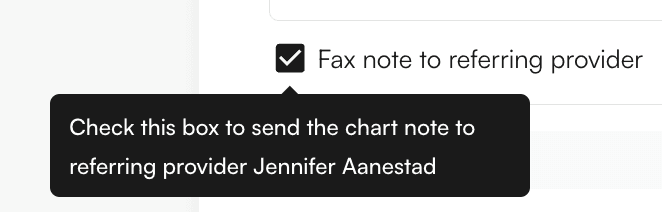
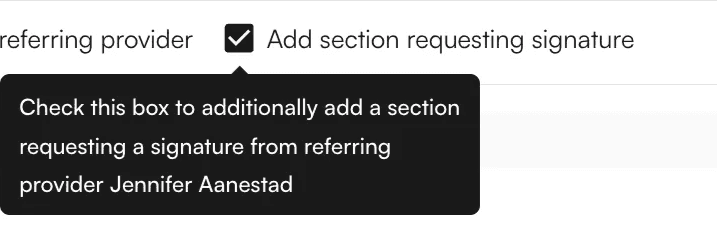
 Ensure the “Fax note to referring provider” checkbox is clicked. Optionally, you can include a section requesting signature if desired.
 To close the encounter and submit it as a claim, sign the note under “Notarize” and click “Submit”
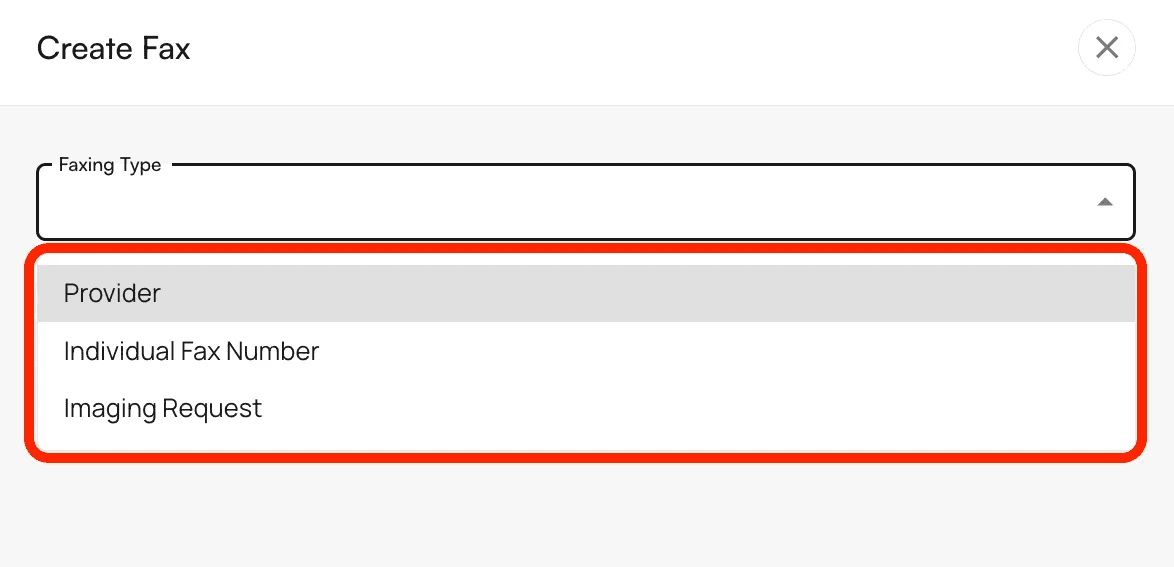
 To fax the completed chart note, click on “+Create Fax”. A side panel will open up where the faxing type can be selected.
 **There are 3 faxing types currently available:**
* Provider
* Individual Fax Number
* Imaging Request.
Each presents in a different way.
**There are 3 faxing types currently available:**
* Provider
* Individual Fax Number
* Imaging Request.
Each presents in a different way.
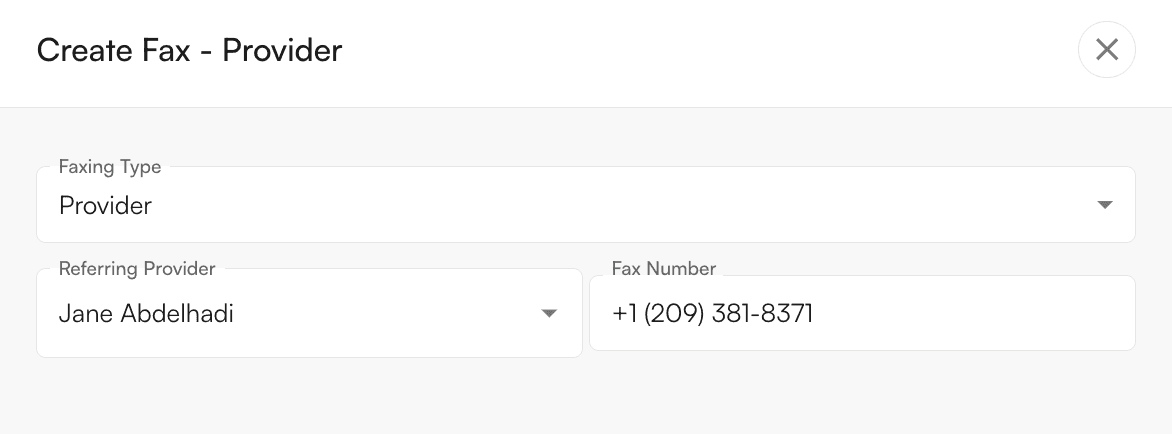
 The provider fax has a dropdown selection of all referring providers within Insights. If the fax number is available for the provider, it will auto-populate.
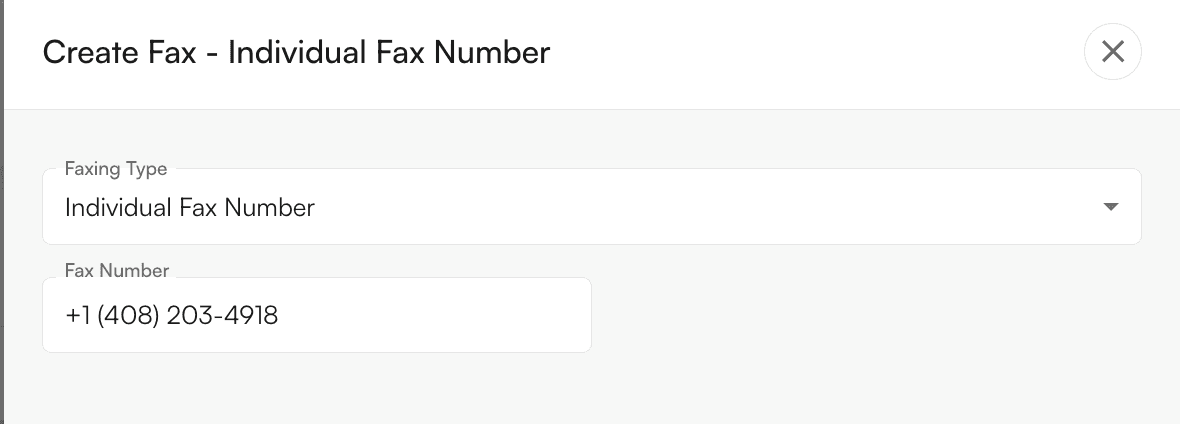
 Individual fax number requires the user to know and input the fax number they’d like to send the completed chart note to.
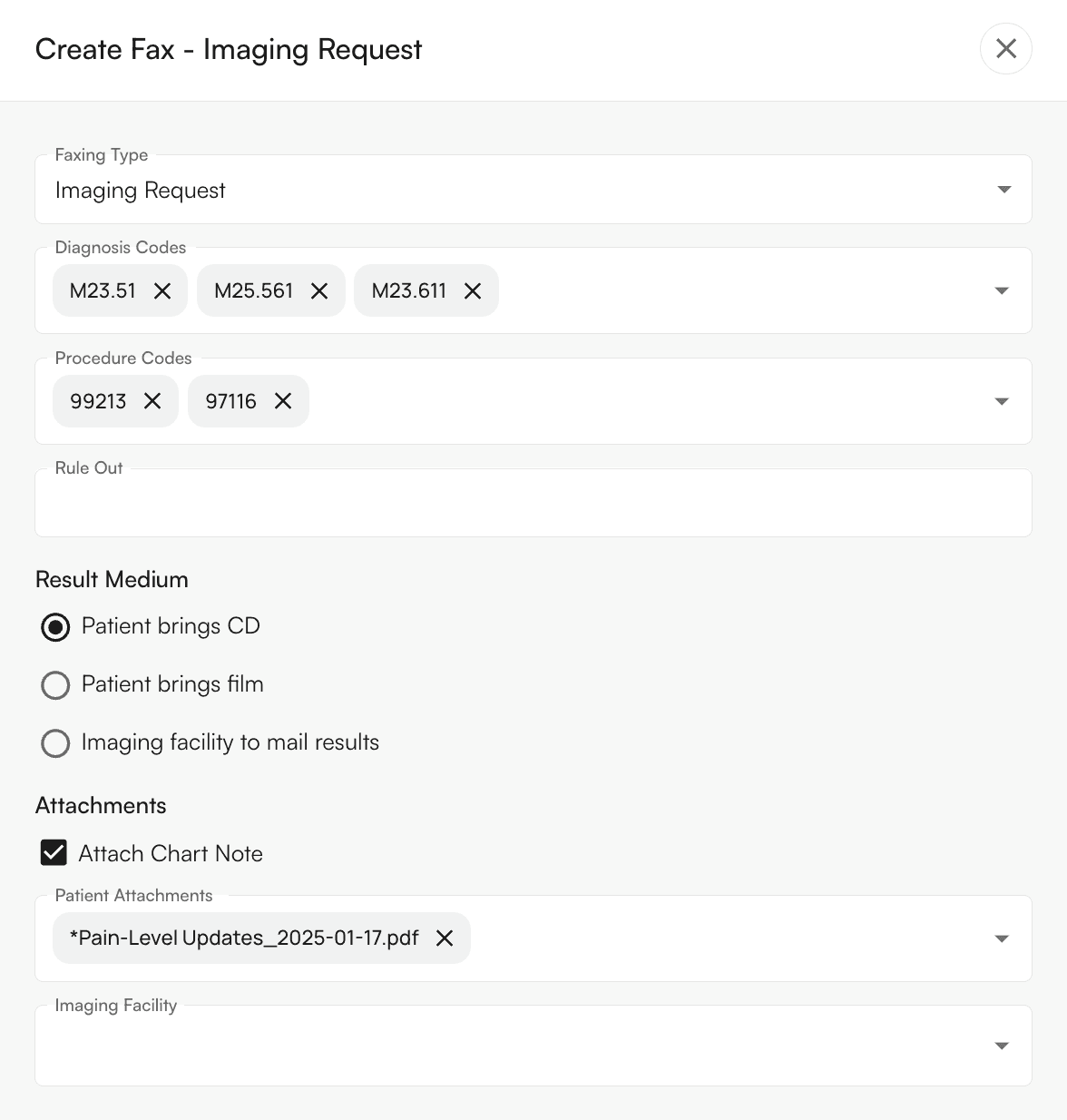
 Imaging requests will fax out the chart note with an imaging request utilizing the details indicated within the section. This information includes:
* Diagnosis codes
* Procedure codes
* Rule Out Information
* Result Medium
* Attachments
* Chart Note
* Patient attachments
* Imaging facility
Imaging requests will fax out the chart note with an imaging request utilizing the details indicated within the section. This information includes:
* Diagnosis codes
* Procedure codes
* Rule Out Information
* Result Medium
* Attachments
* Chart Note
* Patient attachments
* Imaging facility
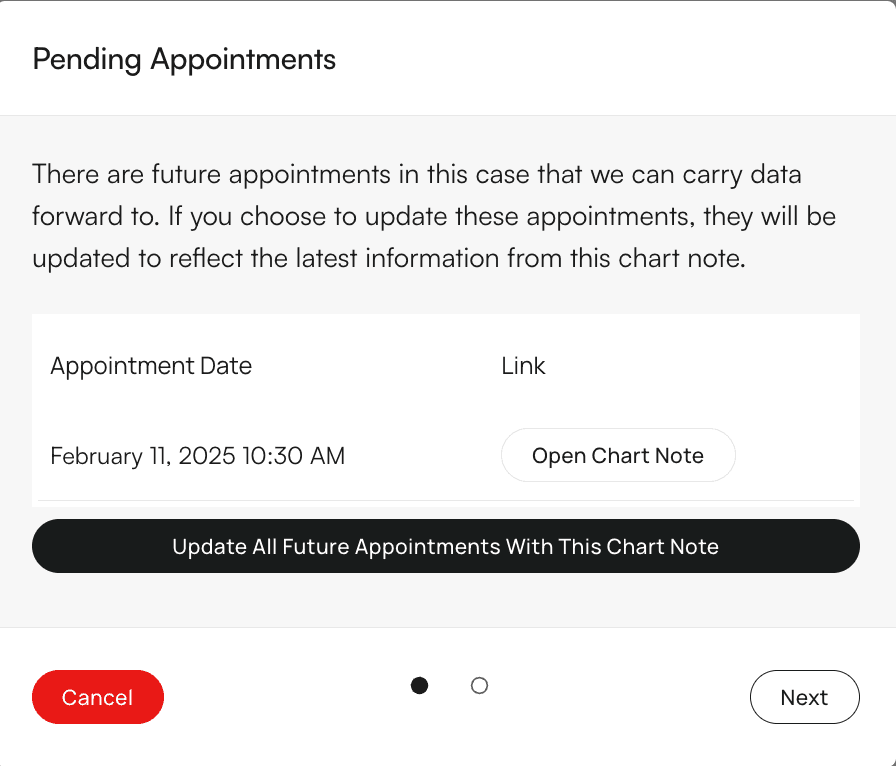
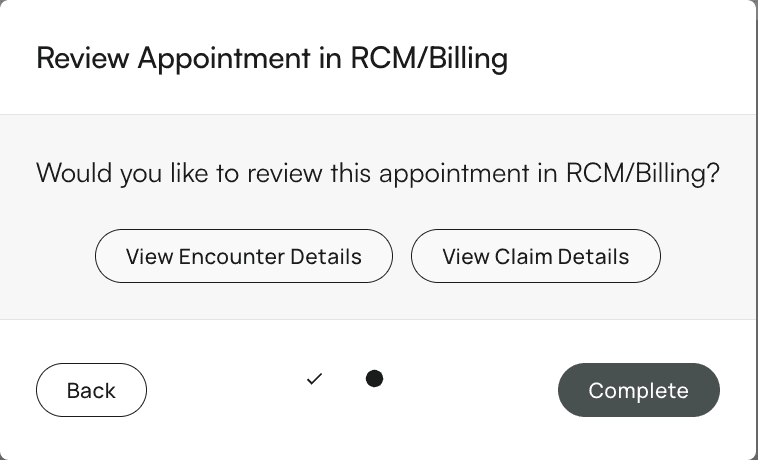
 When a note is signed and submitted, if the patient has future appointments scheduled- you will have the option of updating all future appointments with the chart note you just completed. Clicking *Next* will then ask if you’d like to review the appointment in RCM/ Billing. If you’d like to do so, simply click on *View Encounter Details* or *View Claim Details*. If not, click *Complete*.