> ## Documentation Index
> Fetch the complete documentation index at: https://docs.athelas.com/llms.txt
> Use this file to discover all available pages before exploring further.
# How to Handle Duplicate Remittances
**Situation 1: The currently-posted remittance is accurate (or they’re exact duplicates)**
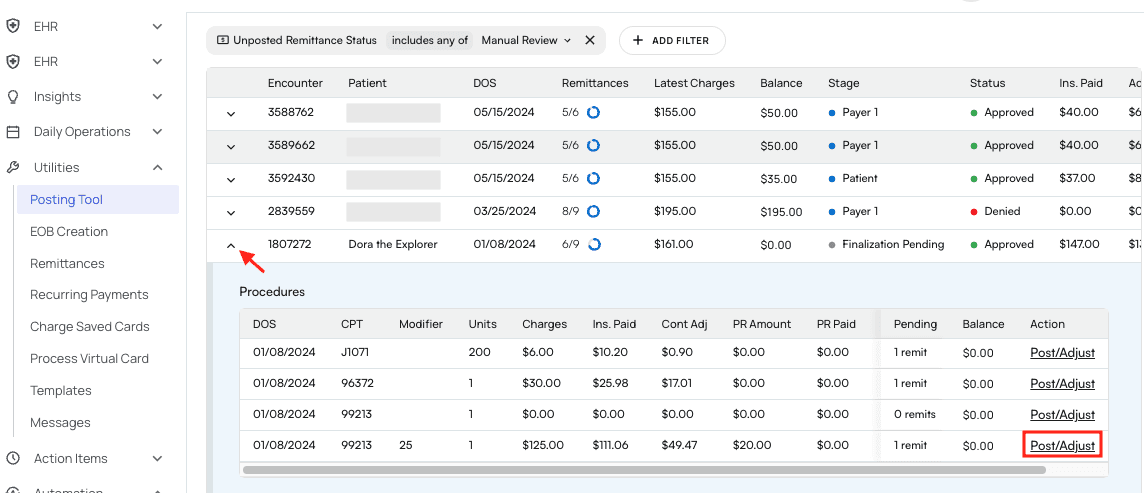
* Visit the [Posting Tool page](https://insights.athelas.com/posting-tool) and find the encounter of interest. Click its arrow icon to see procedures listed by DoS.
* Find the procedure remit you want to review, then click `Post/Adjust`.
 * The remittance for manual review will be in the **Unposted Remittances** list.
* If you hover your cursor over the information icon, a tooltip will explain why this remit is unposted. In this example, we can see that the remit will create a negative balance (indicative of overpayment) if it is posted.
* Looking at the **Posted Payments** list, it is clear that a duplicate remittance was already posted for this DoS.
* The remittance for manual review will be in the **Unposted Remittances** list.
* If you hover your cursor over the information icon, a tooltip will explain why this remit is unposted. In this example, we can see that the remit will create a negative balance (indicative of overpayment) if it is posted.
* Looking at the **Posted Payments** list, it is clear that a duplicate remittance was already posted for this DoS.
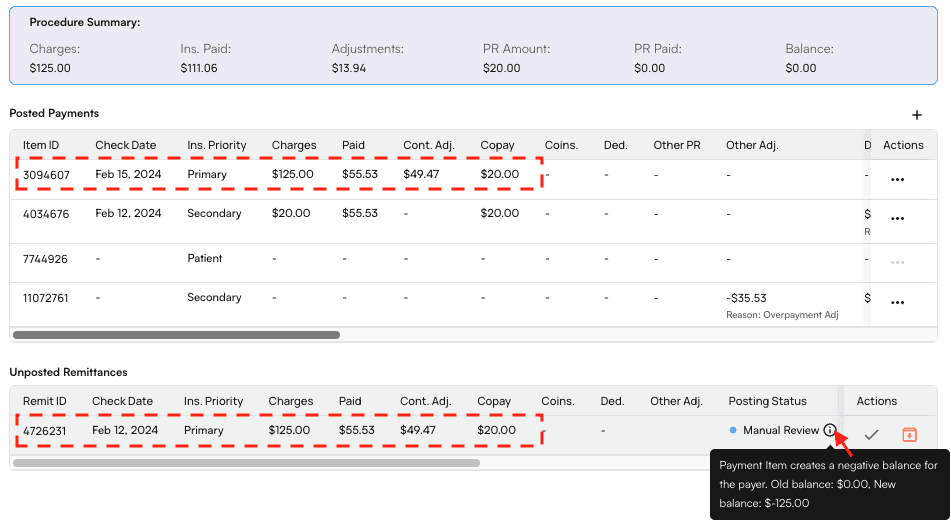 * In this case, it is safe to archive the unposted remittance by clicking the orange box icon in the Actions column.
 * **Situation 2: The unposted remittance is accurate**
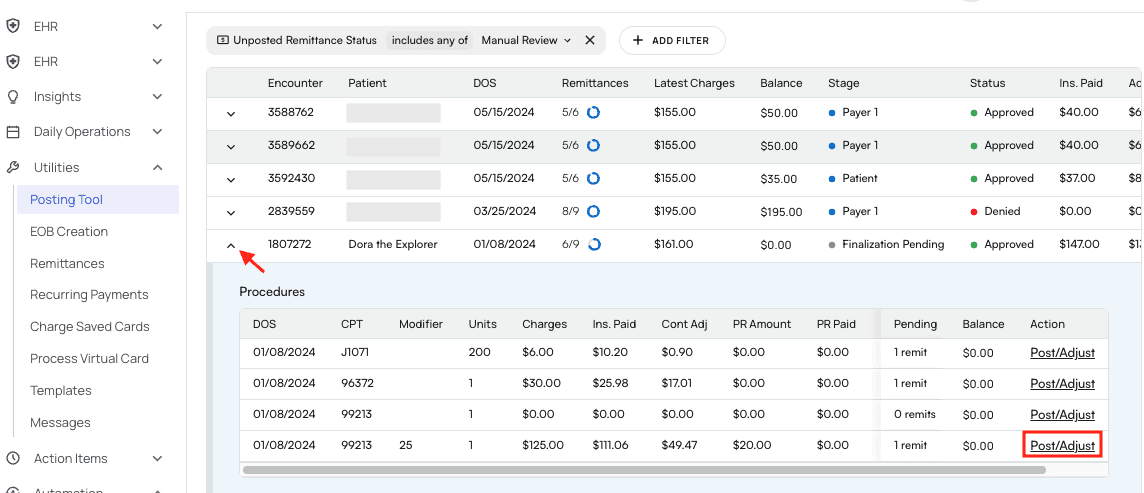
* Visit the [Posting Tool page](https://insights.athelas.com/posting-tool) and find the encounter of interest. Click its arrow icon to see procedures listed by DoS.
* Find the procedure remit you want to review, then click `Post/Adjust`.
* **Situation 2: The unposted remittance is accurate**
* Visit the [Posting Tool page](https://insights.athelas.com/posting-tool) and find the encounter of interest. Click its arrow icon to see procedures listed by DoS.
* Find the procedure remit you want to review, then click `Post/Adjust`.
 * The remittance for manual review will be in the **Unposted Remittances** list.
* If you hover your cursor over the information icon, a tooltip will explain why this remit is unposted. In this example, we can see that the remit will create a negative balance (indicative of overpayment) if it is posted.
* Looking at the **Posted Payments** list, it is clear that a remittance was already posted for this DoS.
* The remittance for manual review will be in the **Unposted Remittances** list.
* If you hover your cursor over the information icon, a tooltip will explain why this remit is unposted. In this example, we can see that the remit will create a negative balance (indicative of overpayment) if it is posted.
* Looking at the **Posted Payments** list, it is clear that a remittance was already posted for this DoS.
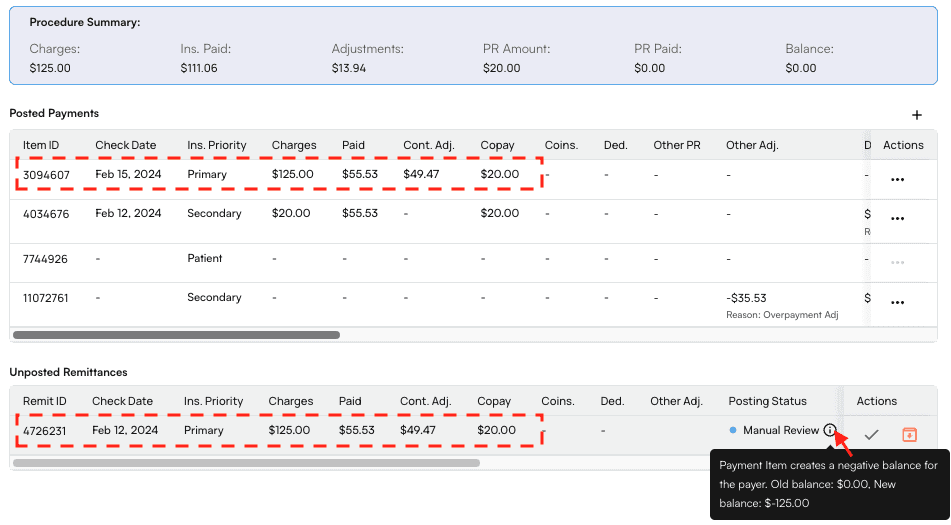 * Now, rather than archiving the unposted remittance as shown in the previous situation, we’ll negate the first and post the second.
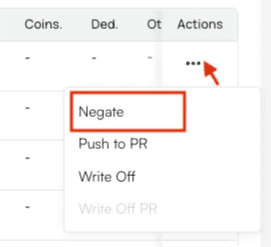
Click the three dots corresponding to the first remittance under the Actions column. Choose `Negate`.
* Now, rather than archiving the unposted remittance as shown in the previous situation, we’ll negate the first and post the second.
Click the three dots corresponding to the first remittance under the Actions column. Choose `Negate`.
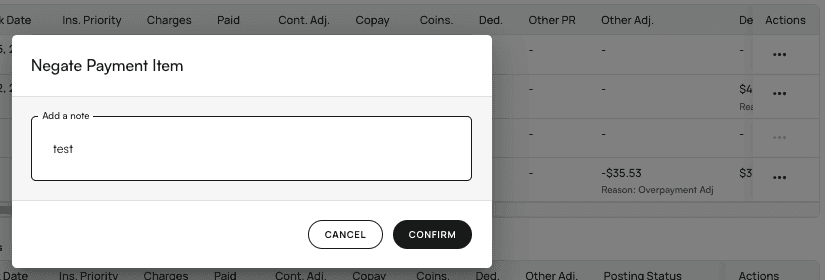
 * Write a note explaining the negation, then click `Confirm`.
 ***The Posting Tool page automatically shows you previews** of the effects of all changes — negations, posts, edits — that you wish to make. No changes will take effect until you click *`*Confirm Posting*`* in the bottom right corner of the page.*
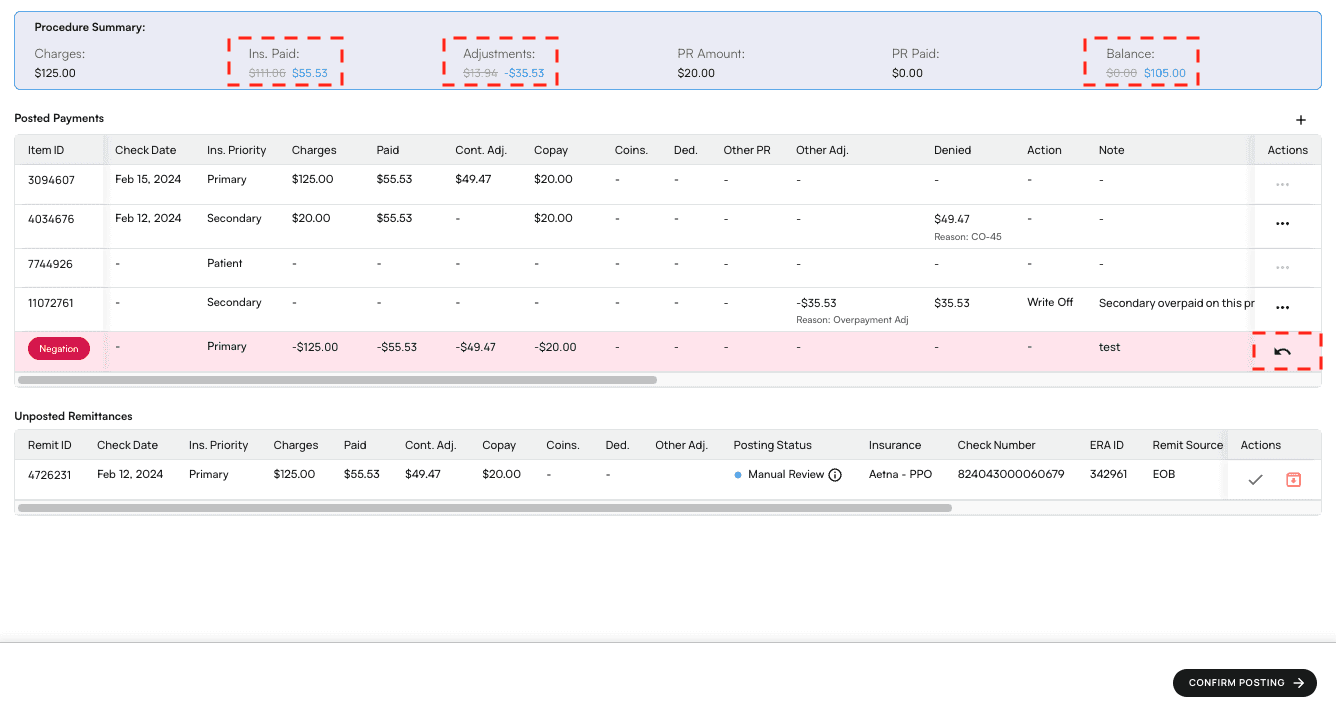 * Your negation will be in the Posted Payments list, highlighted red, indicating that it is currently an unconfirmed preview. You can see how confirming this negation will affect the encounter’s financial information, written in blue text in the Procedure Summary.
* You can always click the **Undo arrow** in the Actions column to cancel a previewed change.
* Your negation will be in the Posted Payments list, highlighted red, indicating that it is currently an unconfirmed preview. You can see how confirming this negation will affect the encounter’s financial information, written in blue text in the Procedure Summary.
* You can always click the **Undo arrow** in the Actions column to cancel a previewed change.
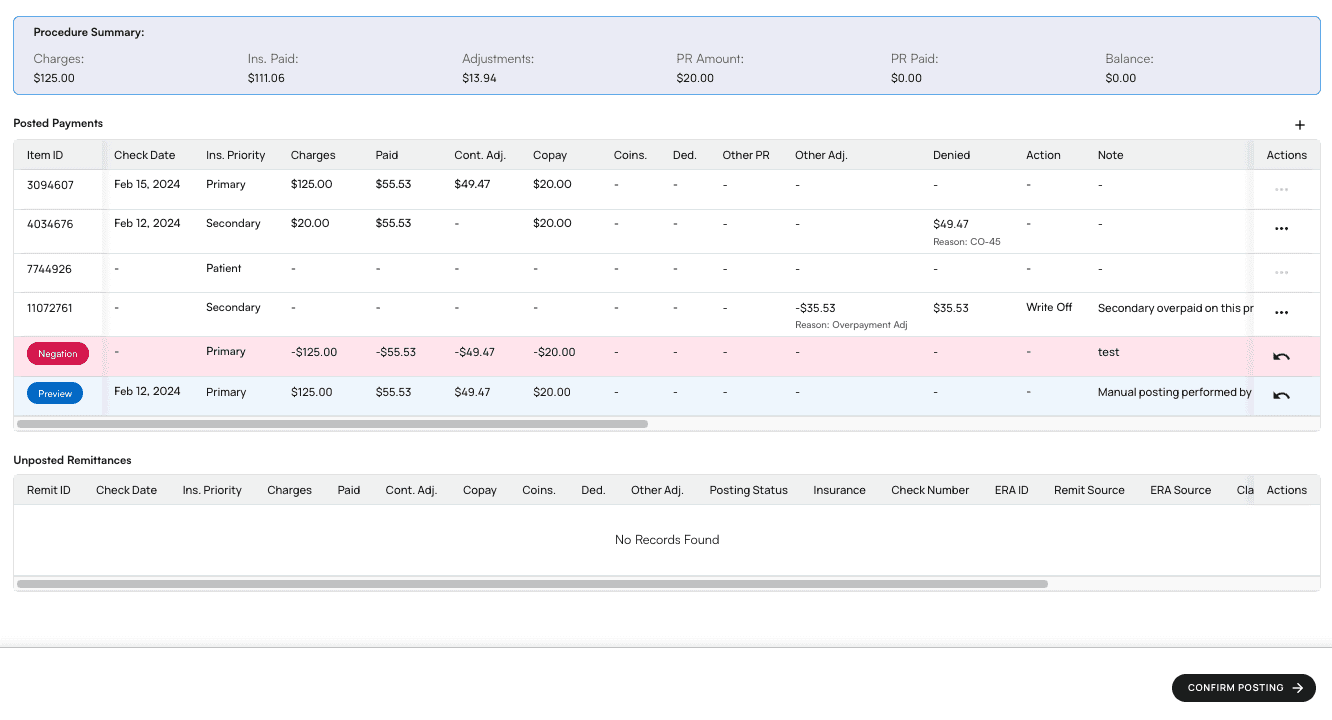 **We’ll preview both the negation AND the new posting together for this walkthrough.**
* Click the green checkmark ✅ next to the unposted remittance. This will bump it up into the Posted Payments list in preview mode, highlighted blue, underneath the negation preview you just made.
* Changes to the balance will update in the Procedure Summary in blue text.
* In this case, as they are duplicate remittances, negating one and posting the other yields no change, but we’ll do it anyway to show the process.
* Once everything looks as expected, click `Confirm Posting`.
**We’ll preview both the negation AND the new posting together for this walkthrough.**
* Click the green checkmark ✅ next to the unposted remittance. This will bump it up into the Posted Payments list in preview mode, highlighted blue, underneath the negation preview you just made.
* Changes to the balance will update in the Procedure Summary in blue text.
* In this case, as they are duplicate remittances, negating one and posting the other yields no change, but we’ll do it anyway to show the process.
* Once everything looks as expected, click `Confirm Posting`.
 **If you need to make further adjustments** to balance the encounter, the [How to Use the Posting Tool guide](/insights_front_desk/posting/how_to_use_the_posting_tool_page) has information on making a custom adjustment. It can be found near the bottom of the Posting/Adjustments Tool section.
Done! Time for coffee.
**If you need to make further adjustments** to balance the encounter, the [How to Use the Posting Tool guide](/insights_front_desk/posting/how_to_use_the_posting_tool_page) has information on making a custom adjustment. It can be found near the bottom of the Posting/Adjustments Tool section.
Done! Time for coffee.