> ## Documentation Index
> Fetch the complete documentation index at: https://docs.athelas.com/llms.txt
> Use this file to discover all available pages before exploring further.
# How to Take a Partial or Split Payment
Sometimes a patient wants to pay with multiple payment methods — for example, two credit cards, or a partial cash payment with the rest on a card. The easiest way to handle this is to **add the entire amount to the patient's balance**, then take **two partial payments** towards that balance.
## Step 1: Add the full amount to the balance
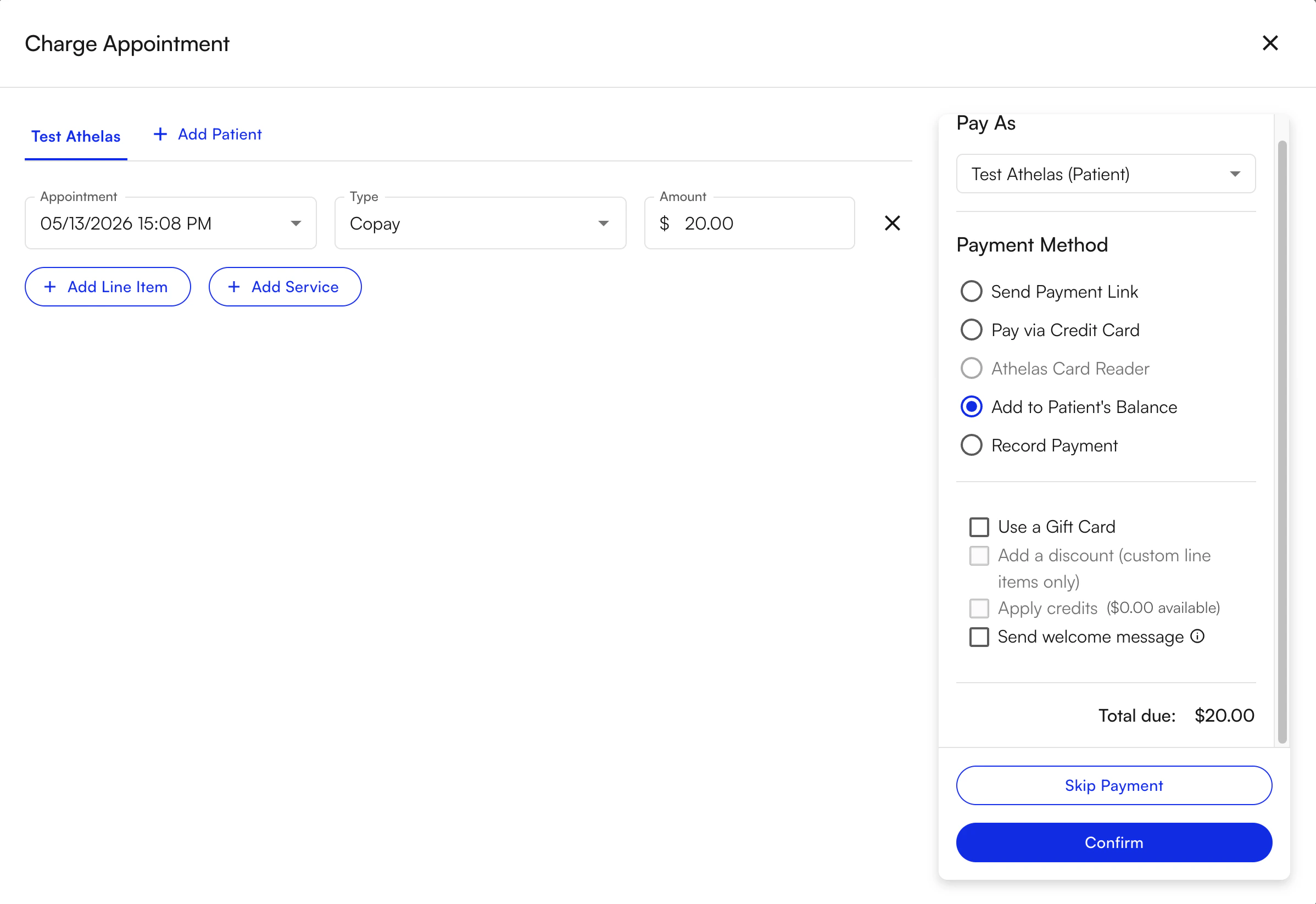
In the **Charge** window, enter the total amount to be collected. Under **Payment Method**, select **Add to Patient's Balance**, then click **Confirm**.
 ## Step 2: Collect the first payment
Click on the patient's name from the **Appointments** page to access their patient profile.
## Step 2: Collect the first payment
Click on the patient's name from the **Appointments** page to access their patient profile.
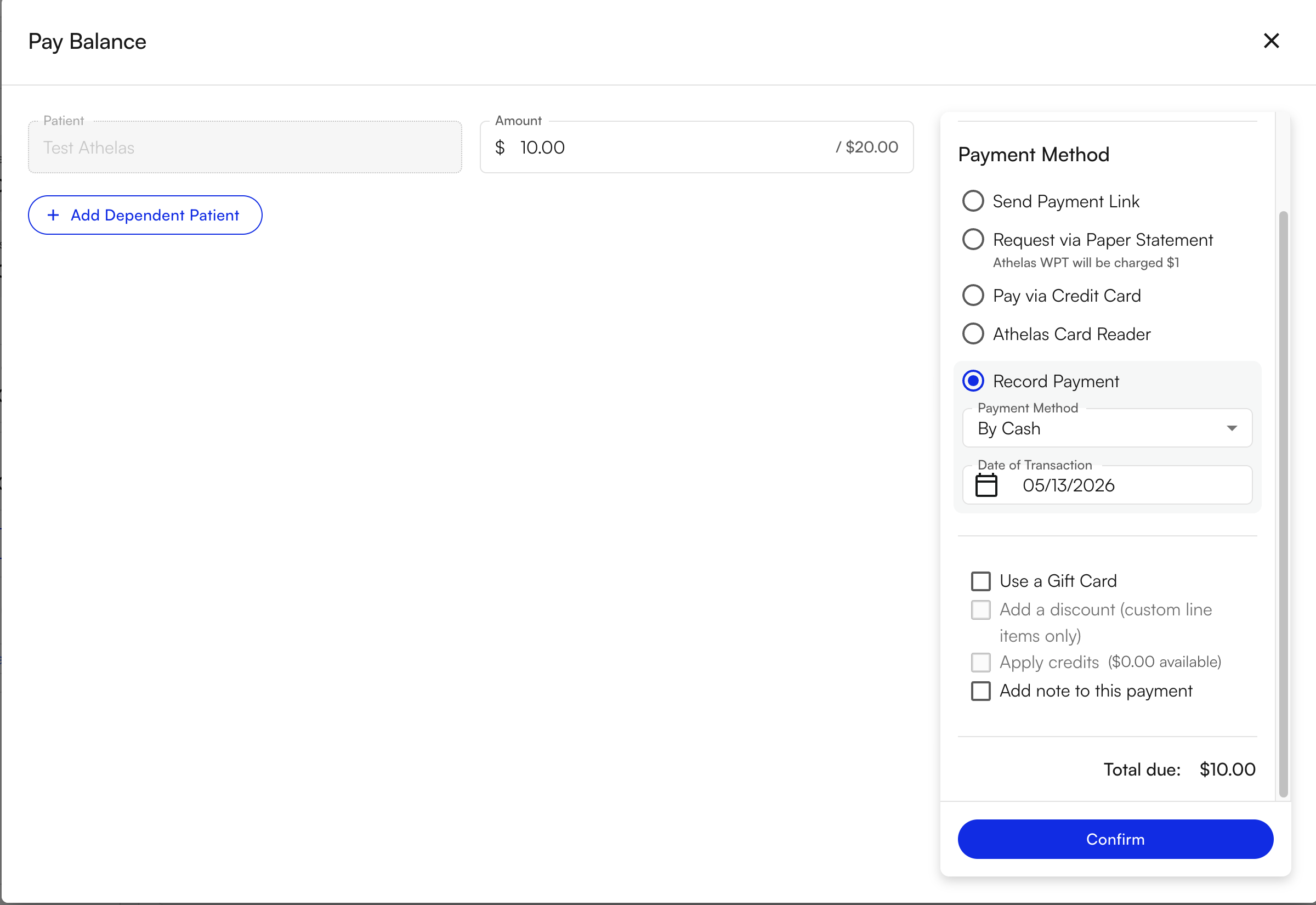
 In the patient profile, select the same charge and click **Pay Balance**. Enter the amount for the first payment and choose the payment method for that amount.

 ## Step 3: Collect the second payment
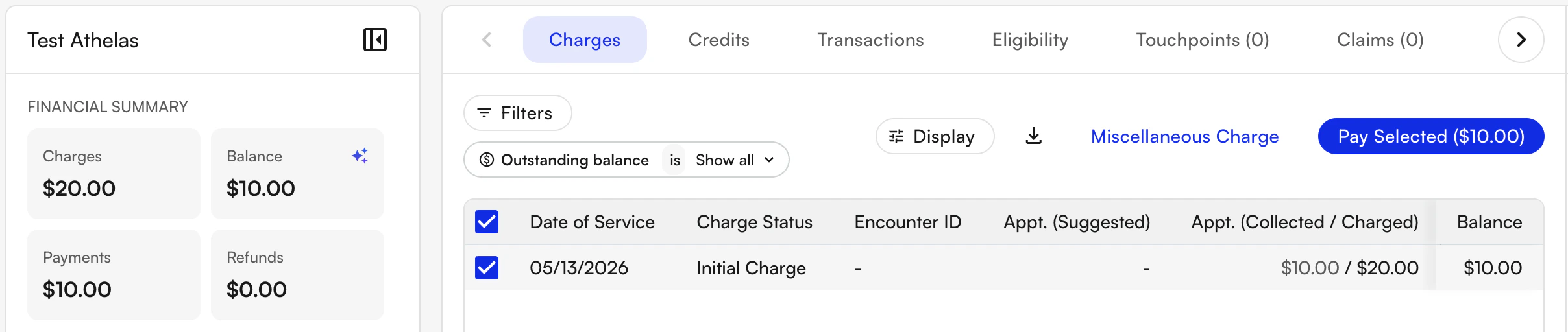
You'll see that the balance on that charge has decreased by the amount you just collected. For the second payment, select the same charge and click **Pay Balance** again.
## Step 3: Collect the second payment
You'll see that the balance on that charge has decreased by the amount you just collected. For the second payment, select the same charge and click **Pay Balance** again.
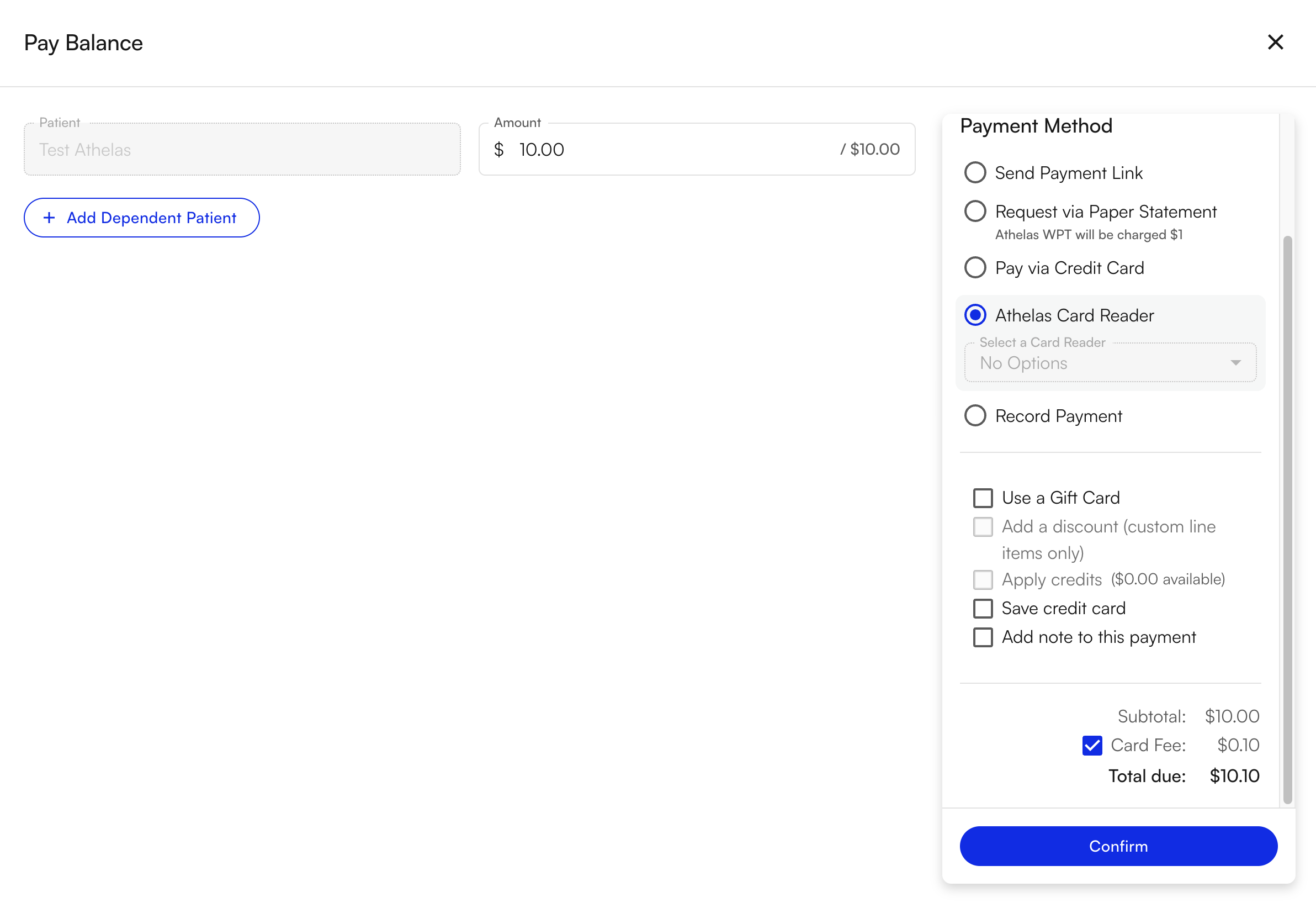
 Enter the amount for the second payment and choose the payment method.
 ✨**Smart Tip:** The same flow works for **more than two** payment methods — keep clicking **Pay Balance** on the same charge and collecting partial amounts until the balance reaches `$0`.
### FAQ
Yes. Repeat **Step 3** as many times as needed. Each click of **Pay Balance** on the same charge collects another partial payment against the remaining balance. Continue until the charge balance reaches `$0`.
Any payment method available in Insights — credit/debit card, saved card on file, cash, check, or an Athelas card reader transaction. Each partial payment can use a different method.
Edit the original charge or void it before collecting payments. Once payments have started posting against the balance, you may need to refund a partial payment first. See [How to refund a payment](/insights_front_desk/patient_responsibility/how_to_refund_a_payment).
Each partial payment appears as a separate event on the patient's [PR timeline](/insights_front_desk/patient_responsibility/pr_timeline) with its own amount, payment method, and timestamp — making it easy to reconcile both transactions later.
✨**Smart Tip:** The same flow works for **more than two** payment methods — keep clicking **Pay Balance** on the same charge and collecting partial amounts until the balance reaches `$0`.
### FAQ
Yes. Repeat **Step 3** as many times as needed. Each click of **Pay Balance** on the same charge collects another partial payment against the remaining balance. Continue until the charge balance reaches `$0`.
Any payment method available in Insights — credit/debit card, saved card on file, cash, check, or an Athelas card reader transaction. Each partial payment can use a different method.
Edit the original charge or void it before collecting payments. Once payments have started posting against the balance, you may need to refund a partial payment first. See [How to refund a payment](/insights_front_desk/patient_responsibility/how_to_refund_a_payment).
Each partial payment appears as a separate event on the patient's [PR timeline](/insights_front_desk/patient_responsibility/pr_timeline) with its own amount, payment method, and timestamp — making it easy to reconcile both transactions later.