> ## Documentation Index
> Fetch the complete documentation index at: https://docs.athelas.com/llms.txt
> Use this file to discover all available pages before exploring further.
# Generate a Transaction Report
This page covers **how to generate** a transaction report from the Patient Responsibility page. For the column-by-column field reference, see the [Site Transaction Report](/insights_biller/reports/site_transaction_report); for the payment-method summary variant (cash, check, card, and insurance virtual cards), see the [Site Transaction Report Summary](/insights_biller/reports/site_transaction_report_summary).
#### At a Glance
For the health of any medical practice, or any business for that matter, regular audits of transactions are a standard best practice. Here’s how Athelas can get you your daily, weekly or monthly financial data with ease.
#### Here’s How to Do It
In the [Patient Responsibility](https://insights.athelas.com/v2/patient-responsibility) page, choose the Transaction View tab and click Transaction Report.
 Filter by time range (start and end date/time), Rendering Provider, Patients, Facilities, and Facilitated By. You can also toggle **Include Credit Payments** and **Include Automatic Write-Offs** on or off. Then click **Confirm**.
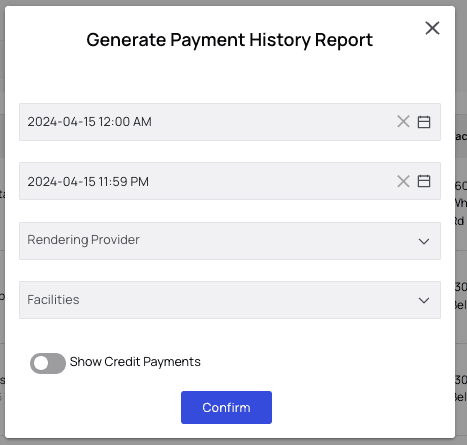 After you click Confirm, a Payment History Report folder will download to your computer.
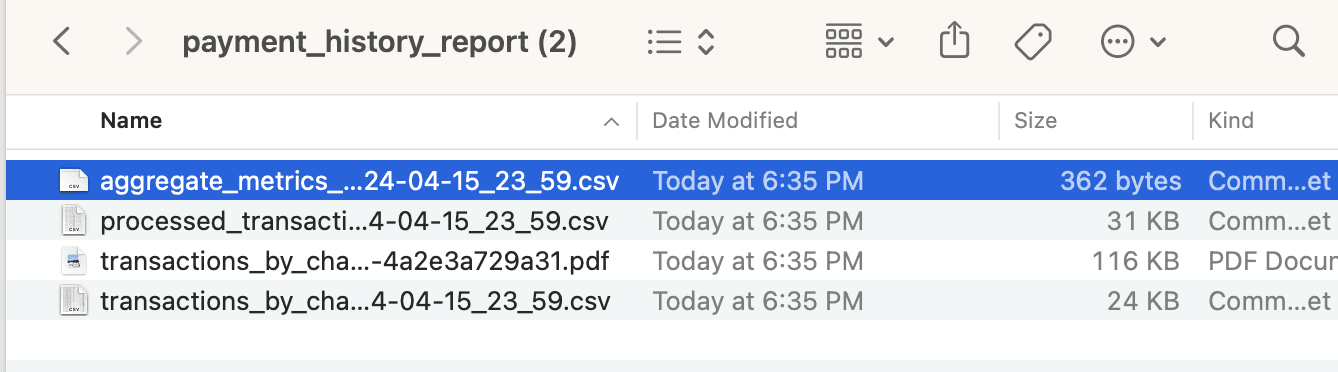
It contains CSV files of **Aggregate Metrics, Processed Transactions and Transactions by Charge**. It also contains a PDF of the Transactions by Charge for an easy viewing experience.
* **Aggregate Metrics** shows a single line of all totals in all categories — Outstanding Balance, Paid Cash, etc.
* **Processed Transactions** shows all payments, refunds and write-offs that successfully went through.
* **Transactions by Charge** shows individual charges assigned to patients, including any credits added.
After you click Confirm, a Payment History Report folder will download to your computer.
It contains CSV files of **Aggregate Metrics, Processed Transactions and Transactions by Charge**. It also contains a PDF of the Transactions by Charge for an easy viewing experience.
* **Aggregate Metrics** shows a single line of all totals in all categories — Outstanding Balance, Paid Cash, etc.
* **Processed Transactions** shows all payments, refunds and write-offs that successfully went through.
* **Transactions by Charge** shows individual charges assigned to patients, including any credits added.
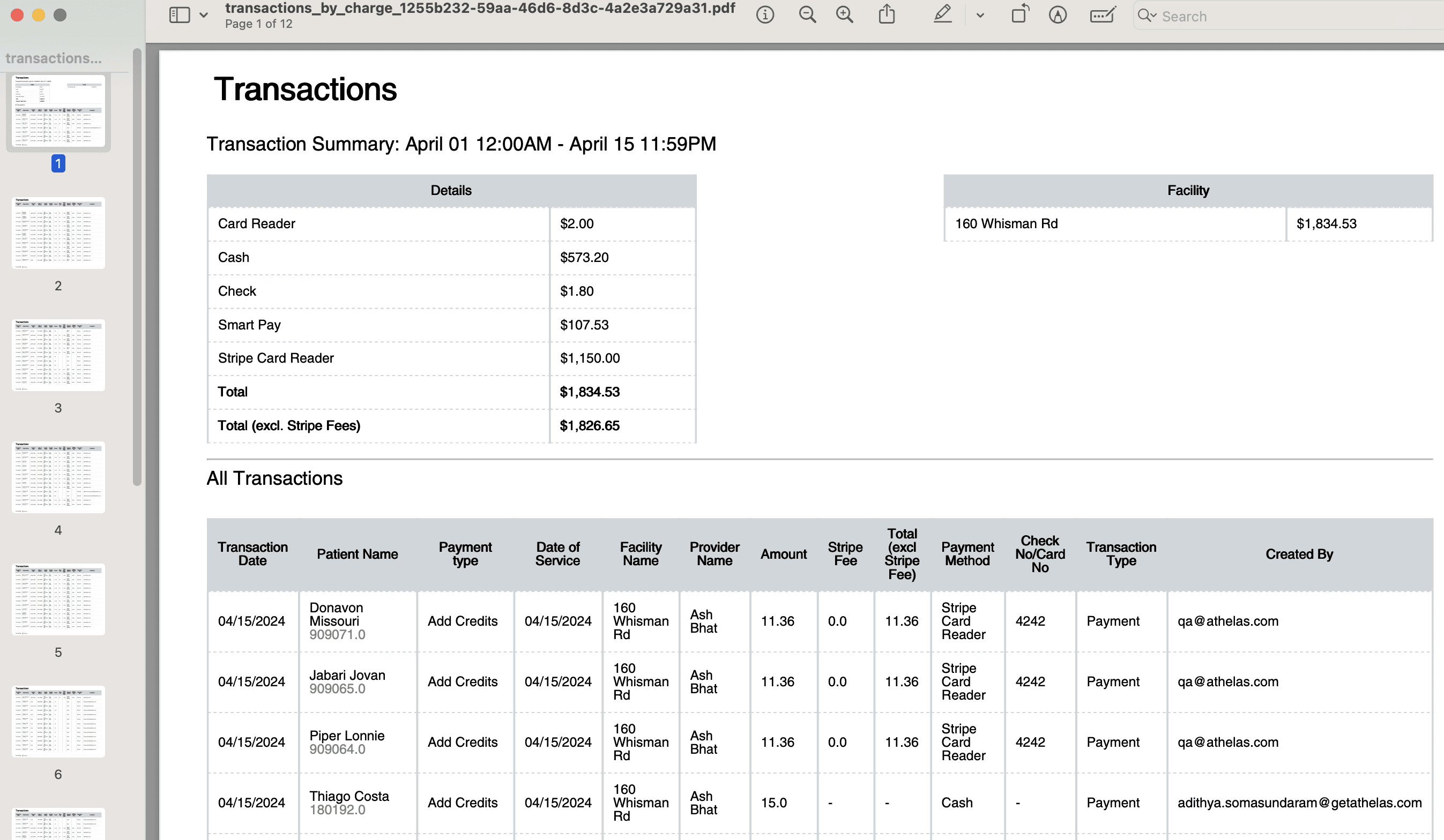
 The PDF is included for an easier viewing experience at a glance. It looks like this:
 Done!
Done!